Set Up Device Enrollment in Microsoft Intune – The Right Way - 2026 Guide

Learn how to set up Microsoft Intune device enrollment, choose the right method for Windows, iOS, Android, and macOS, and avoid common setup mistakes.
SHARE THIS BLOG:
Table of contents
Prerequisites for Intune Device Enrollment
Intune Enrollment Methods – Overview
• Corporate Device Enrollment Options
• BYOD (Bring Your Own Device) Enrollment Options
Enrolling Corporate-Owned Devices (Company Devices)
• Windows 10/11 – Entra ID Join with Automatic Enrollment
• Windows Autopilot – Hassle-Free Deployment
• Apple Device Enrollment (ADE)
• Android Enterprise – Corporate Enrollment
Enrolling Bring-Your-Own Devices (BYOD) in Microsoft Intune
• How BYOD Enrollment Works in Intune (All Platforms)
• A Note on BYOD Privacy and Data Protection
Best Practices for Intune Device Enrollment Success
Why Trust Penthara Technologies for Microsoft Intune Device Enrollment?
Troubleshooting Intune Enrollment – Common Issues & FAQs

Managing devices can feel overwhelming.
Most organizations support company laptops, personal phones, and shared tablets.

Microsoft Intune device enrollment makes this manageable, but only when the Intune enrollment setup is done correctly.
A poor setup often leads to user frustration and security gaps.

In this guide, you’ll learn how to enroll devices in Intune step by step.
We’ll cover Windows, iOS, Android, and macOS in clear, simple language.

You’ll also learn how to choose the right enrollment method for different scenarios.
This includes corporate-owned devices and BYOD (Bring Your Own Device).
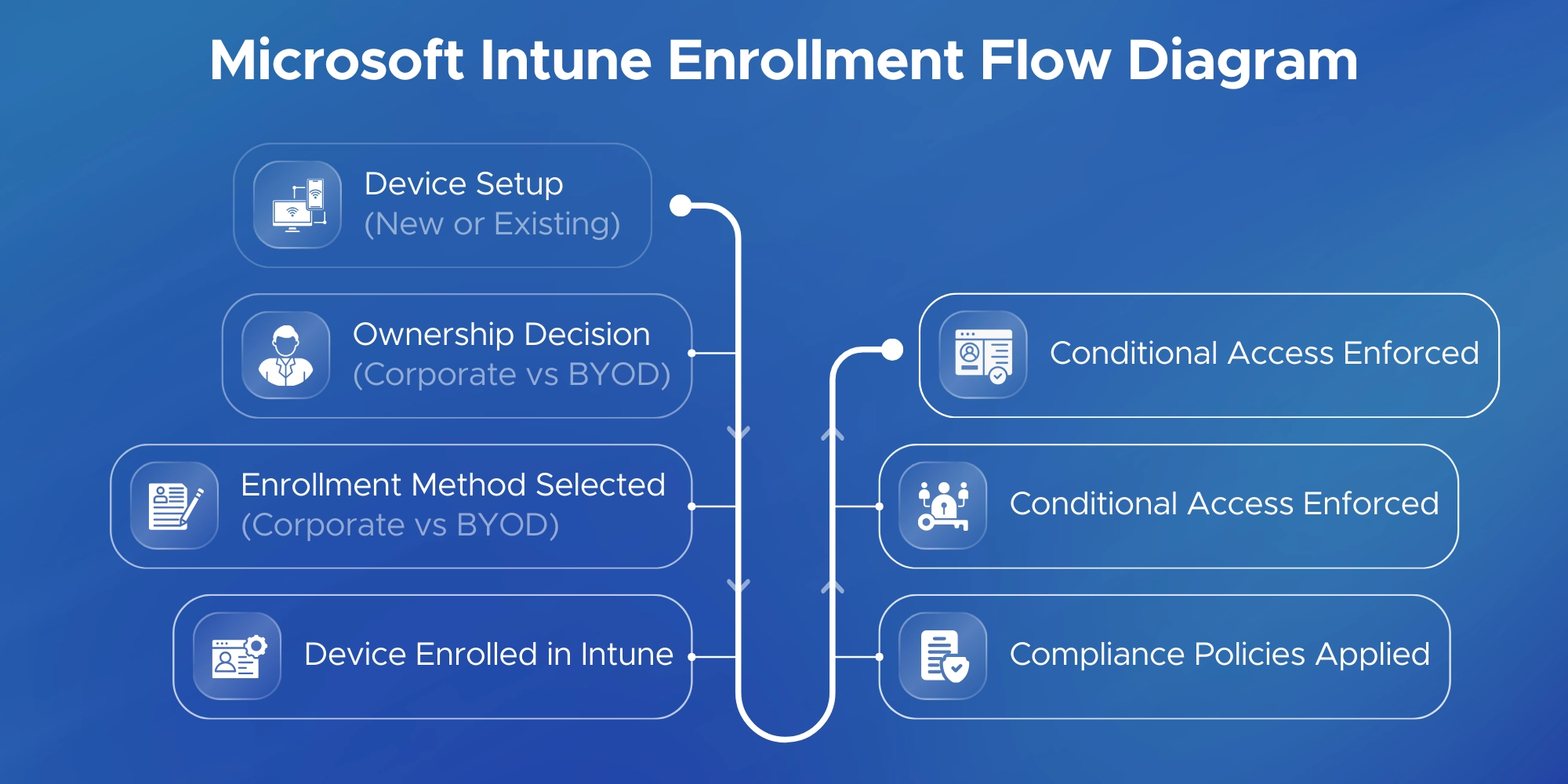
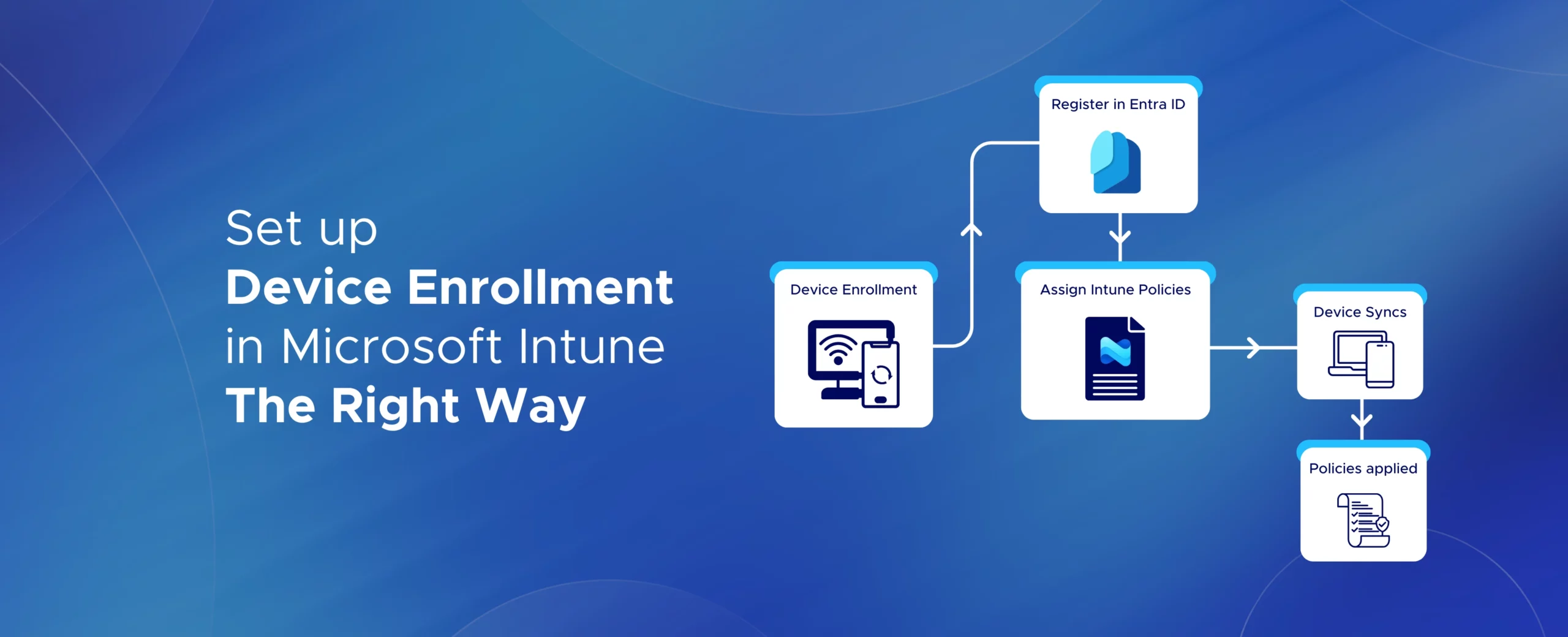
Microsoft Intune Enrollment Flow Diagram

Prerequisites for Intune Device Enrollment

Before enrolling devices in Microsoft Intune, make sure your environment is ready. A few quick checks can prevent common enrollment errors.

  1. Intune License Assigned
    Each user must have a valid Microsoft Intune license (included in plans like Microsoft 365 Business Premium or E5).
  2. Intune Set as MDM Authority
    Your tenant must have Microsoft Intune configured as the Mobile Device Management (MDM) authority.
  3. Automatic Enrollment Enabled
    In Microsoft Entra ID, configure the MDM user scope (All or selected groups) for corporate device enrollment.
  4. Enrollment Restrictions Defined
    Decide which platforms are allowed, whether personal devices are permitted, and how many devices each user can enroll.
  5. Supported Devices
    Ensure devices run supported versions of Windows, iOS, Android, or macOS.
    For Autopilot or Apple ADE, hardware identifiers should be collected in advance.

Once these basics are configured, you’re ready to start enrolling devices.
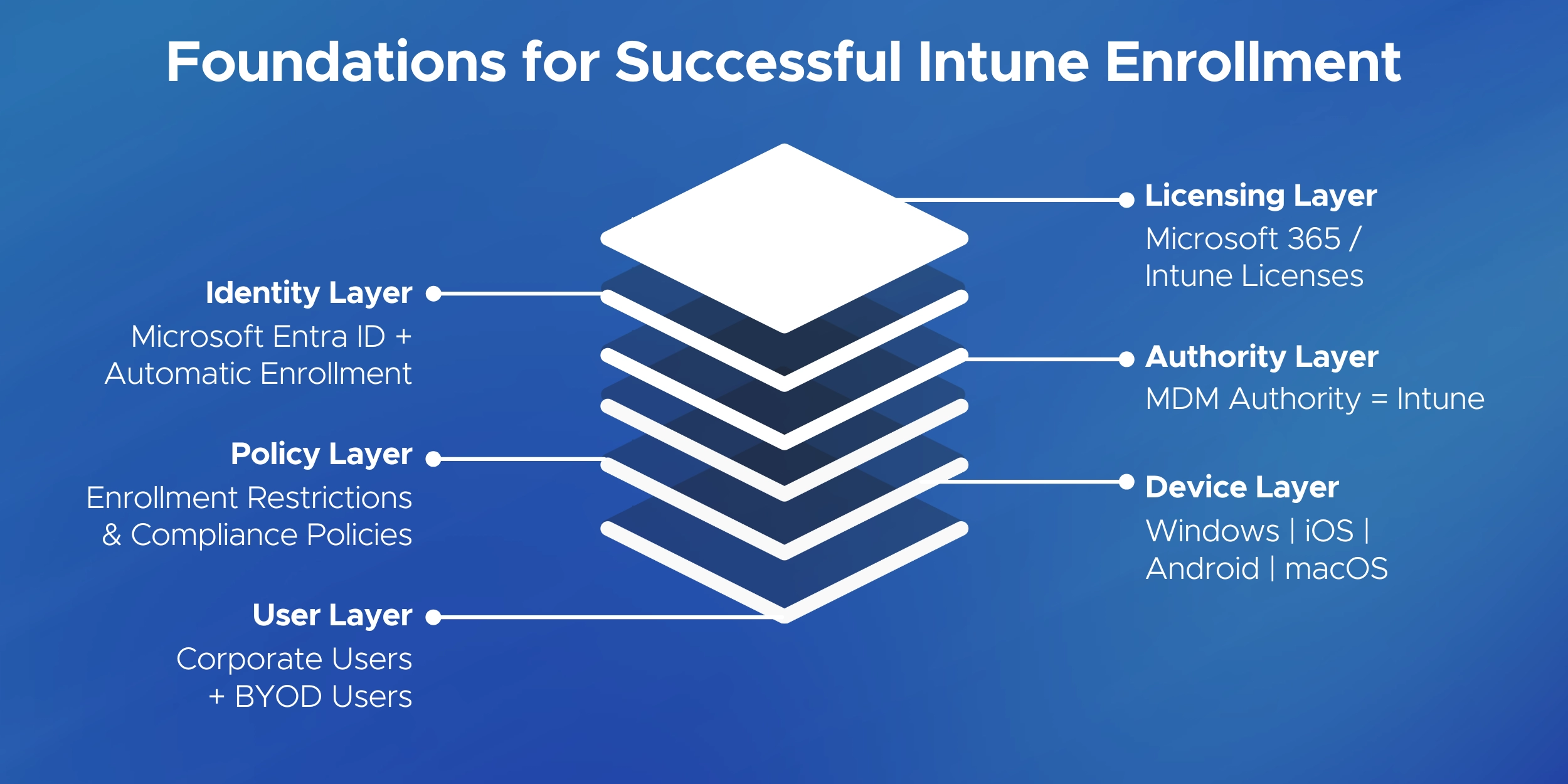
Foundations for successful intune enrollment

Intune Enrollment Methods – Overview

Microsoft Intune supports multiple enrollment methods.
Each method is designed for a specific device type and ownership model.

This overview provides a quick guide to Intune enrollment methods.
Detailed steps for each option are covered in the sections that follow.

Corporate Device Enrollment Options

Use these methods for company-owned devices.

  • Entra ID Join + Automatic Intune Enrollment
    For new Windows 10/11 PCs that auto-enroll during user sign-in
    Also supports Hybrid Entra ID Join via Group Policy
  • Windows Autopilot
    Zero-touch provisioning for Windows devices
    Devices enroll automatically during first boot
  • Apple Automated Device Enrollment (ADE)
    Hands-off enrollment for corporate iOS, iPadOS, and macOS
    Uses Apple Business Manager or Apple School Manager
  • Android Enterprise (Fully Managed / COPE)
    For corporate Android devices with full management control
  • Device Enrollment Manager (DEM)
    Enroll multiple shared or kiosk devices using one service account
  • Windows Provisioning Package
    Offline or bulk enrollment using a provisioning package
    Useful for labs or isolated environments

BYOD (Bring Your Own Device) Enrollment Options

Use these methods for personal devices.

  • Intune Company Portal (User-Driven)
    Users enroll their own devices through the Company Portal app
    Supports Windows, iOS, and Android
  • Apple User Enrollment
    Privacy-focused BYOD enrollment for iPhone and iPad
    Keeps work data separate from personal data
  • Android Work Profile
    Creates a secure work profile on personal Android devices
  • Entra ID Registration with MDM
    For personal Windows devices enrolled through Settings

Enrolling Corporate-Owned Devices (Company Devices)

Corporate-owned devices give IT full control.
These enrollment methods are best when the organization owns the hardware.

Windows 10/11 – Entra ID Join with Automatic Enrollment

This is the primary method for enrolling corporate Windows devices.
Use it for new laptops or when re-setting up an existing one.

New Device (Out-of-Box Experience)

  1. Power on the Windows 10/11 device
  2. Go through the initial setup screens
  3. When prompted, select Set up for work or school
  4. Sign in using your Microsoft Entra ID work account
  5. The device:
    • Joins Entra ID
    • Automatically enrolls in Intune
  6. Intune applies policies and apps
    • If Enrollment Status Page is enabled, progress is shown

Verify Enrollment

  • On the device:
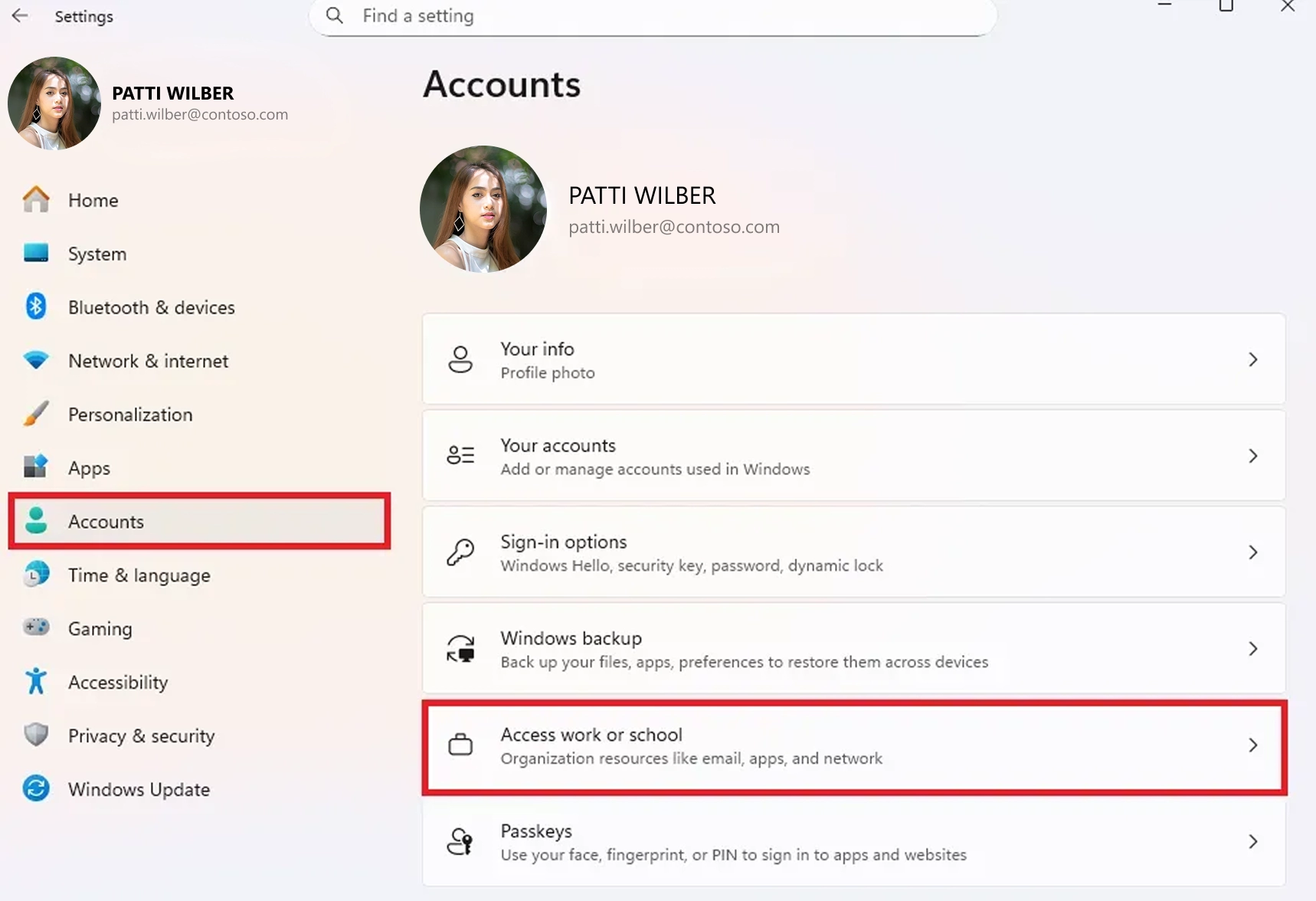
    • Go to Settings > Accounts > Access work or school
Windows Settings app displaying Accounts section with Access work or school option selected.
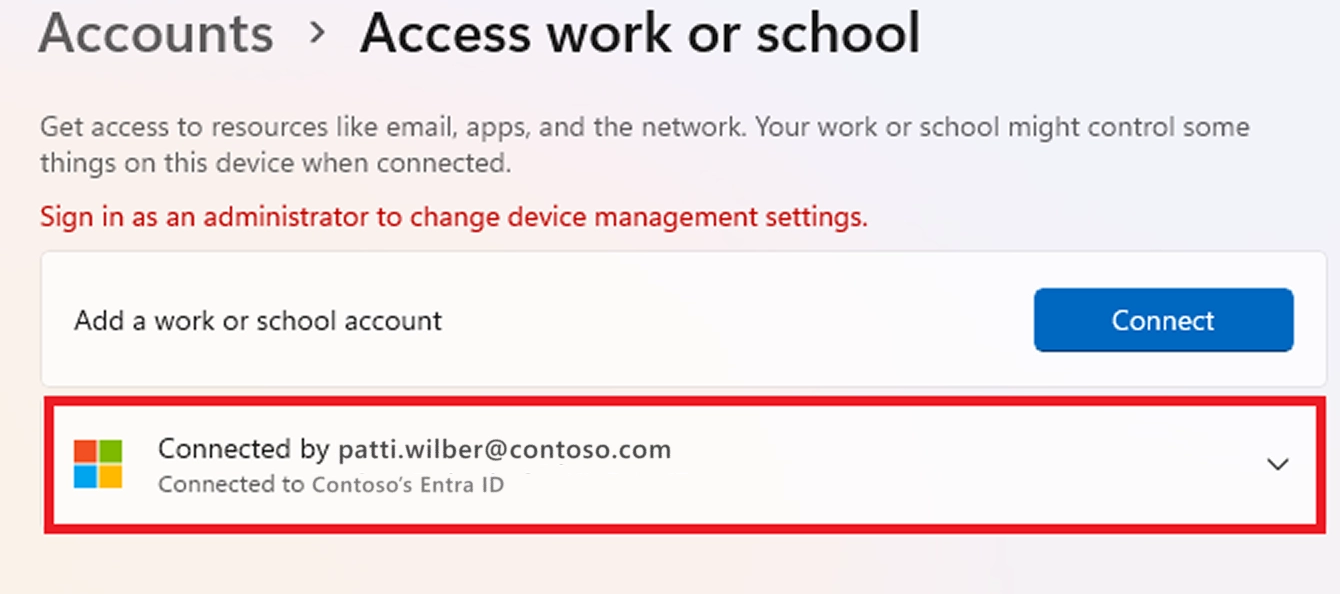
    • Confirm the device shows connected and managed
Windows Settings showing a device connected to Microsoft Entra ID under Access work or school.
  • In Intune:
    • Go to Devices
    • Confirm the device appears and is compliant

Once enrolled, the device is marked corporate-owned.
Users cannot remove management without admin permissions.

Windows Autopilot – Hassle-Free Deployment

Windows Autopilot builds on Entra ID join with full automation.
It’s ideal for large-scale or remote deployments.

Setup (IT Side)

  1. Capturing the Windows Autopilot Hardware Hash

For Windows Autopilot enrollment, each device must be registered in Intune using its hardware hash. This hash is typically collected after the device has completed Windows Setup (OOBE).

Method 1: Save the hardware hash locally on a device as a CSV file

  1. Sign in to the device.
  2. Open Windows PowerShell as Administrator.
  3. Run the following commands:

[Net.ServicePointManager]::SecurityProtocol = [Net.SecurityProtocolType]::Tls12

New-Item -Type Directory -Path "C:\HWID"

Set-Location -Path "C:\HWID"

$env:Path += ";C:\Program Files\WindowsPowerShell\Scripts"

Set-ExecutionPolicy -Scope Process -ExecutionPolicy RemoteSigned

Install-Script -Name Get-WindowsAutopilotInfo

Get-WindowsAutopilotInfo -OutputFile AutopilotHWID.csv


Reference: Manually register devices with Windows Autopilot | Microsoft Learn

Note: On first run, the Get-WindowsAutopilotInfo.ps1 script prompts to approve the required app registration permissions.

The hardware hash is saved locally on the device in the directory C:\HWID with the filename AutopilotHWID.csv. The CSV file can then be used to import the device into an MDM service such as Intune.

For Bulk devices

In environments using third-party management tools such as Active Directory (on-prem AD) or tools like ManageEngine, you can deploy the Get-WindowsAutopilotInfo.ps1 script remotely to multiple devices using a startup script, GPO, or remote execution feature. Each device can save its hardware hash to a centralized network share (for example, \\Server\Autopilot\HWID\%ComputerName%.csv).

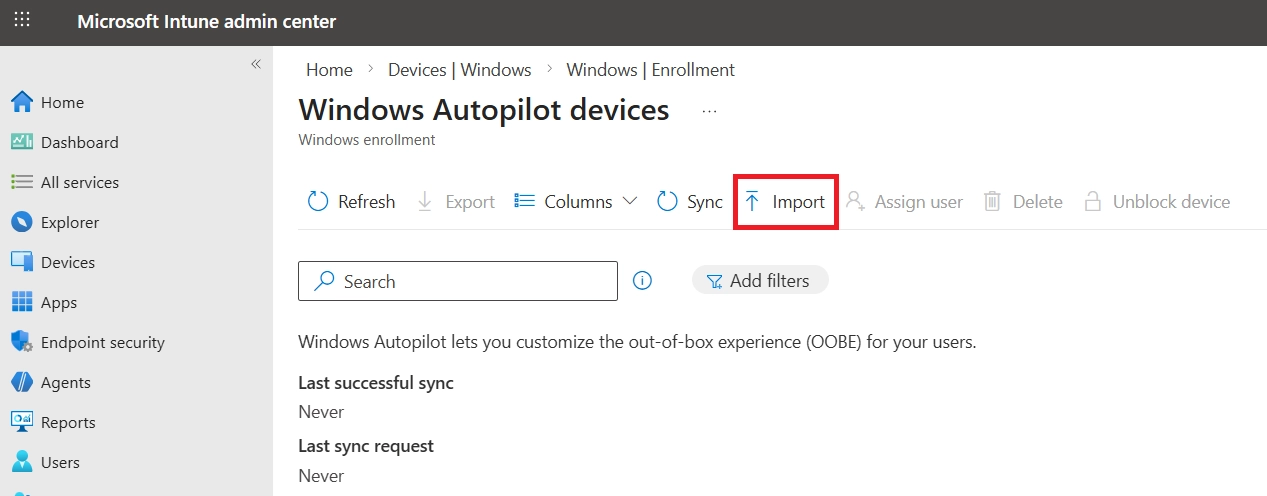
All collected hashes can then be consolidated into a single CSV file and uploaded in bulk via:

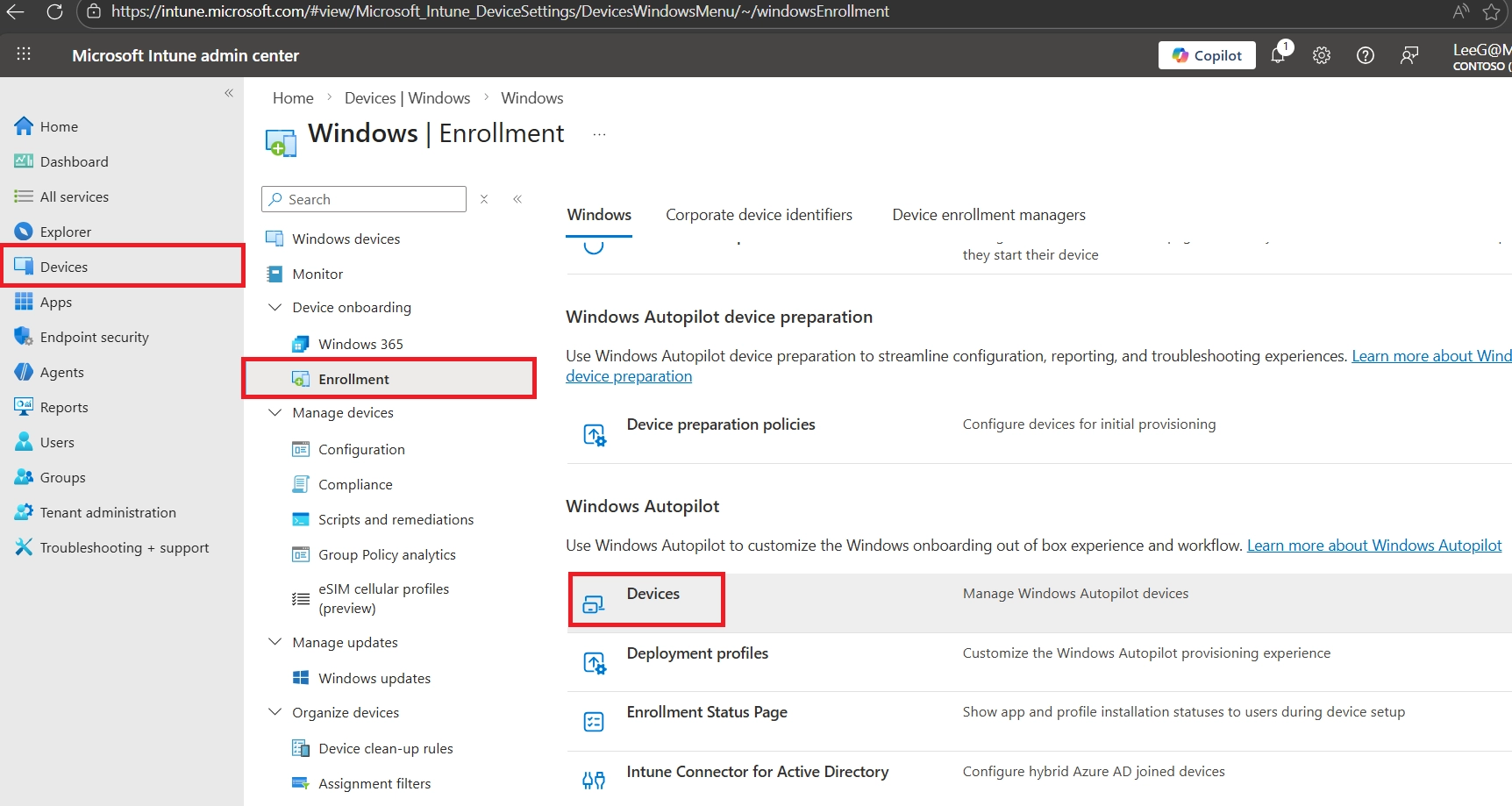
Microsoft Intune Admin Center → Devices → Windows → Windows enrollment → Devices → Import
Method 2: Directly upload the hardware hash to an MDM service

Instead of saving the hardware hash as a CSV file, you can upload it directly to Microsoft Intune using PowerShell. This works for both new devices in OOBE and existing devices, and is especially useful during initial setup.

  1. On a device that is:

Sign into the device.

Open an elevated Windows PowerShell prompt.

  1. At the PS PowerShell command prompt, run the following PowerShell commands:

[Net.ServicePointManager]::SecurityProtocol = [Net.SecurityProtocolType]::Tls12

 Set-ExecutionPolicy -Scope Process -ExecutionPolicy RemoteSigned

 Install-Script -Name Get-WindowsAutopilotInfo -Force

 Get-WindowsAutopilotInfo -Online

  1. Verify the hardware hash uploaded

To confirm the hardware hash for the device was uploaded into Intune and that the device shows as a Windows Autopilot device:
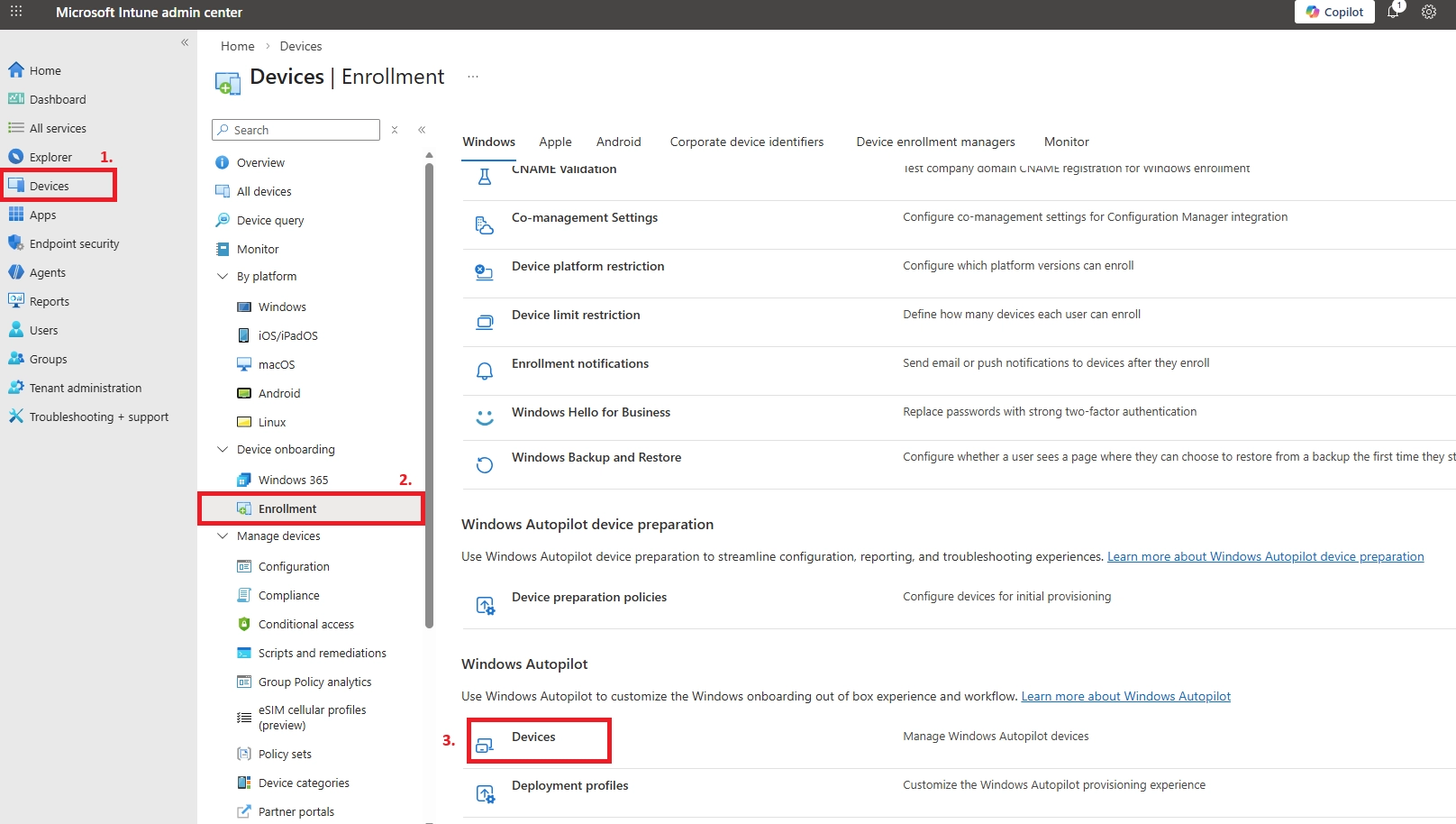
  1. Sign into the Microsoft Intune admin center.
  2. In the Home screen, select Devices in the left hand pane.
  3. In the Devices | Overview screen, under By platform, select Windows.
  4. In the Windows | Windows devices screen, under Device onboarding, select Enrollment.
  5. In the Windows | Windows enrollment screen, under Windows Autopilot, select Devices.
Microsoft Intune admin center showing Devices > Enrollment with Windows Autopilot devices options highlighted.
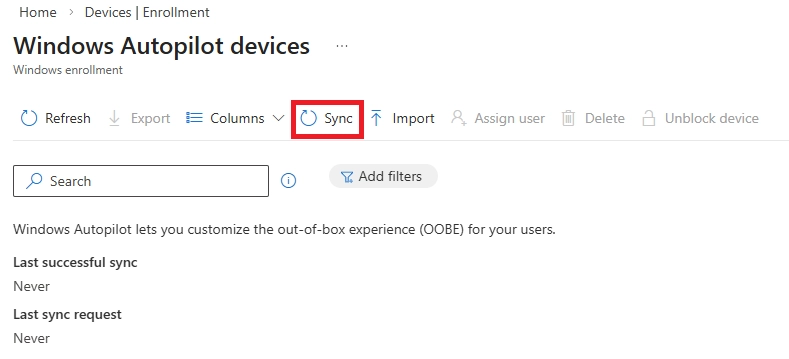
  1. In the Windows Autopilot devices screen, select Sync in the toolbar.
Windows Autopilot devices page showing the Sync option for device synchronization
  1. Wait for the sync to finish. The sync might take several minutes.
  2. After the sync completes and the device appears in the device list in the Windows Autopilot devices screen in Intune, the device is ready for a Windows Autopilot deployment as long as a Windows Autopilot profile is assigned to the device.


  1. Creation and Assignment of Autopilot Profile to the Device
    1. Go to Intune Admin Center
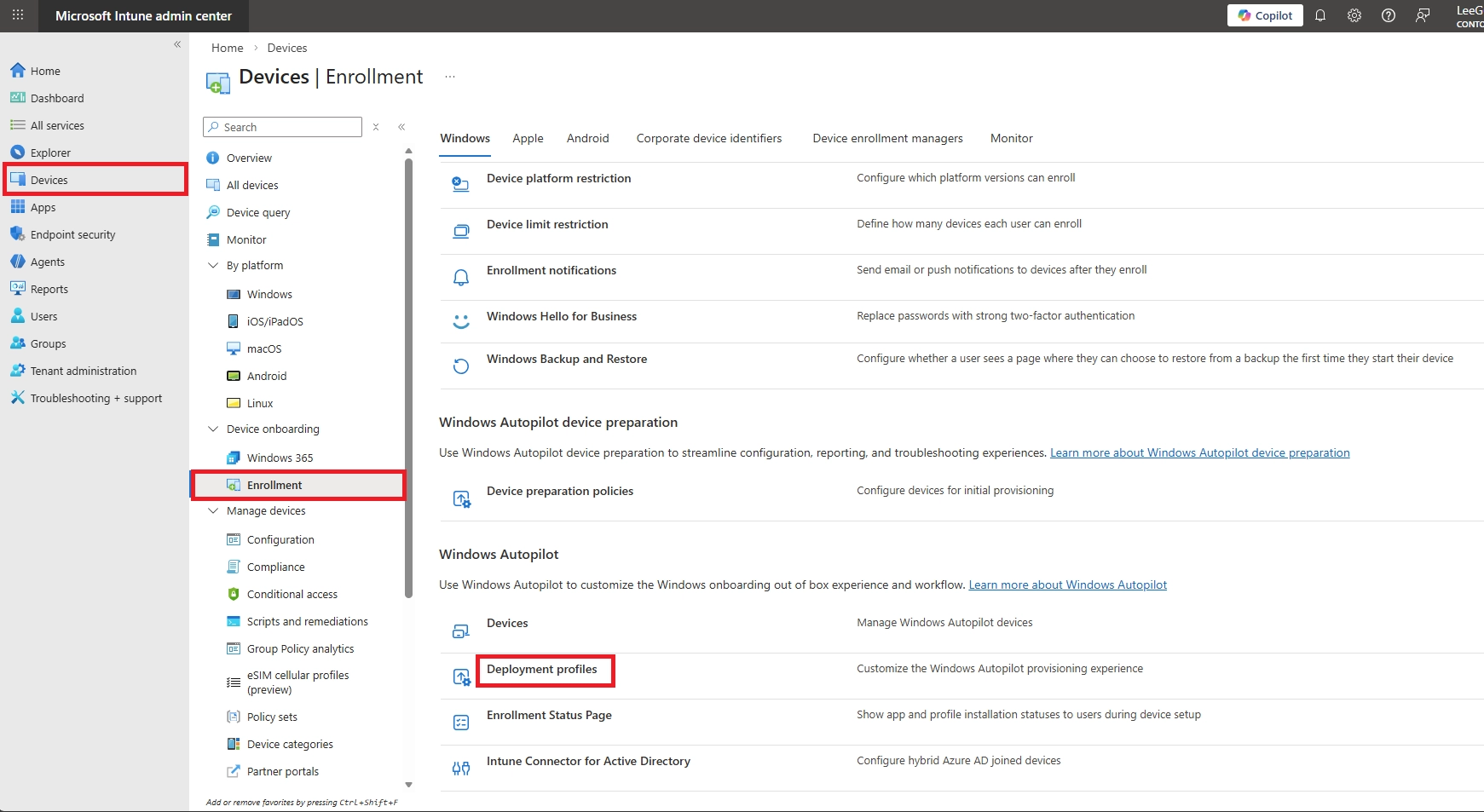
      Devices → Windows → Windows enrollment → Deployment profiles
Microsoft Intune admin center showing Devices > Enrollment with Windows Autopilot deployment profiles highlighted.
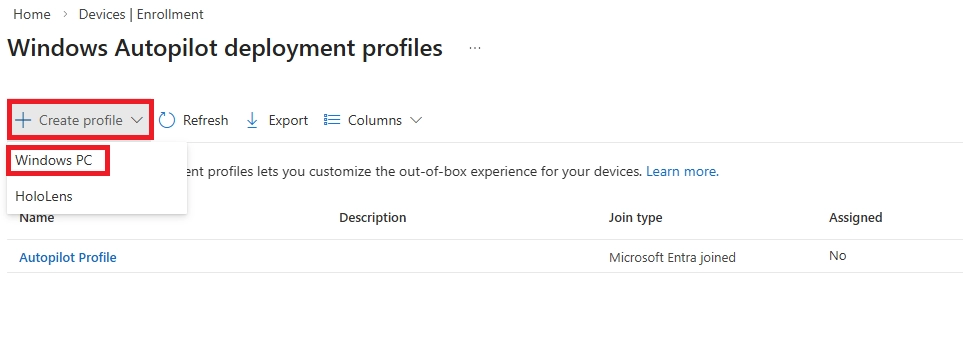
  1. Select + Create profile
    • Platform: Windows PC
Windows Autopilot deployment profiles page with Create profile option and Windows PC selected.
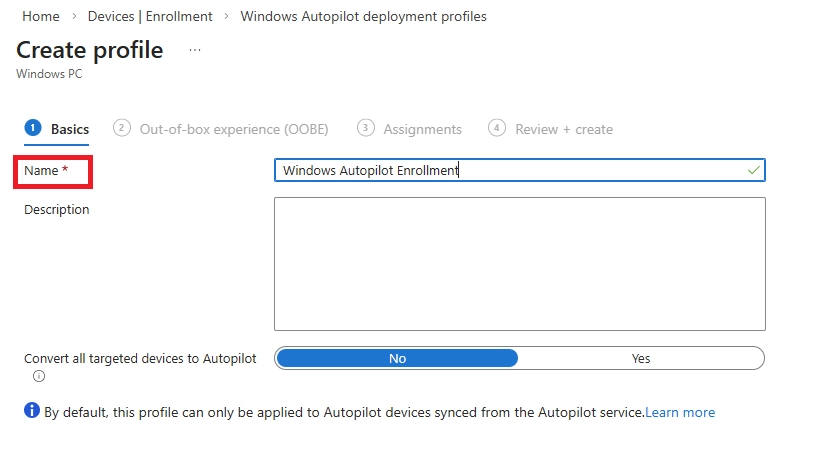
  1. Configure basic settings:
    • Assign a profile name
Create Windows Autopilot deployment profile screen showing the profile name field under Basics.
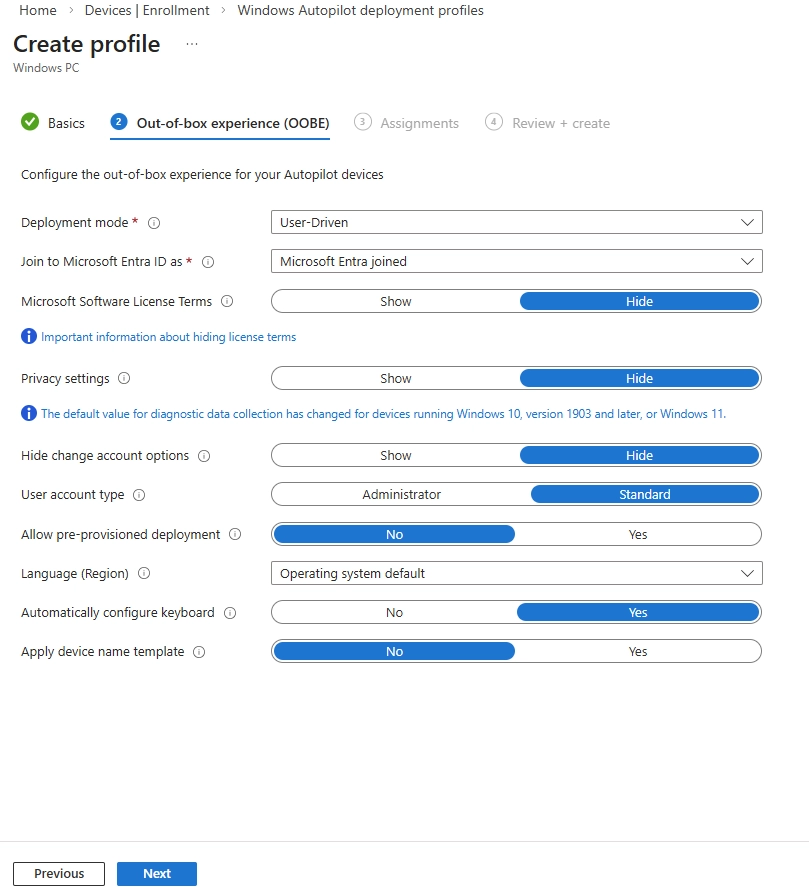
    • Set Join type to Microsoft Entra ID
    • Configure Out‑of‑box experience (OOBE) options as required
      (user interaction is minimal in self‑deploying mode)
Windows Autopilot deployment profile Out‑of‑Box Experience (OOBE) configuration settings for a Windows PC.
  1. Review and Create the profile
  2. Assign the profile to the Autopilot device or device group
Method 3: User Experience
  1. User unboxes the device
  2. Powers it on and connects to the internet
  3. Signs in with work credentials
  4. Autopilot automatically:
    • Joins Entra ID
    • Enrolls in Intune
    • Applies apps and policies
If enabled, Enrollment Status Page blocks access until setup is complete. Why Use Autopilot
  • No imaging required
  • Devices can be shipped directly to users
  • Consistent configuration
Massive time savings at scale
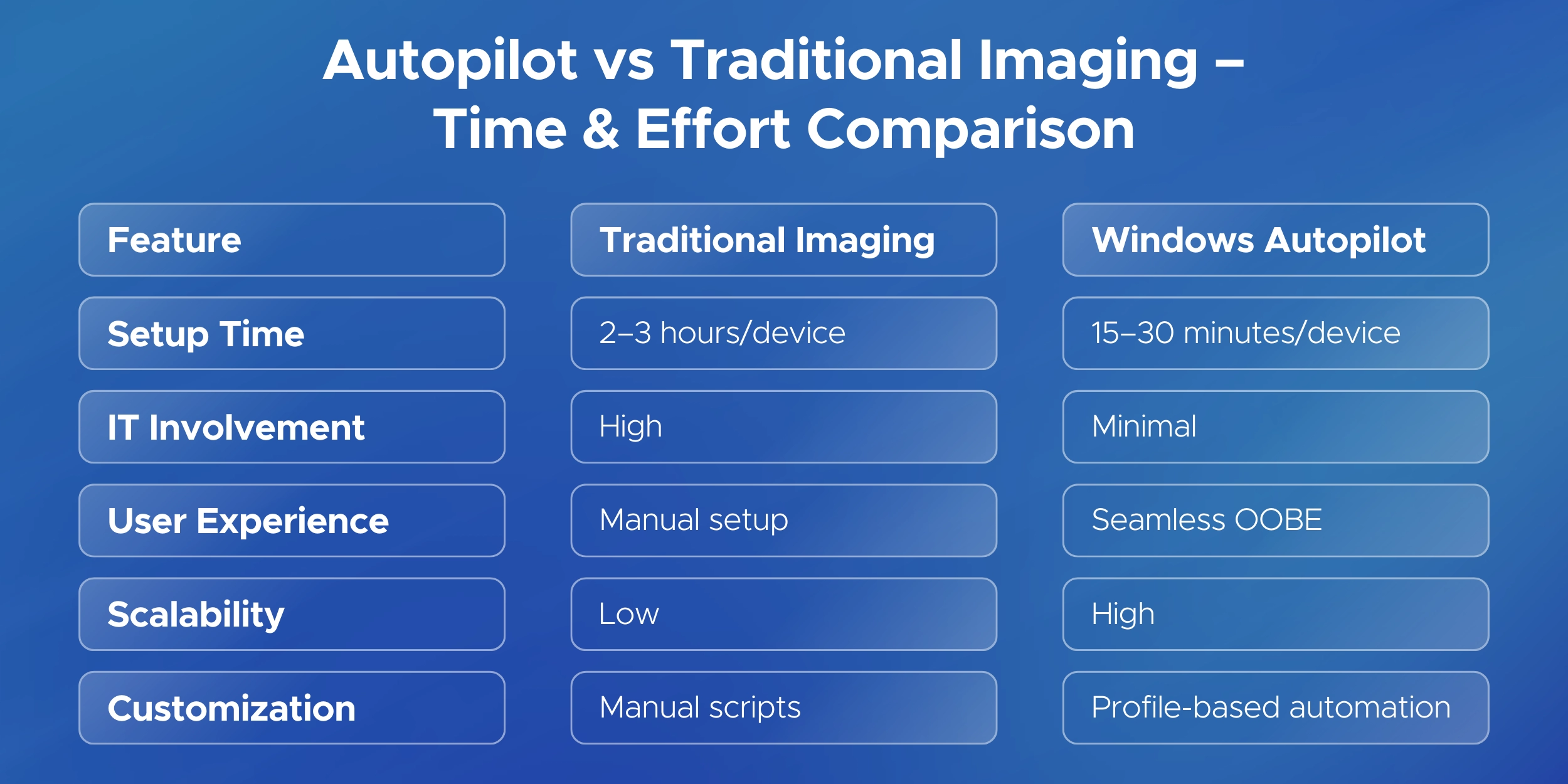
Autopilot vs Traditional Imaging - Time & Effort comparison

Apple Device Enrollment (ADE)

Apple Device Enrollment (ADE) is the recommended enrollment method for company‑owned Apple devices. It provides a zero‑touch, secure, and non‑removable enrollment experience by integrating Microsoft Intune with Apple Business Manager (ABM).

ADE ensures devices are automatically enrolled into Intune during first boot and placed into Supervised mode, giving IT full control from day one.

Setup Requirements

Step 1: Create an Apple Business Manager Account

To create an Apple Business Manager (ABM) account, by visiting business.apple.com and signing in with a company-owned Apple ID.

Verify your organization details, complete the enrollment process, and assign an Administrator to start managing devices and Apple services.
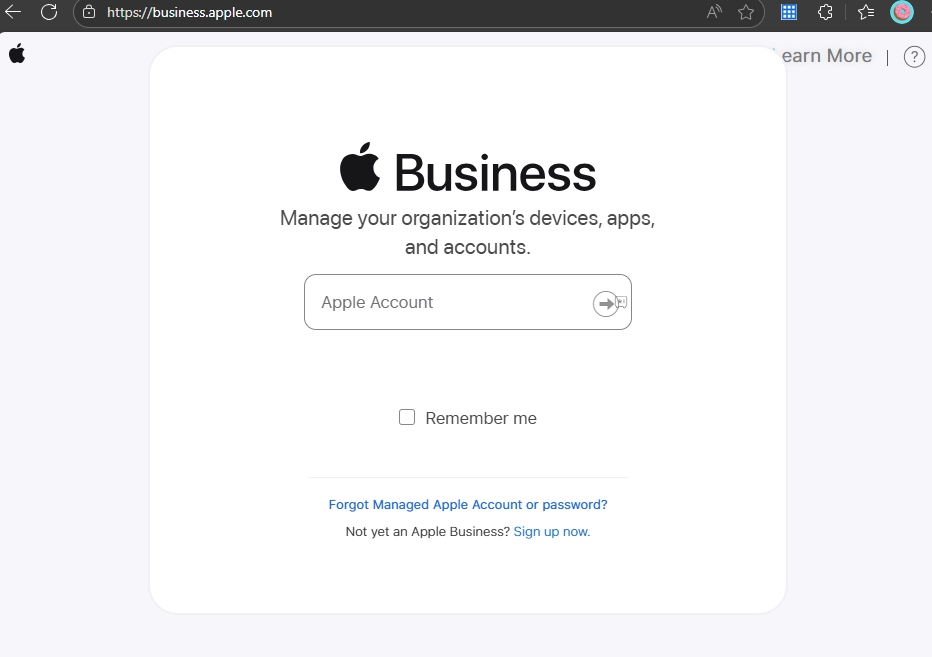
Apple Business Manager sign‑in page used to manage organizational Apple devices, apps, and accounts.

Step 2: Create an MDM Server in Intune (Public Key Generation)
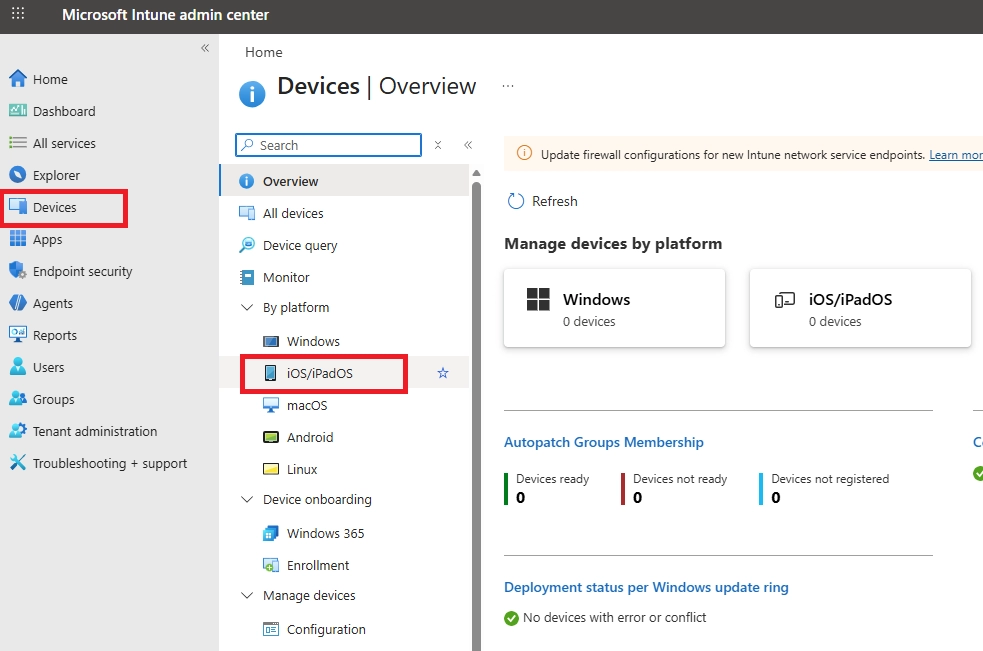
  1. Sign in to the Microsoft Intune admin center
  2. Go to Devices and expand By platform. Select iOS/iPadOS.
Intune Devices overview page displaying managed device iOS/iPadOS platform.
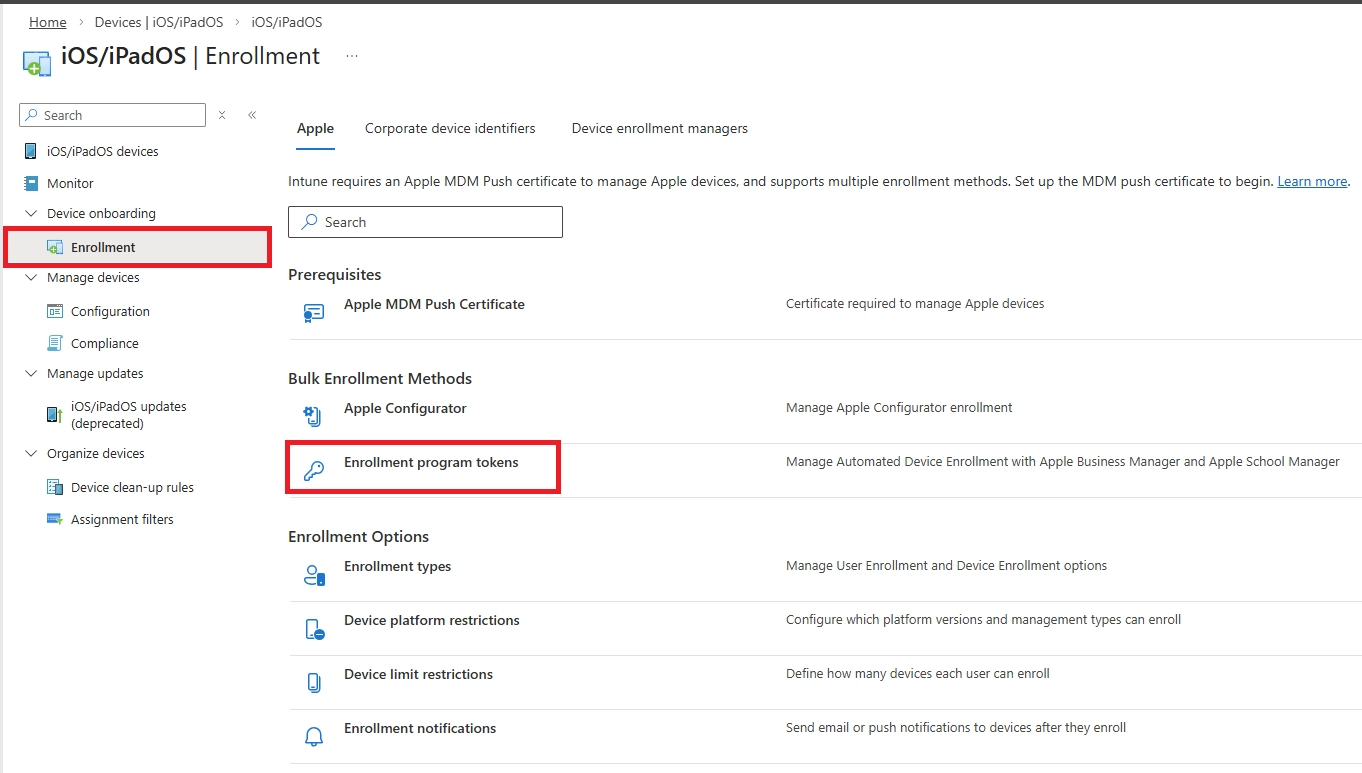
  1. Expand Device onboarding, and then select Enrollment > Enrollment program tokens.
Microsoft Intune admin center showing the option to create an Apple enrollment profile under Enrollment program tokens.
  1. Select Create.
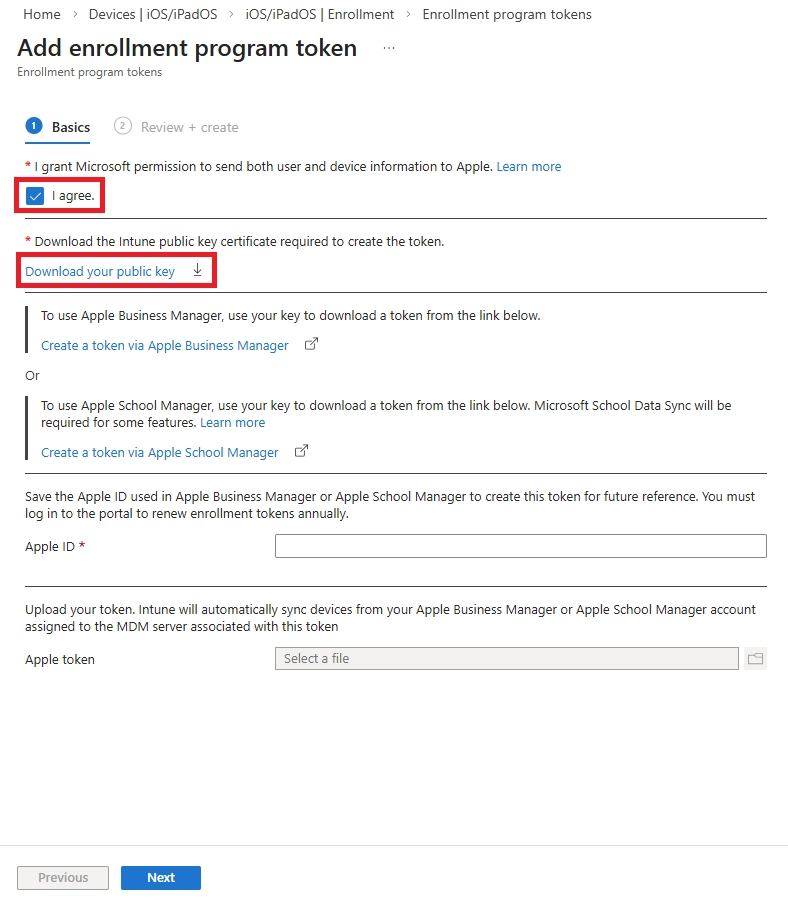
  2. Accept the permission agreement and select Download your public key to download the server's public key certificate (a .pem file) to your local drive.
  3. Download the public key certificate (.pem file) to your local drive.
Intune enrollment program token creation page showing public key download and Apple Business Manager token setup.
  1. Select Create a token via Apple Business Manager and sign in to Apple Business Manager with your company Apple ID.
Step 3: Create an ADE enrollment profile in Intune
  • Go to Intune admin center
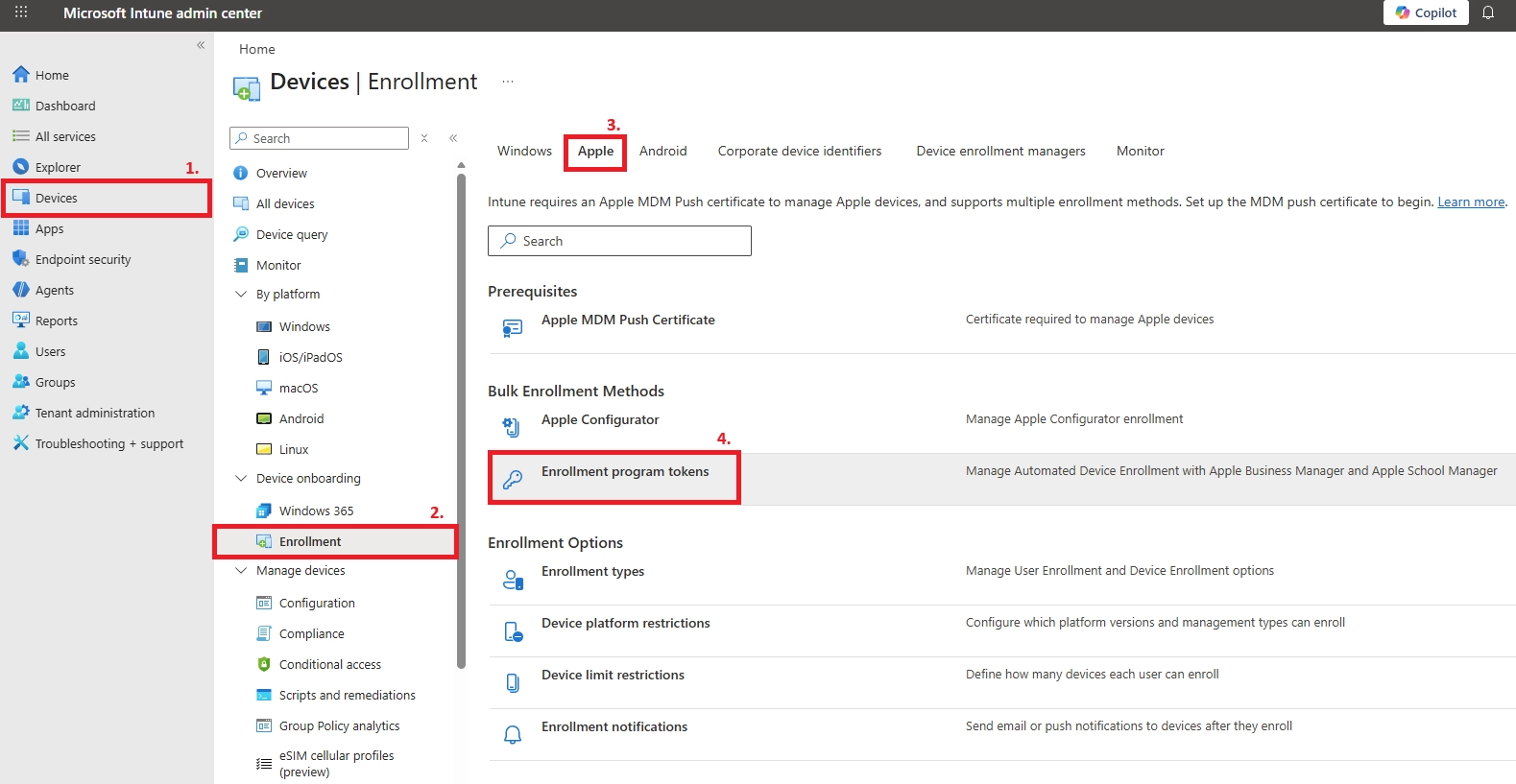
  • Navigate to: Devices → Enrollment → Apple → Enrollment program tokens
Microsoft Intune admin center showing Devices enrollment for Apple platform selected and Enrollment program tokens highlighted.
  • Select the ABM token you already connected
  • Click Profiles
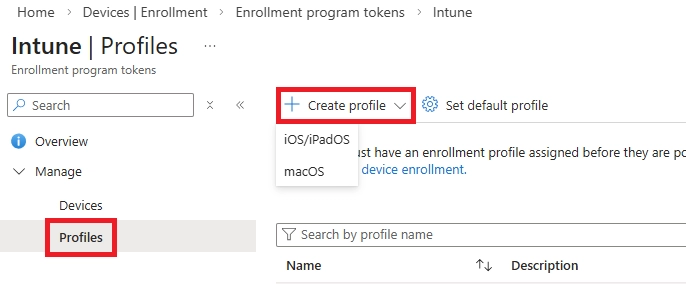
Microsoft Intune Profiles page showing the Profiles section selected and the Create profile option for iOS/iPadOS and macOS enrollment.
  • Select Create profile
  • Platform: macOS / iOS / iPadOS
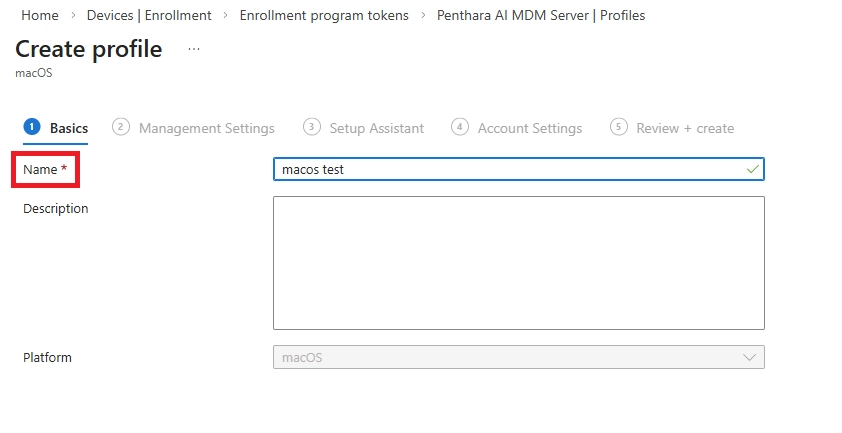
Microsoft Intune Create profile screen for macOS showing the Basics step with the profile name field highlighted.
  • In Basics, enter a profile name and optional description to identify the ADE profile.
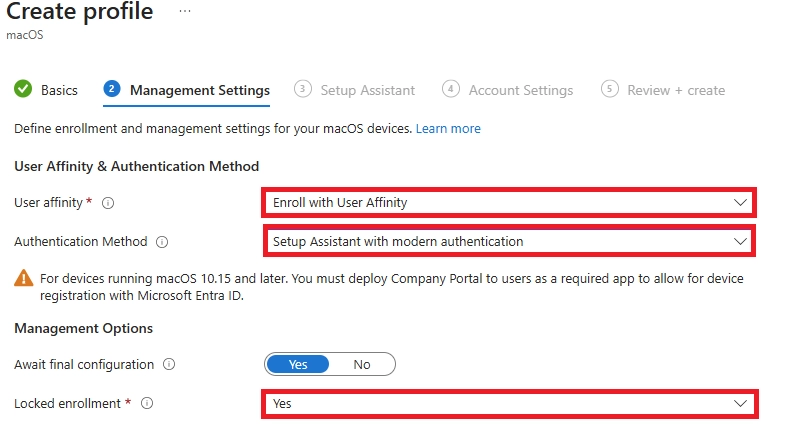
  • In Management Settings, configure:
    • User affinity as Enroll with user affinity
    • Authentication method as Setup Assistant with modern authentication
    • Enable Locked enrollment
Intune macOS enrollment profile showing user affinity, modern authentication, and locked enrollment settings.
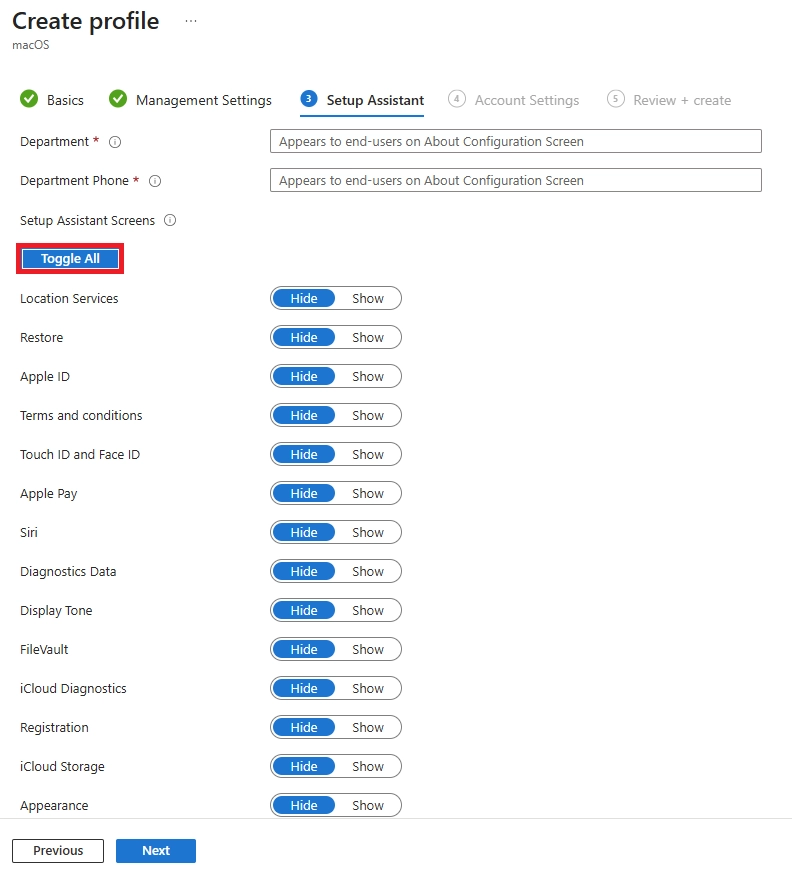
    • In Setup Assistant, use Toggle All or individual options to show or hide Apple setup screens as per organizational requirements.
Intune macOS Setup Assistant configuration with all setup screens toggled to hide.
  • In Account Settings, define whether:
    • A local administrator account should be created
    • A local primary user account is required
  • Review all configured settings and select Create to finalize the ADE enrollment

Step 4: Assign devices to the ADE profile in Apple Business Manager

Assign devices to the Intune MDM server in ABM
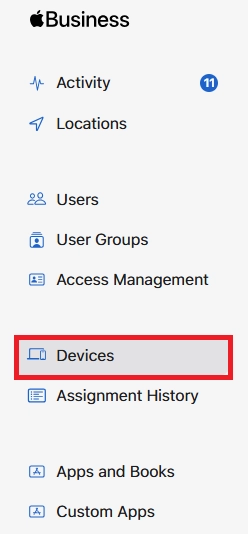
  1. Sign in to Apple Business Manager
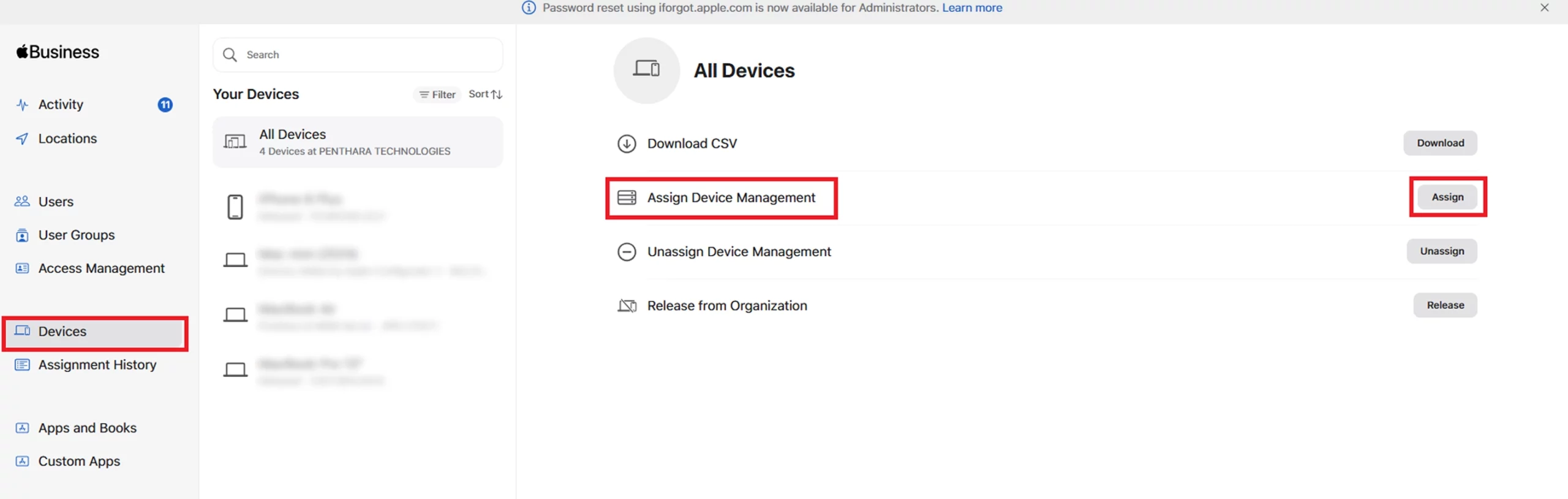
  2. Go to Devices from the left navigation pane.
Apple Business Manager navigation pane highlighting the Devices section.
  1. Search devices by Serial Number / Order Number
  2. Select the required devices
  3. Click Assign Device Management.
Apple Business Manager Devices page showing Assign Device Management option.
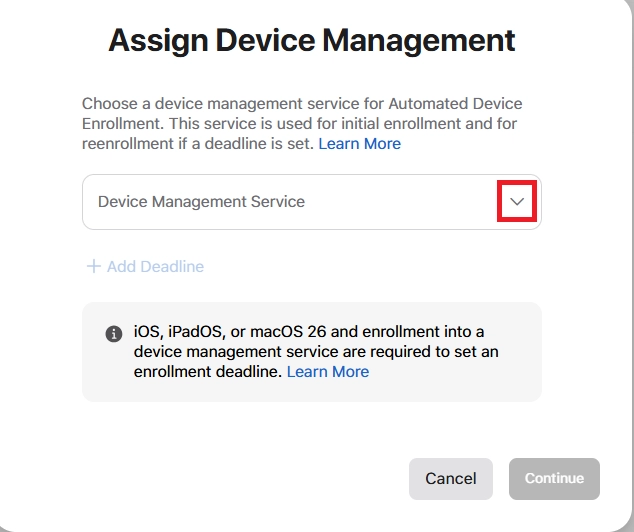
  1. From the Device Management Service dropdown, choose the MDM server linked to Microsoft Intune.
Assign Device Management dialog to select an MDM service for automated enrollment.
  1. Click Continue, then select Assign to confirm.

Verify devices appear in Intune

  1. Go to Intune admin center
  2. Navigate to Devices > Enrollment > Apple > Enrollment program tokens
  3. Open your ABM token
  4. Select Devices
  5. Click Sync

Assign the ADE enrollment profile (Intune side)

  1. Go to Devices > Enrollment > Apple > Enrollment program tokens
  2. Open the ABM token
  3. Select Profiles
  4. Open your ADE enrollment profile
  5. Click Assign
  6. Select the synced devices
  7. Click Assign

Android Enterprise – Corporate Enrollment

Android Enterprise is the recommended method for corporate Android devices.

  • Ensure the Android device is factory reset
  • Power on the device and begin initial device setup
  • Connect a Google account to Intune

Fully Managed (Work-Only Devices)

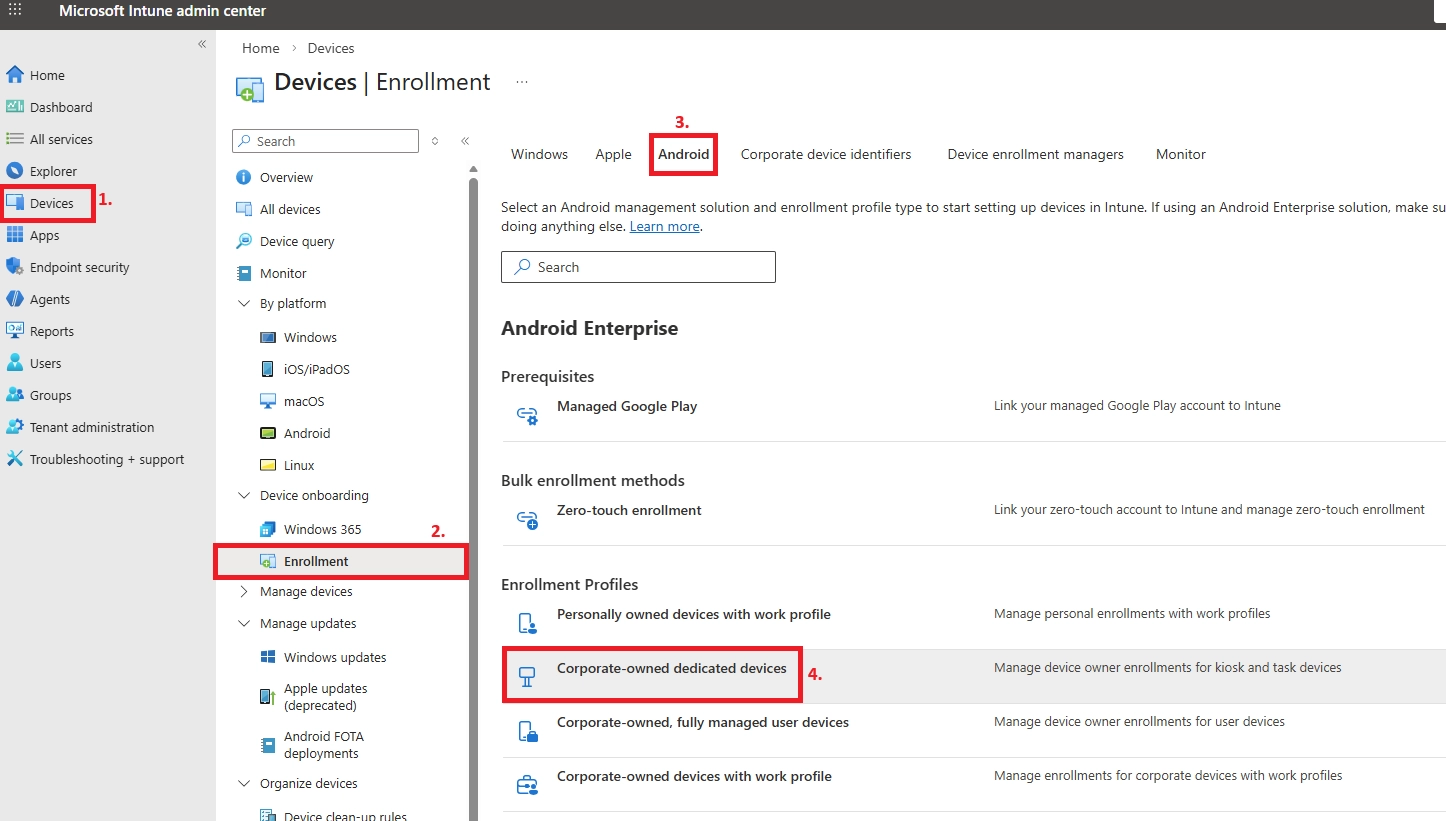
  • Sign in to Microsoft Intune admin center
  • Navigate to Devices > Enrollment > Android > Corporate-owned, fully managed user devices
Microsoft Intune admin center Devices > Enrollment page with Android platform selected.
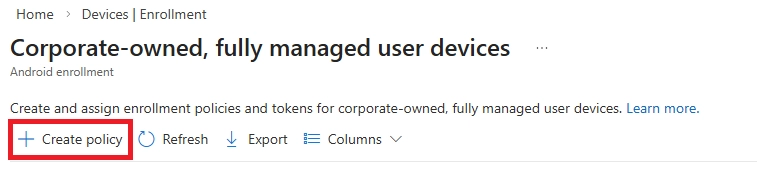
  • Click Create policy
Intune Android enrollment profiles page showing corporate-owned device options.
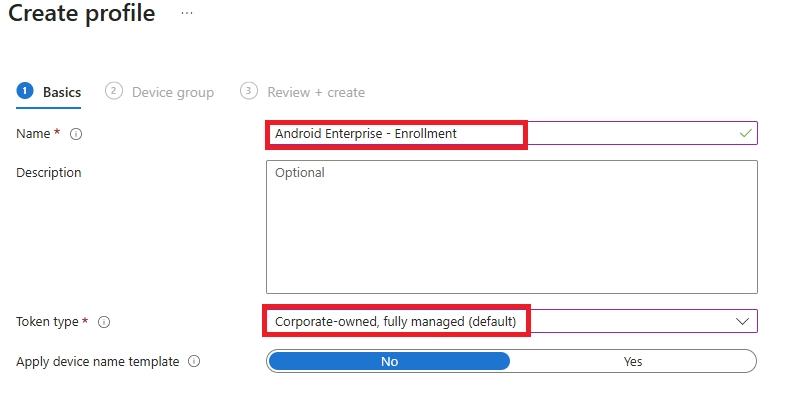
  • On the Basics page, enter:
    • Name (enrollment profile name)
    • Description (optional)
    • Token type
      • Corporate-owned, fully managed (default)
      • Corporate-owned, fully managed, via staging
Create Android Enterprise enrollment profile with corporate-owned fully managed token type.
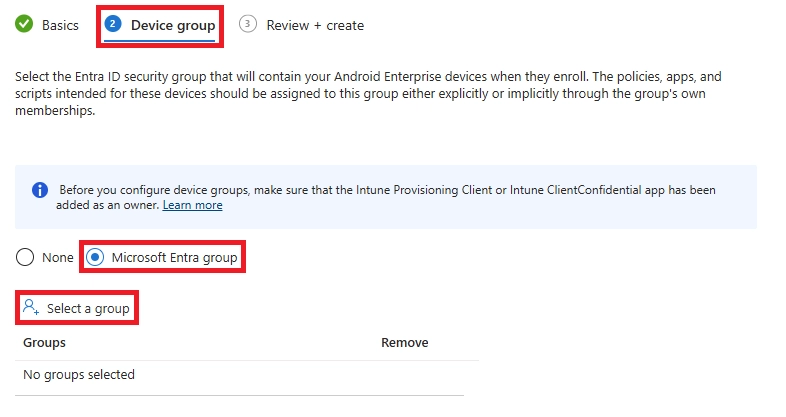
  • Select Next to continue to Device group.
ALT Text (for T70):
Windows Settings app displaying Accounts section with Access work or school option selected.
Windows Settings showing a device connected to Microsoft Entra ID under Access work or school.
Microsoft Intune admin center showing Devices > Enrollment with Windows Autopilot devices options highlighted.
Windows Autopilot devices page showing the Sync option for device synchronization
Microsoft Intune admin center showing Devices > Enrollment with Windows Autopilot deployment profiles highlighted.
Windows Autopilot deployment profiles page with Create profile option and Windows PC selected.
Create Windows Autopilot deployment profile screen showing the profile name field under Basics.
Windows Autopilot deployment profile Out‑of‑Box Experience (OOBE) configuration settings for a Windows PC.
Apple Business Manager sign‑in page used to manage organizational Apple devices, apps, and accounts.
Intune Devices overview page displaying managed device iOS/iPadOS platform.
Microsoft Intune admin center showing the option to create an Apple enrollment profile under Enrollment program tokens.
Intune enrollment program token creation page showing public key download and Apple Business Manager token setup.
Microsoft Intune admin center showing Devices enrollment for Apple platform selected and Enrollment program tokens highlighted.
Microsoft Intune Profiles page showing the Profiles section selected and the Create profile option for iOS/iPadOS and macOS enrollment.
Microsoft Intune Create profile screen for macOS showing the Basics step with the profile name field highlighted.
Intune macOS enrollment profile showing user affinity, modern authentication, and locked enrollment settings.
Intune macOS Setup Assistant configuration with all setup screens toggled to hide.
Apple Business Manager navigation pane highlighting the Devices section.
Apple Business Manager Devices page showing Assign Device Management option.
Assign Device Management dialog to select an MDM service for automated enrollment.
Microsoft Intune admin center Devices > Enrollment page with Android platform selected.
Intune Android enrollment profiles page showing corporate-owned device options.
Create Android Enterprise enrollment profile with corporate-owned fully managed token type.
Android Enterprise enrollment profile device group assignment using Microsoft Entra group.

Tip: Be sure to select a device group, not a user group.

  • Select Next to continue to Review + create
  • Review the summary of your profile, and then select Create to finalize it.

Get the Enrollment Token

  • Open the enrollment profile you just created
  • Go to the Token section
  • Copy the enrollment token
  • (Optional) Download the QR code

Prepare the Android Device

  • Ensure the device is factory reset
  • Power on the device
  • Begin initial device setup
  • Start Android Enterprise provisioning during setup
  • Use the enrollment token or QR code when prompted

Complete Device Enrollment

  • Allow installation of Android Device Policy
  • Sign in with a work or school account
  • Wait for enrollment to complete
  • Device finishes setup as Fully Managed

Verify Device in Intune

  • Sign in to Intune admin center
  • Go to Devices > All devices
  • Confirm the device appears:
    • Platform: Android Enterprise
    • Ownership: Corporate
    • Enrollment type: Fully Managed

Enrolling Bring-Your-Own Devices (BYOD) in Microsoft Intune

BYOD (Bring Your Own Device) enrollment allows employees to use their personal devices for work -  without giving IT full control over the device.

The goal is simple:

  • Protect company data
  • Respect personal privacy
  • Maintain compliance

Microsoft Intune supports privacy-focused BYOD enrollment across Windows, iOS, and Android.

How BYOD Enrollment Works in Intune (All Platforms)

The core process is similar across platforms.

Step 1: Install Company Portal

Users install the Microsoft Intune Company Portal app from:

  • Microsoft Store (Windows)
  • App Store (iOS/iPadOS)
  • Google Play Store (Android)

Step 2: Sign In with Work Account

Users sign in using their Microsoft 365 work credentials.

Step 3: Approve Device Enrollment

The device is registered with Microsoft Entra ID and enrolled into Intune.

Step 4: Work Boundary Is Created

Depending on the platform:

  • Windows → Device becomes Entra ID Registered
  • iOS → User Enrollment creates a managed container
  • Android → A secure Work Profile is created

At this point:

  • The device is marked as Personal in Intune
  • IT can enforce compliance policies
  • Corporate data becomes protected

A Note on BYOD Privacy and Data Protection

Intune collects only what it needs to secure work data.

Intune can see:

  • Device model and OS version
  • Compliance status
  • Managed (work) apps

Intune cannot see:

  • Personal photos or messages
  • Personal emails or documents
  • Browsing history or call logs

When a user unenrolls or leaves:

  • Work apps and data are removed
  • Personal data stays untouched

This balance makes BYOD secure without invading privacy.
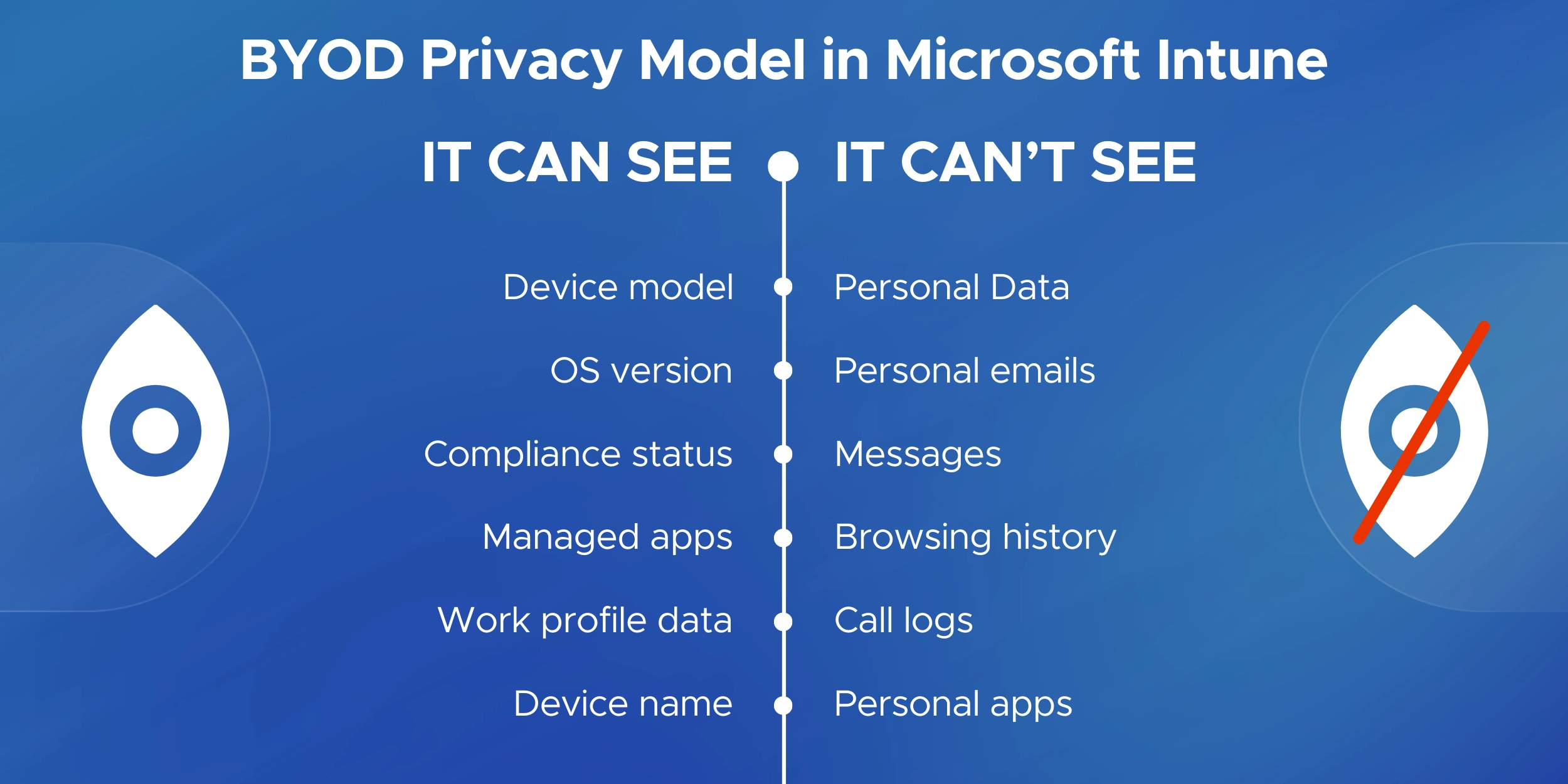
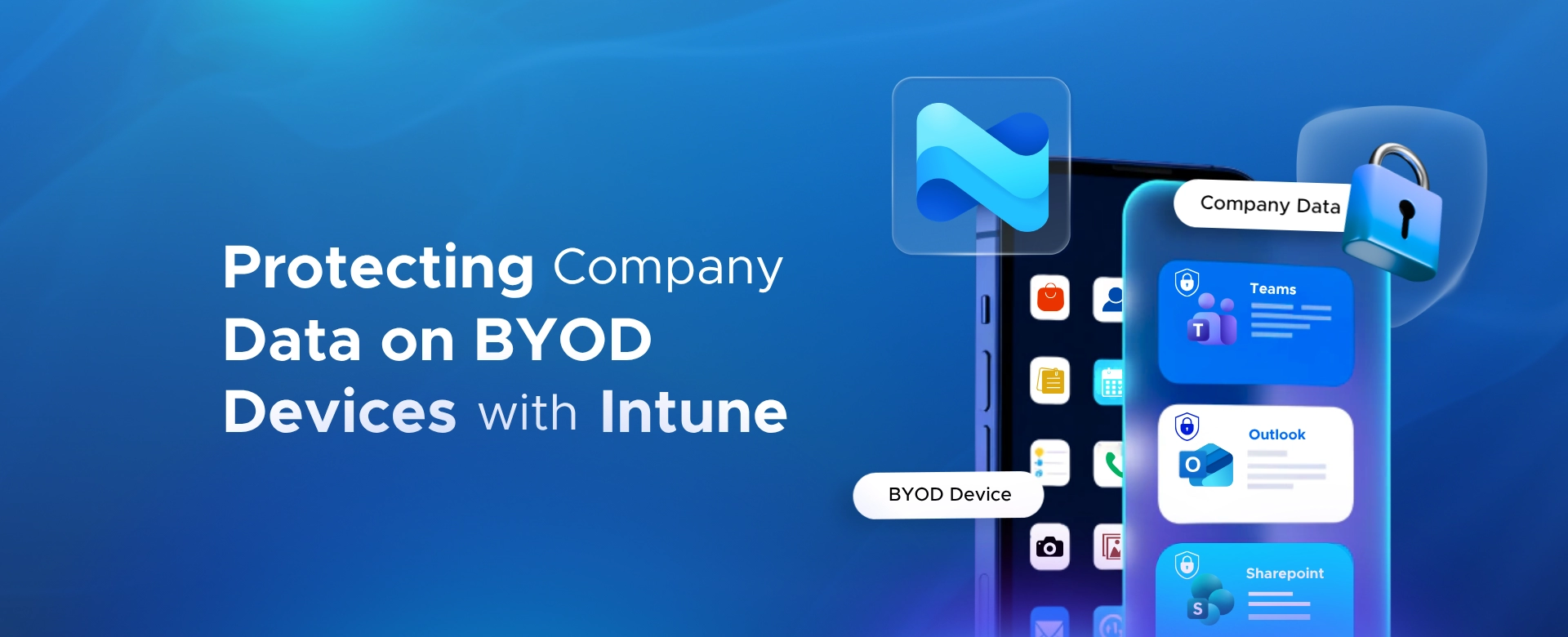
BYOD Privacy Model in Microsoft Intune

Best Practices for Intune Device Enrollment Success

A well-planned enrollment strategy reduces errors, improves compliance, and minimizes user friction.

  1. Roll Out in Phases

Start with a pilot group before enrolling the entire organization.
Validate policies, apps, and licensing before expanding to departments or regions.

  1. Use Groups and Dynamic Targeting

Organize devices using Microsoft Entra ID groups.
Separate corporate and BYOD devices to ensure policies and apps apply correctly from day one.

  1. Define Enrollment Restrictions Early

Configure:

  • Allowed platforms
  • Device limits per user
  • Personal device rules

This prevents unsupported or risky devices from enrolling.

  1. Enforce Compliance with Conditional Access

Enrollment alone is not enough.
Require compliant devices for access to Microsoft 365, email, and Teams.

  1. Deploy Critical Apps and Policies at Enrollment

Use Enrollment Status Page (Windows) or automatic app deployment (mobile) to ensure devices are ready immediately after setup.

  1. Monitor Enrollment Health Continuously

Regularly review:

  • Enrollment failures
  • Compliance status
  • Stale or inactive devices

Maintain a clear enroll → manage → retire lifecycle.

Why Trust Penthara Technologies for Microsoft Intune Device Enrollment?

Implementing Microsoft Intune the right way requires more than just enabling policies. It requires a structured enrollment strategy aligned with security, compliance, and user experience.

Intune & Endpoint Specialists
We design and implement scalable enrollment strategies across Windows, macOS, iOS, and Android - including Autopilot, Apple ADE, Android Enterprise, and BYOD models.

Security-First Approach
Enrollment is aligned with compliance policies, Conditional Access, encryption standards, and governance requirements such as ISO, SOC 2, HIPAA, and GDPR.

Structured Rollout Methodology
From pilot deployments to phased rollouts, the focus is on reducing enrollment failures, minimizing user friction, and lowering support overhead.

Corporate & BYOD Balance
Enrollment models are built to secure corporate-owned devices while respecting employee privacy on personal devices.

Ongoing Optimization
Enrollment is only the beginning. Continuous monitoring of compliance health, device lifecycle, and policy effectiveness ensures long-term stability.

If you're planning a new rollout or optimizing an existing Intune environment, building a strong enrollment foundation makes a measurable difference.

Schedule a consultation to design the right Microsoft Intune enrollment strategy for your organization.

Troubleshooting Intune Enrollment – Common Issues & FAQs

Enrollment usually works smoothly, but issues can still occur.
Below are the most common questions admins and users ask during enrollment.

  1. What is device enrollment in Intune?

Device enrollment is the process of registering a device with Microsoft Intune so it can be managed and secured.

  1. What happens when a device is enrolled in Intune?

Intune applies security policies, compliance rules, and work apps.
For BYOD devices, only work data is managed.

  1. Do I need an Intune license to enroll a device?

Yes. Each user enrolling a device must have an Intune license assigned.

  1. How do I manually enroll a device in Intune?

Most devices are enrolled using the Intune Company Portal app by signing in with a work account and following the steps.

  1. Why doesn’t my device appear in Intune after enrollment?

Common reasons include:

  • Enrollment steps not completed
  • Missing Intune license
  • Enrollment blocked by policy

Syncing from Company Portal usually fixes this.

  1. Can I enroll a device without wiping it?

Yes. Most BYOD and existing devices can be enrolled without a reset.
Wiping is only required for Autopilot, Apple ADE, or fully managed Android.

  1. What is the difference between Entra ID joined and registered devices?
  • Joined: Fully corporate-managed device
  • Registered: Personal device with limited management
  1. Can a user enroll multiple devices in Intune?

Yes, but there is a limit.
Admins can restrict how many devices each user can enroll.

  1. Why is enrollment blocked with an error message?

This usually happens due to:

  • Enrollment restrictions
  • User not in MDM scope
  • Device type not allowed
  1. Can Intune manage personal devices (BYOD)?

Yes. Intune supports BYOD using privacy-focused methods like:

  • iOS User Enrollment
  • Android Work Profile
  • Windows personal enrollment
  1. Can Intune see personal data on BYOD devices?

No.
Intune cannot see personal photos, messages, emails, or browsing history.

  1. What data can Intune see on an enrolled device?

Intune can see:

  • Device model and OS version
  • Compliance status
  • Managed work apps
  1. How do I re-enroll a device in Intune?

Unenroll the device first, then enroll again using Company Portal or the original enrollment method.

  1. How do I remove a device from Intune?

Admins can retire or wipe devices from the Intune portal.
Users can remove their own BYOD devices via Company Portal.

  1. Can I protect company data without enrolling the device?

Yes.
Intune App Protection Policies can secure apps like Outlook without full device enrollment.

  1. Does Intune enrollment give IT full control of my device?

Only for corporate-owned devices.
BYOD enrollment provides limited, work-only control.

  1. What should I do if enrollment keeps failing?

Check:

  • License assignment
  • Enrollment restrictions
  • Network connectivity
    Then retry from Company Portal.
  1. Is device enrollment mandatory to access Microsoft 365 apps?

It depends on company policy.
Some organizations require enrollment or compliance to access email and Teams.

Jasjit Chopra
Jasjit Chopra

CEO at Penthara Technologies

About the Author

Microsoft MVP LogoLinked-in

Jasjit Chopra is the CEO of Penthara Technologies and a Microsoft Most Valuable Professional (MVP) with over two decades of hands-on experience in Microsoft 365, SharePoint, and Security. He has led 100+ digital transformation projects across six countries, securing 50,000+ users, migrating 250+ TB of data, and automating processes that save organizations thousands of hours each year. A recognized leader at the crossroads of AI, security, and workplace modernization, Jasjit is passionate about simplifying complexity, mentoring technology professionals, and helping businesses build secure, intelligent, and future-ready digital environments.

Leave a Reply

Your email address will not be published. Required fields are marked *

More From This Category

Microsoft Entra ID Smart Lockout: Prevent Brute-Force Password Attacks

Learn how Microsoft Entra ID Smart Lockout works, when to configure it, and best practices to prevent brute-force and password spray attacks.

Read More
Full Wipe vs Selective Wipe in Intune: What IT Admins Need to Know

Learn how Intune full wipe and selective wipe work, when to use them, and best practices for secure device management in BYOD and corporate environments.

Read More
Phishing Protection in Microsoft 365: Stop Impersonation Attacks

Learn how to stop impersonation attacks in Microsoft 365 using anti-phishing policies, Safe Links, Safe Attachments, and mailbox intelligence.

Read More
1 2 3 8
chevron-right