Learn how to protect company data on BYOD devices with Microsoft Intune, using app protection policies, Conditional Access, MAM, and selective wipe.

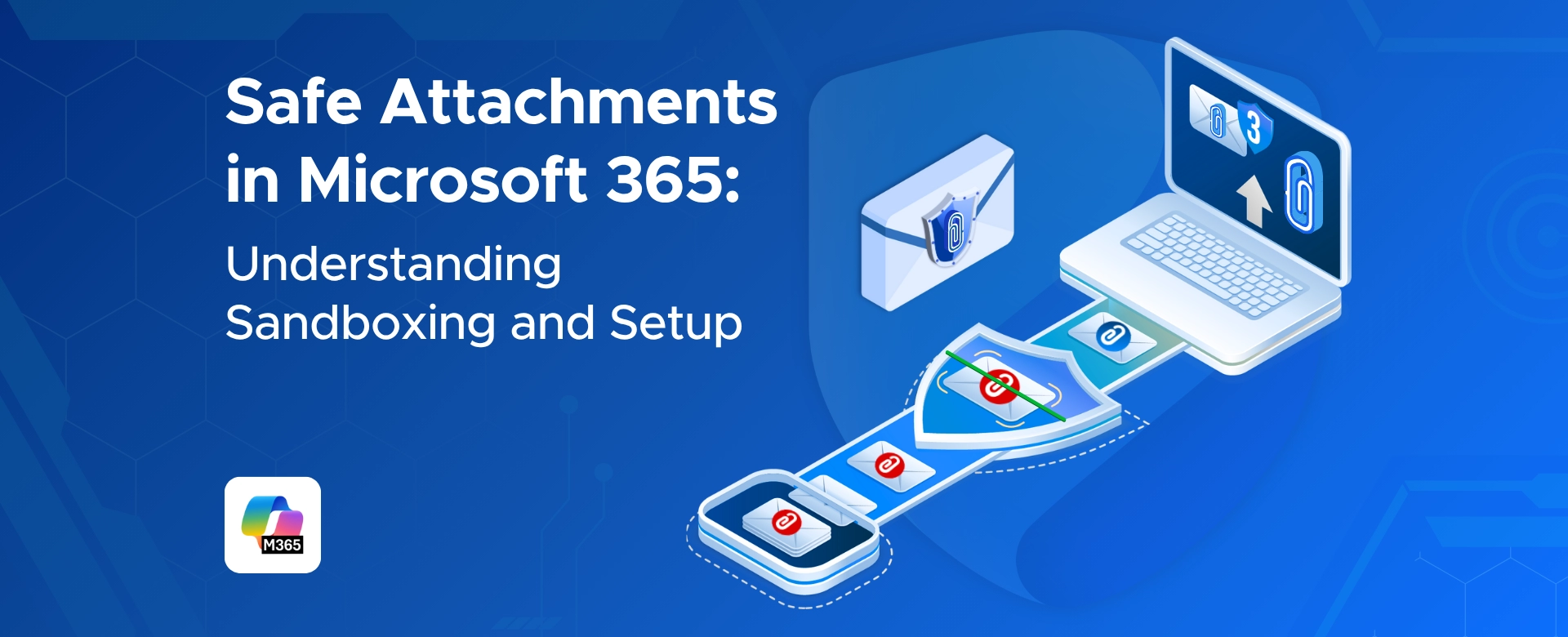
Microsoft 365 processes an endless stream of files each day.
Most are harmless, but some contain hidden threats that aren’t obvious from the outside.
Safe Attachments helps catch those risks early.
It opens suspicious files inside a secure sandbox and watches how they behave before anyone interacts with them.
This matters because many modern attacks are built to look normal.
A file may appear clean yet trigger harmful actions only when opened. Sandboxing exposes that behavior without putting users or data at risk.
Safe Attachments is especially effective against:
By adding this deeper inspection layer, Microsoft 365 can block dangerous files before they reach inboxes or shared locations, reducing the chances of ransomware, credential theft, or unintended data access.
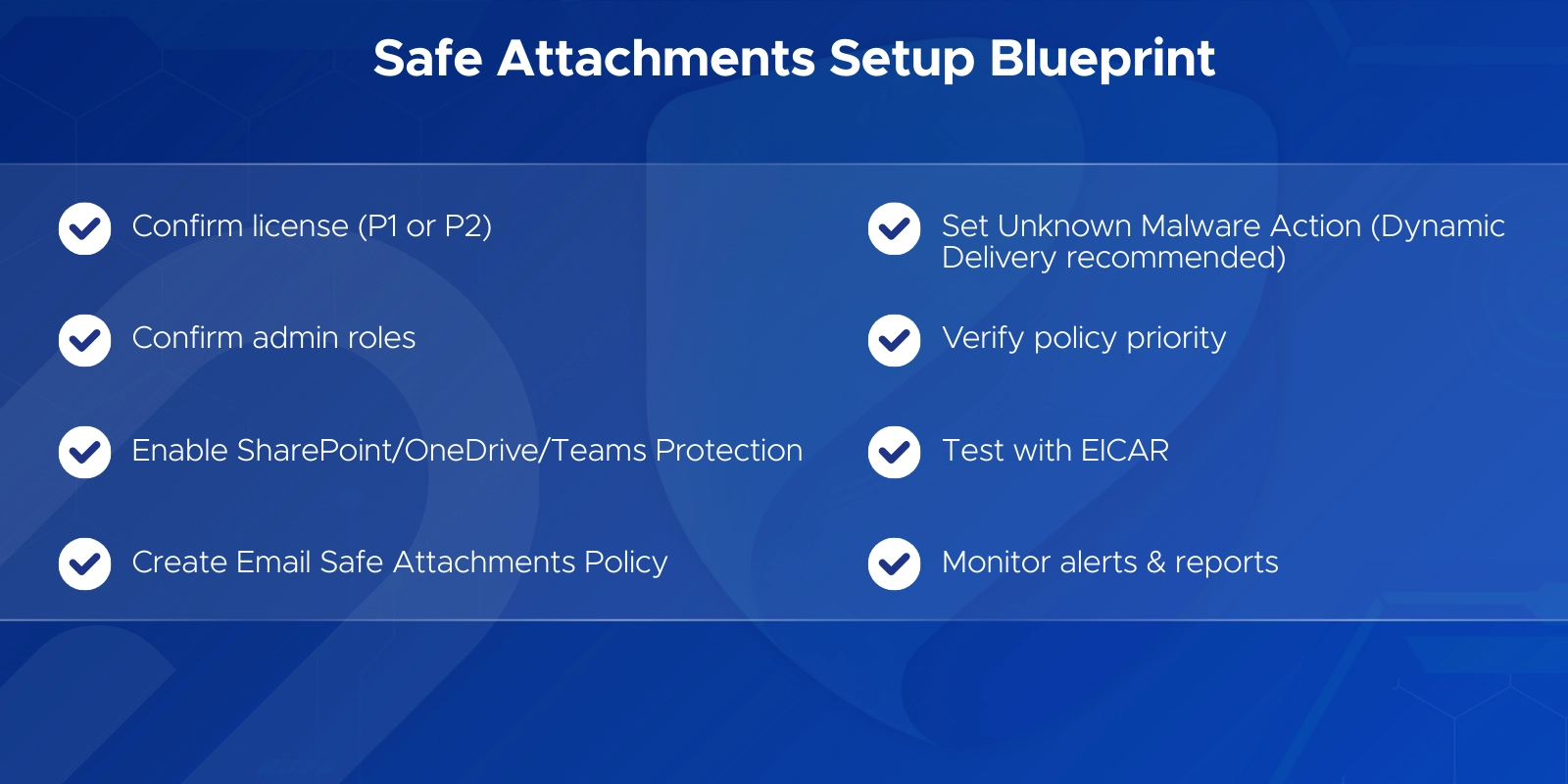
Safe Attachments is available in Microsoft Defender for Office 365 Plan 1 and Plan 2.
These plans are included in suites like Microsoft 365 E5, or they can be added to E3 and other subscriptions.
To configure Safe Attachments, you’ll need one of these roles:
Before creating any policies, it’s worth deciding who should be covered first.
Most organizations start with an org-wide baseline policy, then add stricter policies for high-risk users or sensitive departments.
A phased rollout also helps avoid surprises.
Turning it on for a pilot group first gives you space to check impact before applying it everywhere.
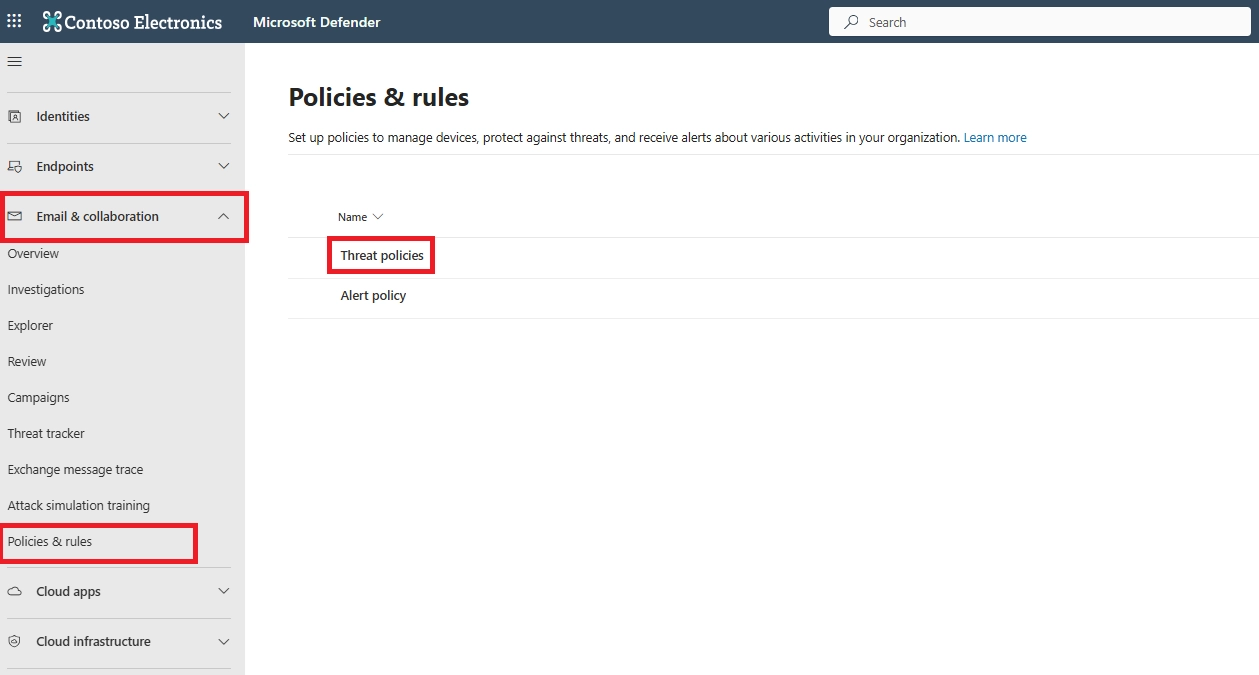
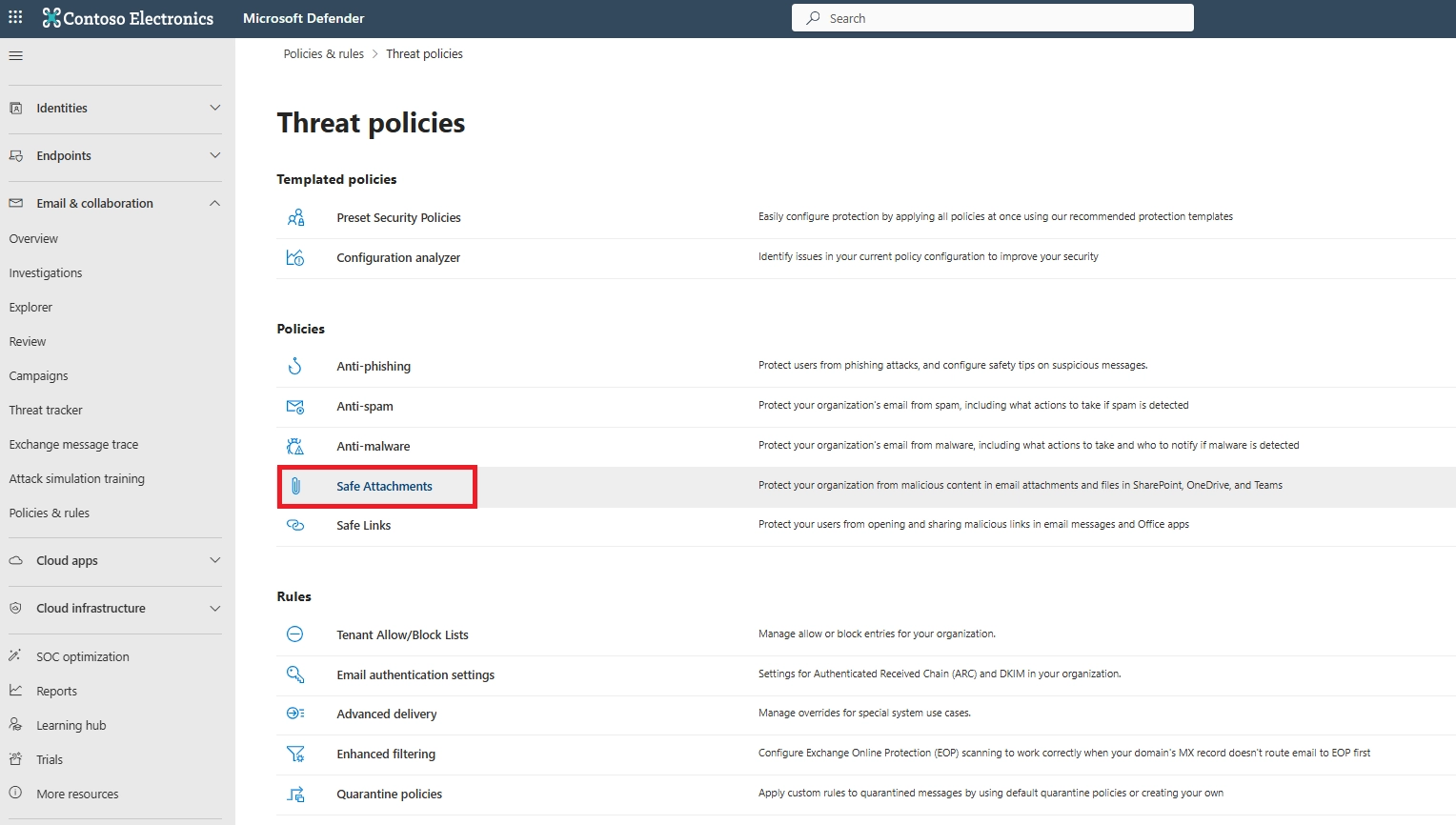
Open Global Settings inside the Safe Attachments section.
You’ll see toggles for enabling protection across SharePoint, OneDrive, and Teams.
Some tenants have this turned off by default, so it’s worth checking even if your environment is new.
Enabling this ensures files uploaded or shared between users are scanned in the sandbox before anyone opens them.
If you have an E5 license, you can also enable Safe Documents, which opens Office files in protected mode until they’re fully verified.
This isn’t required for Safe Attachments, but it adds an extra layer for Office apps.
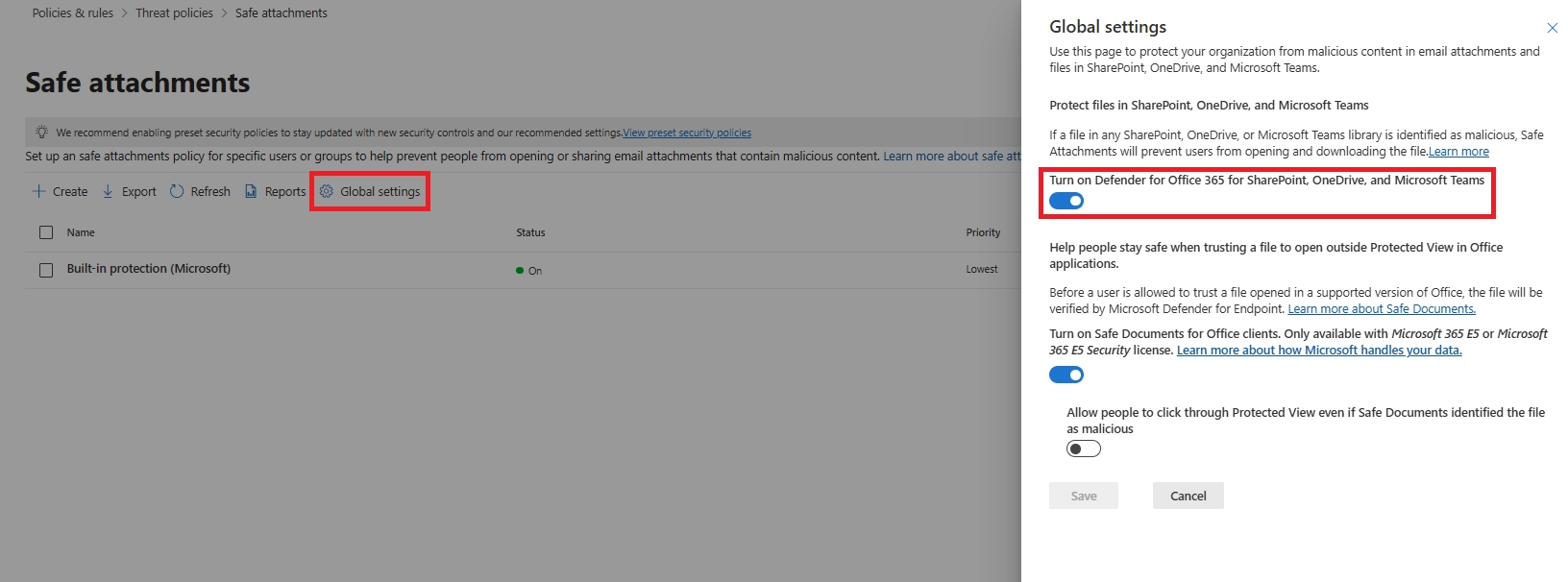
On the Safe Attachments page, select + Create to start a new Safe Attachments policy wizard.
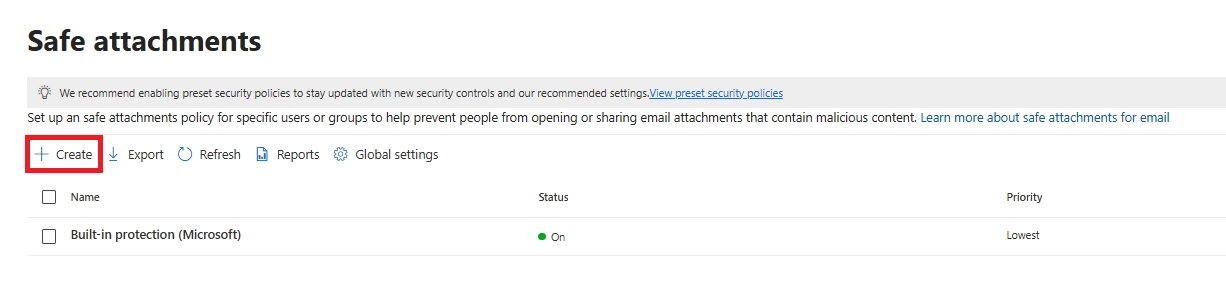
Name & Description
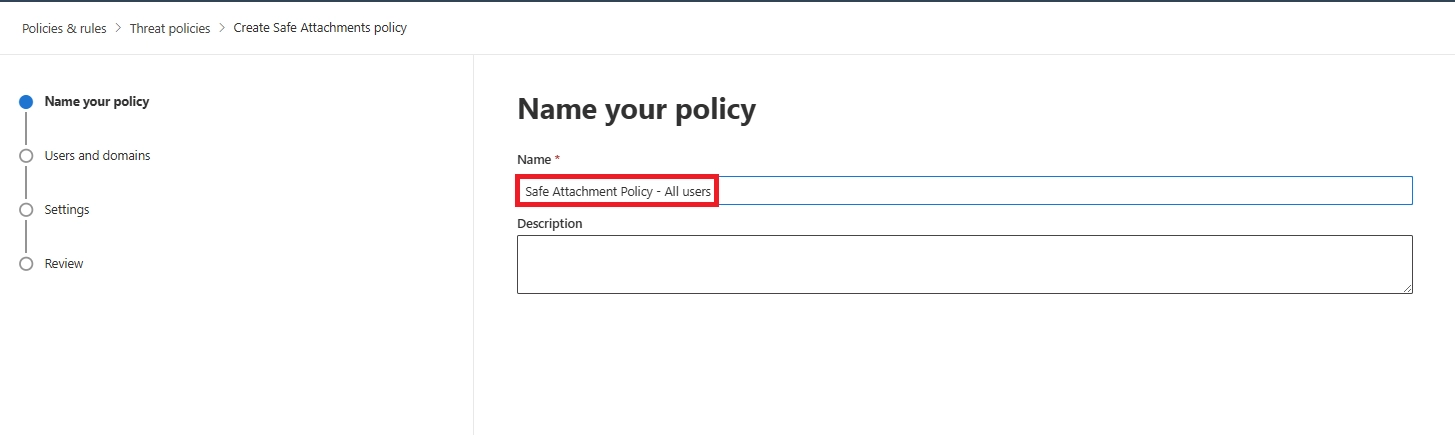
Enter a unique, descriptive name for the policy, like Company Safe Attachments Policy. This helps distinguish policies later.
Enter an optional description for the policy.
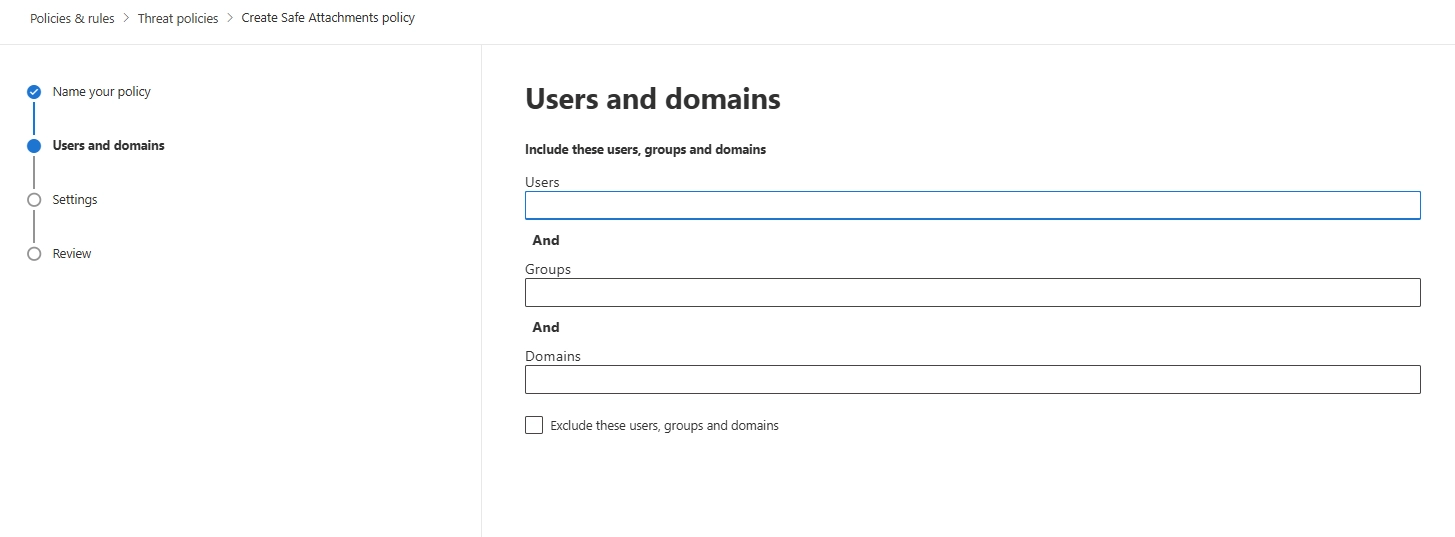
Scope (Recipients)
Apply the policy to All recipients if you want broad coverage.
Microsoft includes built-in protection for unassigned users, but creating your own policy gives more control.
TIP: Leave Users, Groups, and Domains blank to create a policy that applies to all recipients.
Subdomains are automatically included unless you specifically exclude them. For example, a policy that includes contoso.com also includes marketing.contoso.com unless you exclude marketing.contoso.com.
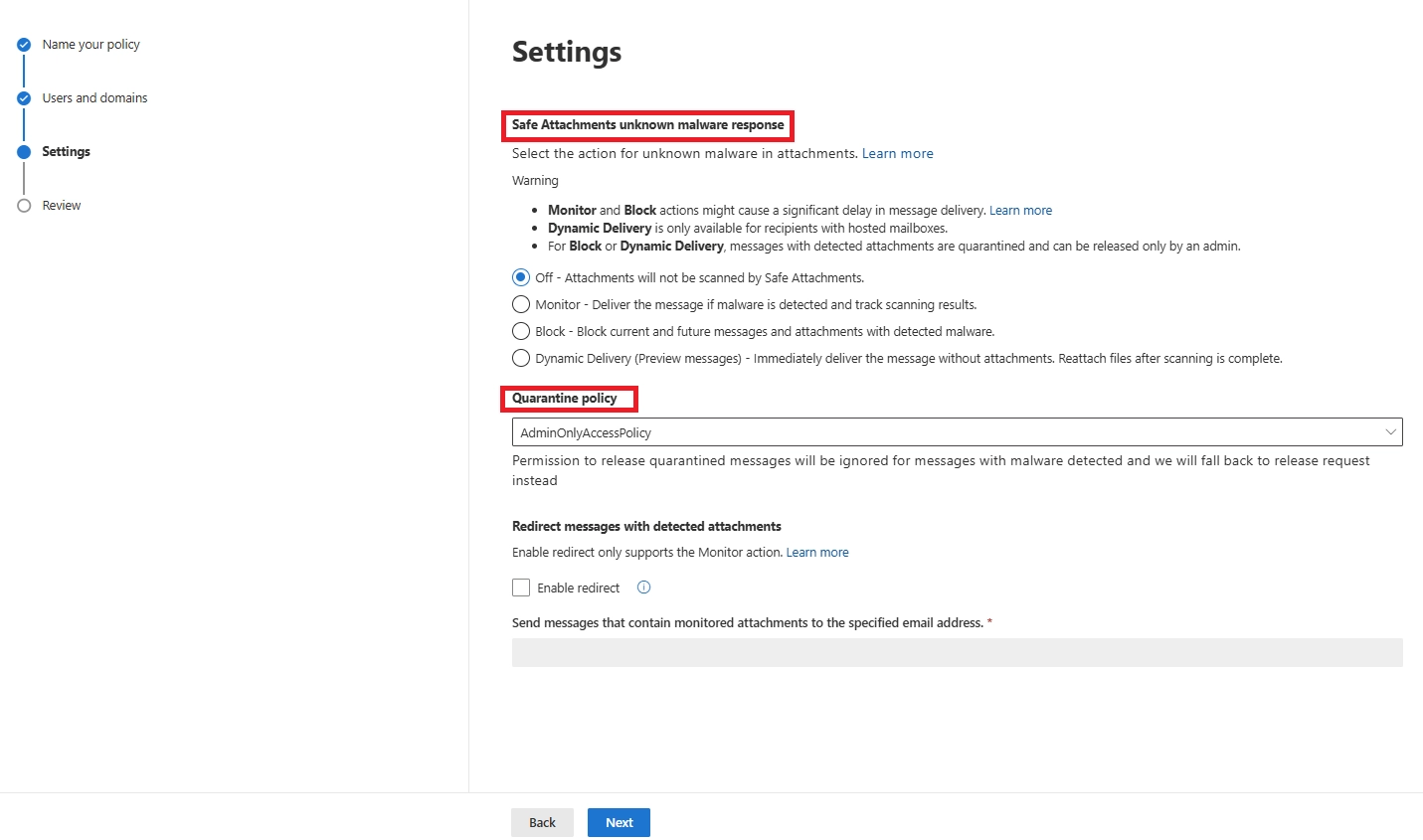
On the Settings page, configure the following Safe Attachments settings:
For more elaborated details about these options, refer to Safe Attachments policy settings.
Unknown Malware Response
This is the decision point. The main choices are:
Dynamic Delivery is a balanced option for most environments, especially when you want protection without delaying mail flow.
Blocking gives maximum security but may slow down delivery.
| Feature / Behavior | Dynamic Delivery | Block Mode |
|---|---|---|
| Email body delivery | Instant | Delayed |
| Attachment availability | After sandbox approval | After sandbox approval |
| User experience | Placeholder added | Email fully held |
| Best for | Fast email flow, minimal disruption | Maximum protection |
| Risk of confusion | Very low | Medium (delayed email visibility) |
| Recommended for | All standard users | VIPs, finance, HR, security teams |
Quarantine Settings
Use the default AdminOnlyAccess quarantine for clean and simple management.
Older redirect features tied to Monitor mode are retired, so you can safely skip them.
Save the policy to apply it.
Changes usually take effect within 30 minutes, though some tenants may take longer to fully replicate.
On the Review page, review your settings. You can select Edit in each section to modify the settings within the section. Or you can select Back or the specific page in the wizard.
When you're finished on the Review page, select Submit.
Test the policy with a small pilot group before enabling it tenant-wide.
Send a harmless test malware file (like the EICAR test string) to verify behavior.
If Dynamic Delivery is enabled, you should see:
If the file is harmful, it should go straight to quarantine, and an alert should appear for admins.
Once Safe Attachments is running, use attack simulation to test your attachment-based defenses in a controlled way to identify which users are most likely to open suspicious files in a real scenario.
Testing helps confirm that Safe Attachments is active and gives users a smoother rollout experience.
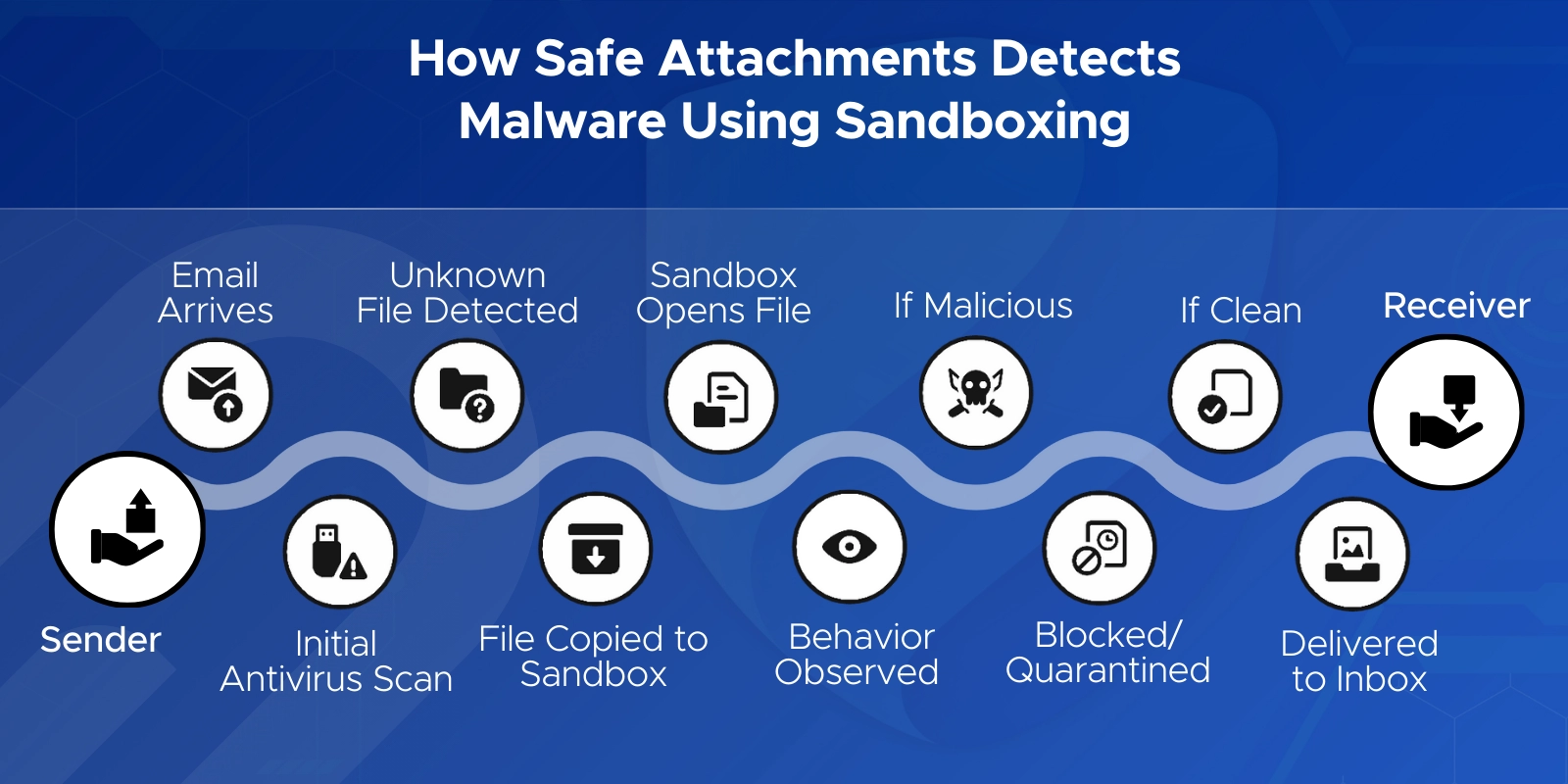
When an email with an attachment arrives, Safe Attachments adds a deeper inspection layer on top of the standard malware scan.
Malicious attachments almost always arrive inside phishing emails designed to lower a user's guard - which is why phishing protection addresses the social engineering layer that Safe Attachments alone cannot catch.
Most scans finish in a few minutes, with a maximum window of about 15 minutes depending on load.
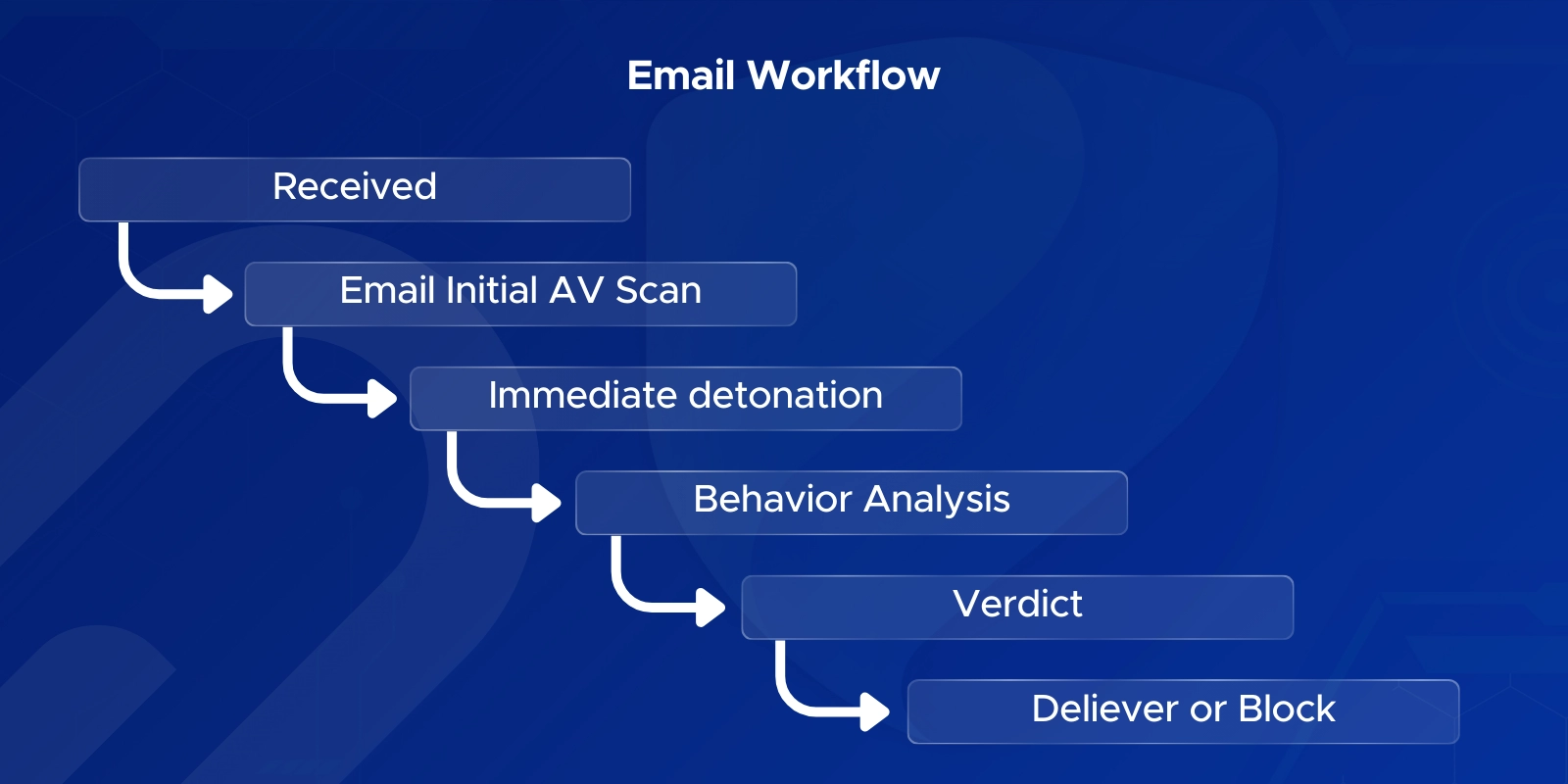
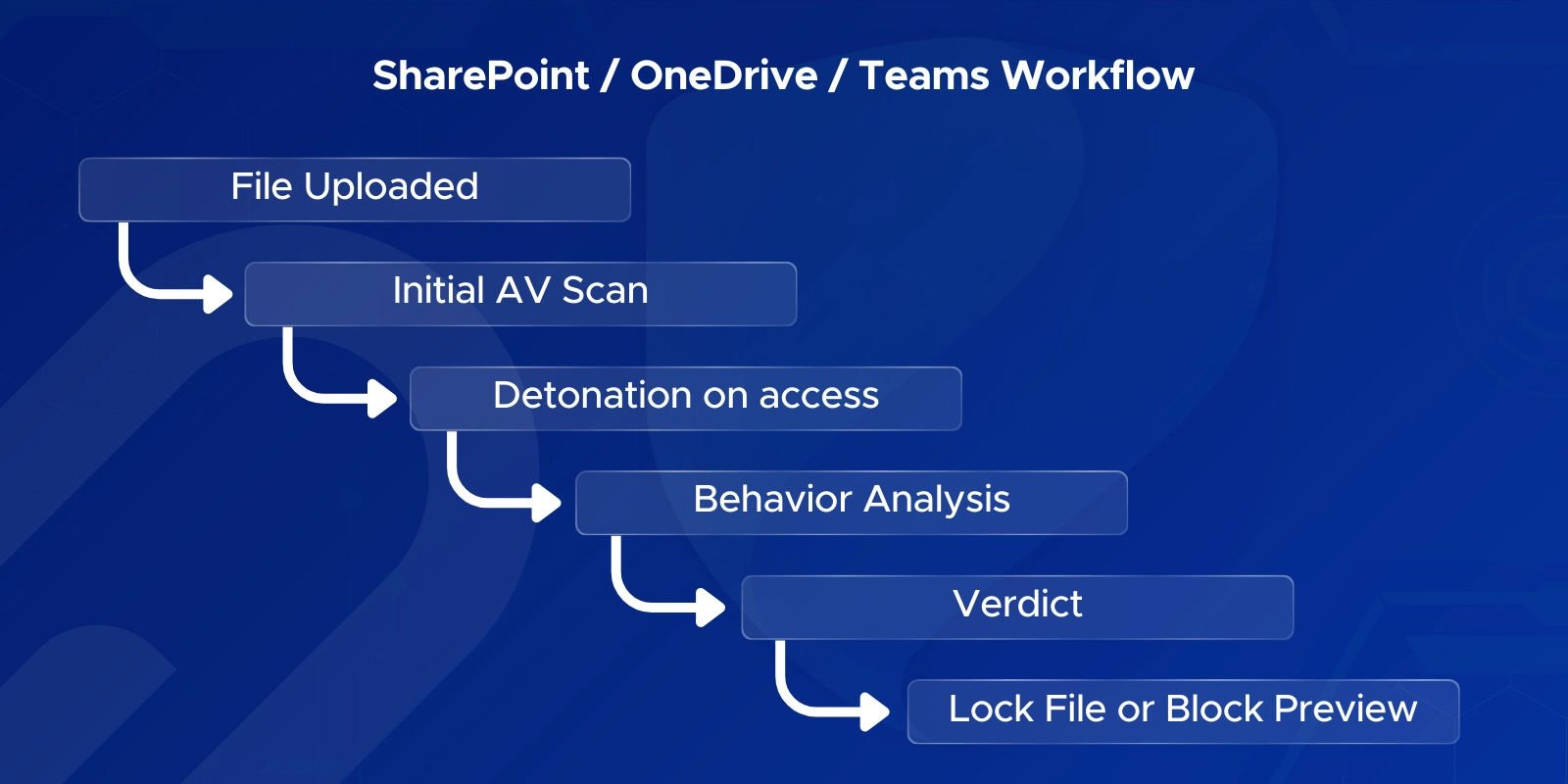
Safe Attachments doesn’t just scan email - its sandboxing process also applies to files stored or shared in SharePoint, OneDrive, and Teams.
The workflow is similar, but the triggers and outcomes are slightly different.
This keeps performance smooth while still catching threats before they spread.
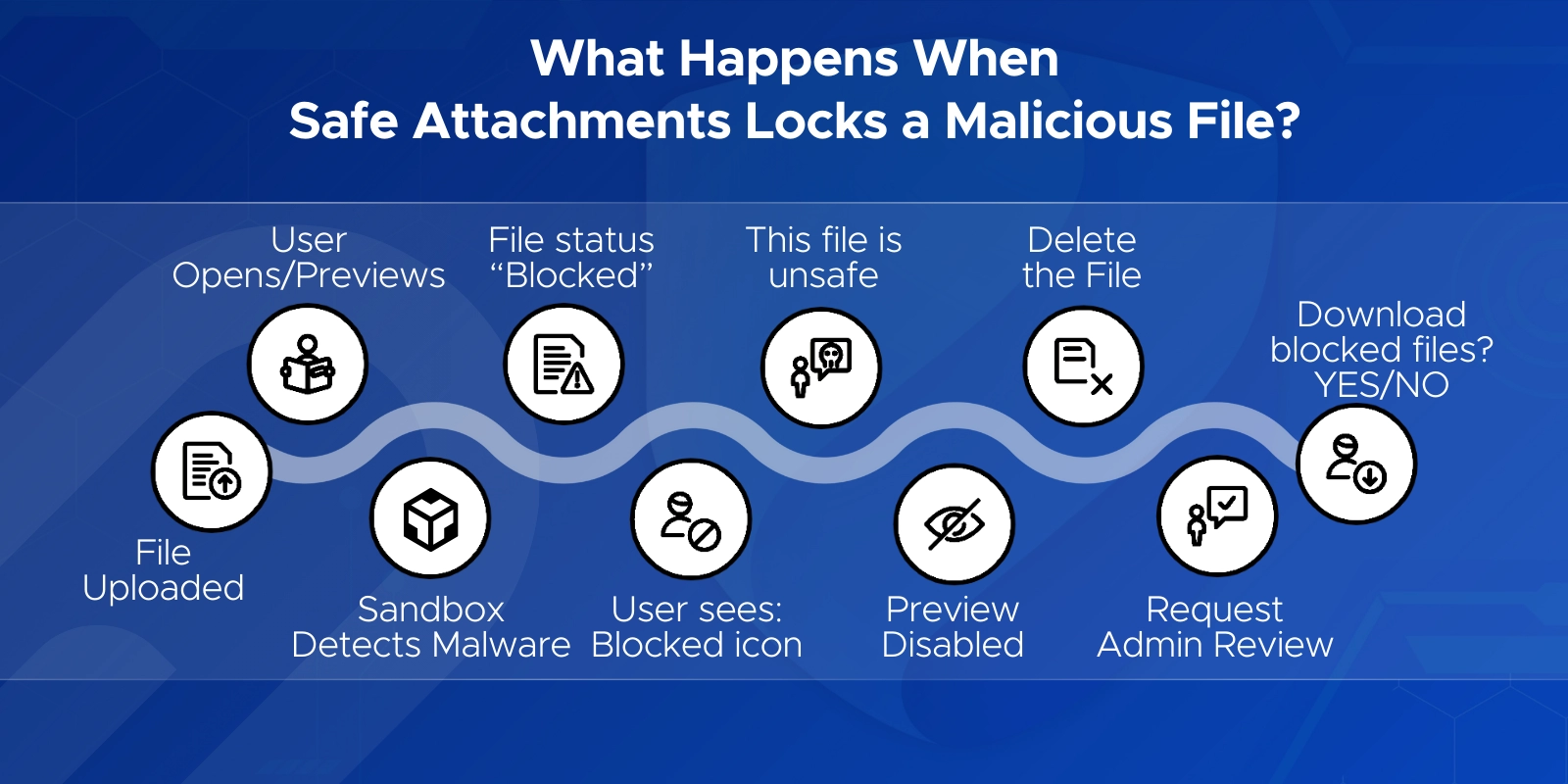
If any harmful behavior appears, the file is immediately marked as unsafe.
By default, users can download blocked files — which is risky.
What happens when safe attachments lock a malicious file?
Most admins miss this: Downloading infected files is allowed unless you disable it.
Ready to secure every file and attachment across Microsoft 365 with enterprise-grade protection?
Schedule a free consultation today with Penthara Technologies.
Q1. What are Safe Attachments in Microsoft 365?
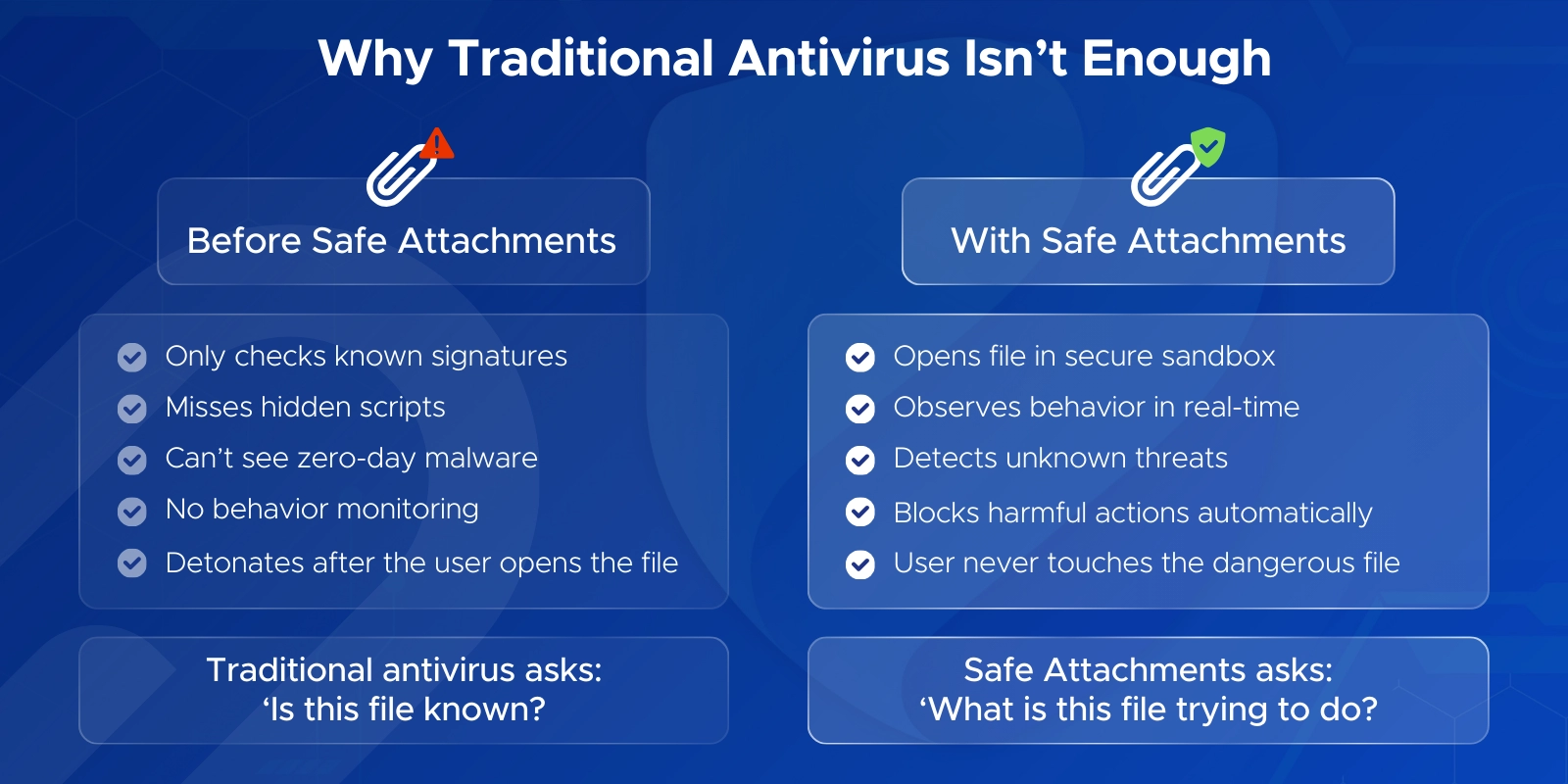
Safe Attachments is a Microsoft Defender for Office 365 feature that opens files in a virtual sandbox to check for harmful behavior. Unlike regular antivirus, which checks signatures, Safe Attachments detects unknown malware, zero-day attacks, and hidden scripts by detonating the file before it reaches users.
Q2. How does sandboxing (detonation) work in Safe Attachments?
Safe Attachments copies the file to a secure virtual environment, opens it, and observes its behavior. If the attachment tries to run scripts, download malware, or modify system areas, it’s blocked. Most Safe Attachments sandbox scans finish in 2–15 minutes.
Q3. Will Safe Attachments delay my emails?
There may be a short delay, but using Dynamic Delivery ensures the email body arrives instantly while the attachment is scanned. The attachment appears when cleared by the sandbox. This keeps the workflow smooth without sacrificing security.
Q4. Why enable Safe Attachments for SharePoint, OneDrive, and Teams?
Safe Attachments protection for SharePoint, OneDrive, and Teams prevents malicious files uploaded or shared in cloud libraries from spreading internally. It scans files asynchronously when someone opens, previews, or shares them—blocking unsafe content before others access it.
Q5. How does Safe Attachments for SharePoint, OneDrive, and Teams work?
Files first pass a basic malware scan. When a user interacts with the file, Safe Attachments detonates it in a sandbox. If it’s malicious, the file becomes “locked,” can’t be opened or shared, and shows a blocked icon in modern SharePoint or Teams.
Q6. Why can users still download malicious files in SharePoint/OneDrive even with Safe Attachments enabled?
Because downloads are allowed by default. To block downloads of infected files, run:
Set-SPOTenant -DisallowInfectedFileDownload $true
This closes a common loophole many admins miss.
Q7. Which Microsoft 365 license includes Safe Attachments?
Safe Attachments is included in Microsoft Defender for Office 365 Plan 1 and Plan 2. M365 E5 and O365 E5 include P2 automatically, while E3 plans can add P1/P2. Plan 1 gives core Safe Attachments protection; Plan 2 adds automation, enhanced reporting, and preset security policies.
Q8. How do I set up a Safe Attachments policy in Office 365 quickly?
Go to the Microsoft 365 Defender portal → Email & Collaboration → Policies & Rules → Threat Policies → Safe Attachments → Create Policy. Add recipients, choose the action (Dynamic Delivery or Block), and save. This creates a tenant-specific Safe Attachments policy for email.
Q9. What is the best Safe Attachments policy mode to use?
Most organizations prefer Dynamic Delivery because it delivers emails instantly while scanning attachments in the background. “Block” offers maximum security but delays the entire email until the scan completes.
Q10. Why is my Safe Attachments policy not applying to some users?
Check:
Q11. How do I know if an attachment is safe in Office 365?
Safe Attachments scans the file in a sandbox. If it’s safe, it’s delivered or re-attached (Dynamic Delivery). You can also check Quarantine, Threat Explorer, or the Safe Attachments report in the Defender portal to verify actions taken.
Q12. What is Safe Attachments Unknown Malware Response?
This setting decides what happens when a file is being scanned. “Dynamic Delivery” replaces the attachment with a placeholder until it’s verified. “Block” holds the entire message. It’s a key configuration step in Safe Attachments policy setup.
Q13. What is SafeDocs (Safe Documents) in Microsoft 365?
Safe Documents is an E5 feature that opens Office files in protected mode until Microsoft finishes scanning them. It works alongside Safe Attachments to add an extra layer for Office files opened directly in desktop apps.
Q14. Does Safe Attachments work for Microsoft Teams files?
Yes. Files shared in Teams are stored in SharePoint and processed by Safe Attachments the same way as SharePoint/OneDrive files. If malicious, Teams will show an error or block preview.
Q15. How do I test if Safe Attachments is working?
Send an EICAR test file to a mailbox protected by Safe Attachments—it should be quarantined.
Upload EICAR (inside a ZIP) to SharePoint/OneDrive—the file should get flagged and locked shortly after.
Q16. What should I do if Safe Attachments detects malware?
Do not release the file immediately. Review Quarantine details, inform the user, and investigate the sender. If it’s a false positive, you can submit the file to Microsoft. If it’s real malware, block the sender, check for similar emails, and review user activity.
Q17. What is the difference between Safe Attachments and Safe Links?
Safe Attachments scans files in a sandbox.
Safe Links scans URLs and detonates malicious websites or linked files.
Together, they provide file-level and link-level protection across Microsoft 365.
Q18. What is Office 365 Safe Mode for attachments (Outlook attachment security)?
Outlook’s “Protective View” or “blocked attachment types” is client-side protection.
Safe Attachments is server-side protection.
Safe Attachments stops threats before they ever reach Outlook.
Q19. How do Safe Attachments policies relate to Preset Security Policies?
If Standard/Strict presets are enabled, they may override or apply before your custom Safe Attachments policies. Check policy priority and scope to avoid unexpected behavior.
Q20. What file types can Safe Attachments scan?
Most common file types are analyzed. Encrypted or password-protected archives may not fully detonate, so use mail flow rules or additional checks for those cases.
Monthly updates, news & events from Microsoft to help your business grow.

CEO at Penthara Technologies


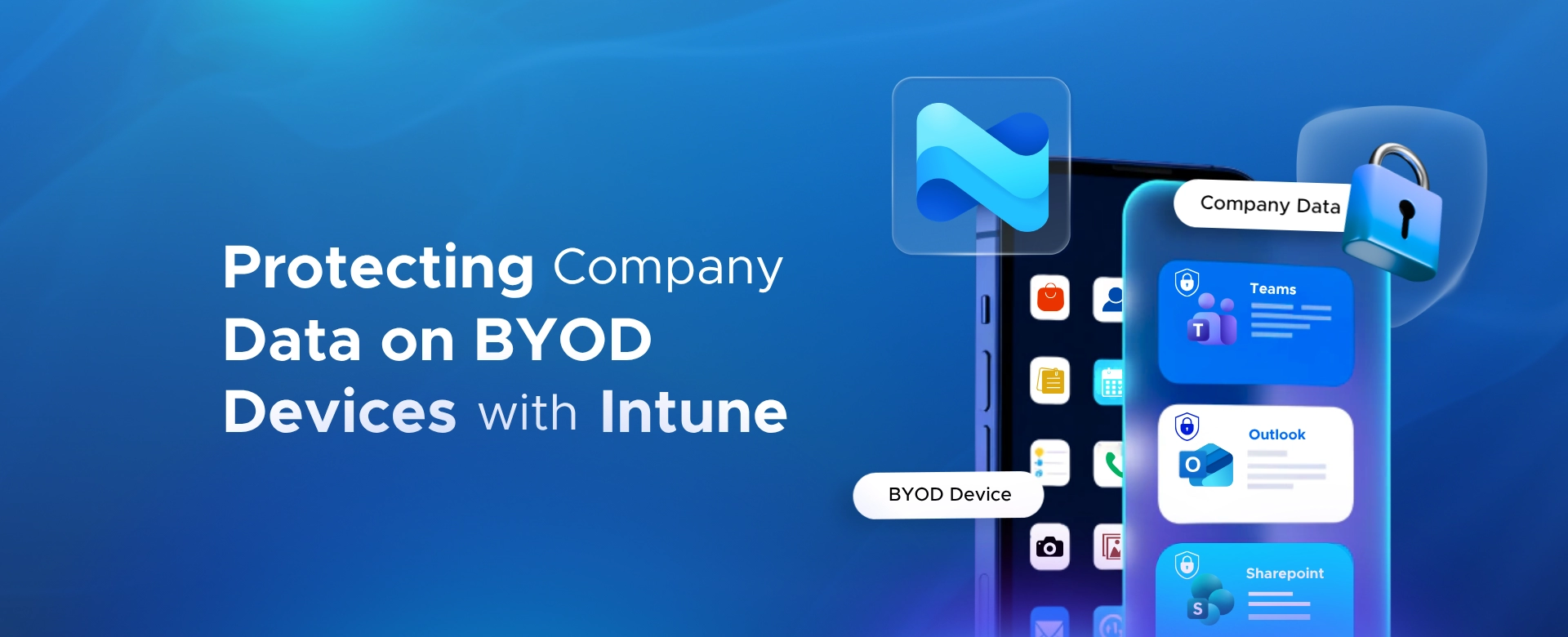 Protecting Company Data on BYOD Devices with Intune
Learn how to protect company data on BYOD devices with Microsoft Intune, using app protection policies, Conditional Access, MAM, and selective wipe.
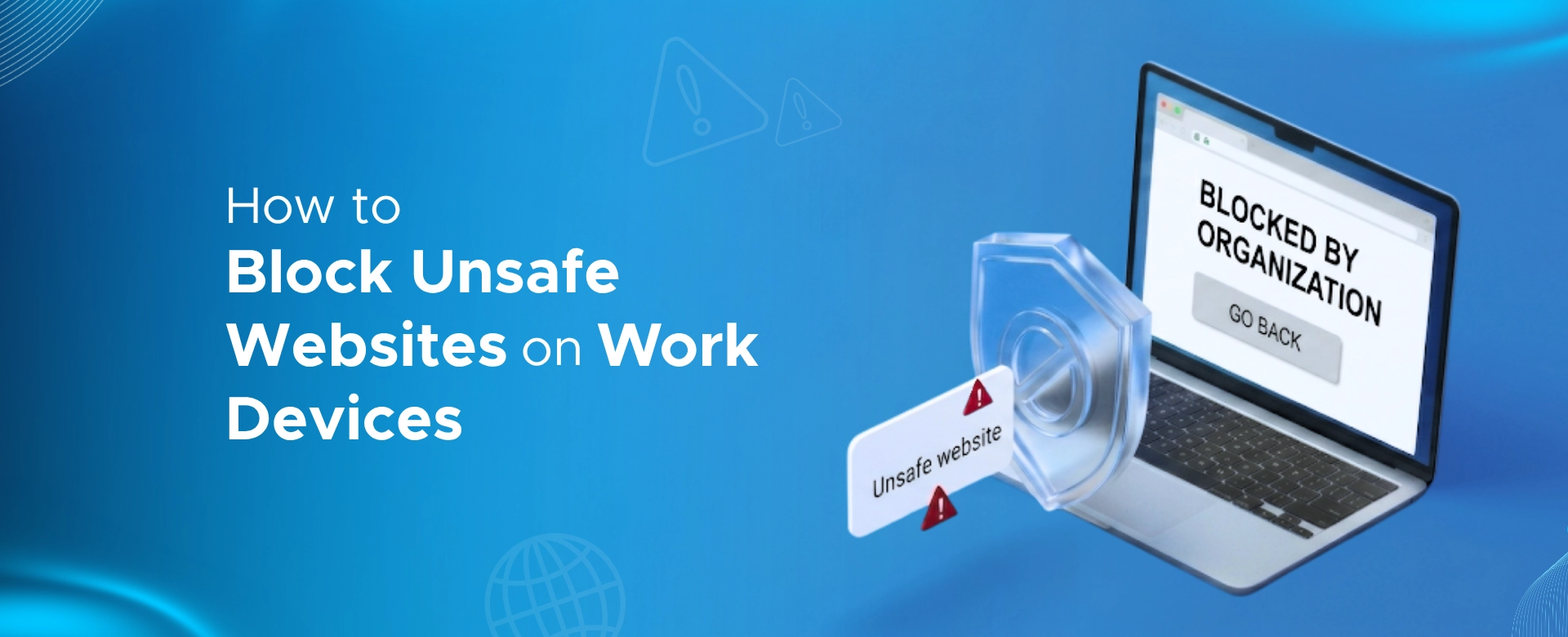 How to Block Unsafe Websites on Work Devices
Protect work devices from phishing, malware, and risky web content by using Microsoft Defender and Intune to block unsafe websites across your organization.
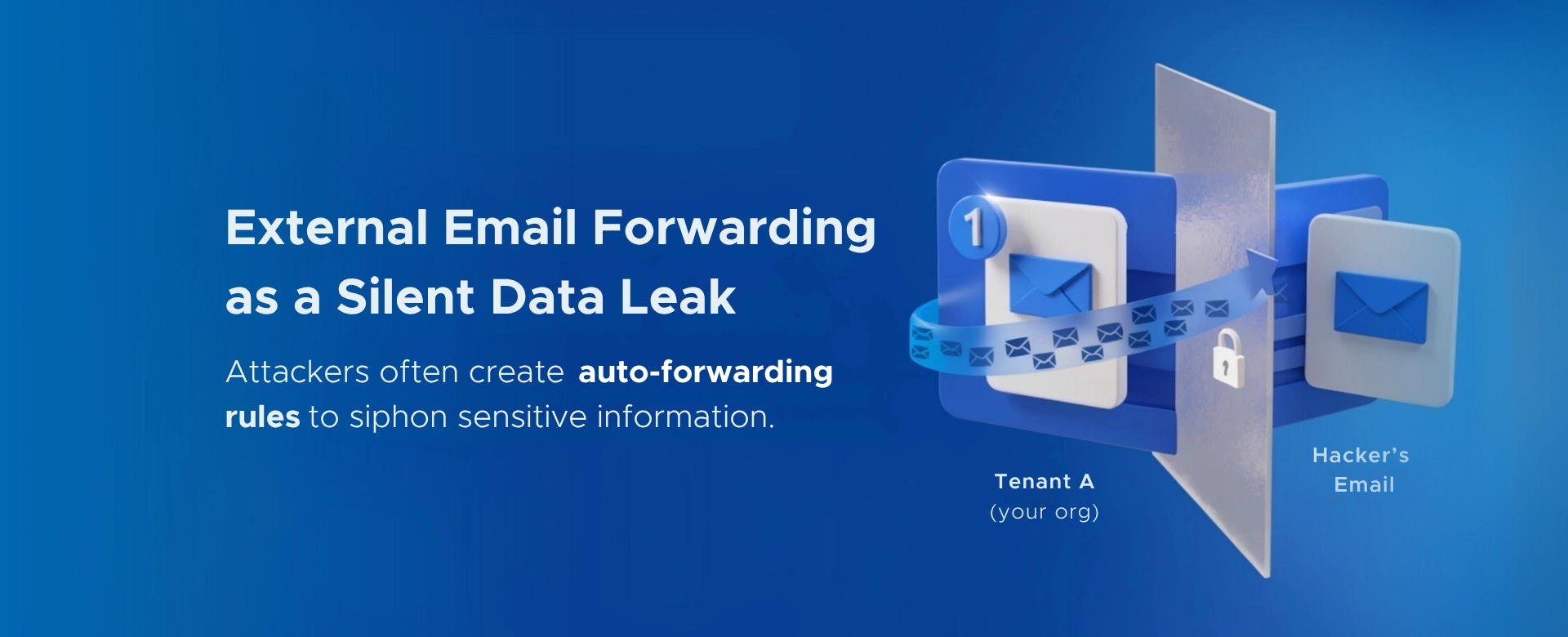 Your Microsoft 365 Tenant Has a Silent Data Leak. It Requires No Malware.
Your Microsoft 365 tenant can leak data silently - no malware, no alerts. Learn how simple misconfigurations enable ongoing email and data exfiltration.