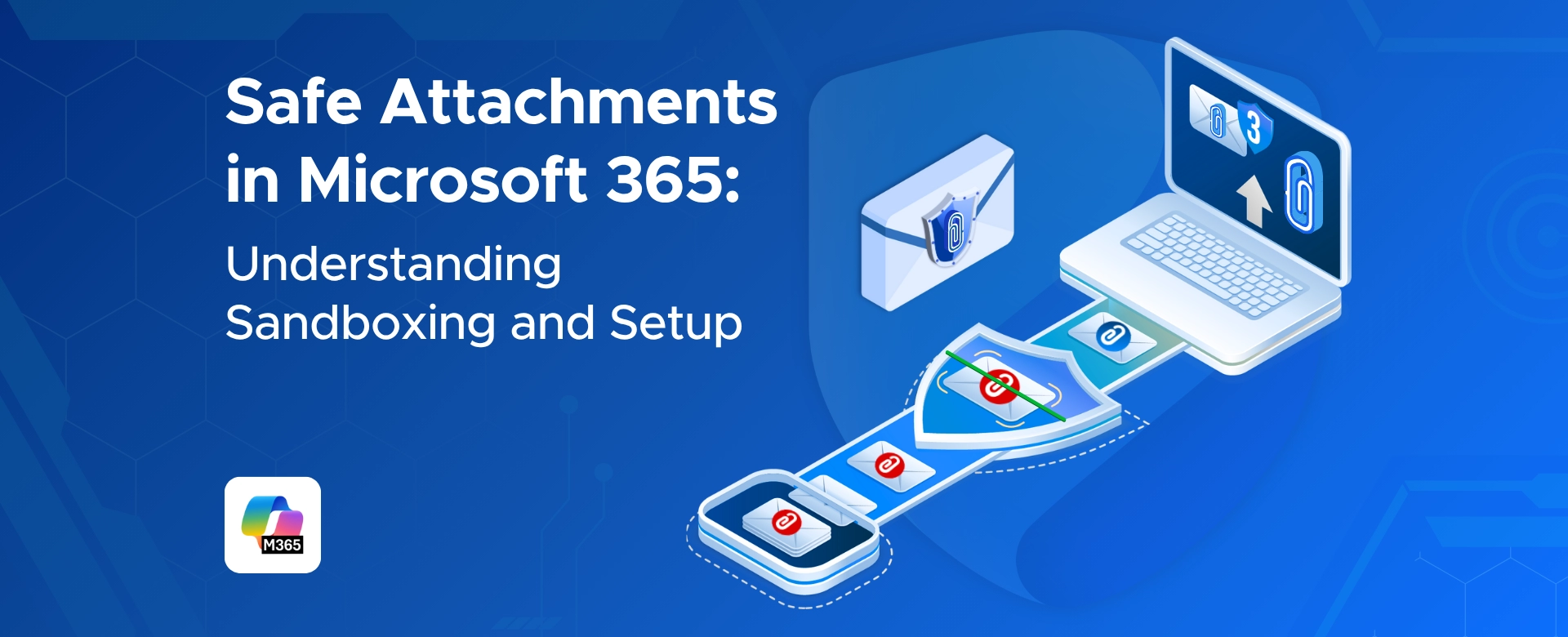
Safe Attachments in Microsoft 365: Understanding Sandboxing and Setup

Learn how Microsoft 365 Safe Attachments uses sandboxing to detect hidden malware, secure email and files, and protect your organization from advanced threats.
SHARE THIS BLOG:
Table of contents
How to Set Up Safe Attachments in Microsoft 365
Prerequisites and Planning
Step 1 – Open the Microsoft 365 Defender Portal
Step 2 – Turn On Safe Attachments for SharePoint, OneDrive, and Teams
Step 3 – Create a Safe Attachments Policy for Email
Step 4 – Review, Test and Deploy
How Safe Attachments Works – Understanding Sandboxing and “Detonation”
Email Workflow (How Safe Attachments Scans Attachments)
SharePoint, OneDrive, and Teams Workflow
Best Practices and Pro Tips for Safe Attachments
Why Trust Penthara Technologies for Microsoft 365 Safe Attachments Setup?
Frequently Asked Questions (FAQ)

Microsoft 365 processes an endless stream of files each day.
Most are harmless, but some contain hidden threats that aren’t obvious from the outside.

Safe Attachments helps catch those risks early.
It opens suspicious files inside a secure sandbox and watches how they behave before anyone interacts with them.

This matters because many modern attacks are built to look normal.
A file may appear clean yet trigger harmful actions only when opened. Sandboxing exposes that behavior without putting users or data at risk.

Safe Attachments is especially effective against:

  • documents with embedded or delayed-execution malware
  • files that hide harmful scripts inside everyday formats
  • malicious attachments shared over email, Teams, or cloud storage

By adding this deeper inspection layer, Microsoft 365 can block dangerous files before they reach inboxes or shared locations, reducing the chances of ransomware, credential theft, or unintended data access.

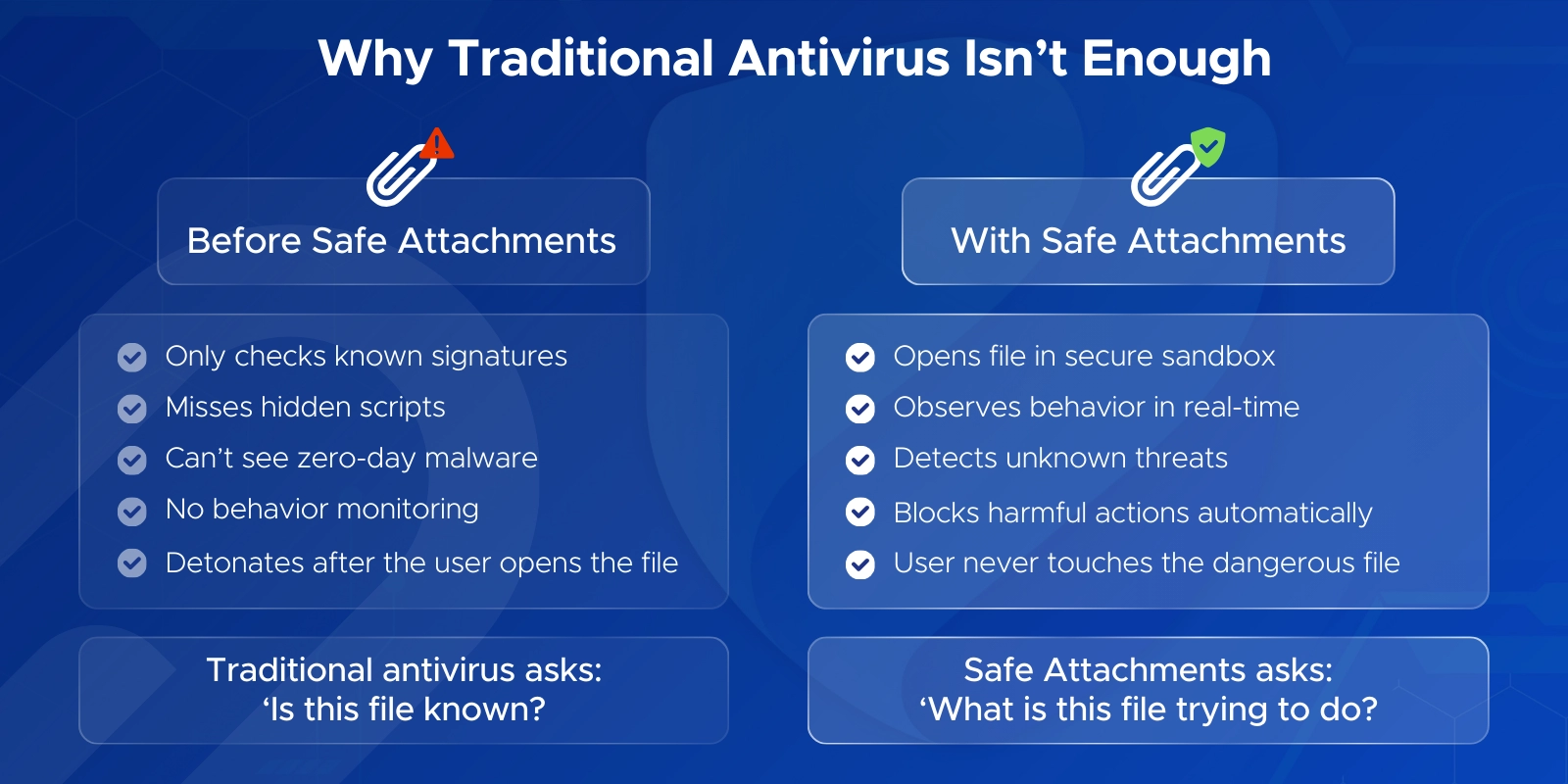
Why Traditional antivirus isn't enough

How to Set Up Safe Attachments in Microsoft 365

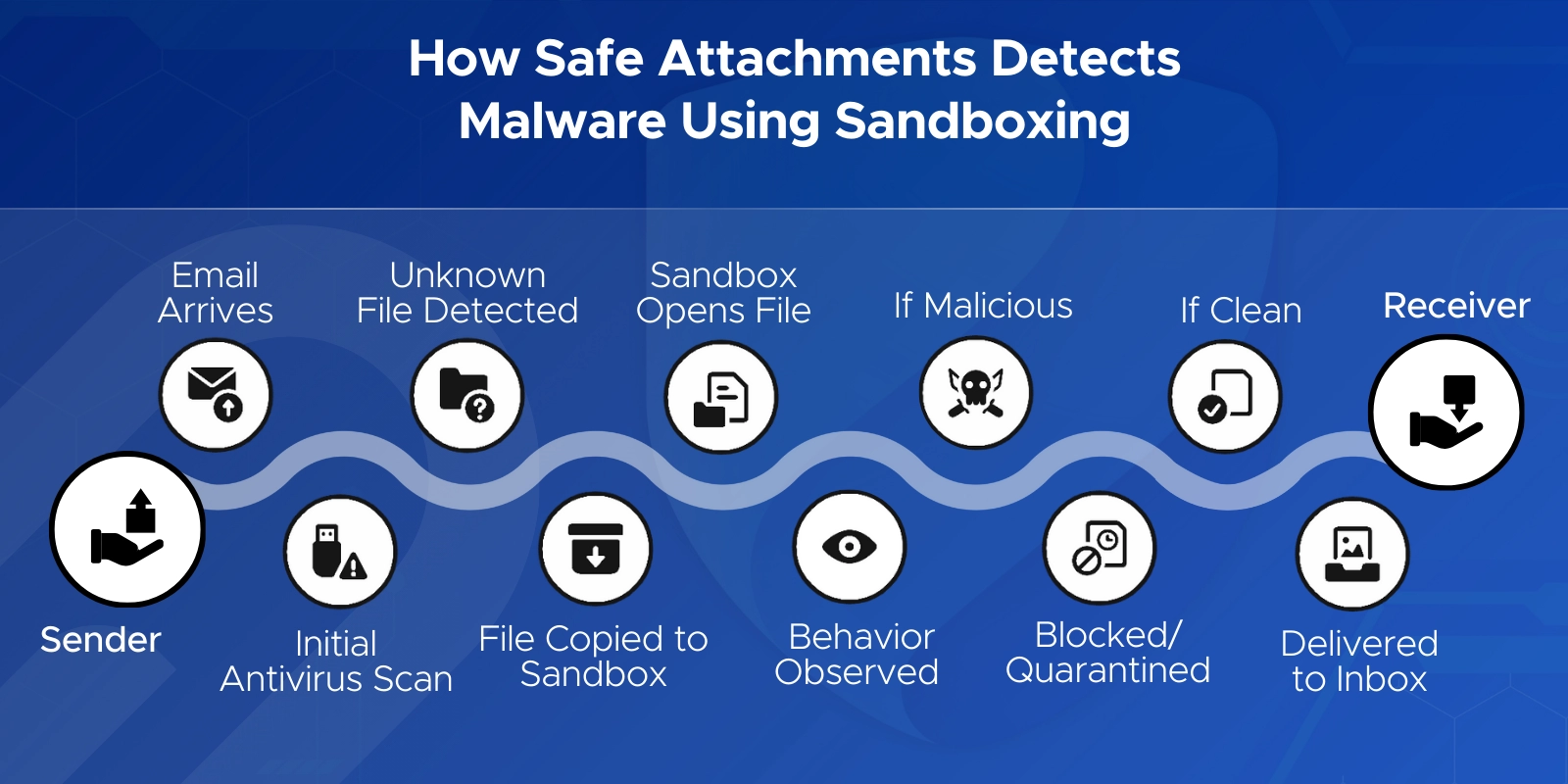
How Safe attachments detects malware using sandboxing

Prerequisites and Planning

Safe Attachments is available in Microsoft Defender for Office 365 Plan 1 and Plan 2.

  • Plan 1 covers email-based protection.
  • Plan 2 adds advanced automation features and wider threat investigation tools.

These plans are included in suites like Microsoft 365 E5, or they can be added to E3 and other subscriptions.

To configure Safe Attachments, you’ll need one of these roles:

  • Global Administrator
  • Security Administrator

Before creating any policies, it’s worth deciding who should be covered first.
Most organizations start with an org-wide baseline policy, then add stricter policies for high-risk users or sensitive departments.

A phased rollout also helps avoid surprises.
Turning it on for a pilot group first gives you space to check impact before applying it everywhere.

Step 1 – Open the Microsoft 365 Defender Portal

  1. In the Microsoft Defender portal at https://security.microsoft.com and sign in with your admin account.
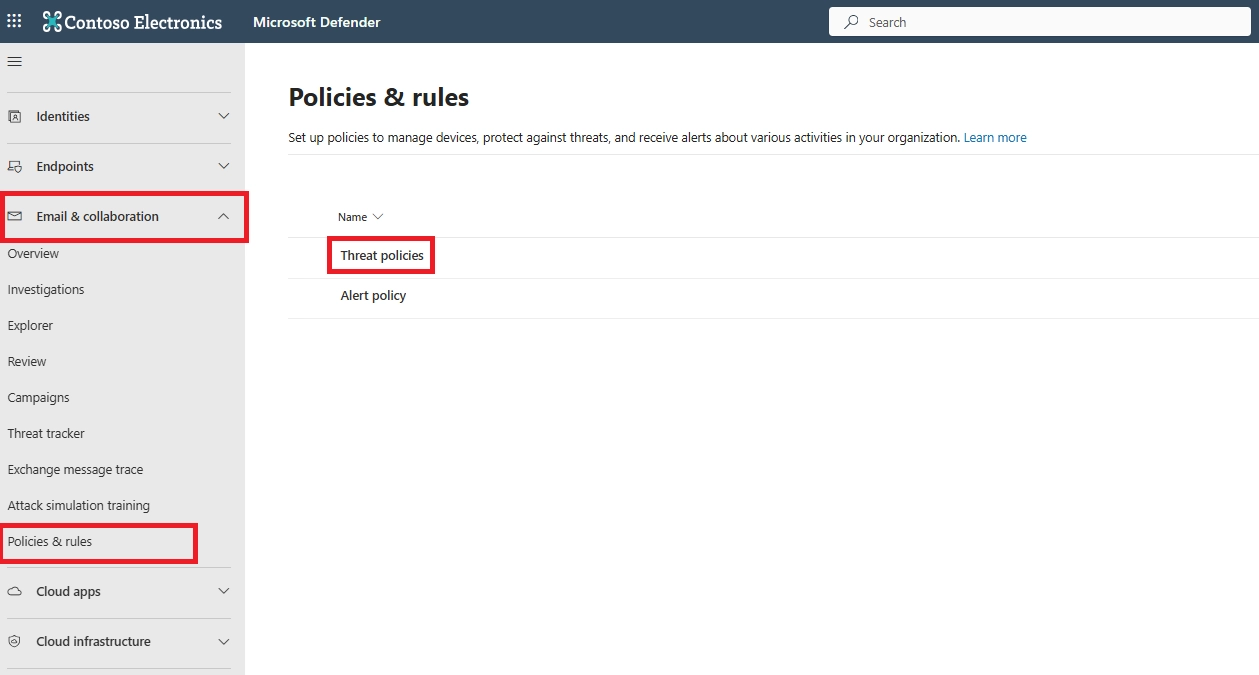
  2. In the left navigation, go to Email & collaboration → Policies & rules → Threat policies.
Microsoft Defender portal with Email & Collaboration → Policies & Rules → Threat policies option highlighted
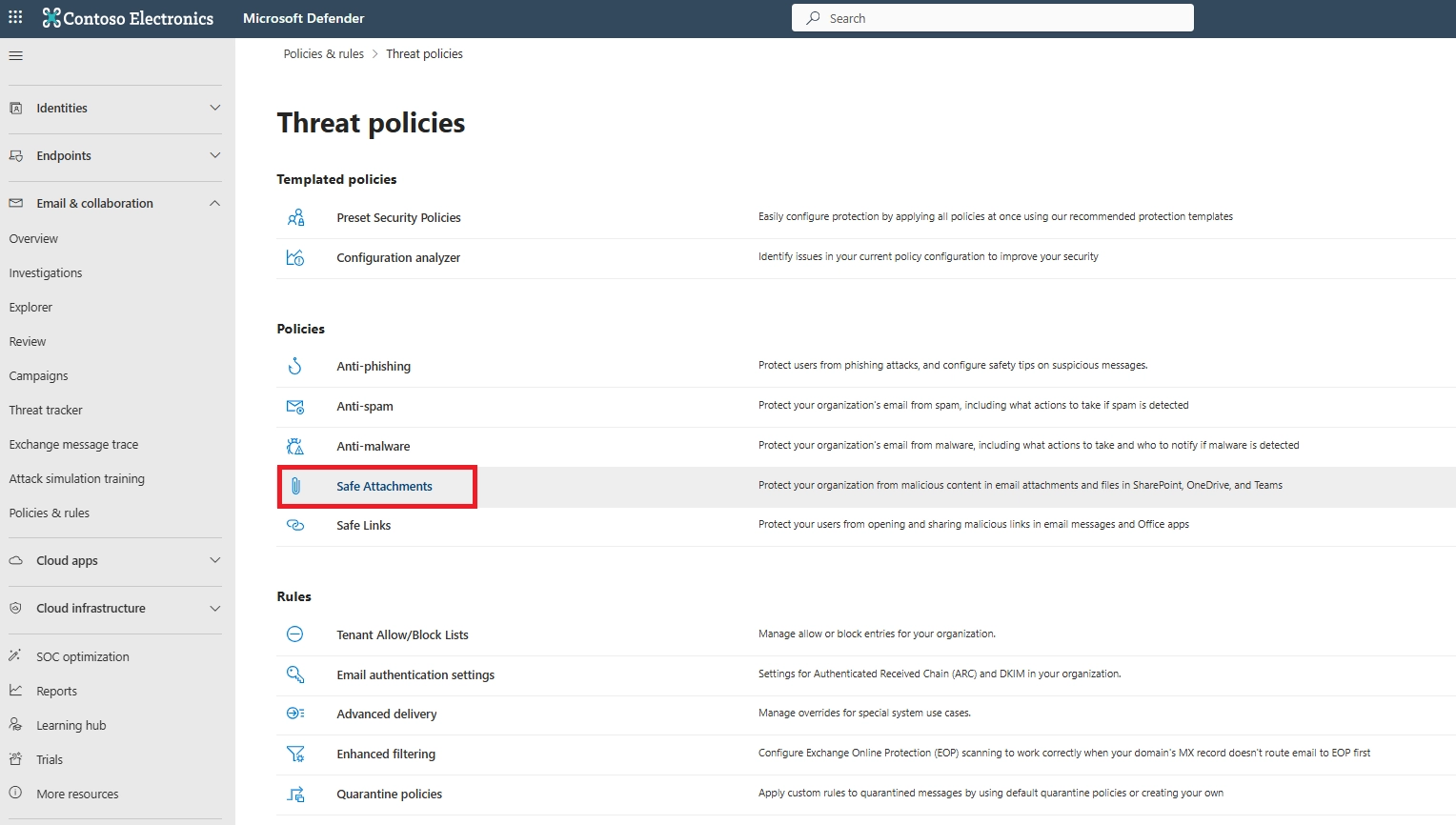
  1. Select Safe Attachments in the Threat Policies
Threat policies page displaying Safe Attachments option under Policies section

Step 2 – Turn On Safe Attachments for SharePoint, OneDrive, and Teams

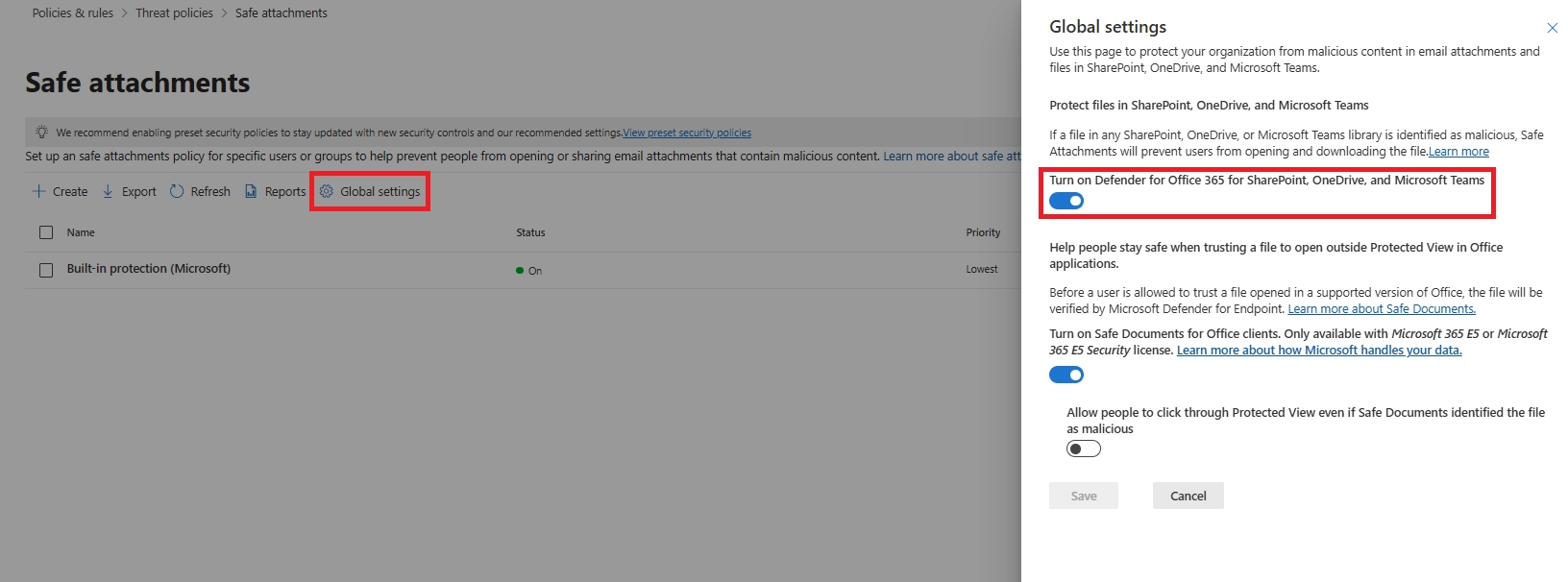
Open Global Settings inside the Safe Attachments section.

You’ll see toggles for enabling protection across SharePoint, OneDrive, and Teams.

Some tenants have this turned off by default, so it’s worth checking even if your environment is new.

Enabling this ensures files uploaded or shared between users are scanned in the sandbox before anyone opens them.

If you have an E5 license, you can also enable Safe Documents, which opens Office files in protected mode until they’re fully verified.

This isn’t required for Safe Attachments, but it adds an extra layer for Office apps.

Safe Attachments global settings panel with toggle for Defender protection in SharePoint, OneDrive, and Teams

Step 3 – Create a Safe Attachments Policy for Email

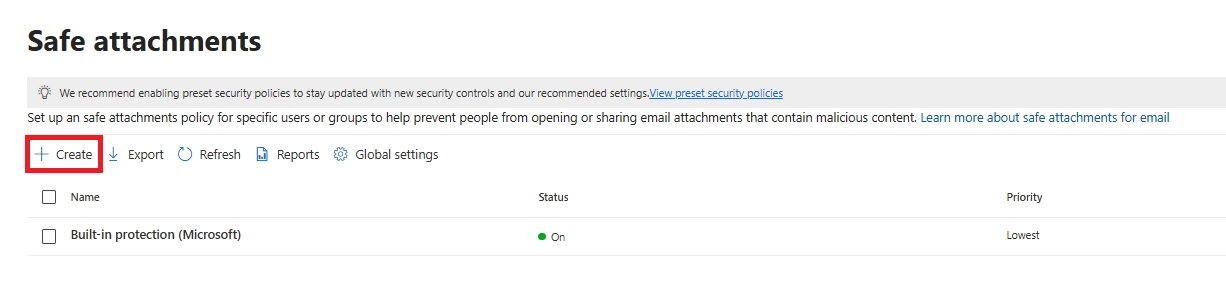
On the Safe Attachments page, select + Create to start a new Safe Attachments policy wizard.

Safe Attachments page showing Create button for adding a new policy

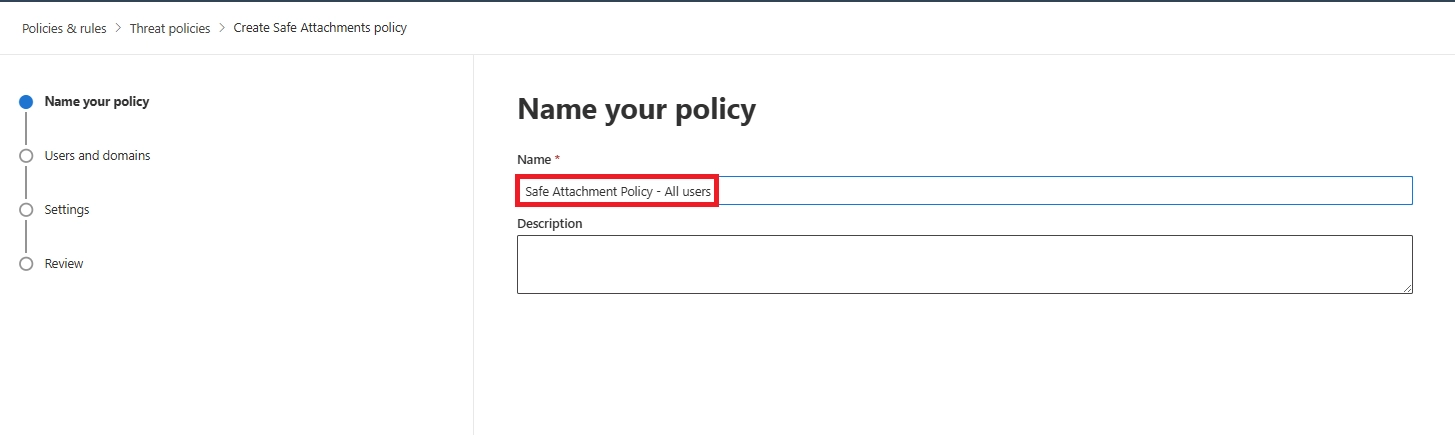
Name & Description
Enter a unique, descriptive name for the policy, like Company Safe Attachments Policy. This helps distinguish policies later.

Enter an optional description for the policy.

Safe Attachments policy creation page showing Name and Description fields

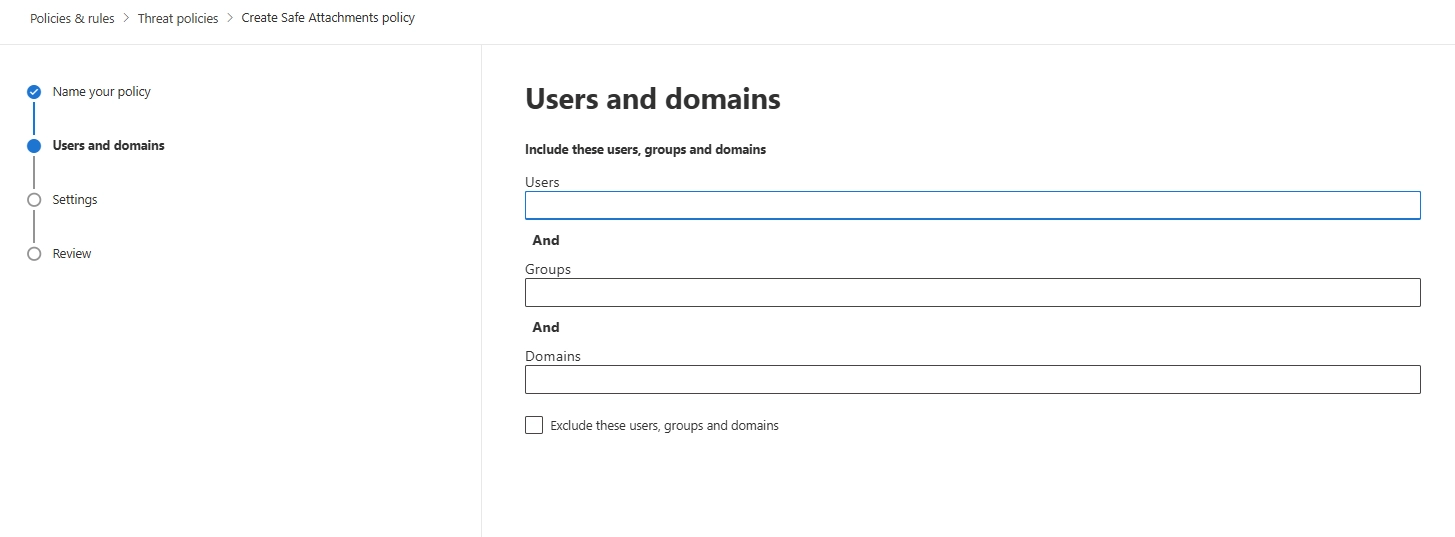
Scope (Recipients)
Apply the policy to All recipients if you want broad coverage.
Microsoft includes built-in protection for unassigned users, but creating your own policy gives more control.

TIP: Leave Users, Groups, and Domains blank to create a policy that applies to all recipients.

Subdomains are automatically included unless you specifically exclude them. For example, a policy that includes contoso.com also includes marketing.contoso.com unless you exclude marketing.contoso.com.

Screen to include or exclude users, groups, and domains for the policy.

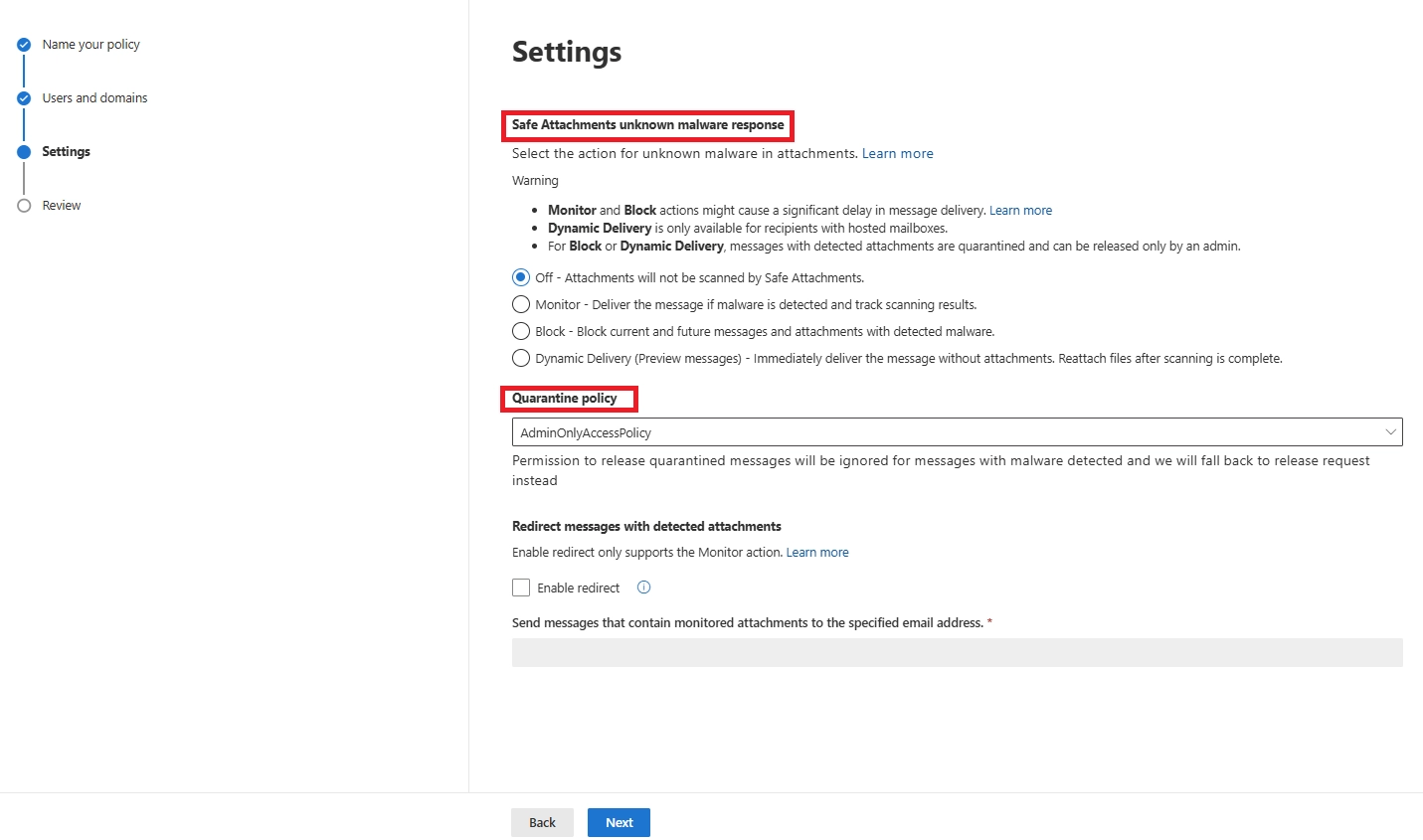
On the Settings page, configure the following Safe Attachments settings:

  • Off
  • Monitor
  • Block: This value is the default, and is the value used in Standard and Strict preset security policies.
  • Dynamic Delivery (Preview messages)

For more elaborated details about these options, refer to Safe Attachments policy settings.

Unknown Malware Response
This is the decision point. The main choices are:

  • Dynamic Delivery – Users get the email quickly while attachments are scanned in the background. A placeholder appears until the file is cleared.
  • Block – Emails containing suspicious attachments are held until scanning is complete or moved to quarantine.

Dynamic Delivery is a balanced option for most environments, especially when you want protection without delaying mail flow.
Blocking gives maximum security but may slow down delivery.

Feature / Behavior Dynamic Delivery Block Mode
Email body delivery Instant Delayed
Attachment availability After sandbox approval After sandbox approval
User experience Placeholder added Email fully held
Best for Fast email flow, minimal disruption Maximum protection
Risk of confusion Very low Medium (delayed email visibility)
Recommended for All standard users VIPs, finance, HR, security teams

Quarantine Settings
Use the default AdminOnlyAccess quarantine for clean and simple management.
Older redirect features tied to Monitor mode are retired, so you can safely skip them.

Save the policy to apply it.
Changes usually take effect within 30 minutes, though some tenants may take longer to fully replicate.

Safe Attachments settings screen with malware response options and quarantine policy dropdown

Step 4 – Review, Test and Deploy

On the Review page, review your settings. You can select Edit in each section to modify the settings within the section. Or you can select Back or the specific page in the wizard.

When you're finished on the Review page, select Submit.

Test the policy with a small pilot group before enabling it tenant-wide.
Send a harmless test malware file (like the EICAR test string) to verify behavior.

If Dynamic Delivery is enabled, you should see:

  • the email arriving normally
  • a placeholder instead of the attachment
  • the final attachment appearing once scanning completes

If the file is harmful, it should go straight to quarantine, and an alert should appear for admins.

Testing helps confirm that Safe Attachments is active and gives users a smoother rollout experience.

How Safe Attachments Works – Understanding Sandboxing and “Detonation”

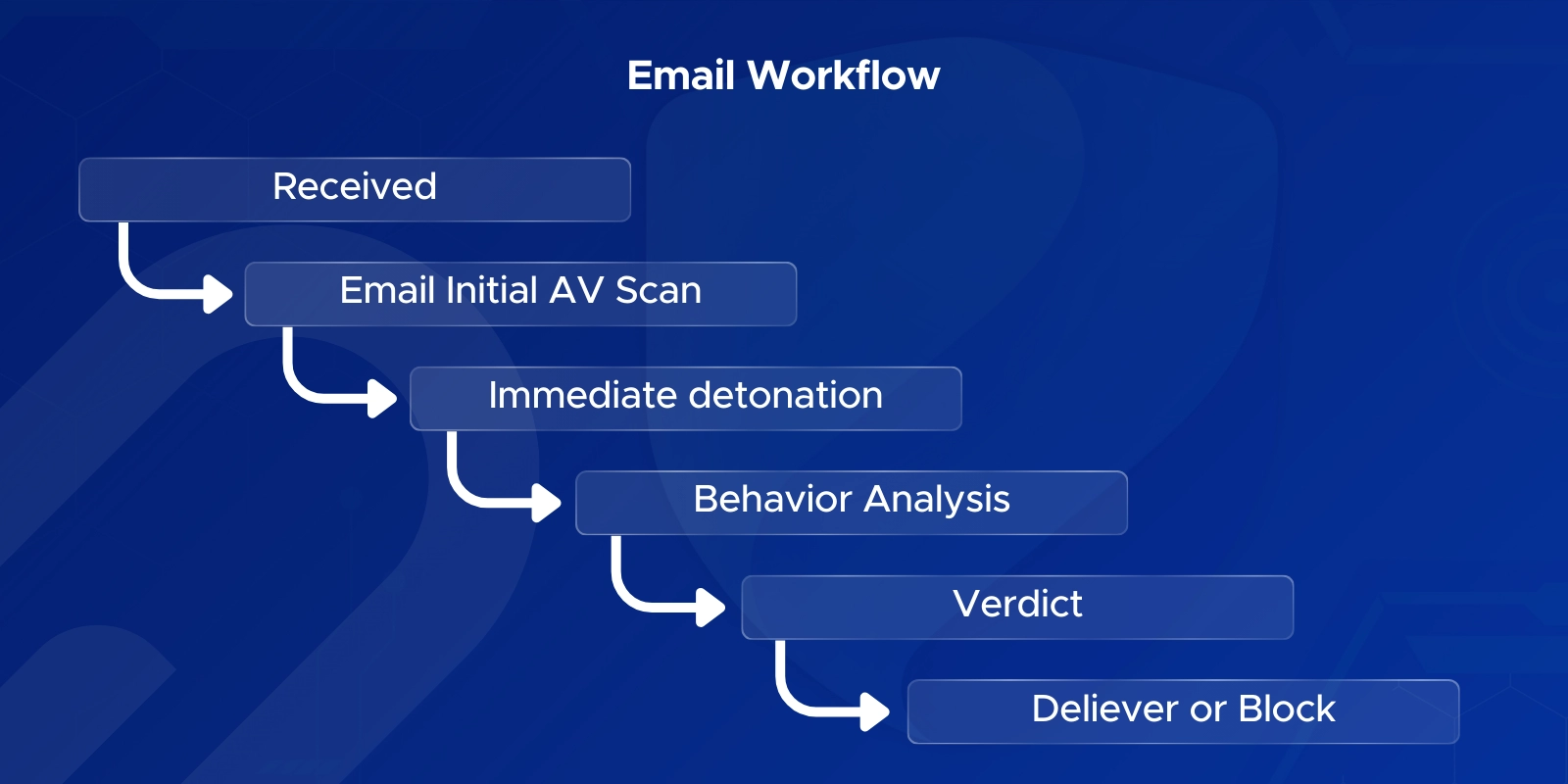
Email Workflow (How Safe Attachments Scans Attachments)

When an email with an attachment arrives, Safe Attachments adds a deeper inspection layer on top of the standard malware scan.

  1. Initial Malware Scan
    Exchange Online Protection checks the file for any known threats.
  2. Sandbox Detonation
    If the file isn't recognized, it’s copied into a secure sandbox where it can be opened safely.
  3. Behavior Analysis
    The sandbox observes what the file tries to do—running scripts, changing settings, downloading malware, or dropping hidden files.
  4. Verdict
    If it’s malicious, the file is blocked.
    If clean, it's delivered normally or re-attached if you're using Dynamic Delivery.

Most scans finish in a few minutes, with a maximum window of about 15 minutes depending on load.

Email workflow in Safe attachments

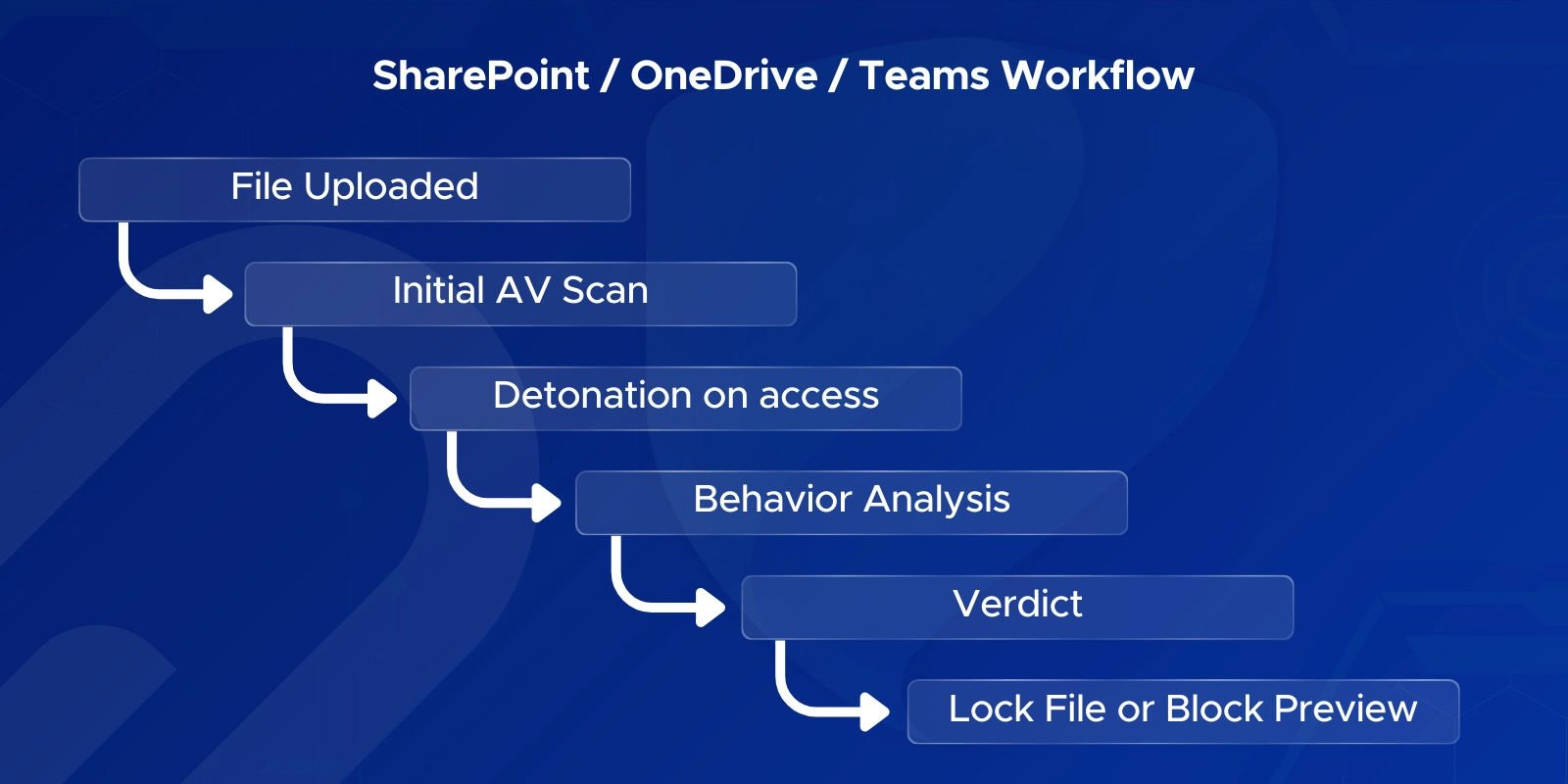
SharePoint, OneDrive, and Teams Workflow

Safe Attachments doesn’t just scan email - its sandboxing process also applies to files stored or shared in SharePoint, OneDrive, and Teams.
The workflow is similar, but the triggers and outcomes are slightly different.

  1. Initial Scan by Microsoft’s Antivirus Engine
    When a file is uploaded, Microsoft’s built-in virus scanner checks for known threats.
    If it’s already identified as malicious, access is blocked based on standard AV rules.
  2. Sandbox Detonation Triggered by User Activity
    Unlike email, sandbox detonation doesn’t happen the moment a file is uploaded.
    It’s triggered when the file is:
  • shared with someone
  • accessed by a user
  • opened in Teams or previewed
  • accessed by a guest

This keeps performance smooth while still catching threats before they spread.

  1. Behavior Analysis in the Sandbox
    The file is opened in a virtual environment, similar to email workflow.
    The sandbox looks for:
  • embedded scripts
  • file-dropping behavior
  • attempts to modify system areas
  • calls to suspicious URLs

If any harmful behavior appears, the file is immediately marked as unsafe.

  1. Verdict
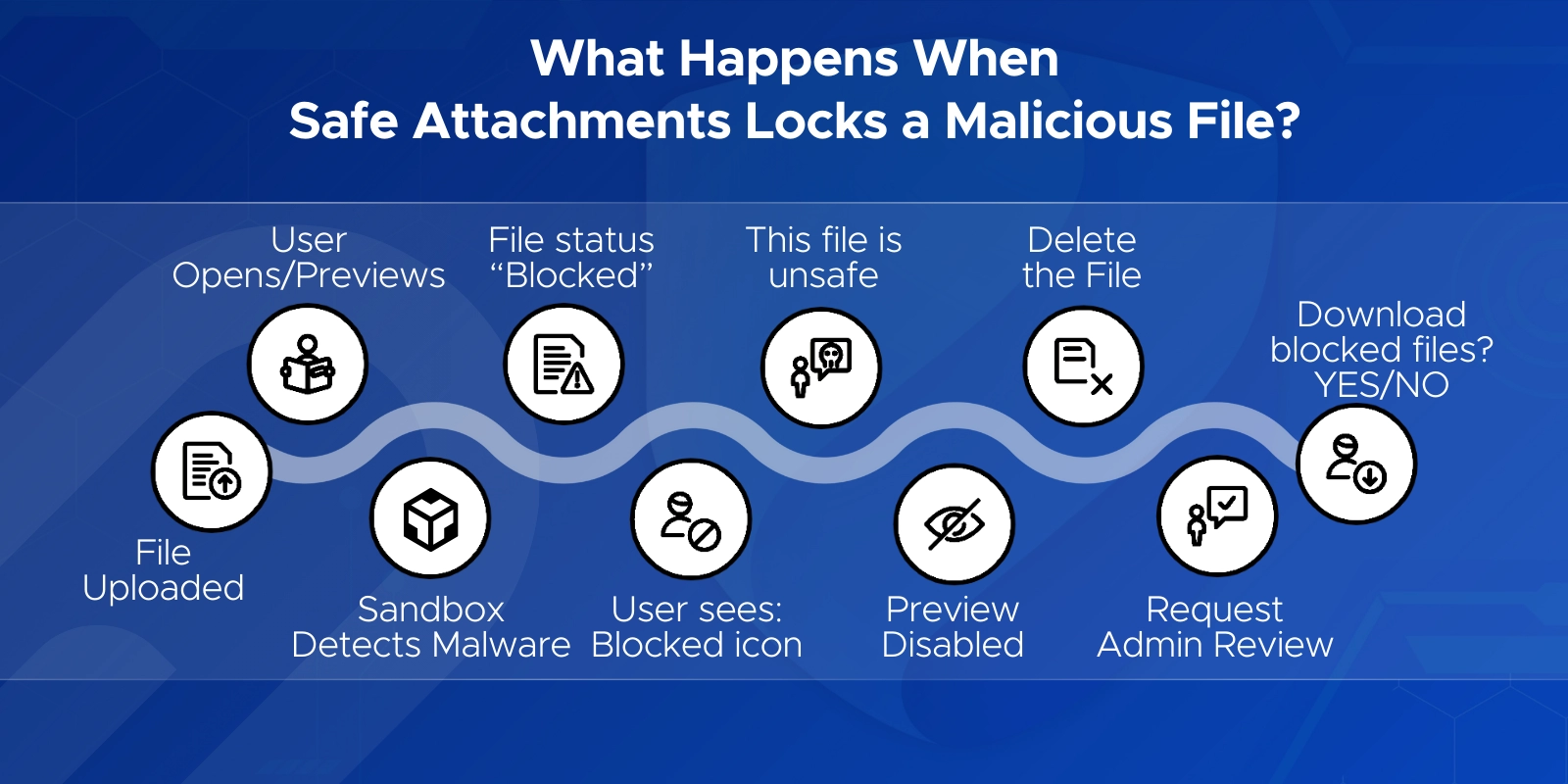
    If the file is malicious, Safe Attachments locks it.
    This means:
  • it can’t be opened
  • it can’t be copied or reshared
  • it shows a “blocked” icon in SharePoint/Teams
  • users may still be able to delete it

By default, users can download blocked files — which is risky.

  1. User Experience
    In SharePoint, users see a warning badge on the file and receive an error if they try to open it.
    In Teams, blocked files fail to preview or return a message saying they’re unsafe.
SharePoint, OneDrive, and Teams Workflow in Safe Attachments

What happens when safe attachments lock a malicious file?

Most admins miss this: Downloading infected files is allowed unless you disable it.

What happens when safe attachments lock a malicious file?

Best Practices and Pro Tips for Safe Attachments

  • Turn on Safe Attachments everywhere it counts - email and SharePoint/OneDrive/Teams - so no malicious file slips through a side door.
  • Pair Safe Attachments with Safe Links for a stronger, layered defense against bad URLs hiding inside documents.
  • Use Dynamic Delivery to keep email moving fast while the sandbox quietly does its job in the background.
  • Give your helpdesk a quick heads-up about placeholders so they can reassure users when an attachment takes a moment to appear.
  • Check the Defender reports and alerts often - they reveal which files, departments, or senders are triggering the most activity.
  • Tell users what to expect. A quick “your attachment is being scanned” explanation can prevent confusion and make security feel smoother.
  • Keep policy scopes fresh. New domains, new teams, or new licenses can change who needs protection.
  • Run occasional test scans to make sure everything still works as expected, especially after major updates.
  • Watch out for tricky cases like encrypted attachments or forwarded emails - they may behave differently and need extra attention.
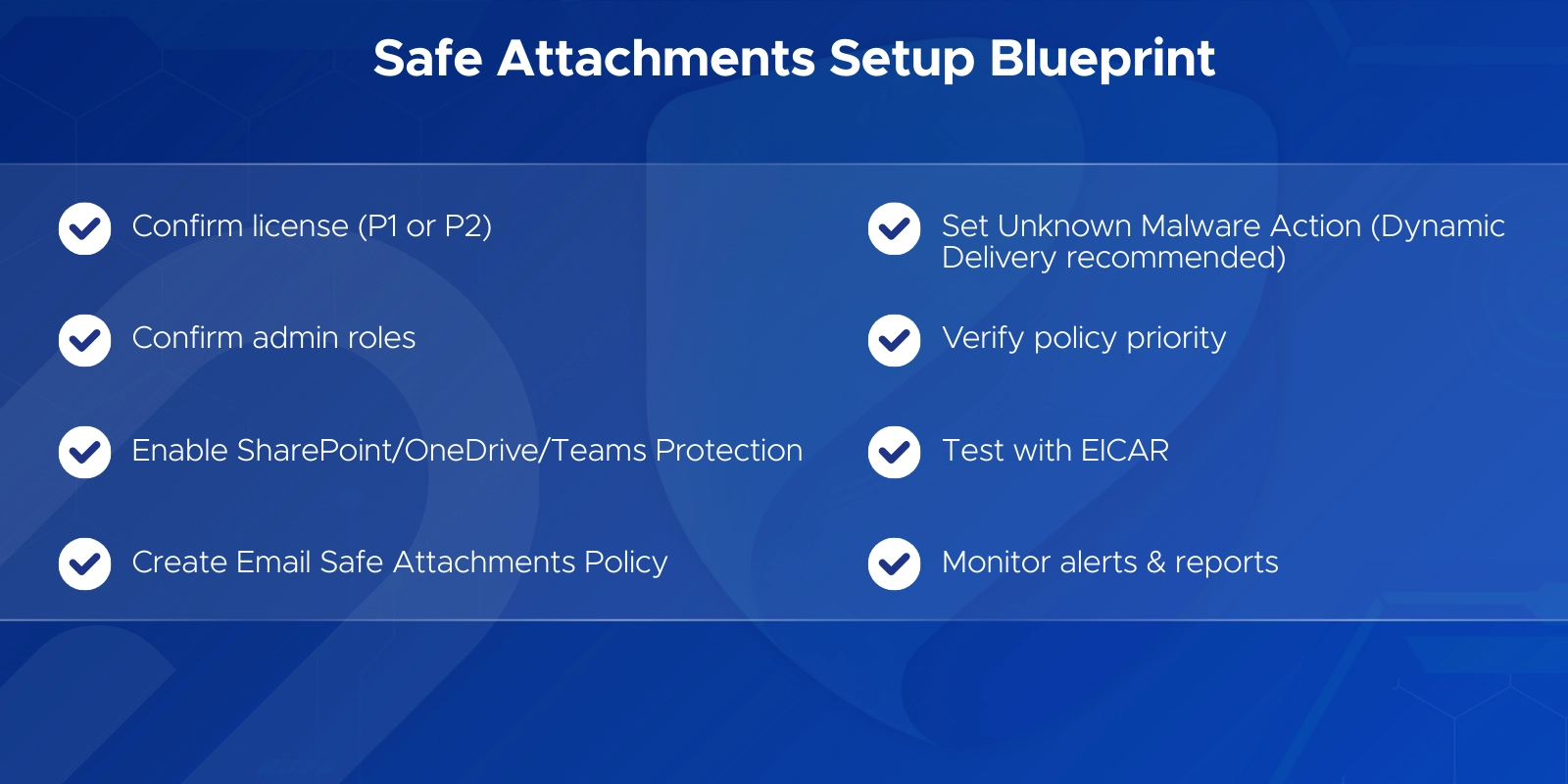
Safe Attachments setup blueprint

Why Trust Penthara Technologies for Microsoft 365 Safe Attachments Setup?

  • Microsoft Solutions Partner: Recognized expertise across the Microsoft cloud, backed by proven capability in securing Microsoft 365 environments.
  • Microsoft Security Specialists: Deep experience configuring Safe Attachments, Safe Links, and broader Defender for Office 365 protections across email, SharePoint, OneDrive, and Teams.
  • Certified & Experienced Team: Our consultants hold advanced Microsoft security certifications and have hands-on experience with sandboxing policies, threat analysis, Dynamic Delivery, and file collaboration protection.
  • Compliance-Driven Approach: We help align your Safe Attachments configuration with regulatory needs like HIPAA, GDPR, ISO, and SOC 2 — ensuring strong security that meets industry standards.
  • Seamless Rollout & Support: From planning and pilot testing to full deployment and tuning, we guide you through each step to minimize risk, avoid misconfigurations, and keep users informed.
  • Continuous Improvement: We don’t just enable Safe Attachments — we help you monitor detections, refine policies, and strengthen your overall Microsoft Defender posture with ongoing best practices.

Ready to secure every file and attachment across Microsoft 365 with enterprise-grade protection?

Schedule a free consultation today with Penthara Technologies.

Frequently Asked Questions (FAQ)

Q1. What are Safe Attachments in Microsoft 365?
Safe Attachments is a Microsoft Defender for Office 365 feature that opens files in a virtual sandbox to check for harmful behavior. Unlike regular antivirus, which checks signatures, Safe Attachments detects unknown malware, zero-day attacks, and hidden scripts by detonating the file before it reaches users.

Q2. How does sandboxing (detonation) work in Safe Attachments?
Safe Attachments copies the file to a secure virtual environment, opens it, and observes its behavior. If the attachment tries to run scripts, download malware, or modify system areas, it’s blocked. Most Safe Attachments sandbox scans finish in 2–15 minutes.

Q3. Will Safe Attachments delay my emails?
There may be a short delay, but using Dynamic Delivery ensures the email body arrives instantly while the attachment is scanned. The attachment appears when cleared by the sandbox. This keeps the workflow smooth without sacrificing security.

Q4. Why enable Safe Attachments for SharePoint, OneDrive, and Teams?
Safe Attachments protection for SharePoint, OneDrive, and Teams prevents malicious files uploaded or shared in cloud libraries from spreading internally. It scans files asynchronously when someone opens, previews, or shares them—blocking unsafe content before others access it.

Q5. How does Safe Attachments for SharePoint, OneDrive, and Teams work?
Files first pass a basic malware scan. When a user interacts with the file, Safe Attachments detonates it in a sandbox. If it’s malicious, the file becomes “locked,” can’t be opened or shared, and shows a blocked icon in modern SharePoint or Teams.

Q6. Why can users still download malicious files in SharePoint/OneDrive even with Safe Attachments enabled?
Because downloads are allowed by default. To block downloads of infected files, run:
Set-SPOTenant -DisallowInfectedFileDownload $true
This closes a common loophole many admins miss.

Q7. Which Microsoft 365 license includes Safe Attachments?
Safe Attachments is included in Microsoft Defender for Office 365 Plan 1 and Plan 2. M365 E5 and O365 E5 include P2 automatically, while E3 plans can add P1/P2. Plan 1 gives core Safe Attachments protection; Plan 2 adds automation, enhanced reporting, and preset security policies.

Q8. How do I set up a Safe Attachments policy in Office 365 quickly?
Go to the Microsoft 365 Defender portal → Email & Collaboration → Policies & Rules → Threat Policies → Safe Attachments → Create Policy. Add recipients, choose the action (Dynamic Delivery or Block), and save. This creates a tenant-specific Safe Attachments policy for email.

Q9. What is the best Safe Attachments policy mode to use?
Most organizations prefer Dynamic Delivery because it delivers emails instantly while scanning attachments in the background. “Block” offers maximum security but delays the entire email until the scan completes.

Q10. Why is my Safe Attachments policy not applying to some users?
Check:

  • Policy scope (are the users included?)
  • Priority order (a different policy may override)
  • Licensing (users must have Defender for Office 365)
  • Microsoft preset policies (Standard/Strict may take precedence)
  • Propagation time (wait 30–60 minutes for new policies)

Q11. How do I know if an attachment is safe in Office 365?
Safe Attachments scans the file in a sandbox. If it’s safe, it’s delivered or re-attached (Dynamic Delivery). You can also check Quarantine, Threat Explorer, or the Safe Attachments report in the Defender portal to verify actions taken.

Q12. What is Safe Attachments Unknown Malware Response?
This setting decides what happens when a file is being scanned. “Dynamic Delivery” replaces the attachment with a placeholder until it’s verified. “Block” holds the entire message. It’s a key configuration step in Safe Attachments policy setup.

Q13. What is SafeDocs (Safe Documents) in Microsoft 365?
Safe Documents is an E5 feature that opens Office files in protected mode until Microsoft finishes scanning them. It works alongside Safe Attachments to add an extra layer for Office files opened directly in desktop apps.

Q14. Does Safe Attachments work for Microsoft Teams files?
Yes. Files shared in Teams are stored in SharePoint and processed by Safe Attachments the same way as SharePoint/OneDrive files. If malicious, Teams will show an error or block preview.

Q15. How do I test if Safe Attachments is working?
Send an EICAR test file to a mailbox protected by Safe Attachments—it should be quarantined.
Upload EICAR (inside a ZIP) to SharePoint/OneDrive—the file should get flagged and locked shortly after.

Q16. What should I do if Safe Attachments detects malware?
Do not release the file immediately. Review Quarantine details, inform the user, and investigate the sender. If it’s a false positive, you can submit the file to Microsoft. If it’s real malware, block the sender, check for similar emails, and review user activity.

Q17. What is the difference between Safe Attachments and Safe Links?
Safe Attachments scans files in a sandbox.
Safe Links scans URLs and detonates malicious websites or linked files.
Together, they provide file-level and link-level protection across Microsoft 365.

Q18. What is Office 365 Safe Mode for attachments (Outlook attachment security)?
Outlook’s “Protective View” or “blocked attachment types” is client-side protection.
Safe Attachments is server-side protection.
Safe Attachments stops threats before they ever reach Outlook.

Q19. How do Safe Attachments policies relate to Preset Security Policies?
If Standard/Strict presets are enabled, they may override or apply before your custom Safe Attachments policies. Check policy priority and scope to avoid unexpected behavior.

Q20. What file types can Safe Attachments scan?
Most common file types are analyzed. Encrypted or password-protected archives may not fully detonate, so use mail flow rules or additional checks for those cases.
Jasjit Chopra
Jasjit Chopra

CEO at Penthara Technologies

About the Author

Microsoft MVP LogoLinked-in

Jasjit Chopra is the CEO of Penthara Technologies and a Microsoft Most Valuable Professional (MVP) with over two decades of hands-on experience in Microsoft 365, SharePoint, and Security. He has led 100+ digital transformation projects across six countries, securing 50,000+ users, migrating 250+ TB of data, and automating processes that save organizations thousands of hours each year. A recognized leader at the crossroads of AI, security, and workplace modernization, Jasjit is passionate about simplifying complexity, mentoring technology professionals, and helping businesses build secure, intelligent, and future-ready digital environments.

Leave a Reply

Your email address will not be published. Required fields are marked *

More From This Category

How to Configure Safe Links in Microsoft 365 for Maximum Protection

Learn how to configure Safe Links in Microsoft 365 to block malicious URLs and strengthen protection across email, Teams, and Office apps.

Read More
Microsoft 365 Attack Simulation: A Complete Setup Guide

A complete step-by-step guide to Microsoft 365 Attack Simulation Training, covering setup, phishing payload selection, targeting, training assignments, reporting, and best practices to help organizations strengthen user awareness and reduce phishing risks.

Read More
Eligible vs. Active PIM Roles Explained: Best Practices for Microsoft 365 Security

Confused between eligible and active PIM roles in Microsoft 365? This guide explains how each works, when to use them, and how to configure just-in-time access to reduce security risks. Perfect for IT admins and security teams aiming to strengthen privileged access management.

Read More
1 2 3 7
chevron-right