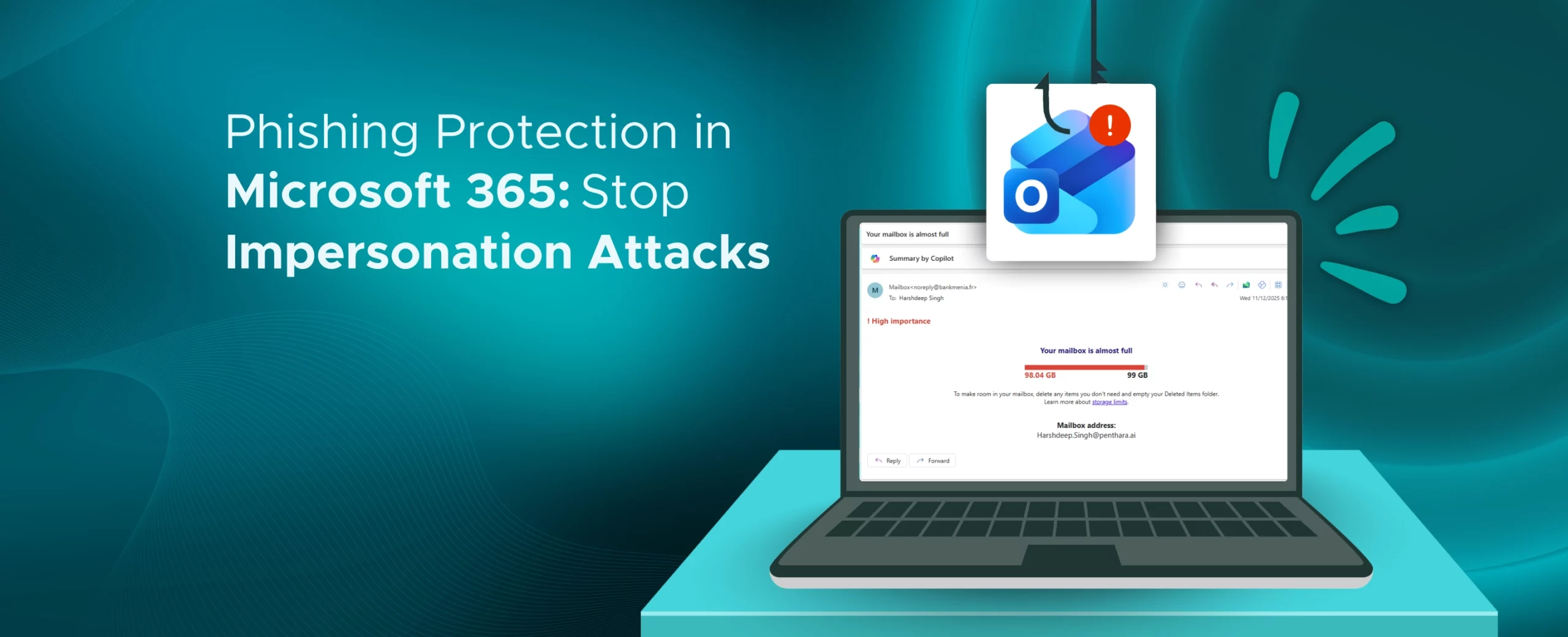
Learn how to configure Safe Links in Microsoft 365 to block malicious URLs and strengthen protection across email, Teams, and Office apps.

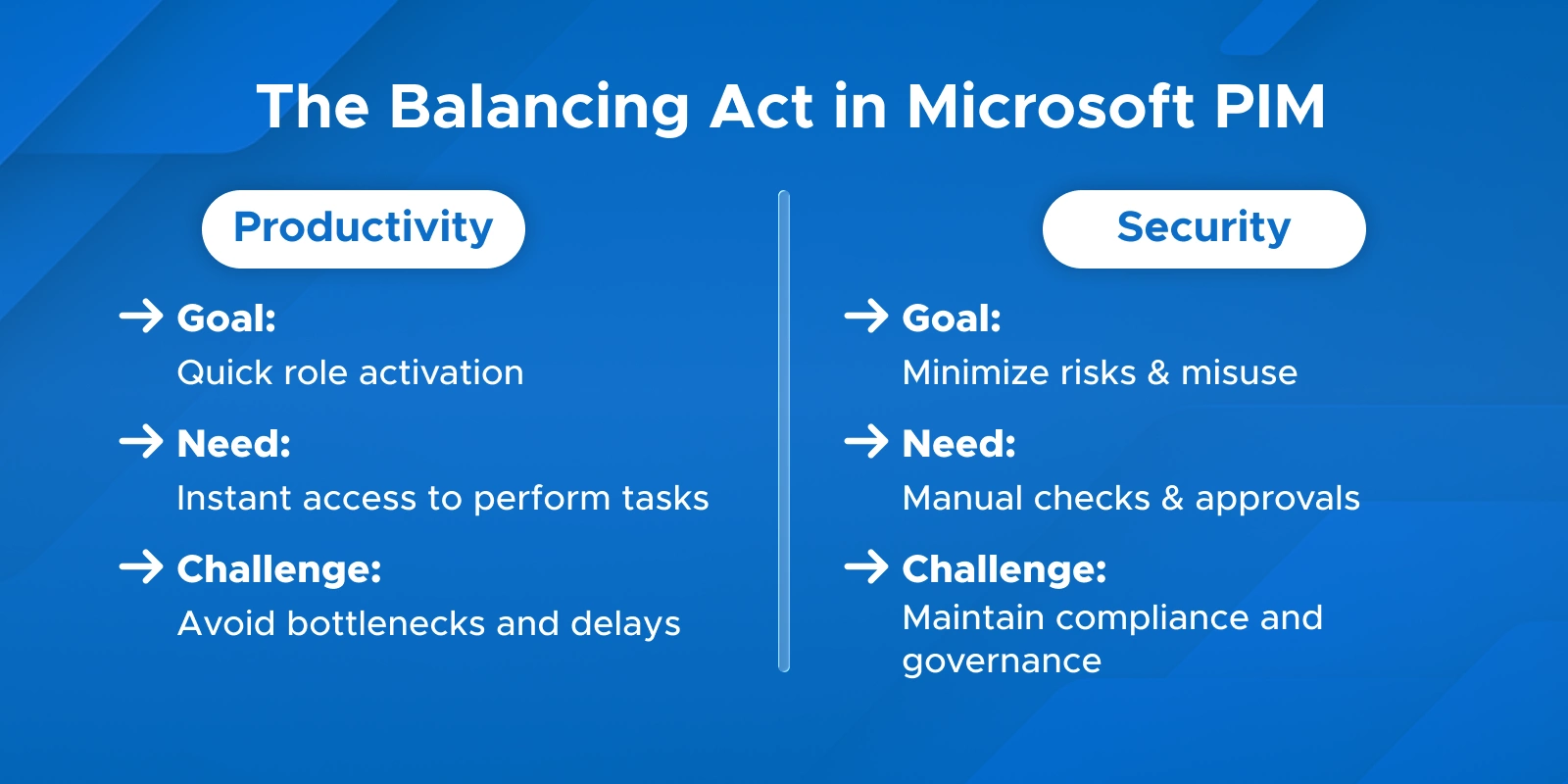
Balancing security with productivity is one of the toughest challenges in identity management. Especially when it comes to privileged roles - the ones with higher access and power.
That’s where the big question comes in.
Should role activation be automatic or require manual approval in Microsoft PIM?
In this guide, we’ll simplify the difference between auto vs. manual approval PIM roles.
You’ll learn how to design a secure and efficient Microsoft PIM approval workflow using real-world examples and best practices that actually work.

Privileged Identity Management (PIM) works on a simple idea - give access only when it’s needed, not all the time. This is called Just-in-Time (JIT) access, and it helps reduce standing privileges that attackers could misuse.
In PIM, some users are eligible for certain roles. If you’d like to understand how eligible roles differ from active ones in Microsoft PIM, check out our in-depth article Eligible vs. Active PIM Roles Explained.
That means they don’t have permissions by default - they must activate the role to actually use it.
The approval mechanism acts as the gatekeeper for this process. It:
When we set up PIM, we have to choose a method for the approval.
Do we prioritize instant access, or a necessary security checkpoint?
This choice of PIM approval types: manual or automatic is all about balancing speed and safety.
Here is a simple look at the two options side-by-side:
| Aspect | Auto-Approval | Manual Approval |
|---|---|---|
| Activation Speed | Immediate after MFA/justification | Delayed until approver responds (up to 24 hrs) |
| Security | Relies on MFA, justification, logs; no human check | Human approval required; higher oversight |
| Use Case | Low-risk roles, daily tasks | High-privilege or sensitive roles |
| Pros | Fast, no bottlenecks | Strong security, compliance-friendly |
| Cons | Higher risk if account is compromised | Slower; needs approver availability |
| Audit & Compliance | Logs generated; minimal checkpoint | Formal record of approval; audit-ready |
Choosing between approval required vs auto-activate eligible roles PIM is the key decision for your organization. You need to pick the right method for the right level of power.
Auto-approval in Privileged Identity Management (PIM) lets roles activate instantly once the user provides a justification and passes required checks like MFA. No waiting, no bottlenecks - it’s the fast lane for role activation.
Pros:
Cons & Risks:
Even with auto-approval, a strong identity foundation is crucial. For the highest assurance, we recommend using a modern identity strategy; explore a complete guide to Microsoft 365 Passwordless Implementation.
When to Use Auto-Approval:
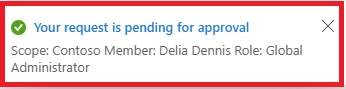
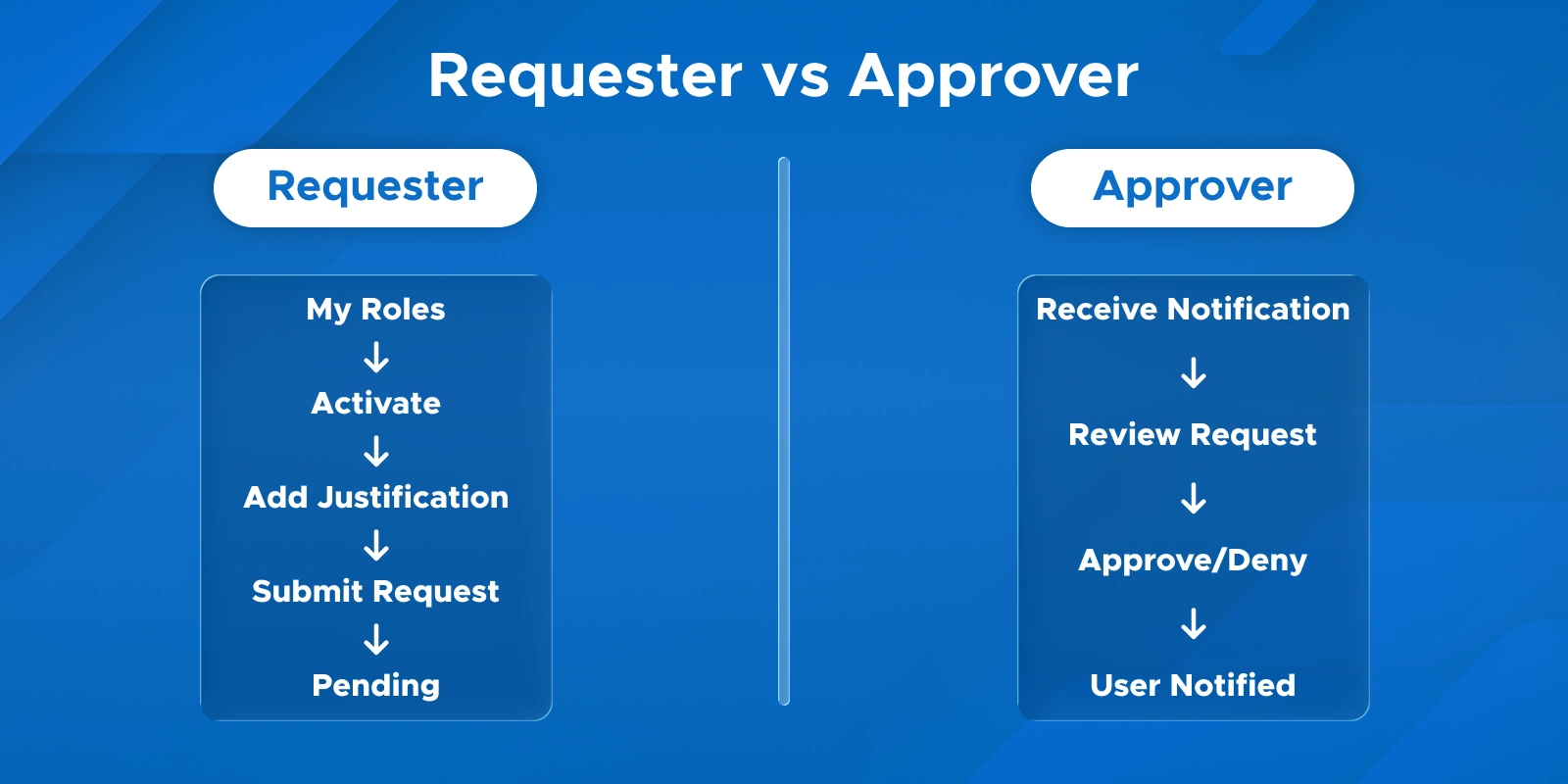
Manual approval means a role activation request needs explicit approval from a designated approver or group.
It adds a human checkpoint before access is granted, keeping high-risk roles more secure.
Pros:
Cons:
When to Use Manual Approval:
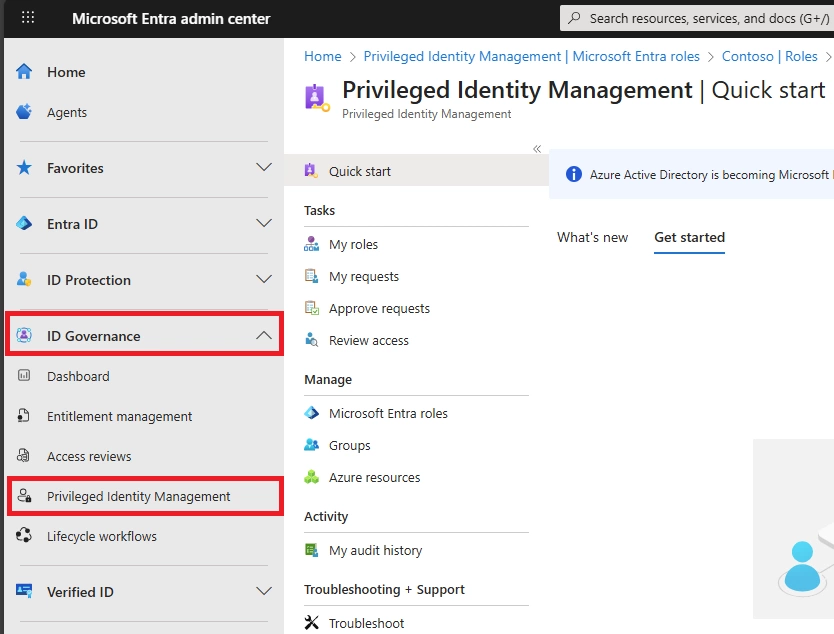
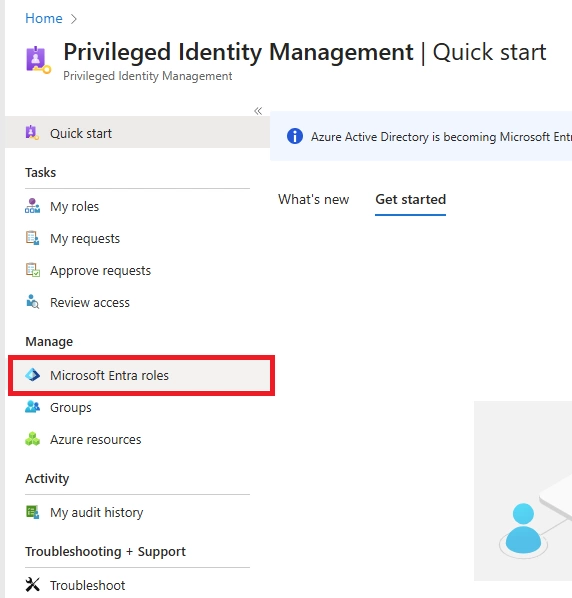
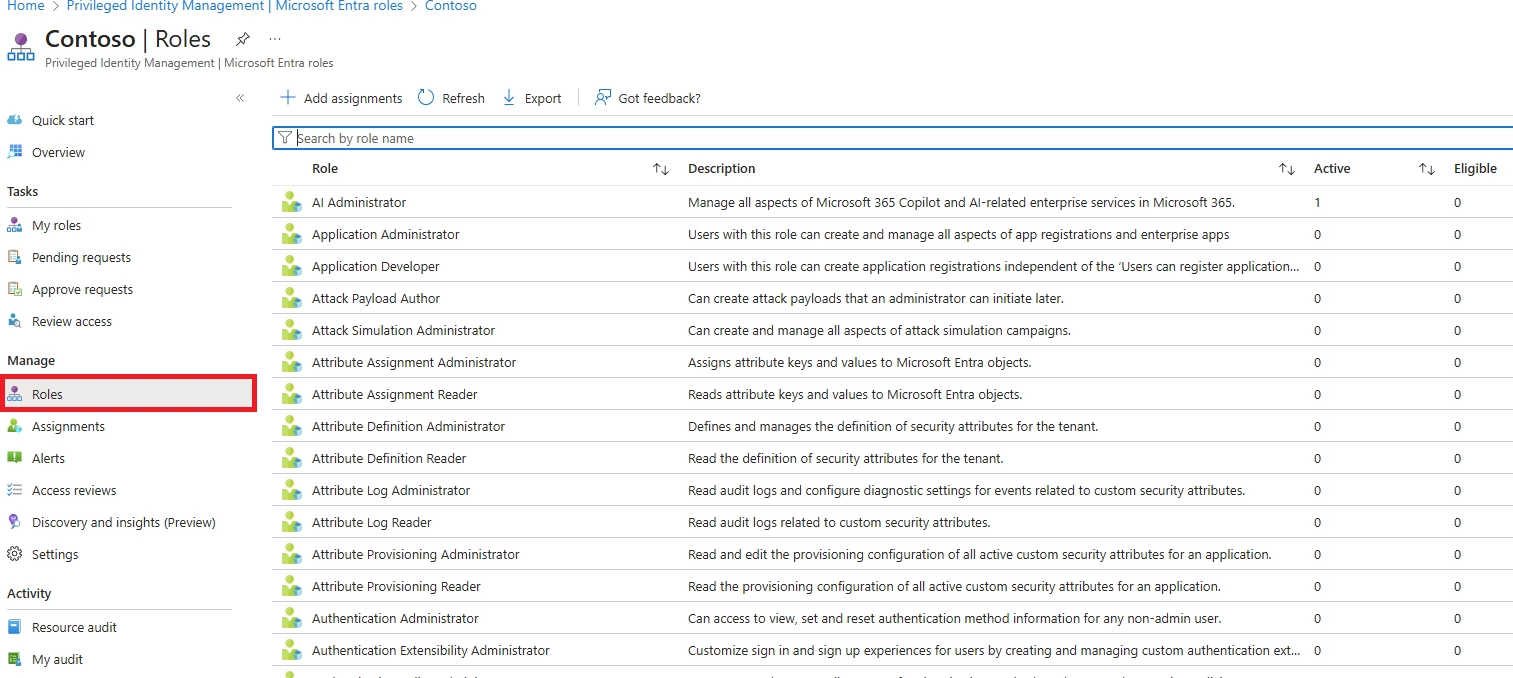
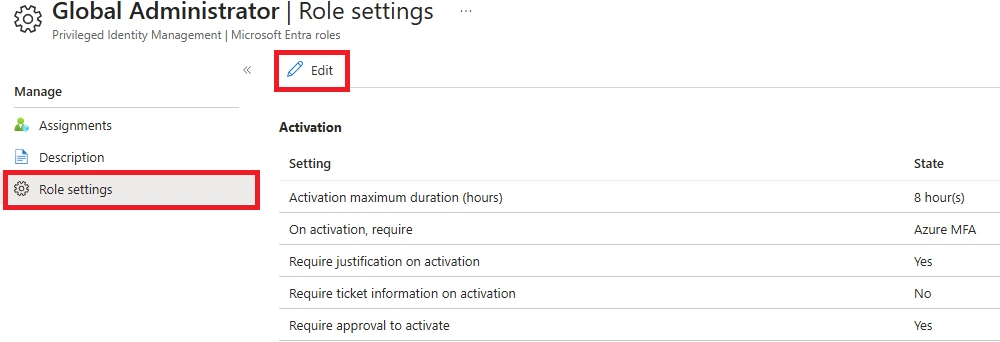
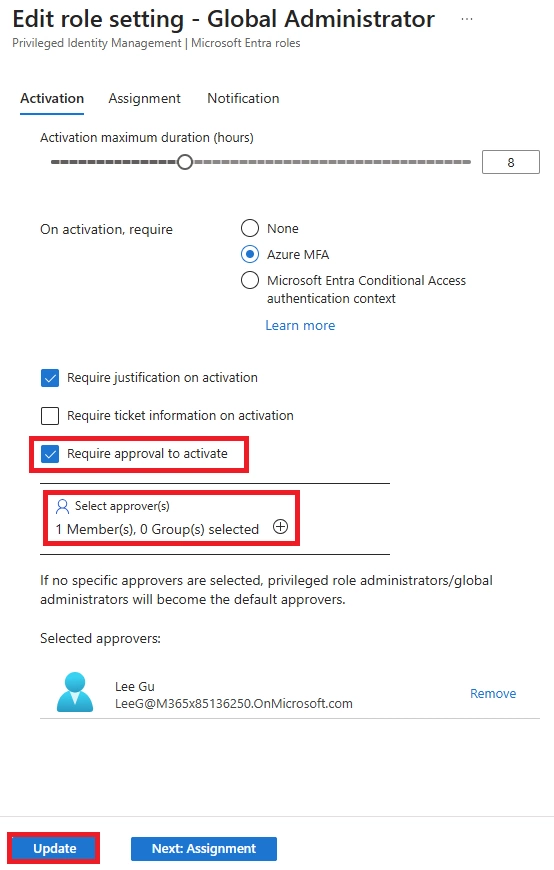
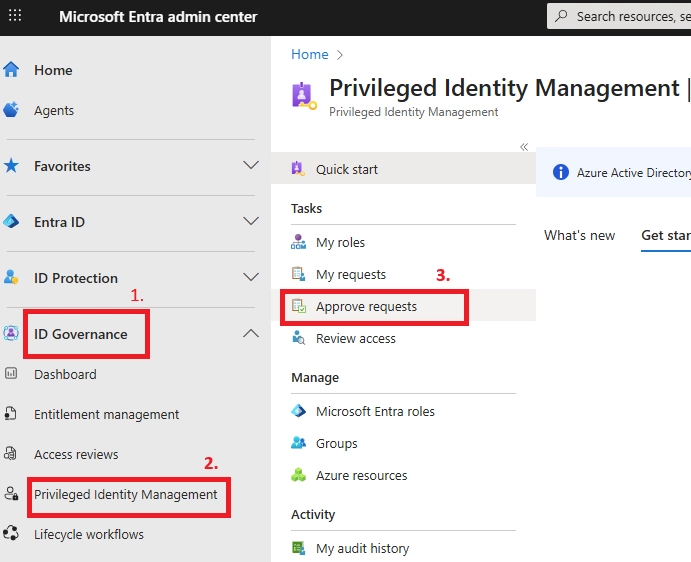
Setting up manual approval in Microsoft PIM is straightforward. Follow these steps:


Note:
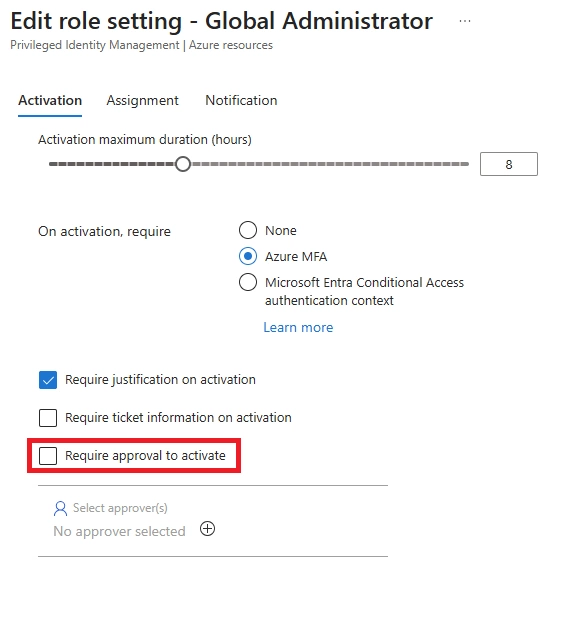
You can also bypass manual approval for low-risk roles:

Even with auto-approval, some settings are still required:
IMPORTANT: -
You will be locked out of your tenant if all of the following conditions are true:
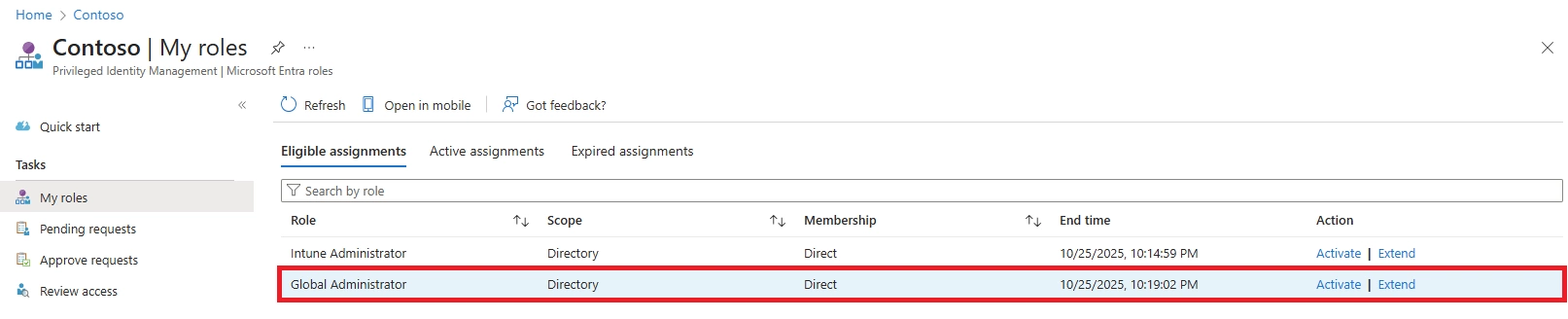
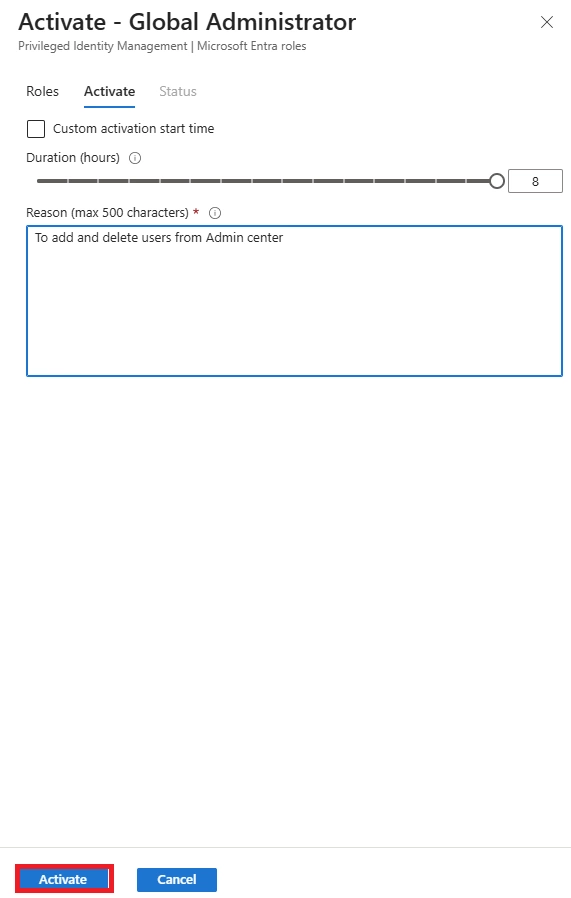
Manual approval ensures that high-risk roles are activated only after human verification.
It adds a checkpoint that protects your organization while keeping the process clear for both users and approvers.


Note:

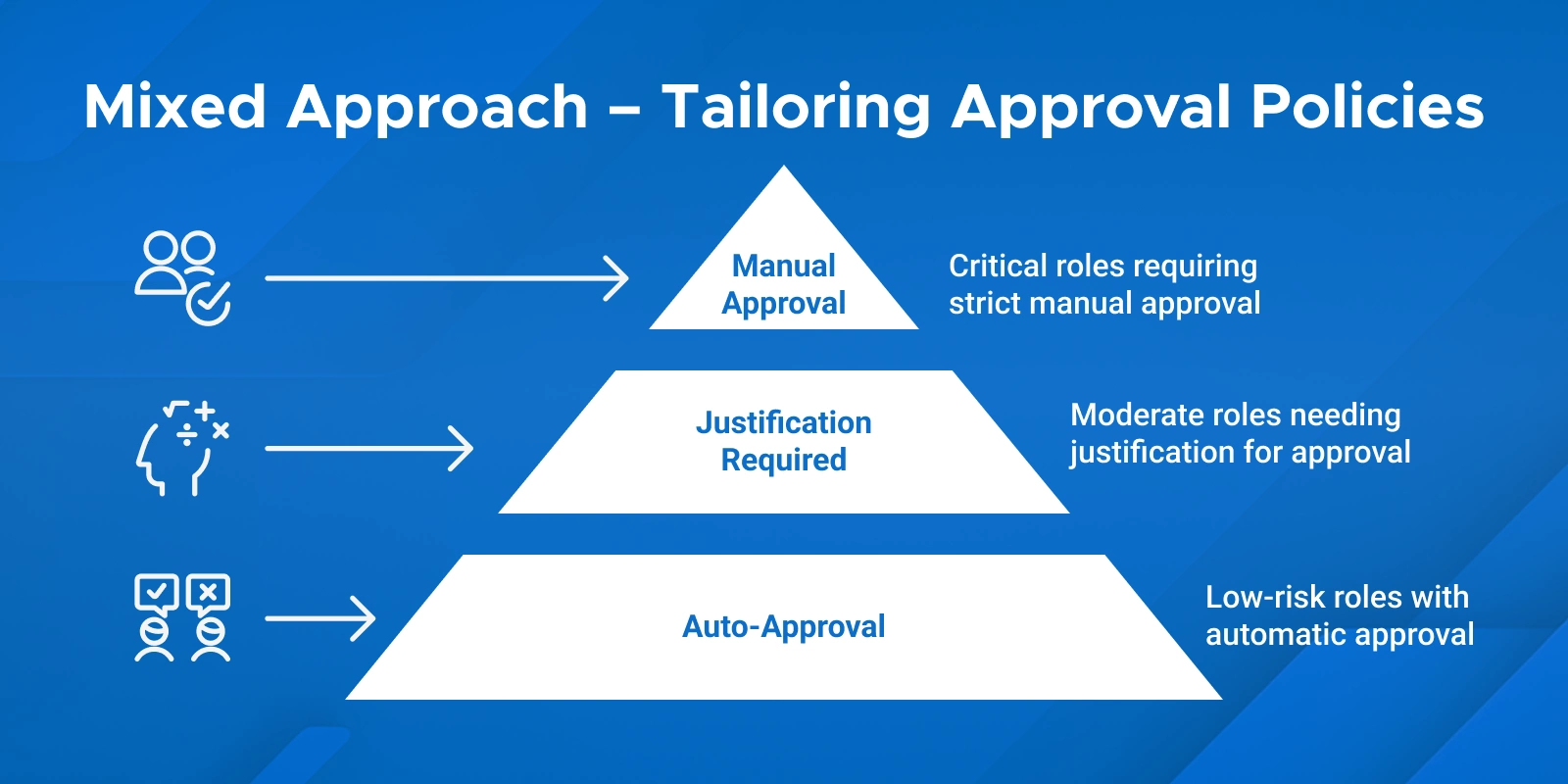
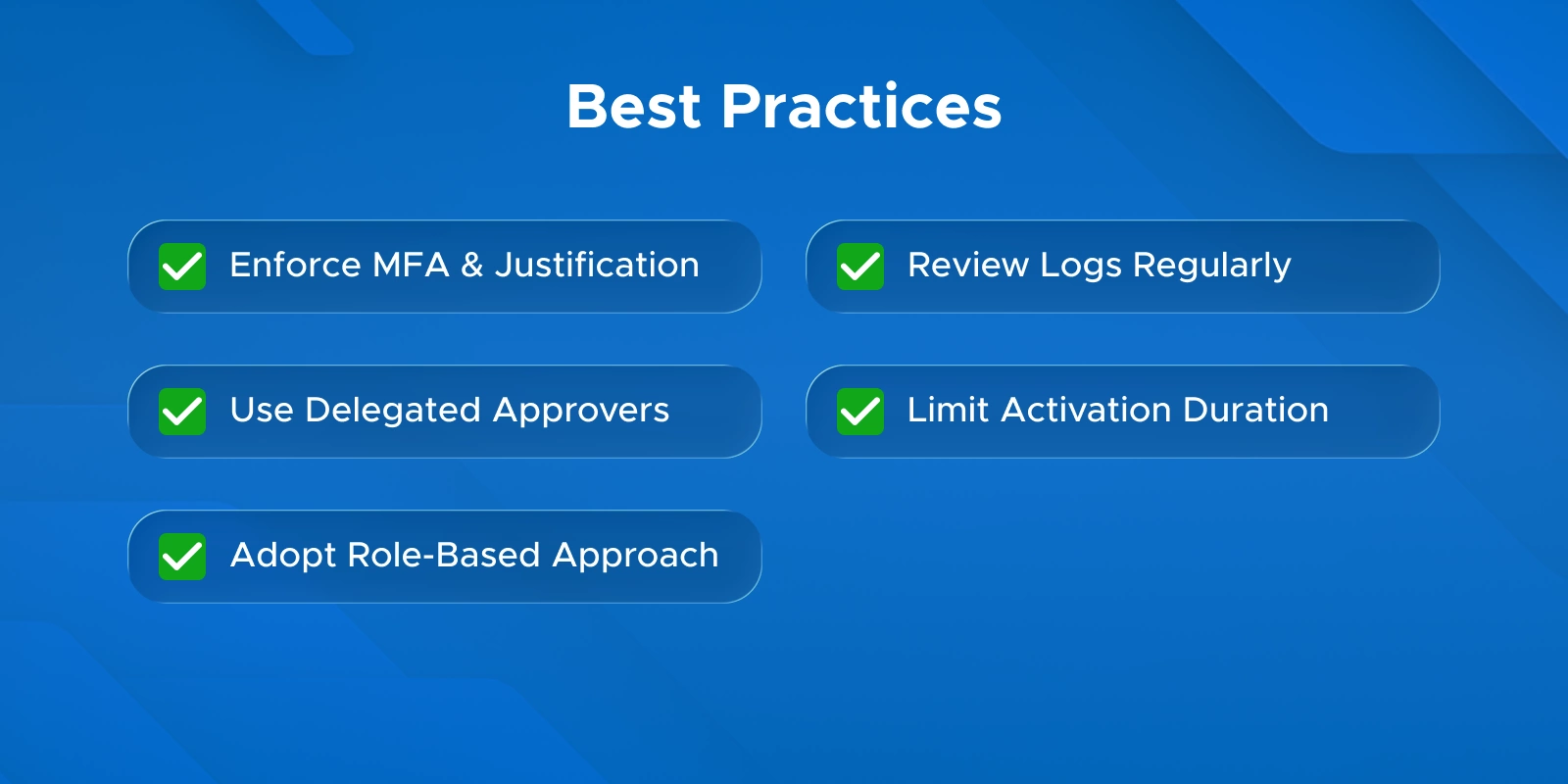
Choosing between auto and manual approval in PIM depends on role sensitivity, operational needs, and compliance requirements. Here’s practical guidance:
Auto-approval is ideal when speed matters and risk is low:
Tips:
Manual approval is crucial for high-impact or compliance-driven roles:
Example: For Global Admin, a security team member must approve activation. Break-glass accounts with MFA serve as emergency backups.
Tips:

The activation duration set in PIM is critical. For a complementary approach to session management that affects all devices, review how to Enforce Session Timeout Policies in Microsoft 365.

In PIM, delegated approvers control who can approve role activations.
Approval levels & conflicts:
Common Troubleshooting Scenarios
Choosing between auto-approval and manual approval in Microsoft PIM is all about balancing security with efficiency.
Key takeaways:
By implementing manual approval for high-risk accounts and enabling strong authentication, PIM is a powerful tool to secure your environment. Our comprehensive guide details this and other zero-trust techniques for enhancing protection. Read more about Top Strategies to Optimize Your Microsoft 365 Security Posture.
Microsoft Solutions Partner
As a recognized Microsoft Solutions Partner, we bring proven expertise in Entra ID, PIM, and Identity Governance. Our approach ensures your organization implements secure and efficient role approval workflows aligned with Microsoft best practices.
Certified Microsoft Professionals
Our team of Microsoft Certified experts has hands-on experience configuring auto-approval, manual approval, delegated approvers, and PIM audit workflows. We’ve helped organizations streamline privileged access while maintaining strong compliance.
Proven Deployment Experience
From piloting critical admin roles to rolling out PIM across thousands of users, we’ve reduced security risks, improved operational efficiency, and strengthened oversight. Our deployments are practical, secure, and measurable.
End-to-End Support
We guide you through every stage-assessment, role configuration, approval workflow setup, user onboarding, and continuous monitoring. Our structured approach ensures smooth adoption, compliance readiness, and reduced operational friction.
Ready to secure your privileged access and optimize PIM workflows?
Schedule a consultation today and let our experts design a tailored PIM approval strategy for your organization.
Q: What is manual vs auto approval in Microsoft PIM?
A: Manual approval in Microsoft PIM roles means an eligible role activation must be explicitly approved by another user before it takes effect. Auto approval in Privileged Identity Management means the activation is immediate with no human intervention. Manual = “Approval required PIM role activation”, auto = no approval needed.
Q: How do I set auto approval for PIM roles? Can I bypass approval for certain PIM roles?
A: To enable auto-approval for low-risk PIM roles or bypass manual approval, go to PIM role settings and uncheck “Require approval to activate”. Eligible users can then activate roles automatically. This applies per role, so all users assigned to that role follow the same auto-activation rule.
Q: How to configure manual approval for PIM roles in Microsoft 365?
A: Navigate to the role’s PIM settings, enable “Require approval to activate”, and assign delegated approvers. This sets up the approval workflow for Azure resource roles PIM, ensuring manual oversight before activation.
Q: Which PIM roles should always require manual approval?
A: Highly privileged roles like Global Administrator, Privileged Role Administrator, Exchange Admin, SharePoint Admin, or Azure Subscription Owner should always require manual approval. Any role that can significantly alter security or compliance settings should follow the approval required vs auto-activate eligible roles PIM model.
Q: What are the risks of auto-approving PIM role activations?
A: Risks include compromised accounts activating sensitive roles without oversight, accidental role misuse, and non-compliance with security policy. These risks are part of enterprise risk assessments: auto approval trade-offs. Mitigate them with MFA, justification, short activation windows, and monitoring.
Q: How long does a PIM approval request last?
A: PIM approval requests have a role activation window and approval expiration of 24 hours. If not approved within that time, the request expires and the user must submit a new request.
Q: Can I approve my own PIM request?
A: No. PIM enforces separation of duties. Approvers must be different users, either single or group-based, following delegated approver settings in Microsoft Entra PIM.
Q: How do you automate PIM approval using Teams Approvals?
A: PIM does not natively support Teams Approvals for automatic activation. For multi-stage or automated workflows, you must use Entra Access Packages or custom solutions.
Q: What is a PIM approval role?
A: A PIM approval role is a designated user or group responsible for manual approval in PIM roles. They review requests before activation to enforce security and compliance.
Q: What is PIM authorization?
A: PIM authorization refers to granting eligible users the ability to activate privileged roles, either via auto approval or manual approval, within the Microsoft PIM approval workflow.
Q: An eligible user submitted a PIM request, but the approver didn’t see it – how to troubleshoot?
A: Check that the user is eligible, the role requires approval, delegated approvers are configured correctly, and notifications are working. If everything is correct but still missing, it may be a sync or permissions issue.
Q: Auto-approval not working for certain PIM roles – why?
A: Ensure “Require approval to activate” is disabled for the correct scope (Azure AD vs Azure resource roles). Tenant-wide policies or conditional access may still enforce approvals.
Q: Can I have multi-level approvals in PIM?
A: PIM allows multiple delegated approvers, but only one approval is needed. Multi-stage sequential approval requires external workflows or Entra Access Packages.
Q: How long does a PIM role stay active once approved?
A: Roles stay active for the duration set during activation, then expire automatically. Users must request again for continued access.
Q: Do PIM approvers need to be Global Admins?
A: No. Any user can be assigned as an approver. Global Admins/Privileged Role Admins are fallback approvers if none are specified.
Q: MFA isn’t prompting during PIM activation – why?
A: Possible reasons include recent MFA session caching, “Require Azure MFA” not enabled in role settings, or Conditional Access settings bypassing repeated prompts.
CEO at Penthara Technologies
How to Configure Safe Links in Microsoft 365 for Maximum Protection
Learn how to configure Safe Links in Microsoft 365 to block malicious URLs and strengthen protection across email, Teams, and Office apps.
Microsoft 365 Attack Simulation: A Complete Setup Guide
A complete step-by-step guide to Microsoft 365 Attack Simulation Training, covering setup, phishing payload selection, targeting, training assignments, reporting, and best practices to help organizations strengthen user awareness and reduce phishing risks.
Eligible vs. Active PIM Roles Explained: Best Practices for Microsoft 365 Security
Confused between eligible and active PIM roles in Microsoft 365? This guide explains how each works, when to use them, and how to configure just-in-time access to reduce security risks. Perfect for IT admins and security teams aiming to strengthen privileged access management.