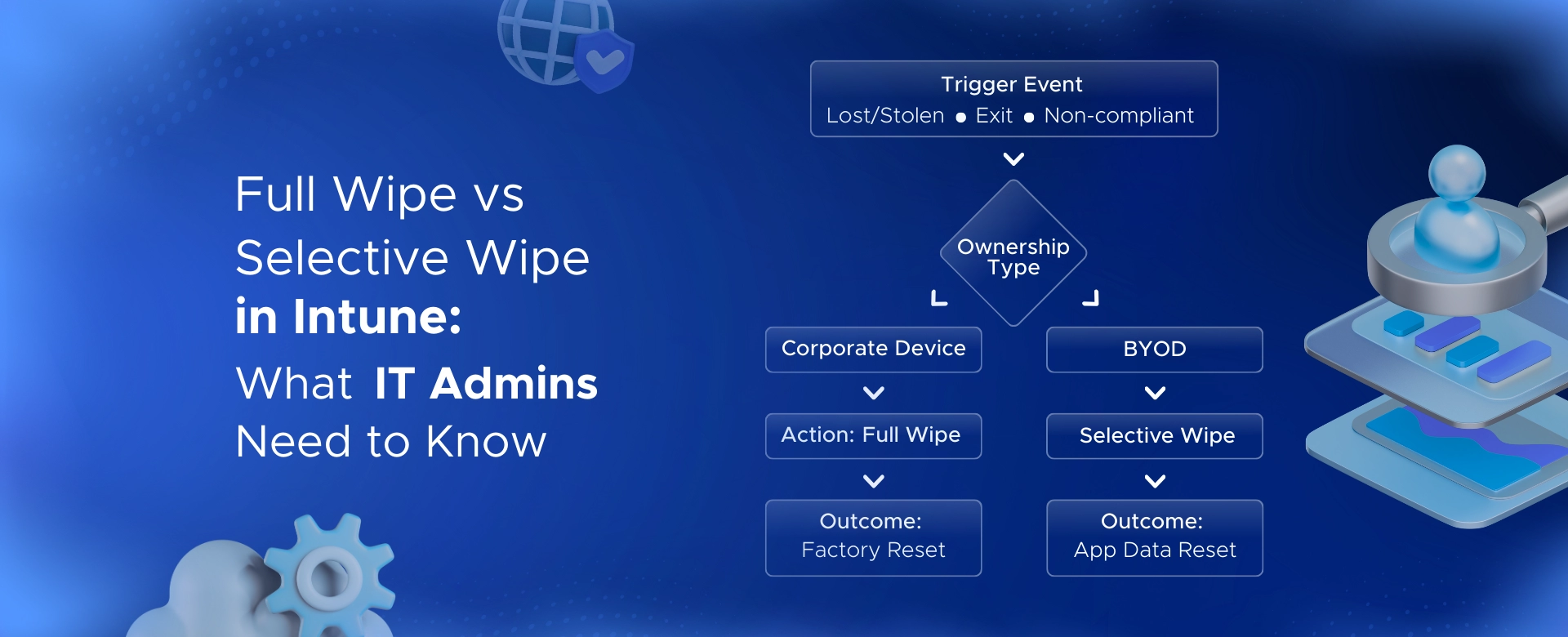
Full Wipe vs Selective Wipe in Intune: What IT Admins Need to Know

Learn how Intune full wipe and selective wipe work, when to use them, and best practices for secure device management in BYOD and corporate environments.
SHARE THIS BLOG:
Table of contents
Intune Wipes Explained – Full vs. Selective
What Is a Full Wipe in Intune?
What Is a Selective Wipe in Intune?
Steps to Perform a Full Device Wipe (Remote Factory Reset)
Step 1: Locate the device in Intune
Step 2: Start the wipe action
Step 3: Confirm the wipe
Step 4: Wipe execution
Step 5: Monitor the wipe status
Step 6: Post-wipe actions
Steps to Perform a Selective Wipe (Retire) for a Device
Step 1: Find the device or user
Step 2: Initiate the Retire action
Step 3: Corporate data removal on the device
Step 4: Monitor retire completion
Steps for Selective Wipe Using App Protection (Unmanaged Devices)
Step 1: Open App selective wipe
Step 2: Create a new wipe request
Step 3: Select user and device
Step 4: Monitor wipe status
When to Use Each – Use Cases & Scenarios
Offboarding an Employee (Employee Leaves)
Lost or Stolen Device
Device Refresh or Reassignment
Security or Compliance Violation
Troubleshooting and IT Support
Best Practices for Intune Wipe Actions
Why Trust Penthara Technologies for Microsoft Intune Device Management?
FAQ – Common Questions on Intune Wipe Actions

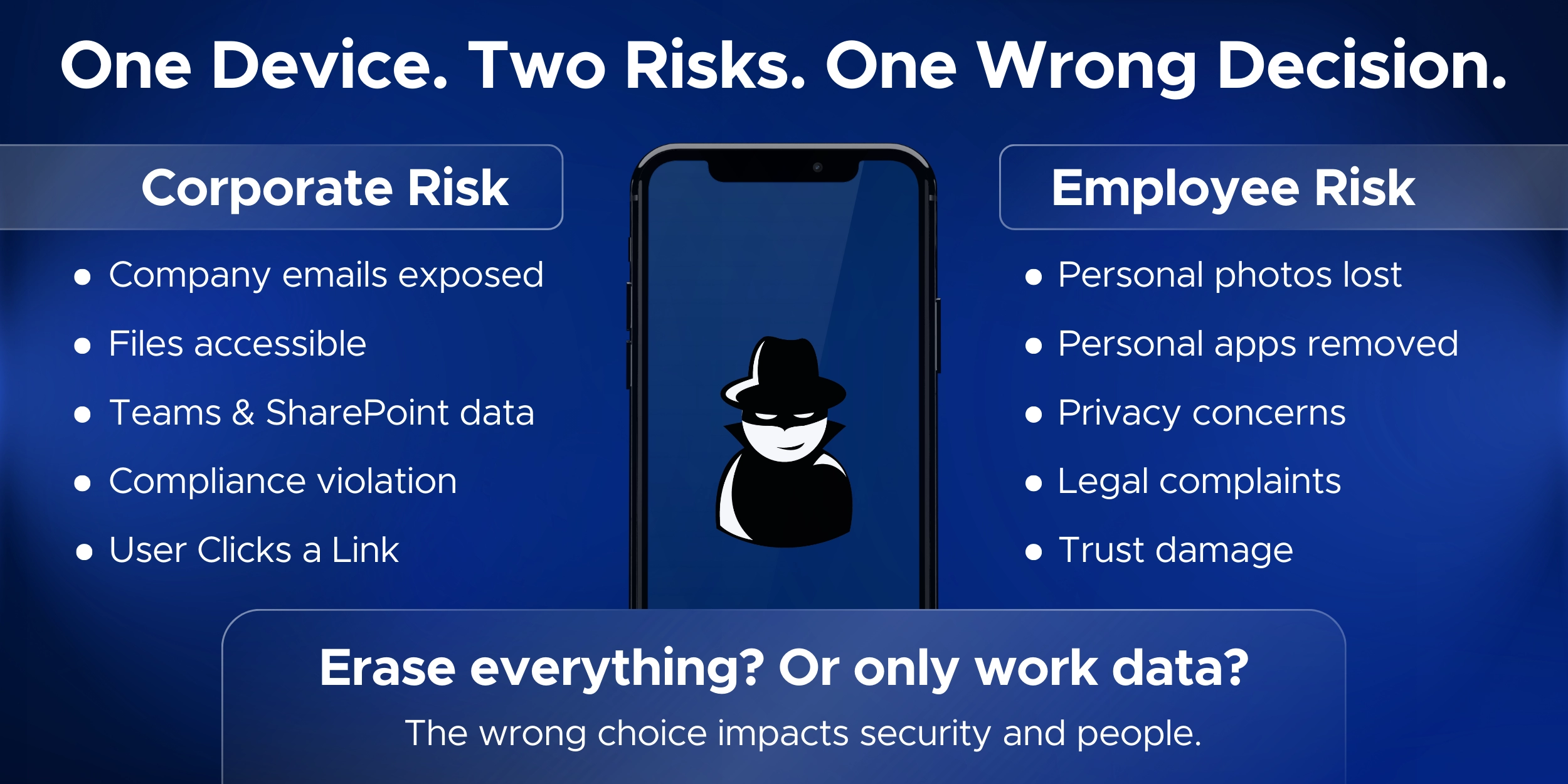
An employee’s phone goes missing.
It has company email, files, and apps on it.

Do you erase the entire device, or just remove company data?

This is where Microsoft Intune wipe actions come into play. Intune gives IT admins two powerful options: full wipe and selective wipe.

Choosing the wrong one can mean lost personal data, unhappy users, or worse, exposed corporate information.

With more BYOD and remote work, IT teams manage both corporate and personal devices every day. This makes understanding the difference between full wipe and selective wipe in Intune essential for balancing data security and user privacy.

In this guide, we’ll clearly explain full wipe vs selective wipe Intune, compare how each action works, and show when to use them in real scenarios.

You’ll also learn best practices so you can apply the right Intune wipe action with confidence.

Infographic comparing corporate and employee risks when a work device is compromised, showing potential data exposure and personal privacy issues.

Intune Wipes Explained – Full vs. Selective

Before comparing options, it helps to understand what each Intune wipe action actually does. While both aim to protect company data, their impact on the device is very different.

What is a Full Wipe in Intune?

A full wipe in Intune remotely resets a device to factory settings.
Everything on the device is erased.

This includes:

  • Corporate data and apps
  • Personal files, photos, and apps
  • User settings and configurations

In Intune, this is done using the Wipe command. Many admins also call this a factory reset, which makes the outcome easier to understand.

When sending a full wipe, Intune gives you an option to retain the enrollment state:

  • Retain enrollment: The device stays in Intune and Microsoft Entra ID, ready for re-provisioning.
  • Do not retain enrollment: The device is completely removed from management.

In simple terms, Intune remote wipe full remove data means the device is wiped clean and starts fresh.

This action is best suited for:

  • Company-owned devices
  • Lost or stolen devices
  • Devices being permanently decommissioned

What is a Selective Wipe in Intune?

A selective wipe in Intune removes only company data from a device.
Personal data stays untouched.

This is often called Intune selective wipe for corporate data removal, and it works in two main ways.

  1. Device selective wipe (Retire action)
    When you use Retire on an enrolled device, Intune:
  • Removes managed apps and corporate data
  • Deletes work email, Wi-Fi, and VPN profiles
  • Stops managing the device

Personal photos, apps, and files remain on the device.

  1. App selective wipe (App Protection Policies)
    For devices that are not enrolled, Intune can still remove company data from managed apps like Outlook or Teams.
    Only the work account and corporate data inside the app are removed.
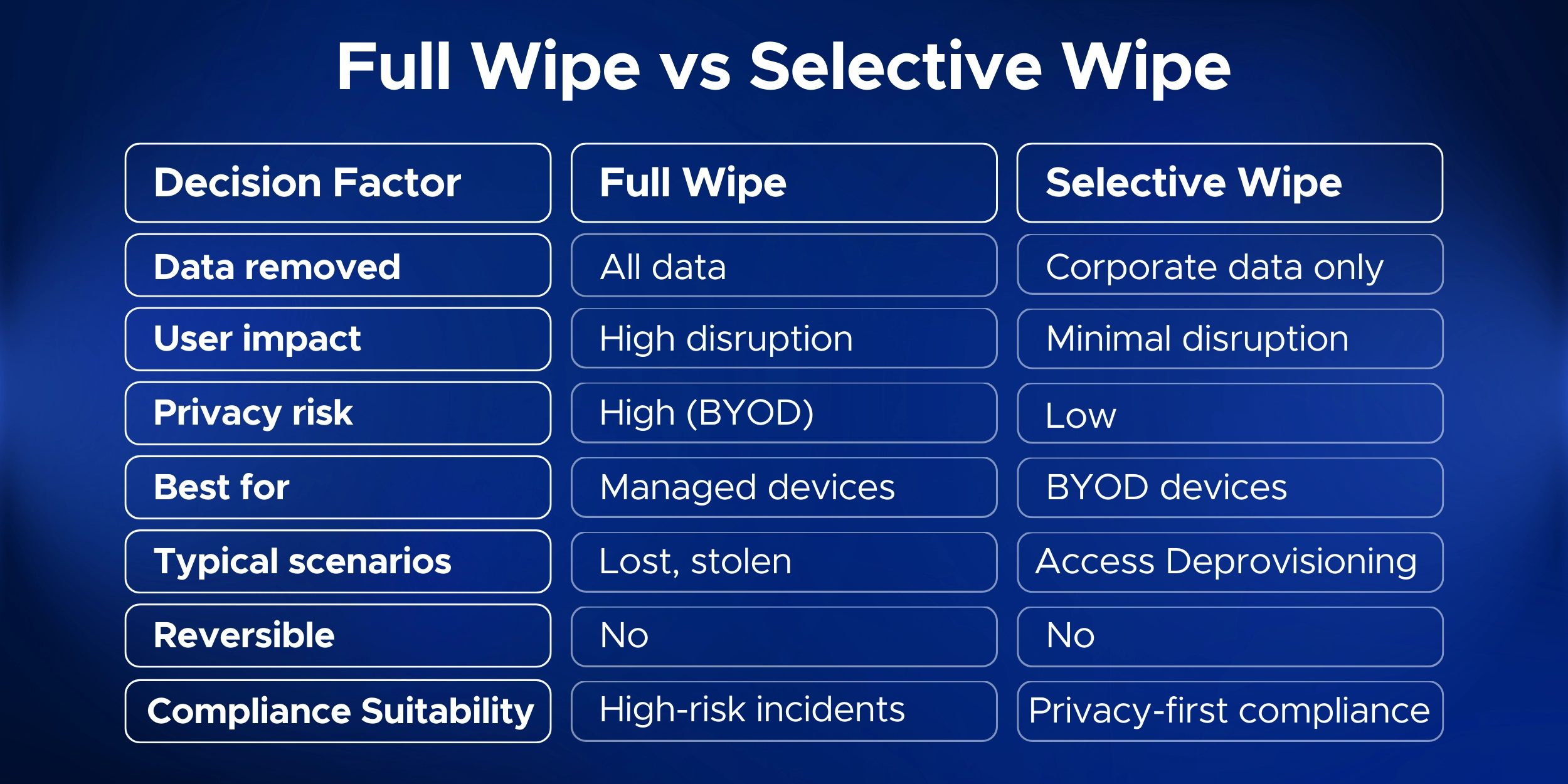
Comparison table titled Full Wipe vs Selective Wipe outlining key decision factors including data removed, user impact, privacy risk, best use cases, typical scenarios, reversibility, and compliance suitability.

Steps to Perform a Full Device Wipe (Remote Factory Reset)

A full device wipe in Intune completely resets the device.
Once started, the data cannot be recovered, so use this carefully.

Step 1: Locate the device in Intune

Sign in to the Intune admin center (Microsoft Intune Admin center).
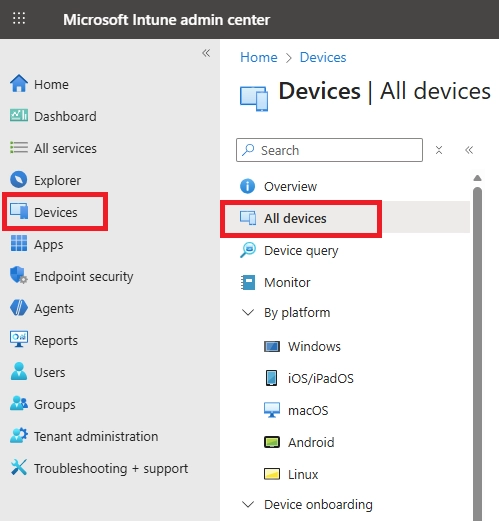
Go to Devices > All devices, then search for the device by name or user.

From the devices list, select a device

Microsoft Intune admin center showing the Devices menu with All devices selected.

Step 2: Start the wipe action

Open the device overview.
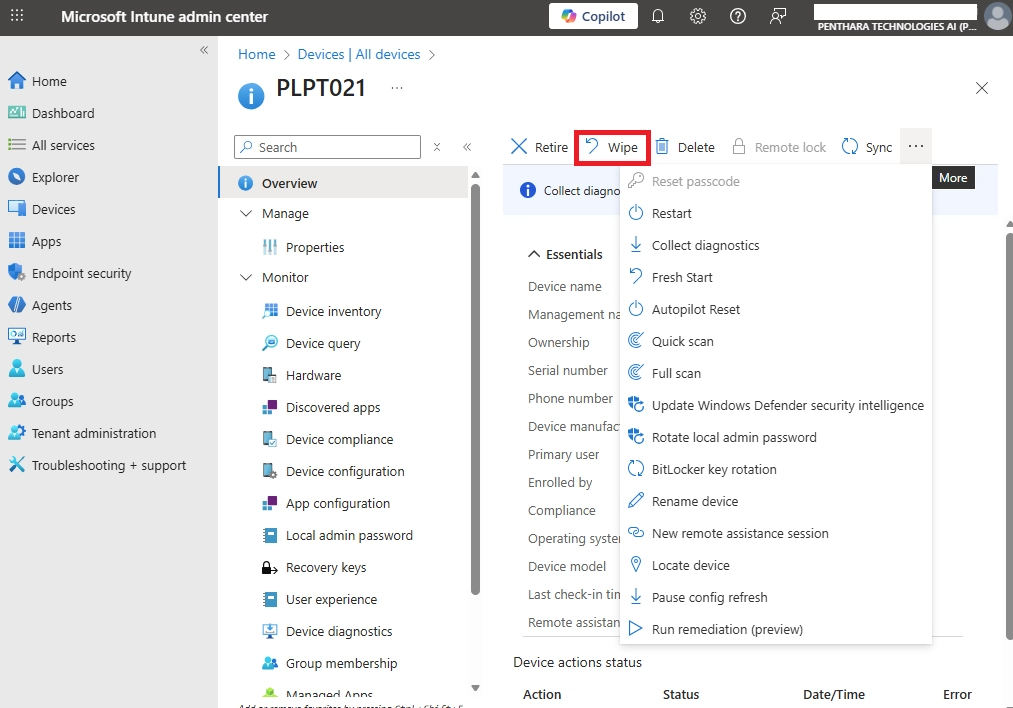
Select Wipe from the action menu.

Microsoft Intune admin center showing the Device details page with Wipe option as highlighted.

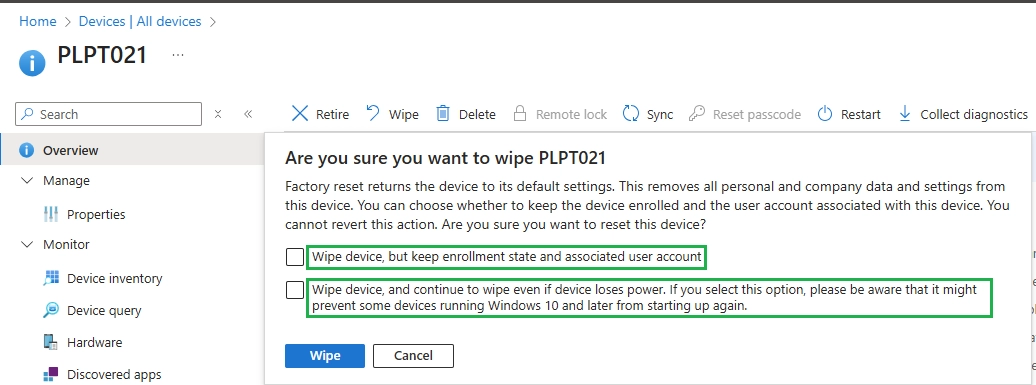
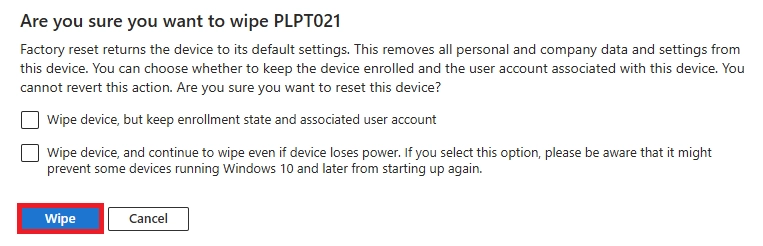
You can customize the wipe behavior with the following options:

  1. Wipe device, but keep enrollment state and associated user account
    • Resets the device to factory settings, while preserving the user data, user accounts, and important settings.
    • MDM policies and settings are removed, but the device remains enrolled in Intune.
  1. Wipe device, and continue to wipe even if device loses power
    • Resets the device to factory settings, deleting all user data, settings, and MDM policies.
    • Overwrites the free space to prevent data recovery.
    • Ensures the wipe continues even if the device loses power, preventing interruption—ideal for high-security scenarios such as lost or stolen devices.
Confirmation dialog for Wipe in Microsoft Intune highlighting options to keep enrollment and continue wipe if power is lost.

On Windows devices, you may also see Wipe even if the device is offline.
This is useful for lost or stolen devices.

Step 3: Confirm the wipe

Depending upon the requirement for the reset and wipe, follow any of the approach,

  • Retain enrollment state and user account - Use this if the device needs to be reissued or re-enrolled.
  • No options selected - This performs a true factory reset and removes the device from Intune and Entra ID.
Confirmation dialog in Microsoft Intune with Wipe option as highlighted for a device.

Intune may ask you to confirm the device name.
This helps prevent accidental wipes.

Step 4: Wipe execution

If the device is online, the wipe usually starts within seconds.
The device reboots and shows a reset progress screen.

Step 5: Monitor the wipe status

Check Devices or Audit logs in Intune.
Offline devices will wipe once they reconnect.

Step 6: Post-wipe actions

The device returns to the setup screen.
If enrollment was not retained, the device record can later be deleted from Intune.

Steps to Perform a Selective Wipe (Retire) for a Device

A selective wipe in Intune removes only company data.
Personal files and apps remain untouched.

Step 1: Find the device or user

Sign in to the Intune admin center (Microsoft Intune Admin center).
Go to Devices > All devices, then search for the device by name or user.

Microsoft Intune admin center showing the Devices menu with All devices selected.

Step 2: Initiate the Retire action

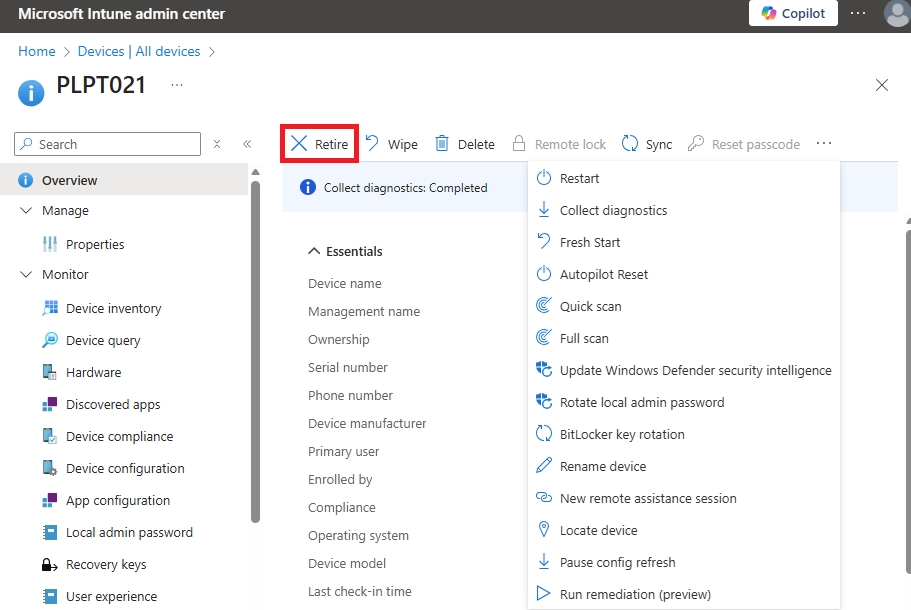
Select Retire from the device action menu.
Confirm the action to proceed.

Microsoft Intune admin center showing the Device details page with Retire option as highlighted.

Step 3: Corporate data removal on the device

  • Windows: Managed apps and settings are removed in the background.
  • Mobile devices: Work profiles and managed apps are removed.

Step 4: Monitor retire completion

The device may show as Retired or disappear after the next check-in.
Confirmation is available in Intune Audit Logs.

This approach ensures Intune selective wipe for corporate data removal without affecting personal data.

Steps for Selective Wipe Using App Protection (Unmanaged Devices)

This method applies when the device is not enrolled in Intune.

Step 1: Open App selective wipe

Sign in to the Intune admin center (Microsoft Intune Admin center)
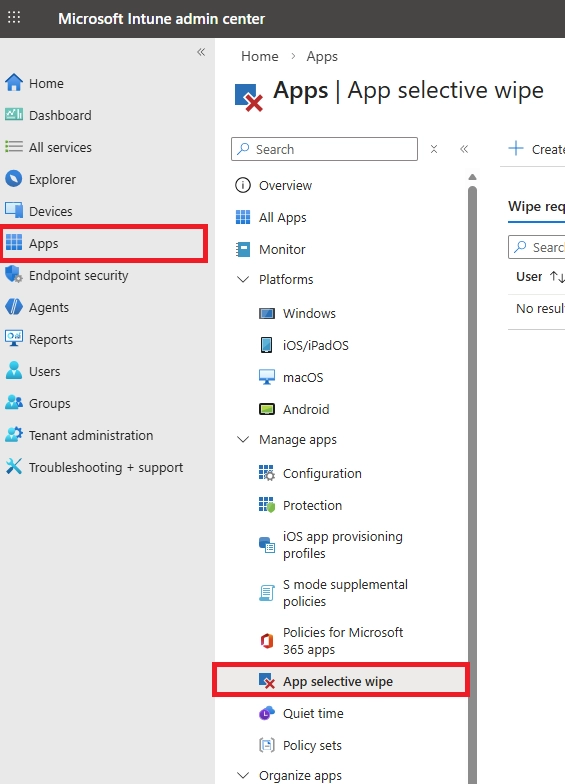
In the Intune admin center, go to Apps > App selective wipe.

Microsoft Intune admin center with the Apps section selected and App selective wipe highlighted in the navigation menu.

Step 2: Create a new wipe request

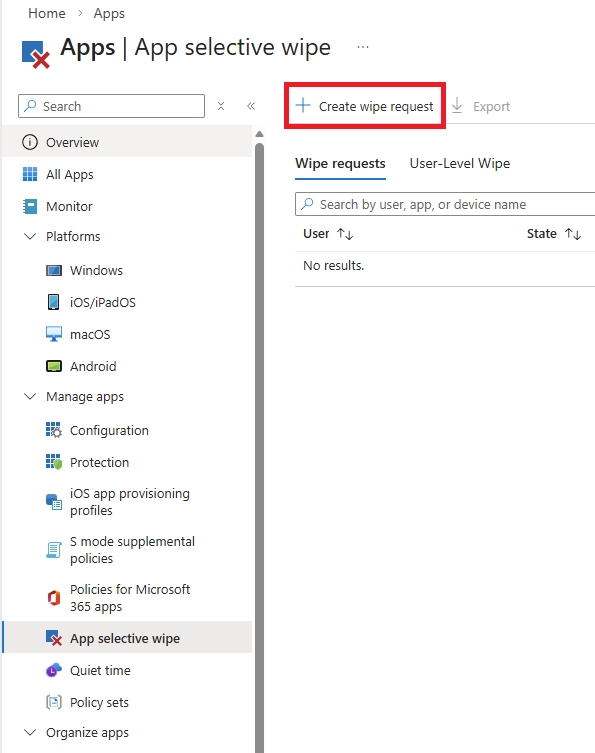
Select + New wipe request.

Microsoft Intune App selective wipe page showing the Create wipe request option at the top.

Step 3: Select user and device

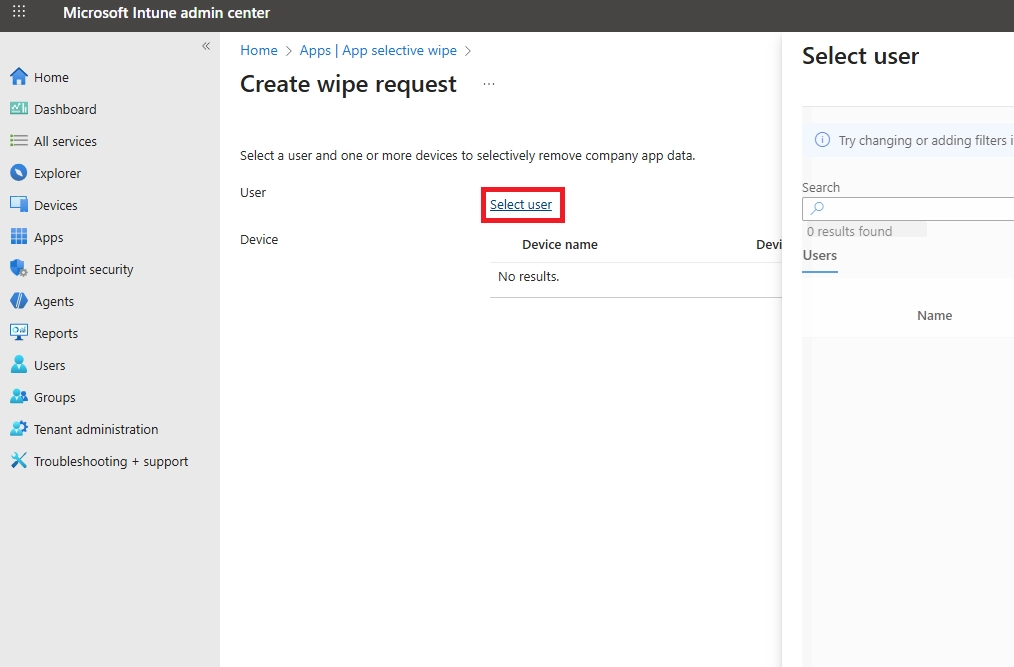
Click Select user, choose the user whose app data you want to wipe, and click Select at the bottom of the Select user pane.

Microsoft Intune admin center showing Create wipe request page to select the user for app selective wipe.

Click Select the device, choose the device, and click Select at the bottom of the Select Device pane.

Click Create to make a wipe request.

Step 4: Monitor wipe status

The request shows as pending until the app connects to the internet.
The service creates and tracks a separate wipe request for each protected app on the device, and the user associated with the wipe request.

Once completed, corporate app data is removed.

This uses Selective wipe Intune App Protection Policies, keeping personal data safe.

When to Use Each – Use Cases & Scenarios

Choosing between a full wipe and a selective wipe depends on the situation.
Here are common IT scenarios and the best Intune wipe action for each.

Offboarding an Employee (Employee Leaves)

For personal (BYOD) devices, use a selective wipe.
This removes work email, Teams, and company apps while leaving personal data untouched.

For company-owned devices, use a full wipe after the device is returned.
This fully erases data and prepares the device for the next user.

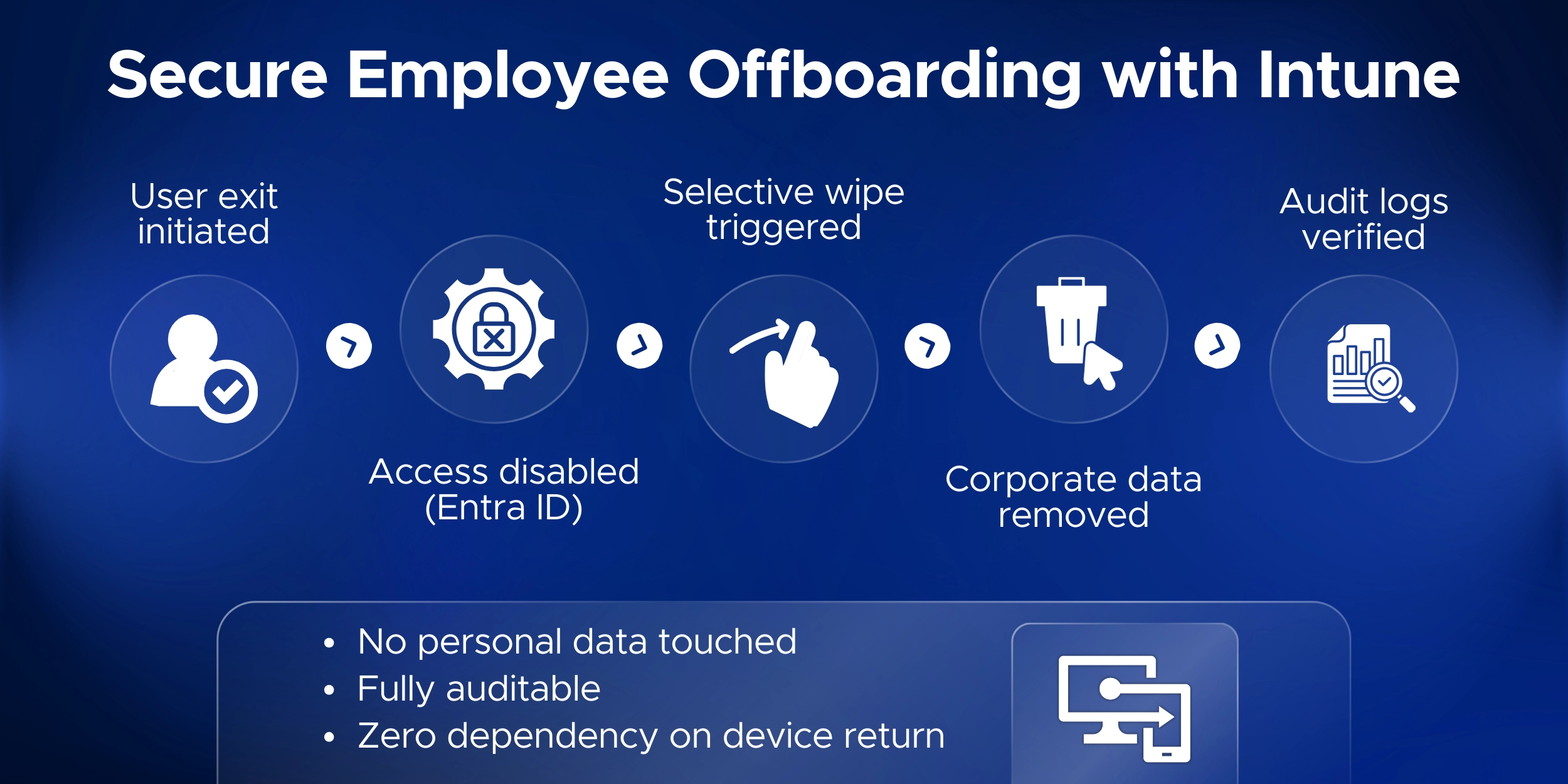
If the employee had multiple devices, Intune can remove corporate data from all of them at once using a user-level selective wipe.

Microsoft Intune employee offboarding workflow infographic showing selective wipe process, Entra ID access removal, corporate data deletion, and compliance audit logging.

Lost or Stolen Device

For a corporate-owned device, perform a full wipe immediately.
This protects sensitive data by resetting the device to factory settings.

For a personal BYOD device, start with a selective wipe.
It secures company data without erasing the user’s entire phone, unless policy allows otherwise.

Device Refresh or Reassignment

When reusing company devices, a full wipe is usually best.
It ensures no data from the previous user remains.

On Windows, Autopilot Reset can be an alternative to speed up reassignment.

For BYOD devices the user keeps, a selective wipe cleanly removes company access.

Security or Compliance Violation

For serious issues on a corporate device, a full wipe may be required.

On personal devices, a selective wipe is typically the safer option.
It removes company data and access without resetting the entire device.

This approach supports enterprise security while respecting user privacy.

Troubleshooting and IT Support

For major OS issues on a company device, a full wipe provides a clean reset.

For problems limited to work apps on a BYOD device, a selective wipe can refresh the corporate setup without affecting personal data.

Always inform users before any wipe, especially full wipes.

Best Practices for Intune Wipe Actions

Using Intune wipe actions correctly is about policy, process, and discipline.
Below are key best practices, explained with clear points and subpoints.

  1. Separate corporate and personal data
    • Use App Protection Policies (MAM) for BYOD devices
      • Enables selective wipe in Microsoft Intune
      • Allows removal of company data without touching personal apps or files
  1. Maintain a clear BYOD policy
    • Clearly document what a selective wipe does
      • Corporate apps and data can be removed remotely
      • Personal data is not affected
    • Communicate this policy during onboarding to set expectations early
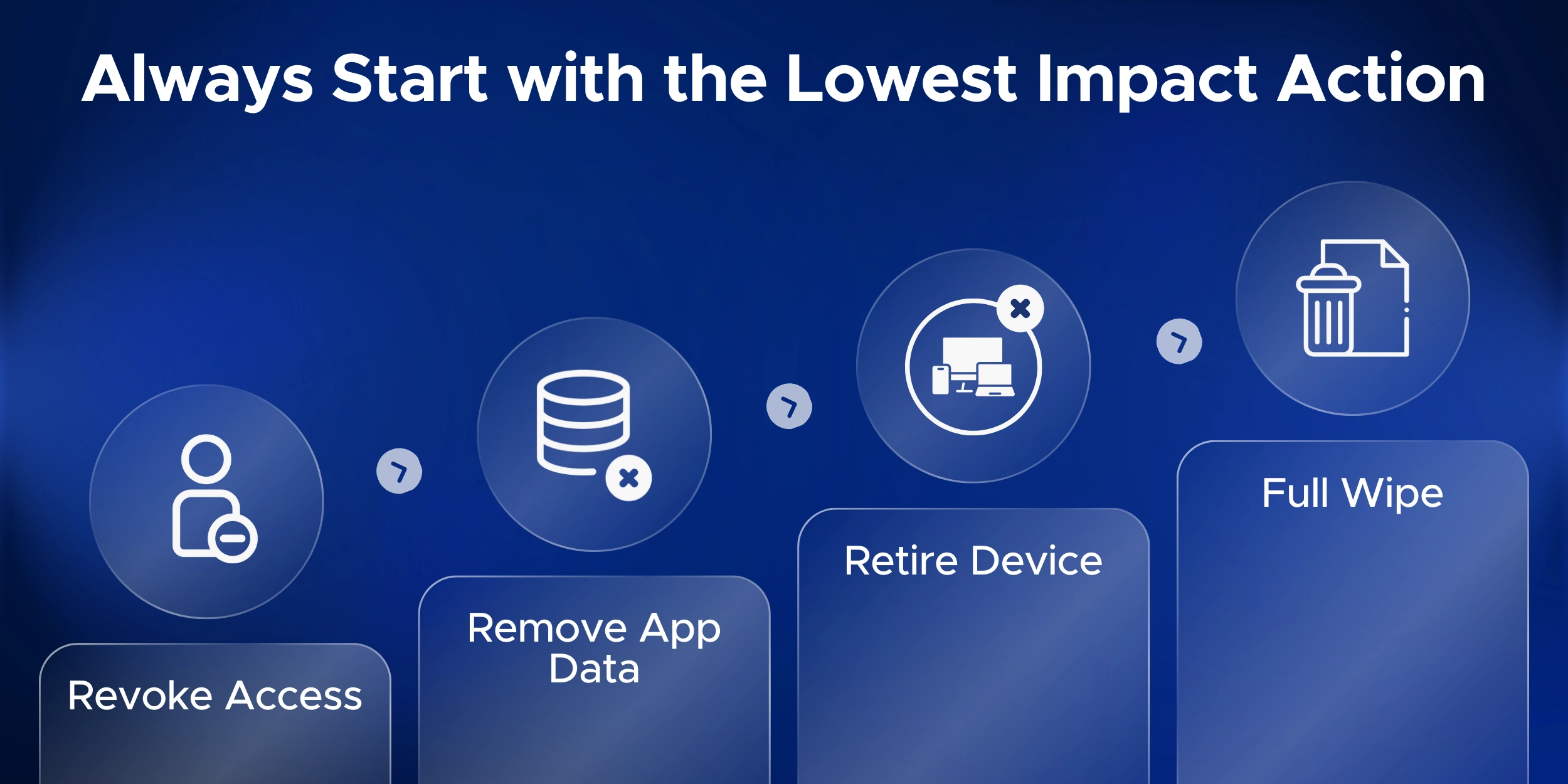
  1. Use the least disruptive wipe action first
    • Prefer selective wipe for:
      • Personal devices
      • Minor security or compliance issues
    • Escalate to full wipe only when required
      • Lost or stolen corporate devices
      • Device decommissioning
Device management security infographic outlining escalation steps from revoke access to full wipe, promoting lowest-impact actions first in Microsoft Intune management.
  1. Train IT admins and support teams
    • Ensure teams understand:
      • Wipe vs retire vs delete
      • Enrollment retention options during a full wipe
    • Test wipe actions on non-production devices to avoid mistakes
  1. Plan for offline and high-risk scenarios
    • Remember that wipes occur only when devices check in
    • For urgent incidents:
      • Disable or block the user account
      • Revoke access tokens
      • Use wipe as part of a broader incident response plan
  1. Monitor and verify wipe actions
    • Always confirm wipe or retire completion in Intune
      • Review Audit Logs for success or failure
    • If a wipe is pending:
      • Ensure the device is online
      • Document the risk if the device never reconnects
  1. Leverage compliance and Conditional Access policies
    • Use compliance rules to reduce manual wipe needs
      • Block access for non-compliant devices
      • Automatically remove corporate email profiles
    • This limits exposure even before a wipe is triggered
  1. Protect wipe actions with admin approvals
    • Enable approval workflows for remote wipes if available
      • Reduces risk of accidental or malicious full wipes
      • Especially useful for bulk or high-impact actions
  1. Keep Intune inventory clean
    • Delete stale or retired device records
    • Avoid confusion caused by reused device names or recycled hardware

Why Trust Penthara Technologies for Microsoft Intune Device Management?

Microsoft Solutions Partner Advantage

As a certified Microsoft Solutions Partner, we combine official Microsoft guidance with real-world Intune experience to deliver reliable, enterprise-ready device management for organizations of any size.

Microsoft Intune Specialists

We design and implement secure device management strategies using Microsoft Intune, helping organizations manage full wipes, selective wipes, and device lifecycle actions across Windows, iOS, and Android.

Our focus is ensuring corporate data is protected without disrupting users or violating BYOD privacy expectations.

Certified and Experienced Team

Our consultants hold advanced Microsoft certifications and bring hands-on experience with Microsoft Intune, Endpoint Manager, and Microsoft Entra ID.

We work daily with:

  • Full device wipe and selective wipe actions
  • Retire vs wipe vs delete decisions
  • App Protection Policies for BYOD
  • Compliance and Conditional Access integration

End-to-End Device Protection Strategy

We help organizations build a complete Intune strategy, covering:

  • Device enrollment and governance
  • BYOD policy design
  • Secure offboarding workflows
  • Lost and stolen device response
  • Ongoing compliance enforcement

This ensures wipe actions are part of a clear, repeatable process.

Seamless Deployment and Tuning

From assessment to rollout, we guide you through every step:

  • Configuring Intune policies correctly
  • Testing wipe and retire actions safely
  • Reducing accidental full wipes
  • Optimizing settings for different device ownership models

Our goal is reliable device management with minimal operational risk.

Compliance-Focused Device Management

Our approach aligns with ISO, SOC 2, HIPAA, and GDPR requirements by enforcing:

  • Controlled data removal
  • Logged and auditable wipe actions
  • Strong identity and access controls

This supports secure and compliant device offboarding and incident response.

Continuous Monitoring and Improvement

We don’t just set up Intune and walk away.
We help you review wipe activity, analyze trends, and adjust policies as device usage and risks evolve.

This keeps your Intune environment secure over time.

Strengthen your Microsoft Intune environment with clear, secure device wipe and management practices.
Schedule a consultation and let our team help you build a safe, predictable Intune device strategy.

Why Trust Penthara Technologies?

FAQ – Common Questions on Intune Wipe Actions

Q1. What is a selective wipe in Microsoft Intune?

A selective wipe in Microsoft Intune removes only company data from a device.
It deletes corporate apps, work email, and managed settings, while leaving personal data untouched.

This is commonly done using the Retire action or App Protection Policies.

Q2. What happens when you full wipe a device in Intune?

A full wipe performs a remote factory reset.
All data is erased, including corporate and personal files, apps, and settings.

After the wipe, the device returns to its initial setup screen.

Q3. Does a selective wipe remove personal data?

No.
A selective wipe removes only corporate data. Personal photos, apps, messages, and files remain on the device.

This is why selective wipe is preferred for BYOD devices.

Q4. Can Intune wipe only corporate apps and data, not the whole device?

Yes.
That is exactly what a selective wipe does.

It removes company apps and data only, without resetting the entire device.

Q5. How do I choose between retire, wipe, or delete in Intune?

  • Retire
    • Removes corporate data only
    • Used for BYOD or employee offboarding
  • Wipe
    • Fully resets the device
    • Used for lost, stolen, or corporate-owned devices
  • Delete
    • Removes the device record from Intune
    • Does not wipe data from the device

This Intune wipe vs retire vs delete distinction helps avoid accidental data loss.

Q6. Will a device restart automatically after a full wipe?

Yes, in most cases.
A full wipe triggers an automatic restart as part of the reset process.

Phones reboot into factory reset mode, and Windows devices restart and begin resetting automatically.

Q7. What if an Intune wipe command doesn’t work?

If a wipe is not completing:

  • Check that the device is powered on and connected to the internet
  • Remember that wipe commands stay pending until the device checks in
  • If the device was already reset or unenrolled, Intune may not be able to reach it

As a backup, rely on encryption, account blocking, or access revocation to protect data.

Q8. Does the user get notified when a device is wiped?

Intune does not send a formal notification email.
However, users will notice changes, such as apps being removed, sign-outs, or the device restarting during a full wipe.
Jasjit Chopra
Jasjit Chopra

CEO at Penthara Technologies

About the Author

Microsoft MVP LogoLinked-in

Jasjit Chopra is the CEO of Penthara Technologies and a Microsoft Most Valuable Professional (MVP) with over two decades of hands-on experience in Microsoft 365, SharePoint, and Security. He has led 100+ digital transformation projects across six countries, securing 50,000+ users, migrating 250+ TB of data, and automating processes that save organizations thousands of hours each year. A recognized leader at the crossroads of AI, security, and workplace modernization, Jasjit is passionate about simplifying complexity, mentoring technology professionals, and helping businesses build secure, intelligent, and future-ready digital environments.

Leave a Reply

Your email address will not be published. Required fields are marked *

More From This Category

Phishing Protection in Microsoft 365: Stop Impersonation Attacks

Learn how to stop impersonation attacks in Microsoft 365 using anti-phishing policies, Safe Links, Safe Attachments, and mailbox intelligence.

Read More
Safe Attachments in Microsoft 365: Understanding Sandboxing and Setup

Learn how Microsoft 365 Safe Attachments uses sandboxing to detect hidden malware, secure email and files, and protect your organization from advanced threats.

Read More
How to Configure Safe Links in Microsoft 365 for Maximum Protection

Learn how to configure Safe Links in Microsoft 365 to block malicious URLs and strengthen protection across email, Teams, and Office apps.

Read More
1 2 3 10
chevron-right