Learn how to stop impersonation attacks in Microsoft 365 using anti-phishing policies, Safe Links, Safe Attachments, and mailbox intelligence.

Phishing is still one of the biggest problems people face in Microsoft 365.
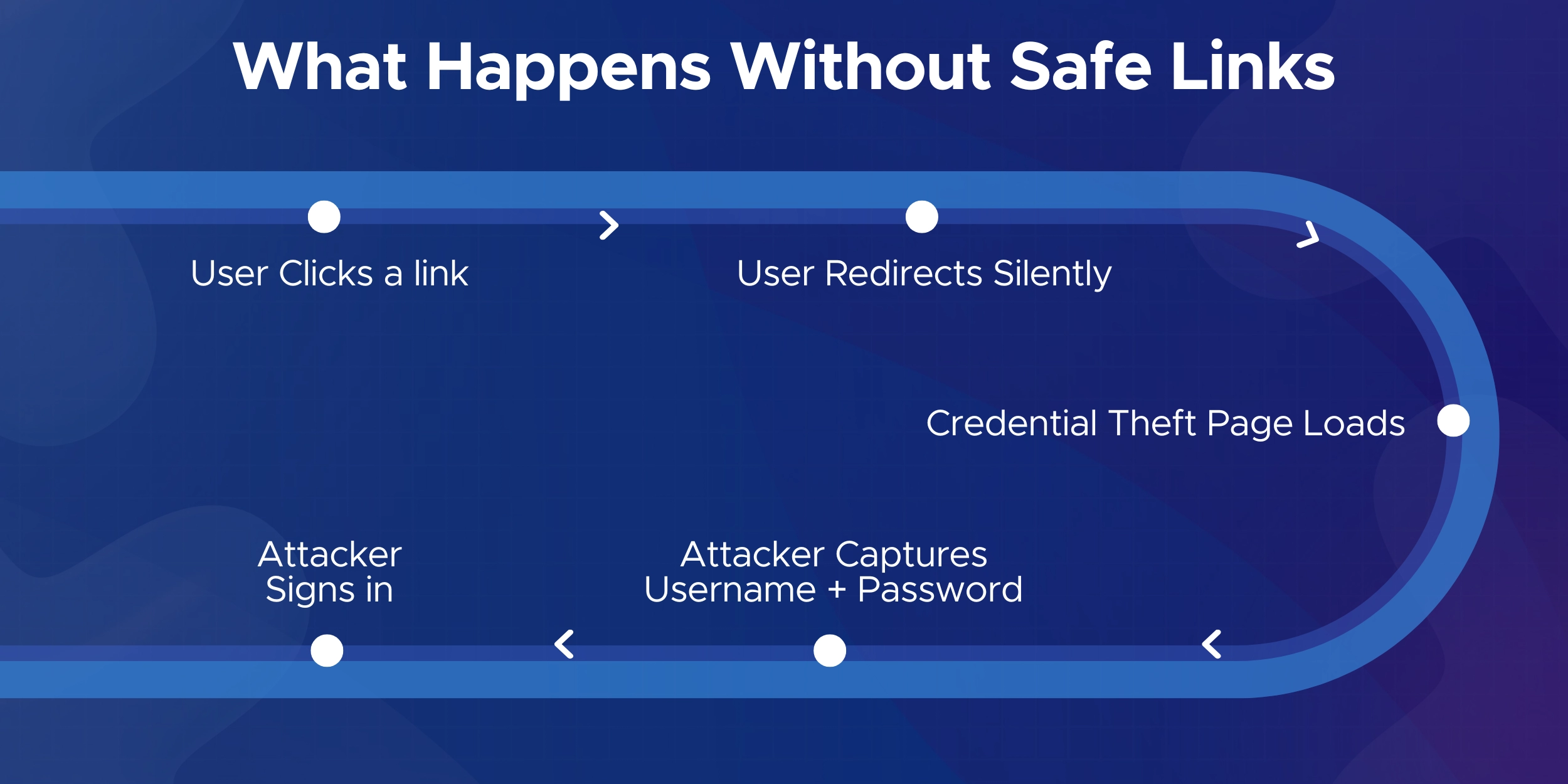
Many of these emails look completely normal, which is why users often click the links without realizing the risk.
And in many cases, that one click is enough for an attacker to get inside an organization.
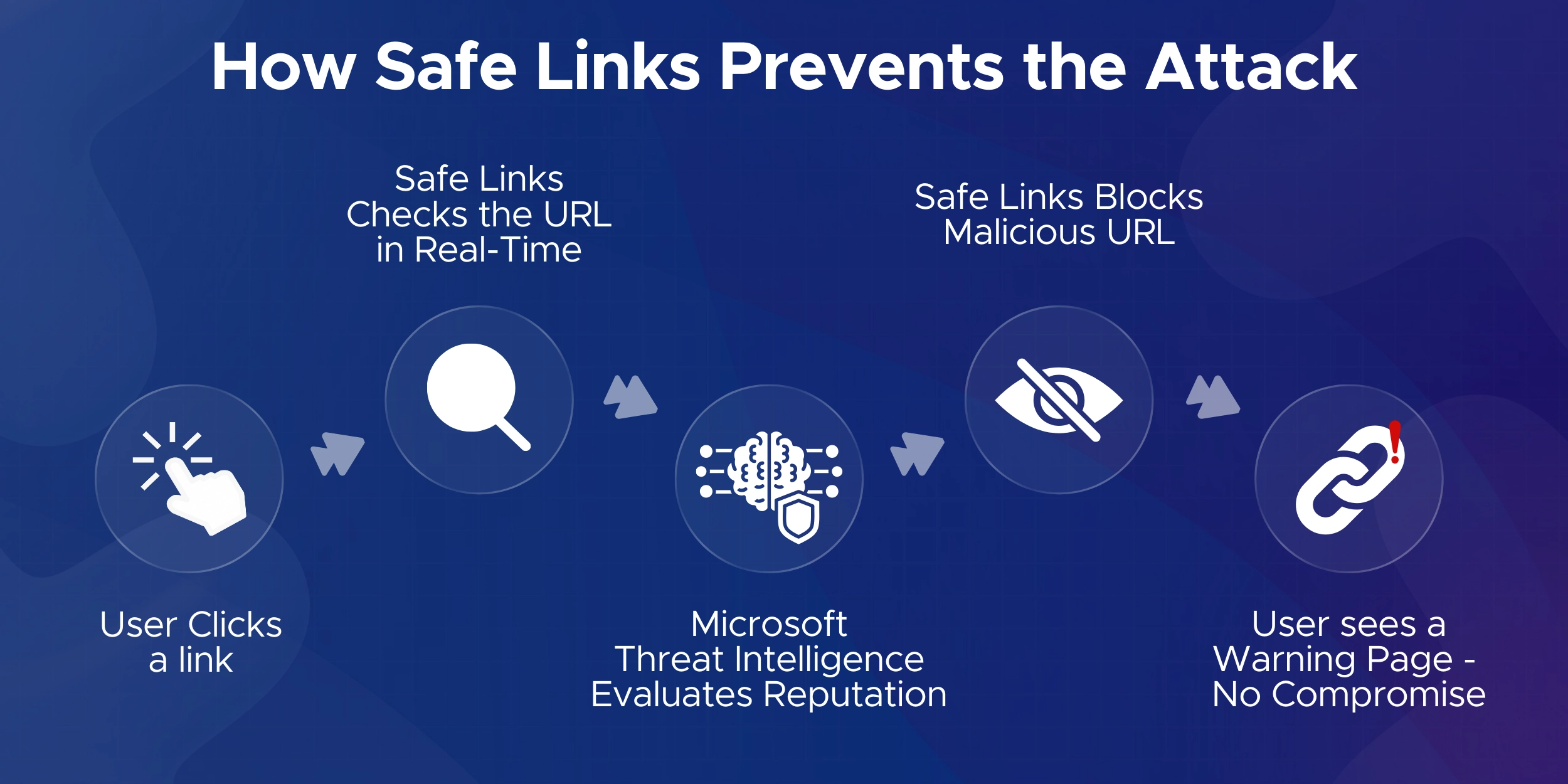
Safe Links helps lower that risk by checking a URL at the exact moment a user tries to open it.
Instead of letting the browser go straight to the site, Microsoft 365 quickly evaluates the link and decides whether the destination is safe.
If the site is known to be malicious, the user is prevented from reaching it.
This same protection applies in email, Microsoft Teams, and Office apps like Word and Excel.
Safe Links is especially helpful in situations like:

Safe Links is a protection feature in Microsoft Defender for Office 365 that checks URLs at the moment a user clicks them.
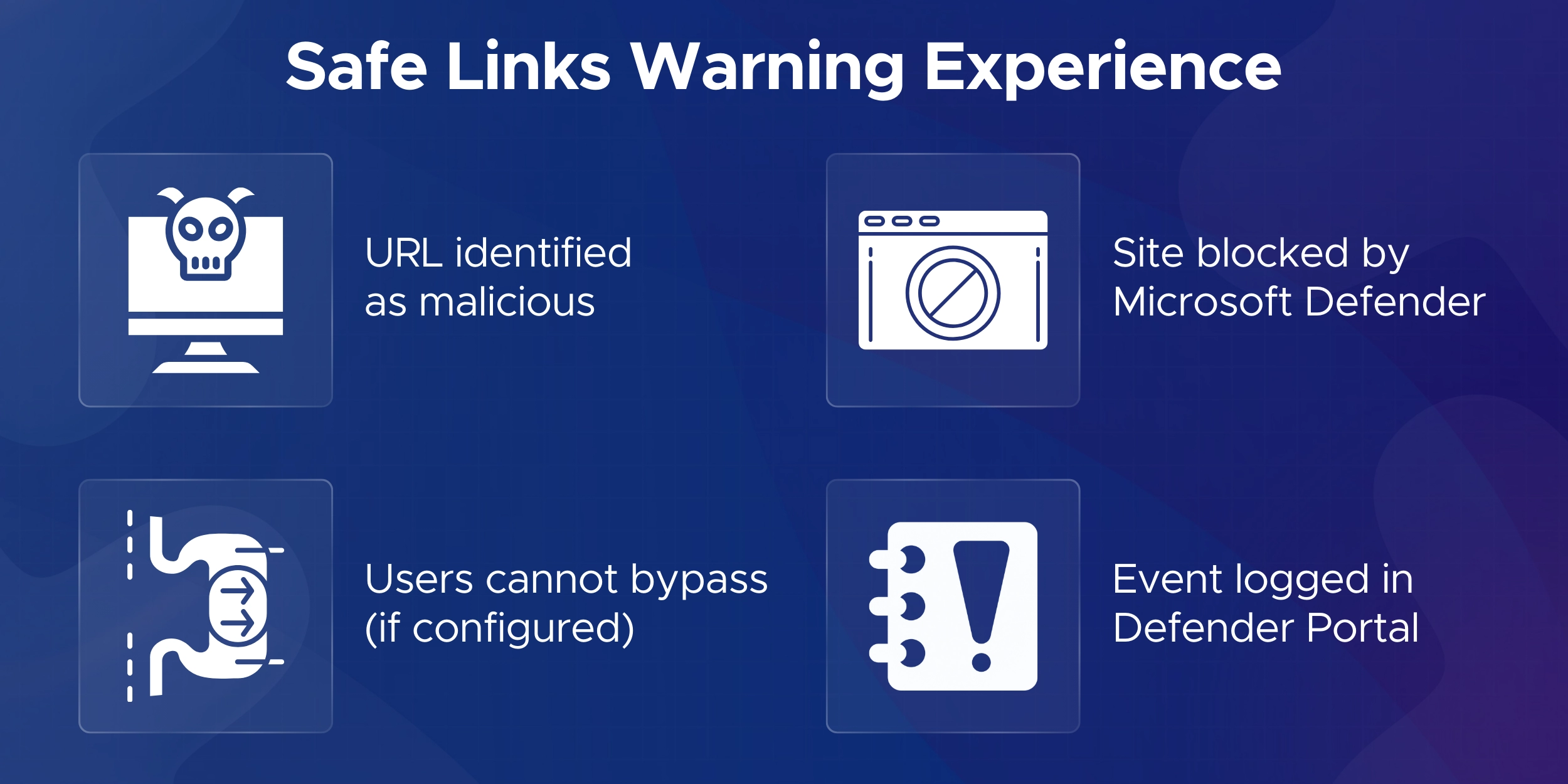
If the destination is safe, the link opens normally. If it is malicious, Microsoft 365 blocks access and shows a warning.
This time of click approach matters because a link that looked harmless when the email arrived can turn into a threat later.
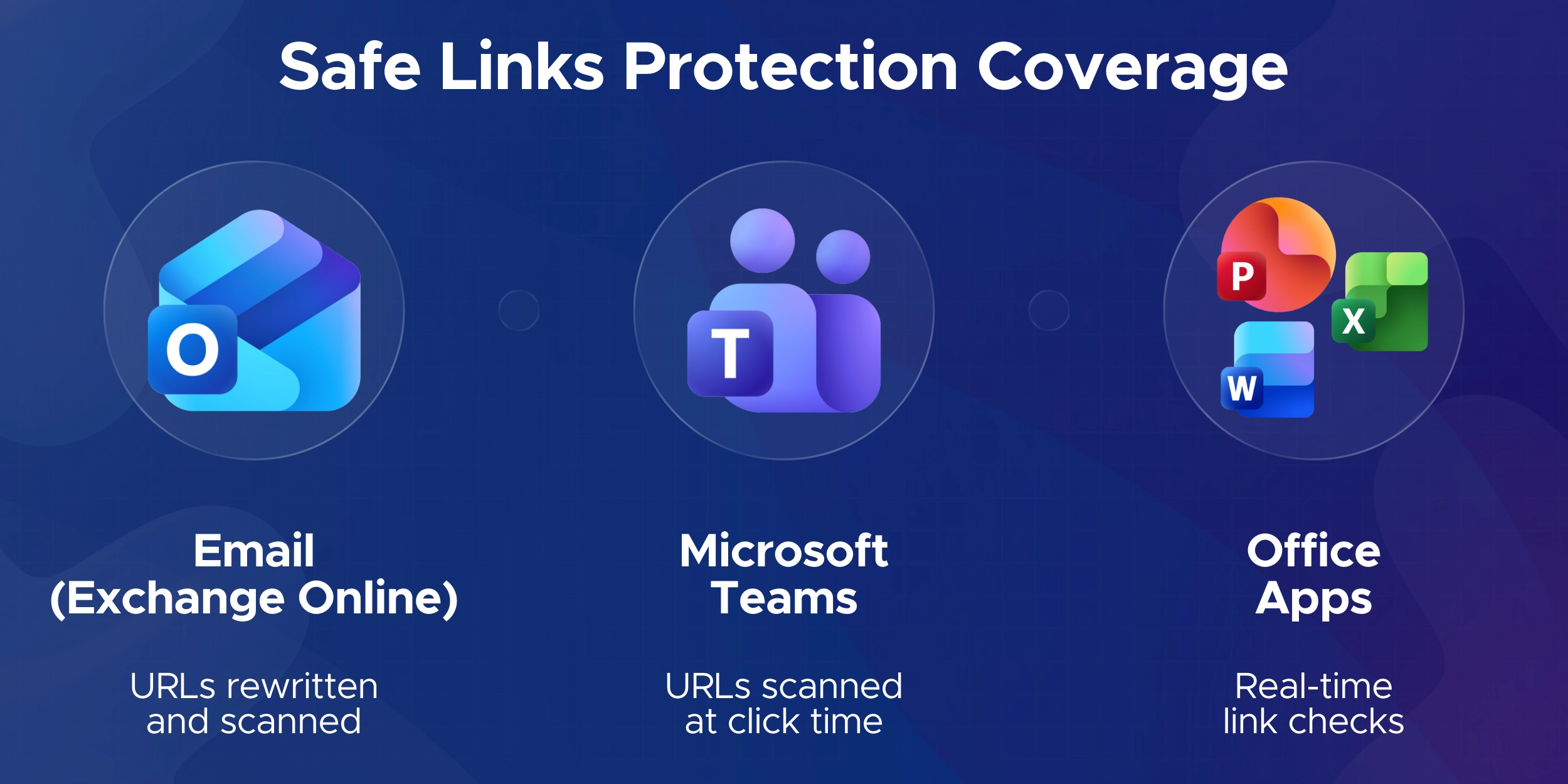
Safe Links covers the main places users interact with links in Microsoft 365:
Email links are rewritten for protection.
Teams and Office links are checked in real time without rewriting.

Phishing attacks rely on getting users to click a harmful link.
Safe Links adds an extra layer of verification at that moment, which significantly reduces successful phishing attempts and supports Microsoft’s recommended security posture.

Before you start setting up Safe Links, make sure your environment meets the basics.
This helps you avoid issues later in the configuration.
Licensing
Safe Links is included with Microsoft Defender for Office 365 Plan 1 or Plan 2.
If your organization uses plans like Business Standard or Exchange Online without Defender, you need to buy the add-on.
Admin Permissions
You need an account with Security Administrator rights or Global Administrator rights to configure Safe Links.


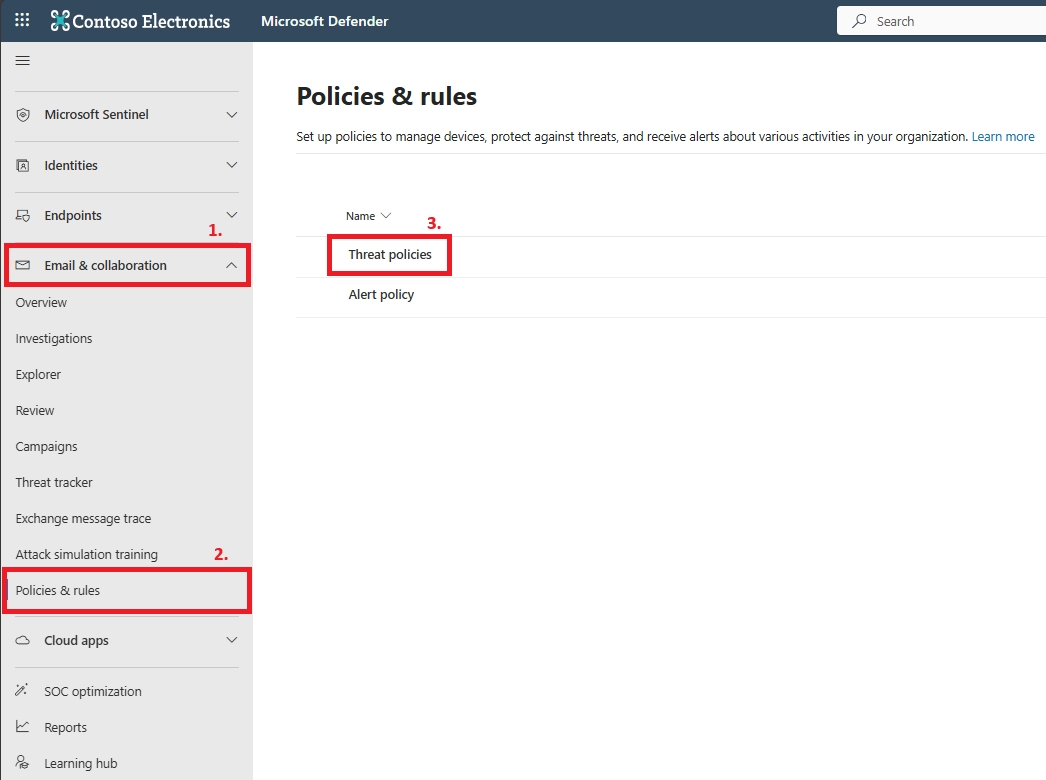
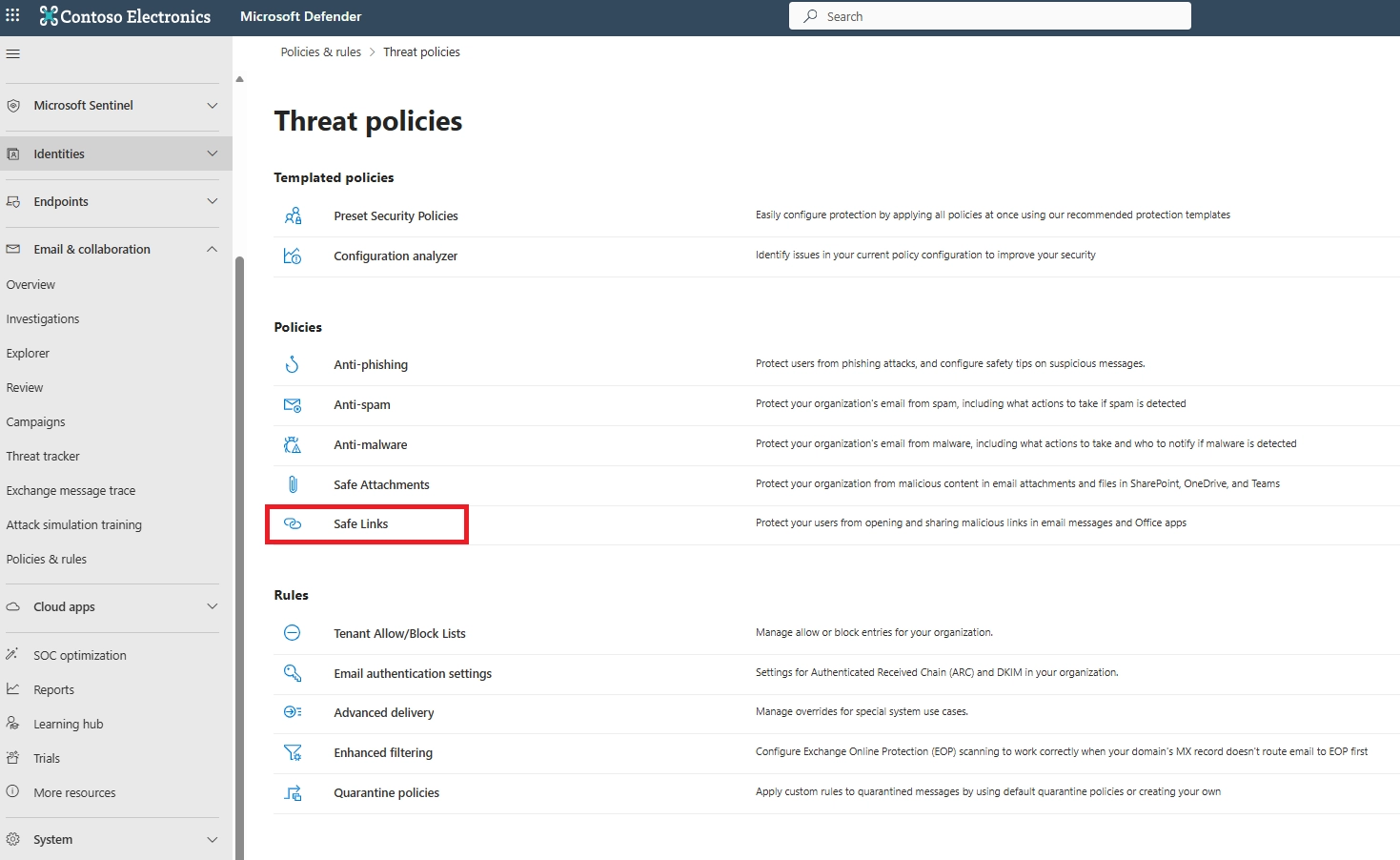
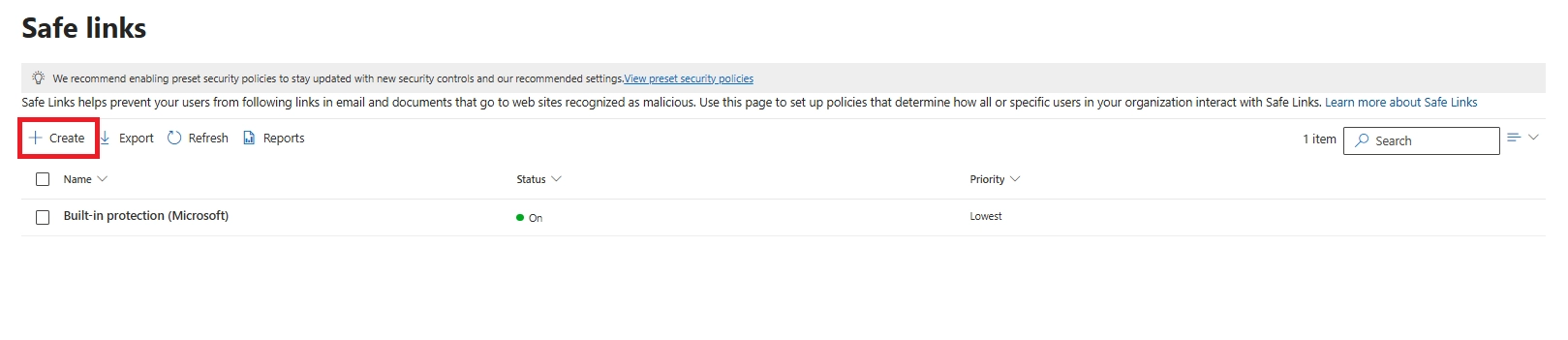
This is where you manage your Microsoft 365 Safe Links policy setup.

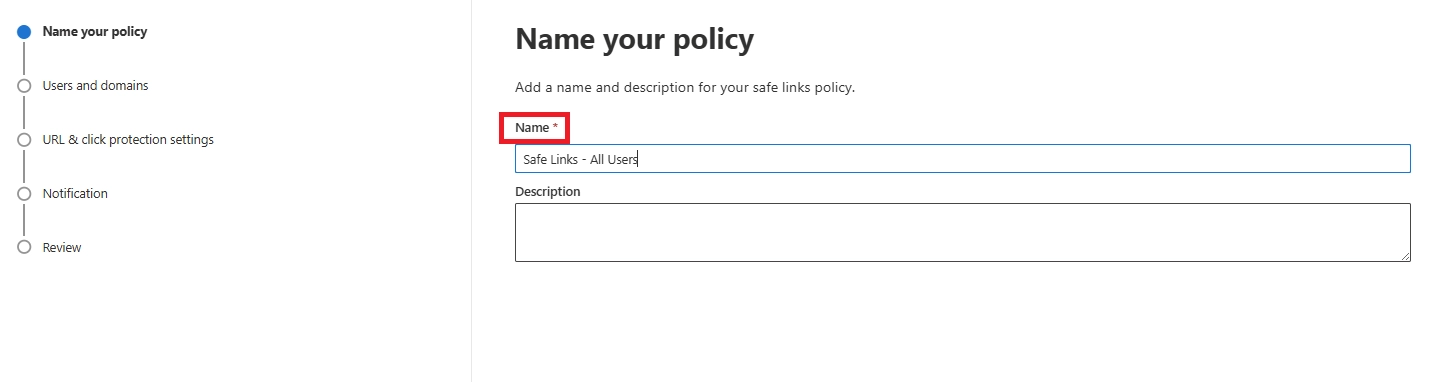
This opens the wizard that you will use to configure Safe Links in Microsoft 365 for your users.


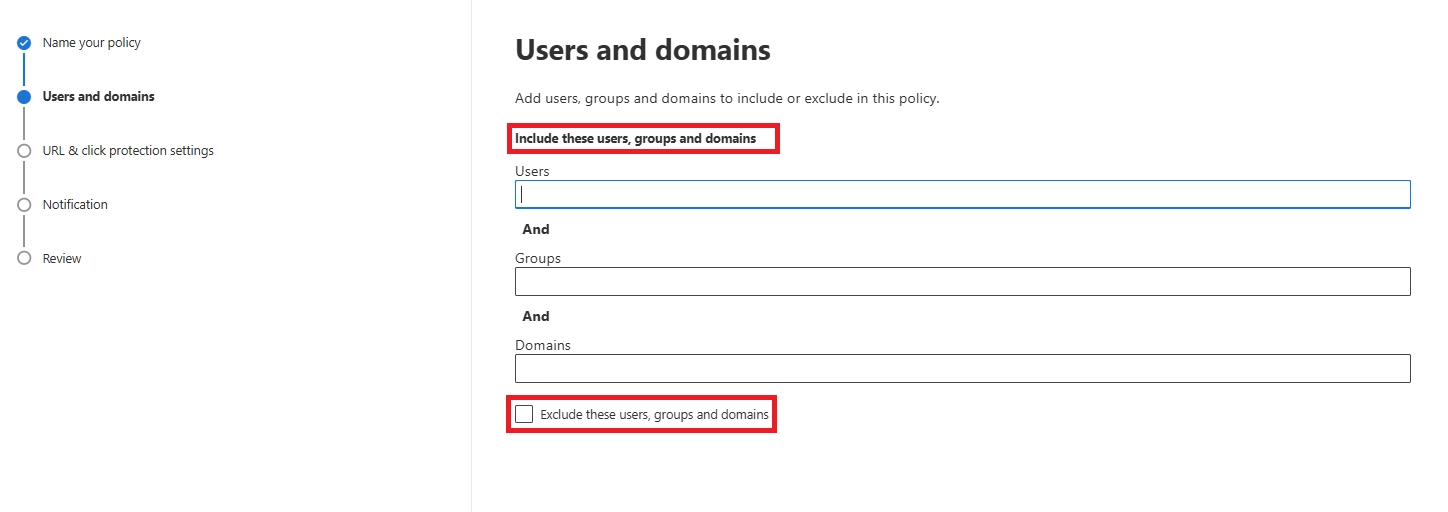
This step defines who will receive protection from this Safe Links Microsoft 365 policy.
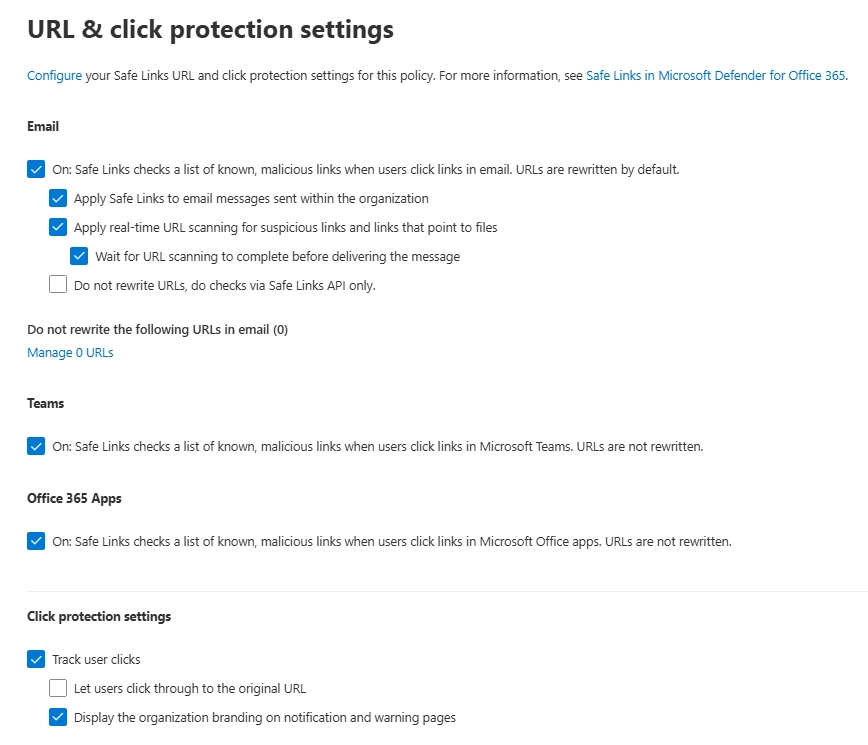
On the URL & click protection settings page, start with email.
Safe Links Settings for Email
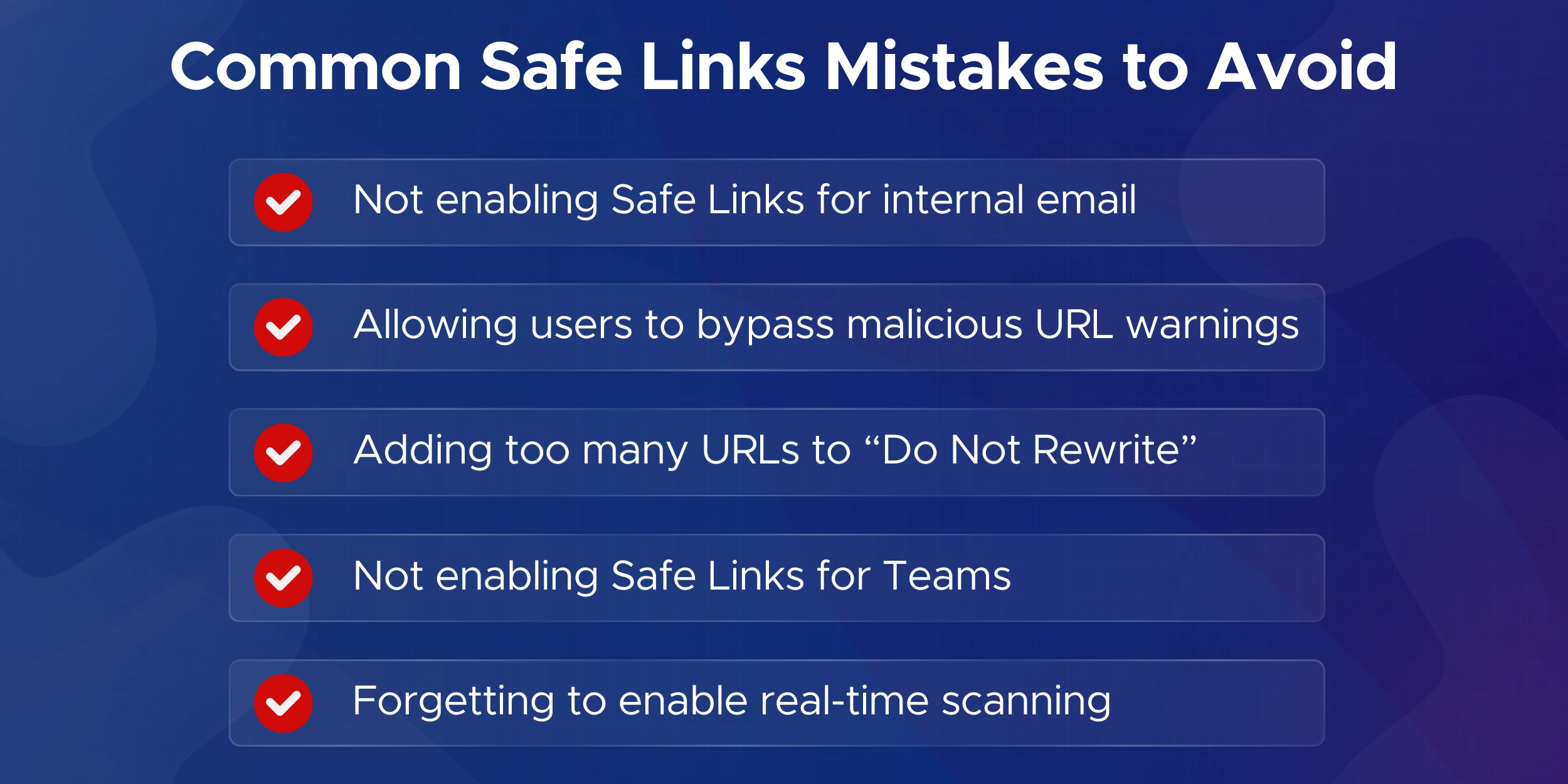
Note: This helps protect internal mail as well, which is important if an internal account is compromised or a user forwards a malicious email.
Note: This may add a small delay for some messages, but it gives you stronger Safe Links time-of-click protection because emails are only delivered once the URLs have been evaluated.
Note: Use this list sparingly.
Any entry you add will not receive Safe Links evaluation at click time.

With this setting, links in Word, Excel, PowerPoint, and other Office files are checked in real time, as long as users are signed in with their Microsoft 365 account and using supported versions.
This step is key for complete Safe Links protection for email, Teams and Office apps in Microsoft 365.
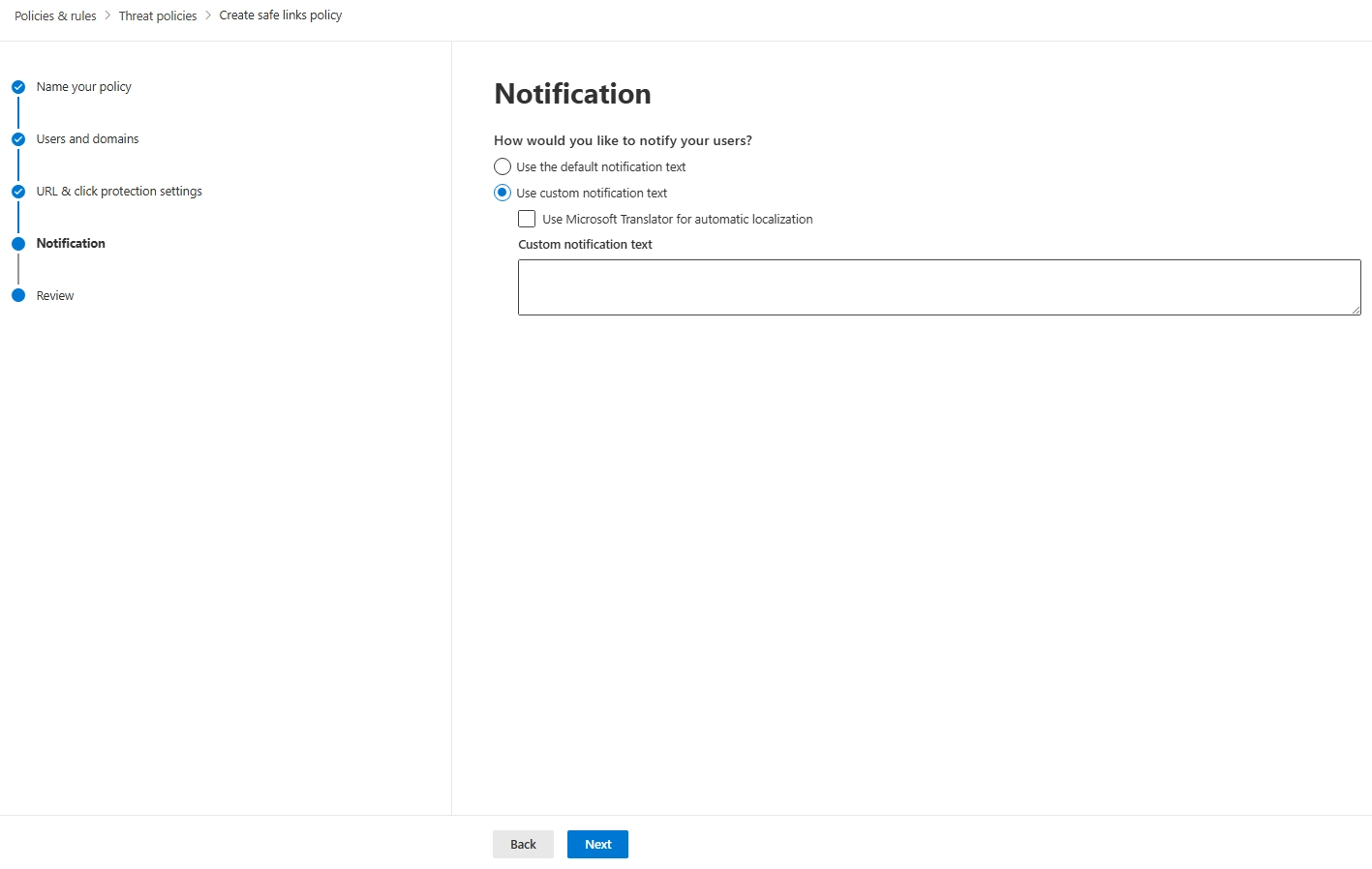
Use this part of the wizard to control how Safe Links behaves when a user clicks a blocked link.

Higher priority policies are processed first, so your new Microsoft 365 Defender Safe Links configuration should appear above built-in or lower priority policies.
Once your Safe Links policy is live, it is worth checking that everything works as expected.
This also helps you keep the protection effective over time.
What End Users Will See
Safe Links works quietly most of the time.
Sharing this with users helps them understand why a link might behave differently.

Monitoring Safe Links and Reviewing Reports
You can monitor Safe Links activity in the Microsoft 365 Defender portal.
These reports confirm the policy is protecting users and help you catch false positives or repeated risky clicks.
Managing and Updating Policies
You can edit your Safe Links policy at any time.
Keeping the policy updated ensures your Safe Links configuration stays aligned with new threats and Microsoft’s latest recommendations.

Microsoft Solutions Partner
Penthara is a certified Microsoft Solutions Partner with strong expertise in Defender for Office 365, Entra ID, and Microsoft 365 security.
Our approach follows Microsoft’s recommended practices and real-world implementation standards.
Certified Microsoft Professionals
Our team includes Microsoft Certified experts who work hands-on with Safe Links, Safe Attachments, anti-phishing policies, and identity protection every day.
We help organizations deploy secure and reliable configurations that fit their needs.
Proven Deployment Experience
We have delivered Microsoft 365 security solutions for both small teams and large enterprises.
Our experience includes reducing phishing risks, improving visibility, and building stronger security posture across thousands of users.
End-to-End Support
We handle the entire process from assessment to configuration, rollout, and ongoing monitoring.
This ensures smooth deployment and long-term confidence in your Microsoft 365 protection.
Ready to secure your Microsoft 365 environment?
Schedule a consultation and let Penthara design a tailored security strategy for your organization.
Safe Links is a simple but powerful way to strengthen your Microsoft 365 security. When configured properly, it protects users at the moment they click a link, no matter where that link appears. By following the steps and best practices in this guide, you create a safer environment with minimal disruption to everyday work.
Q1: What is Safe Links in Microsoft 365?
A1: Safe Links is a Microsoft Defender for Office 365 feature that checks URLs at click time and blocks malicious websites. It protects links in email, Teams, and Office apps using Microsoft’s threat intelligence.
Q2: How does Safe Links work in Microsoft Outlook 365?
A2: Outlook uses Safe Links to rewrite URLs and route them through a secure Microsoft domain. When you click a link, Safe Links evaluates it instantly and shows a warning if the site is unsafe.
Q3: How does Safe Links protect links in Microsoft Teams and Office apps?
A3: In Teams, Safe Links checks the link when clicked without rewriting it. In Office apps like Word, Excel, and PowerPoint, it verifies document hyperlinks when users are signed in with their Microsoft 365 account.
Q4: What is the Safe Links warning?
A4: It is a protection page shown when a clicked URL is identified as malicious. The page explains why access is blocked and prevents users from opening the site.
Q5: Where are Safe Links settings located in Microsoft 365?
A5: Go to Microsoft 365 Defender → Email & collaboration → Policies & rules → Threat policies → Safe Links. This is where you configure your Safe Links policy.
Q6: What settings should I use to maximize Safe Links protection?
A6: Enable Safe Links for email, internal mail, Teams, and Office apps. Turn on real-time scanning, enable “wait for URL scanning,” and disable click-through on warning pages for maximum security.
Q7: Which Microsoft 365 licenses include Safe Links?
A7: Safe Links is included with Defender for Office 365 Plan 1 and Plan 2. Business Premium includes Plan 1, while Microsoft 365 E5 and Office 365 E5 include Plan 2. Other plans must add Defender for Office 365.
Q8: How do I disable Safe Links URL rewriting but keep protection?
A8: Enable the option to not rewrite URLs in the Safe Links policy. This keeps the original link visible but still checks it at click time for malicious activity.
Q9: Safe Links is blocking a URL I trust. What should I do?
A9: Add the URL to the “do not rewrite” list or approve it using the Tenant Allow/Block List. Only allow trusted URLs after verifying they are safe.
Q10: How do I turn off Safe Links in Outlook 365?
A10: Safe Links cannot be disabled from Outlook. An admin must modify or remove the Safe Links policy in the Microsoft 365 Defender portal.
Q11: Does Safe Links protect internal emails?
A11: Yes, if enabled. The Safe Links policy includes a setting that applies protection to messages sent within the organization. Turning this on helps prevent compromised internal accounts from spreading malicious links.
Q12: Does Safe Links protect SharePoint or OneDrive URLs?
A12: Safe Links does not rewrite SharePoint or OneDrive URLs, but these services have their own built-in protections. If such a link appears in an email, Safe Links still checks it at click time.
Q13: Can I exclude certain URLs from Safe Links scanning?
A13: Yes. The “do not rewrite” list lets you exclude trusted links. Use this list sparingly because excluded URLs will not be scanned.
Q14: How long does it take for a new Safe Links policy to apply?
A14: Most changes apply within 30 minutes, but Teams and Office app protections may take longer to fully propagate.
Q15: Does Safe Links affect email delivery times?
A15: If “wait for URL scanning” is enabled, some messages may be delayed slightly while links are scanned. The delay is usually very small.
Q16: How do I know if Safe Links is working?
A16: Hover over a link in a new email. If Safe Links is active, the link will appear rewritten. You can also click a known test URL to confirm the Safe Links warning appears.
Q17: Is Safe Links available for home or personal Microsoft 365 accounts?
A17: No. Safe Links is an enterprise-grade feature available only through Defender for Office 365.
Q18: Does Safe Links log user clicks?
A18: Yes. If click tracking is enabled, Safe Links records allowed and blocked clicks, which can be viewed in Microsoft 365 Defender reports.
Q19: Does Safe Links work on mobile devices?
A19: Yes. Safe Links works in Outlook Mobile and supported mobile Office apps as long as modern authentication is enabled and the app supports Safe Links checks.
Q20: What is the safelink feature in Outlook?
A20: It is the same Safe Links protection. Outlook rewrites URLs to a secure Microsoft domain, checks them when clicked, and blocks harmful sites.
CEO at Penthara Technologies
Phishing Protection in Microsoft 365: Stop Impersonation Attacks
Learn how to stop impersonation attacks in Microsoft 365 using anti-phishing policies, Safe Links, Safe Attachments, and mailbox intelligence.
Safe Attachments in Microsoft 365: Understanding Sandboxing and Setup
Learn how Microsoft 365 Safe Attachments uses sandboxing to detect hidden malware, secure email and files, and protect your organization from advanced threats.
Microsoft 365 Attack Simulation: A Complete Setup Guide
A complete step-by-step guide to Microsoft 365 Attack Simulation Training, covering setup, phishing payload selection, targeting, training assignments, reporting, and best practices to help organizations strengthen user awareness and reduce phishing risks.