



Learn how Microsoft 365 Safe Attachments uses sandboxing to detect hidden malware, secure email and files, and protect your organization from advanced threats.

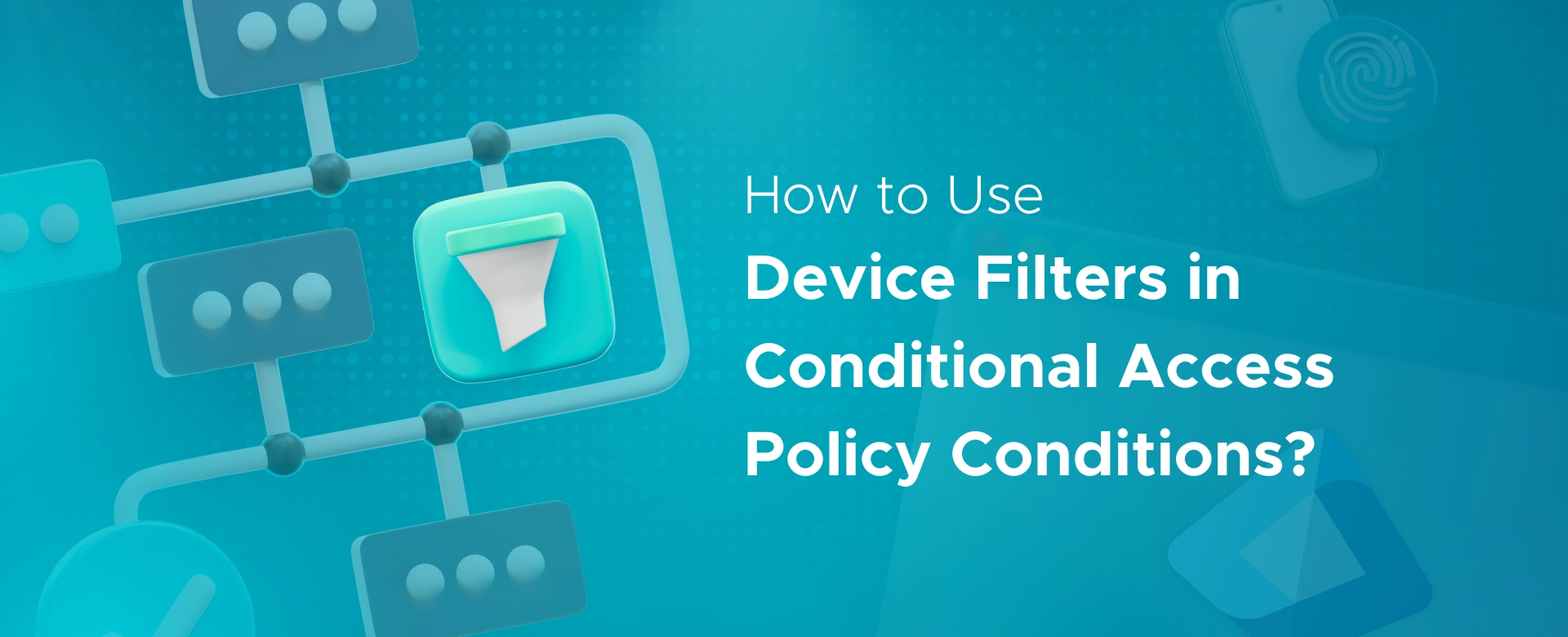
Device filters in Conditional Access help you decide which devices can access your company apps and data. Instead of treating all devices the same, you can make rules that apply only to certain devices.
This makes security better and helps trusted devices work without extra checks.
Here are some quick benefits of using device filters in Conditional Access policy conditions:
In this guide, we’ll show you how to set up device filters in Conditional Access and use Microsoft Entra device filters to protect your business the smart way.
Device filters help you choose exactly which devices the rules should apply to - not just whether a device is compliant or not.
Using device filters in Conditional Access helps keep things safe and easy to manage.
When you create device filters in Conditional Access, you tell the system which devices to include or exclude based on certain details about those devices. These details are called device attributes.
This section lists important device attributes you can check and the ways (called operators) you can use to match those attributes in your filters. Using these, you can make very precise rules to control access to your company resources.
Here are some key device attributes you can use:
| Attribute | What It Means | Example Filters |
|---|---|---|
| deviceId | Unique identifier of the device | Equals "12345" or StartsWith "abc" |
| displayName | Display name of the device | Contains "Surface" or Equals "John's iPhone" |
| deviceOwnership | Ownership type: Company or Personal | Equals "Company" or Equals "Personal" |
| enrollmentProfileName | Name of the Intune enrollment profile used | Equals "CorporateProfile" or Contains "BYOD" |
| isCompliant | Compliance status of the device | Equals "true" or Equals "false" |
| manufacturer | Device manufacturer | Equals "Apple" or Equals "Dell" |
| mdmAppId | ID of the MDM application managing the device | Equals "0000000a-0000-0000-c000-000000000000" |
| model | Device model | Equals "iPhone 12" or Contains "Surface" |
| operatingSystem | OS name like Windows, iOS, Android | Equals "Windows" or Contains "iOS" |
| operatingSystemVersion | OS version | StartsWith "10." or Equals "14.4" |
| physicalIds | Hardware identifiers | Contains "ABC123" or Equals "XYZ789" |
| profileType | Type of enrollment profile | Equals "Autopilot" or Equals "ADE" |
| systemLabels | Labels applied to the device by the system | Contains "Corporate" or Equals "Managed" |
| trustType | Trust level of the device | Equals "Trusted" or Equals "Unknown" |
| extensionAttribute1-15 | Custom attributes synced from on-prem AD | Equals "Sales" or Contains "Remote" |
Operators you can use:
You can use these attributes and operators to create filters like:
You can also add extension attributes to filter on extra information unique to your company.
Check out Microsoft Documentation for the reference
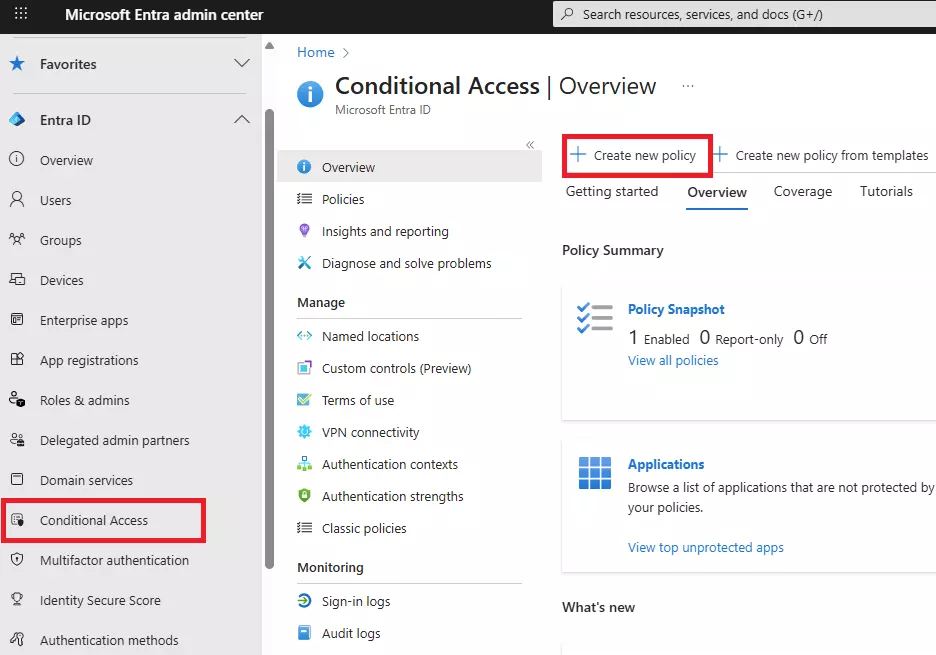
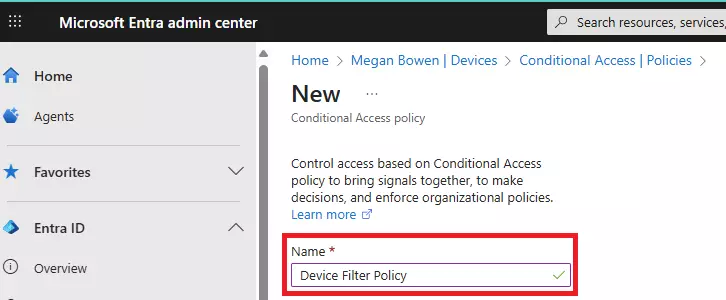
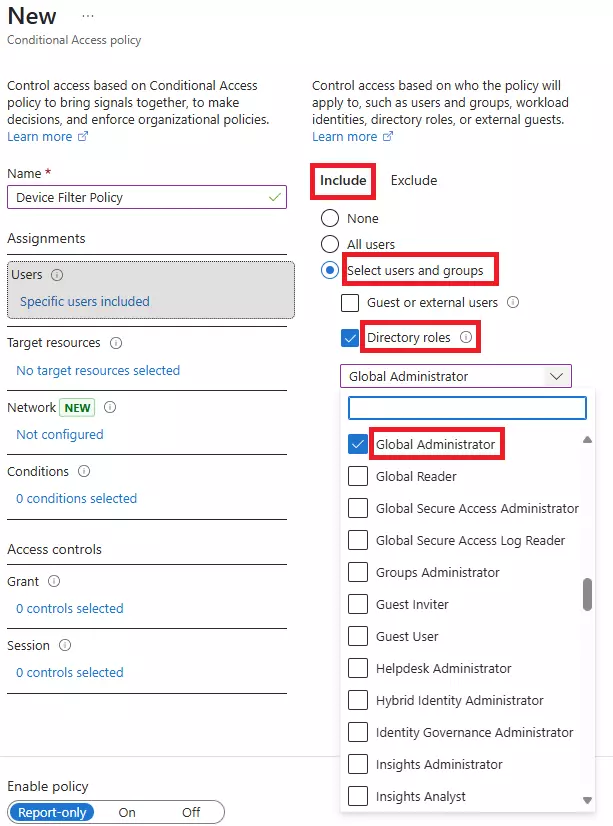
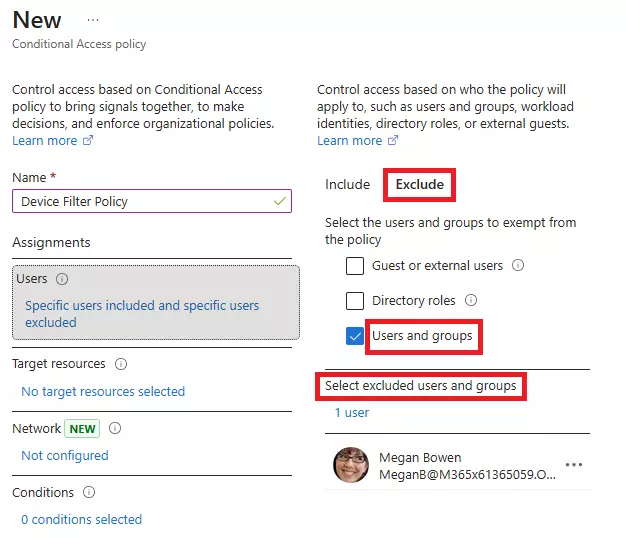
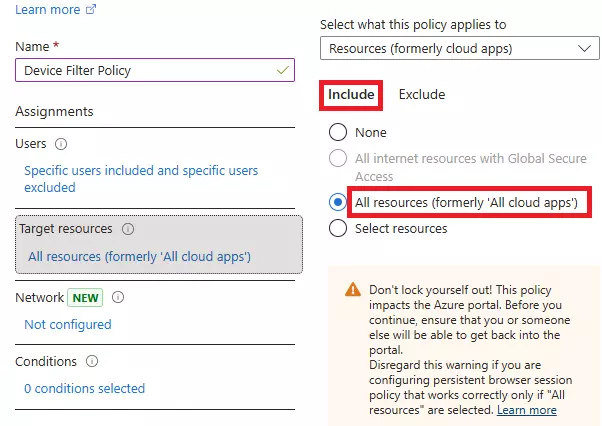
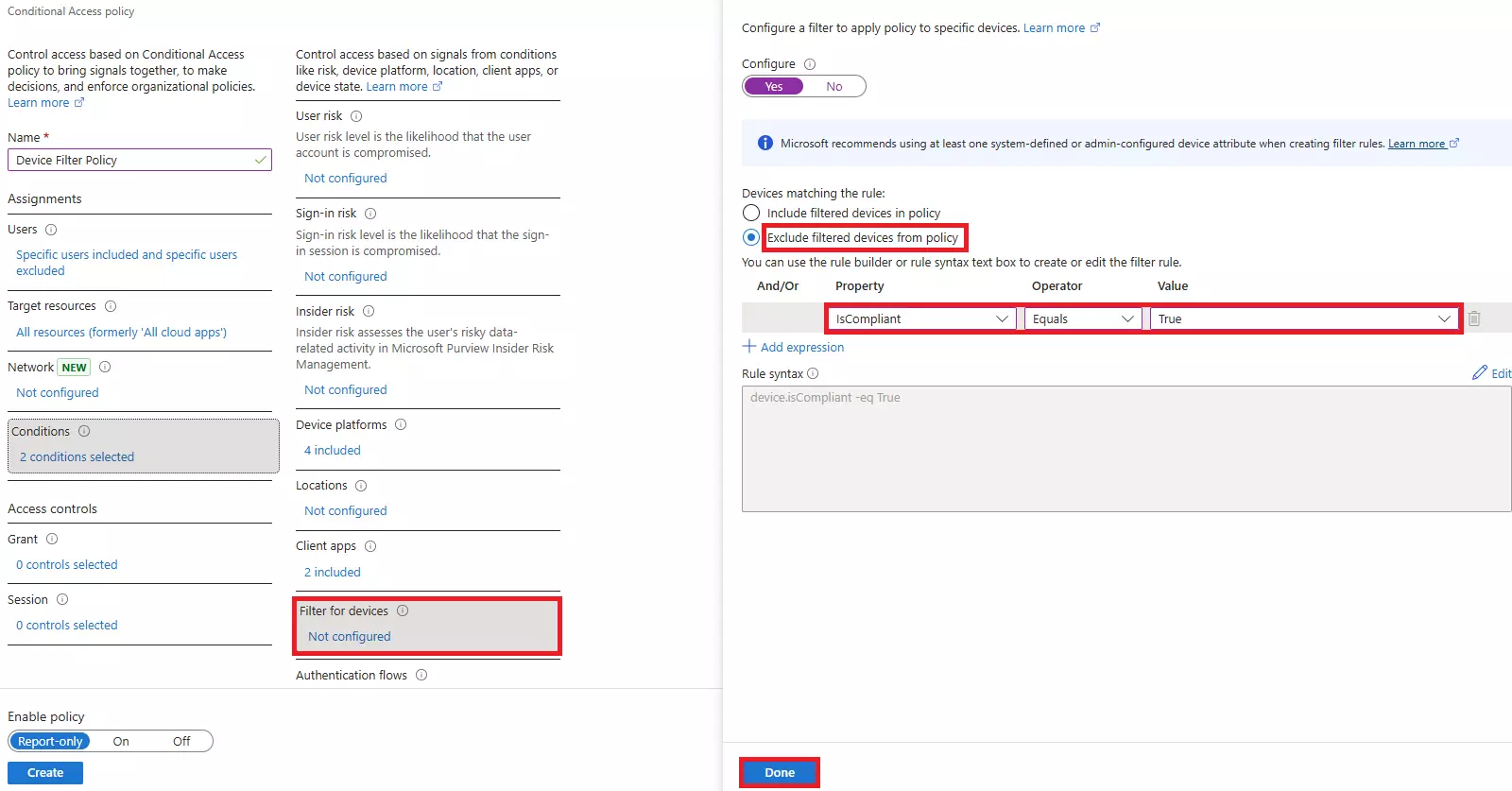
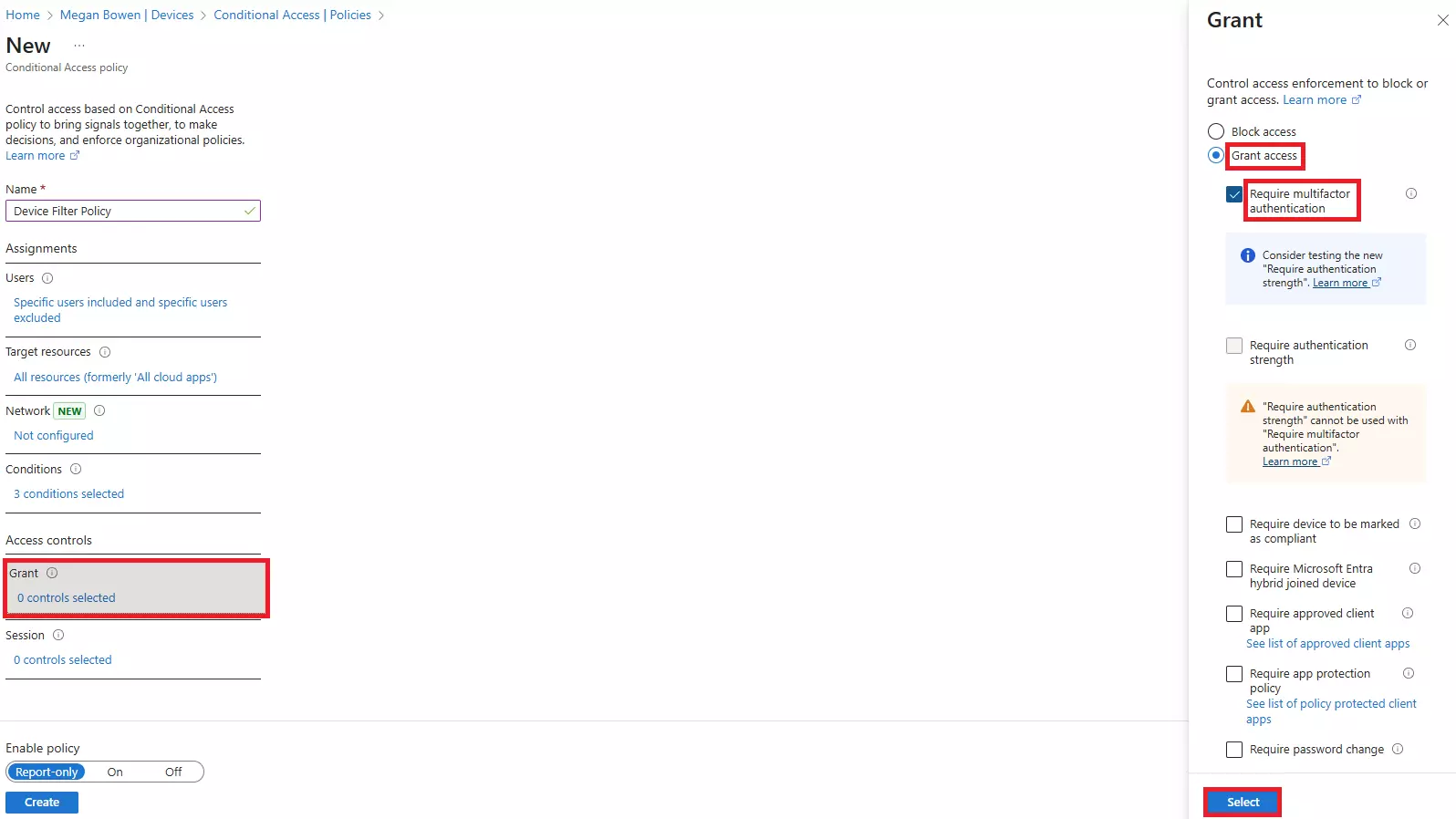
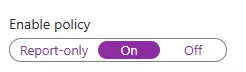
Setting up device filters in Conditional Access is easier than you think. Follow these simple steps to get started:


Device filters in Conditional Access policies give you powerful, fine-grained control beyond just marking devices as “compliant” or “not compliant.”
Using device filters well means balancing great control with careful planning and ongoing review.
Sometimes, your device filters in Conditional Access might not work as expected. Here are some common reasons why:
To find out what’s going wrong, use these tools:
Testing and troubleshooting helps you get the most from your device filters in Conditional Access policies without causing issues for your users.
To make the most of device filters in Conditional Access, follow these easy tips:
Following these best practices will help your Conditional Access policy conditions work smoothly and keep your company secure.
Ready to secure your Microsoft 365 environment with device filters and Conditional Access?
Schedule a free consultation today and let our experts design the right solution for your organization.
Device filters in Conditional Access help you control who can access your company’s apps and data based on their devices. This keeps your environment secure without slowing down trusted users.

CEO at Penthara Technologies
Safe Attachments in Microsoft 365: Understanding Sandboxing and Setup
Learn how Microsoft 365 Safe Attachments uses sandboxing to detect hidden malware, secure email and files, and protect your organization from advanced threats.
How to Configure Safe Links in Microsoft 365 for Maximum Protection
Learn how to configure Safe Links in Microsoft 365 to block malicious URLs and strengthen protection across email, Teams, and Office apps.
Microsoft 365 Attack Simulation: A Complete Setup Guide
A complete step-by-step guide to Microsoft 365 Attack Simulation Training, covering setup, phishing payload selection, targeting, training assignments, reporting, and best practices to help organizations strengthen user awareness and reduce phishing risks.