


Learn how to stop impersonation attacks in Microsoft 365 using anti-phishing policies, Safe Links, Safe Attachments, and mailbox intelligence.

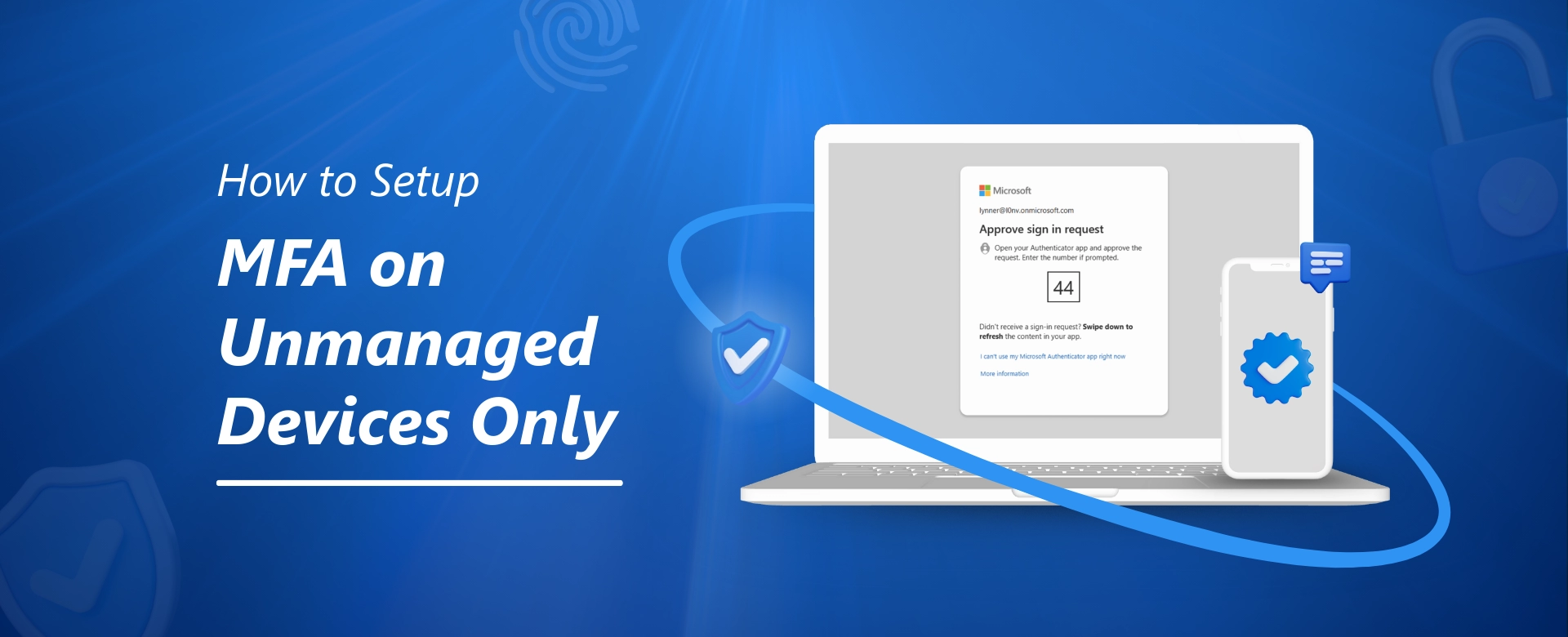
Multi-Factor Authentication (MFA) is like adding an extra lock to your front door – even if someone steals your key (password), they still can’t get in without a second proof, like a code on your phone.
But here’s the thing – not every device needs the same level of interruption.
In Microsoft 365 and Entra ID (formerly Azure AD), you can set up MFA on unmanaged devices (personal devices or ones not controlled by your IT team) without making life harder for staff on company-managed computers.
This setup, often called Multi-Factor Authentication for unmanaged devices or BYOD MFA policy, is perfect for:
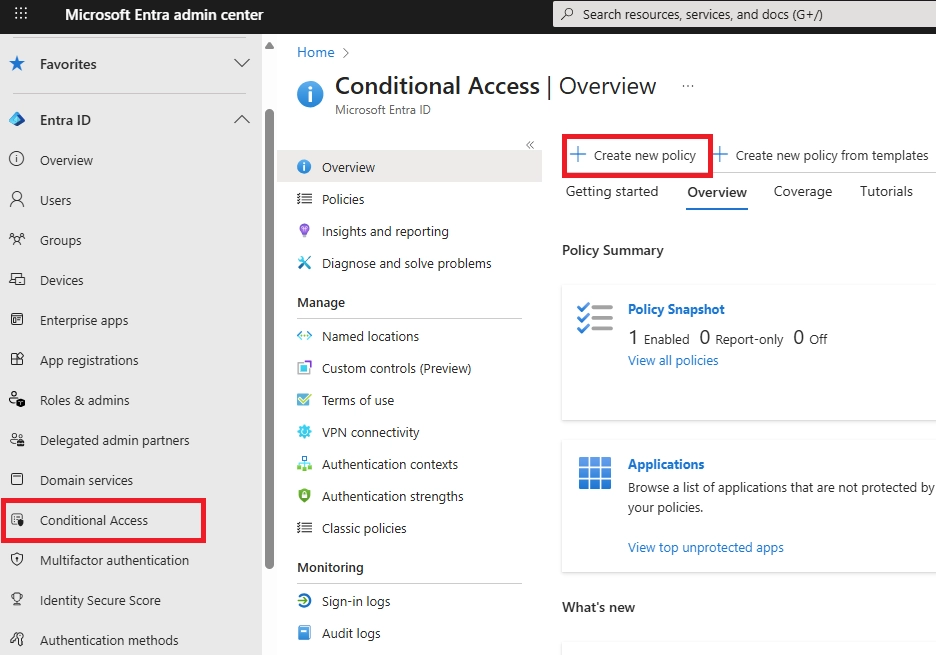
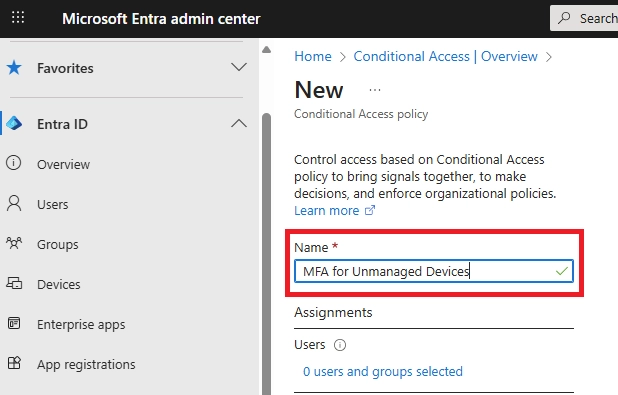
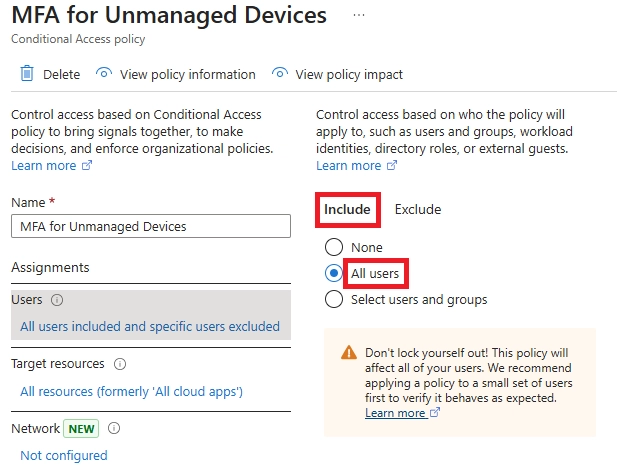
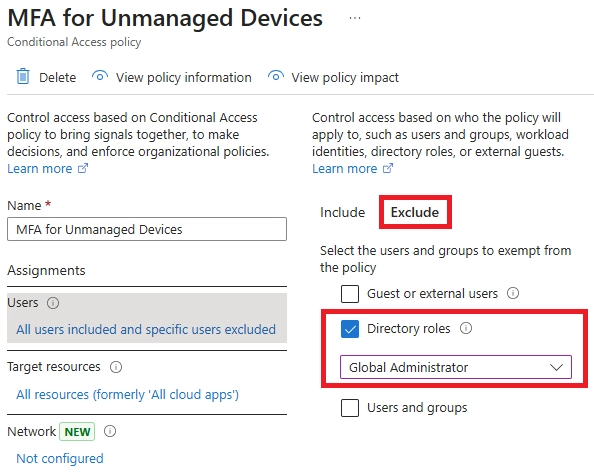
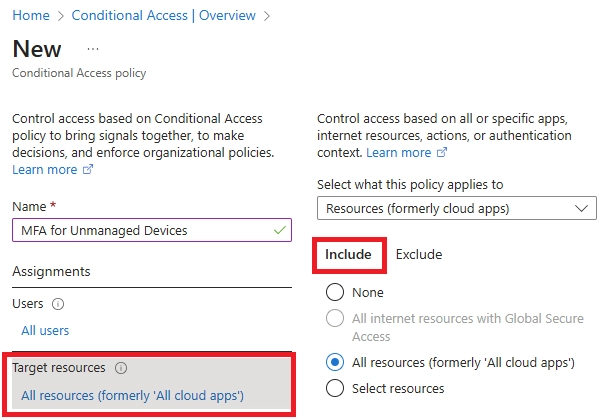
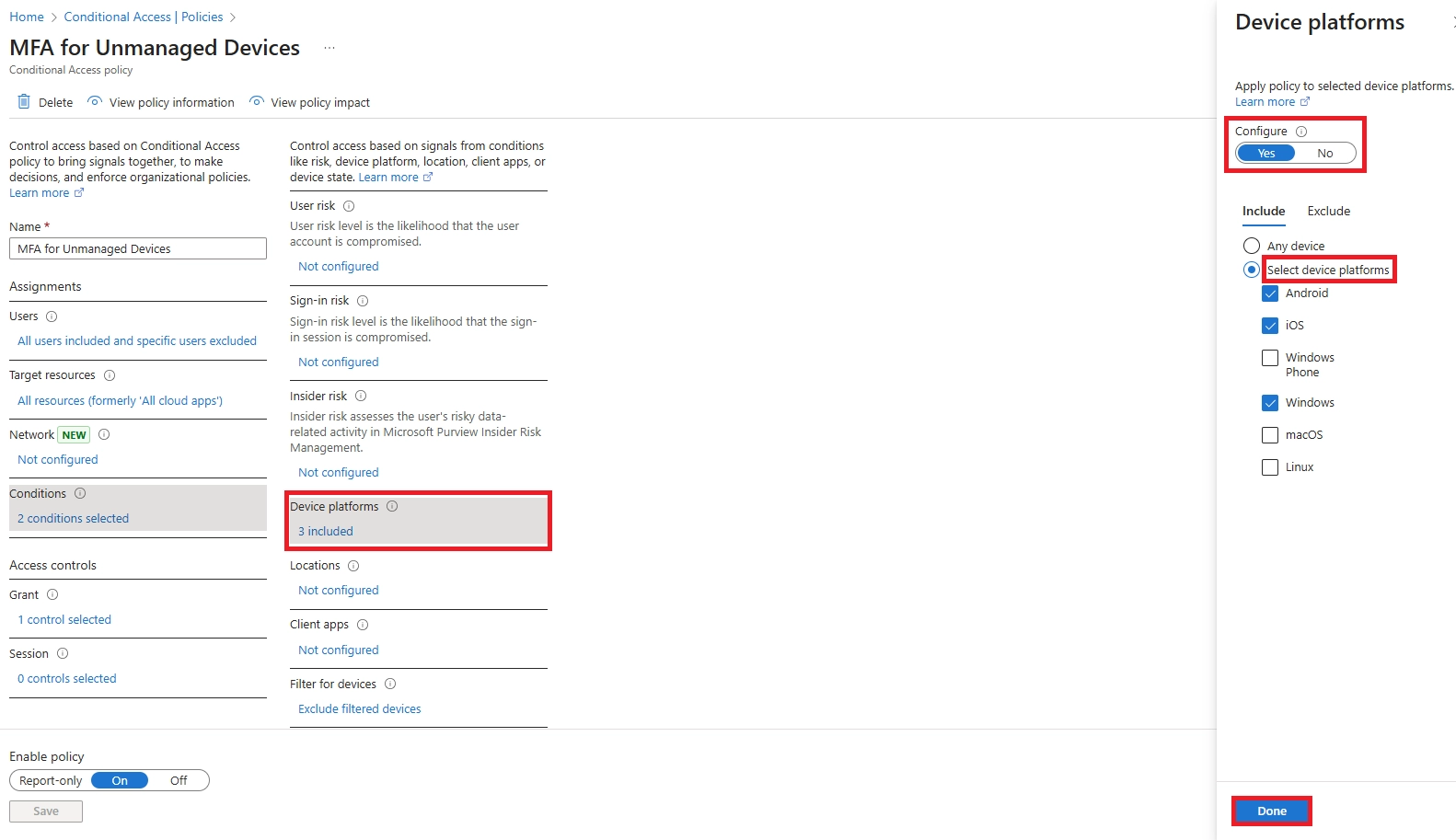
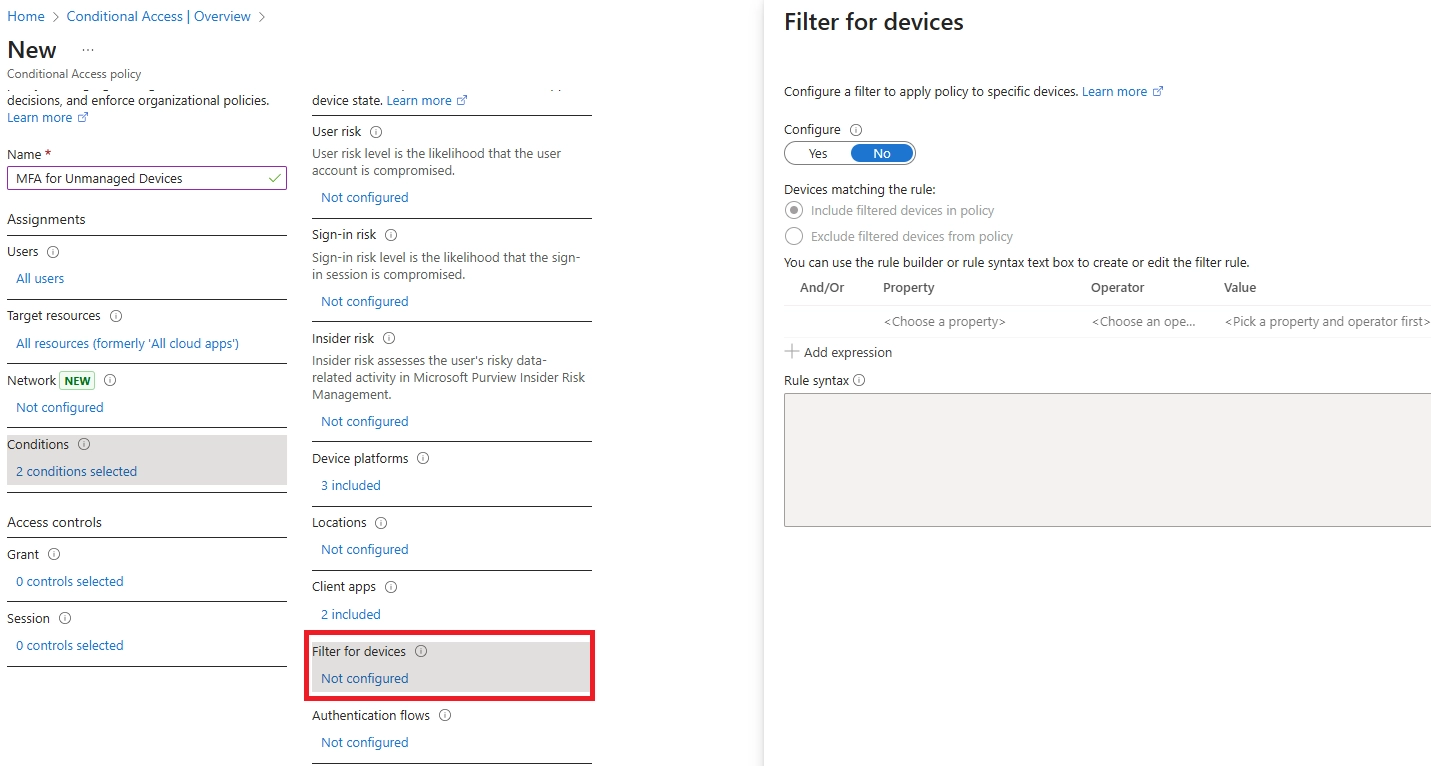
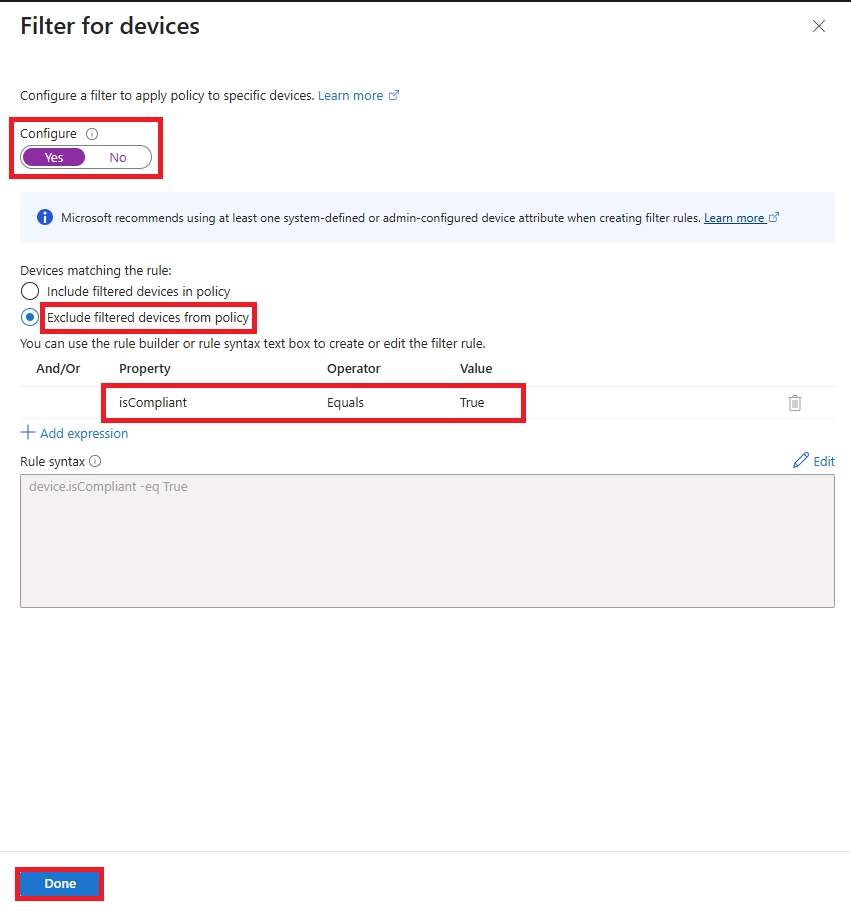
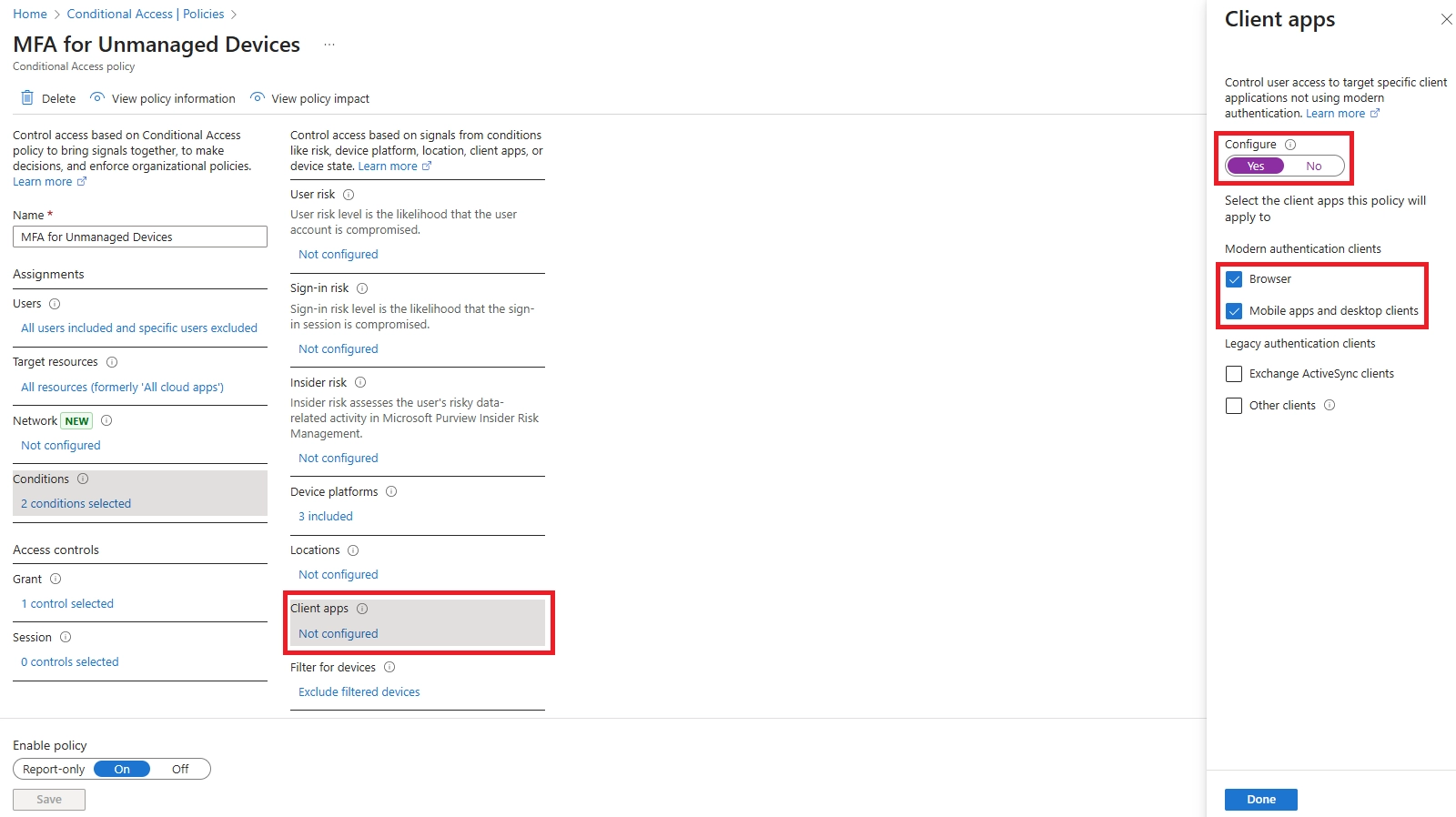
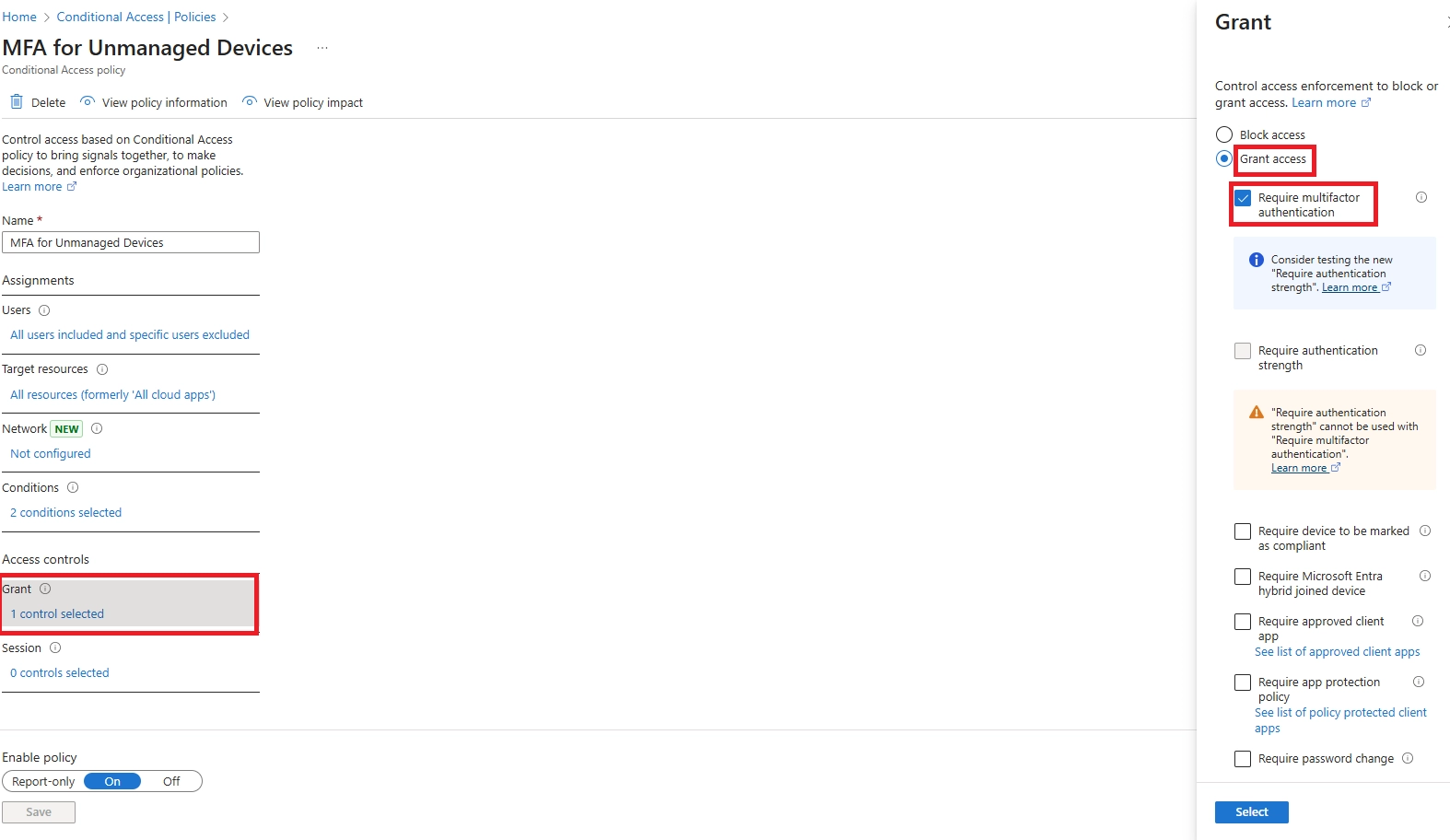
With Conditional Access, you can require MFA for unmanaged personal devices, exclude managed devices from MFA prompts, and even fine-tune rules for BYOD setups.
This guide will show you how to configure Conditional Access MFA for unmanaged devices step-by-step, so you get the best MFA solution for BYOD setups without slowing down your team.
Personal or BYOD (Bring Your Own Device) devices can be less safe because they may not have your company’s security settings.
Using Multi-Factor Authentication (MFA) only on these unmanaged devices adds extra protection without slowing things down on trusted work devices.
It also helps avoid MFA fatigue, which happens when people get too many login prompts and start ignoring them.
With conditional access, company devices skip extra steps, but personal devices get an extra check.
This approach also helps meet rules like ISO, GDPR, and HIPAA, which need stronger security for untrusted devices. It’s a key part of a broader strategy to optimize your Microsoft 365 security posture without overwhelming users.
Before you start, make sure you have:
Once these are in place, you can set up the rule to require MFA only on unmanaged devices.


If you're also looking to restrict access based on location, you can configure policies to block specific IPs as part of your Conditional Access setup.


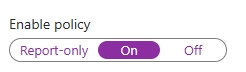
That’s it — your MFA rule will now only apply when someone signs in from an unmanaged device.
Check out how it works:
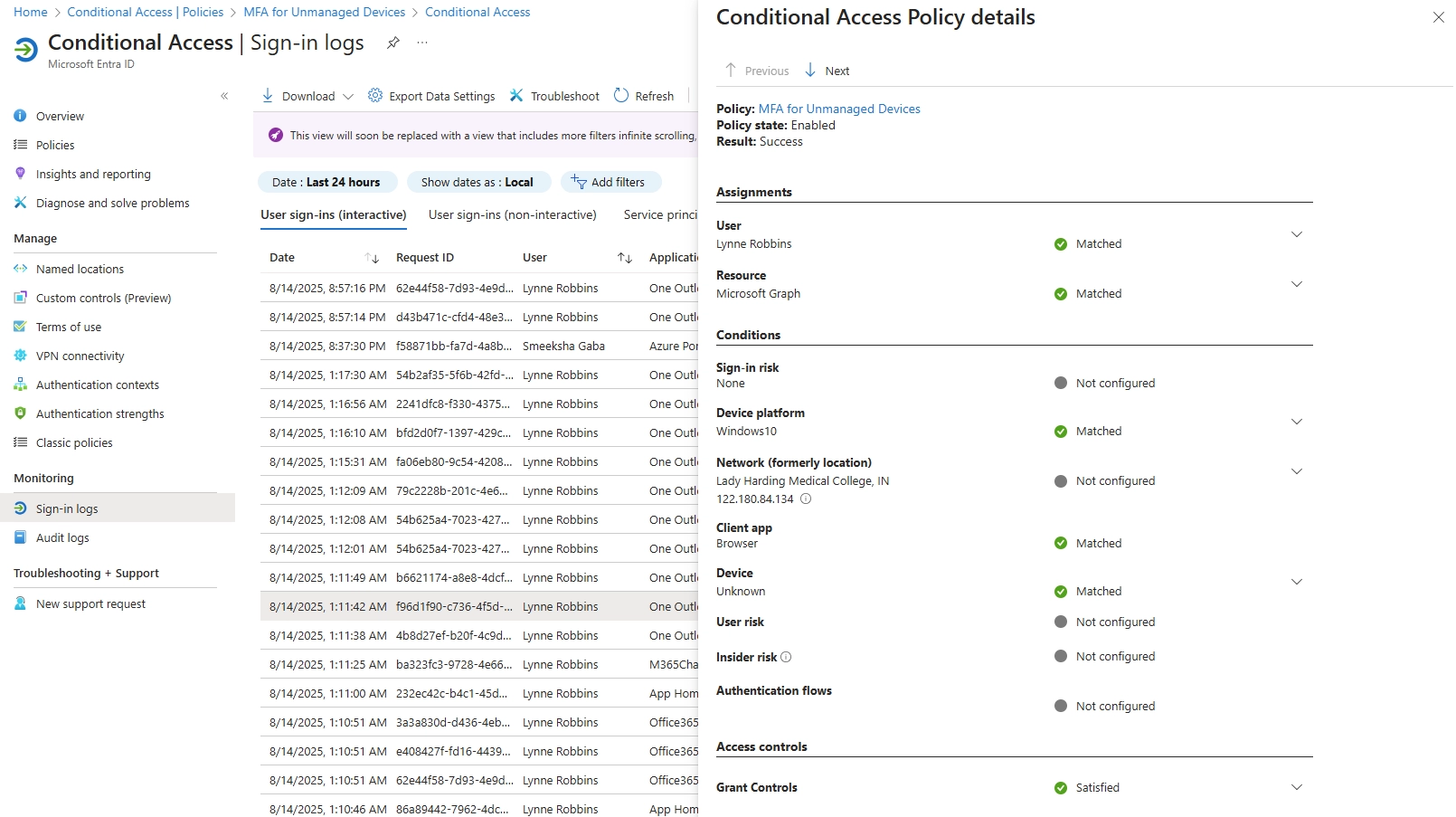
To confirm whether your Conditional Access policy – MFA for Unmanaged Devices – is functioning as intended, the most effective method is to review the Sign-in Logs available in Microsoft Entra under the Monitoring section.
Steps to Check Policy Application:

To keep your MFA setup working well:
Pro Tip: Use sign-in logs in the Microsoft Entra admin center to track when MFA was triggered. This helps you spot any unusual sign-in attempts from unmanaged devices early.
For even smoother sign-ins on unmanaged devices, consider enabling passwordless authentication across Microsoft 365.
Setting up MFA only for unmanaged devices is a smart move. It keeps your company’s data safe while making sure employees on trusted work devices aren’t slowed down every day.
By combining Conditional Access with device compliance, you get the best of both worlds – strong security and a smooth user experience.
For highly privileged users, requiring MFA is just one layer of security. To add a critical human checkpoint before admin access is granted, consider requiring Manual Approval for Microsoft PIM Roles.
Need help? Our Microsoft 365 experts can guide you step-by-step, review your current setup, and make sure your security is rock solid without frustrating your team.
Contact us today to get started.

CEO at Penthara Technologies
Phishing Protection in Microsoft 365: Stop Impersonation Attacks
Learn how to stop impersonation attacks in Microsoft 365 using anti-phishing policies, Safe Links, Safe Attachments, and mailbox intelligence.
Safe Attachments in Microsoft 365: Understanding Sandboxing and Setup
Learn how Microsoft 365 Safe Attachments uses sandboxing to detect hidden malware, secure email and files, and protect your organization from advanced threats.
How to Configure Safe Links in Microsoft 365 for Maximum Protection
Learn how to configure Safe Links in Microsoft 365 to block malicious URLs and strengthen protection across email, Teams, and Office apps.