

Explore the latest Microsoft 365 updates including Copilot enhancements, AI meeting recaps, Teams improvements, and new productivity features.

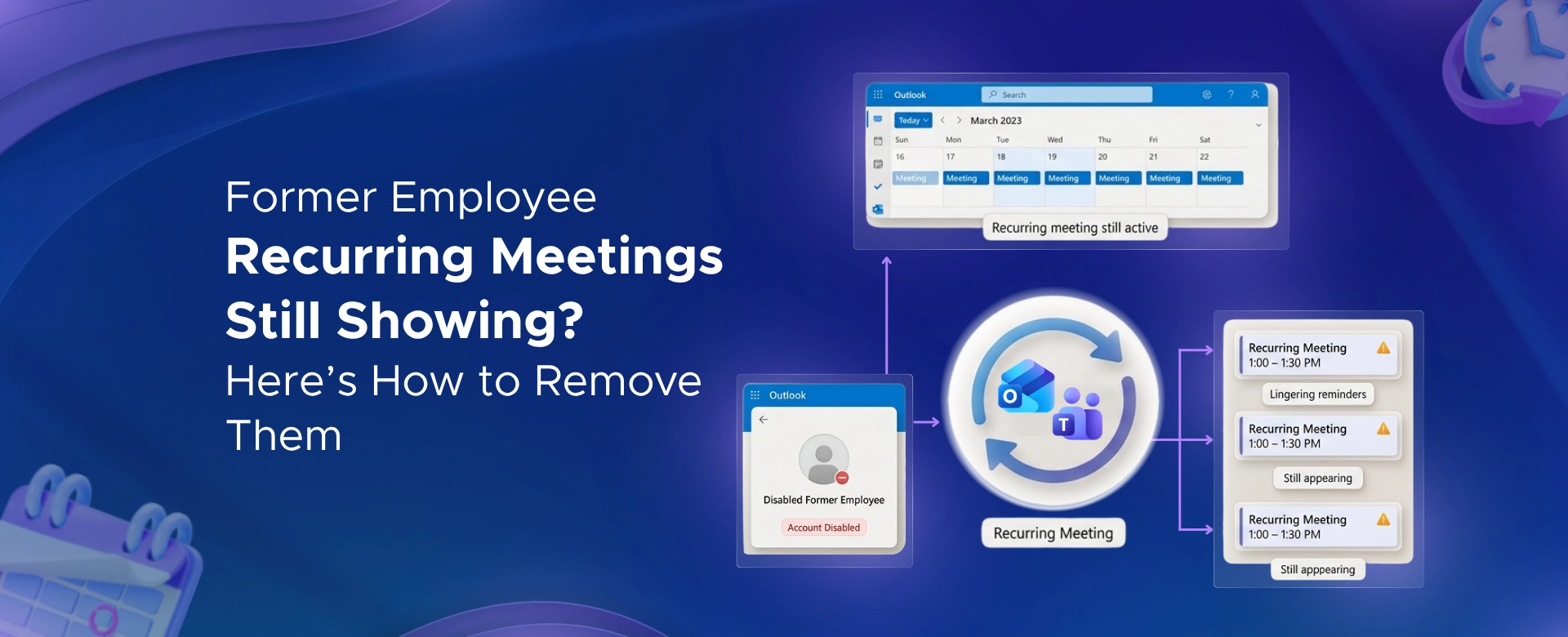
You offboard an employee. You disable their account. You think you are done.
Then someone on your team asks - "Why is Sarah's weekly sync still on my calendar?"
It is frustrating. And it is more common than you think.
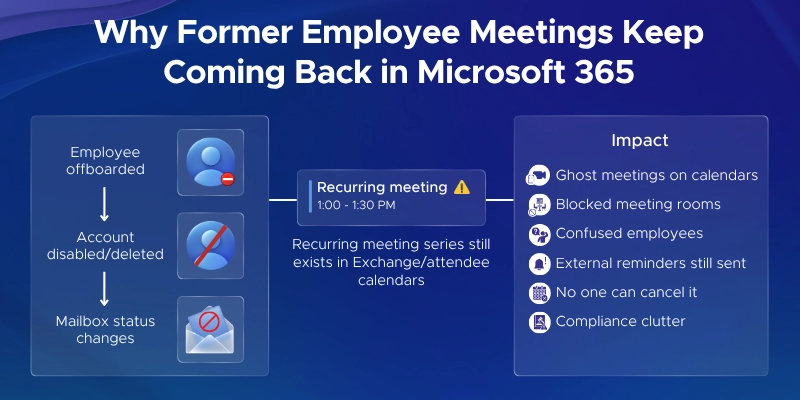
When an employee leaves, their recurring meetings do not disappear automatically. They keep showing up on everyone's calendars - like a ghost that refuses to leave.
In Microsoft 365, these are called orphaned recurring meetings - active meeting series where the original organizer no longer exists in your organization.
This guide covers:
Whether you are an IT admin handling offboarding cleanup or an end user stuck with a defunct invite, this guide has a clear fix for you.
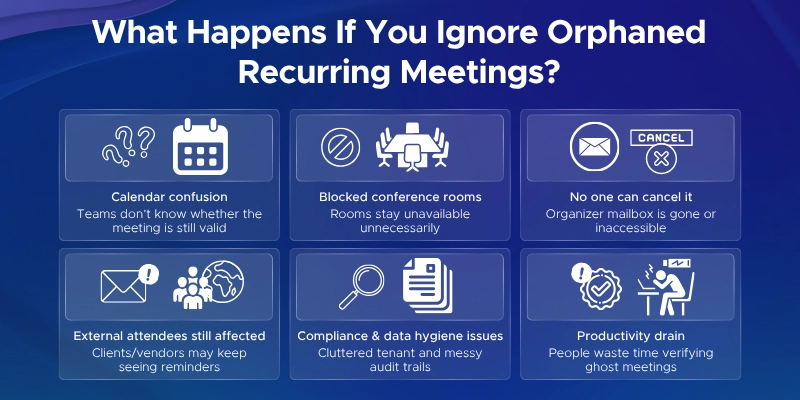
Leaving these meetings unattended creates more problems than most teams realize.
Here is what happens when you ignore them:
Cleaning up these ghost meetings is not just about tidy calendars. It protects your organization's professionalism, security posture, and day-to-day productivity.
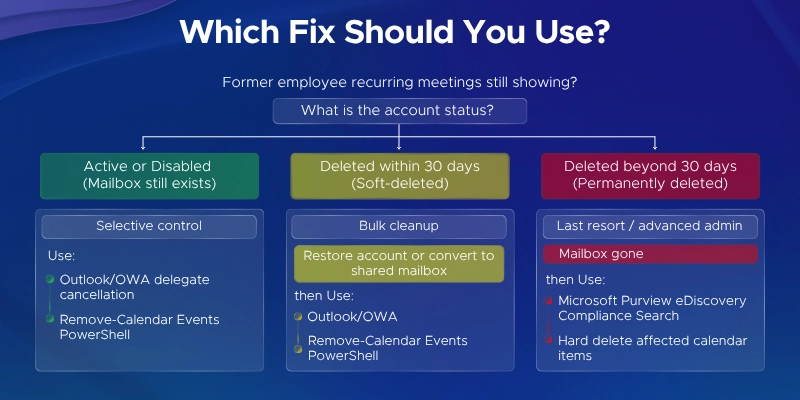
Before you can fix the problem, you need to know one thing - what happened to the employee's Microsoft 365 account after they left?
The right removal approach depends entirely on the account's current status.
There are three common scenarios you might be dealing with:
Each scenario requires a different fix. Starting with the wrong approach will waste your time.
This is the most straightforward scenario.
If the former employee's account is still active or simply disabled - but not yet deleted - the mailbox still exists in Exchange Online. That means you have direct options to cancel those recurring meetings cleanly.
There are two ways to do this. Pick the one that suits your comfort level.
This is the easiest route. You access the former employee's mailbox directly through Outlook Web and cancel the meeting series from there.
Before you start - set the right permissions.
The admin must have two permissions on the former employee's mailbox:
Without these, attendees may get a confusing cancellation email from the wrong sender - or the cancellation may fail entirely.
You can assign these permissions from the Microsoft 365 Admin Center:
Go to Users → Active users, select the user.
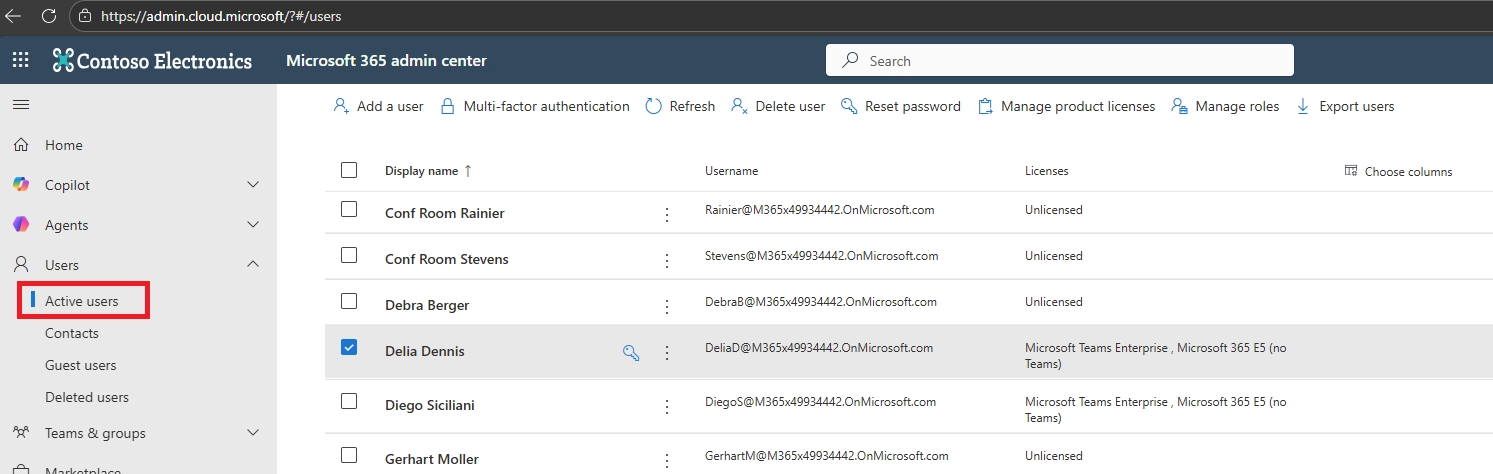
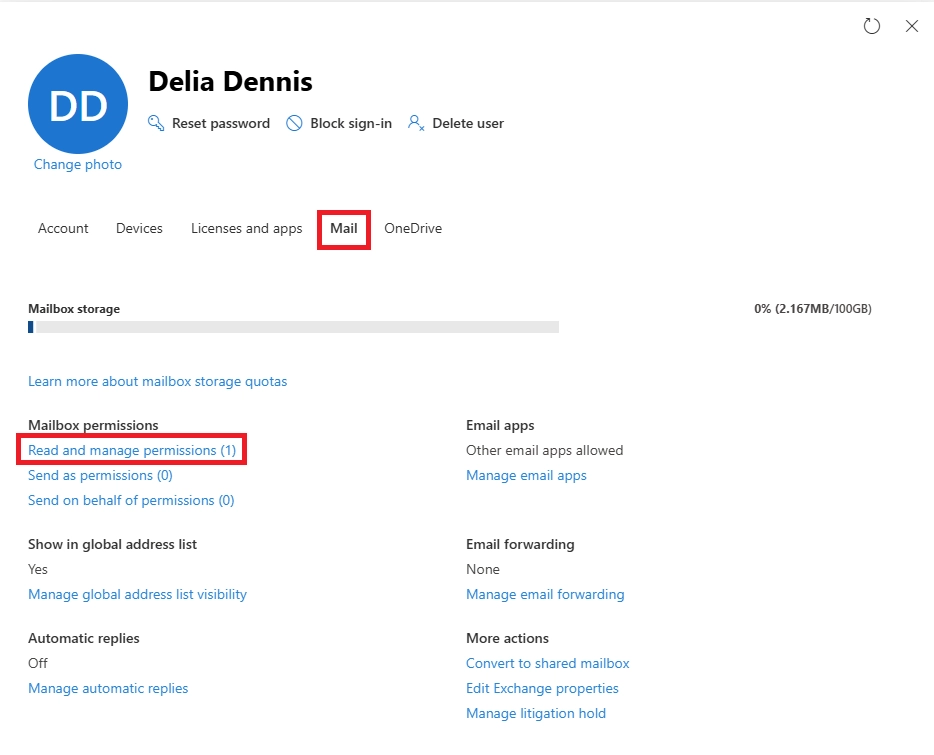
From the tabs at the top, open Mail and choose Manage mailbox permissions.
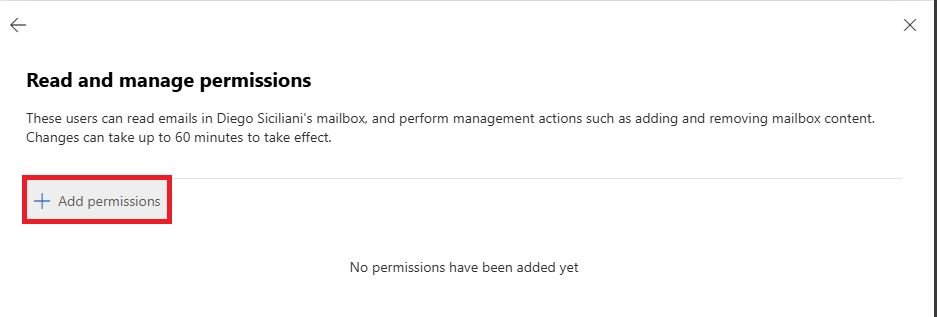
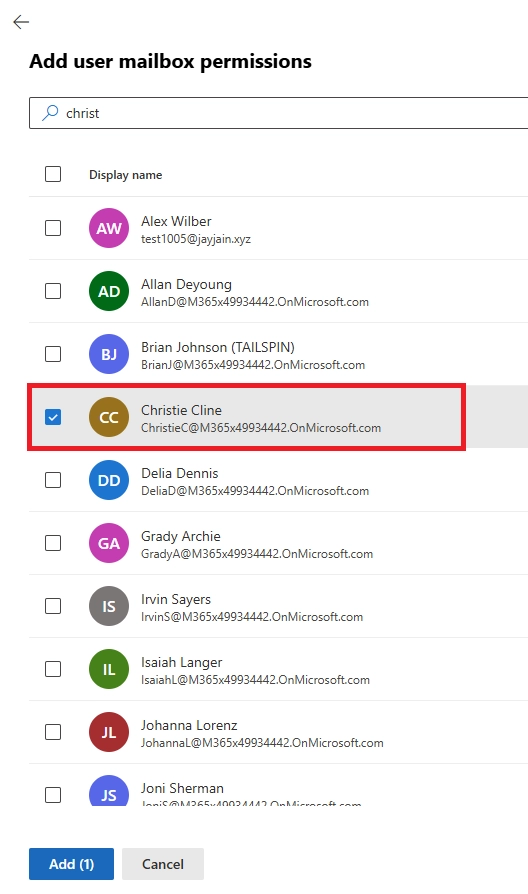
Add the admin account so they can access the user’s mailbox in Outlook and make the necessary changes.
Steps to cancel the recurring meeting series:
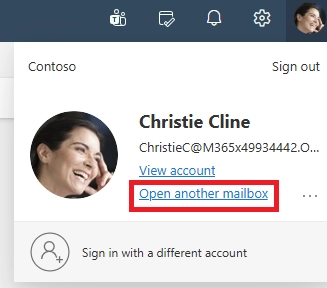

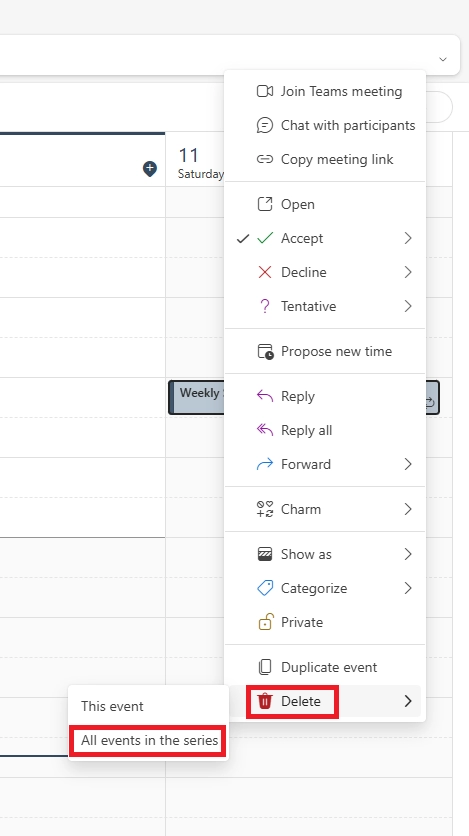
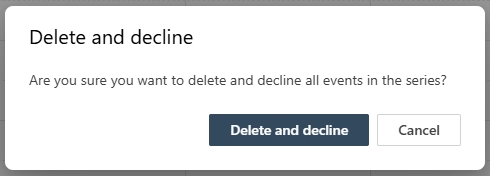
If the former employee had a large number of recurring meetings - or you are offboarding multiple users at once - PowerShell is the smarter option.
Microsoft provides a built-in cmdlet called Remove-CalendarEvents specifically for this purpose. It works for both Outlook calendar meetings and recurring Teams meetings.
Who can run this?
You need one of the following admin roles:
Step-by-step - how to run it:
Step 1 - Connect to Exchange Online PowerShell
Connect-ExchangeOnline -UserPrincipalName admin@yourdomain.com

Step 2 - Preview meetings before cancelling (always do this first)
Remove-CalendarEvents -Identity user@yourdomain.com `
-CancelOrganizedMeetings `
-QueryWindowInDays 730 `
-PreviewOnly
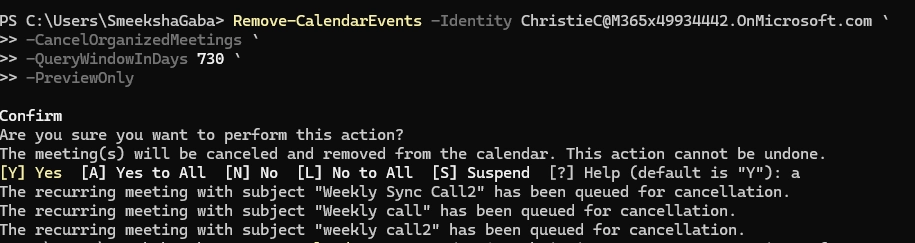
This shows you exactly which meetings will be affected - without making any changes yet.
Step 3 - Review the output
Check the preview results carefully. Confirm it is targeting the right user and the right meetings.
Step 4 - Run the command for real (remove -PreviewOnly)
Remove-CalendarEvents -Identity user@yourdomain.com `
-CancelOrganizedMeetings `
-QueryWindowInDays 730

Once you run this, Exchange Online automatically sends cancellation notices to all attendees. All instances of the recurring series will be marked as cancelled on their calendars.
Pros and cons of the PowerShell method:
Pros: Fast, bulk-capable, scriptable for multiple users, works for Teams meetings too
Cons: Not selective - cancels all meetings by that user within the timeframe. Cannot choose individual series.
Quick tip: If you only need to remove one specific meeting series and want more control, use Method 1. If you need to wipe all recurring meetings from a departed user's account quickly, Method 2 is the better choice
Just because you deleted the account does not mean the meetings disappeared.
Microsoft 365 keeps deleted user accounts in a recoverable state for 30 days before permanently wiping them. During this window, the mailbox still exists - and so do all the recurring meetings tied to it.
This section covers exactly what to do if you are in that 30-day window.
Step 1 - Recover or Reinstate the Mailbox
You have two options here. Pick based on your company's policy.
Option A - Restore the user account
This brings the account back as a fully active user.
Option B - Convert to a shared mailbox (recommended)
If your policy does not allow restoring ex-employee accounts as active users, this is the smarter route.
A shared mailbox can be accessed by your admin team without assigning a full Microsoft 365 license - saving you the cost of temporarily re-licensing someone who no longer works there.
To convert after restoring:
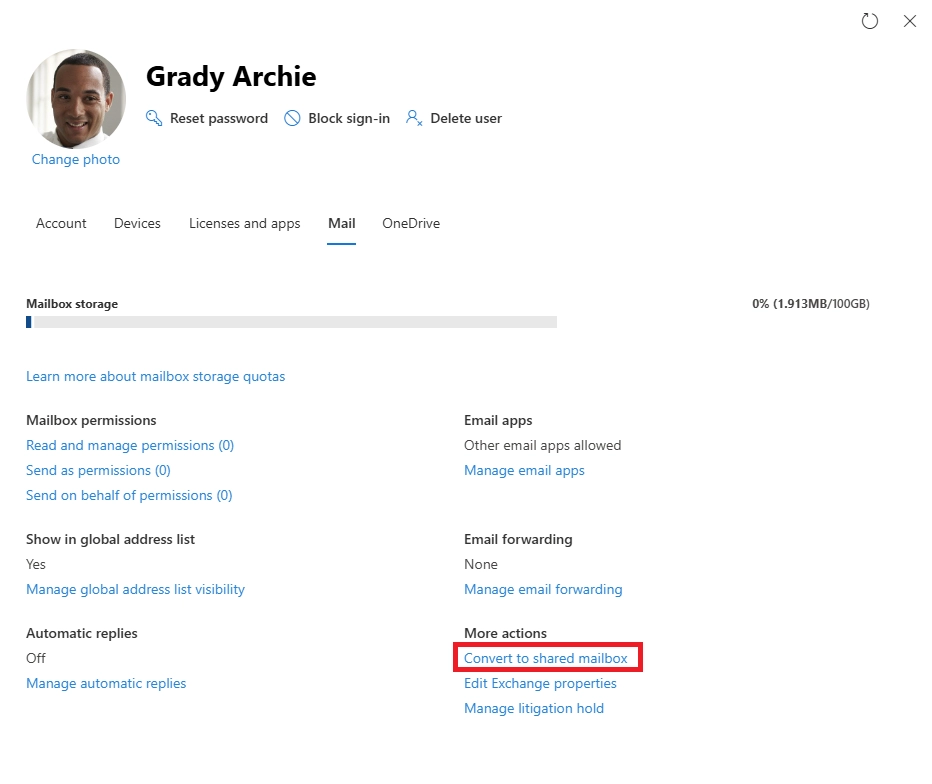
This keeps the mailbox accessible without consuming a license long-term.
Step 2 - Assign a License (If Restoring as Active User)
This step is easy to forget - and it will block you if you skip it.
If you restored the account as an active user (Option A), you must assign a Microsoft 365 license to activate the mailbox. Without it, the mailbox stays inaccessible and you will not be able to open or manage the calendar.
Here is how to assign a license quickly:
If you went with Option B (shared mailbox), no license is required. Just make sure your admin account has Full Access permission to the shared mailbox before moving forward.
Step 3 - Cancel the Recurring Meetings
Now that the mailbox is accessible again, removing the meetings is straightforward.
Follow the exact same steps from Scenario 1:
Both methods work whether the account was restored as an active user or converted to a shared mailbox.
Once the meetings are cancelled and confirmations are sent to attendees, you can:
This is the hardest scenario - and the one most IT admins get stuck on.
If the former employee's account was deleted more than 30 days ago, the mailbox is gone for good. You cannot restore it, log into it, or run PowerShell against it. But the recurring meetings? They are still sitting on everyone's calendars.
These are true "ghost meetings" - no organizer, no mailbox, no easy fix.
The only reliable solution here is Microsoft Purview eDiscovery - a compliance tool that can search across all mailboxes in your tenant and hard-delete specific calendar items.
This is an admin-level process. It requires specific roles and careful execution.
Before you start - confirm you have the right permissions.
The admin running this process needs all three of the following:
You can assign these in the Microsoft Purview compliance portal under Roles and Scopes - Role groups.
Do not skip this step. Missing even one role will cause the process to fail midway.
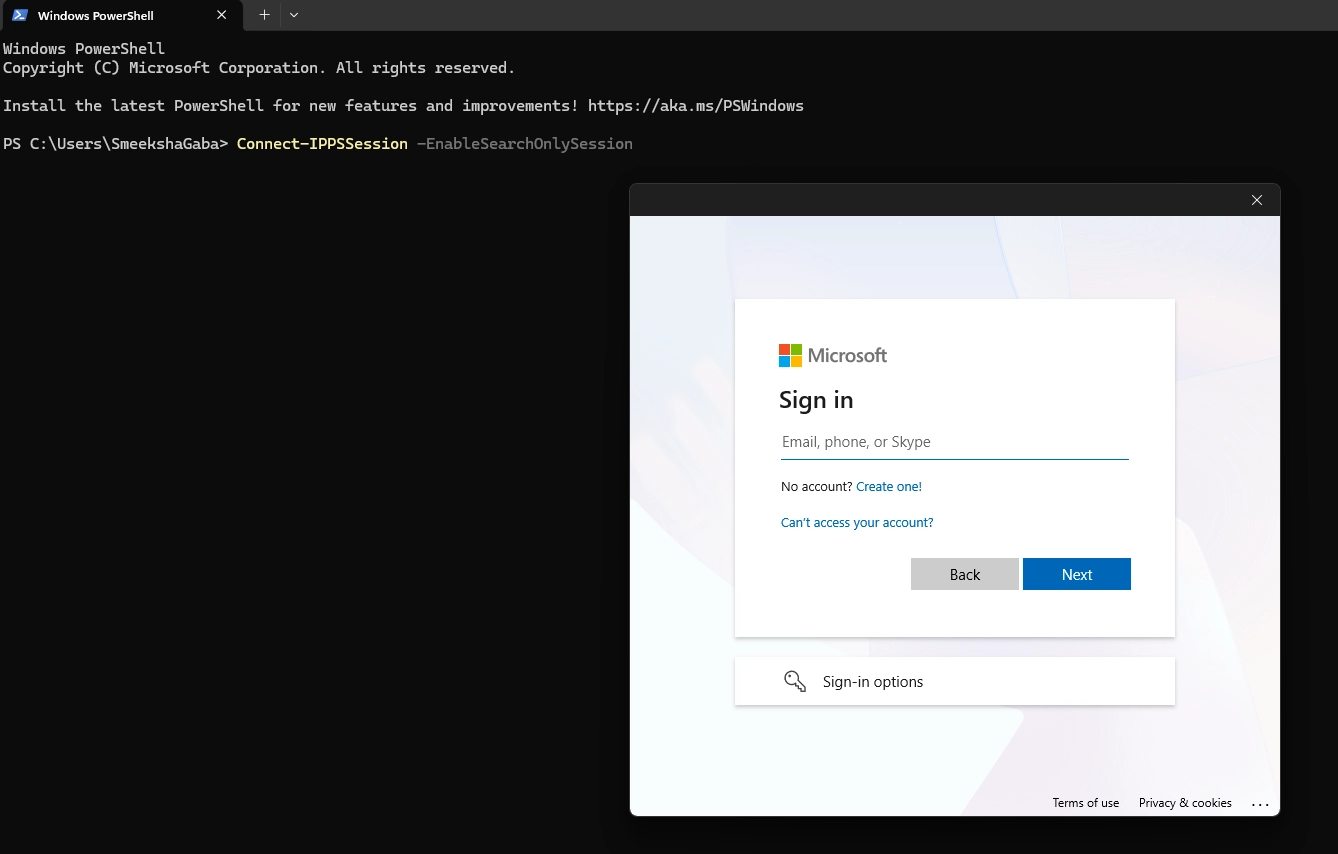
Step 1 - Connect to Exchange Online PowerShell (Search-only session)
Connect-IPPSSession -EnableSearchOnlySession
This opens a sign-in prompt to authenticate and connect to the Microsoft Purview (Security & Compliance PowerShell).
Step 2 – Initialize the Variables
$SearchName = "<COMPLIANCE_SEARCH_NAME>"
$Subject = "<MEETING_SUBJECT>"
$Organizer = "<ORGANIZER_UPN>"\
Stores values that will be used in the search query.
Note: The organizer field is not reliably supported in KQL, so use with caution or validate results carefully.
Step 3 – Create Compliance Search
New-ComplianceSearch `
-Name $SearchName `
-ExchangeLocation All `
-ContentMatchQuery "kind:meetings AND subject:`"$Subject`" AND organizer:`"$Organizer`""
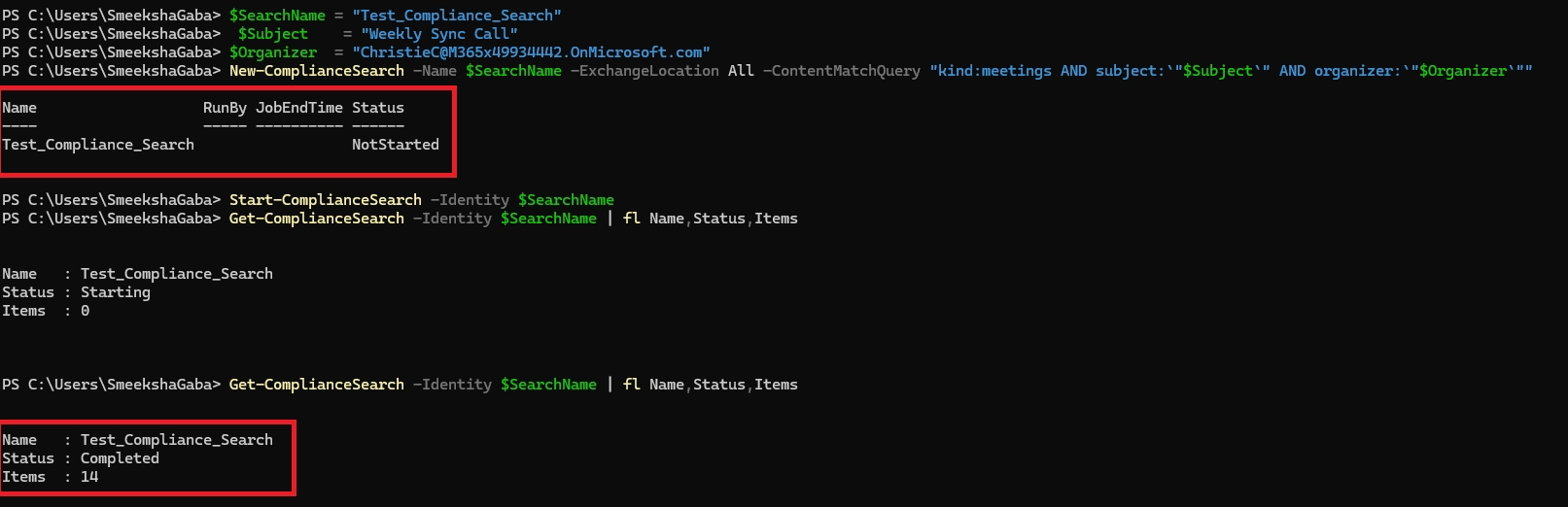
This searches all mailboxes across your tenant for calendar events linked to the former employee.
Step 4 – Start Compliance Search
Start-ComplianceSearch -Identity $SearchName
Initiates the search across the tenant based on the defined criteria.
Step 5 – Check Search Status
Always check what the search found before running a purge.
Get-ComplianceSearch -Identity $SearchName | fl Name,Status,Items
Checks the progress of the search.
Wait until the Status shows Completed. Then review the item count to confirm the results look right.
Do not proceed to the next step until you are confident the search is targeting the correct meetings.
Step 6 – Purge Search Status
New-ComplianceSearchAction `
-SearchName $SearchName `
-Purge `
-PurgeType HardDelete
``
This permanently removes the calendar items from all affected mailboxes across your tenant.
Example:
Important things to know before running this:
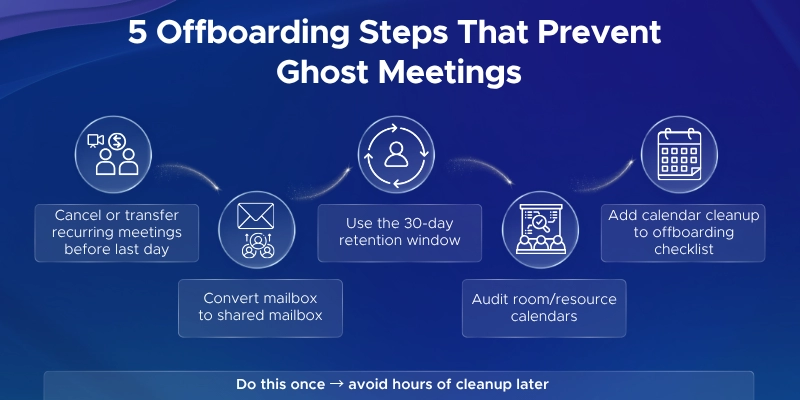
Fixing orphaned meetings is frustrating. The good news is that most of this can be avoided with a cleaner offboarding process.
Here are the key habits to build into your Microsoft 365 offboarding checklist.
Do not wait until after the employee leaves to think about their meetings.
Before their final day:
Instead of deleting the account immediately, convert it to a shared mailbox first.
This gives you:
It takes less than five minutes and saves hours of cleanup later.
When you remove a Microsoft 365 license, the mailbox is not deleted instantly.
Microsoft retains the mailbox for up to 30 days - this is known as mailbox delicensing resiliency. Use that window to:
Do not rush to hard-delete the account. That 30-day buffer exists for a reason - use it.
Recurring meetings from ex-employees often keep booking conference rooms long after the organizer has left.
To stay on top of this:
A quarterly check takes less than an hour and prevents a surprisingly common source of scheduling friction.
The simplest fix of all - make this a standard step.
Your offboarding checklist should include:
Building this into your process means you will rarely have to deal with ghost meetings at all.
Orphaned recurring meetings are a small problem that quietly creates big headaches.
They clutter calendars, confuse teams, waste room resources, and leave a poor impression on clients. But as this guide shows - they are completely fixable.
Here is a quick recap of what we covered:
The right approach depends on where you are in the process. But now you have a clear path for every scenario.
Still Stuck - Or Want This Handled the Right Way From the Start?
Microsoft 365 offboarding is more involved than most organizations realize.
From mailbox management and license cleanup to calendar hygiene and compliance - there are a lot of moving parts. Doing it wrong can create security gaps, licensing waste, and exactly the kind of calendar chaos this article is about.
At Penthara Technologies, our certified Microsoft 365 consultants help organizations build clean, secure, and well-managed Microsoft 365 environments - including proper offboarding processes that prevent these issues before they start.
If your team is dealing with recurring Microsoft 365 challenges - or just wants a second opinion on how things are set up - we are happy to help.
Get in touch with Penthara Technologies and let's make your Microsoft 365 environment work the way it should.
Q1: The recurring meeting organizer left the company - how do we remove or continue their meetings?
You cannot change the organizer on an existing meeting series in Microsoft 365. That is a common misconception.
The right approach is:
This ensures someone with an active account owns and manages the meeting going forward.
Q2: How do we delete recurring calendar invites from a deleted user's mailbox in Outlook 365?
It depends on when the account was deleted.
Both scenarios are covered in detail in the sections above.
Q3: Will attendees be notified when we remove these meetings?
It depends on the method you use.
If you are using the compliance purge method, it is a good idea to send a manual heads-up to affected teams beforehand. A quick email letting people know the meetings will disappear avoids unnecessary confusion.
Q4: Can we reassign or change the organizer for a recurring meeting in Microsoft 365?
No - and this surprises a lot of people.
Microsoft 365 does not allow you to transfer meeting ownership or change the organizer on an existing event - either in Outlook or in Teams.
The only workaround is:
It is an extra step, but it is the only clean solution.
Q5: What happens to a recurring Microsoft Teams meeting when the organizer leaves?
The Teams meeting link becomes orphaned once the organizer's account is removed.
Here is what to expect based on your cleanup method:
Either way, the safest move is to create a new Teams meeting under an active organizer so the team has a working link going forward.
Q6: Why are old meeting invites still showing on my calendar even after the employee was offboarded weeks ago?
This is one of the most common complaints after offboarding.
Recurring meetings do not disappear automatically when an account is deleted or disabled. Microsoft 365 does not push a cancellation to attendees unless someone actively cancels the series.
Until an admin steps in and removes them using one of the methods in this guide, those ghost meetings will keep showing up on everyone's calendar exactly as scheduled.
Q7: We disabled the account but did not delete it - can we still fix this?
Yes - and this is actually the easiest scenario to work with.
A disabled account still has an intact mailbox. You can:
No restoration or eDiscovery needed. Refer to Scenario 1 above for the full step-by-step.
Q8: What if there are dozens of former employees with orphaned meetings?
Running through each one manually would take forever.
The better approach is to use PowerShell and script the Remove-CalendarEvents cmdlet across multiple user accounts in one run. This is especially useful if your organization has gone through a large offboarding event or restructuring.
If accounts have already been permanently deleted, the eDiscovery method can also be scoped to search across multiple former organizers in a single compliance search query.
Q9: Do these methods work for recurring meetings in Microsoft Teams as well as Outlook?
Yes. Both the Outlook delegate method and the Remove-CalendarEvents PowerShell cmdlet handle Teams meetings as well as regular Outlook calendar events.
Teams meetings are stored as calendar events in Exchange Online. So cancelling them through Exchange - whether via Outlook or PowerShell - cancels the associated Teams meeting at the same time.
Q10: How long does it take for the meetings to disappear from attendees' calendars after cleanup?
It varies by method:
If meetings are still showing after a few hours, check that the process completed successfully and consider re-running the action for any missed items.

Monthly updates, news & events from Microsoft to help your business grow.

CEO at Penthara Technologies


 What's new in Microsoft | February 2026 Updates
Explore the latest Microsoft 365 updates including Copilot enhancements, AI meeting recaps, Teams improvements, and new productivity features.
 What's new in Microsoft | January 2026 Updates
Discover the latest Microsoft 365 and Copilot updates, including AI agents, smarter email tools, Teams enhancements, and admin improvements.
 What's new in Microsoft | December 2025 Updates
Discover the latest Microsoft 365 and Copilot updates, including smarter Copilot search, AI-powered Teams meetings, PowerPoint enhancements, and improved image generation tools.