
How to Block USB Devices and Protect Corporate Data 

Learn how to block USB devices in Microsoft 365 using Intune and Defender for Endpoint to prevent data theft, stop USB-based malware, and control removable storage access.
CATEGORIES:
SHARE THIS BLOG:
Table of contents
Understanding the Risks of USB Devices
• Data Theft
• Malware Infection
• No Visibility or Auditing
• Compliance Risk
Step-by-Step - How to Block USB Devices in Microsoft 365
• Pre-requisites
• Method 1 - Device Restrictions Profile
• Method 2- Allow only approved USB drives
Best Practices for Implementing USB Blocking Policies
Common Mistakes and How to Troubleshoot USB Blocking
Why Trust Penthara Technologies for USB Device Control?
Frequently Asked Questions

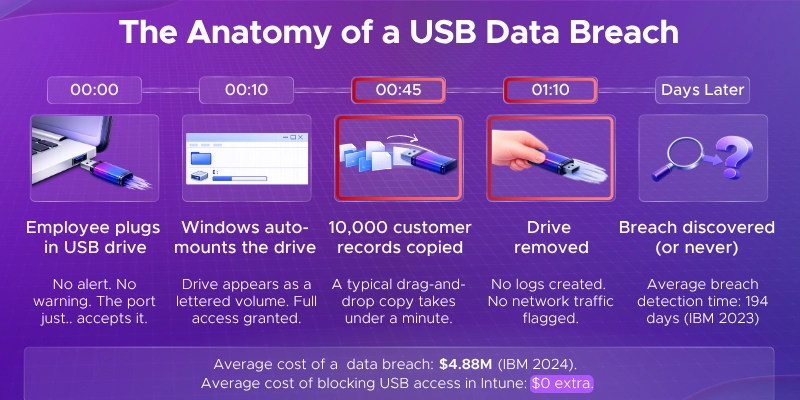
Imagine this: an employee plugs in a USB drive, copies 10,000 customer records, and walks out the door. 

No alarms. No warnings. No way to stop it - because no policy was in place. 

USB drives are handy. They're also one of the easiest ways for data to walk right out of your building. 

A single unprotected USB port can let an employee copy thousands of files in seconds - or let malware silently enter your network. That's a problem no business can afford to ignore. 

The good news? If you're using Microsoft 365, you already have powerful tools to fix this. 

Microsoft Intune and Defender for Endpoint give IT teams full control over USB access - without needing expensive third-party software. 

Here's exactly what this guide covers: 
  • Why blocking USB devices is critical for modern businesses 
  • Multiple methods to block USB devices in Microsoft 365 - from Intune policies to Defender for Endpoint device control 
  • How to allow specific, approved USB devices while blocking everything else 
  • Real-world tips for rolling out policies without disrupting your business 
  • Troubleshooting common issues and meeting compliance requirements (GDPR, HIPAA, PCI DSS) 
The Anatomy of a USB Data Breach

Understanding the Risks of USB Devices

USB drives are so common that most people don't think twice about using them. 

That's exactly what makes them dangerous. 

A small flash drive can hold gigabytes of sensitive data - customer records, financial reports, trade secrets - and move it all in under a minute. No network connection needed. No logs. No trace. 
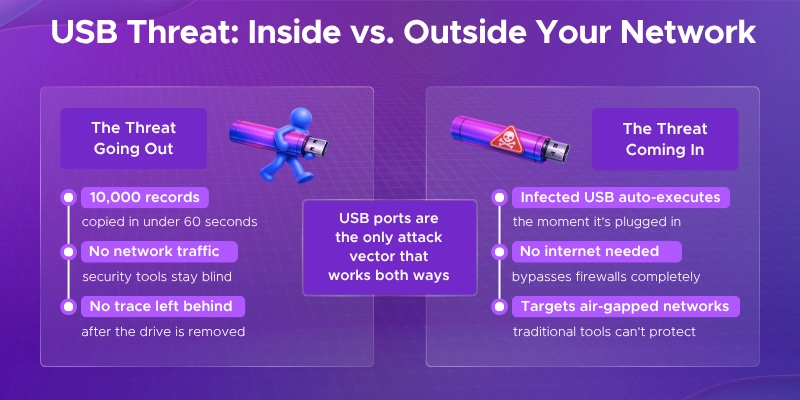
USB Threat: Inside vs Outside your network

Data Theft

Employees - whether malicious or just careless - can copy confidential files onto a personal USB drive and walk out with them. 

This is one of the most common causes of insider data leaks, and it's incredibly hard to detect after the fact. 

Malware Infection

USB drives don't just take data out - they can bring threats in. 

A famous example is Stuxnet, a powerful piece of malware that spread through USB drives and caused real-world damage to industrial systems. It's a clear reminder that a single infected drive can bypass your entire network security. 

No Visibility or Auditing

Most organizations have no idea what's being copied to USB drives. 

Without proper controls, there's no way to track who plugged in what, when, or what files were transferred - making USB ports a blind spot in your security setup. 

Compliance Risk

If your organization handles sensitive data, uncontrolled USB access isn't just a security problem - it's a legal one. 

Regulations like GDPR, HIPAA, and PCI DSS all require strict control over how data is accessed and moved. Failing to restrict removable storage access can put you in direct violation of these standards. 

The numbers back this up: 

  • Over 50% of organizations have experienced a security incident involving a USB device 
  • Lost or stolen drives account for a significant portion of reported data breaches each year 
  • Malware delivered via USB remains one of the top attack methods targeting air-gapped and corporate networks 

Step-by-Step - How to Block USB Devices in Microsoft 365

Pre-requisites

Before diving in, make sure you have the following in place: 

Licensing 

  • Microsoft Intune - included in Microsoft 365 Business Premium, E3, or E5 
  • Defender for Endpoint Plan 1 or 2 - needed for advanced device control (E5 or as an add-on) 
  • On E3 without Defender? There's still a method for you - covered in this guide 

Admin Access 

  • Intune Policy and Profile Manager role to create and assign policies 
  • Global Admin or Security Admin rights for tenant-wide settings 

Device Requirements 

  • Devices must be Azure AD joined or Hybrid AD joined 
  • Devices must be enrolled in Intune 

Pre-Planning 

  • List any USB devices that need to stay active before you start 
  • Think backup drives, hardware dongles, or approved peripherals 
  • You'll use this list when setting up your exceptions later 

There's no single way to block USB devices in Microsoft 365 - the right method depends on your license, environment, and how much control you need. 

Method 1 - Device Restrictions Profile

Use Case: You want to completely block all USB removable storage for all users, with no exceptions. This is the simplest and quickest option. 

Prerequisites 

  • Microsoft Intune subscription (any tier) 
  • Intune admin access (Policy and Profile Manager role or higher) 
  • Target devices enrolled in Intune and running Windows 10 or later 

Steps 

Step 1: Sign in to the Intune admin center, go to https://intune.microsoft.com 

Step 2: Navigate to Device Configuration 
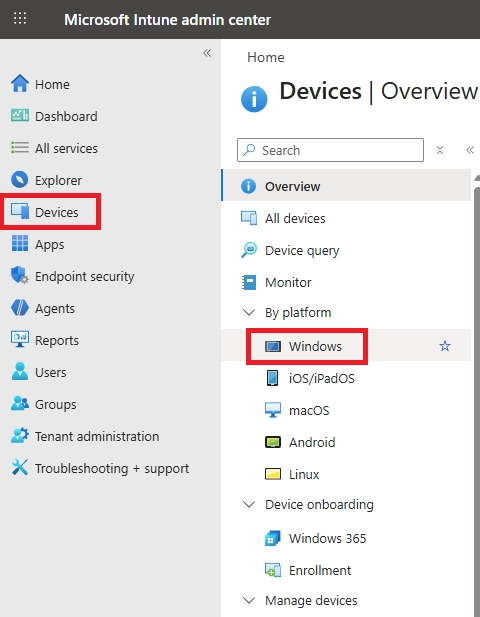
  • Click Devices in the left navigation 
  • From By platform, select Windows 
Microsoft Intune admin center showing Devices section with Windows platform selected.
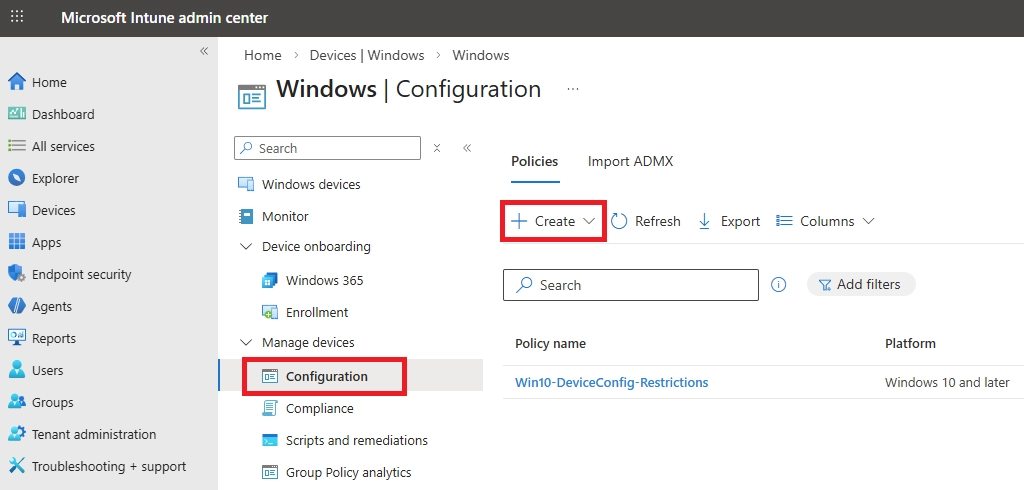
  • From Manage devices > Configuration 
Windows configuration page in Intune with option to create a new policy.
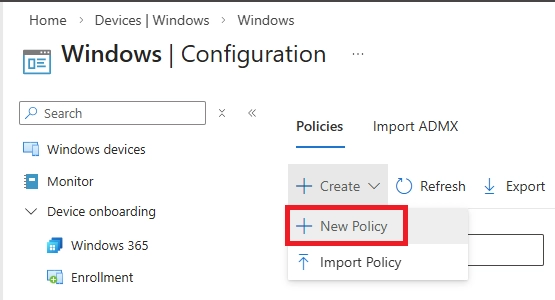
  • Click + Create > New policy 
Windows configuration page in Intune showing New Policy option selected under Policies.

Step 3: Set platform and profile type 
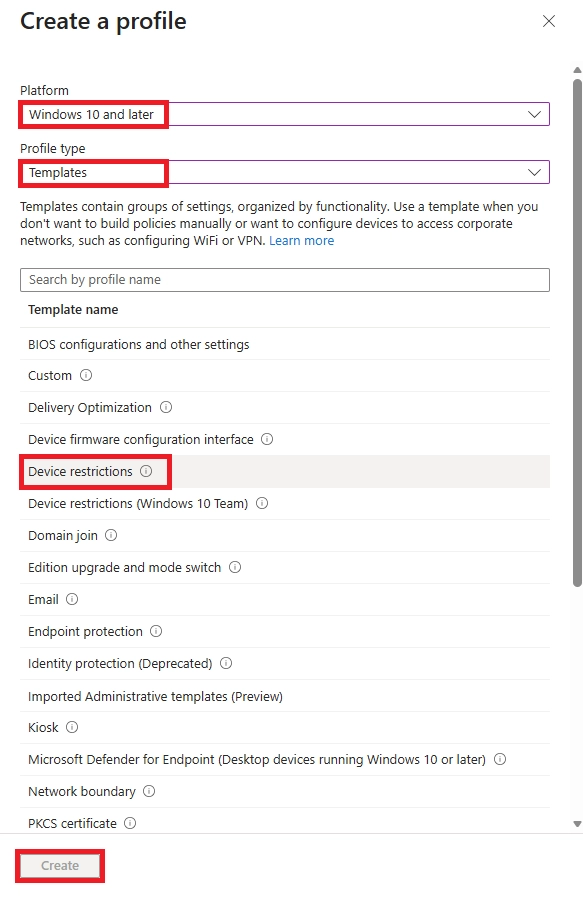
  • Platform: Windows 10 and later 
  • Profile type: Templates > Device Restrictions 
  • Click Create 
Create profile pane showing Windows 10 and later platform with Device restrictions template selected.

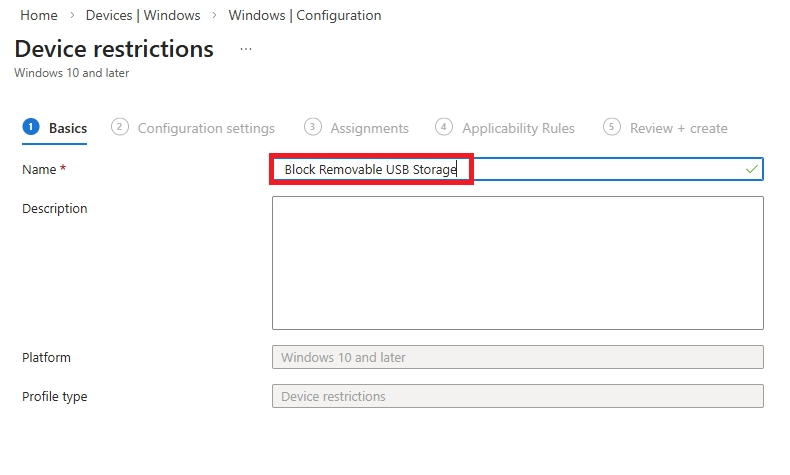
Step 4: Fill in Basics 

  • Name: e.g., Block Removable USB Storage 
  • Description: Optional but recommended 
  • Click Next 
Device restrictions policy basics page with policy name set to block removable USB storage.

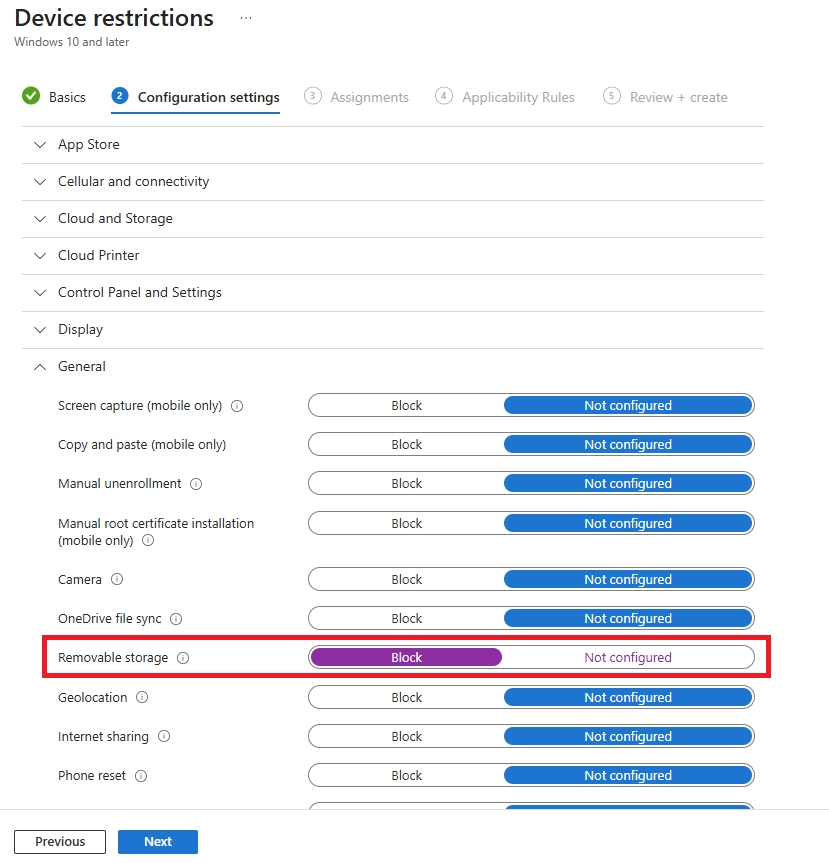
Step 5: Configure the setting 

  • Scroll down or search for the General section 
  • Find Removable storage and set it to Block 
  • Click Next 
Device restrictions configuration showing removable storage setting set to Block.

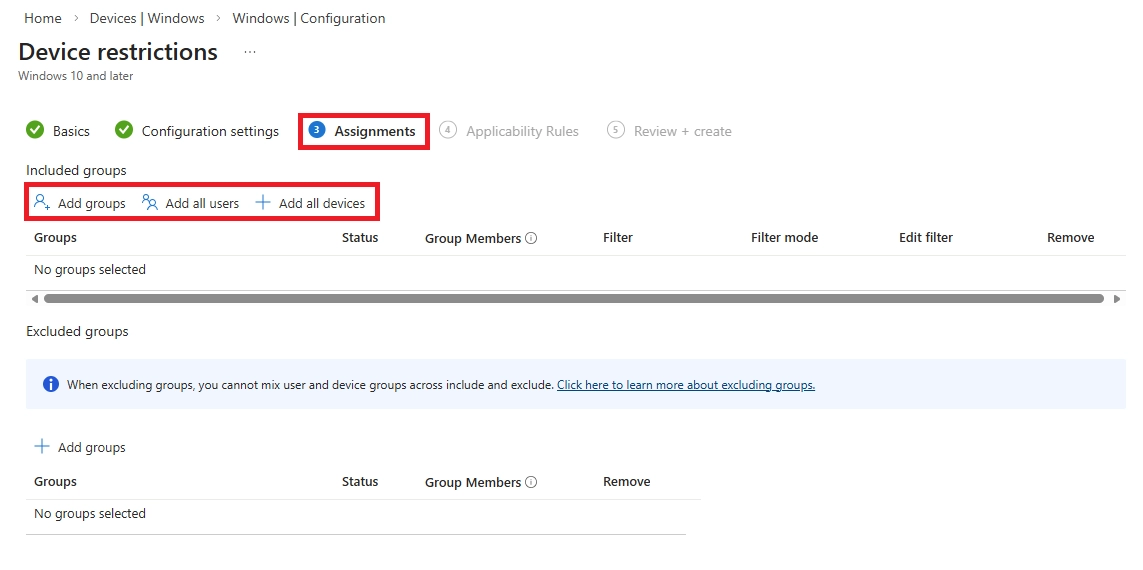
Step 6: Assign the policy 

  • Under Assignments, click Add groups (Included groups) 
  • Select your target group - e.g., All Users or a specific security group 
  • If needed, add groups under Excluded groups 
  • Click Next 
Assignments page of device restrictions policy showing option to add included groups.

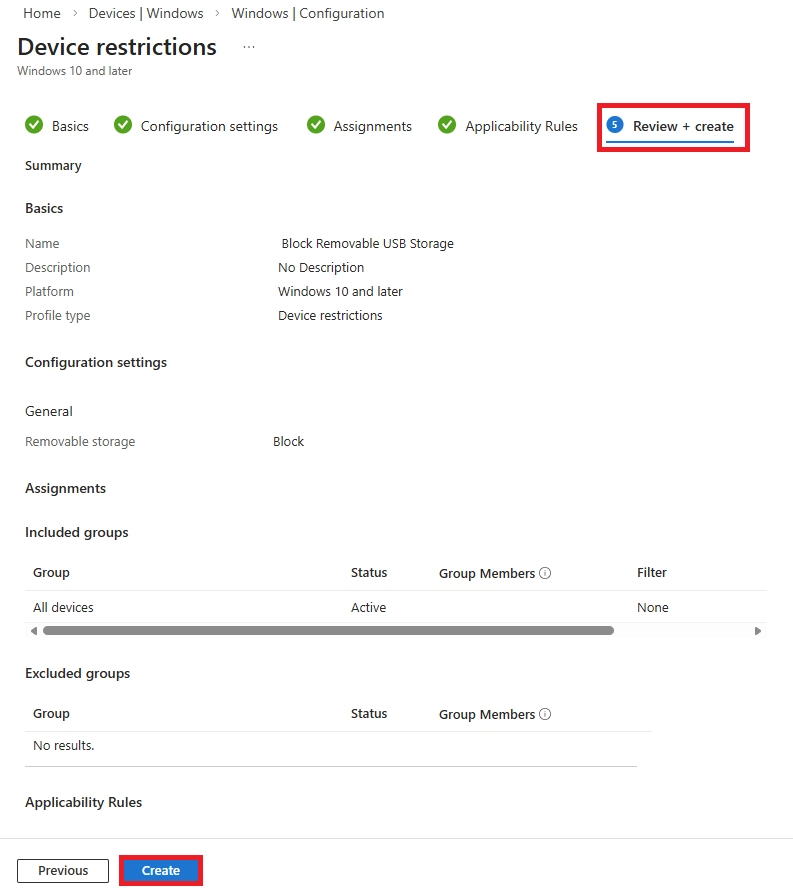
Step 7: Review and create 

  • Review the Summary page 
  • Click Create 
Review and create page summarizing device restrictions policy before creation.

When a USB drive is connected and accessed on a policy-managed device, Windows immediately throws this error - D:\ is not accessible, Access is denied - confirming the Intune Device Restrictions policy is actively enforced. 

Method 2- Allow only approved USB drives

Do this on any Windows machine first: 
  1. Plug in your approved corporate USB drive 
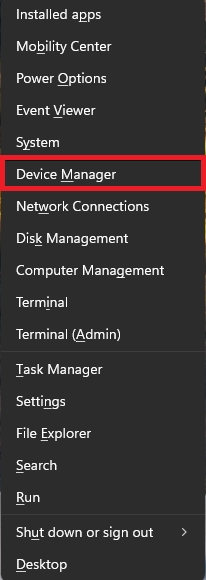
  1. Press Win + X → click Device Manager 
Windows Power Menu showing quick access option to open Device Manager for hardware and driver management.
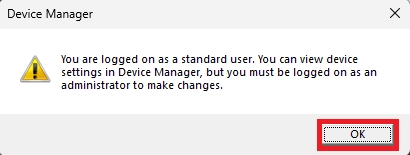
  1. When Device Manager is opened as a standard user, this informational prompt appears, but since we only need to view the hardware IDs, no administrative access is required. 
Device Manager warning indicating the user has standard privileges and needs administrator access to make device changes.
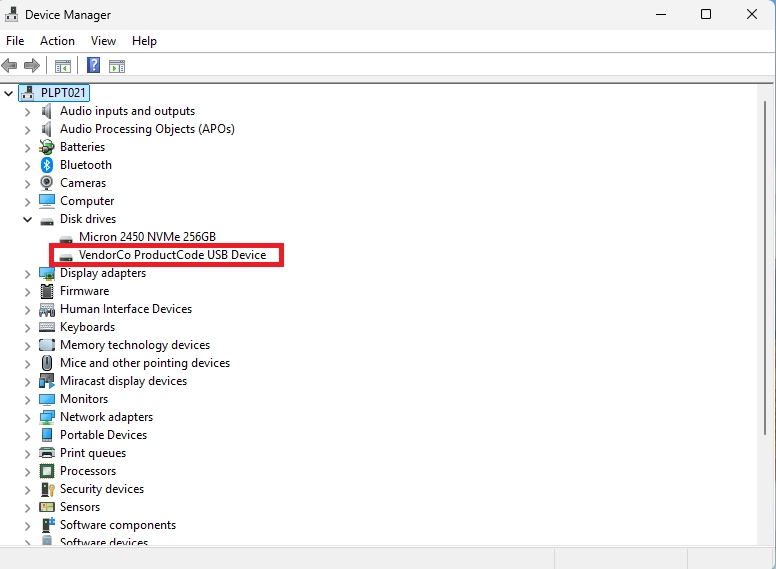
  1. Expand Disk Drives 
Windows Device Manager showing a connected USB storage device detected under Disk drives.
  1. Right-click your USB pendrive → click Properties 
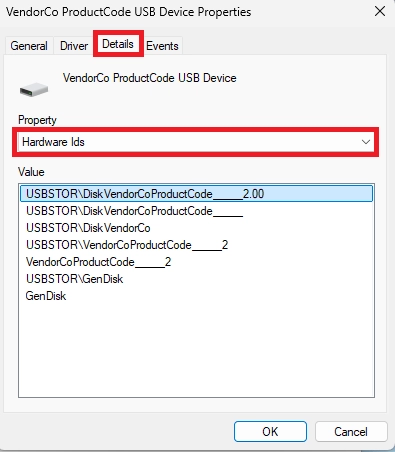
  2. Go to Details tab 
Device Manager properties displaying USB device hardware IDs used for device-level allow or block rules.
  1. Click the dropdown → select Hardware IDs 
  2. You will see a list like this: 

USBSTOR\DiskSanDisk_Ultra________1.00 

USBSTOR\DiskSanDisk_Ultra________ 

USBSTOR\DiskSanDisk_Ultra 

USBSTOR\GenDisk 

  1. Copy the first value (most specific) - this is what you'll paste into Intune 
  2. Repeat this for every corporate USB drive you want to approve 
  3. Save all the IDs in a notepad - you'll need them while creating policies. 

Now go to Intune: 

  1. Sign in to Intune Admin center (https://intune.microsoft.com) with Global Admin or Intune Admin account. 
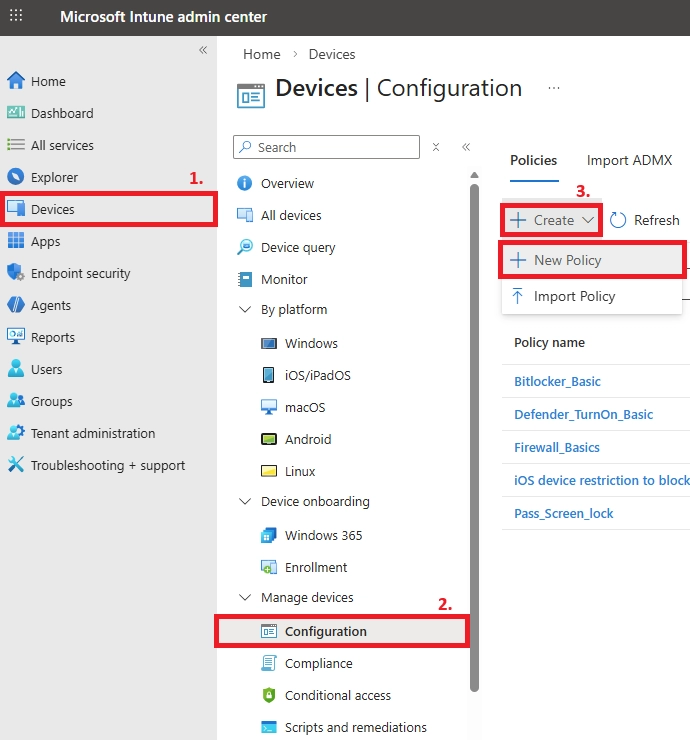
  2. In the left sidebar, click Devices. Under the Manage devices section, click Configuration. 
Intune admin center navigation highlighting Devices > Configuration and creating a new policy.
  1. Click + Create and then click New policy from the dropdown. 
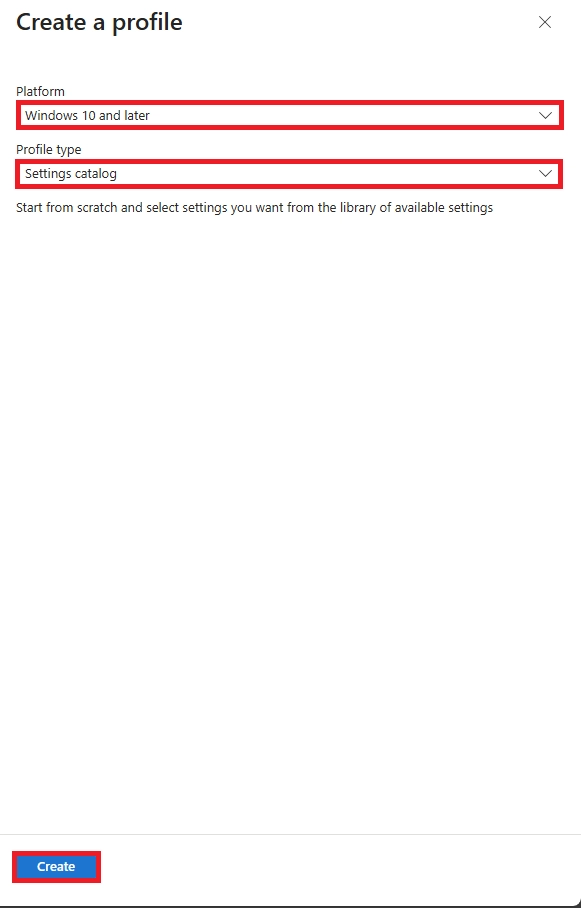
  2. Select the following options: 
    • Platform: Windows 10 and later 
    • Profile Type: Settings Catalog 
Intune profile creation screen showing Windows 10 and later selected with Settings catalog to create a device configuration policy.
  1. In the Basics tab, fill in the following details: 
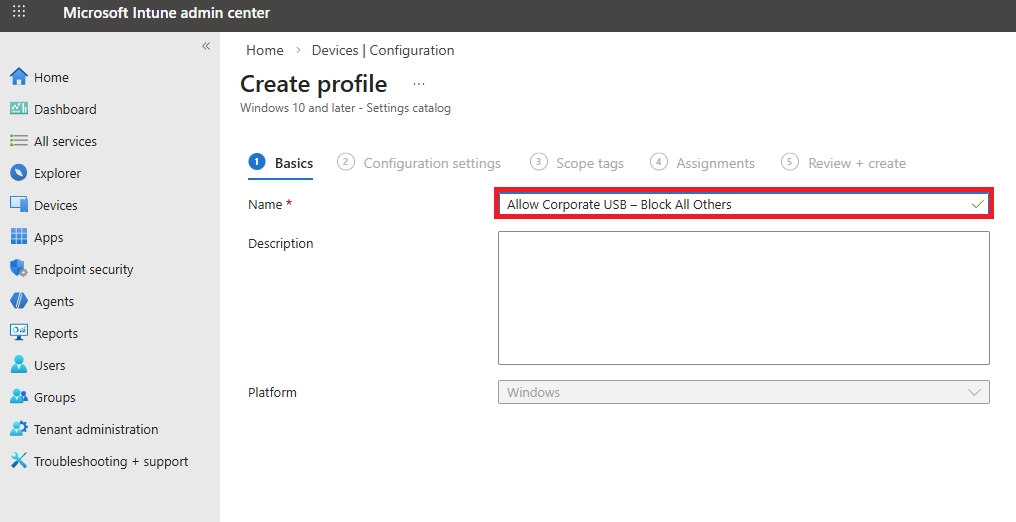
    • Name: Any suitable name (eg Allow Corporate USB – Block All Others) 
    • Description: (Optional) Blocks all USB storage. Only approved corporate pendrives allowed via Hardware ID. 
Intune profile basics page showing a policy named to allow corporate USB devices and block all others.
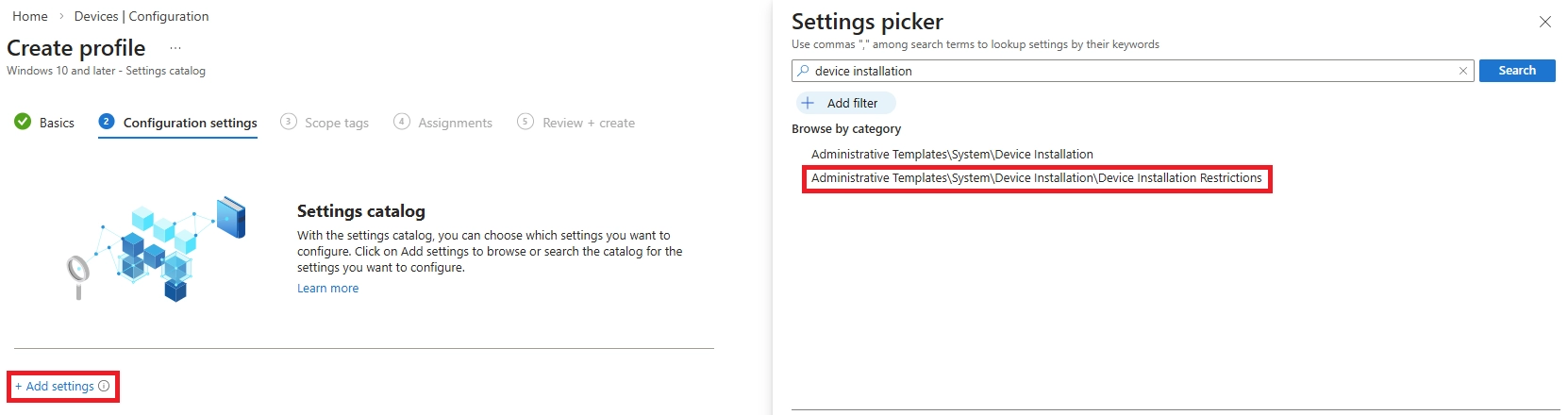
  1. In the Configuration Settings tab, click + Add settings (blue button).
  2. From the Settings picker panel opens on the right side, navigate through Administrative Templates > System > Device Installation > Device Installation Restrictions. 
Intune settings catalog used to add device installation restriction policies from administrative templates.
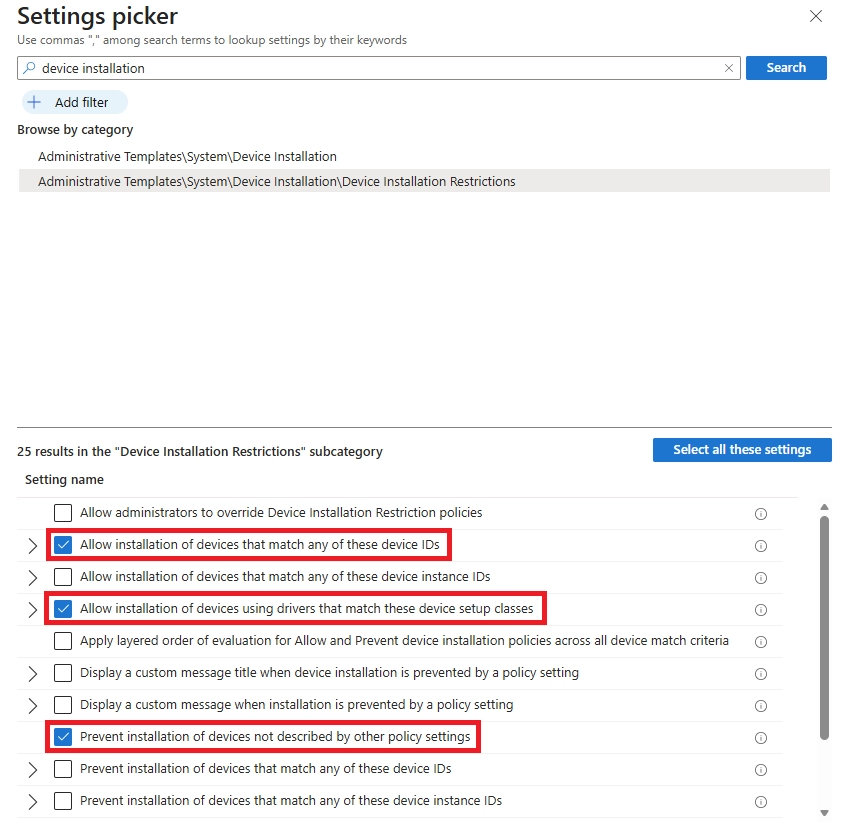
  1. From the list of settings shown on the right side, select the following settings and then toggle them to Enabled. 
Intune device installation restrictions allowing specific USB device IDs and setup class GUIDs while blocking others.
  1. From the list of settings shown on the right side, select the following settings and then toggle them to Enabled. 

Setting 1 - Prevent installation of devices not described by other policy settings 

  • Toggle it to Enabled, no other input needed 
  • This is your master block rule - blocks every USB that isn't in your allowlist 

Setting 2 - Allow installation of devices that match any of these Device IDs 

  • Toggle it to Enabled, a text box or list appears below 
  • Click + Add and paste each Hardware ID you collected in the pre-step, one by one: 

USBSTOR\DiskSanDisk_Ultra________1.00 

USBSTOR\DiskKingston_DataTraveler_G2 

  • Keep adding until all your approved corporate USB IDs are listed 

Setting 3 - Allow installation of devices using drivers that match these device setup classes 

  • Toggle it to Enabled 
  • Click + Add for each GUID below - these are mandatory so that keyboards, mice and USB hubs continue functioning:

{36fc9e60-c465-11cf-8056-444553540000}   → USB controllers (MANDATORY) 

{4d36e96b-e325-11ce-bfc1-08002be10318}   → Keyboard 

{4d36e96f-e325-11ce-bfc1-08002be10318}   → Mouse 

{4d36e979-e325-11ce-bfc1-08002be10318} → Printer 
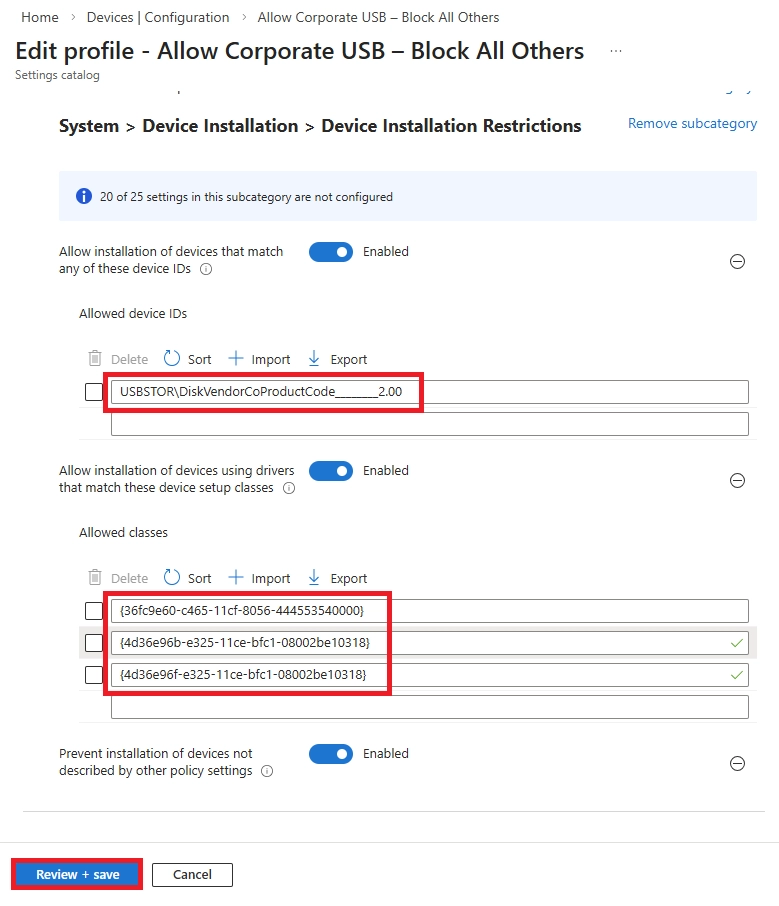
Intune device installation restrictions allowing specific USB device IDs and setup class GUIDs while blocking others.
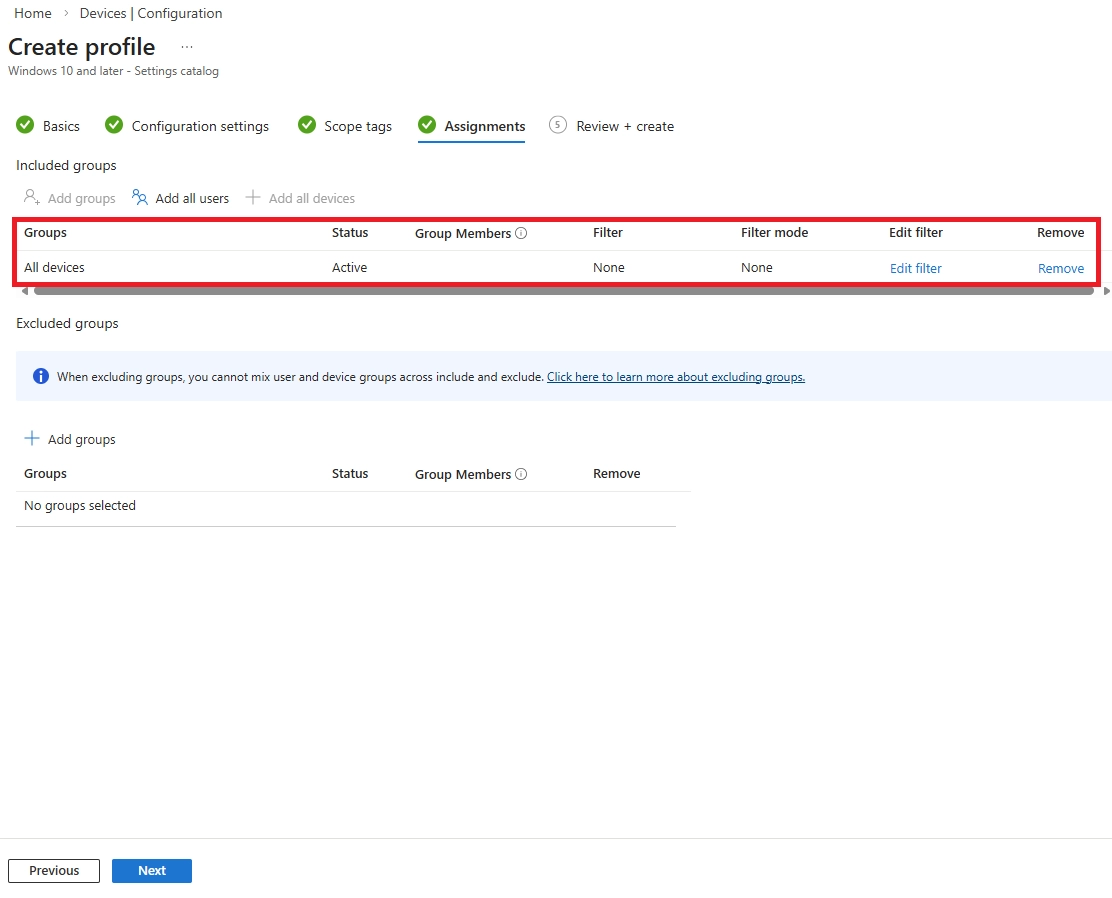
  1.  In the assignments tab, under Included groups, click + Add groups / + Add devices. 
  2. Search for and select the group you want this policy to apply to: 
    • If for all employees → select All Devices or All Users  
    • If for a specific team → select that security group 
Intune profile assignment page showing the configuration policy targeted to all devices.
  1. In the Review and Create tab, you will see a full summary of everything, double check everything and click Create. 
Impact of the Policy: -  
Windows error message indicating device installation is blocked due to an enforced system or group policy.

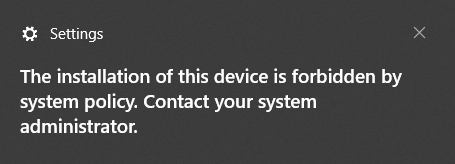
A system notification further reinforces the block, displaying the message - 'The installation of this device is forbidden by system policy. Contact your system administrator' - confirming that the Intune Device Control policy is actively enforced and no unauthorized USB device can be installed or accessed on this endpoint." 
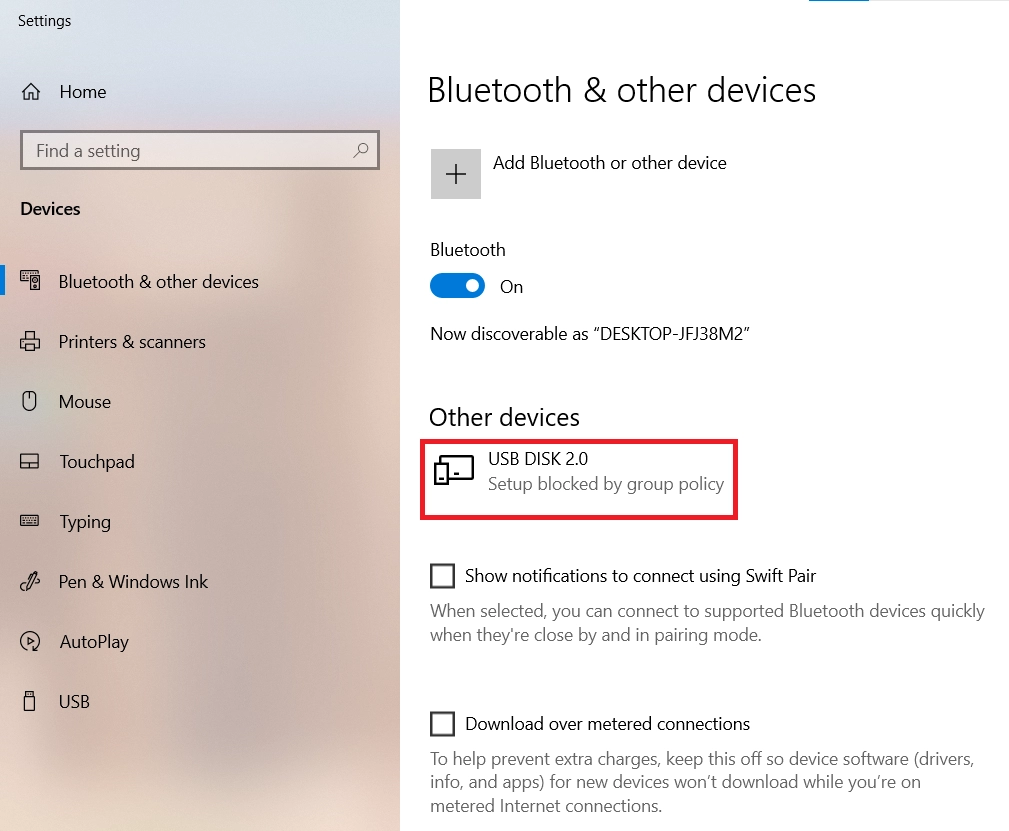
Windows Settings indicating a USB disk is blocked by group policy enforcement.

When an unauthorized USB drive is plugged into the managed laptop, Windows detects it under 'Other Devices' but immediately flags it as 'USB DISK 2.0 - Setup blocked by group policy,' confirming that the device was recognized but its installation was prevented by the Intune policy." 

Best Practices for Implementing USB Blocking Policies

Getting the policy live is one thing - making it work in the real world is another. Here are a few simple tips to keep in mind. 

Layer Your Security 

A USB block works best when paired with other controls. Enforce BitLocker encryption on any allowed drives and consider Microsoft Purview Endpoint DLP to block sensitive file types from being copied - even if USB access is permitted. 

Start With a Pilot Group 

Don't roll out to everyone on day one. Test with 10 to 20 users first, catch any issues early, then expand gradually. 

Tell Users Before You Block 

A sudden change with no explanation leads to frustrated employees and helpdesk tickets. Send a quick note explaining what's changing, why, and how they can request an exception if needed. 

Audit Before You Enforce 

If you're using Defender for Endpoint, run in Audit mode for a few weeks before blocking anything. You'll see exactly how USB drives are being used and can adjust your policy before it causes disruption. 

Consider Read-Only Access 

Not every organization needs a full block. Allowing read access but denying write access means users can view files from a USB drive but can't copy data onto one - a solid middle ground. 

Review Your Policy Regularly 

Check your approved device list and policy settings every three to six months. New hardware, staff changes, and Microsoft updates can all affect whether your policy is still doing its job. 
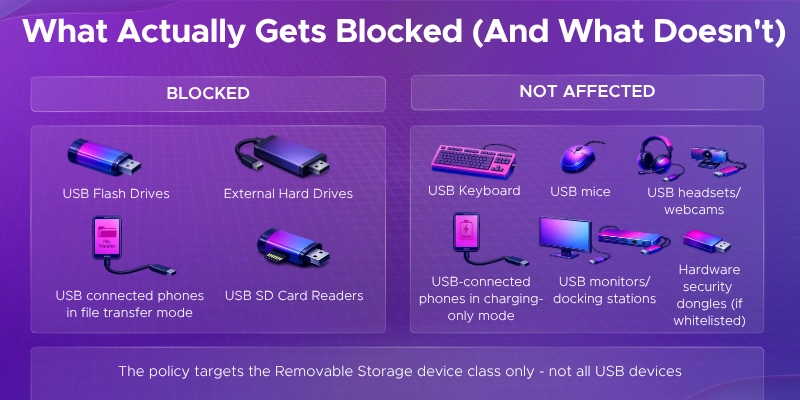
What actually gets blocked and what doesn't by USB block policies

Common Mistakes and How to Troubleshoot USB Blocking

Even a well-configured policy can run into issues. Here are the most common problems and how to fix them quickly. 
  1. USB drives are still working after the policy is deployed 
This is usually an assignment or sync issue. Check that the device is in the correct Intune group and has actually received the policy. Go to the device in Intune and check its policy status. If it hasn't synced, trigger a manual sync from Windows Settings > Accounts > Access Work or School > Sync.  If you're using the Defender for Endpoint method, also confirm the device is properly onboarded to MDE - without that, the Device Control policy simply won't apply. 
  1. A legitimate device got blocked by mistake 
This happens more than you'd think - USB-connected printers, smartcard readers, or cameras can get caught in a blanket block.  To fix it, find the device's hardware ID or Class GUID from Event Viewer or the Defender portal logs. Then add that ID to your approved exceptions list. For Method 2, add it to your reusable allowed devices group in Intune. 
  1. Users are getting around the block 
If users are still accessing removable storage, check whether SD card slots or other non-standard ports are covered by your policy. These are easy to miss.  Also check whether affected users have local admin rights - they may have reverted a registry change. Remove local admin access where possible and enable Defender's Tamper Protection to prevent users from modifying security settings. 
  1. A whole team needs USB access 
Don't disable the policy for everyone just to accommodate one group.  Instead, create a separate, more permissive policy for that group - for example, read-only access or access limited to BitLocker-encrypted drives only. Assign it specifically to that team while keeping the full block in place for everyone else. 
  1. Everything USB stopped working - including keyboards and mice 
This usually means the policy was configured too broadly, accidentally targeting all USB device classes instead of just storage.  USB keyboards and mice use a different device class (HID - Human Interface Devices) than USB storage. Make sure your policy specifically targets the removable storage class and not all USB devices. Always test on a single non-production device before rolling out widely. 

Why Trust Penthara Technologies for USB Device Control?

Configuring USB blocking policies the right way requires more than just enabling a setting in Intune. It takes the right expertise, a structured approach, and a deep understanding of your environment. 

Microsoft Solutions Partner Expertise 

As a certified Microsoft Solutions Partner, we bring official Microsoft security guidance together with real-world deployment experience. We ensure your USB device control policies are configured correctly and integrated into your broader endpoint security strategy. 

Intune and Defender for Endpoint Specialists 

Our team specializes in: 

  • USB device control policy design and deployment 
  • Defender for Endpoint Device Control configuration 
  • Hardware ID whitelisting and approved device management 
  • Attack Surface Reduction policy tuning 
  • Removable storage auditing and Advanced Hunting queries 
  • BitLocker enforcement for removable media 

We balance strong security with minimal disruption to your day-to-day operations. 

Compliance-Aligned USB Security 

We design USB control strategies that support GDPR, HIPAA, PCI DSS, ISO 27001, and SOC 2 requirements by ensuring: 

  • Controlled and auditable removable storage access 
  • Logged and reportable USB block events 
  • Secure exception and whitelisting workflows 
  • Ongoing monitoring and compliance reporting 

Practical, Real-World Experience 

We've helped organizations prevent insider data theft, block USB-based malware, and meet regulatory requirements - across both cloud-only and hybrid environments. Our approach ensures policies work effectively without creating unnecessary friction for end users. 

Ready to secure your endpoints the right way? 

Schedule a consultation to build the right USB device control strategy for your organization. 

Why Trust Penthara Technologies?

Frequently Asked Questions

  1. How do I block USB devices in Microsoft 365 using Intune?

Go to Intune Admin Center > Devices > Configuration Profiles > Create Profile. Select Windows 10 and later, choose Settings Catalog, and search for Removable Storage. Enable "Deny Read Access" and "Deny Write Access" and assign it to your target device group. That's it.

  1. Can I block USB storage devices without blocking keyboards or mice?

Yes. The policies in this guide target removable storage device classes only. Keyboards and mice use a different class called HID (Human Interface Devices) and won't be affected as long as your policy is scoped correctly.

  1. How do I allow specific USB drives for certain users while blocking everyone else?
  • Method 1 (Intune) - Exclude those users from the policy group entirely
  • Method 2 (Defender for Endpoint) - Whitelist specific drives by adding their vendor ID, product ID, or serial number to an approved devices group in Intune

Method 2 gives you much more precise control.

  1. How do I block USB debugging in Intune?

In Intune, go to Device Restrictions for Android devices and toggle off "USB debugging." This prevents users from enabling developer-level USB access on managed Android devices.

  1. How do I block a device in Intune?

Go to Intune Admin Center > Devices > All Devices, select the device, and choose "Block." This prevents the device from accessing corporate resources until it's unblocked or wiped.

  1. How do I lock a device in Intune?

Select the device in Intune Admin Center > Devices > All Devices and click "Remote Lock." This immediately locks the screen and requires a PIN to regain access - useful for lost or unattended devices.

  1. How do I block jailbroken devices in Intune?

Create a Compliance Policy in Intune that marks jailbroken or rooted devices as non-compliant. Pair it with a Conditional Access policy to block those devices from accessing corporate apps and data automatically.

  1. How do I block USB drives without Intune?

You can use Group Policy on domain-joined devices - navigate to Computer Configuration > Administrative Templates > System > Removable Storage Access and enable "Deny All Access." Alternatively, change the USBSTOR registry key value to 4. Both methods work but lack central monitoring.

  1. Is there a way to lock a USB drive?

Yes. You can enforce BitLocker encryption on USB drives through Intune, which effectively locks the contents behind a password or recovery key. Any unencrypted drive will be blocked from being written to.

  1. Does blocking USB also block CD/DVD drives or SD cards?

It can. Intune's Removable Storage settings include separate rules for optical drives and SD cards. If you enable "All Removable Storage - Deny All Access," it covers those too. Configure based on what your organization actually needs to restrict.

  1. What do users see when their USB is blocked?

They'll see a standard Windows message - "Location is not available - Access is denied." There's no custom Intune notification explaining the block, so communicating the change to users beforehand is important.

  1. Can I set read-only access instead of a full block?

Yes. Enable "Deny Write Access" but leave read access open. Users can view files from a USB drive but cannot copy anything onto it - a good middle ground for organizations that need some USB flexibility.

  1. Does USB blocking work for remote and work-from-home employees?

Yes. Since policies are cloud-delivered through Intune, they apply to any enrolled device regardless of location - office, home, or anywhere else with an internet connection.

  1. What about Mac devices or mobile phones?

For Macs - Defender for Endpoint Plan 2 supports USB device control on macOS. For mobile devices - USB mass storage isn't a typical concern on iOS or Android. Use MDM and MAM policies to control data sharing on mobile instead.

  1. Can I do this with just Office 365 without Intune?

No. Office 365 alone doesn't include device management. You'll need a plan that includes Intune - such as Microsoft 365 Business Premium, E3, or E5 - for centralized USB control.

  1. Will USB blocking affect device performance?

No. These policies work at the OS level and are extremely lightweight. End users won't notice any difference in device speed or performance.

  1. How do I know if the USB block policy is actually working?

For Method 1 - check policy status in Intune Admin Center under Devices > Configuration Profiles. For Method 2 - check the Device Control report in the Microsoft 365 Defender portal for blocked events and detailed USB activity logs.

  1. How do I prevent USB malware from entering my network?

Block all unauthorized USB storage devices using the methods in this guide. Pair that with Microsoft Defender Antivirus, which scans removable media automatically when connected, adding another layer of protection against USB-based malware.

  1. Is USB blocking enough to prevent data loss completely?

Not on its own. Users could still exfiltrate data through email or cloud storage. Combine USB blocking with Microsoft Purview Endpoint DLP and Conditional Access policies for a complete data loss prevention strategy.

  1. Can I monitor USB activity without blocking it first?

Yes. In Defender for Endpoint, set your Device Control policy to Audit mode. This logs all USB activity without enforcing a block - giving you visibility into usage patterns before you commit to a full restriction.

Jasjit Chopra
Jasjit Chopra

CEO at Penthara Technologies

About the Author

Microsoft MVP LogoLinked-in

Jasjit Chopra is the CEO of Penthara Technologies and a Microsoft Most Valuable Professional (MVP) with over two decades of hands-on experience in Microsoft 365, SharePoint, and Security. He has led 100+ digital transformation projects across six countries, securing 50,000+ users, migrating 250+ TB of data, and automating processes that save organizations thousands of hours each year. A recognized leader at the crossroads of AI, security, and workplace modernization, Jasjit is passionate about simplifying complexity, mentoring technology professionals, and helping businesses build secure, intelligent, and future-ready digital environments.

Leave a Reply

Your email address will not be published. Required fields are marked *

More From This Category

Set Up Device Enrollment in Microsoft Intune – The Right Way - 2026 Guide

Learn how to set up Microsoft Intune device enrollment, choose the right method for Windows, iOS, Android, and macOS, and avoid common setup mistakes.

Read More
Microsoft Entra ID Smart Lockout: Prevent Brute-Force Password Attacks

Learn how Microsoft Entra ID Smart Lockout works, when to configure it, and best practices to prevent brute-force and password spray attacks.

Read More
Full Wipe vs Selective Wipe in Intune: What IT Admins Need to Know

Learn how Intune full wipe and selective wipe work, when to use them, and best practices for secure device management in BYOD and corporate environments.

Read More
1 2 3 8
chevron-right