Learn how to protect company data on BYOD devices with Microsoft Intune, using app protection policies, Conditional Access, MAM, and selective wipe.

Every day, attackers try to break into Microsoft 365 accounts. They don't need fancy malware - just common passwords and a list of usernames.
Here's how they do it:
Brute-force attacks – Rapidly guessing thousands of password combinations against one account.
Password spray attacks – Trying common passwords like "Winter2024!" across hundreds of accounts to avoid detection.
The result? Compromised accounts, stolen data, and major security incidents.
Why Old Lockout Policies Don't Work
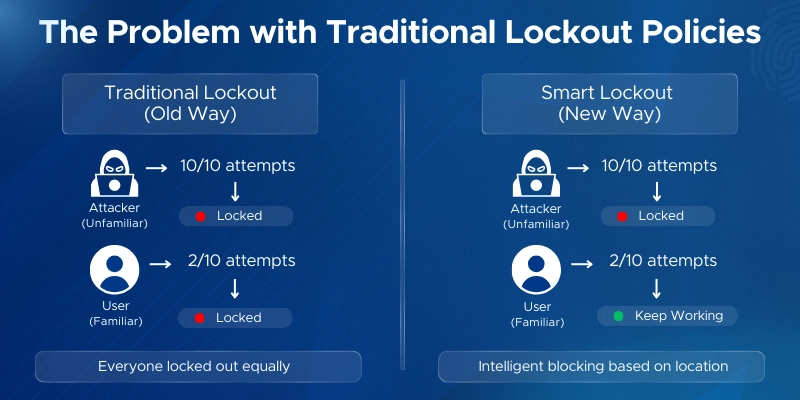
Traditional on-premises lockout policies locked accounts after failed login attempts. The problem? They couldn't tell attackers from real users who forgot their password.
Everyone got locked out equally. Attackers even used this to intentionally lock out users.
The Smart Lockout Solution
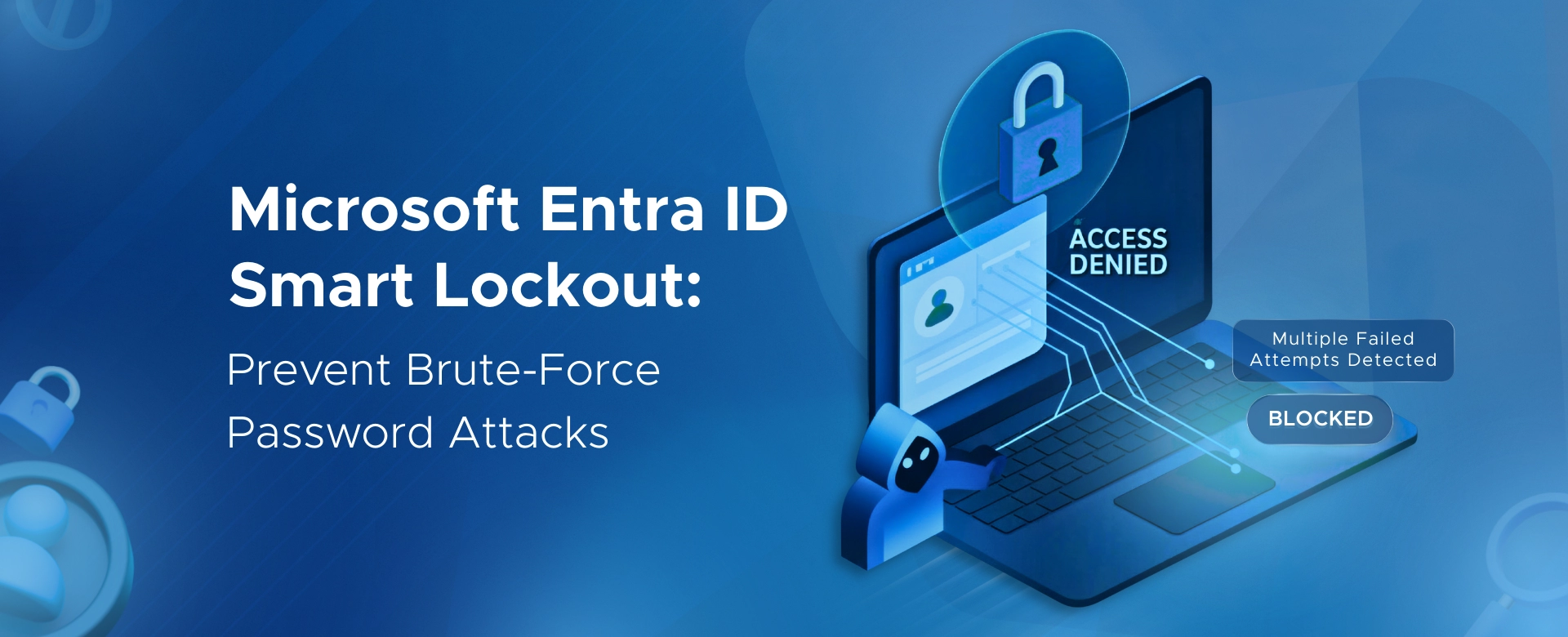
Microsoft Entra ID Smart Lockout (also called Azure AD Smart Lockout) uses intelligence to stop attacks while keeping real users working.
When an attacker tries thousands of passwords, Smart Lockout blocks them.
When your user mistypes their password twice, nothing happens. They stay unaffected.
Smart Lockout is one of the top identity configurations that improve your Secure Score in Microsoft Entra — it's a low-effort setting with a direct impact on how Microsoft evaluates your tenant's identity posture.
Microsoft Entra ID Smart Lockout (also called Azure AD Smart Lockout) is a security feature that automatically locks out accounts after repeated failed sign-in attempts.
What makes it "smart"? It tells the difference between an attacker and a real user who forgot their password.
It's enabled by default. No setup required.
Default Settings
The Key Difference: Two Separate Counters
Traditional lockout policies locked everyone out equally. If an attacker tried 10 wrong passwords, you couldn't log in either - even from your own device.
Smart Lockout fixes this.
It tracks failed attempts based on location:
Familiar locations – IP addresses where you've successfully logged in before (office, home).
Unfamiliar locations – New or suspicious IPs.
An attacker in another country hits the unfamiliar counter and gets locked out after 10 attempts.
You, logging in from your office, use the familiar counter. You stay unaffected.
The attacker gets blocked. You don't.
Risk-Based Blocking
Smart Lockout also uses Microsoft's intelligence to block suspicious sign-ins based on:
When blocked, users see the AADSTS50053 error.
The Result
Attackers get stopped. Legitimate users keep working. Smart Lockout prevents brute-force and password spray attacks without disrupting your workforce.
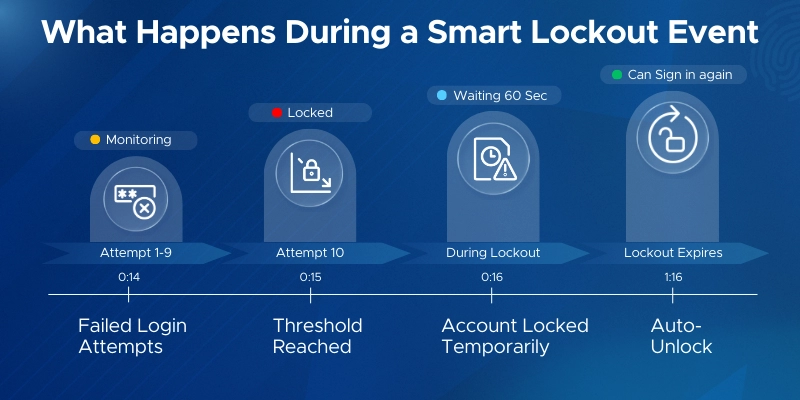
Smart Lockout is already enabled by default in your tenant. But you might want to customize the settings to fit your security needs.
Here's everything you need to know before you start - and how to configure it step by step.
Before you configure Smart Lockout, make sure you have:
Licensing
Smart Lockout works for everyone at default settings. But to customize the lockout threshold or duration, you need Microsoft Entra ID Premium P1 or higher.
Premium P1 is included in:
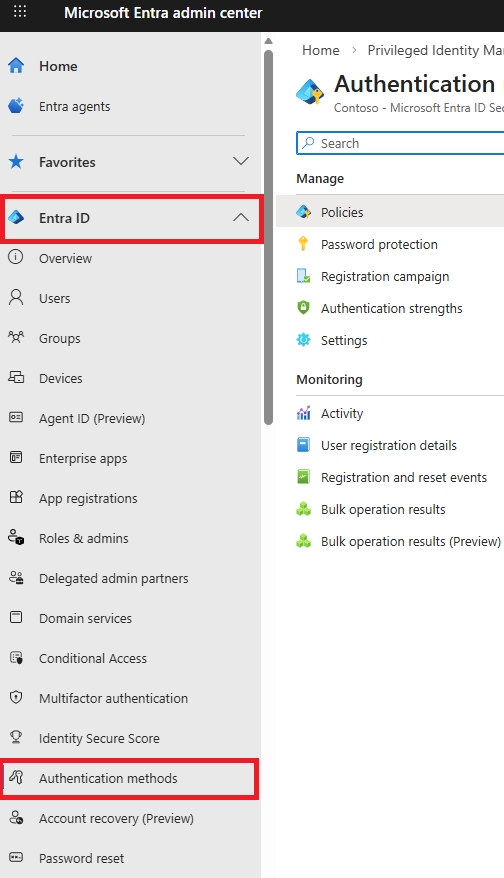
The default is 10 for Azure Public tenants and 3 for Azure US Government tenants.
The lockout threshold controls how many failed attempts trigger a lockout.
The lockout duration sets how long an account stays locked after hitting the threshold.
Modify the Lockout Threshold default values as required.
NOTE: If the first sign-in after a lockout period has expired also fails, the account locks out again. If an account locks repeatedly, the lockout duration increases.
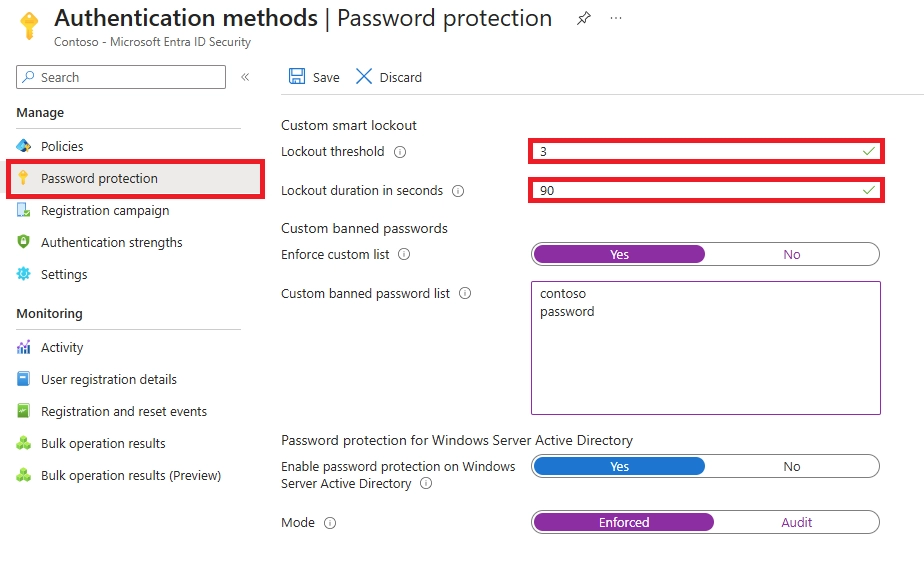
Example settings:
Lower numbers increase security but may lock out legitimate users more often.
Example settings:
Longer durations slow down attackers but may frustrate legitimate users.
Example Configuration
Let's say your organization wants tighter security:
Lockout threshold: 5 failed attempts
Lockout duration: 120 seconds (2 minutes)
This means any account with 5 incorrect password entries gets locked for at least 2 minutes.
This configuration stops attackers faster while still allowing legitimate users a few chances to get their password right.
After configuring Smart Lockout, you'll want to confirm it's actually working.
Here's how to safely test it without disrupting real users.
When Smart Lockout triggers, users see this message:
"Your account is temporarily locked to prevent unauthorized use. Try again later, or contact your admin for assistance."
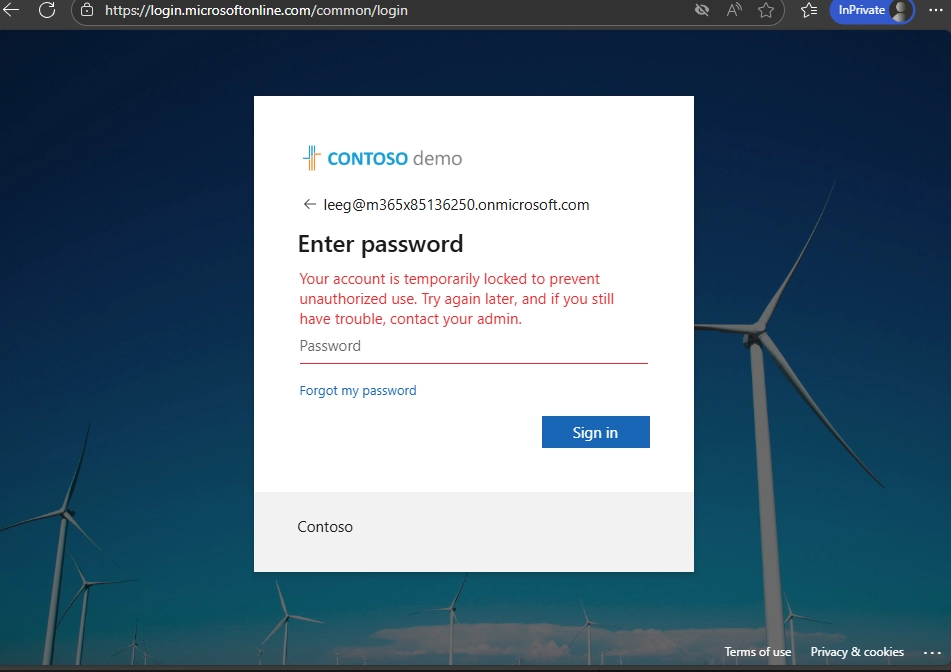
This appears on the sign-in screen and indicates the lockout is active.
The error code behind this message is AADSTS50053 (IdsLocked).
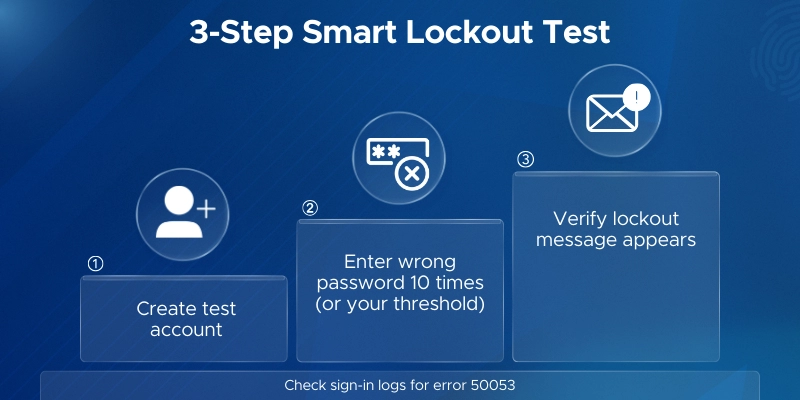
Never test on production user accounts. Create a test account instead.
Here's the testing process:
Pro tip: Use a VPN or different network to simulate an attacker from an unfamiliar IP address. This helps you see how Smart Lockout blocks unfamiliar locations while potentially allowing familiar ones.
To confirm Smart Lockout is working, check the logs.
Navigate to: Entra ID → Monitoring & health → Sign‑in logs
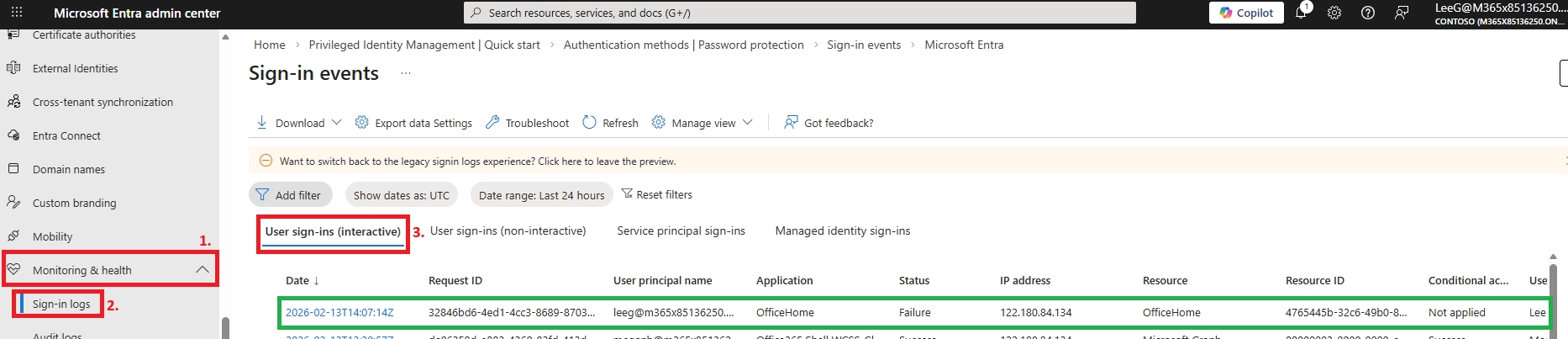
As an administrator, it is crucial to actively monitor Azure AD sign-in reports to identify any accounts that may be under attempted compromise. You can spot locked accounts by recognizing the AADSTS50053 – IdsLocked error code.
Next, locate the failed user with sign-in error code 50053, and proceed to analyze the cause of the failure.
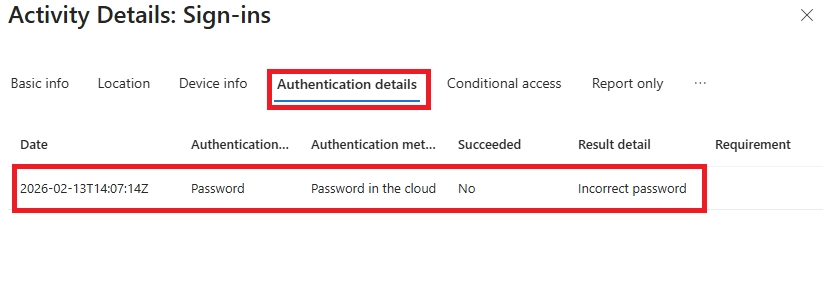
What to look for:
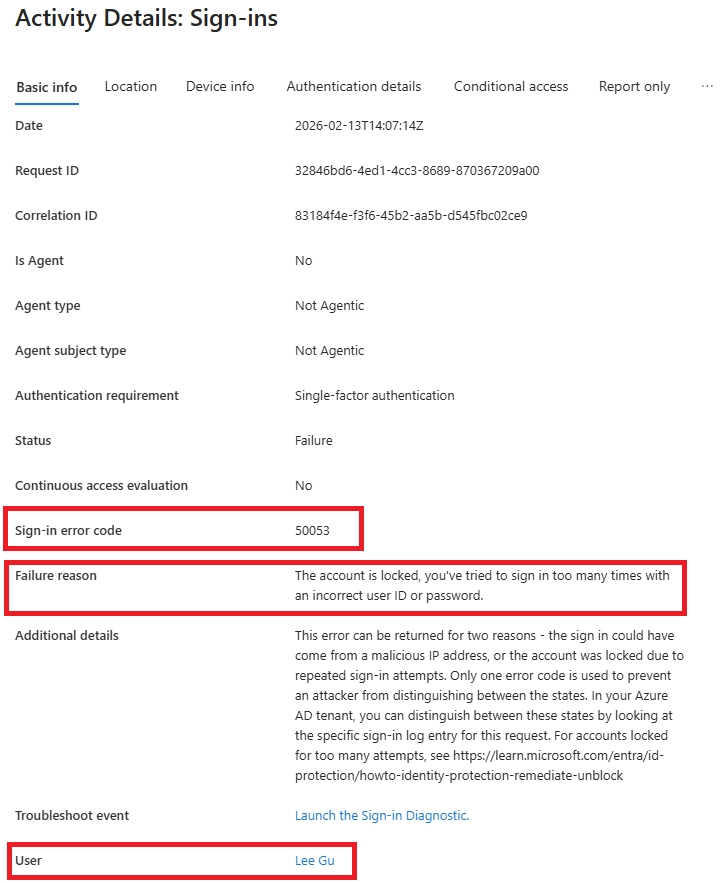
This confirms Smart Lockout blocked the attempts.
Once the lockout duration expires, the account automatically unlocks.
No manual action required.
If you're testing and don't want to wait, you can reset the test account's password. This immediately clears the lockout.
Smart Lockout works well by default. These best practices will help you optimize it.
Too low (3-5): Users lock themselves out. Attackers can weaponize it.
Too high (15-20): Attackers get more chances to guess passwords.
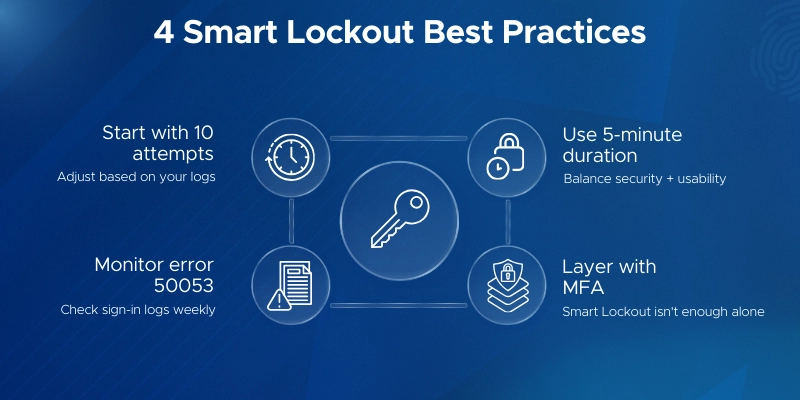
Recommended: Start with 10 attempts. Lower to 5-8 if you see frequent attacks. Raise to 12-15 if legitimate users lock out often.
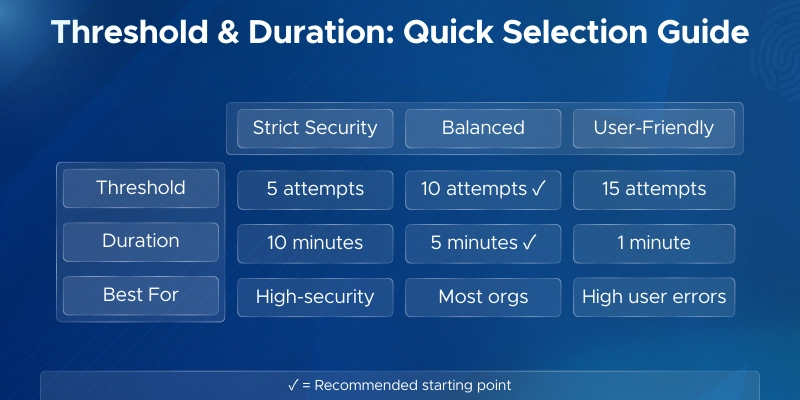
Too short (60 seconds): Attackers resume quickly.
Too long (hours): Users get frustrated.
Recommended: Use 5 minutes (300 seconds) for most environments. High-security? Try 10 minutes.
Train users: Don't keep guessing passwords. Use "Forgot password" instead.
Train helpdesk: Check logs before resetting. Look for attack patterns.
Are lockouts increasing? Have threats changed? Adjust settings accordingly.
Smart Lockout is a reactive control - it kicks in after failed attempts. enabling MFA in Microsoft 365 means that even if an attacker somehow guesses the right password, they still cannot get in without the second factor.
If you want to go beyond mitigating brute force, passwordless authentication eliminates the password attack surface entirely - removing the password means there is nothing to guess in the first place.
Microsoft Solutions Partner Expertise
As a certified Microsoft Solutions Partner, we align official Microsoft security guidance with hands-on deployment experience. We ensure Microsoft Entra ID Smart Lockout is configured correctly and integrated into your broader identity protection strategy.
Entra ID Security Specialists
Our team specializes in:
We balance strong security with minimal user disruption.
Compliance-Aligned Identity Protection
We design Smart Lockout configurations that support ISO 27001, SOC 2, HIPAA, and GDPR requirements by ensuring:
Practical, Real-World Experience
We’ve helped organizations defend against password spray, brute-force, and credential stuffing attacks. Our approach ensures Smart Lockout works effectively across cloud-only and hybrid environments.
Strengthen Your Identity Security
Let Penthara Technologies help you configure and optimize Microsoft Entra ID Smart Lockout for secure, reliable protection against credential-based attacks.
Schedule a consultation to secure your environment today.
What is the default lockout threshold and duration?
By default, Smart Lockout locks accounts after 10 failed sign-in attempts for 60 seconds (1 minute).
These settings apply automatically to all Entra ID tenants.
Do I need a Premium license to use Smart Lockout?
No. Basic Smart Lockout protection is free for all Entra ID users.
But to customize the threshold or duration, you need Microsoft Entra ID Premium P1 or higher. This is included in Microsoft 365 E3/E5, Enterprise Mobility + Security E3/E5, and Microsoft 365 Business Premium.
Does Smart Lockout lock out real users?
Rarely. Smart Lockout uses separate counters for familiar and unfamiliar locations, so legitimate users usually stay unaffected.
You could still get locked out if:
If locked out, wait for the duration to expire or use self-service password reset.
How do I unlock a locked account?
You don't need to. Accounts auto-unlock after the lockout duration expires.
For faster access:
Both methods clear the lockout immediately.
Does Smart Lockout work with MFA or passwordless authentication?
Yes. Smart Lockout monitors failed password attempts even when MFA is enabled.
It's an additional layer of defense. If an attacker guesses a password but MFA blocks them, Smart Lockout still protects against the guessing attempts themselves.
Even in passwordless environments, accounts have underlying passwords that could be attacked - so Smart Lockout remains relevant.
Does Smart Lockout apply to on-premises AD accounts?
Not directly. Smart Lockout works in the cloud (Entra ID).
For cloud-only or password hash sync: Smart Lockout fully protects these accounts.
For pass-through authentication: Smart Lockout can act as a buffer to prevent attacks from reaching on-premises AD (if configured properly).
For ADFS: Use ADFS Extranet Smart Lockout instead for on-premises protection.
What is the AADSTS50053 error?
This error code means Smart Lockout blocked a sign-in attempt.
It indicates either:
If you see AADSTS50053 in sign-in logs, Smart Lockout is actively protecting that account from potential attacks.
Can Smart Lockout prevent password spray attacks?
Yes. Password spray attacks try common passwords across many accounts.
Smart Lockout detects these patterns and locks out accounts after the threshold is reached-stopping the attack before it succeeds.
Combined with Password Protection (banned password lists), you get even stronger defense against password spraying.
What's the difference between Smart Lockout and traditional account lockout?
Traditional lockout locks everyone out after failed attempts-including legitimate users from their own devices.
Smart Lockout uses intelligence to differentiate attack patterns from real users. It tracks separate counters for familiar and unfamiliar locations, so attackers get blocked while real users stay productive.
How do I monitor Smart Lockout activity?
Navigate to Monitoring & health > Sign-in logs in the Entra Admin Center.
Filter by:
This shows all lockout events. Review these logs regularly to spot attack patterns and adjust your settings.
Does Smart Lockout prevent credential stuffing attacks?
Yes. Credential stuffing uses stolen username/password pairs from other breaches.
Smart Lockout detects rapid failed login attempts and blocks them-even if the attacker is using "real" credentials from other sites.
Combine with MFA and Password Protection for maximum defense.
Why does the lockout duration increase over time?
After the first lockout, repeated attacks trigger progressively longer lockout periods.
This adaptive behavior makes attacks increasingly impractical for attackers. The exact duration increase isn't disclosed to prevent attackers from gaming the system.
Can attackers bypass Smart Lockout?
Smart Lockout significantly raises the difficulty and cost of attacks, but determined attackers might:
This is why you should layer defenses: Smart Lockout + MFA + Password Protection + monitoring.
Does Smart Lockout reset the counter after successful login?
No. The failed attempt counter persists until the lockout duration expires-even if a successful login occurs from another location.
This prevents attackers from resetting the counter by mixing valid credentials with attack attempts.
Can I configure different Smart Lockout settings for different users?
No. Smart Lockout applies tenant-wide settings to all users.
You cannot set different thresholds for specific users or groups. All users in your tenant follow the same policy.
Monthly updates, news & events from Microsoft to help your business grow.

CEO at Penthara Technologies


 Protecting Company Data on BYOD Devices with Intune
Learn how to protect company data on BYOD devices with Microsoft Intune, using app protection policies, Conditional Access, MAM, and selective wipe.
 How to Block Unsafe Websites on Work Devices
Protect work devices from phishing, malware, and risky web content by using Microsoft Defender and Intune to block unsafe websites across your organization.
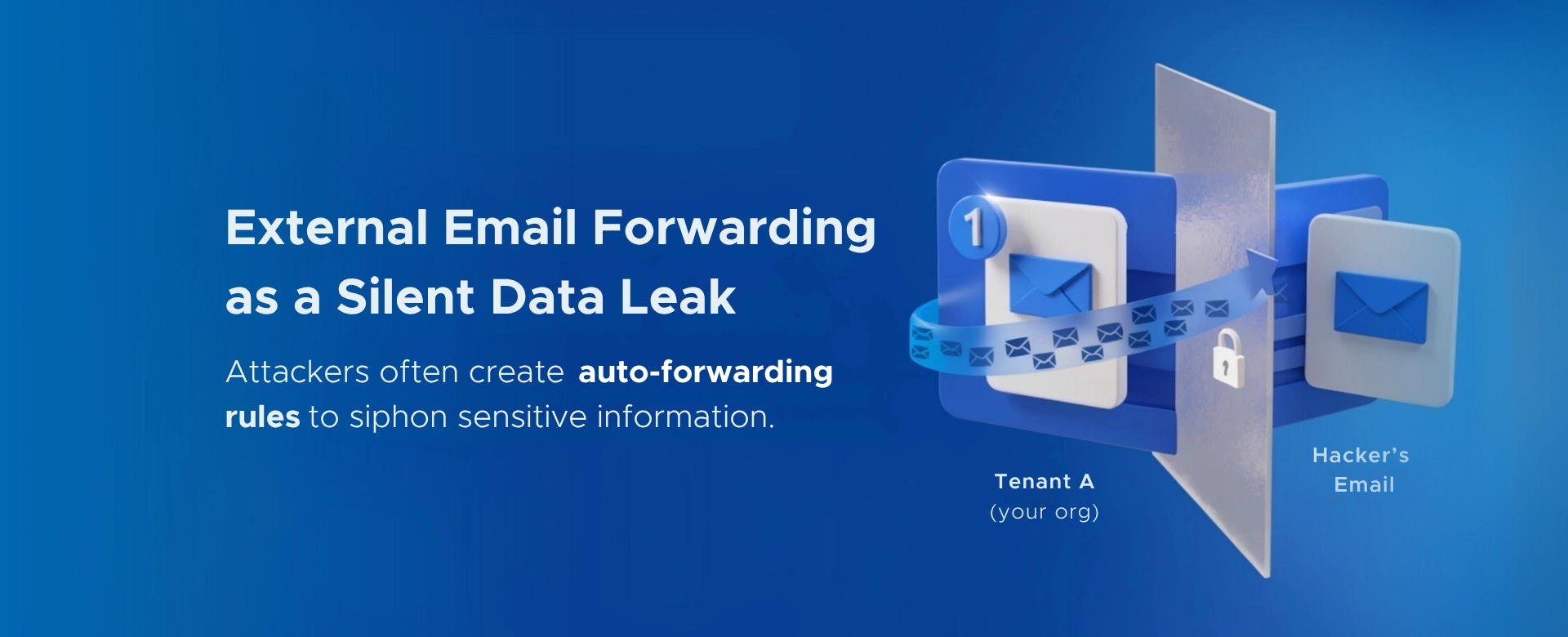 Your Microsoft 365 Tenant Has a Silent Data Leak. It Requires No Malware.
Your Microsoft 365 tenant can leak data silently - no malware, no alerts. Learn how simple misconfigurations enable ongoing email and data exfiltration.