
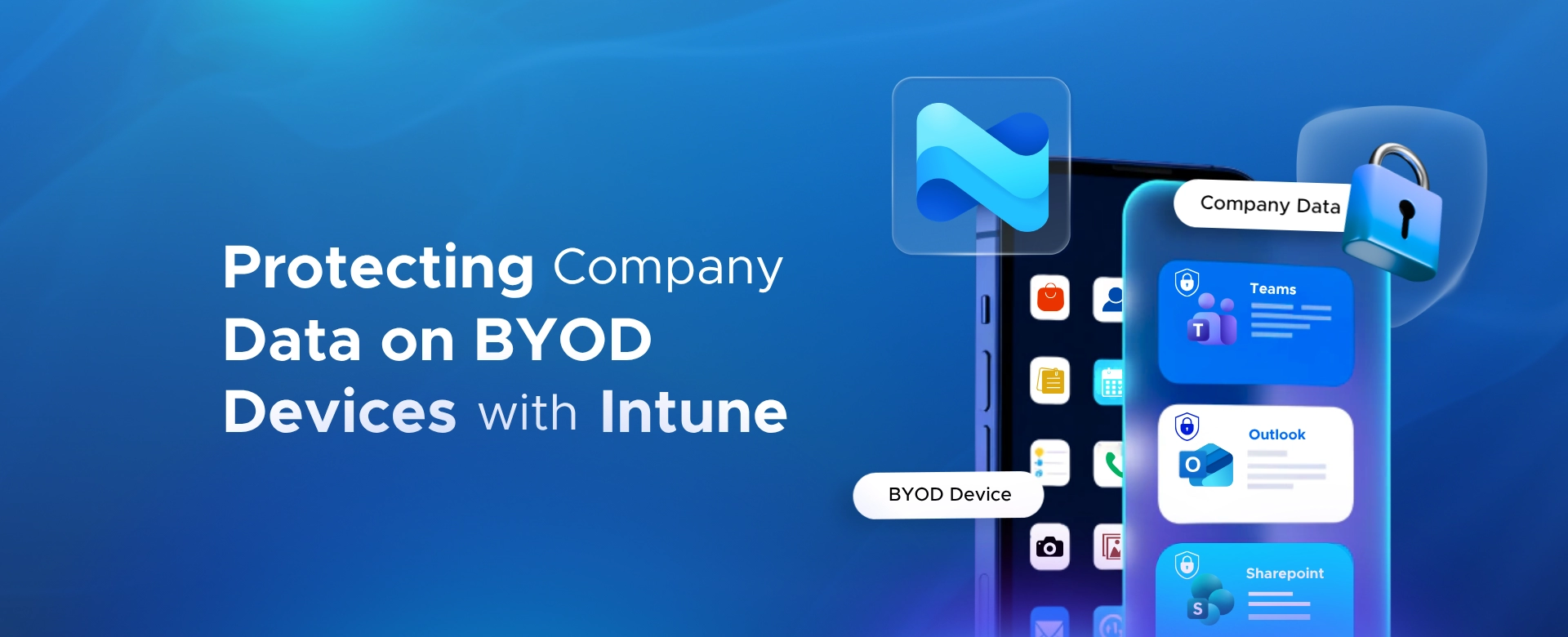
Protecting Company Data on BYOD Devices with Intune

This guide explains how organizations can protect Microsoft 365 data on personal iOS, Android, and Windows devices without taking control of employees' personal data. It covers Microsoft Intune App Protection Policies, MAM without enrollment, Conditional Access, data protection controls, selective wipe, and platform-specific considerations. The article also provides a step-by-step implementation guide, recommended policy settings, monitoring practices, common deployment mistakes, troubleshooting guidance, and best practices for rolling out a secure BYOD strategy while maintaining employee privacy. T-79 Protecting Company Data on…
Table of contents
Why Standard Security Measures Don't Work on Personal Devices
Licensing & Prerequisites
App Protection Policies Explained
Step-by-Step Implementation Guide
Platform-Specific Considerations
Best Practices
Common Mistakes & Troubleshooting
Why Trust Penthara Technologies for BYOD Security with Intune?
Frequently Asked Questions

Imagine an employee loses their phone at an airport.

The device has Outlook, Teams, and OneDrive signed in with their work account. Company emails, files, and conversations could now be at risk.

The obvious solution might be to wipe the device. But because it's a personal phone, that would also delete personal photos, messages, and apps.

This is a common challenge in BYOD environments.

Organizations need a way to protect company data on personal devices without affecting employee privacy. That's exactly what Microsoft Intune is designed to do.

With the right Intune BYOD security policies in place, IT teams can remove corporate data from work apps while leaving personal data untouched.

Why Standard Security Measures Don't Work on Personal Devices

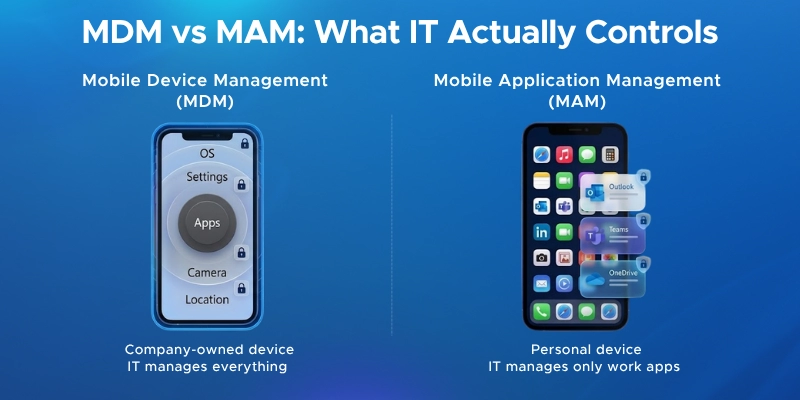
Traditional mobile device management (MDM) works well for company-owned devices. Since the organization owns the hardware, IT teams can fully control how the device is configured and used.

Personal devices are different.

Employees expect privacy on their own phones and tablets. Most people are not comfortable giving their employer complete control over a device they use every day.

This creates a difficult choice:

  • Block personal devices from accessing work data
  • Allow access with little or no control

Neither option is ideal.

Blocking access can hurt productivity and encourage employees to use unmanaged personal apps to get work done.

On the other hand, unrestricted access can leave corporate data on personal phones without encryption, copy-and-paste restrictions, or remote wipe capabilities.

A strong BYOD mobile security policy needs a middle ground.

That's where Intune stands out. Instead of managing the entire device, it can manage apps without managing the device itself. For organizations building out a modern workspace strategy, this is typically one of the first security layers to get right.

This approach helps organizations protect corporate data on personal phones while respecting employee privacy.

MDM vs MAM: What IT actually controls

Licensing & Prerequisites

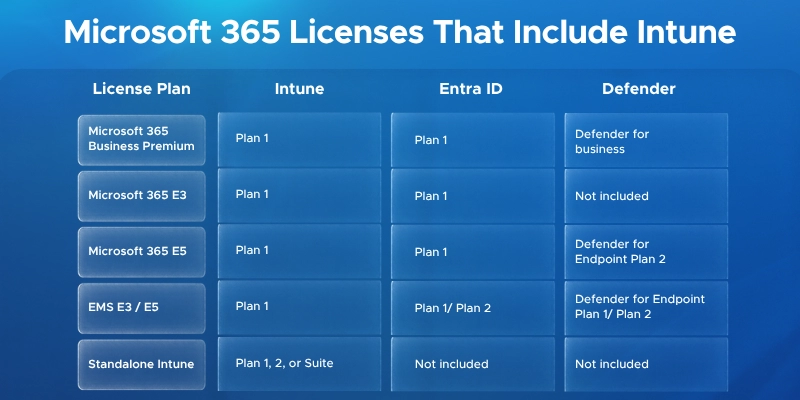
Microsoft 365 Licenses That Include Intune

Most Microsoft 365 plans already include Intune - you may not need to buy anything extra.

What You Need for BYOD App Protection

  • App protection policies - Intune Plan 1 is the minimum
  • Conditional Access - needs Entra ID P1 or higher
  • Risk-based Conditional Access - needs Entra ID P2
  • Mobile Threat Defense - needs Defender for Endpoint
Microsoft 365 Licenses That Include Intune

App Protection Policies Explained

App Protection Policies - or APPs - are the heart of BYOD security in Intune. They protect company data inside specific apps, without touching anything personal on the device.

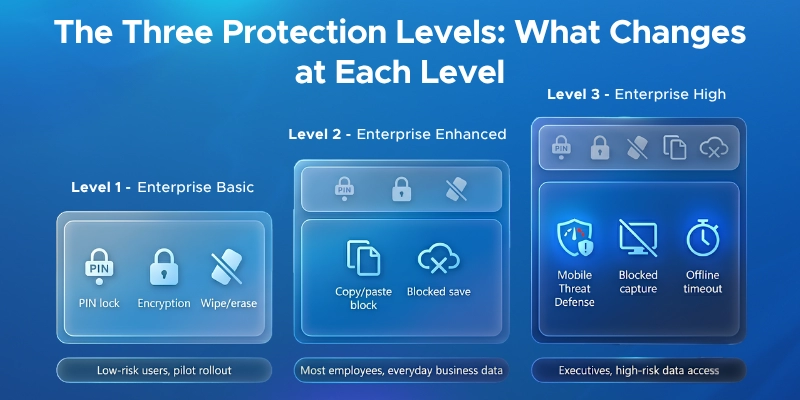
Microsoft organizes these policies into three levels.

Microsoft's App Protection Data Framework

Level 1 - Enterprise Basic The starting point. Covers app PIN, data encryption, and selective wipe. Good for low-risk users or a pilot rollout.

Level 2 - Enterprise Enhanced Adds copy/paste restrictions and blocks saving company files to personal storage. This is the right level for most employees.

Level 3 - Enterprise High Maximum protection - stricter PINs, shorter offline timeouts, screen capture blocking, and Mobile Threat Defense integration. Built for executives or anyone handling sensitive data.

Microsoft's App Protection Data Framework

Key Policy Settings

Data Protection

  • Block copy/paste between work and personal apps
  • Prevent "Save As" to personal cloud storage like iCloud or Google Drive
  • Force web links to open in Microsoft Edge (managed browser)
  • For broader mobile data protection, see how to block sensitive file downloads on mobile devices using Conditional Access and Sensitivity Labels.

Access Requirements

  • Require a PIN, Face ID, or fingerprint to open any work app
  • Only allow data sharing between managed apps

Conditional Launch These settings decide what happens when something looks wrong:

  • Block access from outdated OS versions
  • Detect jailbroken or rooted devices and block or wipe automatically
  • Require devices to check in online every 30 days
  • Integrate with Defender for Endpoint to block high-risk devices

Supported Apps

Intune app protection works out of the box with Microsoft 365 apps - Outlook, Teams, OneDrive, SharePoint, OneNote, Edge, and Power BI Mobile.

Third-party apps and internal company apps can also be supported if they're built with the Intune SDK or processed through the Intune App Wrapping Tool.

Step-by-Step Implementation Guide

This section walks you through setting up app protection in Intune from start to finish - creating a policy, configuring Conditional Access, and what your users will see on their phones.

Step 1 - Create Your First App Protection Policy

  1. Sign in to the Intune admin center
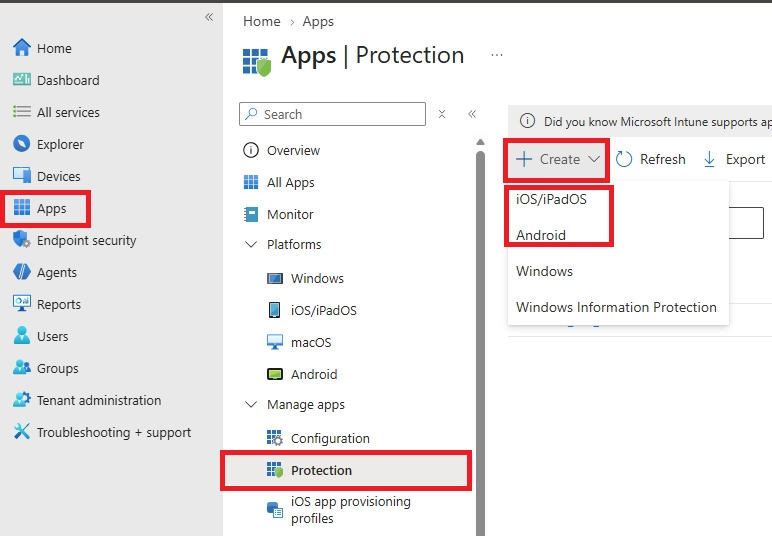
  2. Navigate to Devices > Protection (Managed Apps).
  3. Click on + Create and then choose the platform - iOS/iPadOS or Android
Navigate to Intune Admin Center > Apps > Protection > Create > iOS/iPadOS or Android to create a new App Protection Policy.
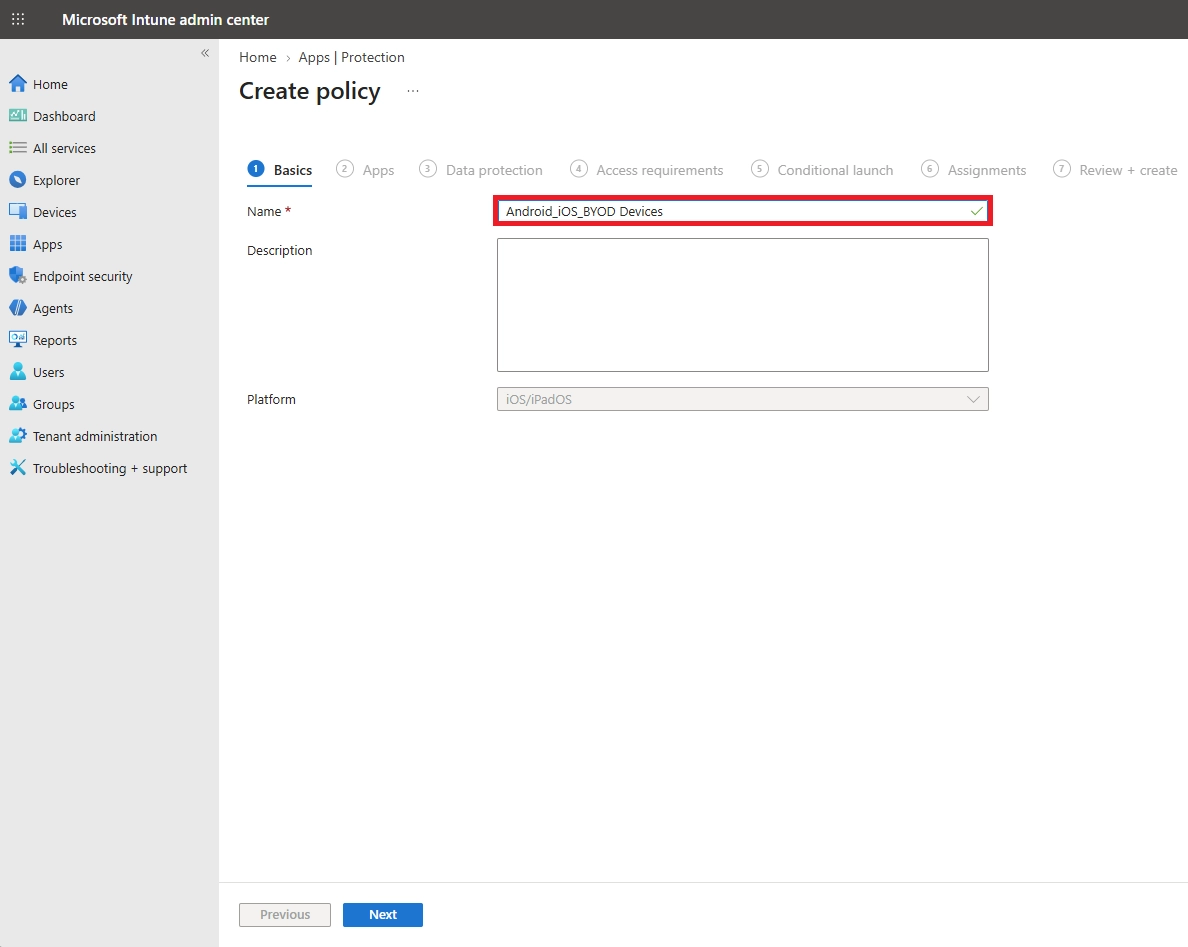
  1. On the Basics page, give the policy a clear name like APP-iOS-BYOD.
Intune Admin Center showing the textbox to enter a descriptive policy name to identify the App Protection Policy.
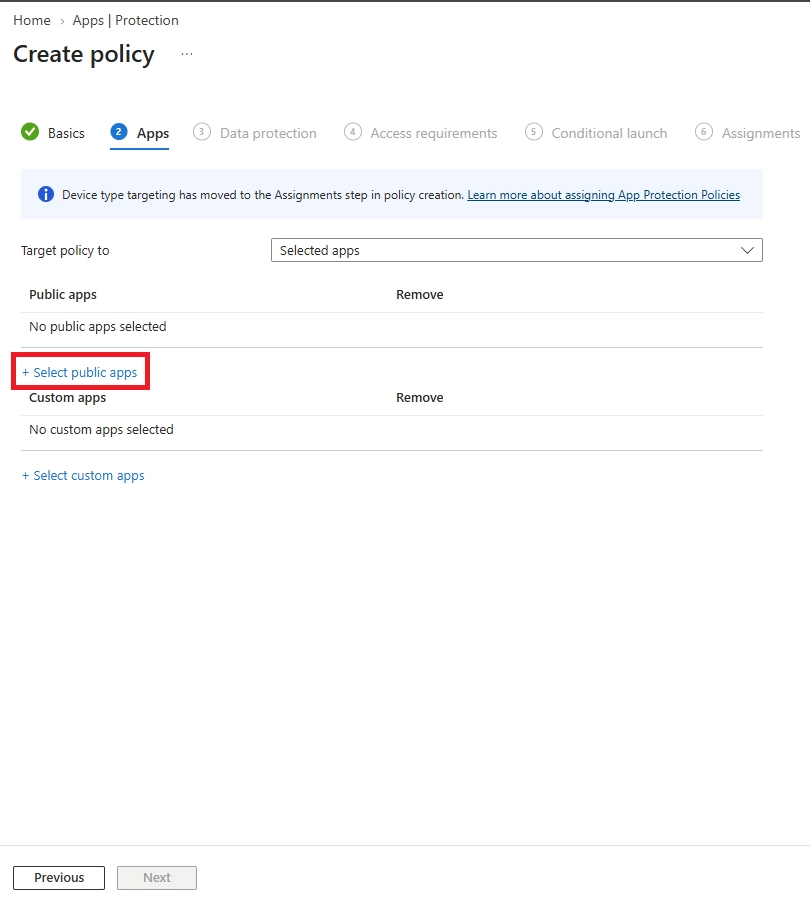
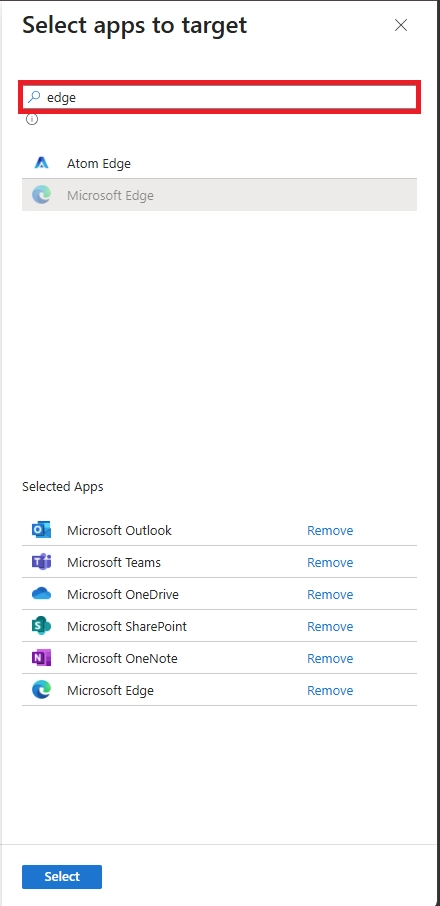
  1. On the Apps page, click Select public apps and add: Outlook, Teams, OneDrive, SharePoint, OneNote, and Edge
Select Public apps to define which managed applications will be protected by the App Protection policy.
Search for and add Microsoft Edge and other apps to the list of protected applications.
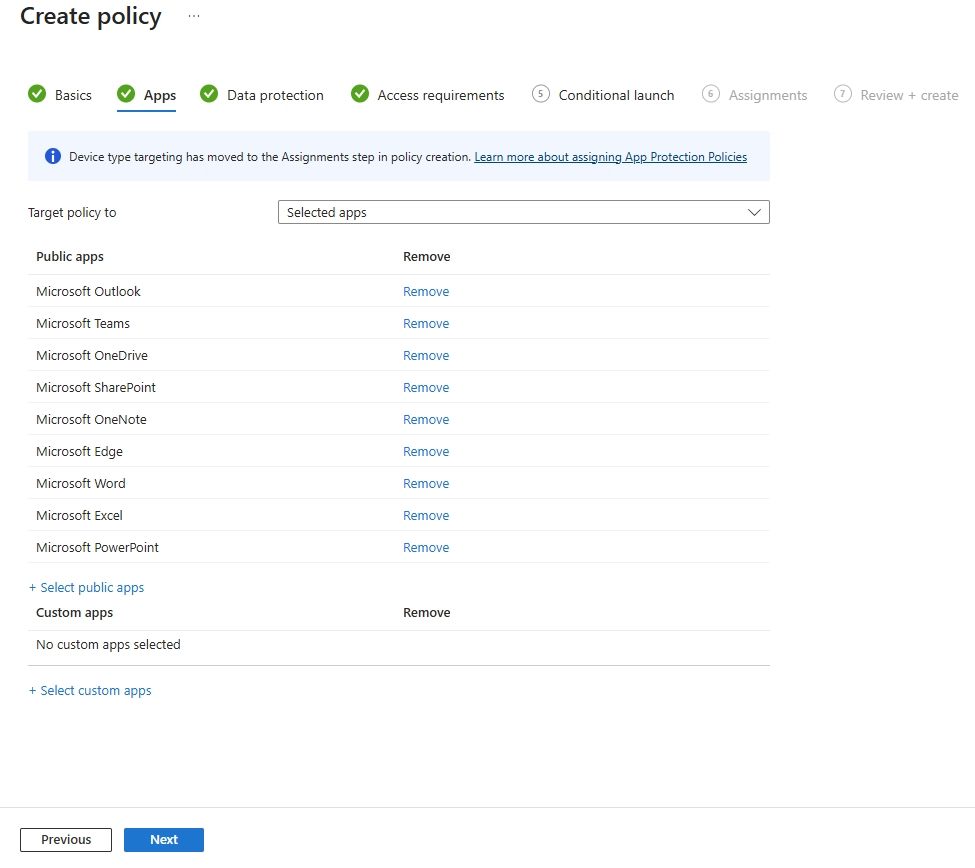
Verify that all required Microsoft 365 apps, including Outlook, Teams, OneDrive, SharePoint, OneNote, Edge, Word, Excel, and PowerPoint, are targeted by the policy.
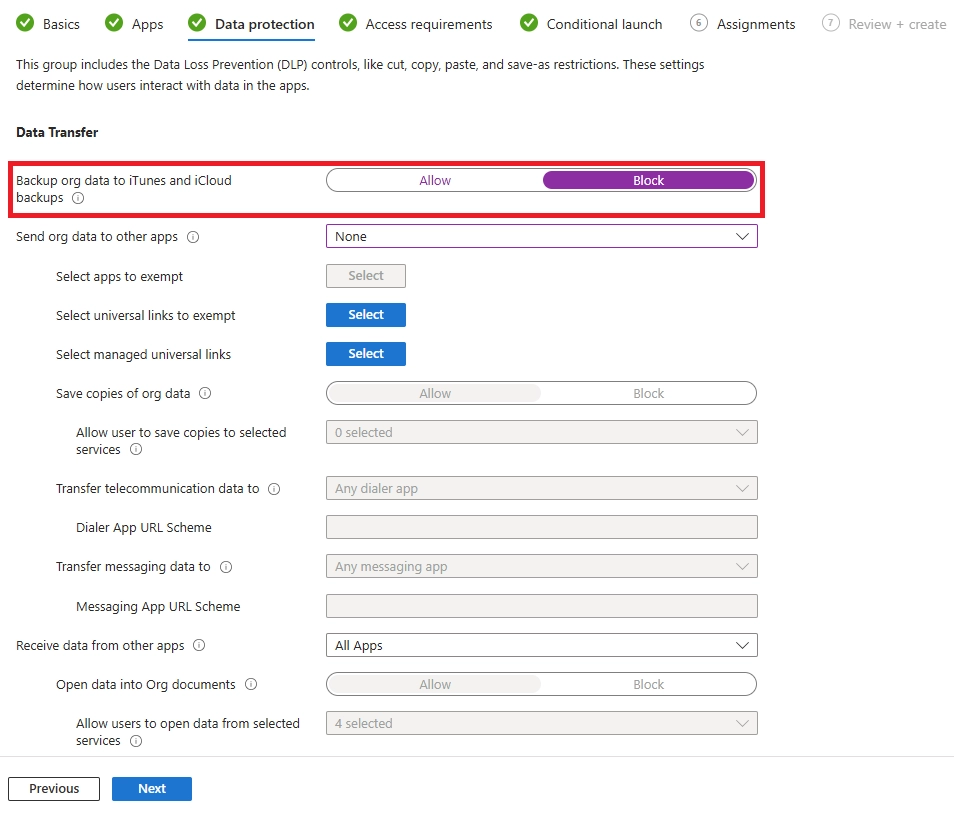
  1. Under Data Transfer, configure
    • Backup org data to iTunes and iCloud backups: Block
Configure the policy to block backup of organizational data to iTunes and iCloud to prevent unauthorized data storage.
    • Send org data to other apps: None
    • Turn on org data encryption
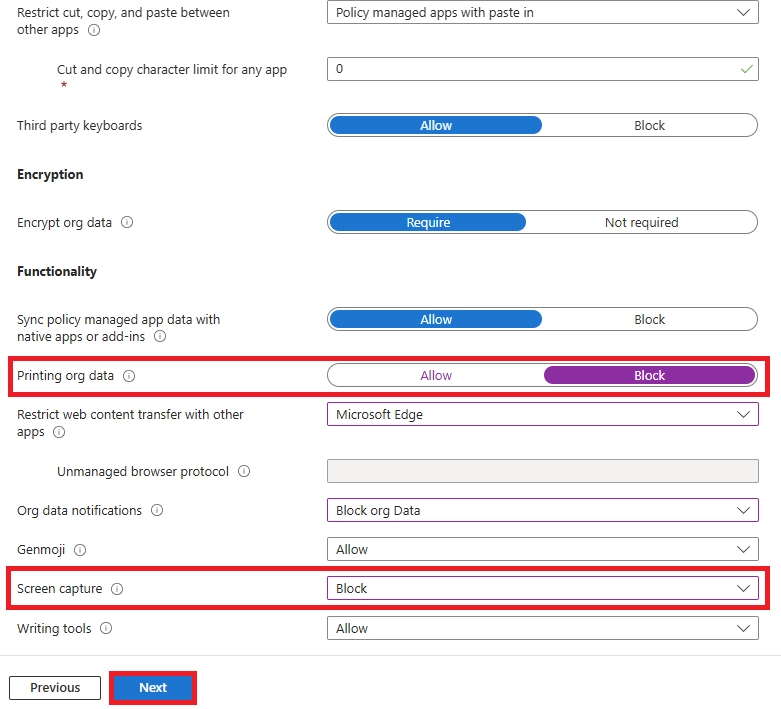
    • Printing Org Data: Block
    • Screen Capture: Block
Block printing organizational data and screen capture to strengthen data loss prevention controls.
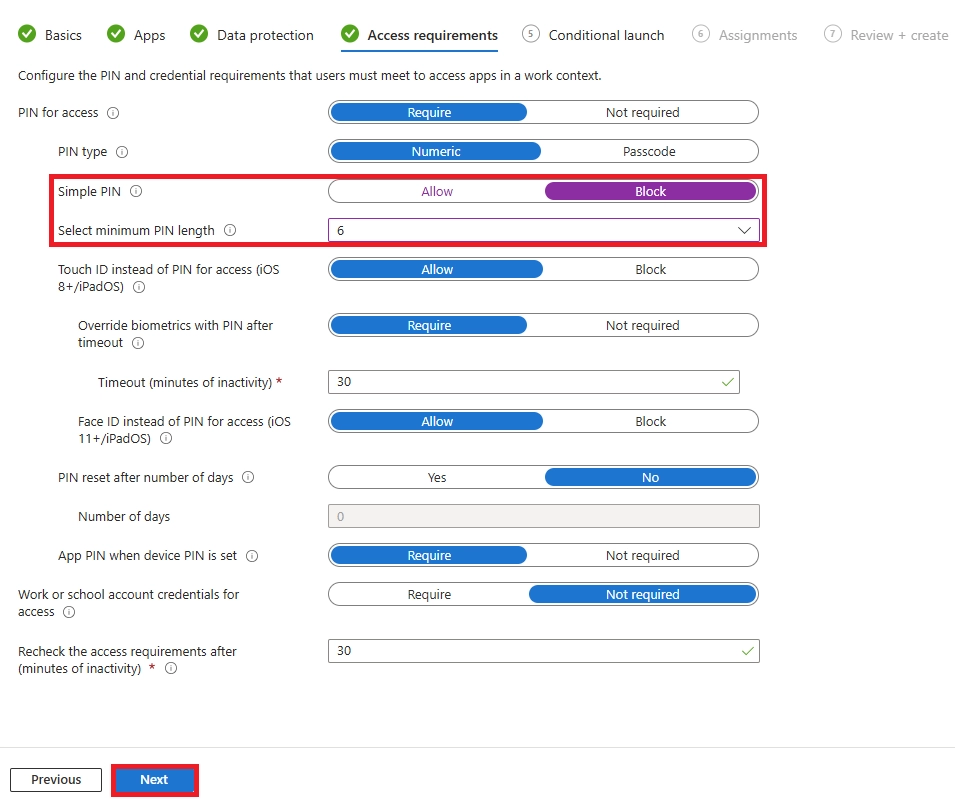
  1. Under Access Requirements, enable PIN and allow biometrics
Require a minimum 6-digit PIN and block simple PINs to secure access to protected applications.
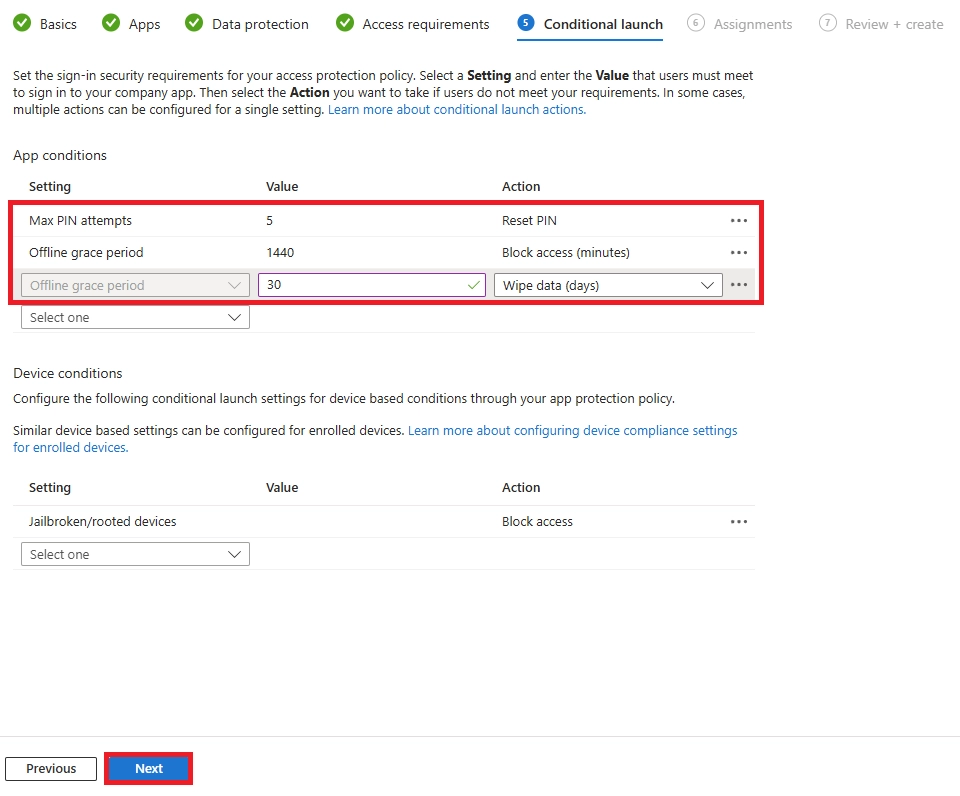
  1. Under Conditional Launch, set:
    • Max offline access: 30 days
    • Minimum OS: iOS 17 / Android 9
    • Block jailbroken or rooted devices
Configure Conditional Launch settings to reset the PIN after failed attempts and wipe app data after extended offline access.

Step 2 - Assign the Policy to Users

App protection policies assign to user groups, not devices.

Create a security group in Entra ID for your BYOD users and assign the policy to that group. For the first rollout, start with a small pilot group before expanding to everyone.

Step 3 - Repeat for the Other Platform

Once your iOS policy is done, go back and create the same policy for Android - and vice versa.

NOTE: On Android, make sure Android Enterprise work profile is configured. This separates work apps from personal apps on the device with a dedicated work container.

Step 4 - Set Up Conditional Access

This step makes sure users can only access company data through protected apps.

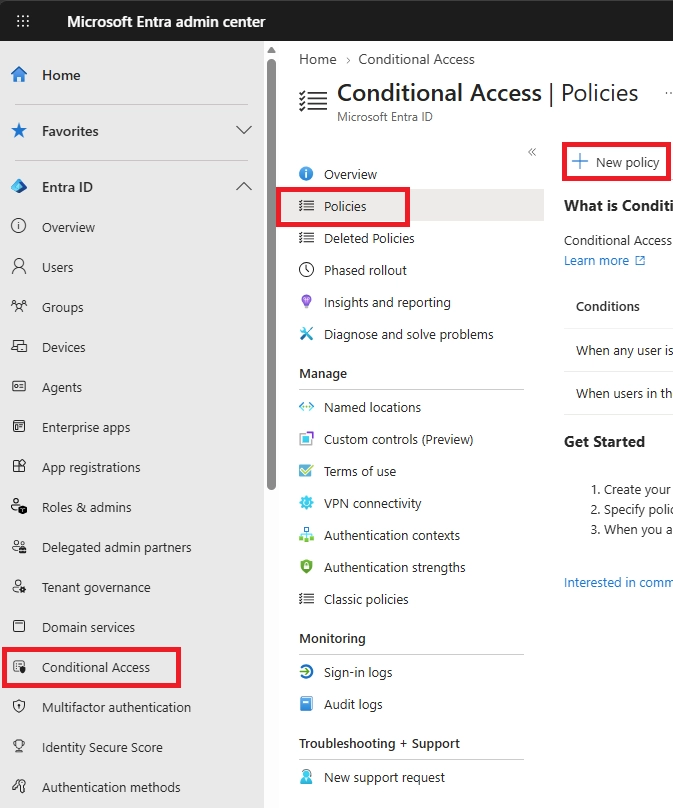
  1. Open the Microsoft Entra admin center
  2. Navigate to Entra ID > Conditional Access > Policies.
Navigate to Microsoft Entra ID > Conditional Access > Policies and select New policy to create a Conditional Access policy.
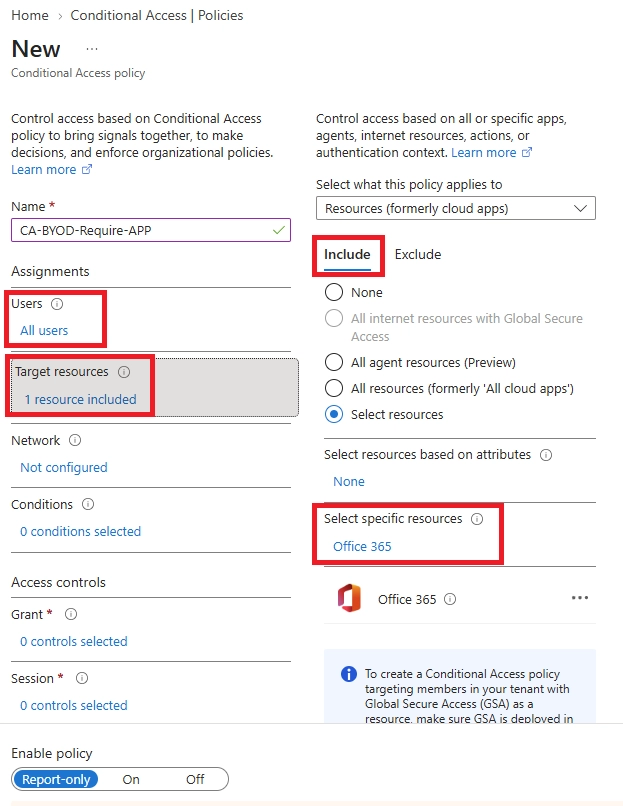
  1. Create a New policy and name it something like CA-BYOD-Require-APP
  2. In the Users section, scope it to All users. You can exclude the Break Glass Accounts and Emergency Access Accounts.
  3. In the Target resources, add Office 365 in the Include
Configure the Conditional Access policy to target all users accessing Office 365 resources.
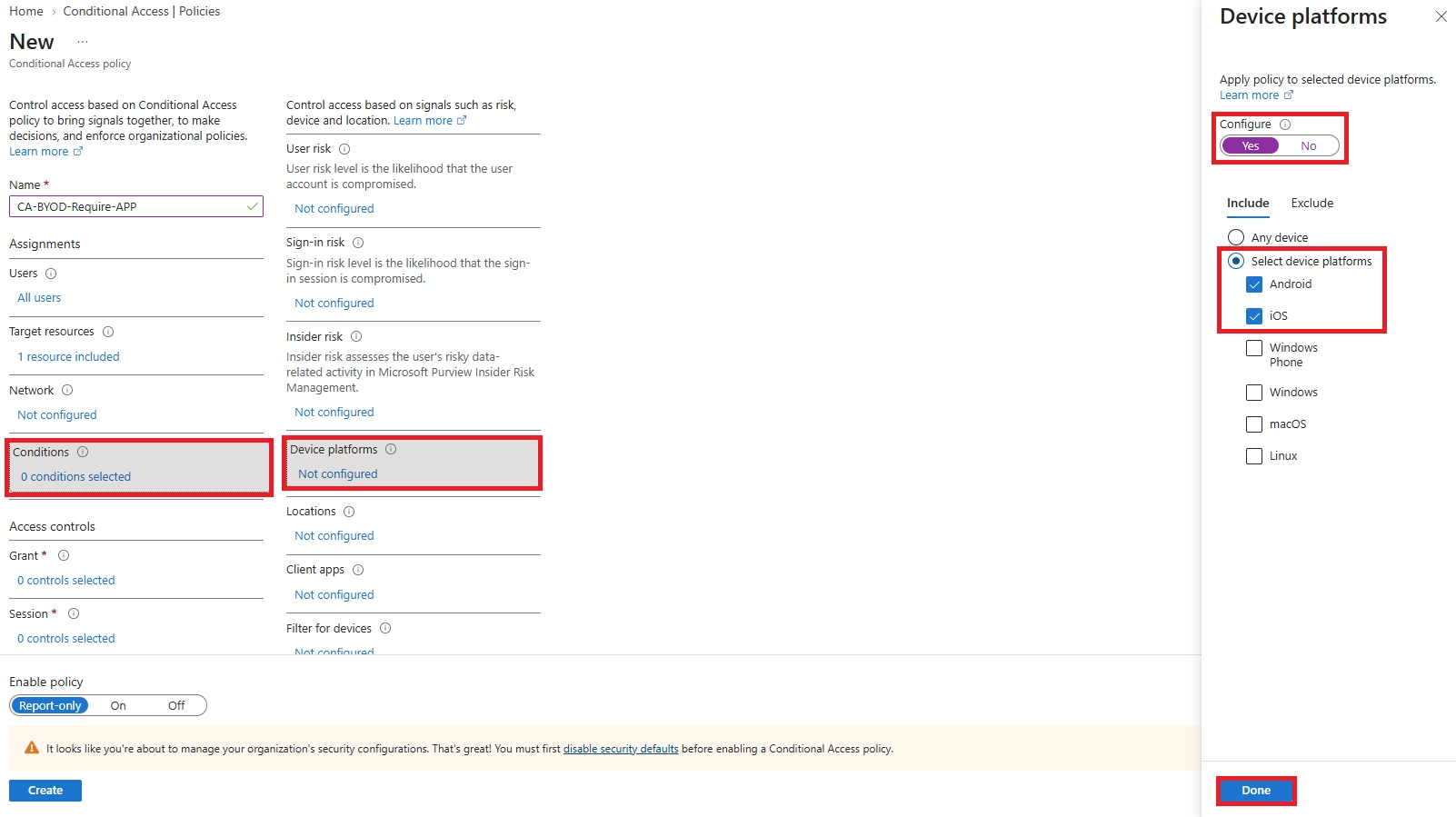
  1. In the Conditions section, set Device platforms to iOS and Android
Configure the Conditional Access policy to apply only to Android and iOS device platforms under Conditions > Device platforms.
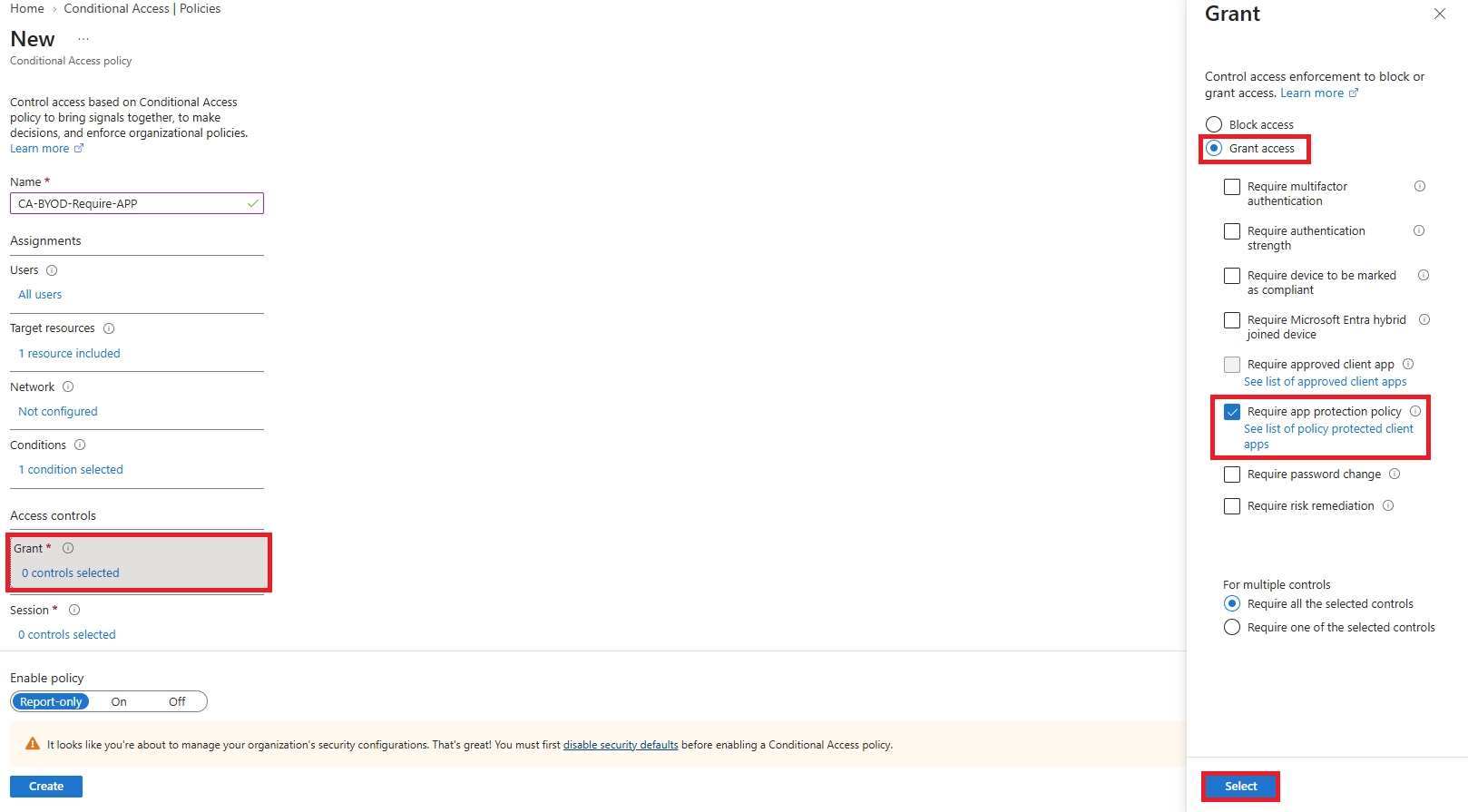
  1. Under Access Controls > Grant, select Require app protection policy.
Configure Grant controls to allow access only when an Intune App Protection Policy is applied.
  1. Set the policy to Report-only first, monitor for a week, then switch to
  2. Click
If you haven't set up MFA yet, start with this guide on enforcing MFA for all Microsoft 365 users - it's a required foundation before Conditional Access works reliably.

Step 5 - What Your Users Will See

On iOS:

  1. User downloads Outlook from the App Store and signs in with their work account
  2. Prompted to install Microsoft Authenticator if not already present
  3. Completes MFA and registers the device (registration, not full enrollment)
  4. Sees: "Your organization is now protecting its data in this app"
  5. Restarts the app and sets up a PIN or Face ID
  6. Access granted - copy/paste to personal apps and saving to iCloud are now blocked

On Android:

  1. User downloads Outlook from Google Play and signs in
  2. Prompted to install Company Portal from the Play Store
  3. Returns to Outlook, completes registration
  4. Sets up a PIN or biometric
  5. Work apps appear with a briefcase badge - work data stays inside the work container

Step 6 - Monitor Policy Application

Go to Apps > Monitor > App protection status in the Intune admin center to see which users have the policy applied and when devices last checked in.

TIP: Policy deployment isn't always immediate. If users don't see protection settings applied, restart the application, sign out and back in, or allow additional time for policy synchronization. Use the App Protection Status report to verify policy delivery.

Platform-Specific Considerations

iOS and Android handle app protection differently. Knowing these differences helps you set policies correctly and avoid confusion when users reach out saying something isn't working.

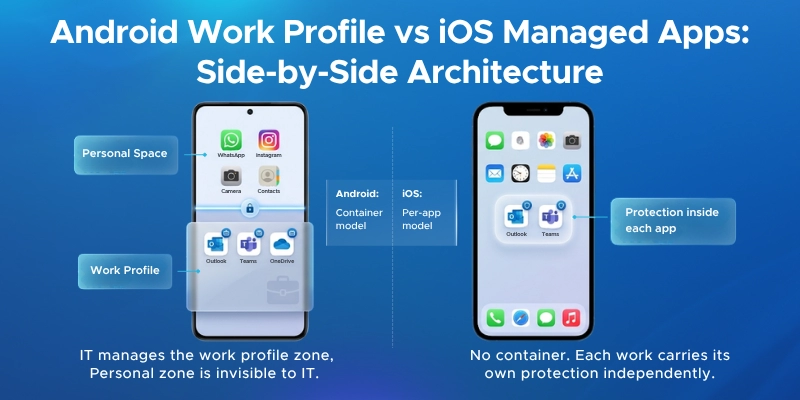
Android - Work Profile

When Intune deploys a work profile on an Android device, it creates a separate encrypted container just for work apps. Personal apps and work apps run completely independently.

Here's what that looks like in practice:

  • Work apps show a briefcase badge so users can tell them apart
  • IT can manage and wipe the work profile without touching personal photos, messages, or apps
  • Work apps install through Managed Google Play - a corporate app store within the work profile
  • Company Portal is required on Android as the broker app for authentication and policy enforcement

iOS - Managed Apps

iOS doesn't use a work profile. Instead, protection lives inside each app itself.

  • Intune-managed apps share a keychain behind the scenes, which enables single sign-on across work apps without the user signing in repeatedly
  • Microsoft Authenticator (not Company Portal) handles authentication on iOS
  • For BYOD, use User Enrollment - it's privacy-preserving and doesn't give IT visibility into personal data. This is different from full device enrollment in Intune, which applies to company-owned devices and gives IT complete management control.
  • Apple Business Manager is not required for MAM without enrollment
Android work profile vs iOS Managed Apps

Windows MAM

If your users access Microsoft 365 on personal Windows laptops, Intune now covers that too.

Windows MAM without enrollment was introduced in 2023-2024 and protects Microsoft 365 apps on unmanaged Windows 10/11 devices - the same way it does on phones. It replaced Windows Information Protection (WIP), which Microsoft deprecated.

Requirements:

  • Windows 10 version 1809 or later, or Windows 11
  • Microsoft 365 apps with Intune SDK support
  • Same policy controls: copy/paste restrictions, save controls, and app PIN

NOTE: Windows MAM is newer and still catching up to the mobile experience. Test it thoroughly before a broad rollout.

Best Practices

Good policies only work if people actually use them. Here's what makes the difference between a smooth rollout and a flood of IT support tickets.

User Adoption & Communication

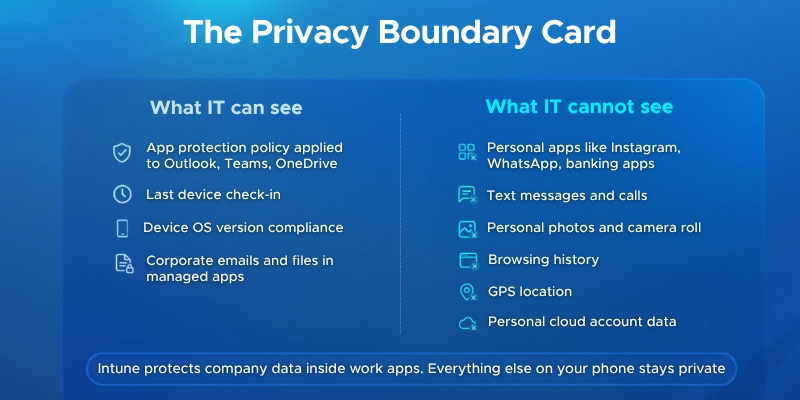
The biggest resistance to BYOD policies comes from employees who think IT is watching their personal phone. Address that upfront.

  • Tell users clearly what IT can and cannot see - work app data yes, personal photos and messages no
  • Share simple setup guides with screenshots for both iOS and Android
  • Prepare a short FAQ covering selective wipe, data boundaries, and personal app privacy
  • Start with 10-20 volunteers before rolling out to everyone
  • Set up a dedicated support channel for the first two weeks
  • Run phishing simulations to reinforce good habits - Microsoft 365 Attack Simulation Training makes this easy to set up.
The Privacy Boundary Card

Policy Design

Microsoft's App Protection framework has three levels. Level 1 is basic - PIN and encryption only. Level 2 adds copy/paste restrictions and blocks saving files to personal storage. Level 3 is the strictest - shorter offline timeouts, screen capture blocking, and Mobile Threat Defense integration.

For most organizations, this is how to apply them:

  • Start with Level 2 as your default for all employees - it covers everyday data protection without creating friction
  • Reserve Level 3 only for executives or anyone handling sensitive data like finance, legal, or HR records
  • Name policies clearly - APP-iOS-Level2-Finance tells any admin exactly what it does without opening it
  • Always run Conditional Access in Report-only mode for at least a week before switching it on
  • Roll out to 10% of users first, monitor for a week, then expand to everyone
  • Always exclude break-glass admin accounts from Conditional Access policies

Monitoring & Maintenance

Set a recurring schedule so policies don't go stale:

  • Weekly - Check the app protection status dashboard in Intune
  • Quarterly - Update minimum OS versions and review any selective wipe requests or policy violations
  • Ongoing - Audit licenses to confirm all BYOD users have the right Intune and Entra ID assignments
  • For organizations looking to align their Intune policies with industry security benchmarks, Penthara's CIS Benchmark consulting covers compliance alignment across Microsoft 365 and Azure.

A short monthly survey to users goes a long way too - small usability issues surface early before they become bigger problems.

Common Mistakes & Troubleshooting

Even a well-planned Intune deployment can run into problems. Most issues come from a few recurring mistakes - and they're all avoidable.

Common Deployment Mistakes

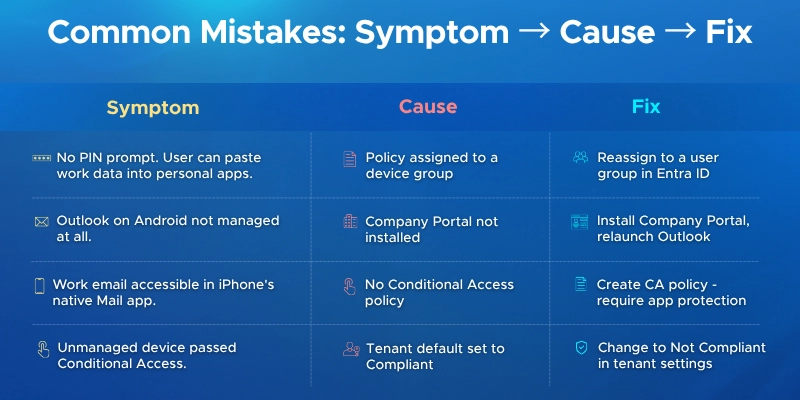
  1. Skipping Conditional Access Creating app protection policies isn't enough on its own. Without Conditional Access, users can still access Microsoft 365 through unprotected apps like the native iOS Mail app. Add a Conditional Access policy with "Require app protection policy" to close that gap.
  2. Leaving the Tenant Default as "Compliant" Out of the box, Intune marks devices with no compliance policy as compliant. That means unmanaged devices can pass through Conditional Access unchecked. Change this to "Not compliant" in your tenant settings.
  3. Assigning Policies to Device Groups App protection policies only work when assigned to user groups. Assigning to device groups means the policy simply won't apply.
  4. Skipping Broker Apps On Android, Company Portal must be installed for policies to apply. On iOS, that role belongs to Microsoft Authenticator. Without these, policy enforcement won't work - regardless of how the policy is configured.

Troubleshooting Quick Reference

Policy not applying

  • Check that the policy is assigned to a user group, not a device group
  • Confirm the broker app is installed
  • Wait up to 8 hours - that's the standard check-in interval. You can also trigger a manual sync from the Intune admin center

Selective wipe not working

  • The device needs to check in and the managed app (like Outlook) needs to be opened for the wipe to execute
  • Check wipe status under Devices > Monitor in the Intune admin center

Users locked out after Conditional Access goes live

  • This usually means app protection policies hadn't fully applied before CA was enforced
  • Always run CA in Report-only mode for at least a week first, and make sure break-glass accounts are excluded

Android work profile not appearing

  • Confirm the device is running Android 9 or later
  • Check that Android Enterprise is bound to your tenant in the Intune admin center
  • Some older or budget Android devices have manufacturer restrictions that block work profile creation
Common mistakes

Why Trust Penthara Technologies for BYOD Security with Intune?

Protecting company data on personal devices requires more than creating a few policies in Intune. It takes the right expertise, a structured approach, and a clear understanding of how MAM, Conditional Access, and identity management work together.

Microsoft Solutions Partner Expertise: As a certified Microsoft Solutions Partner, we bring official Microsoft security guidance together with real-world deployment experience. We make sure your BYOD policies are configured correctly and integrated into your broader Microsoft 365 security strategy.

Intune and Microsoft 365 Security Specialists Our team specializes in:

  • App protection policy design for iOS, Android, and Windows
  • MAM without enrollment configuration for personal devices
  • Conditional Access policy setup and testing
  • Entra ID identity and access management
  • Mobile Threat Defense integration with Microsoft Defender for Endpoint
  • Ongoing compliance monitoring and license management

We balance strong data protection with a smooth experience for your end users.

Compliance-Aligned BYOD Security We design BYOD strategies that support GDPR, HIPAA, PCI DSS, ISO 27001, and SOC 2 requirements by ensuring:

  • Clear boundaries between personal and corporate data
  • Auditable policy enforcement and device check-in reporting
  • Selective wipe capabilities that protect company data without touching personal content
  • Ongoing monitoring and compliance reporting

Practical, Real-World Experience We've helped organizations roll out BYOD programs across cloud-only and hybrid environments - covering everything from licensing and policy design to end-user communication and monitoring. Our approach ensures security without unnecessary friction for your team.

Ready to protect company data on personal devices the right way? Schedule a consultation to build the right BYOD security strategy for your organization.

Frequently Asked Questions

Frequently Asked Questions

1. Can IT see my personal apps and data with Intune?

No. App protection policies only manage corporate apps like Outlook, Teams, and OneDrive. IT has no visibility into your personal photos, messages, apps, or browsing history.

2. What's the difference between MAM and MDM?

MDM (Mobile Device Management) enrolls your entire device, giving IT control over it. MAM (Mobile Application Management) only protects corporate apps without enrolling the device - which makes it the right fit for personal phones.

3. What happens if I try to copy work data to a personal app?

The action will be blocked or you'll see a warning, depending on your organization's policy settings. Data simply can't leave protected apps if the policy prevents it.

4. Can my company wipe my personal phone?

No. With MAM-only policies, only corporate data is removed through a selective wipe. Your personal apps, photos, and files stay untouched. A full device wipe is only possible if you've enrolled your device into MDM, which isn't typical for BYOD.

5. Which Microsoft 365 licenses include Intune for BYOD?

Microsoft 365 Business Premium, E3, E5, and EMS E3/E5 all include Intune Plan 1, which covers app protection policies. You'll also need Entra ID P1 if you want Conditional Access.

6. Do I need to install Company Portal on my iPhone?

No. iOS uses Microsoft Authenticator as the broker app. Company Portal is only required on Android devices.

7. How long does it take for policies to apply?

Up to 8 hours, since devices check in periodically. To speed it up, sign out of the managed app and sign back in to trigger a manual sync.

8. Can app protection policies work with third-party apps?

Yes, if the app uses the Intune SDK or has been processed through the Intune App Wrapping Tool. Many popular enterprise apps already support this.

9. What happens if my device is jailbroken or rooted?

Intune can detect compromised devices and either block access or trigger a selective wipe, depending on how the Conditional Launch settings are configured.

10. Is app protection available for Windows laptops?

Yes. Windows MAM for unmanaged Windows 10/11 devices was introduced in 2023-2024 and supports Microsoft 365 apps with similar controls to mobile.

11. What is MAM without enrollment?

MAM without enrollment (MAM-WE) means Intune protects corporate apps on a personal device without fully enrolling or managing the device itself. It's the standard approach for BYOD.

12. Can a user have both personal and work accounts on the same app?

Yes. Apps like Outlook and Teams support multiple accounts. Intune policies apply only to the work account - the personal account is unaffected.

13. What if an employee leaves the company?

IT can trigger a selective wipe remotely, which removes all corporate data from managed apps. The rest of the device stays exactly as it was.

Jasjit Chopra
Jasjit Chopra

CEO at Penthara Technologies

About the Author

Microsoft MVP LogoLinked-in

Jasjit Chopra is the CEO of Penthara Technologies and a Microsoft Most Valuable Professional (MVP) with over two decades of hands-on experience in Microsoft 365, SharePoint, and Security. He has led 100+ digital transformation projects across six countries, securing 50,000+ users, migrating 250+ TB of data, and automating processes that save organizations thousands of hours each year. A recognized leader at the crossroads of AI, security, and workplace modernization, Jasjit is passionate about simplifying complexity, mentoring technology professionals, and helping businesses build secure, intelligent, and future-ready digital environments.

Leave a Reply

Your email address will not be published. Required fields are marked *

More From This Category

How to Block Unsafe Websites on Work Devices

Protect work devices from phishing, malware, and risky web content by using Microsoft Defender and Intune to block unsafe websites across your organization.

Read More
Your Microsoft 365 Tenant Has a Silent Data Leak. It Requires No Malware.

Your Microsoft 365 tenant can leak data silently - no malware, no alerts. Learn how simple misconfigurations enable ongoing email and data exfiltration.
Read More
Security Alerts That Nobody Investigates - And Why That’s More Dangerous Than Having None

Security alerts mean nothing if no one investigates them. Ignored alerts create false confidence - and give attackers the time they need to cause real damage.

Read More
1 2 3 … 15
chevron-right