How to Block Unsafe Websites on Work Devices

Protect work devices from phishing, malware, and risky web content by using Microsoft Defender and Intune to block unsafe websites across your organization.
Table of contents
1. Why Blocking Unsafe Websites on Work Devices Matters
2. Prerequisites and Licensing Requirements
3. Method 1 - Microsoft Defender for Endpoint Web Content Filtering
• How It Works
• Step 1 - Enable Web Content Filtering
• Step 2 - Create an Intune Policy to Enable Network Protection
• Step 3 - Create a Category-Based Web Content Filtering Policy
• Step 4 - Add Custom URL/Domain Indicators
• What Users See When a Site is Blocked
4. Method 2 - Blocking Websites via Microsoft Intune
• Block URLs in Edge and Chrome via Intune Settings Catalog
5. Intune vs. Defender - When to Use Which
6. Best Practices for Web Filtering Management
7. Conclusion and Next Steps
8. Troubleshooting and FAQ

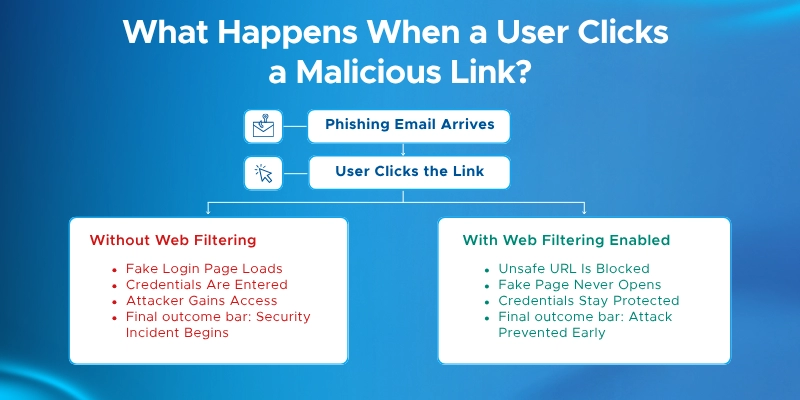
An employee gets an email. It looks like a Microsoft login page, so they click the link and enter their credentials.

The page was fake. Within minutes, an attacker has valid corporate credentials - and a door into your network. This is why phishing protection in Microsoft 365 needs to work alongside endpoint controls.

This kind of attack is common. It's also preventable. If the device had been blocked from reaching that URL, the attack never happens.

This guide shows you how to block unsafe websites on work devices using tools already built into Microsoft 365.

If you need help configuring and hardening these controls across your environment, explore our Microsoft 365 security services.
Why Blocking Unsafe Websites on Work Devices Matters

Most attacks start with a link - not a sophisticated exploit. Uncontrolled web access creates risk across security, productivity, and compliance.

Security threats your devices are exposed to without filtering:

  • Phishing pages designed to steal credentials
  • Malware distribution sites
  • Command-and-control domains attackers use to reach infected machines
  • Sites hosting illegal or unauthorized software

Productivity drains Microsoft's category system can block:

  • Social Networking, Games, and Streaming Media
  • Instant Messaging and Web-based Email
  • High-bandwidth sites that slow down your network

Compliance gaps that filtering closes:

  • Microsoft's Legal Liability category covers Criminal Activity, Hacking, Hate & Intolerance, and Weapons
  • Many regulated industries are legally required to block these
  • An enforced policy gives you an audit trail if compliance questions come up

Prerequisites and Licensing Requirements

The method you use depends on your Microsoft 365 plan. Here's what each plan already gives you - and what you may still need.

On Microsoft 365 Business Premium? You already have Defender for Business and Intune. You can use both Defender Web Content Filtering and Edge Web Content Filtering. No extra license needed.

On Microsoft 365 E3? Defender for Endpoint Plan 1 is included. That covers Defender Web Content Filtering. You won't have access to Defender for Cloud Apps unless you add the Microsoft Defender Suite add-on.

On Microsoft 365 E5? You already have Defender for Endpoint Plan 2 and Defender for Cloud Apps. All three methods in this guide are available to you.

On a standalone Defender for Endpoint Plan 1 or Plan 2? Plan 1 covers Defender Web Content Filtering. Plan 2 also gives you access to the Defender for Cloud Apps method.

Additional Requirements

Edge Web Content Filtering also needs:

  • Microsoft Edge version 135 or higher on the device
  • Microsoft Edge Administrator or Global Administrator role in the admin center

Device setup required across all methods:
  • Windows 10 (version 1607+), Windows 11, or Windows Server 2019+
  • Enrolled in Microsoft Intune and Azure AD joined (or Hybrid Azure AD joined)
  • Defender Antivirus in active mode with real-time protection, behavior monitoring, and cloud-based protection enabled
  • Network protection set to block mode
  • Access to security.microsoft.com with a Security Administrator role

Method 1 - Microsoft Defender for Endpoint Web Content Filtering

This is the most widely used method for enterprise web filtering. It works across all major browsers and applies to devices whether they're in the office or working remotely.

How It Works

Defender Web Content Filtering blocks websites by category - not just individual URLs. You pick a category to block, and every site in that category is blocked across all targeted devices.

For sites you don't block, access is still logged. That gives your security team visibility into what employees are visiting, even if nothing is restricted.

Two enforcement mechanisms run under the hood:

  • Microsoft Edge - blocked via Windows Defender SmartScreen
  • Chrome, Firefox, Brave, Opera - blocked via the Network Protection driver at the OS level

This matters because the block page looks different depending on the browser. More on that below.
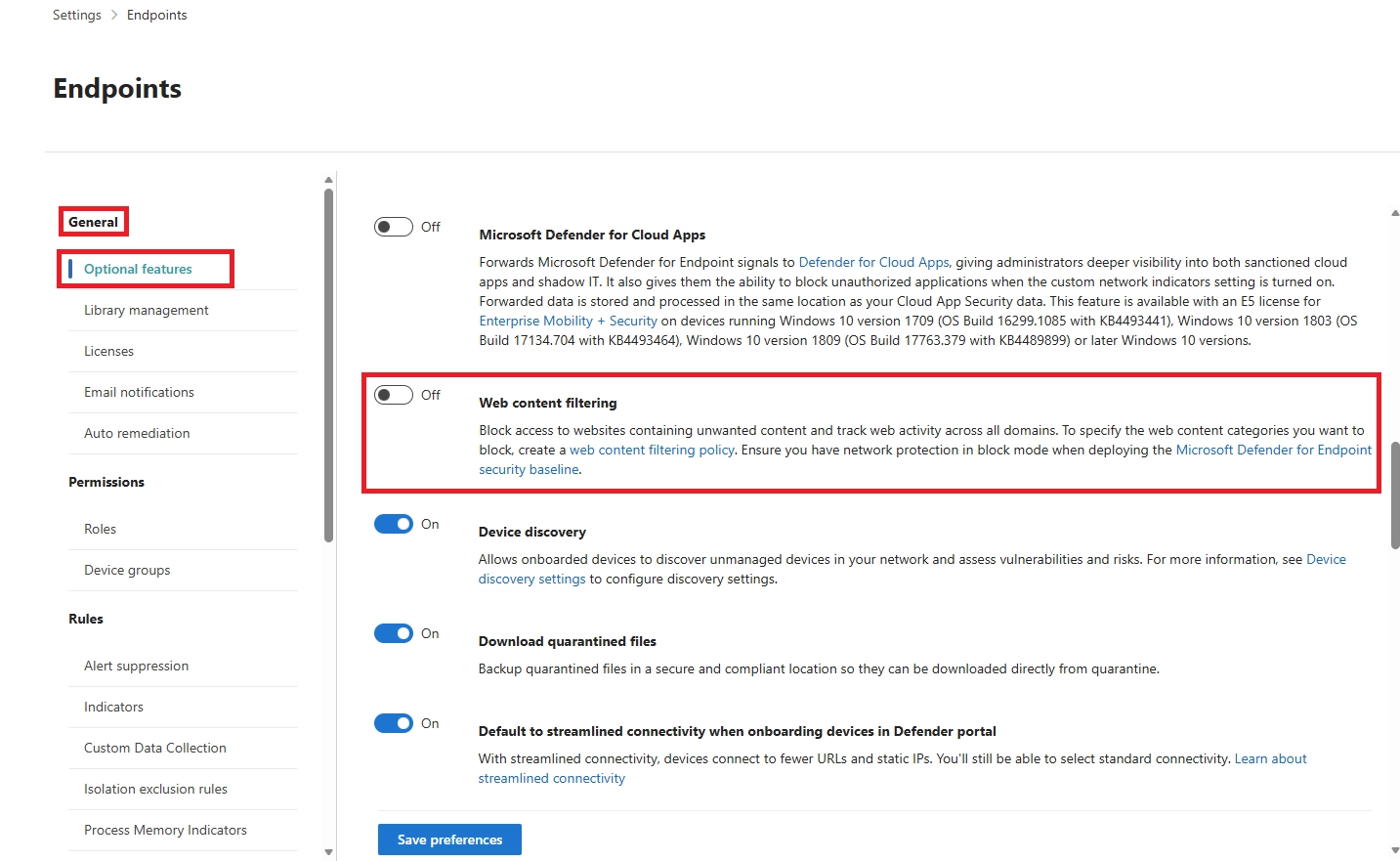
Step 1 - Enable Web Content Filtering

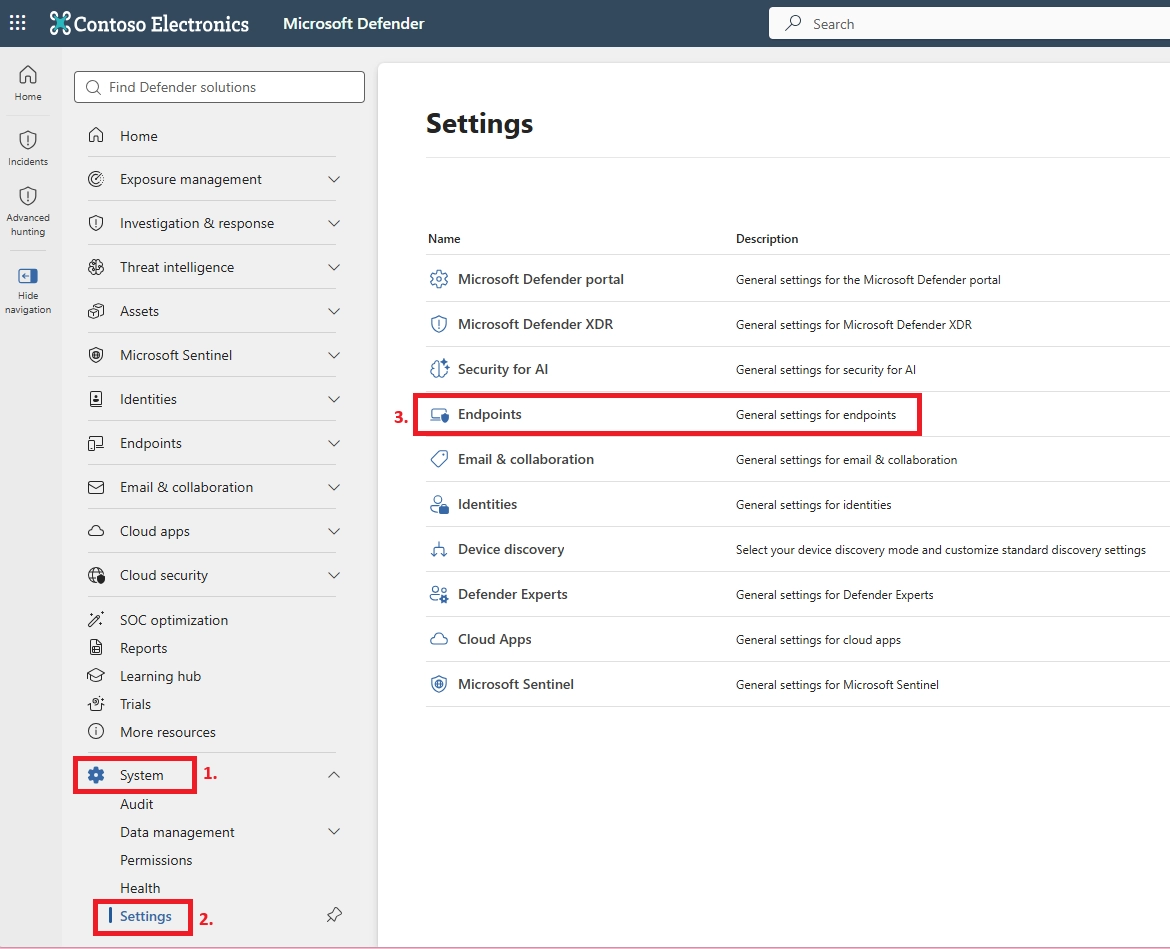
  1. Go to security.microsoft.com or you can also use the following link to directly open the endpoint section. (https://security.microsoft.com/securitysettings/endpoints)
  2. Navigate to System > Settings > Endpoints.
  1. Once the endpoint settings open up, go to the Optional Features under the General tab.
  2. Find the Web content filtering toggle and switch it On.
  1. Find Custom network indicators on the same page and switch that On too
  2. After turning on the toggle, click Save preferences.

Step 2 - Create an Intune Policy to Enable Network Protection

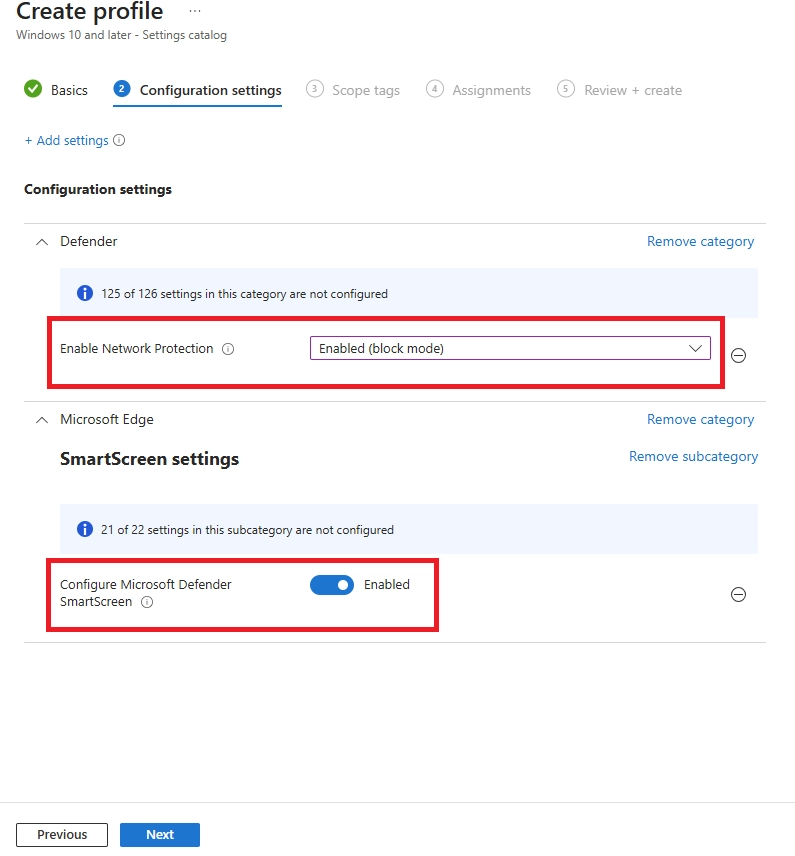
After enabling Web Content Filtering in Microsoft Defender, the next step is to configure Network Protection on managed devices. Network Protection extends Microsoft Defender's web protection capabilities beyond Microsoft Edge and helps enforce web content filtering across supported browsers such as Google Chrome and Mozilla Firefox.
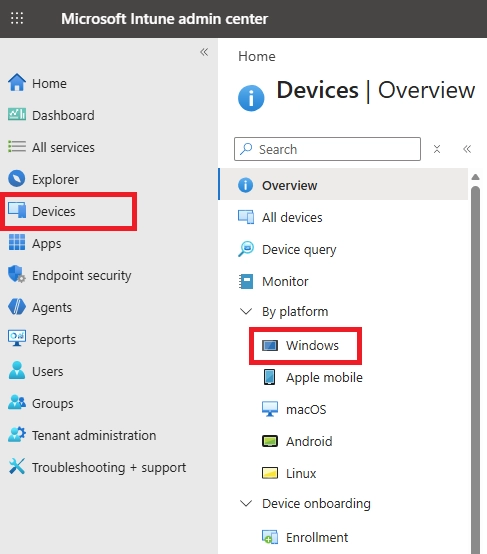
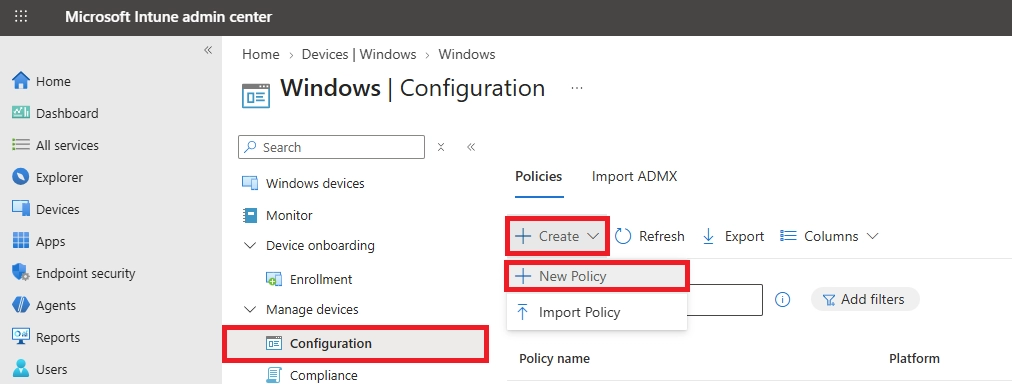
  1. Sign in to the Microsoft Intune Admin Center.
  2. Navigate to Devices > Windows.
  1. From the Windows Configuration Policies, click +Create > +New Policy
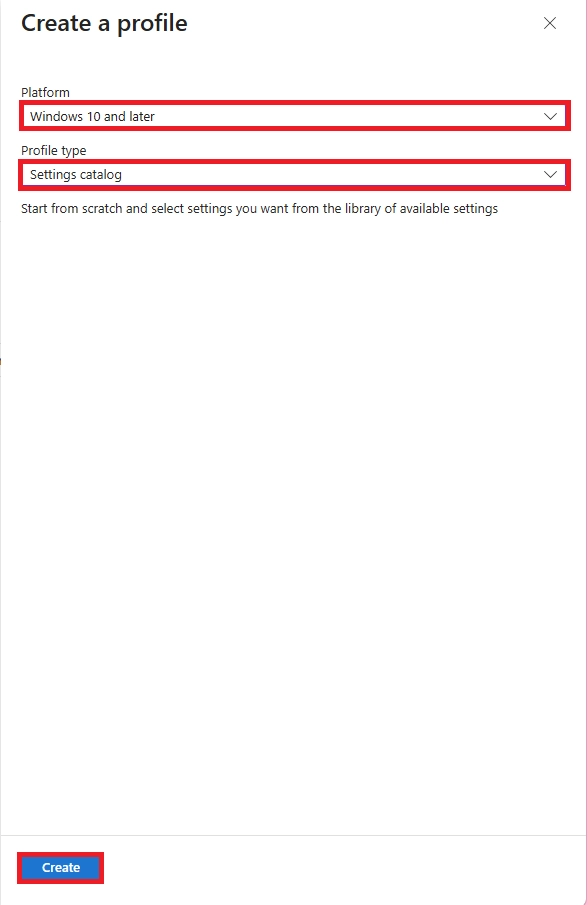
  1. Configure the following settings:
  • Platform: Windows 10 and later
  • Profile type: Settings catalog
  1. Click Create.
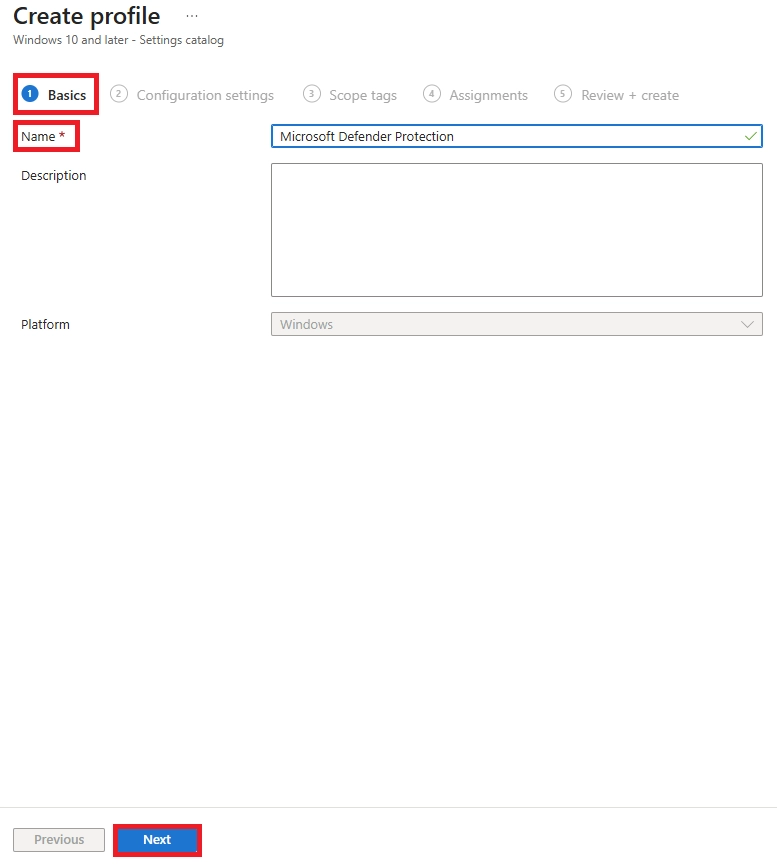
  2. Now, on the Profile Basics page, set a name (Enable Network Protection or Defender SmartScreen). Click Next.
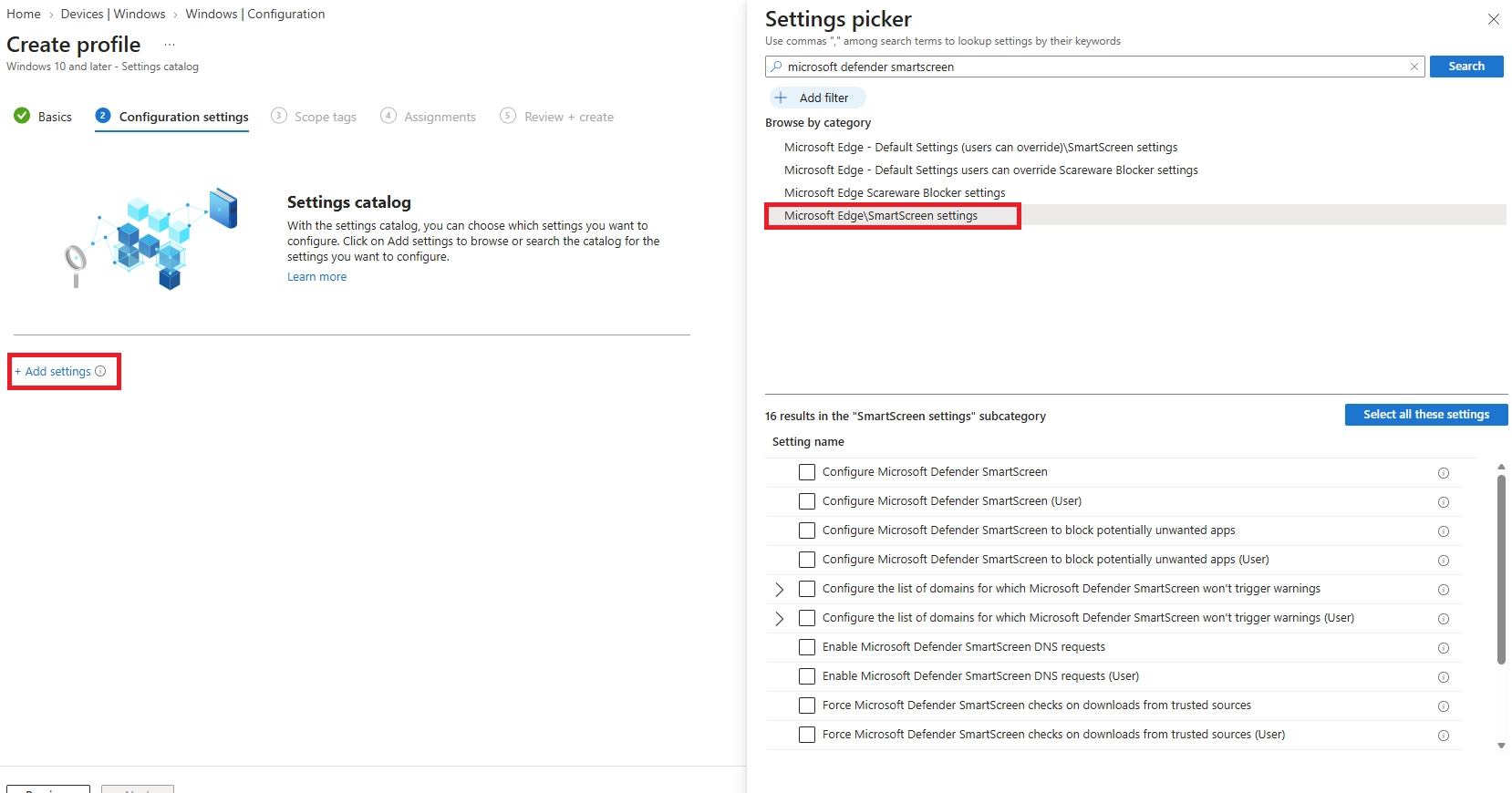
  1. Click Add settings.
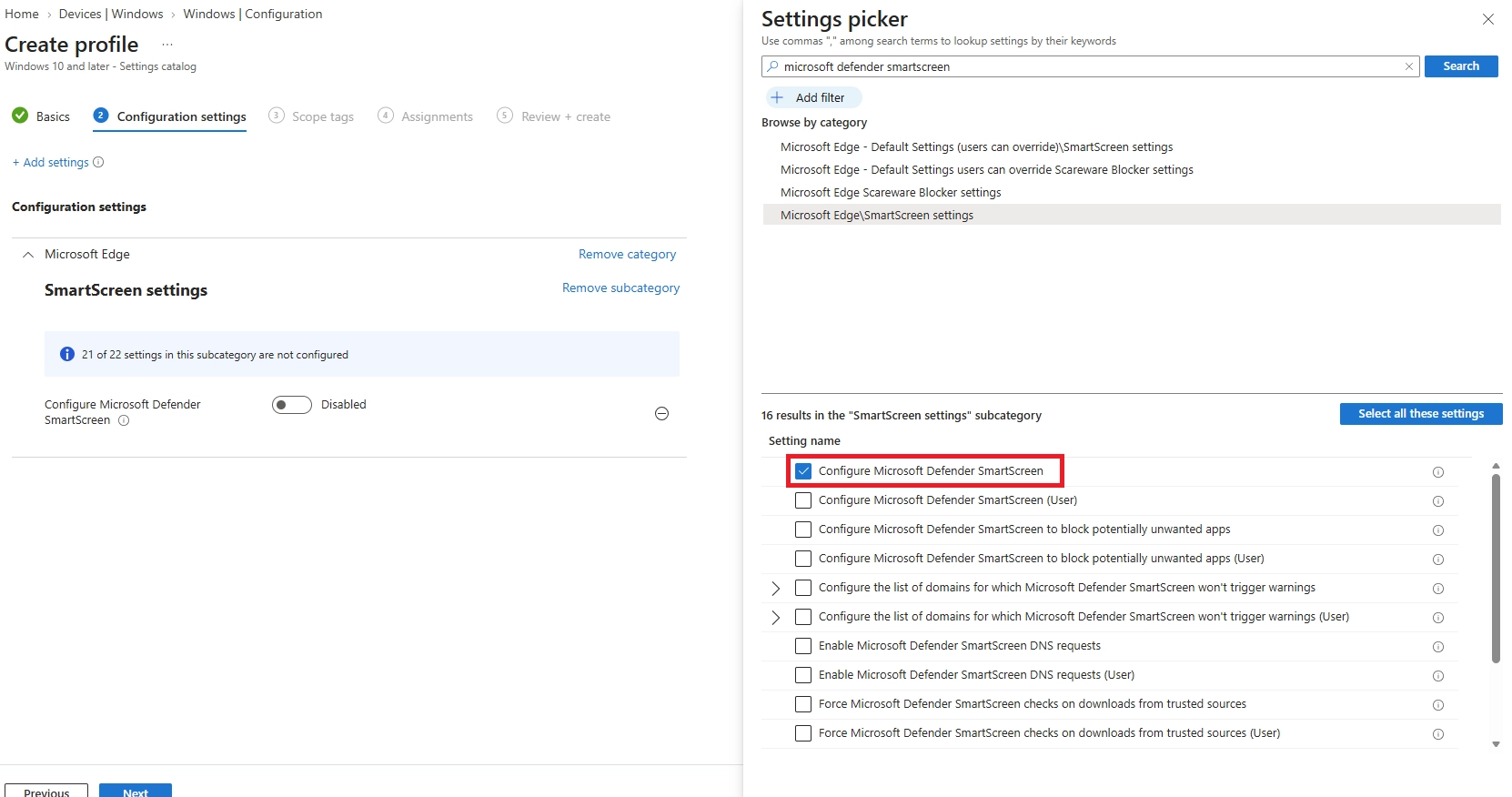
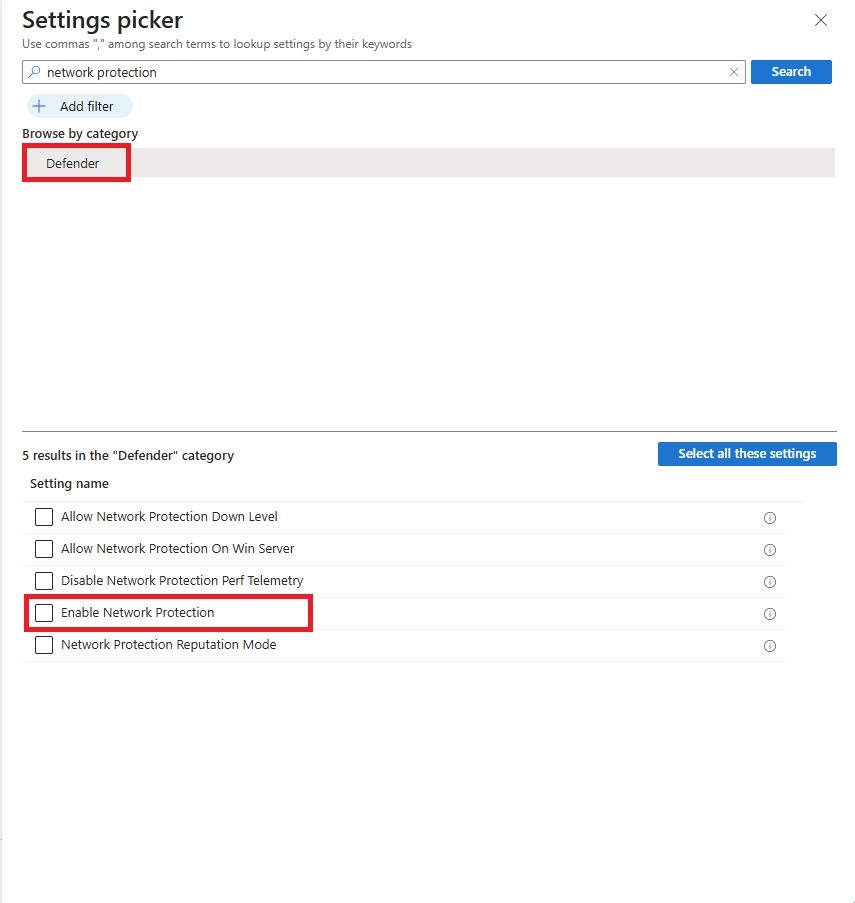
  1. In the settings picker, search for:
  • Microsoft Defender Antivirus/ Smart Screen
  • Network Protection
  1. Configure SmartScreen and Network Protection to Enable.

Step 3 - Create a Category-Based Web Content Filtering Policy

Once Network Protection has been enabled and deployed to managed devices, the next step is to create a Web Content Filtering Policy. This policy allows administrators to block access to specific categories of websites, helping protect users from unsafe, inappropriate, or non-business-related content. Web Content Filtering in Microsoft Defender enables organizations to control website access based on predefined content categories and apply those controls to selected device groups.
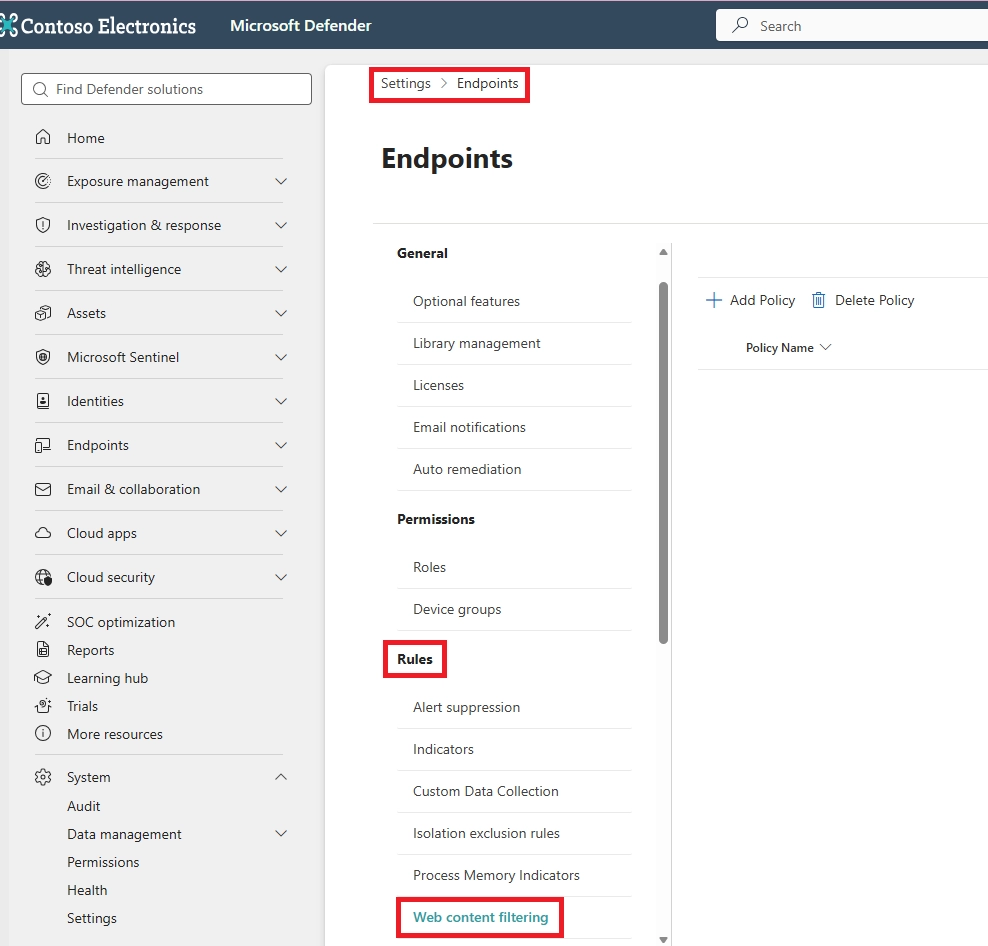
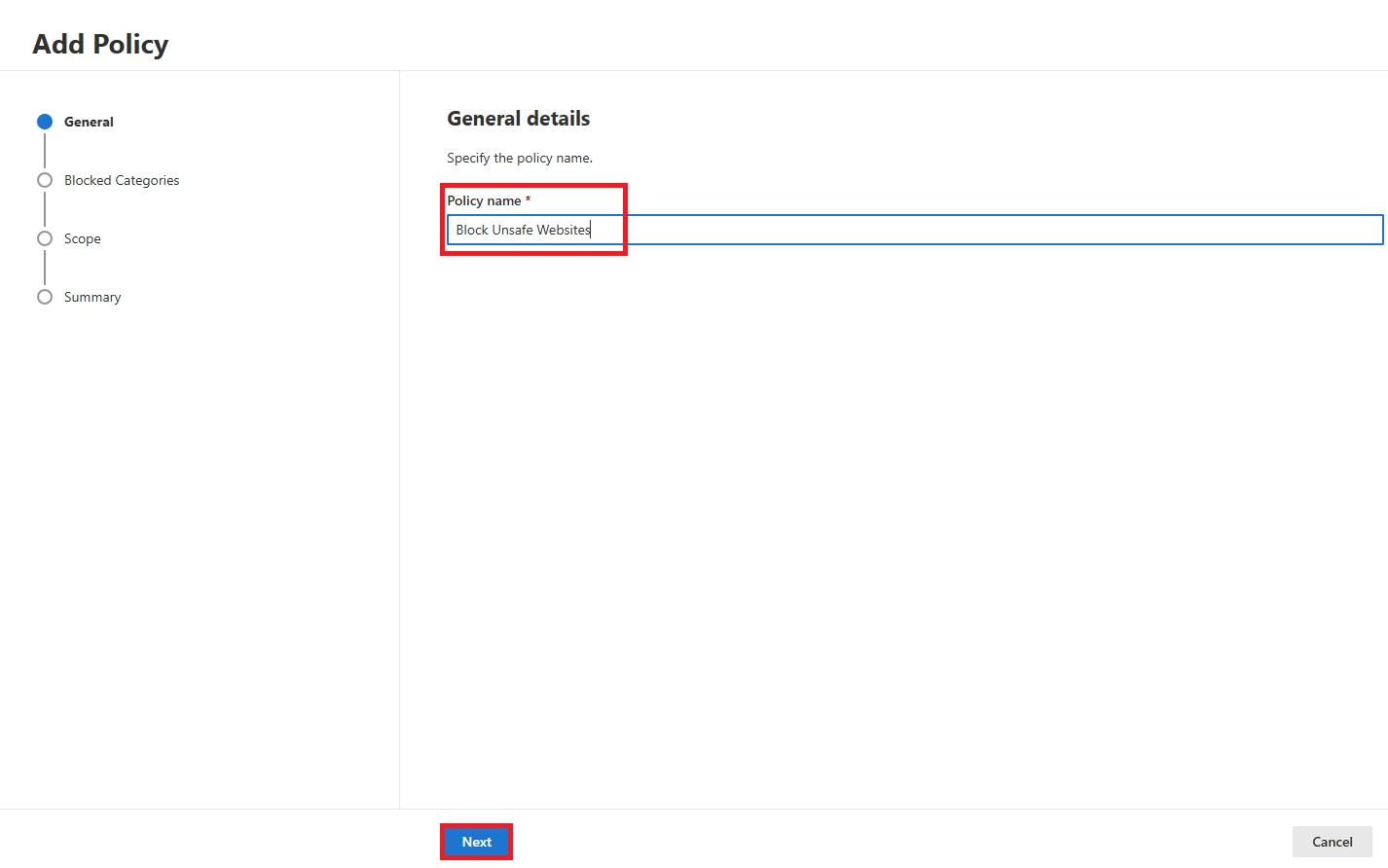
  1. Sign in to the Microsoft Defender portal.
  2. Go to Settings > Endpoints > Rules > Web content filtering
  1. Click + Add policy. On the General page, enter a policy name:
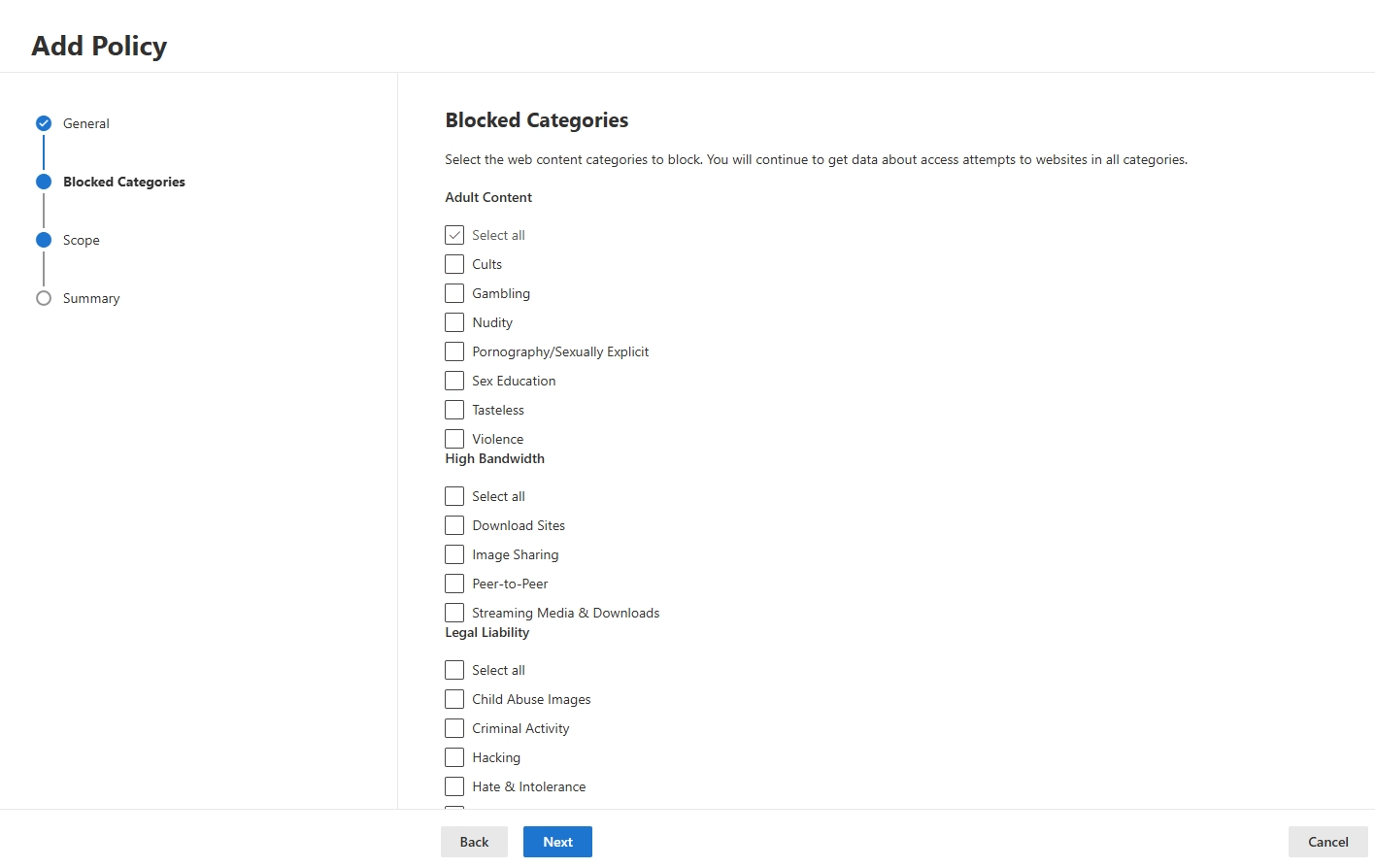
  1. On the Blocked Categories page, choose the categories you would like to restrict. Select the required categories based on your organization's security and compliance requirements, then click Next.
  1. On the Scope page, select the device groups that should receive the policy. For organization-wide protection, select ‘All Machines’.
  2. Click Next. Review the configurations in the summary and then hit Confirm.

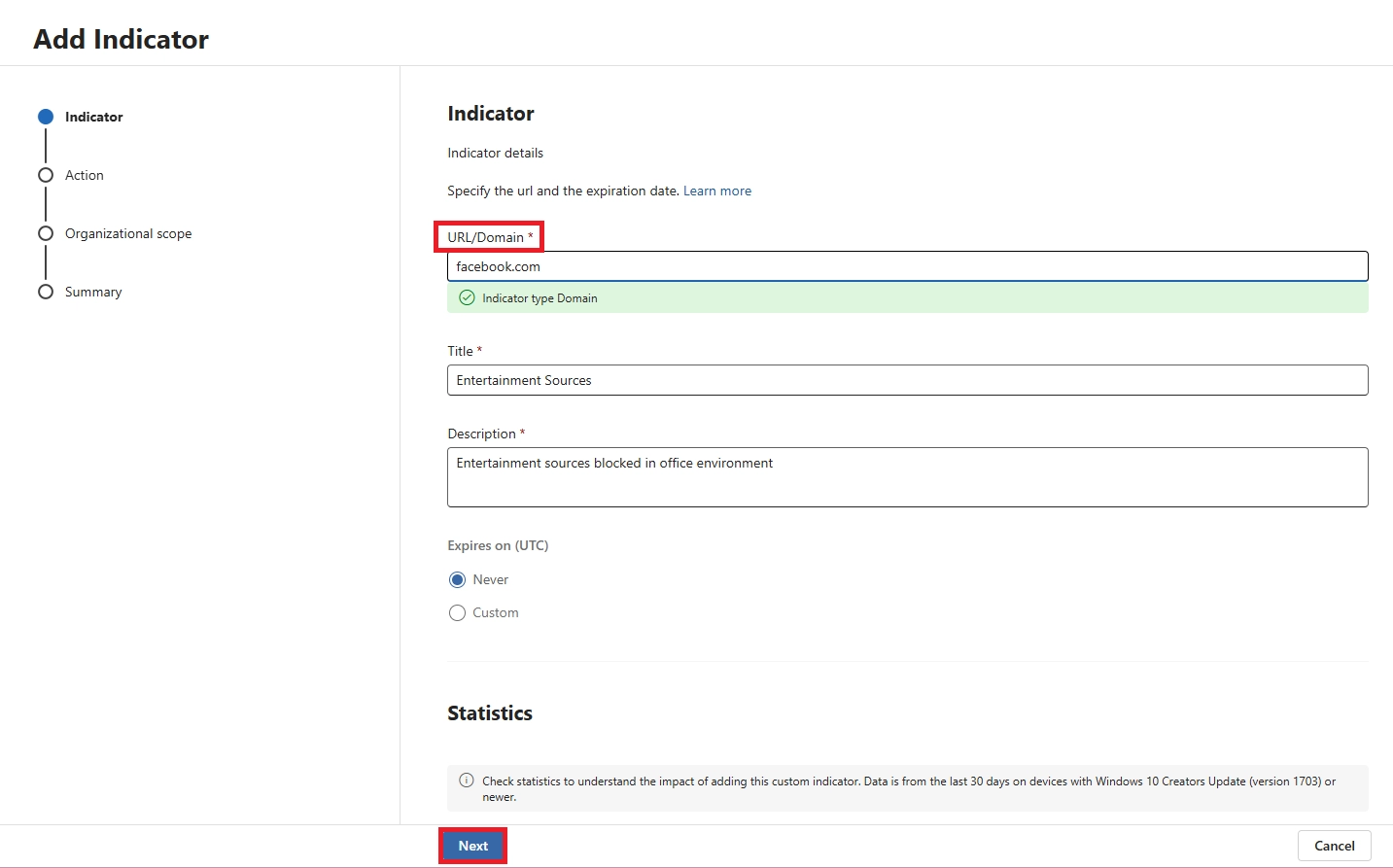
Step 4 - Add Custom URL/Domain Indicators

Category policies block broadly. Indicators let you get specific - block a single URL within an allowed category, or allow a single site within a blocked one.

Example: Block chatgpt.com specifically, or allow facebook.com while keeping Social Networking blocked for everything else.

Steps:
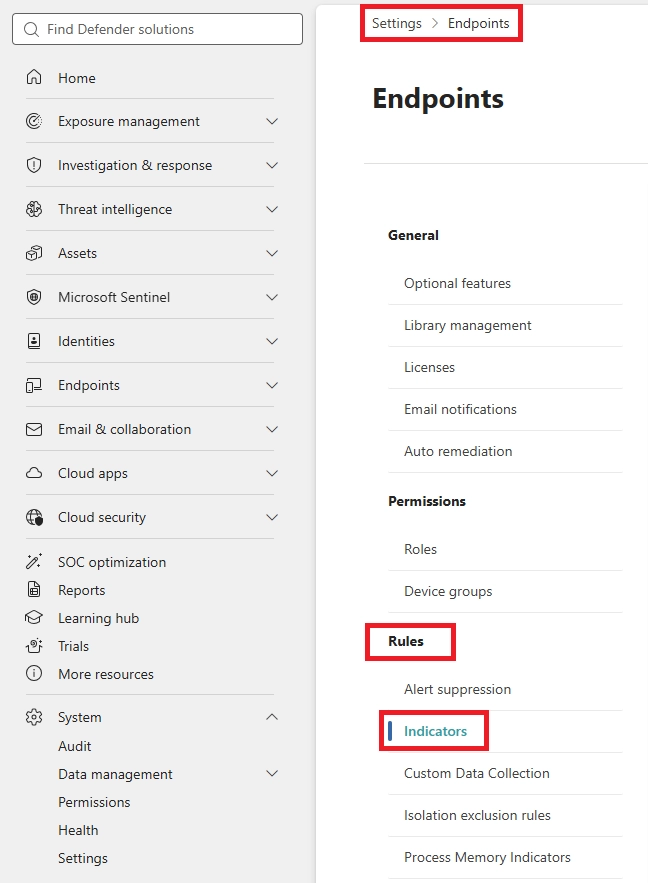
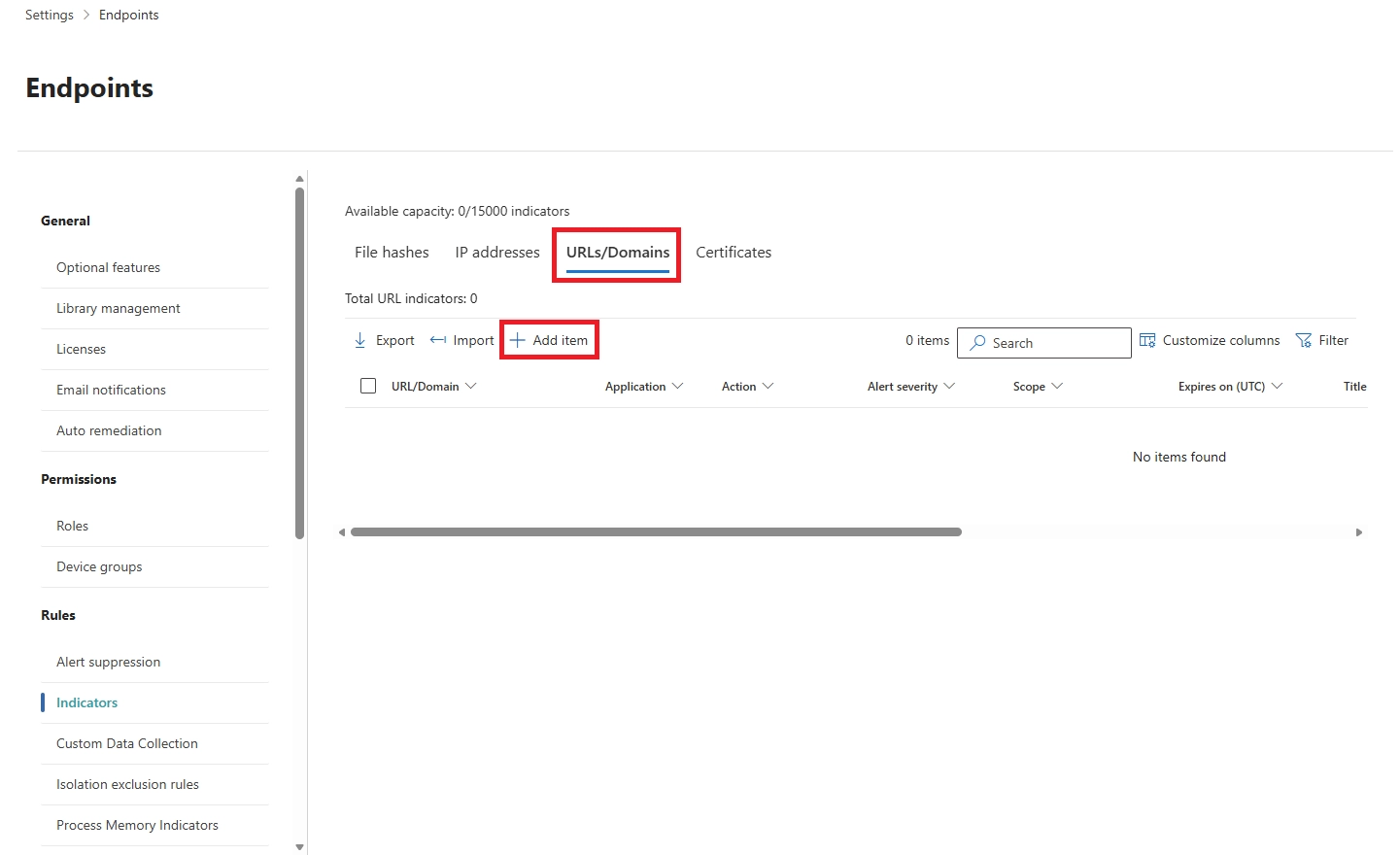
  1. Go to System > Settings > Endpoints.
  2. In the Endpoints section, go to the Rules section and then choose Indicators.
  1. Go to URLs/ Domains section and then click + Add item
  1. Enter the domain (e.g., cloudinfra.net) or specific URL (e.g., https://cloudinfra.net)
  2. Add a title and description - include a ticket number if you use one for tracking
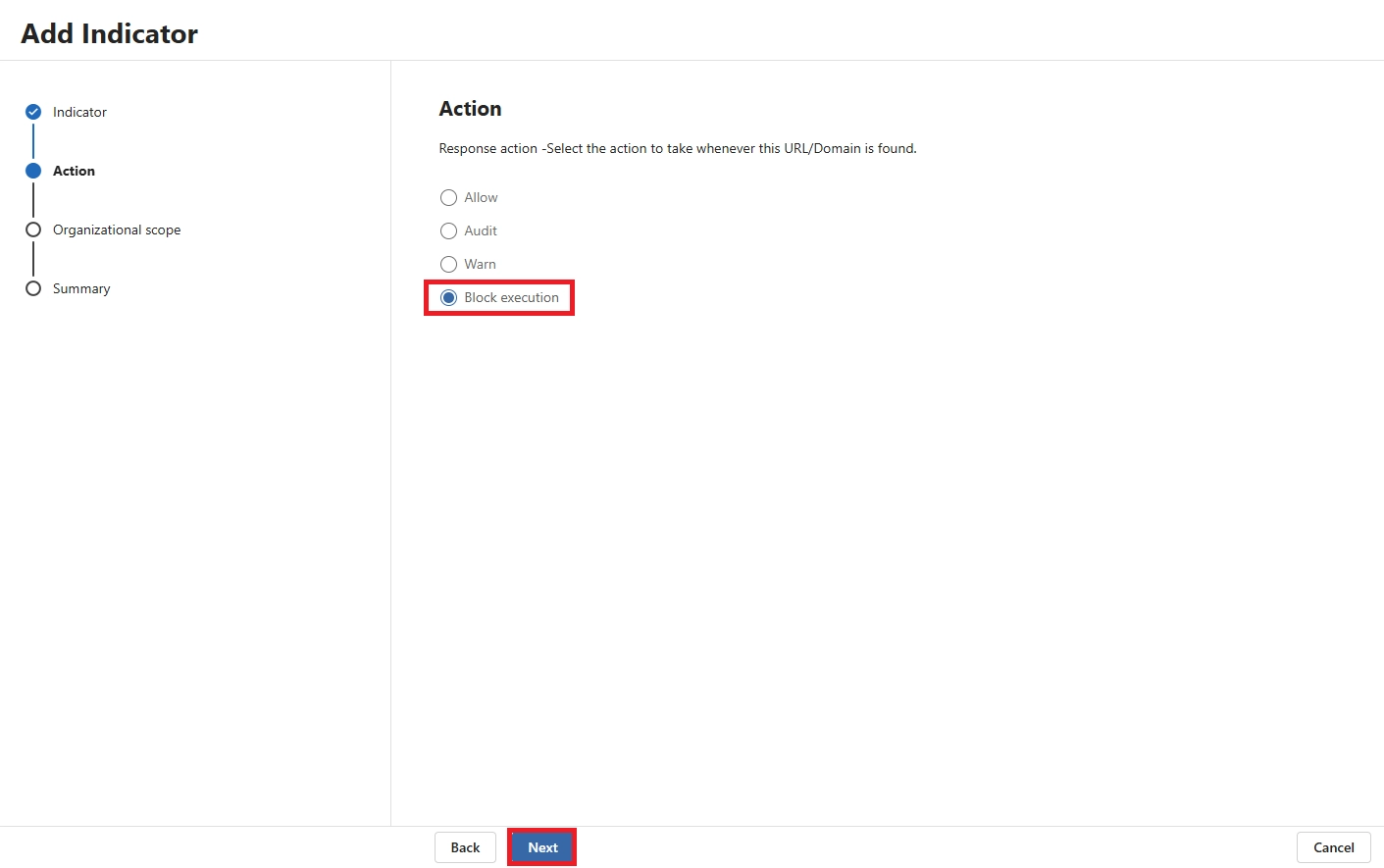
  1. Choose an action:
    • Allow - whitelist the site
    • Audit - log access only, no block
    • Warn - show a warning, let the user bypass if needed
    • Block - hard block, no bypass
  1. Set scope - all devices or specific device groups
  2. Review and submit

What Users See When a Site Is Blocked

The experience depends on the browser:

  • Microsoft Edge - shows a clear in-browser block page: "This content is blocked. For your protection, your organization is not allowing access to this resource."
  • Chrome, Firefox, and others - shows a network-level error like ERR_SSL_VERSION_OR_CIPHER_MISMATCH. This is expected. Network Protection blocks the connection at the OS level, not inside the browser.

When a site is whitelisted, users browse it normally. Every other site in the blocked category stays blocked.

Method 2 - Blocking Websites via Microsoft Intune

Intune gives you two things: a way to deploy Network Protection (required for non-Edge browsers) and direct URL-level controls for Edge, Chrome, and Firefox.

Need help implementing Intune across your organization? Explore our Microsoft Intune Management Setup service.

Block URLs in Edge and Chrome via Intune Settings Catalog

No extra prerequisites needed here. Intune's Settings Catalog already includes URL blocking options for both Edge and Chrome.

Steps:
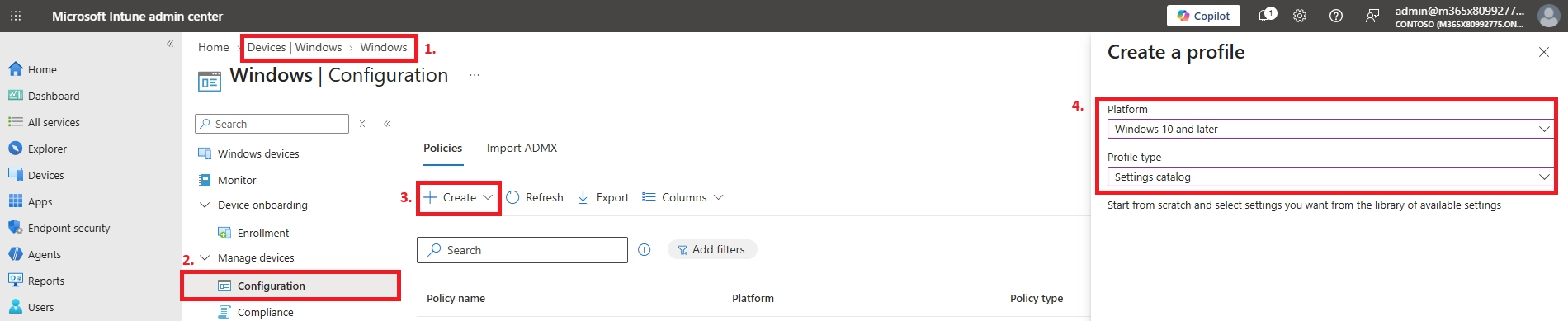
  1. Go to Devices > Windows > Configuration profiles
  2. Create a new profile from + Create with Platform: Windows 10 and later & Profile type: Settings catalog
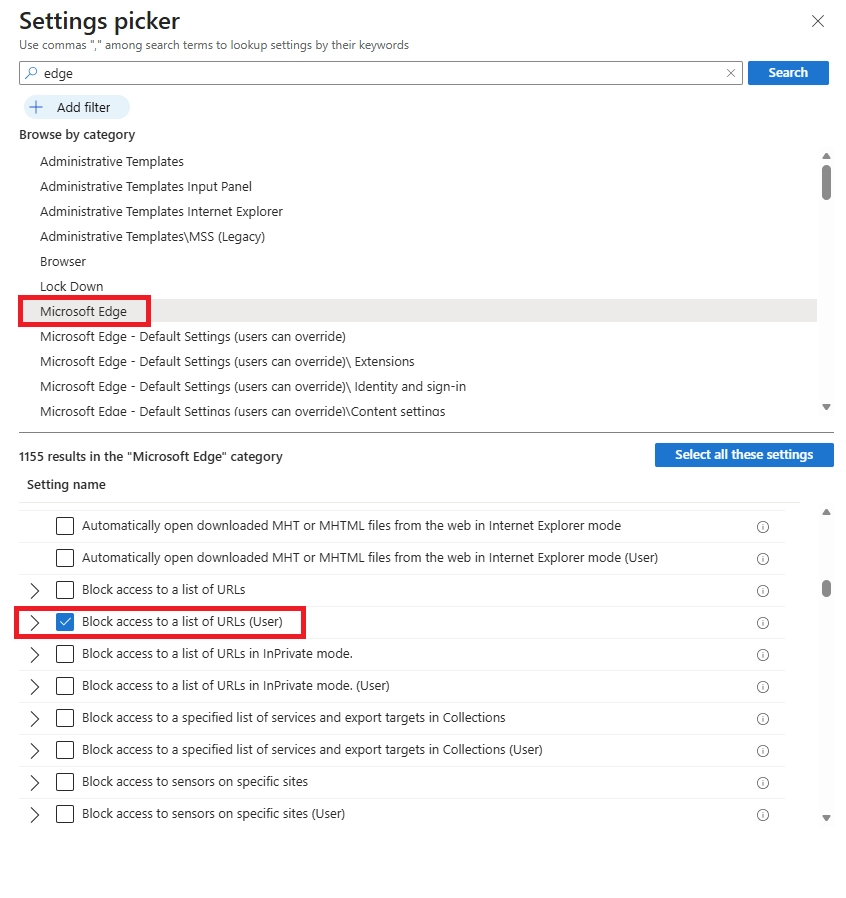
  1. Click + Add settings.
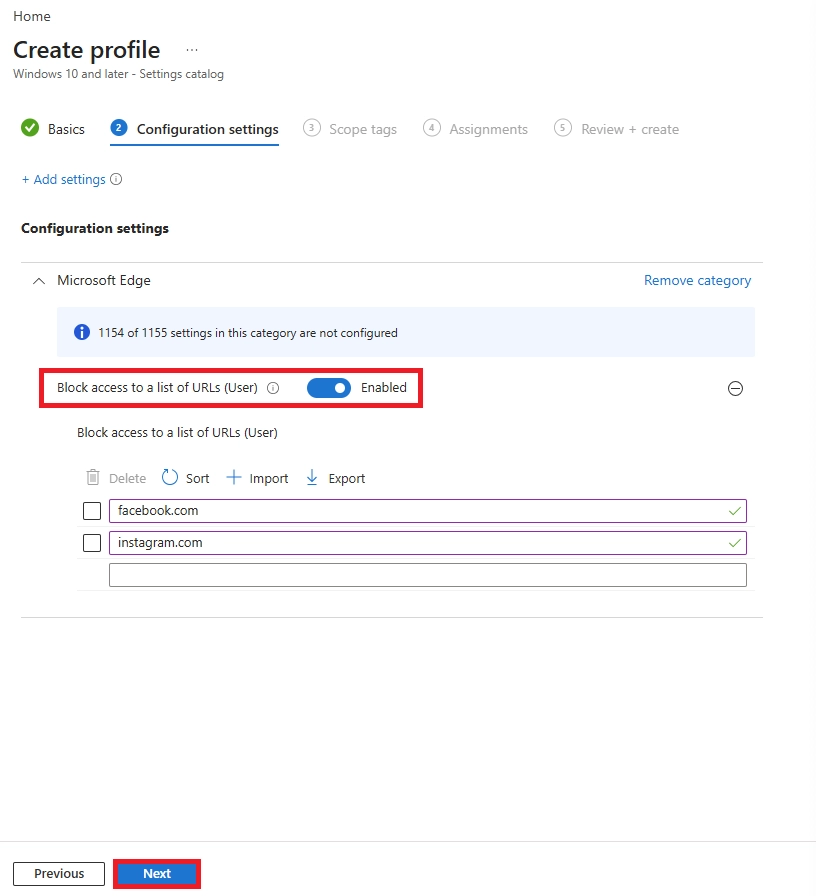
  2. Select the settings for Microsoft Edge and/or Google Chrome
  1. Add the URLs you want to block and click Next.
  1. Assign the policy to the relevant device or user group.
  2. Review the setting once and then click Confirm to proceed.

One thing to note: these restrictions apply even in private or incognito browsing mode.

Intune vs. Defender - When to Use Which

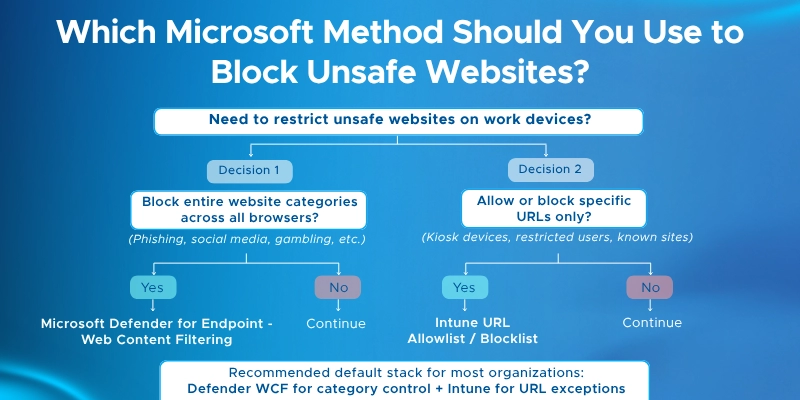
Both methods can run at the same time, but they serve different purposes.

Use Defender WCF when:

  • You want broad category-based blocking across all browsers
  • You need built-in reporting and audit logs
  • Security-driven filtering is the goal

Use Intune browser policies when:

  • You have a specific list of URLs to block or allow
  • You're setting up a kiosk or restricted-access device
  • Defender for Endpoint isn't fully deployed yet

If you run both, a URL might get blocked by either one. Pick a primary method or clearly separate what each policy is responsible for - otherwise you'll end up with conflicting block messages and harder-to-debug policies.
Best Practices for Web Filtering Management

Layer Your Defenses

  • Use Defender WCF for category-based blocking across all managed endpoints
  • Add Intune browser policies for URL-level precision on top
  • Use Defender for Cloud Apps to extend coverage to cloud apps, even off-network

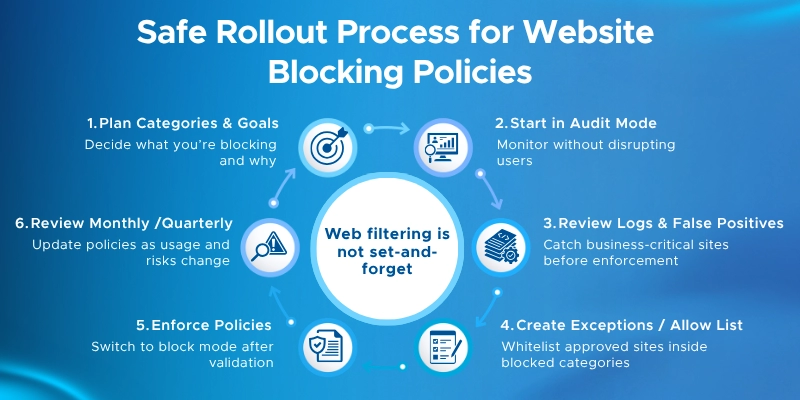
Start in Audit Mode

  • Never enforce new blocks on day one - run audit mode for a week first
  • Defender WCF logs access to unblocked categories without restricting anything
  • Review logs, catch false positives, then switch to enforcement

Plan for Exceptions

  • Keep an allow list for business-critical sites inside blocked categories
  • Allow indicators in Defender override category blocks for specific URLs
  • Set up a helpdesk process so employees know how to request a site unblock
  • Audit the allow list quarterly - it grows fast without a review process

Prevent Circumvention

  • Block the Illegal Software category - that's where proxy bypass sites are classified
  • Enable Edge WCF - it automatically blocks other browsers on the device
  • Remove local admin rights so users can't disable Defender or Intune agents

Communicate Before You Deploy

  • Update your acceptable use policy before rolling out any blocks
  • Tell employees what's blocked, why, and how to request exceptions
  • Warn Chrome and Firefox users in advance - they'll see a generic SSL error, not a clear block page
  • Without a heads-up, expect a spike in "the internet is broken" helpdesk tickets

Review Reports Regularly

  • Check Reports > Web Protection weekly or monthly for top blocked domains and trends
  • Use Advanced Hunting for deeper investigation into specific events

Need a broader view of your Microsoft 365 security posture? A Microsoft 365 Security Assessment can help identify configuration gaps across Defender, Intune, Conditional Access, device compliance, and other security controls.

Conclusion and Next Steps

Blocking unsafe websites on work devices doesn't require a third-party tool. The controls are already built into Microsoft 365 - they just need to be configured correctly.

Key takeaways:

  • Get licensing and prerequisites right first - cloud-managed devices, Defender components enabled, Network Protection in block mode
  • Use Defender WCF for broad category-based coverage across all managed endpoints
  • Use Intune URLBlocklist/URLAllowlist for precise URL control or whitelist-only scenarios
  • Use Defender for Cloud Apps when you need app-level governance with automatic indicator creation
  • Treat web filtering as a living control - review reports, adjust policies, and audit your allow list regularly
  • Communicate changes to employees before you enforce them

Where to go next:

  • Set up Safe Links in Defender for Office 365 to extend URL protection to email
  • Explore Defender for Cloud Apps for unsanctioned app discovery across your environment
  • Configure Conditional Access policies tied to device compliance to add another enforcement layer
  • Schedule a regular policy review - quarterly works for most organizations

Troubleshooting and FAQ

  1. What is web content filtering in Microsoft Defender?

Web content filtering is a feature in Microsoft Defender for Endpoint that lets IT admins block or audit websites by category - things like Social Networking, Gambling, or Illegal Software. Instead of blocking URLs one by one, you block entire categories across all managed devices. It works on Edge via SmartScreen and on Chrome, Firefox, and other browsers via Network Protection.

  1. How do I block unsafe website categories on work devices?

Use Defender for Endpoint's Web Content Filtering. Go to Settings > Endpoints > Rules > Web content filtering, create a policy, select the categories to block, and assign it to your device groups. Categories include Adult Content, Legal Liability, High Bandwidth, and Leisure. For specific URLs on top of that, add custom indicators under Settings > Endpoints > Indicators > URLs/Domains.

  1. How do I block specific URLs or domains?

Go to Settings > Endpoints > Indicators > URLs/Domains in the Defender portal. Click + Add item, enter the domain or full URL, choose the action (Block, Warn, Audit, or Allow), and assign it to device groups. For Intune, use the Settings Catalog to configure URLBlocklist for Edge and Chrome, or import Firefox ADMX templates for Firefox.

  1. How to block websites on a work computer?

There are three main methods depending on your license:

  • Defender WCF - category-based blocking across all browsers on managed Windows devices
  • Intune browser policies - URL-level blocking for Edge, Chrome, and Firefox
  • Defender for Cloud Apps - app-level blocking for cloud services like Dropbox, TikTok, or ChatGPT

Start with Defender WCF for broad coverage, then layer Intune policies for specific URLs.

  1. How do I block malicious websites?

Enable Web Content Filtering in Defender for Endpoint and block the Legal Liability category - this covers Criminal Activity, Hacking, and Malicious Software. Also enable Network Protection in block mode to stop connections to command-and-control domains and phishing pages at the OS level. For known malicious domains, add them as custom Block indicators for immediate enforcement.

  1. How do I block certain websites from employees?

Use Defender WCF to block entire categories (e.g., Social Networking, Streaming, Gambling) across all managed devices. For specific sites, add custom Block indicators in Defender or configure URLBlocklist in Intune. To block everything except an approved list, set URLBlocklist to * in Intune and add approved domains to URLAllowlist.

  1. Can I block a website on all devices?

Yes. In Defender for Endpoint, set the scope of your WCF policy or indicator to All devices in my organization. For Intune browser policies, assign the configuration profile to All Devices. For this to work, all devices must be enrolled in Intune and onboarded to Defender for Endpoint.

  1. How to make website blocking work in Chrome, Edge, and Firefox?
  • Edge - blocking works automatically via Windows Defender SmartScreen
  • Chrome and Firefox - blocking requires Network Protection enabled in block mode; without it, category blocks and indicators won't apply to these browsers
  • Firefox - also requires importing Mozilla ADMX templates into Intune if you want URL-level policies

Verify policies are applied by visiting edge://policy, chrome://policy, or about:policies on the device.

  1. Web content filtering is not blocking websites in Microsoft Defender. What do I check?
  • Confirm the device is onboarded to Defender for Endpoint and in the correct device group
  • Check that Network Protection is in block mode, not audit mode - audit mode logs without blocking
  • Check for an Allow indicator overriding the block - allow rules take precedence over category blocks and block indicators
  • Verify the WCF policy is assigned to the correct device group
  • For Intune policies, open edge://policy or chrome://policy and confirm your URLBlocklist entry is listed

  1. Users can still access blocked websites on work devices. Why?
  • Network Protection may be in audit mode or disabled entirely
  • An Allow indicator may be overriding the block for that URL
  • The device may not be assigned to the correct device group
  • The policy may not have propagated yet - custom indicators can take up to 2 hours, Intune policies apply at the next device check-in
  • Force a device sync from the Intune admin center and recheck after 15 minutes

  1. Chrome websites are not being blocked by Defender web filtering. Why?

Chrome blocking relies on Network Protection, not SmartScreen. If Network Protection is not enabled in block mode, Defender WCF will not block anything in Chrome. Go to Endpoint Security > Antivirus in Intune, enable Network Protection, and set it to Enable (not Audit). Then verify on the device by opening chrome://policy and checking for your block settings.

  1. A blocked site is not showing in web protection reports. What's wrong?
  • Confirm the device is onboarded and reporting to the Defender portal
  • Check that the WCF policy is assigned and applied to the device
  • Allow up to 24 hours for report data to appear - the portal doesn't always update in real time
  • Use Advanced Hunting to query DeviceEvents for web protection events if the standard report is delayed

  1. How do I whitelist a blocked website in Microsoft Defender?

Go to Settings > Endpoints > Indicators > URLs/Domains and create an Allow indicator for that URL or domain. Allow indicators override both category blocks and other block indicators for that specific address. In Edge WCF, add the site to the Allowed Sites list in the admin center. The override applies only to the exact URL or domain you specify - the rest of the blocked category stays blocked.

  1. A website is incorrectly categorized in Defender web filtering. What can I do?

You can't change Microsoft's category database directly. Instead, create an Allow indicator for the incorrectly categorized URL to override the block. To report a miscategorization to Microsoft, submit feedback through the Defender portal. In the meantime, document the exception and add it to your allow list with a note so your team knows why it's there.

  1. Can I import block lists in bulk instead of adding URLs one by one?
  • Edge WCF - yes, import URLs via a .csv or .json file using the Import option; bulk export is also supported
  • Defender for Endpoint indicators - the portal adds items one at a time; for large-scale deployments use the Defender API for bulk operations

  1. Will blocking websites affect Microsoft 365 apps like Teams or Outlook?

It can, if you accidentally block a domain that Microsoft services depend on. Before deploying broad category blocks, cross-reference your block list against Microsoft's published list of required URLs and IP ranges for Microsoft 365. Add any overlapping domains to your allow list first.

  1. Can I block websites only during work hours?

Not natively within Defender WCF or Intune URL policies - neither supports time-based rules. For time-restricted access, you need a network-level solution like a proxy or firewall with scheduling support, used alongside your endpoint controls.

  1. What about mobile devices - iOS and Android?

Category-based WCF isn't available on mobile yet. Edge WCF only supports Windows 10 or later. For mobile, use Intune device configuration profiles - Block App Bundle IDs for iOS and Managed Google Play restrictions for Android - to control which apps employees can install.

Jasjit Chopra
Jasjit Chopra

CEO at Penthara Technologies

About the Author

Microsoft MVP LogoLinked-in

Jasjit Chopra is the CEO of Penthara Technologies and a Microsoft Most Valuable Professional (MVP) with over two decades of hands-on experience in Microsoft 365, SharePoint, and Security. He has led 100+ digital transformation projects across six countries, securing 50,000+ users, migrating 250+ TB of data, and automating processes that save organizations thousands of hours each year. A recognized leader at the crossroads of AI, security, and workplace modernization, Jasjit is passionate about simplifying complexity, mentoring technology professionals, and helping businesses build secure, intelligent, and future-ready digital environments.

Leave a Reply

Your email address will not be published. Required fields are marked *

More From This Category

Your Microsoft 365 Tenant Has a Silent Data Leak. It Requires No Malware.

Your Microsoft 365 tenant can leak data silently - no malware, no alerts. Learn how simple misconfigurations enable ongoing email and data exfiltration.

Read More
Security Alerts That Nobody Investigates - And Why That’s More Dangerous Than Having None

Security alerts mean nothing if no one investigates them. Ignored alerts create false confidence - and give attackers the time they need to cause real damage.

Read More
The Silent M365 Risk Most CXOs Discover Too Late: External Access That Never Expired

A hidden Microsoft 365 risk many CXOs overlook - expired external access that quietly breaks Zero Trust and exposes organizations to serious security gaps.

Read More
1 2 3 15
chevron-right