CMMC compliance on Microsoft 365 starts with the right environment. See what NIST 800-171 Level 2 requires and how to configure your tenant for assessment.


An employee gets an email. It looks like a Microsoft login page, so they click the link and enter their credentials.
The page was fake. Within minutes, an attacker has valid corporate credentials - and a door into your network. This is why phishing protection in Microsoft 365 needs to work alongside endpoint controls.
This kind of attack is common. It's also preventable. If the device had been blocked from reaching that URL, the attack never happens.
This guide shows you how to block unsafe websites on work devices using tools already built into Microsoft 365.
If you need help configuring and hardening these controls across your environment, explore our Microsoft 365 security services.
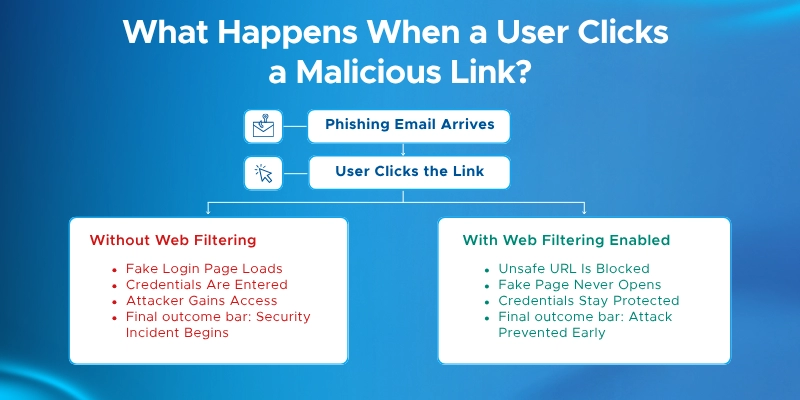
Most attacks start with a link - not a sophisticated exploit. Uncontrolled web access creates risk across security, productivity, and compliance.
Security threats your devices are exposed to without filtering:
Productivity drains Microsoft's category system can block:
Compliance gaps that filtering closes:
The method you use depends on your Microsoft 365 plan. Here's what each plan already gives you - and what you may still need.
On Microsoft 365 Business Premium? You already have Defender for Business and Intune. You can use both Defender Web Content Filtering and Edge Web Content Filtering. No extra license needed.
On Microsoft 365 E3? Defender for Endpoint Plan 1 is included. That covers Defender Web Content Filtering. You won't have access to Defender for Cloud Apps unless you add the Microsoft Defender Suite add-on.
On Microsoft 365 E5? You already have Defender for Endpoint Plan 2 and Defender for Cloud Apps. All three methods in this guide are available to you.
On a standalone Defender for Endpoint Plan 1 or Plan 2? Plan 1 covers Defender Web Content Filtering. Plan 2 also gives you access to the Defender for Cloud Apps method.
Additional Requirements
Edge Web Content Filtering also needs:
Device setup required across all methods:
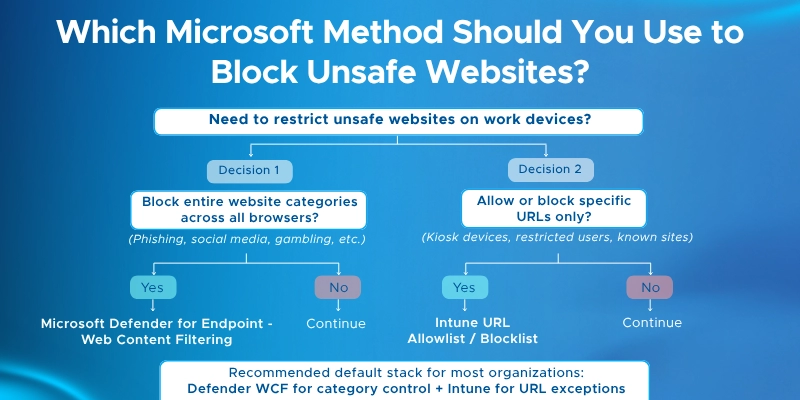
This is the most widely used method for enterprise web filtering. It works across all major browsers and applies to devices whether they're in the office or working remotely.
Defender Web Content Filtering blocks websites by category - not just individual URLs. You pick a category to block, and every site in that category is blocked across all targeted devices.
For sites you don't block, access is still logged. That gives your security team visibility into what employees are visiting, even if nothing is restricted.
Two enforcement mechanisms run under the hood:
This matters because the block page looks different depending on the browser. More on that below.
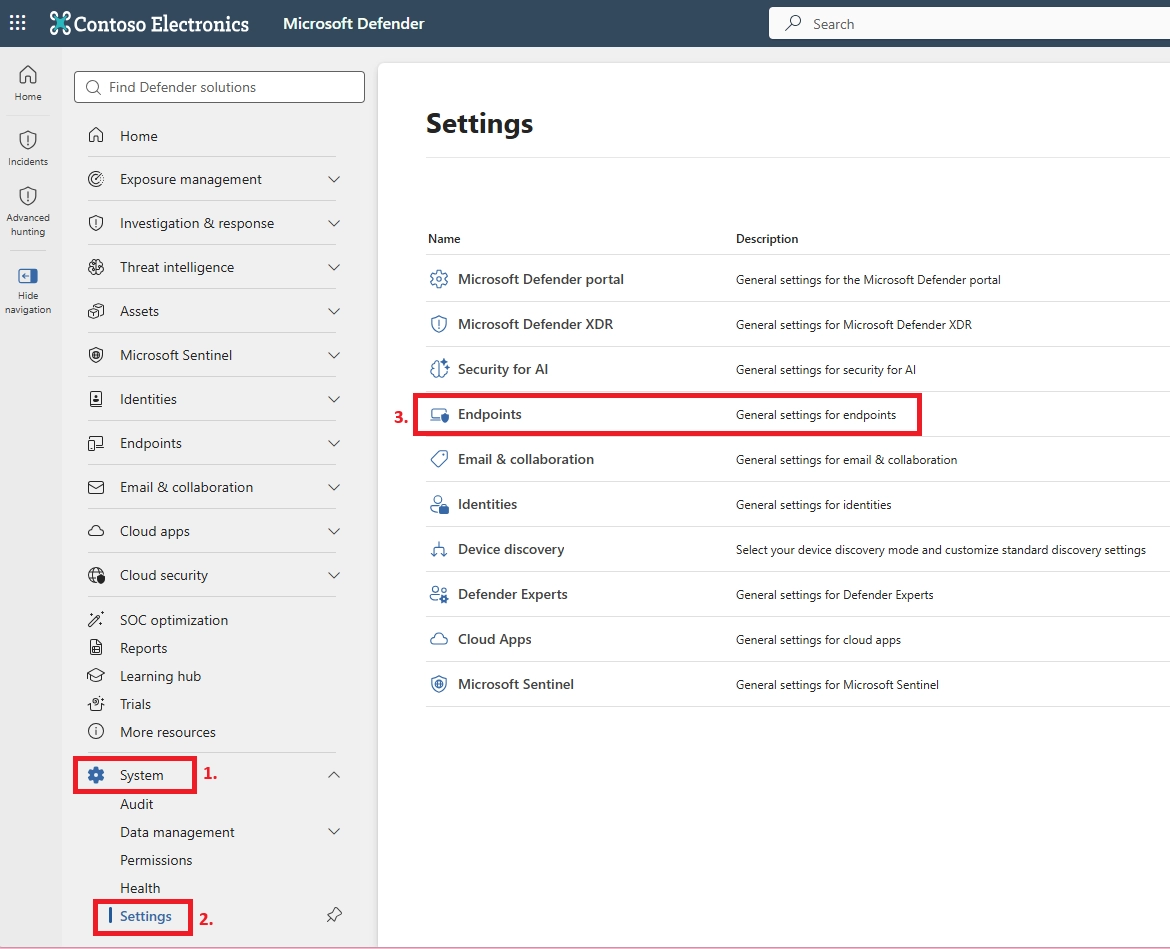
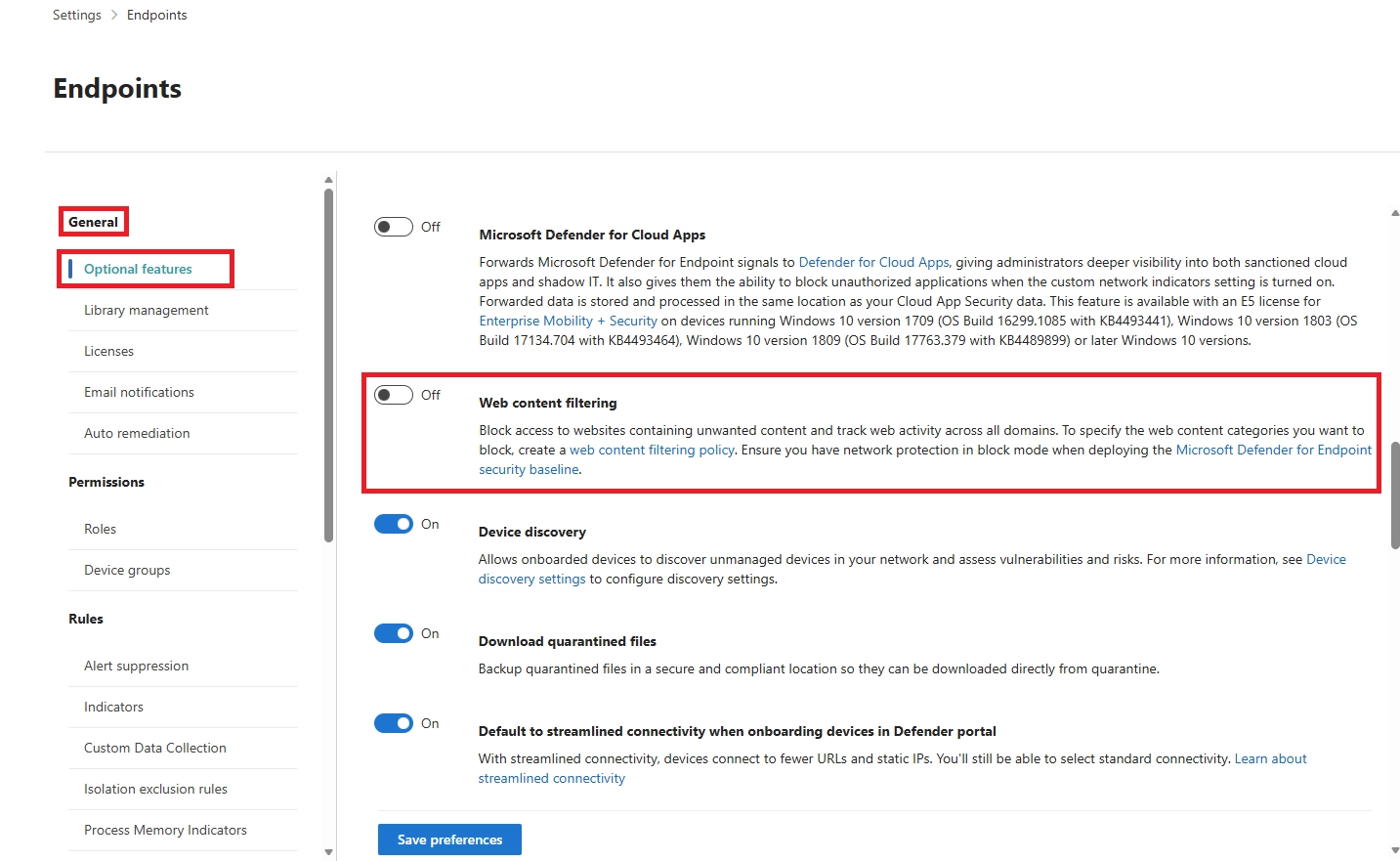
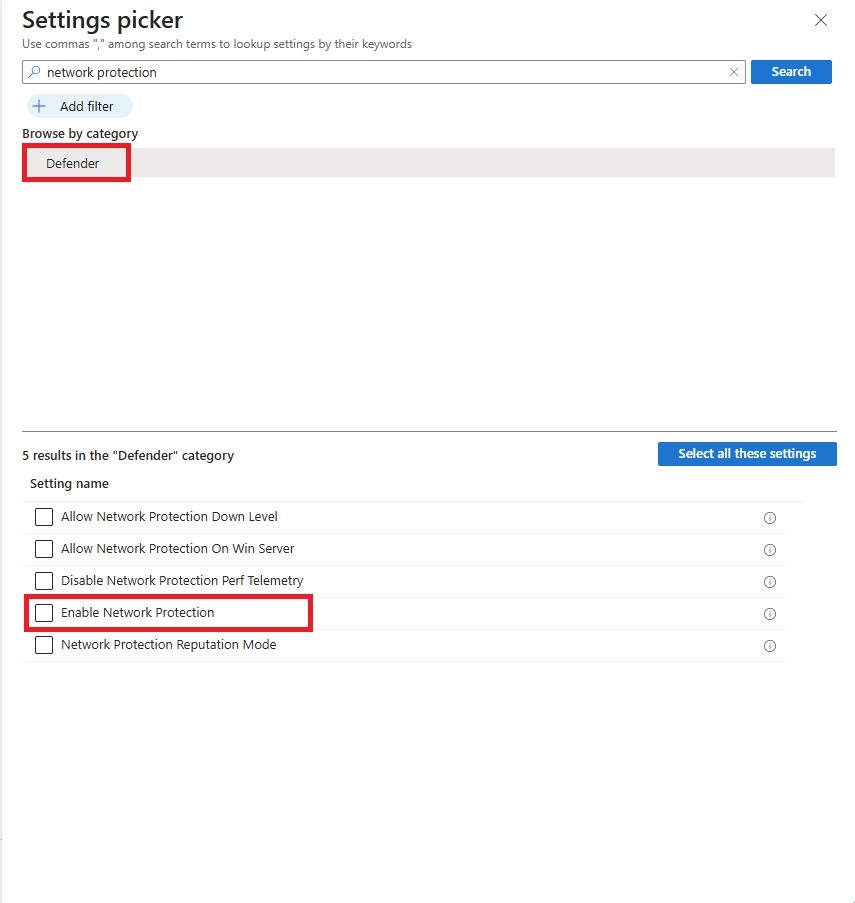
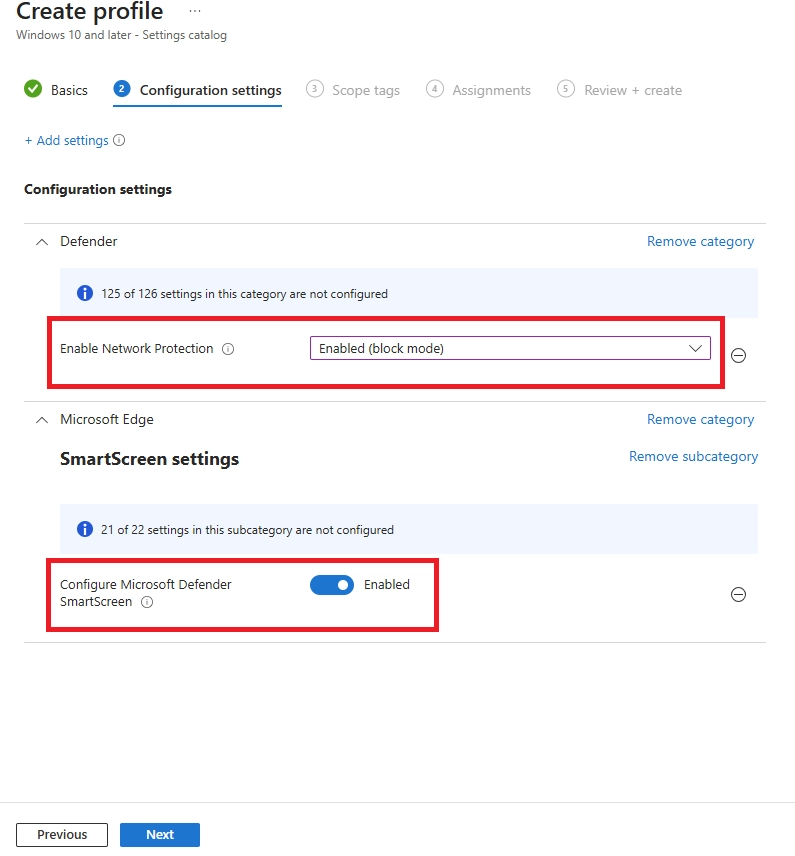
After enabling Web Content Filtering in Microsoft Defender, the next step is to configure Network Protection on managed devices. Network Protection extends Microsoft Defender's web protection capabilities beyond Microsoft Edge and helps enforce web content filtering across supported browsers such as Google Chrome and Mozilla Firefox.
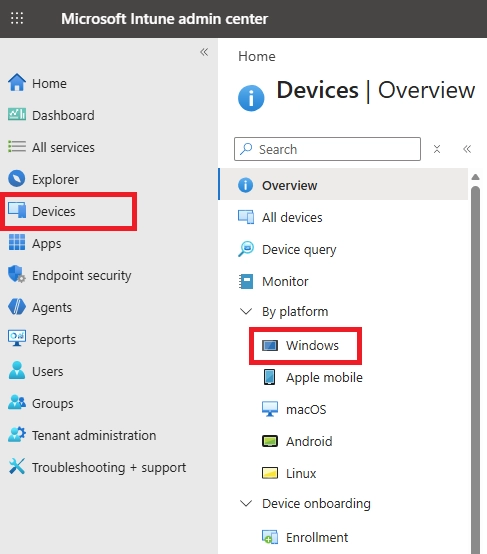
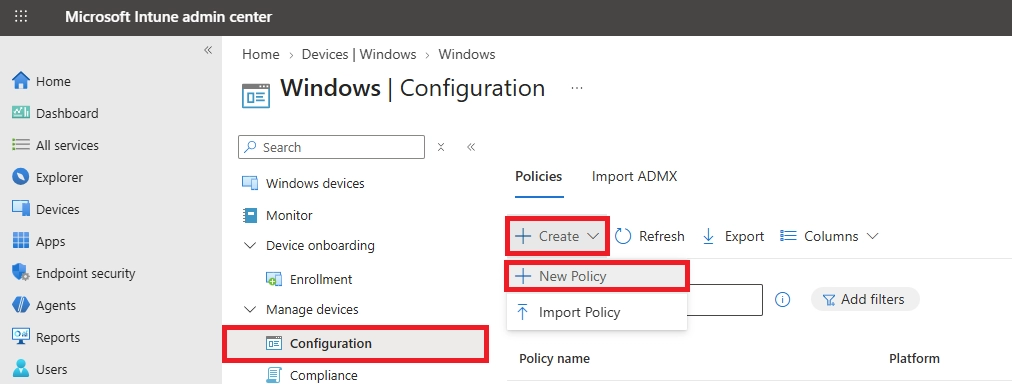
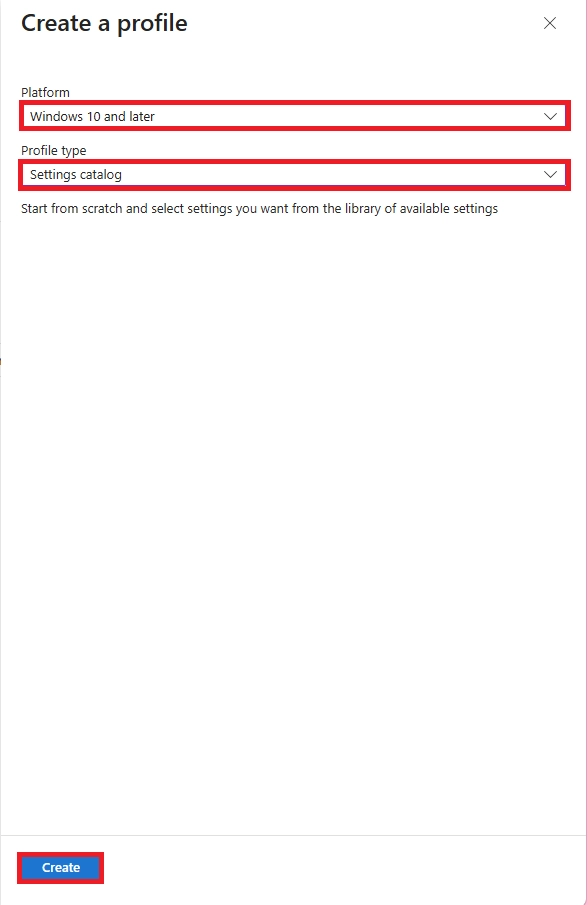
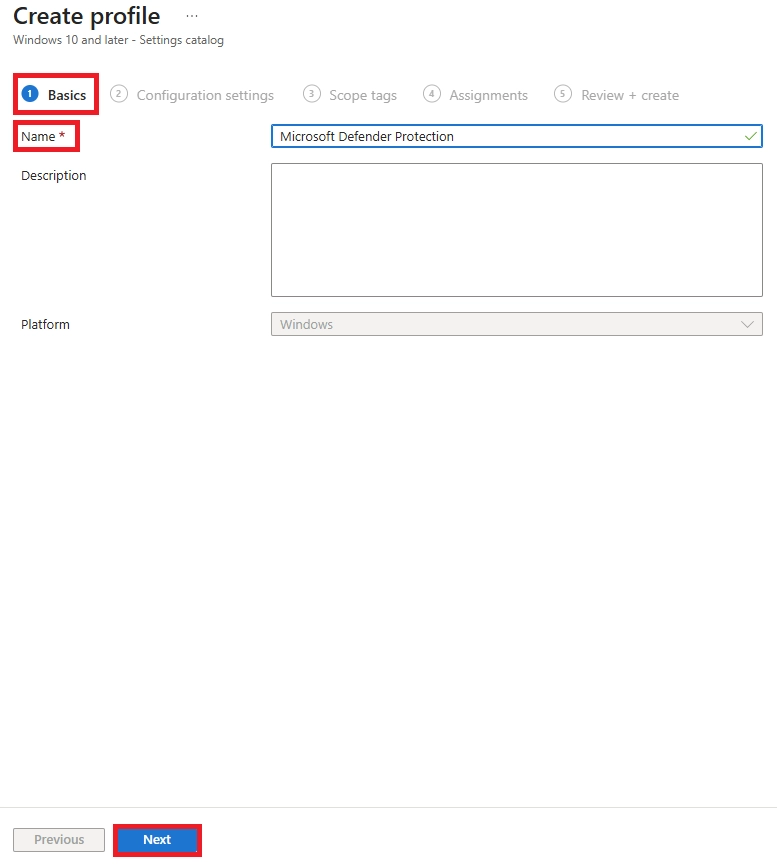
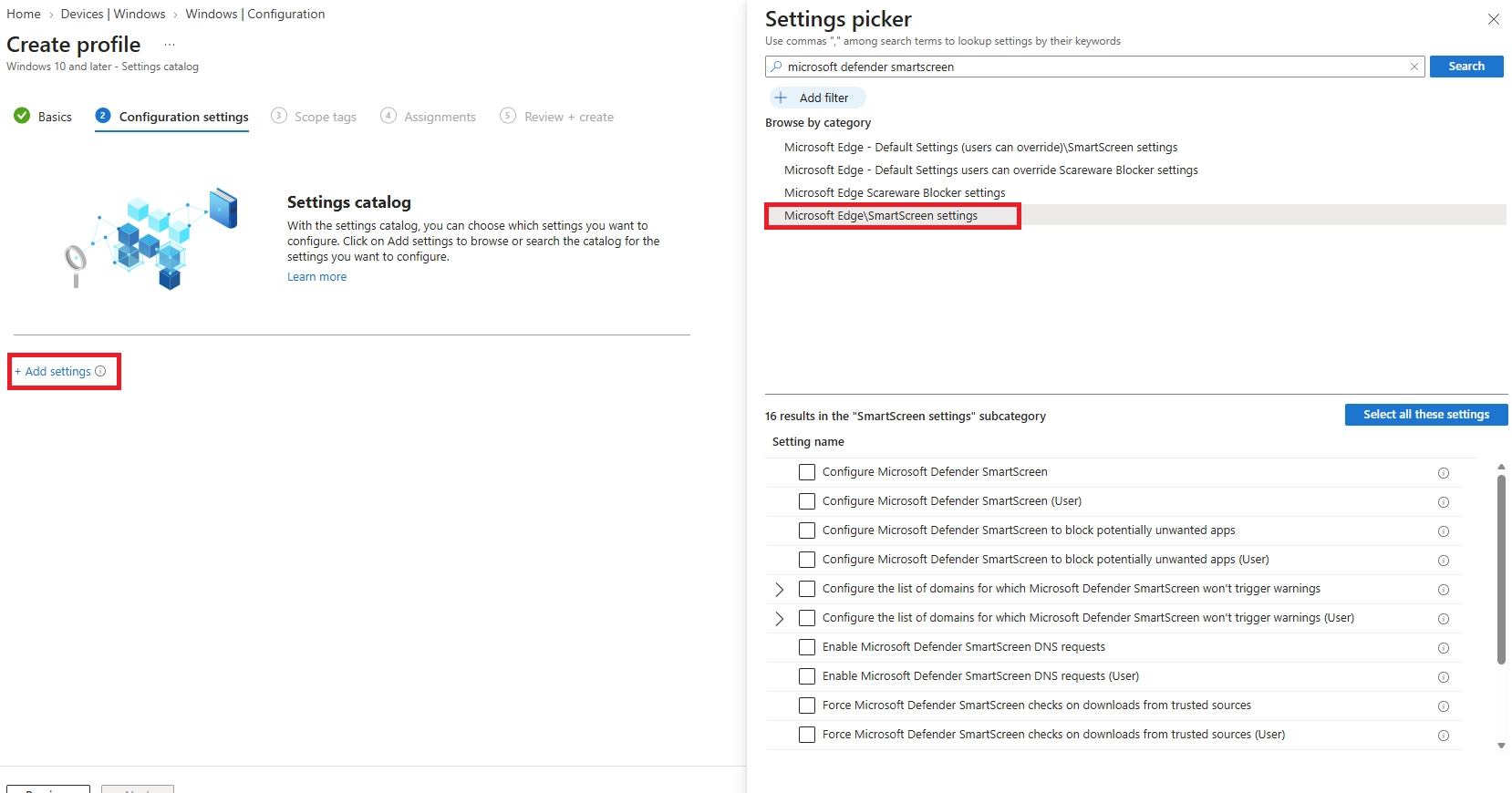
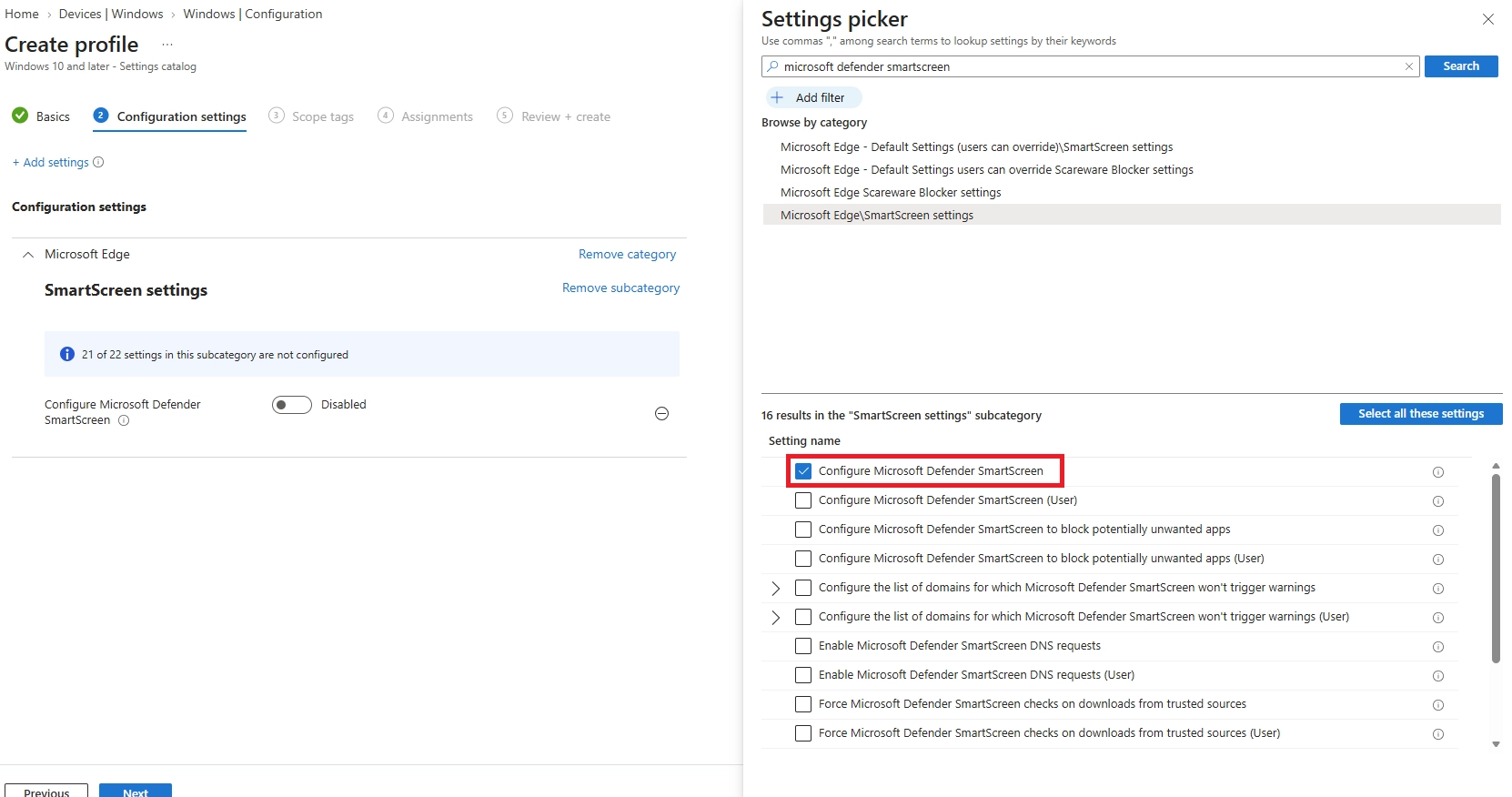
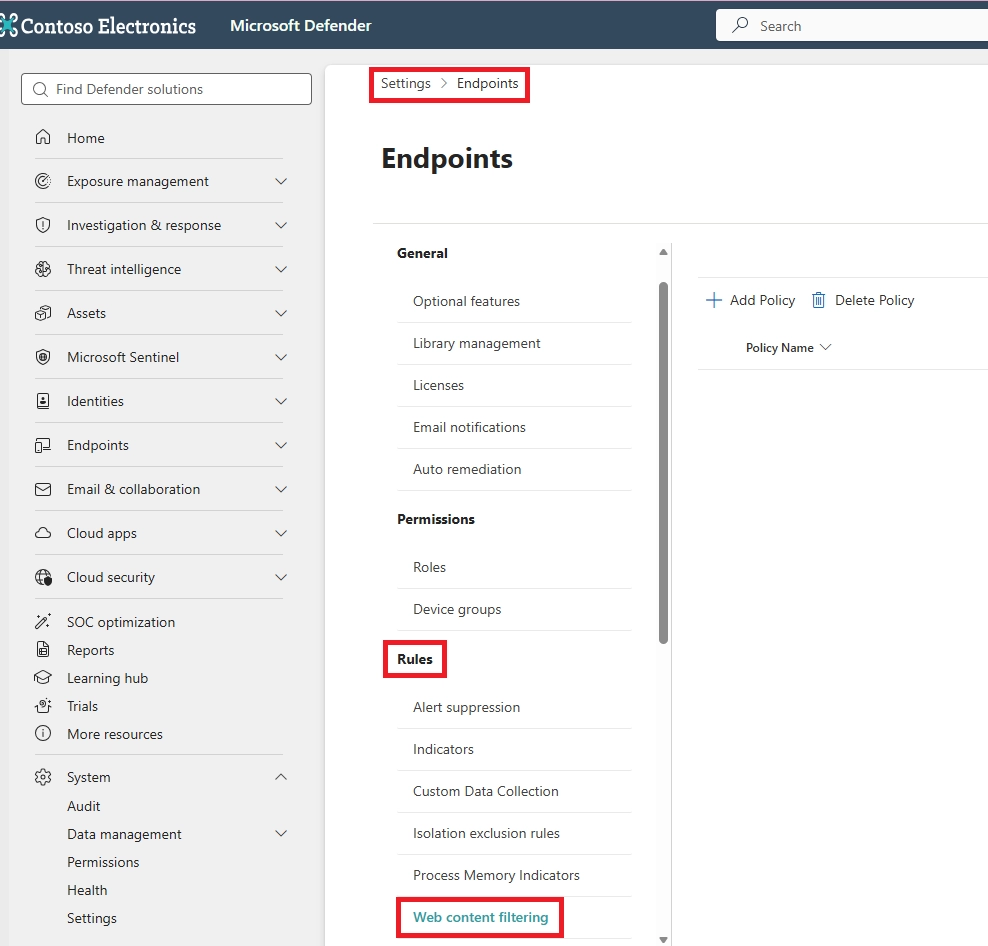
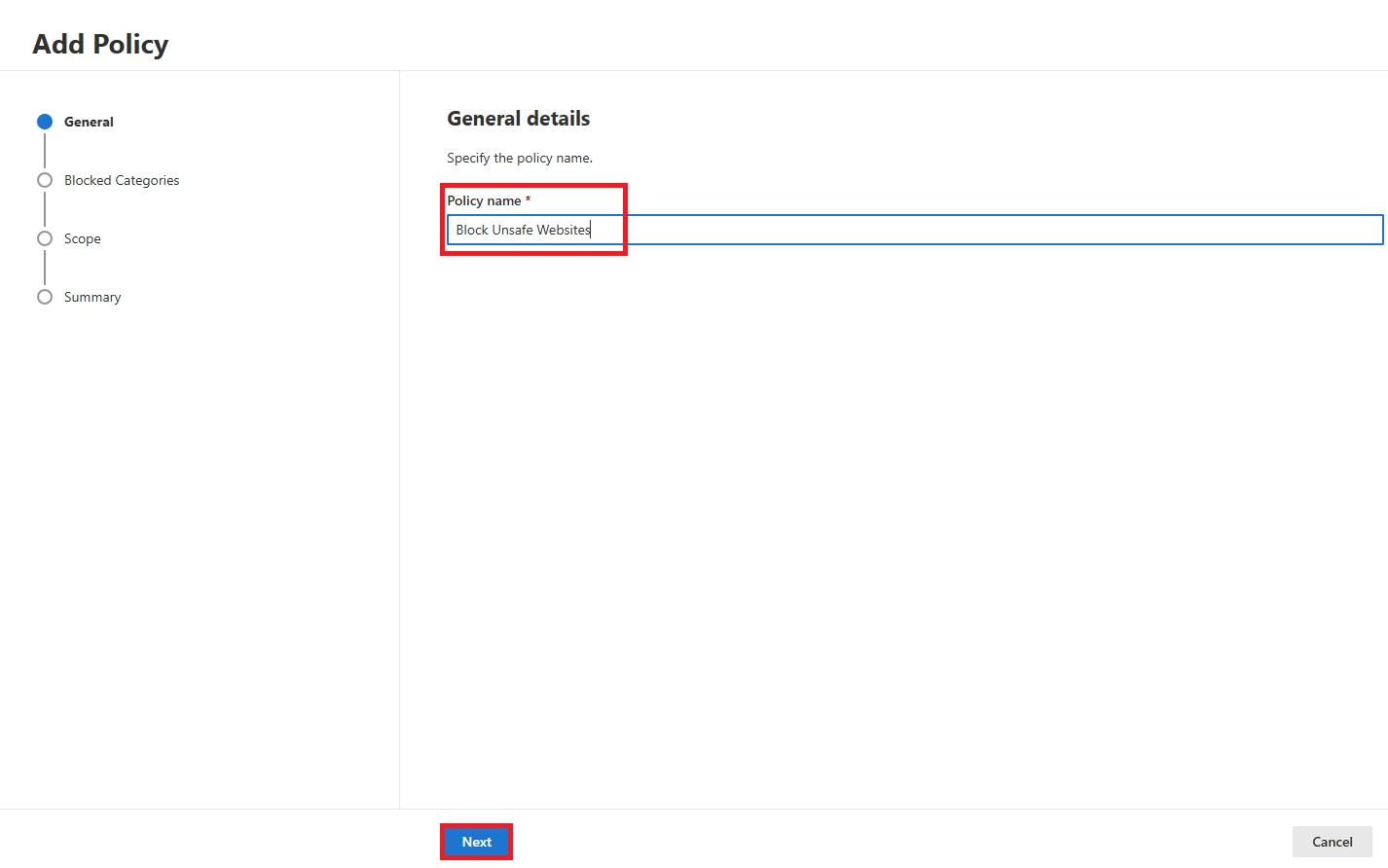
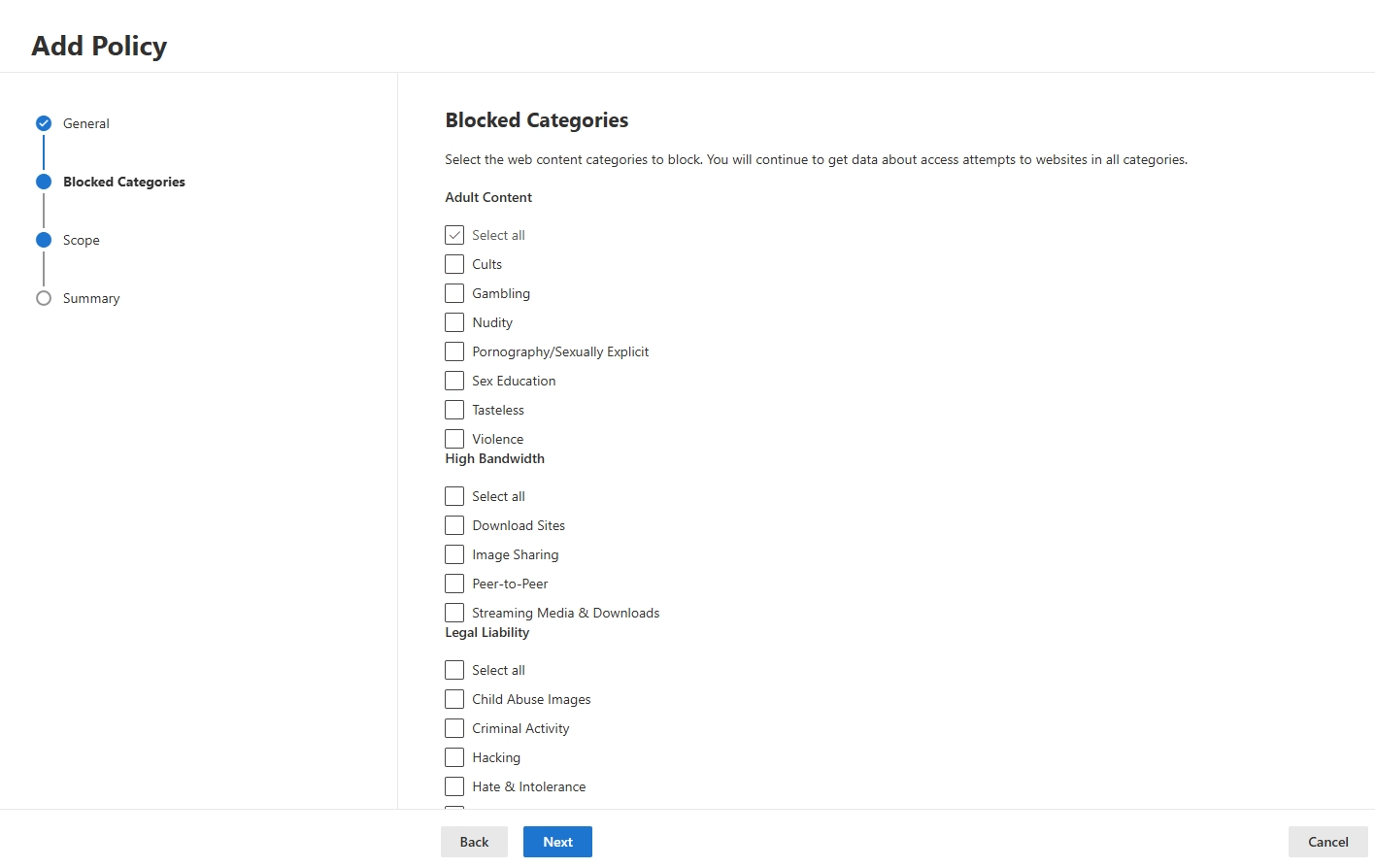
Once Network Protection has been enabled and deployed to managed devices, the next step is to create a Web Content Filtering Policy. This policy allows administrators to block access to specific categories of websites, helping protect users from unsafe, inappropriate, or non-business-related content. Web Content Filtering in Microsoft Defender enables organizations to control website access based on predefined content categories and apply those controls to selected device groups.
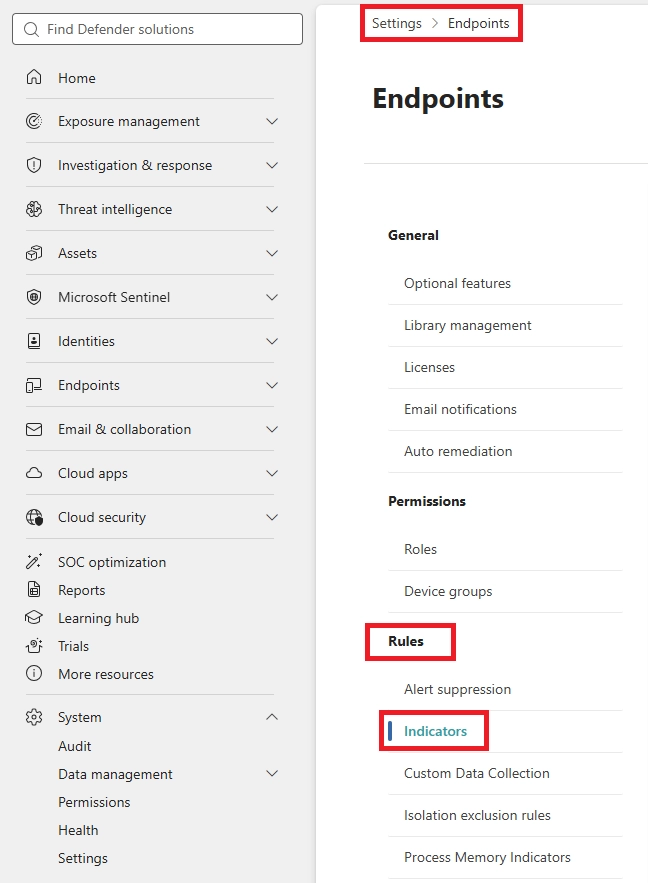
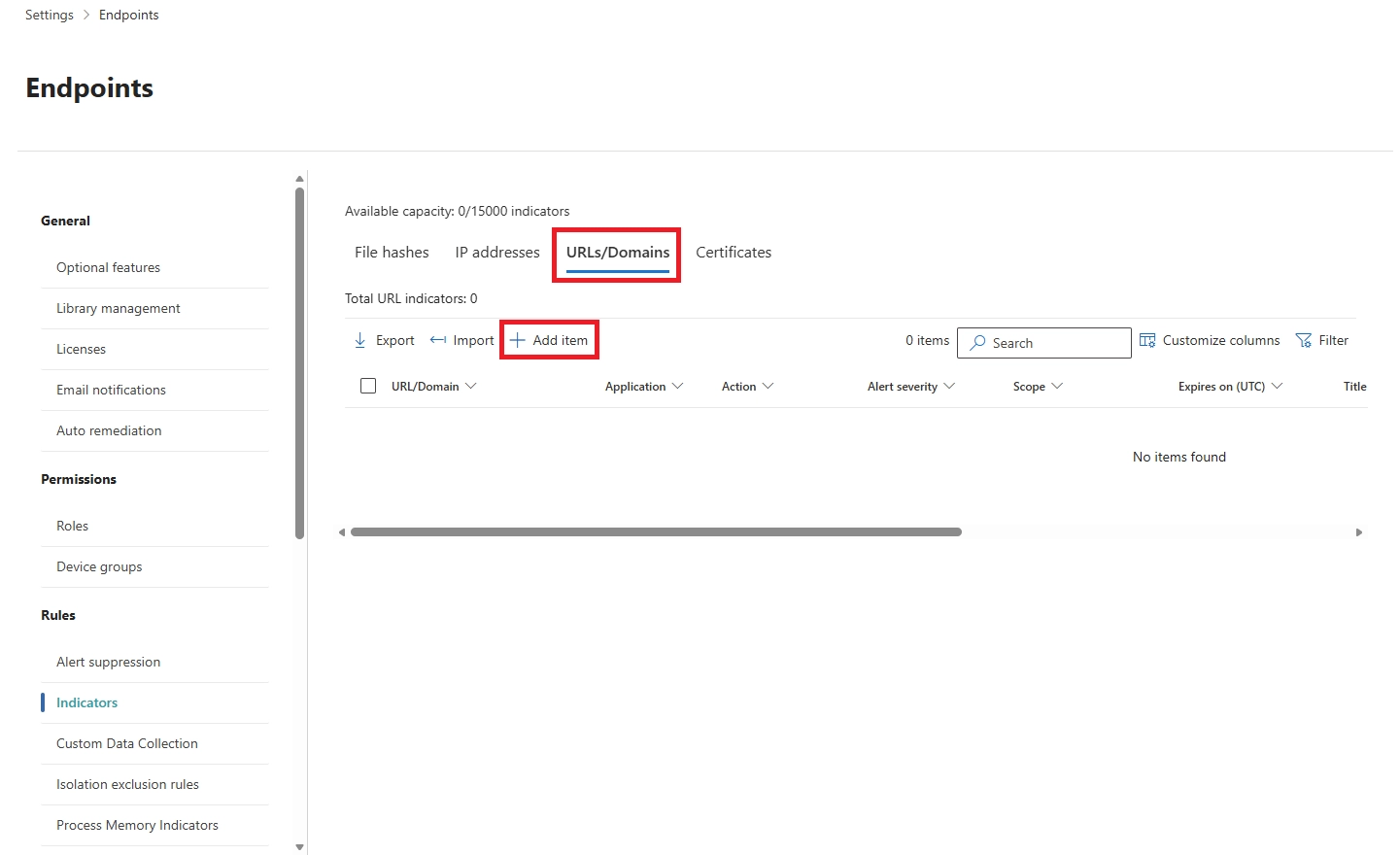
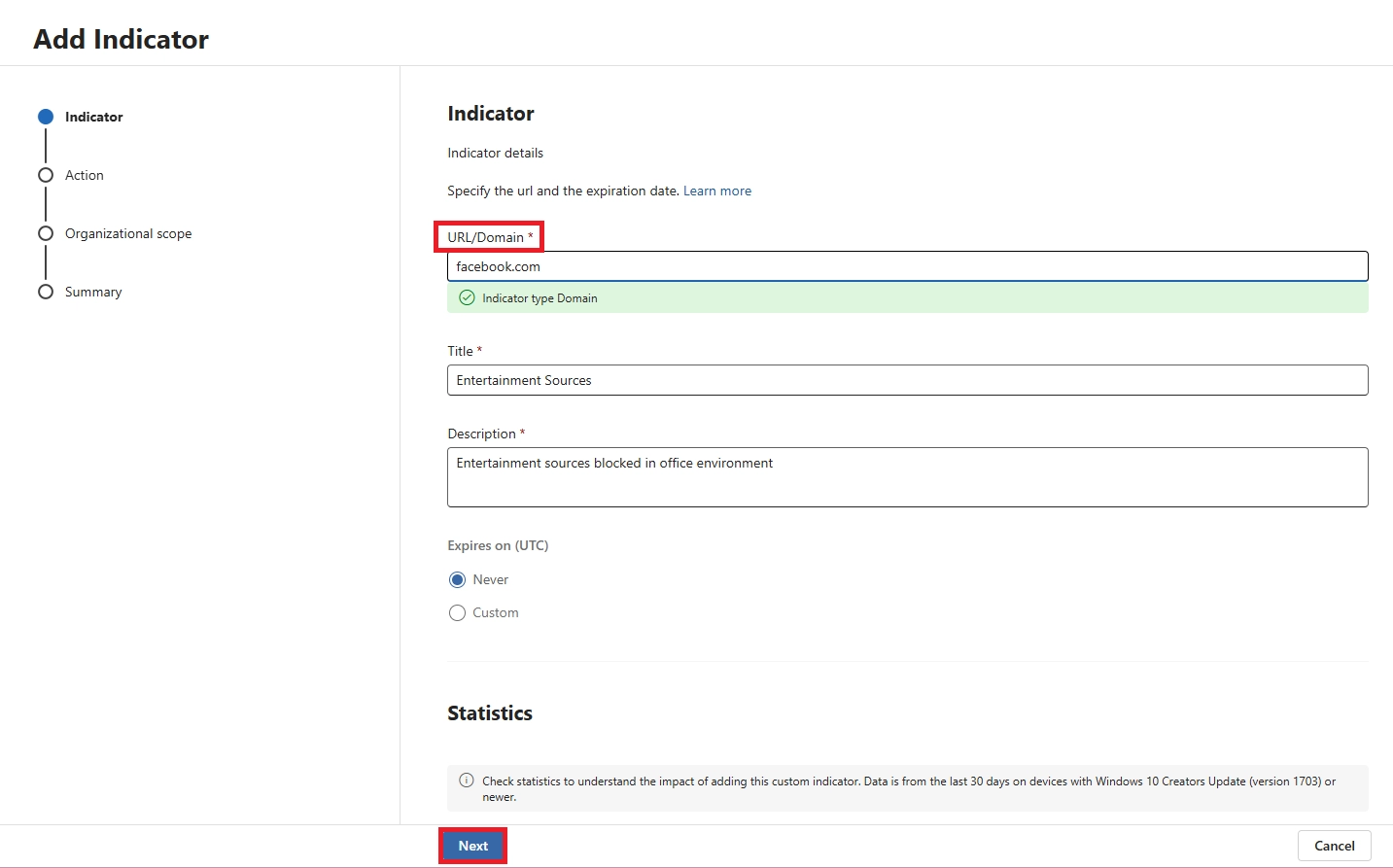
Category policies block broadly. Indicators let you get specific - block a single URL within an allowed category, or allow a single site within a blocked one.
Example: Block chatgpt.com specifically, or allow facebook.com while keeping Social Networking blocked for everything else.
Steps:
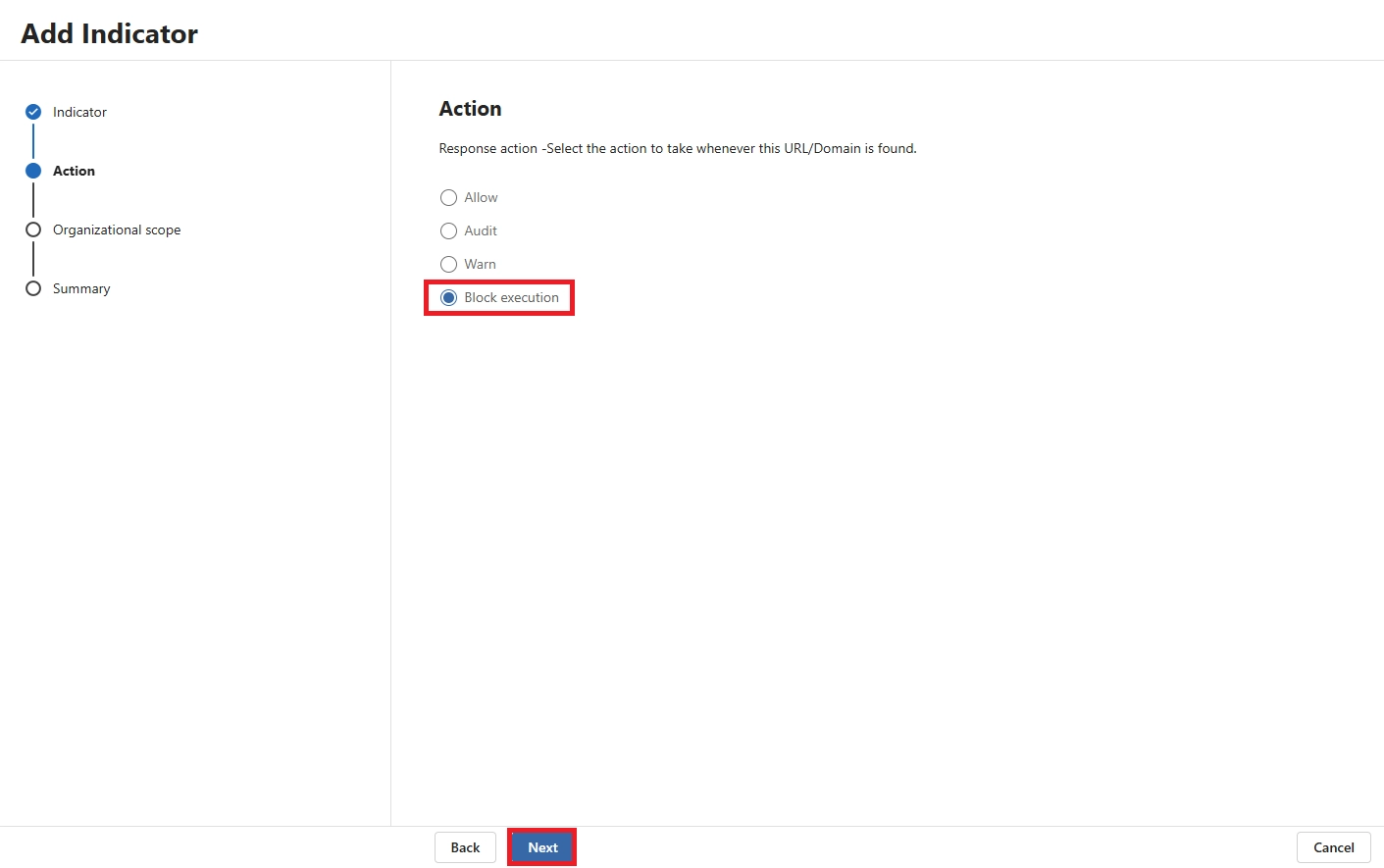
The experience depends on the browser:
When a site is whitelisted, users browse it normally. Every other site in the blocked category stays blocked.
Intune gives you two things: a way to deploy Network Protection (required for non-Edge browsers) and direct URL-level controls for Edge, Chrome, and Firefox.
Need help implementing Intune across your organization? Explore our Microsoft Intune Management Setup service.
No extra prerequisites needed here. Intune's Settings Catalog already includes URL blocking options for both Edge and Chrome.
Steps:
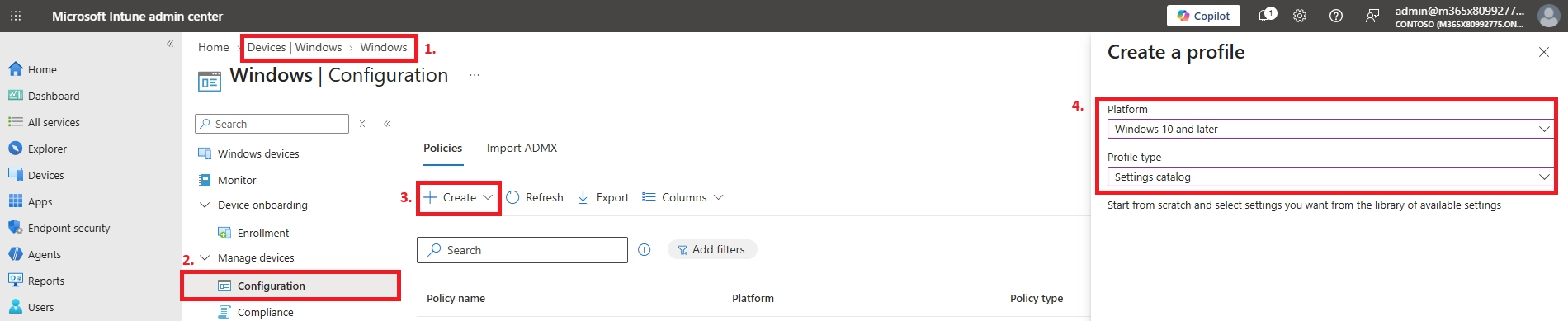
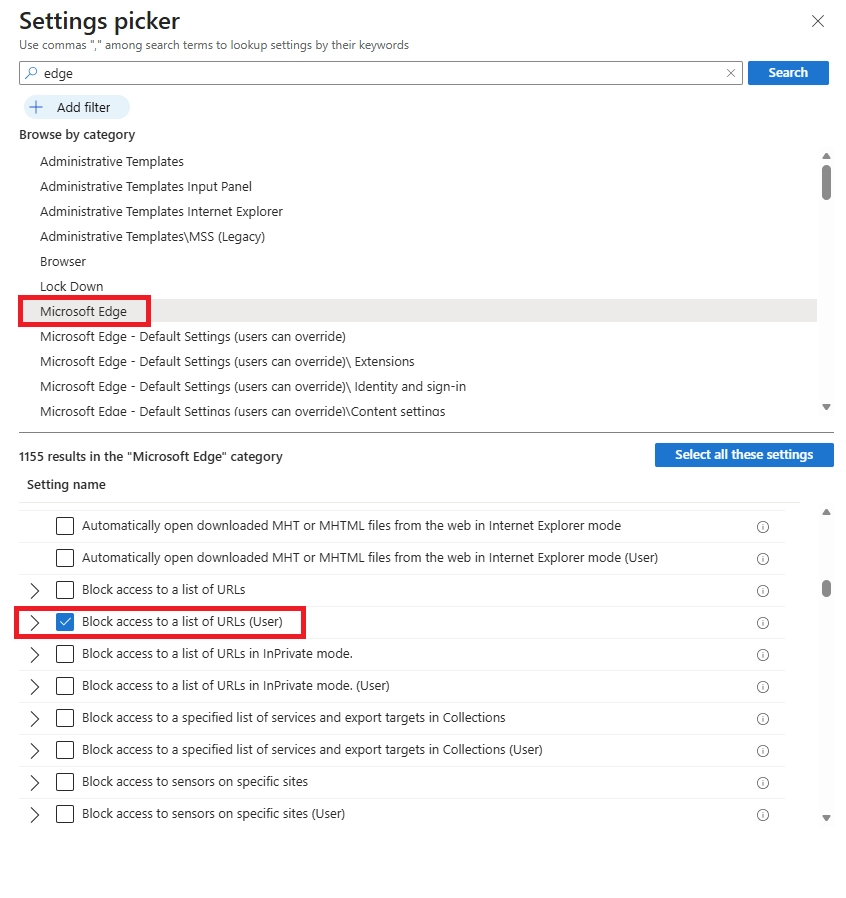
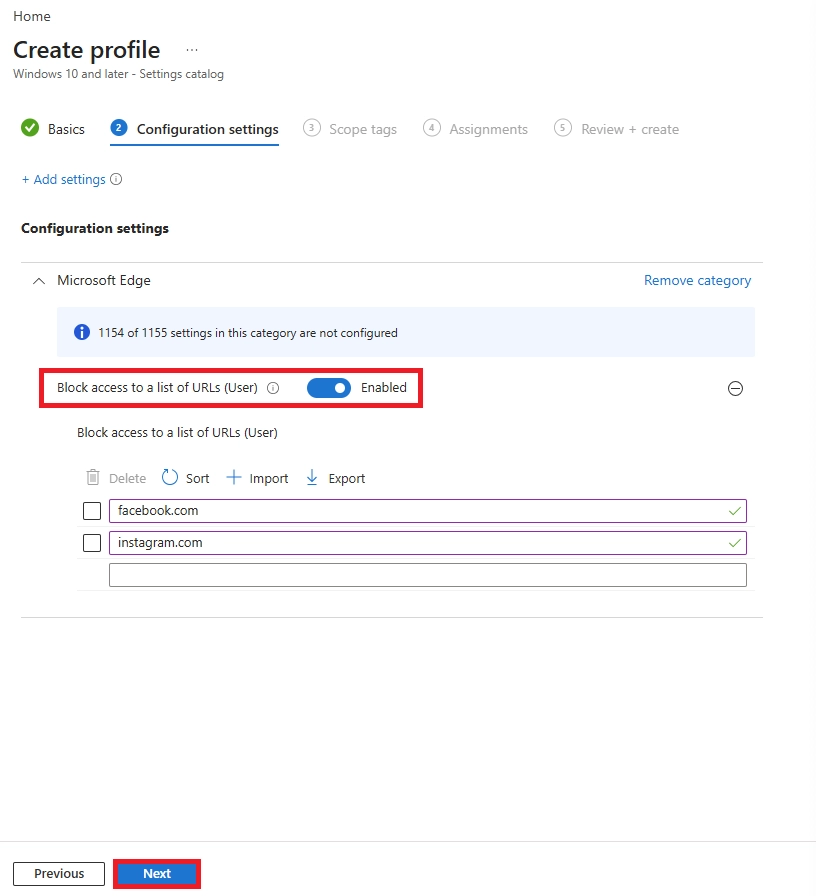
One thing to note: these restrictions apply even in private or incognito browsing mode.
Both methods can run at the same time, but they serve different purposes.
Use Defender WCF when:
Use Intune browser policies when:
If you run both, a URL might get blocked by either one. Pick a primary method or clearly separate what each policy is responsible for - otherwise you'll end up with conflicting block messages and harder-to-debug policies.
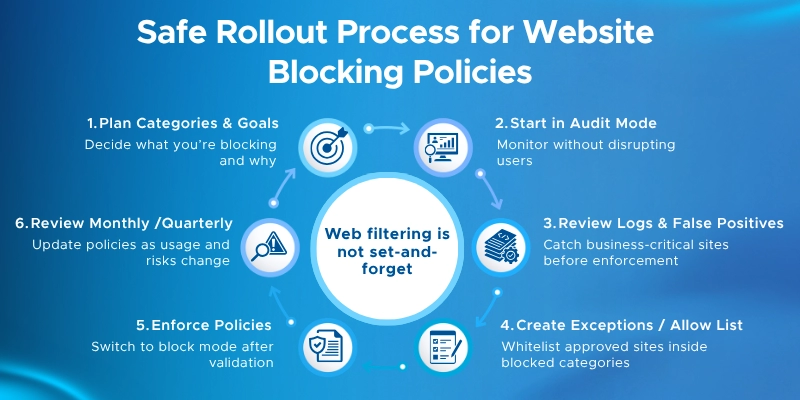
Layer Your Defenses
Start in Audit Mode
Plan for Exceptions
Prevent Circumvention
Communicate Before You Deploy
Review Reports Regularly
Need a broader view of your Microsoft 365 security posture? A Microsoft 365 Security Assessment can help identify configuration gaps across Defender, Intune, Conditional Access, device compliance, and other security controls.
Blocking unsafe websites on work devices doesn't require a third-party tool. The controls are already built into Microsoft 365 - they just need to be configured correctly.
Key takeaways:
Where to go next:
Web content filtering is a feature in Microsoft Defender for Endpoint that lets IT admins block or audit websites by category - things like Social Networking, Gambling, or Illegal Software. Instead of blocking URLs one by one, you block entire categories across all managed devices. It works on Edge via SmartScreen and on Chrome, Firefox, and other browsers via Network Protection.
Use Defender for Endpoint's Web Content Filtering. Go to Settings > Endpoints > Rules > Web content filtering, create a policy, select the categories to block, and assign it to your device groups. Categories include Adult Content, Legal Liability, High Bandwidth, and Leisure. For specific URLs on top of that, add custom indicators under Settings > Endpoints > Indicators > URLs/Domains.
Go to Settings > Endpoints > Indicators > URLs/Domains in the Defender portal. Click + Add item, enter the domain or full URL, choose the action (Block, Warn, Audit, or Allow), and assign it to device groups. For Intune, use the Settings Catalog to configure URLBlocklist for Edge and Chrome, or import Firefox ADMX templates for Firefox.
There are three main methods depending on your license:
Start with Defender WCF for broad coverage, then layer Intune policies for specific URLs.
Enable Web Content Filtering in Defender for Endpoint and block the Legal Liability category - this covers Criminal Activity, Hacking, and Malicious Software. Also enable Network Protection in block mode to stop connections to command-and-control domains and phishing pages at the OS level. For known malicious domains, add them as custom Block indicators for immediate enforcement.
Use Defender WCF to block entire categories (e.g., Social Networking, Streaming, Gambling) across all managed devices. For specific sites, add custom Block indicators in Defender or configure URLBlocklist in Intune. To block everything except an approved list, set URLBlocklist to * in Intune and add approved domains to URLAllowlist.
Yes. In Defender for Endpoint, set the scope of your WCF policy or indicator to All devices in my organization. For Intune browser policies, assign the configuration profile to All Devices. For this to work, all devices must be enrolled in Intune and onboarded to Defender for Endpoint.
Verify policies are applied by visiting edge://policy, chrome://policy, or about:policies on the device.
Chrome blocking relies on Network Protection, not SmartScreen. If Network Protection is not enabled in block mode, Defender WCF will not block anything in Chrome. Go to Endpoint Security > Antivirus in Intune, enable Network Protection, and set it to Enable (not Audit). Then verify on the device by opening chrome://policy and checking for your block settings.
Go to Settings > Endpoints > Indicators > URLs/Domains and create an Allow indicator for that URL or domain. Allow indicators override both category blocks and other block indicators for that specific address. In Edge WCF, add the site to the Allowed Sites list in the admin center. The override applies only to the exact URL or domain you specify - the rest of the blocked category stays blocked.
You can't change Microsoft's category database directly. Instead, create an Allow indicator for the incorrectly categorized URL to override the block. To report a miscategorization to Microsoft, submit feedback through the Defender portal. In the meantime, document the exception and add it to your allow list with a note so your team knows why it's there.
It can, if you accidentally block a domain that Microsoft services depend on. Before deploying broad category blocks, cross-reference your block list against Microsoft's published list of required URLs and IP ranges for Microsoft 365. Add any overlapping domains to your allow list first.
Not natively within Defender WCF or Intune URL policies - neither supports time-based rules. For time-restricted access, you need a network-level solution like a proxy or firewall with scheduling support, used alongside your endpoint controls.
Category-based WCF isn't available on mobile yet. Edge WCF only supports Windows 10 or later. For mobile, use Intune device configuration profiles - Block App Bundle IDs for iOS and Managed Google Play restrictions for Android - to control which apps employees can install.

Monthly updates, news & events from Microsoft to help your business grow.

CEO at Penthara Technologies


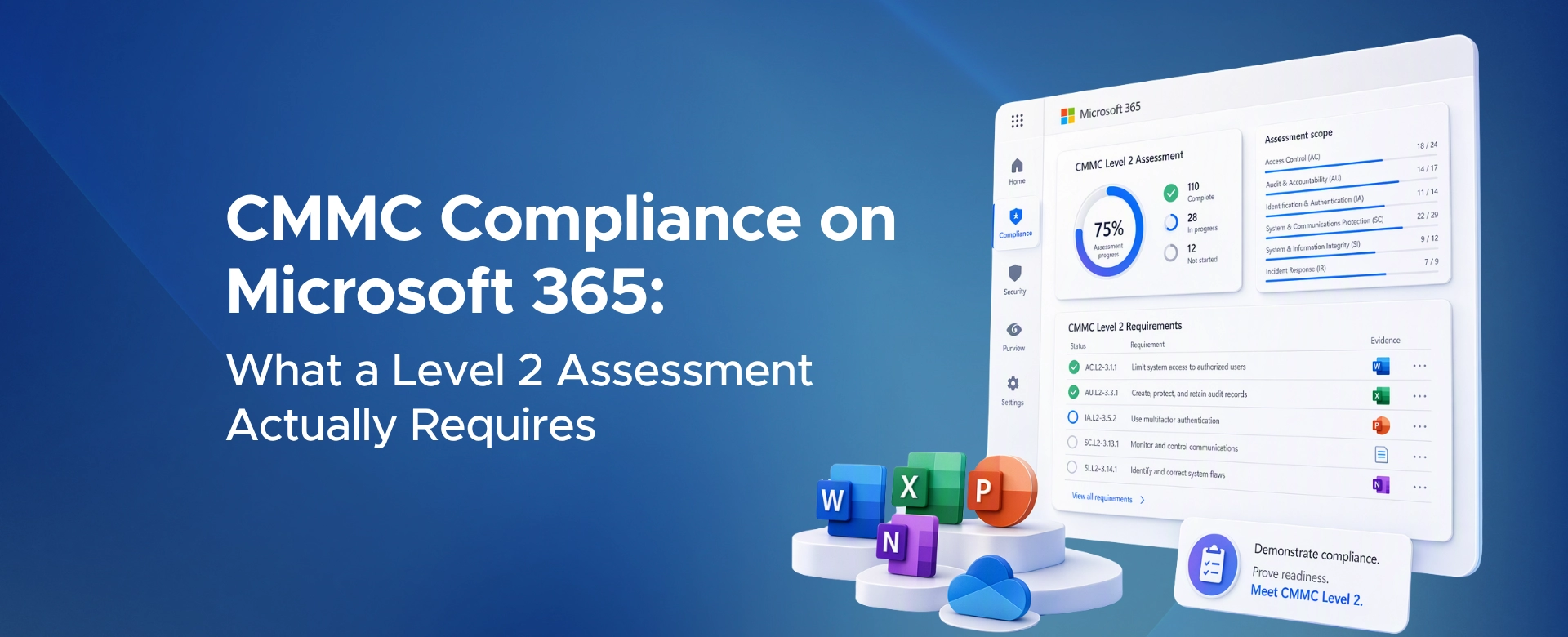 CMMC Compliance on Microsoft 365: What a Level 2 Assessment Actually Requires
CMMC compliance on Microsoft 365 starts with the right environment. See what NIST 800-171 Level 2 requires and how to configure your tenant for assessment.
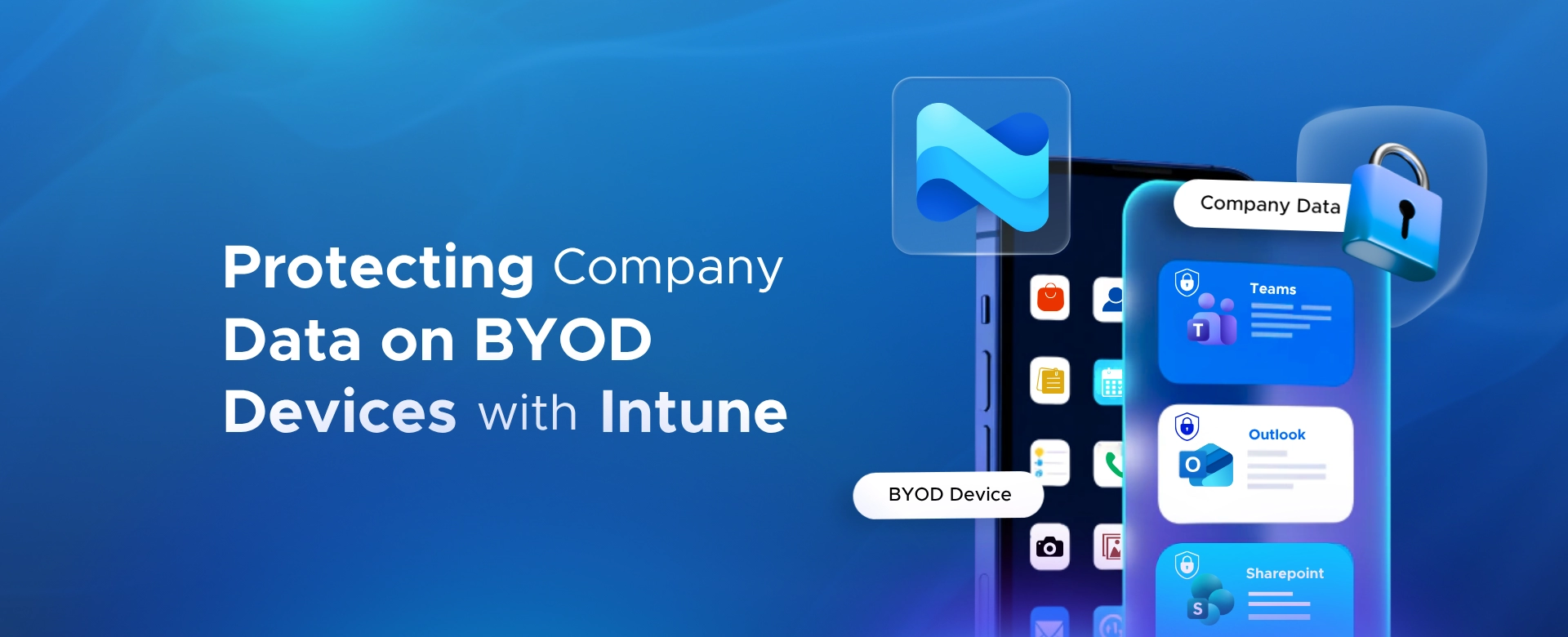 Protecting Company Data on BYOD Devices with Intune
Learn how to protect company data on BYOD devices with Microsoft Intune, using app protection policies, Conditional Access, MAM, and selective wipe.
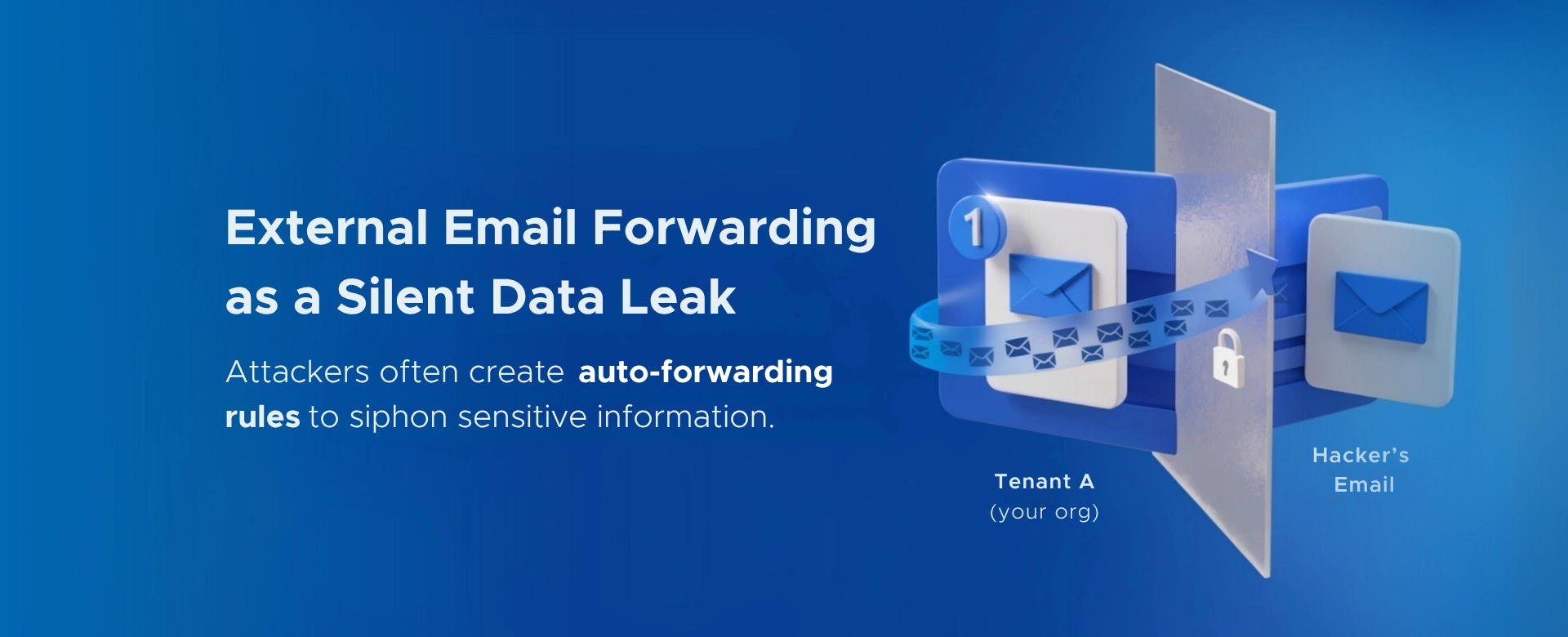 Your Microsoft 365 Tenant Has a Silent Data Leak. It Requires No Malware.
Your Microsoft 365 tenant can leak data silently - no malware, no alerts. Learn how simple misconfigurations enable ongoing email and data exfiltration.