Explore the latest Microsoft 365 updates including Copilot enhancements, AI meeting recaps, Teams improvements, and new productivity features.

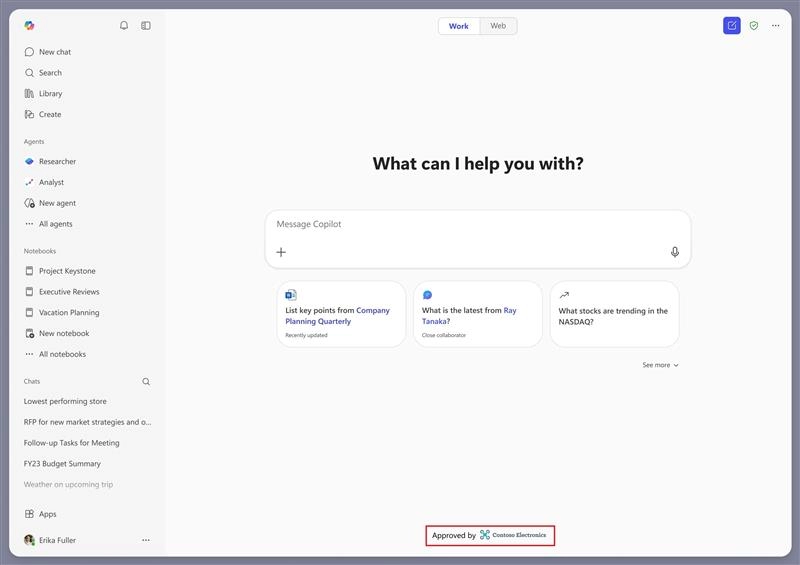
A new co-branding capability will allow organizations to display a branded footer at the bottom of the Chat screen in the Microsoft 365 Copilot app. Admins can add their organization’s logo to help users clearly recognize their trusted, work-managed Copilot experience.
When this will happen
General Availability (Worldwide): Rollout will begin in late March 2026 and is expected to complete by late April 2026.
How this affects your organization
Who is affected:
All Microsoft 365 tenants using the Microsoft 365 Copilot app.
What will happen:
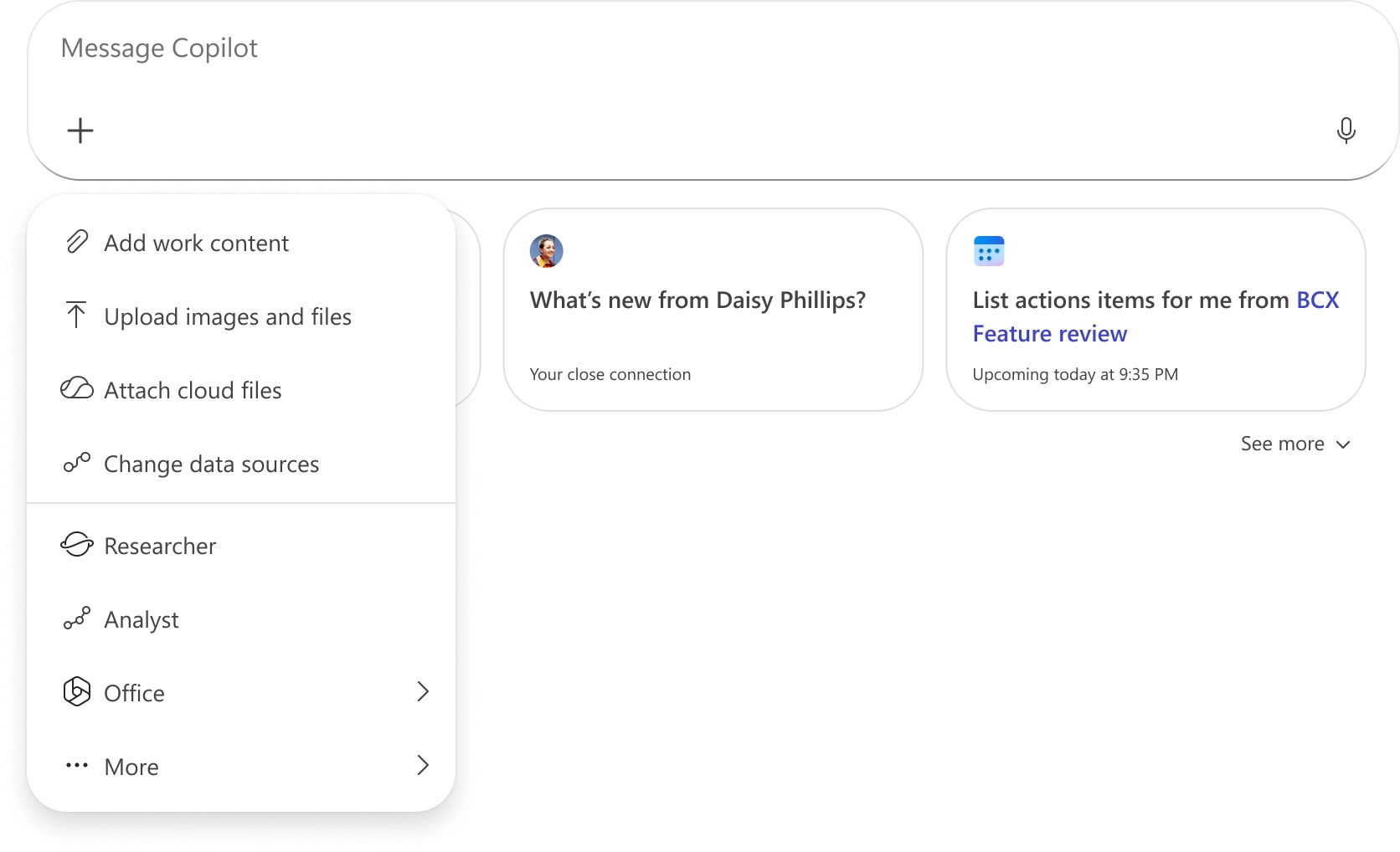
Microsoft is introducing a unified plus (+) menu to simplify how users add grounding, tools, and sources when prompting in Microsoft 365 Copilot. Grounding refers to the content connected to Copilot - such as files, sites, or other organizational data - to improve response relevance. This update consolidates related actions into a single menu to improve discoverability and streamline prompt workflows.
The Tools menu will be consolidated under the unified plus (+) menu and will no longer exist as a separate menu in the prompt box.
When this will happen
General Availability (Worldwide): Rollout begins in late February 2026 and is expected to complete by mid-March 2026.
How this affects your organization
Who is affected:
Copilot Chat users without a Microsoft 365 Copilot license and users with a Microsoft 365 Copilot license.
What will happen:
Users can now select specific text from Copilot responses and ask focused follow-up questions. After highlighting text, an Ask Copilot option will appear, enabling more precise queries based on the selected content. This enhancement supports targeted explanations, summaries, translations, and next steps.
When this will happen
Rolling out in March.
How this affects your organization
Who is affected:
Users of Microsoft 365 Copilot Chat.
What will happen:

Users can now ground Copilot prompts on SharePoint lists or sites when using Copilot Chat in work mode. By typing forward slash “/” in the prompt box, users can search for and select a SharePoint list or site, including options under the Sites tab. This allows structured organizational data to be included directly in the AI conversation context.
When this will happen
Rolling out in March.
How this affects your organization
Who is affected:
Users of Copilot Chat in work mode.
What will happen:

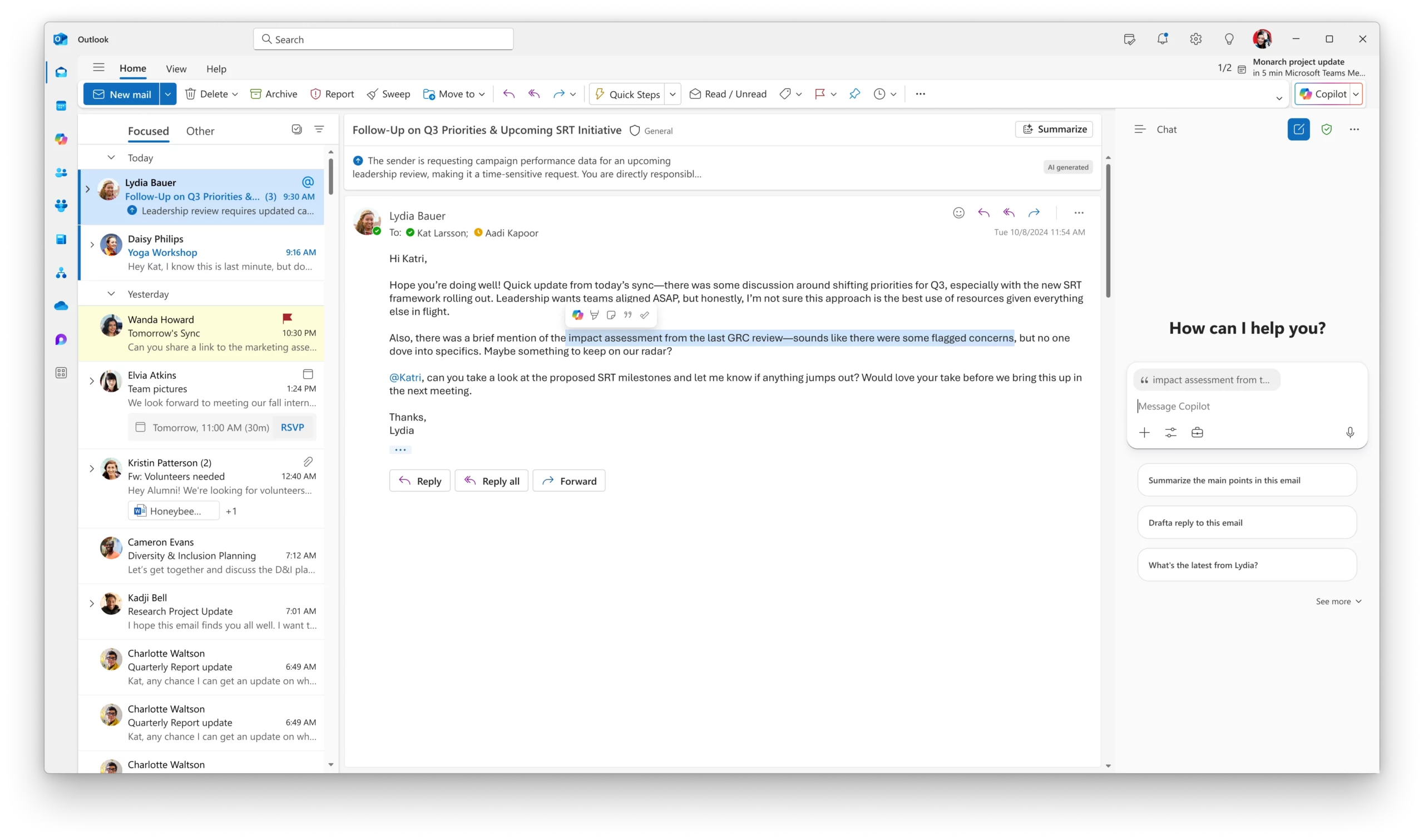
When users without a Microsoft 365 Copilot license use Copilot Chat in Outlook alongside an open email, Copilot will automatically ground the conversation in the open email. The prompt box will visually indicate this by displaying the email’s subject line. If a user highlights specific text within the email, Copilot can ground the conversation only on the selected portion.
When this will happen
Rolled out in February.
How this affects your organization
Who is affected:
Outlook users without a Microsoft 365 Copilot license who use Copilot Chat.
What will happen:
Project Manager Agent helps users plan, organize, and manage work through AI-assisted project tracking. Beginning with core task management capabilities, the agent simplifies project coordination, with additional advanced capabilities planned over time.
When this will happen
How this affects your organization
Who is affected:
Users with access to Microsoft 365 Copilot agents.
What will happen:
Deployment and availability depend on organizational access to Copilot agents.

AI-generated meeting recaps now include visual context from screen sharing during recorded meetings. Key on-screen moments are captured and placed alongside the relevant sections of the meeting summary, helping users connect discussion points with what was presented.
When this will happen
Rolled out in February.
How this affects your organization
Who is affected:
Users who access AI meeting recaps for recorded meetings in Microsoft Teams.
What will happen:

The default Copilot chat experience in Word now enables Copilot to directly edit documents. All edits are fully reviewable and reversible, and users can turn this experience off if needed. This update streamlines workflows by removing the need to manually select editing modes.
Users can also prompt Copilot from a blank document to begin drafting, with Edit with Copilot automatically enabled. This supports a continuous AI-assisted workflow for creating and refining content.
When this will happen
Started rolling out in February.
How this affects your organization
Who is affected:
Users of Copilot in Microsoft Word.
What will happen:

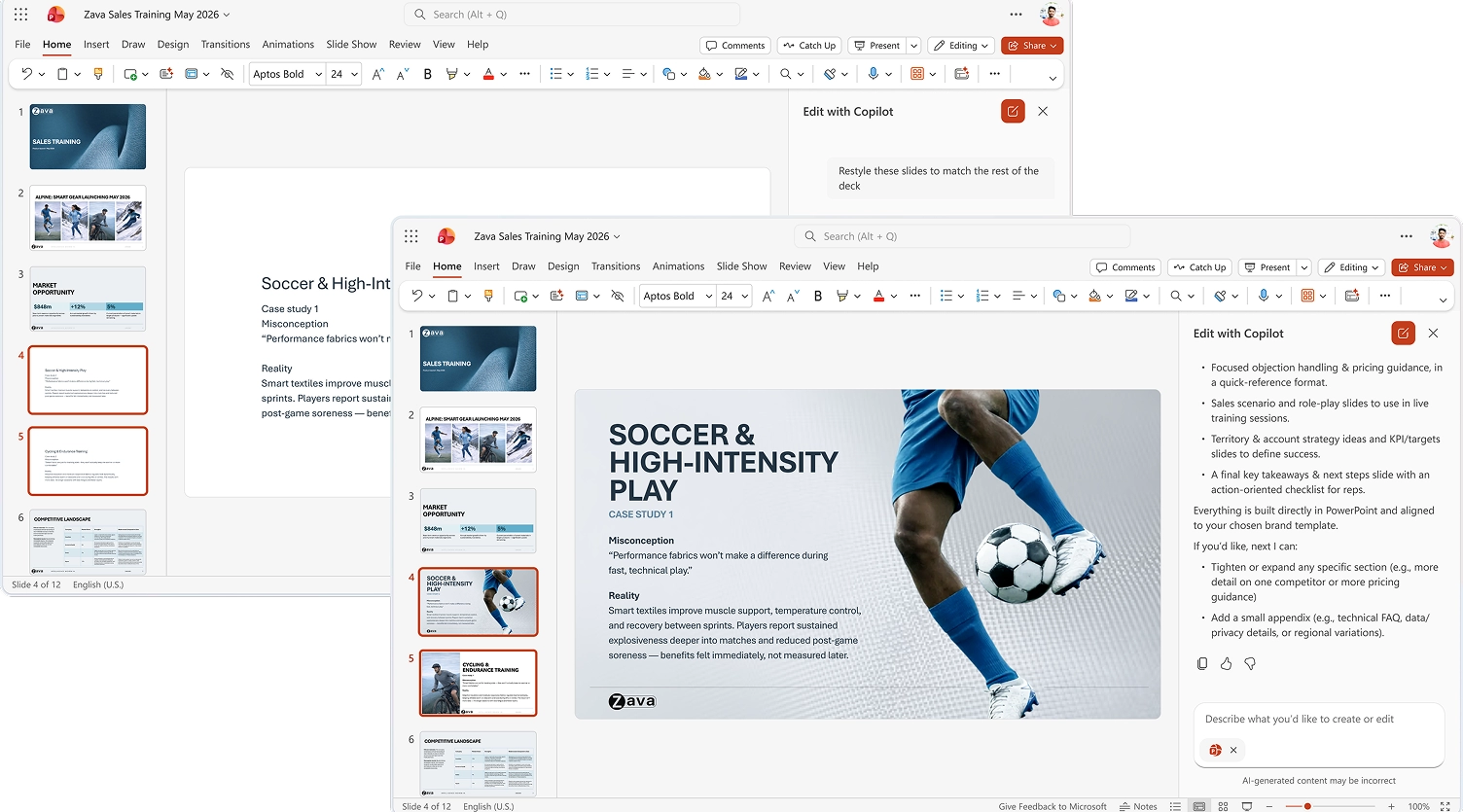
Copilot in PowerPoint for the web now supports an agentic experience, enabling users to create, edit, and refine presentations through natural conversation directly within a presentation. Using Edit with Copilot, users can generate new slides, update content, enhance layouts, and polish design while preserving formatting, structure, and branding.
Copilot can use files, meetings, emails, and other relevant content to shape and iterate on presentations. It also connects to brand kits, allowing users to apply branded templates, insert approved images, and check for brand compliance.
When this will happen
Started rolling out to the web in February.
How this affects your organization
Who is affected:
Users of Copilot in PowerPoint for the web.
What will happen:
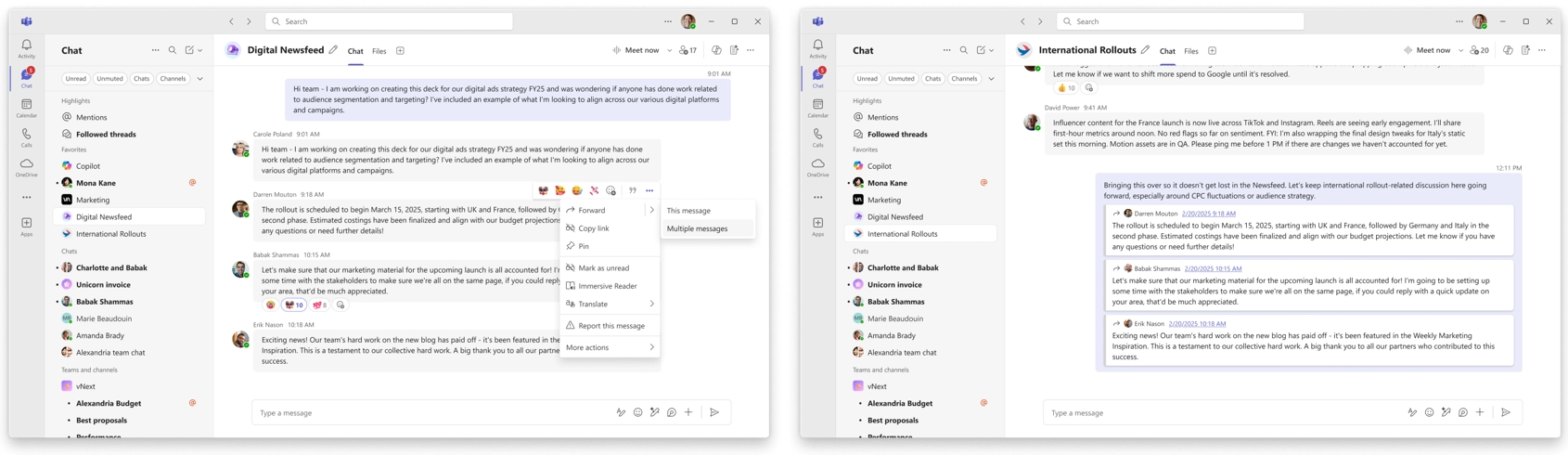
Users can now forward multiple messages at once in Microsoft Teams. Up to five messages from a chat or channel can be selected and forwarded together in a single message while preserving their original order and context.
What will happen:
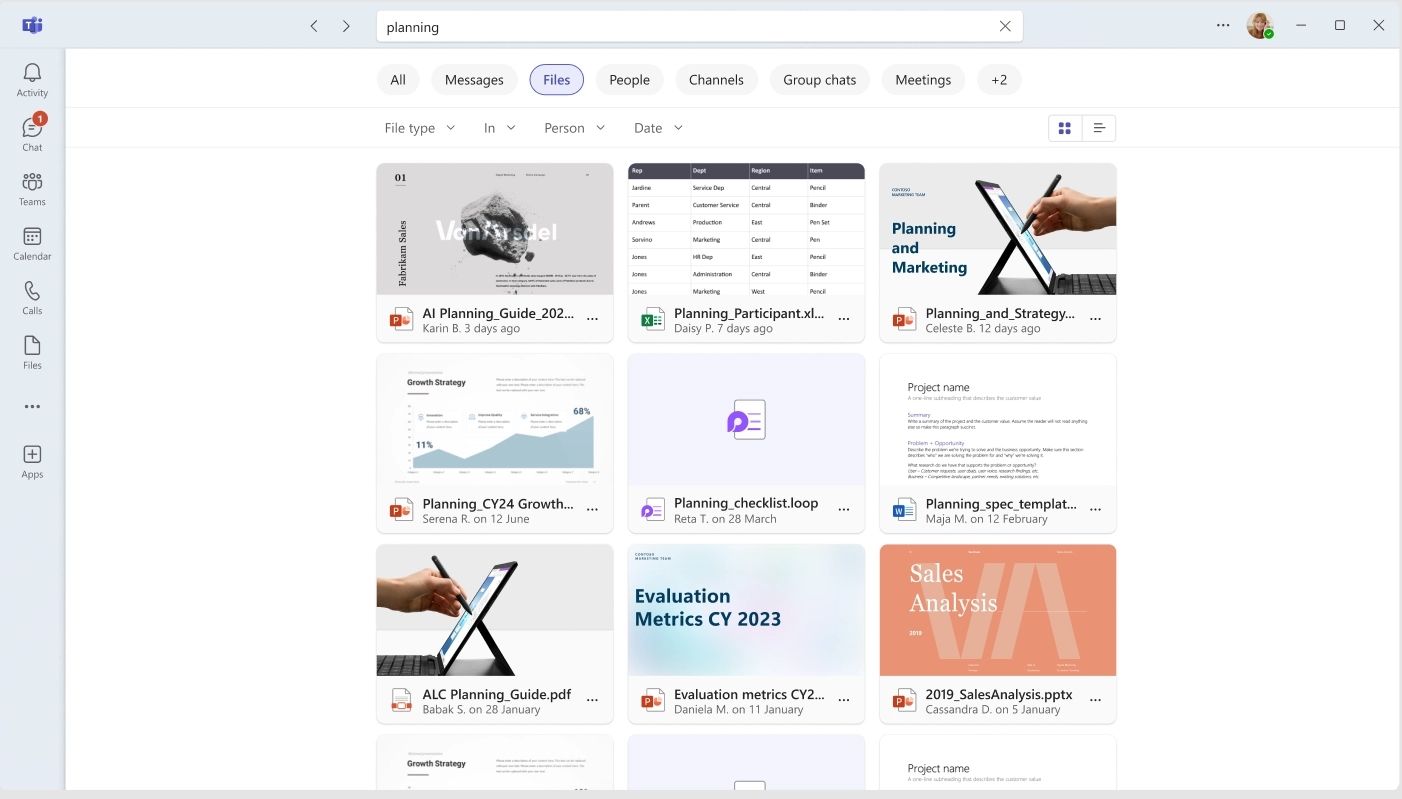
Microsoft Teams now includes a preview-based grid view for files in search results. This visual layout helps users differentiate files with similar names and quickly identify the correct item without opening each file.
What will happen:
AI summaries in meeting recaps now include visual references from screen sharing during recorded meetings. Key on-screen moments are captured and placed alongside the relevant sections of the meeting summary, allowing users to see the screen as it appeared during the discussion.
Who is affected:
Users who access meeting recaps for recorded meetings in Microsoft Teams.
What will happen:
A new resizable right and top gallery capability improves meeting layout flexibility, video size, and participant visibility. This update allows users to adjust the size of the right gallery when someone is sharing content, spotlighted, or pinned to the stage.
What will happen:

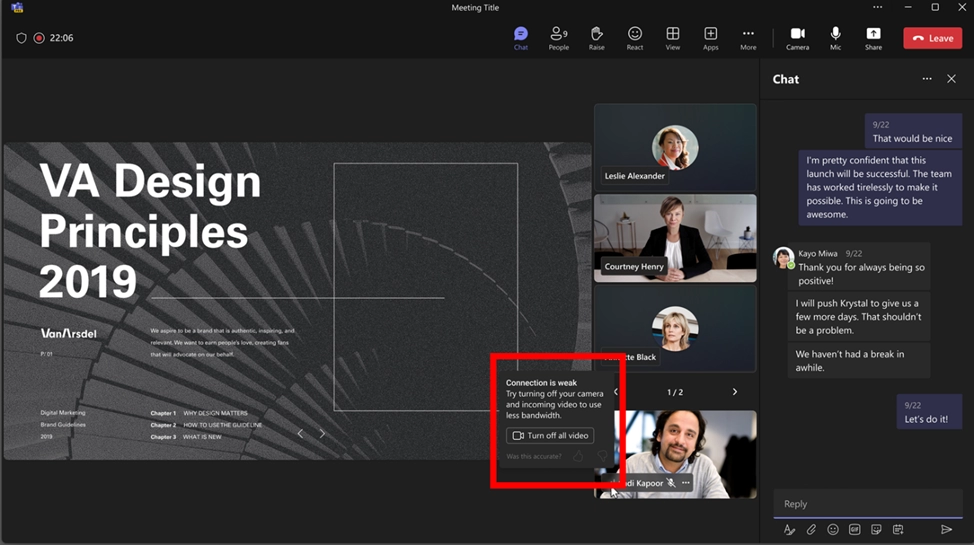
A new Network Strength Indicator will provide participants with clearer insight into their meeting connectivity. When network quality drops, users will receive a notification in their self-view indicating that their connection may be affecting the meeting experience.
What will happen:
A new indicator will be introduced in Microsoft Teams channels that use the threads layout to help users identify and join active meetings. As simultaneous meetings within the same channel become more common, this update improves visibility by allowing users to quickly see which meetings are currently in progress and choose the one they want to join.
When this will happen
Targeted Release (Worldwide): Rollout will begin in mid-February 2026 and is expected to complete by late February 2026.
General Availability (Worldwide): Rollout will begin in early March 2026 and is expected to complete by mid-March 2026.
How this affects your organization
Who is affected:
Users in Microsoft Teams channels that use the threads layout across all Microsoft 365 tenants, including Targeted Release.
What will happen:

Monthly updates, news & events from Microsoft to help your business grow.

CEO at Penthara Technologies


 What's new in Microsoft | September 2026 Updates
Explore the latest Microsoft 365 updates including Copilot enhancements, AI meeting recaps, Teams improvements, and new productivity features.
 What's new in Microsoft | August 2026 Updates
Explore the latest Microsoft 365 updates including Copilot enhancements, AI meeting recaps, Teams improvements, and new productivity features.
 What's new in Microsoft | July 2026 Updates
Explore the latest Microsoft 365 updates including Copilot enhancements, AI meeting recaps, Teams improvements, and new productivity features.