Explore the latest Microsoft 365 updates including Copilot enhancements, AI meeting recaps, Teams improvements, and new productivity features.

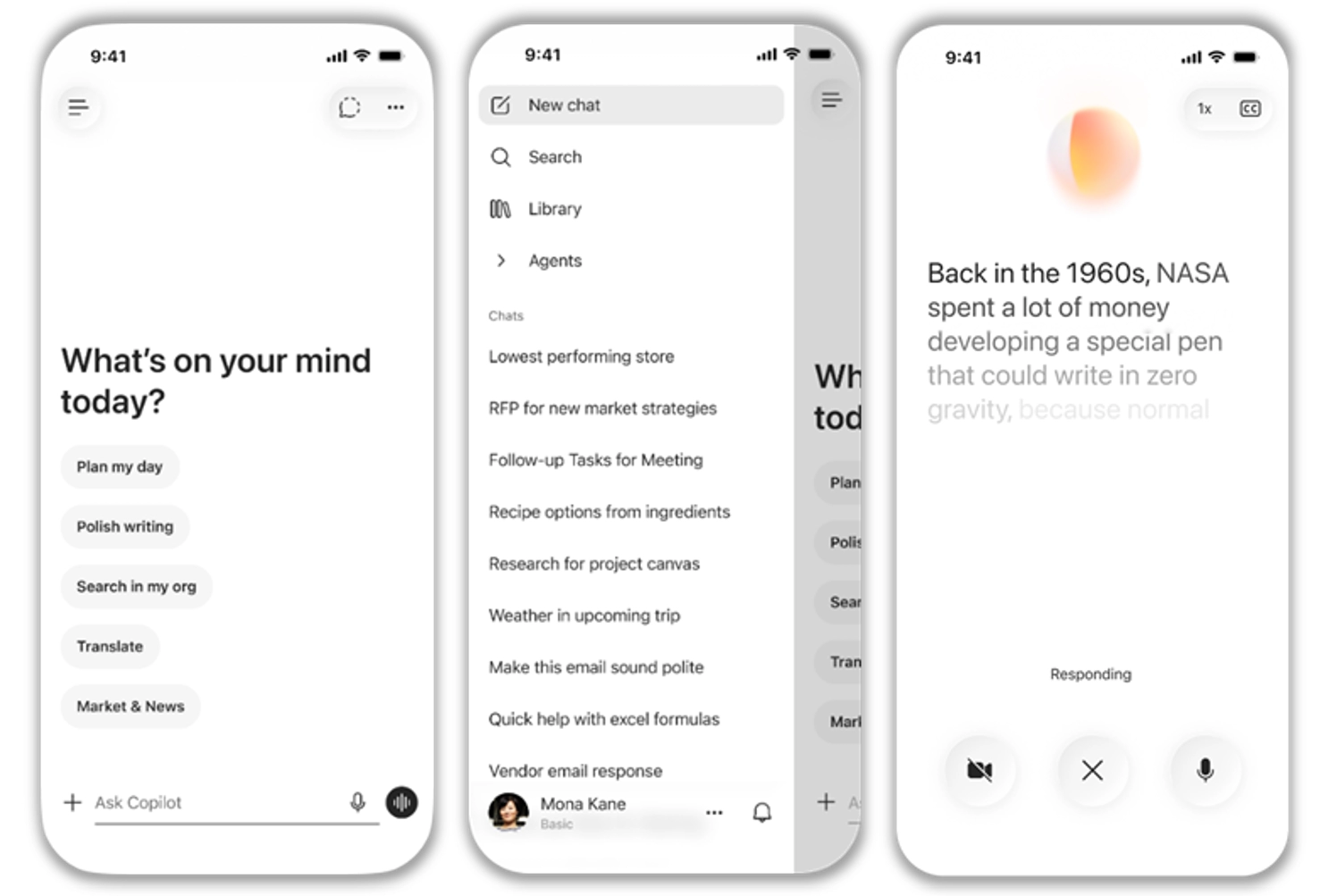
The Microsoft 365 Copilot mobile app now includes a refreshed, chat-first design that delivers a cleaner and more intuitive user experience. The update improves Copilot Chat with support for text formatting in prompts and a redesigned layout that makes responses easier to view, copy, reopen, and reference through citations. The app also introduces a streamlined menu for easier navigation, along with updated visuals including liquid glass styling and a new experience for voice conversations.
What will happen:
When this will happen
Rolling out in May.
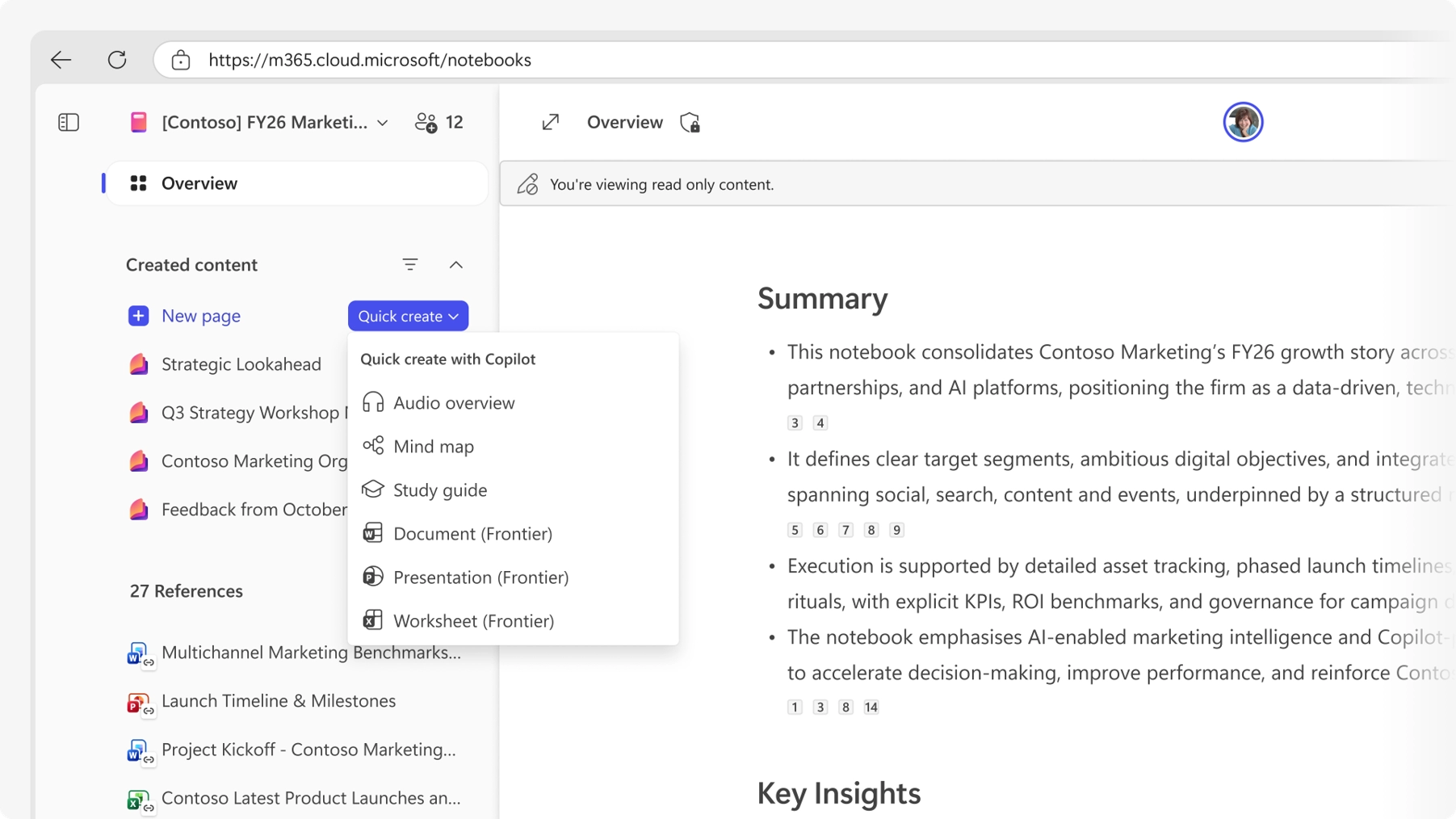
Copilot Notebooks now supports generating Word documents directly from the content and references collected in a notebook. Users can create reports, summaries, proposals, and other document types by describing their requirements, including topic, audience, and themes.
How this affects your organization
Who is affected:
Users with access to Microsoft 365 Copilot and Copilot Notebooks.
What will happen:
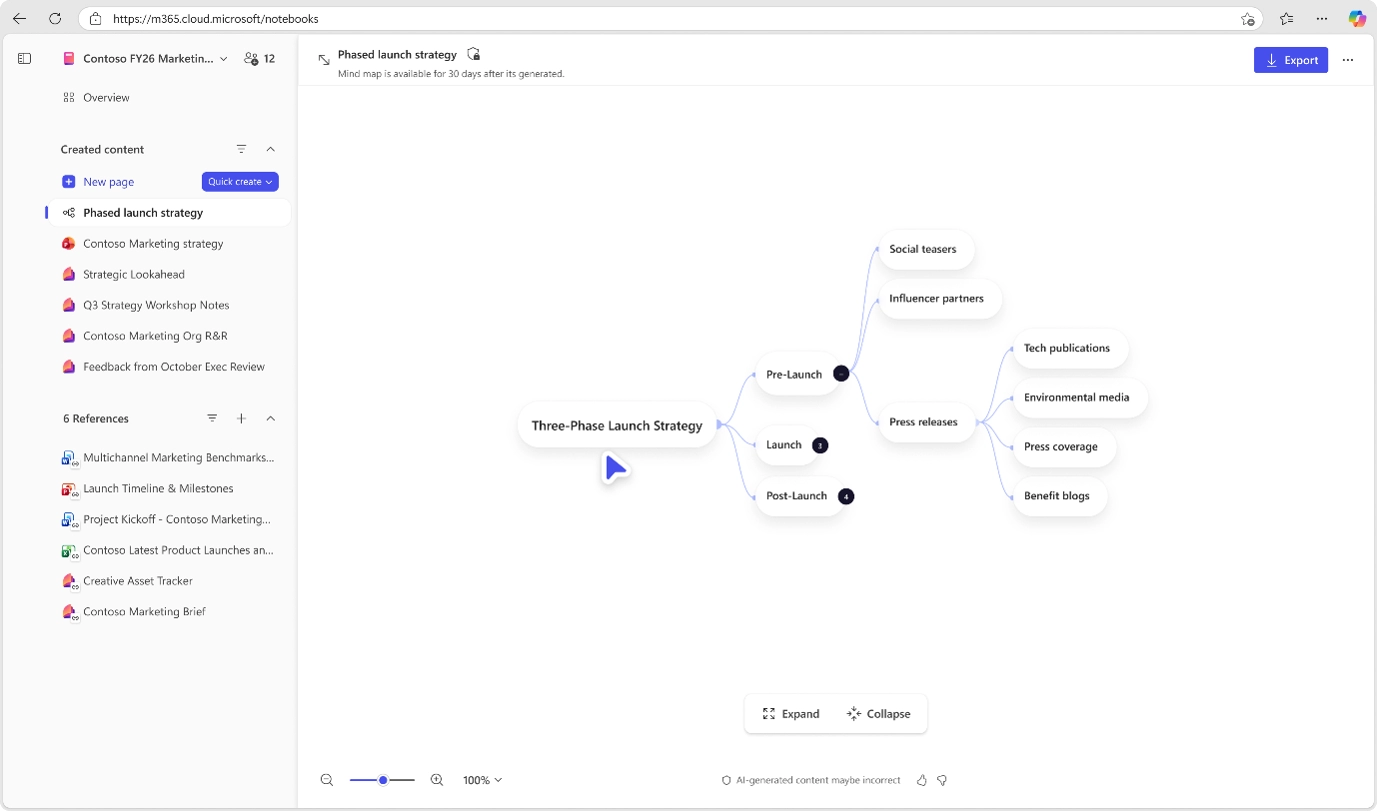
Mind maps in Copilot Notebooks provide an interactive, grounded view of key topics and relationships across notebook content. This capability helps users explore and understand complex information more effectively.
How this affects your organization
Who is affected:
Users with access to Microsoft 365 Copilot and Copilot Notebooks.
What will happen:
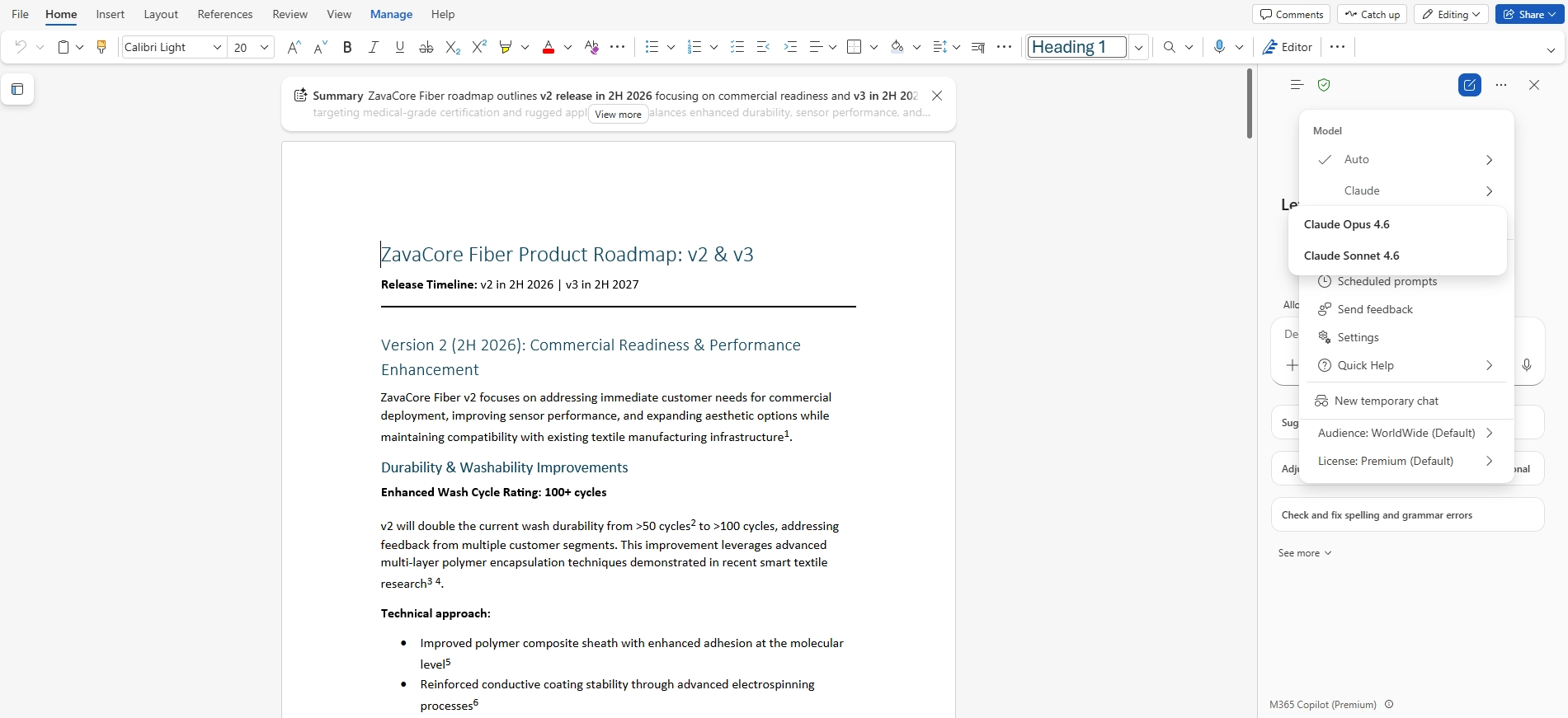
Copilot in Word now includes a Claude model option, providing an additional large language model choice for drafting and editing content. Users can select an Anthropic model alongside existing OpenAI options, with Copilot applying the same editing workflows using the selected model.
How this affects your organization
Who is affected:
Users with access to Copilot in Microsoft Word.
What will happen:
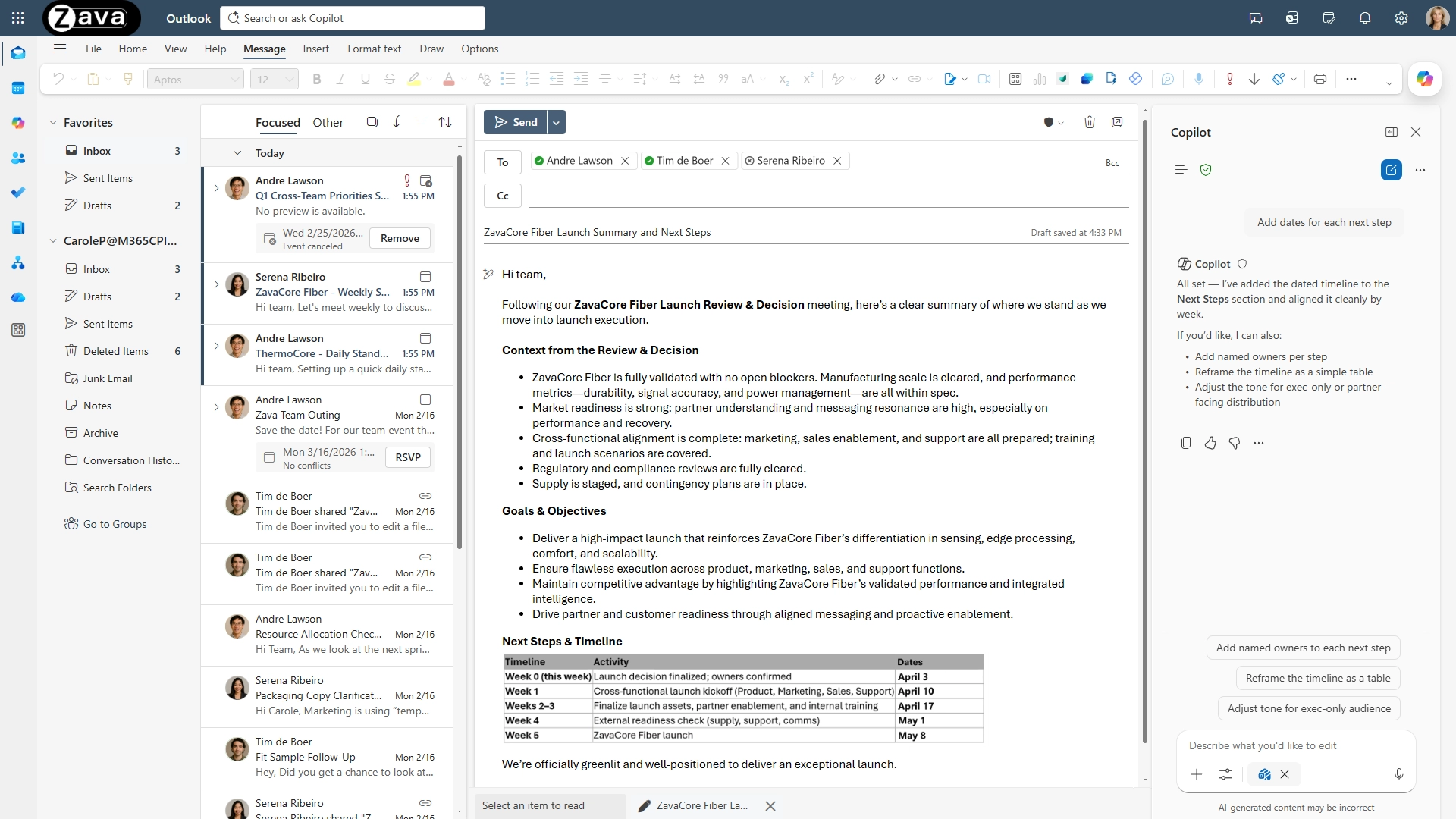
Copilot in Outlook now writes the first draft directly in the email compose canvas and iterates with the user to refine it. Instead of generating a separate draft, Copilot updates the message in place, asking clarifying questions about goals, audience, or tone and applying changes as the user responds.
When this will happen
Rolled out to new Outlook in March.
How this affects your organization
What will happen:
No admin configuration is required.
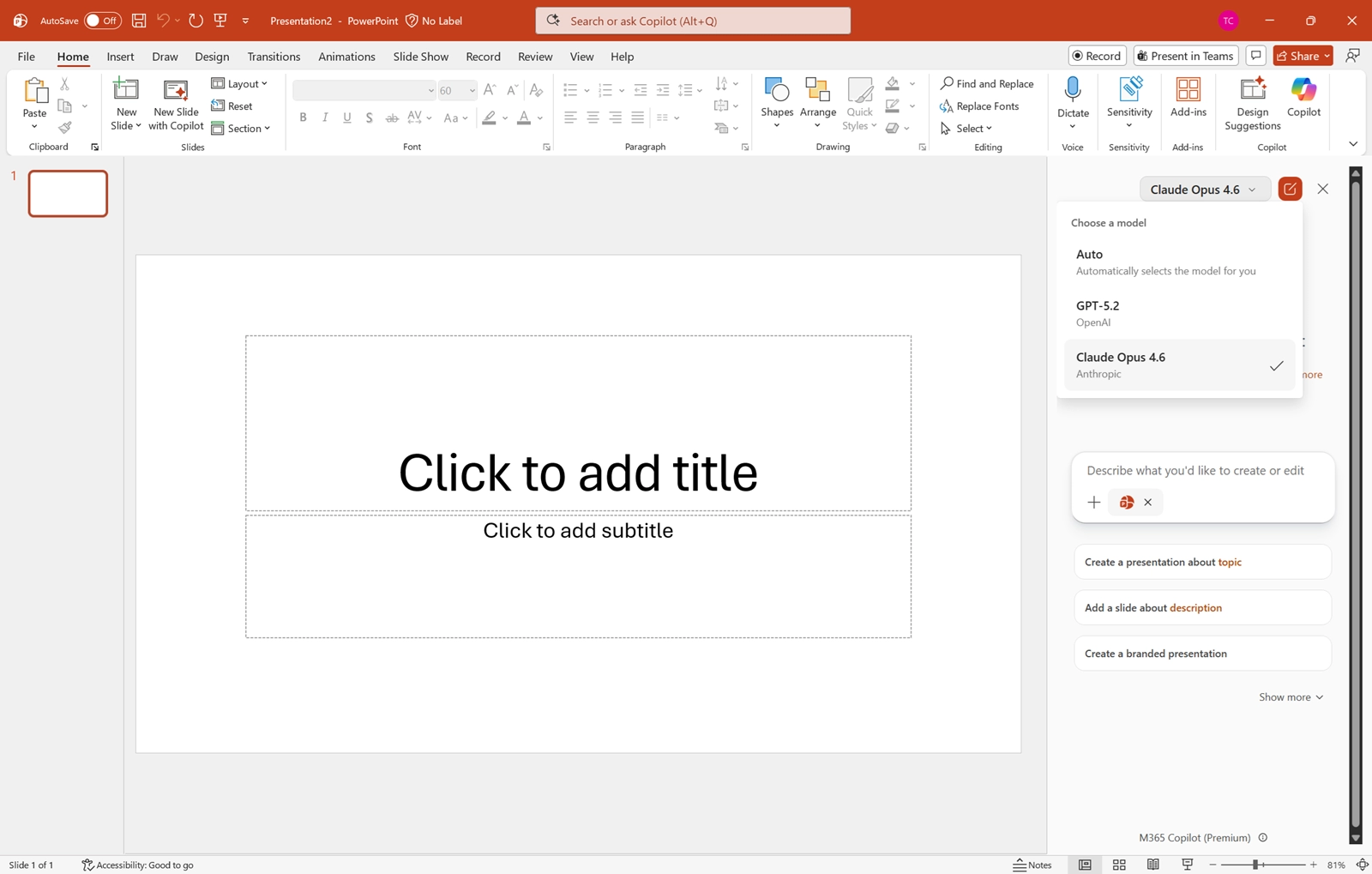
Microsoft 365 Copilot (Premium) in PowerPoint now allows users to select which AI model to use when creating or editing presentations. This capability provides additional flexibility while maintaining existing security, compliance, and administrative controls.
When this will happen
General Availability (Worldwide): Rollout begins early April 2026 and is expected to complete by early May 2026.
How this affects your organization
Who is affected:
What will happen:
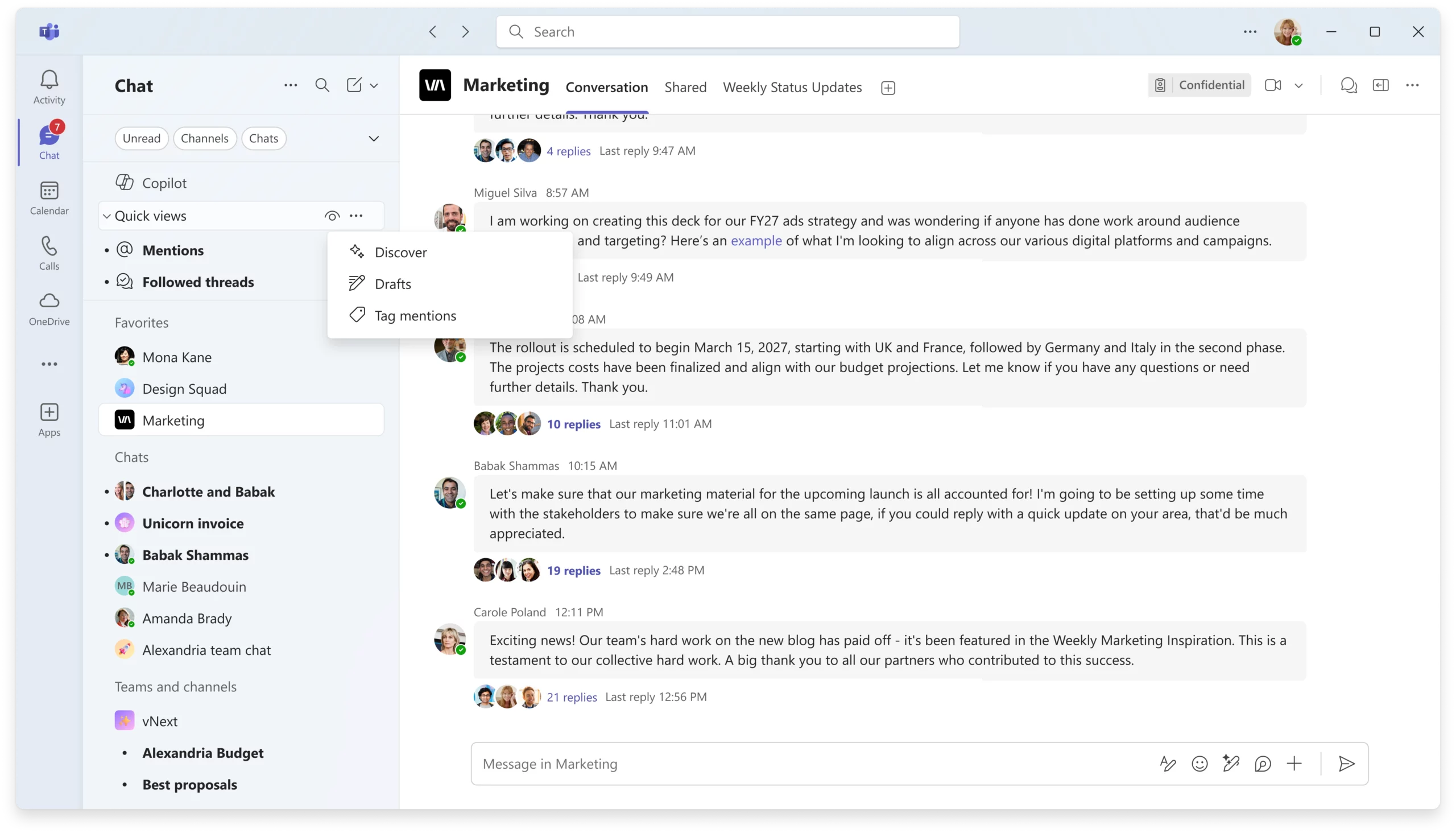
Microsoft Teams is introducing new quick view controls at the top of the chat and channels list to provide faster access to important updates such as mentions and followed threads. This enhancement improves visibility and allows users to manage how these views appear.
What will happen:
Microsoft Teams now allows users to resize the top video gallery during meetings when content is being shared. This enhancement provides greater control over layout, making it easier to view participants alongside shared content.
Who is affected:
Microsoft Teams users on Windows desktop and Mac.
What will happen:

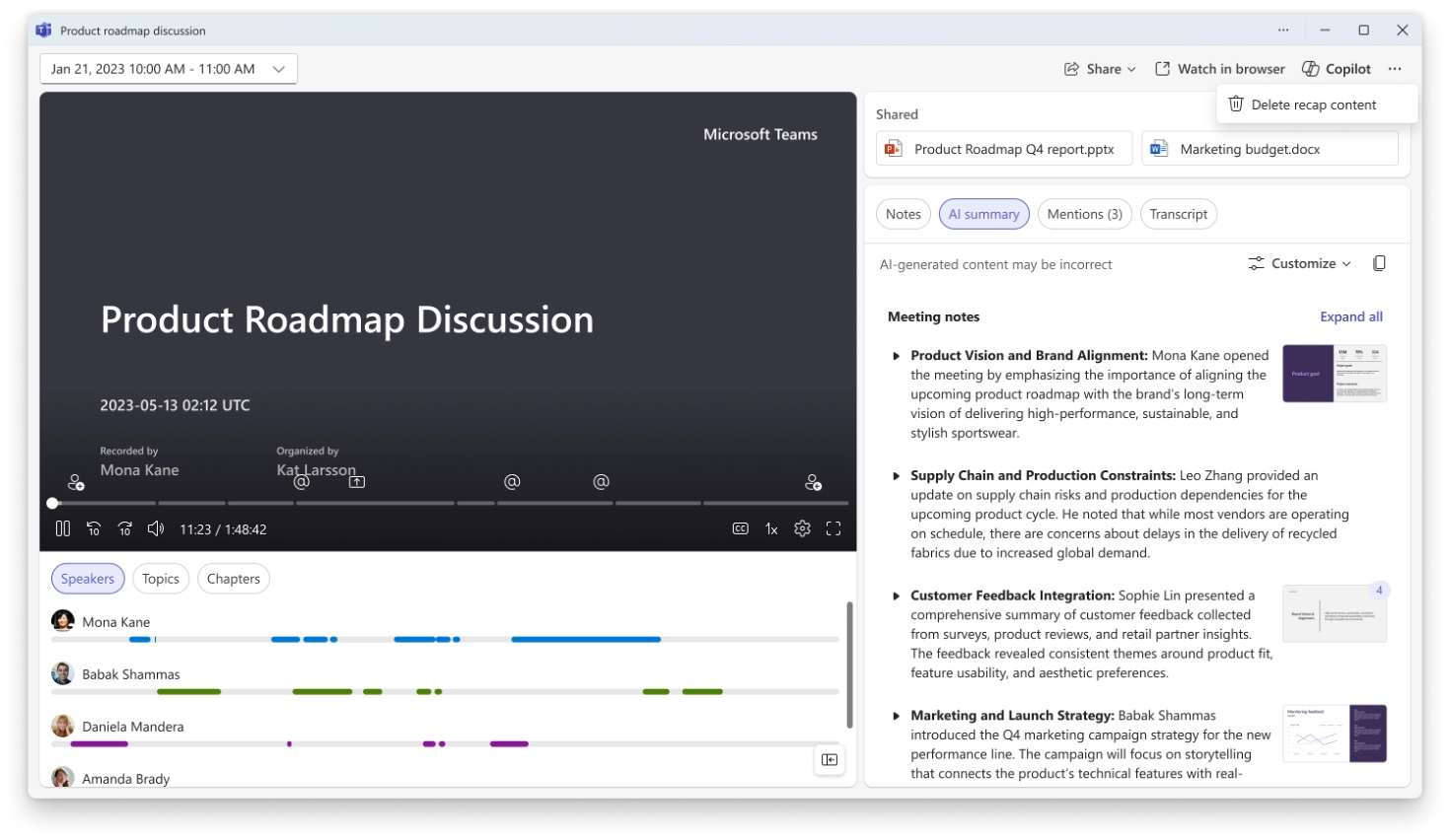
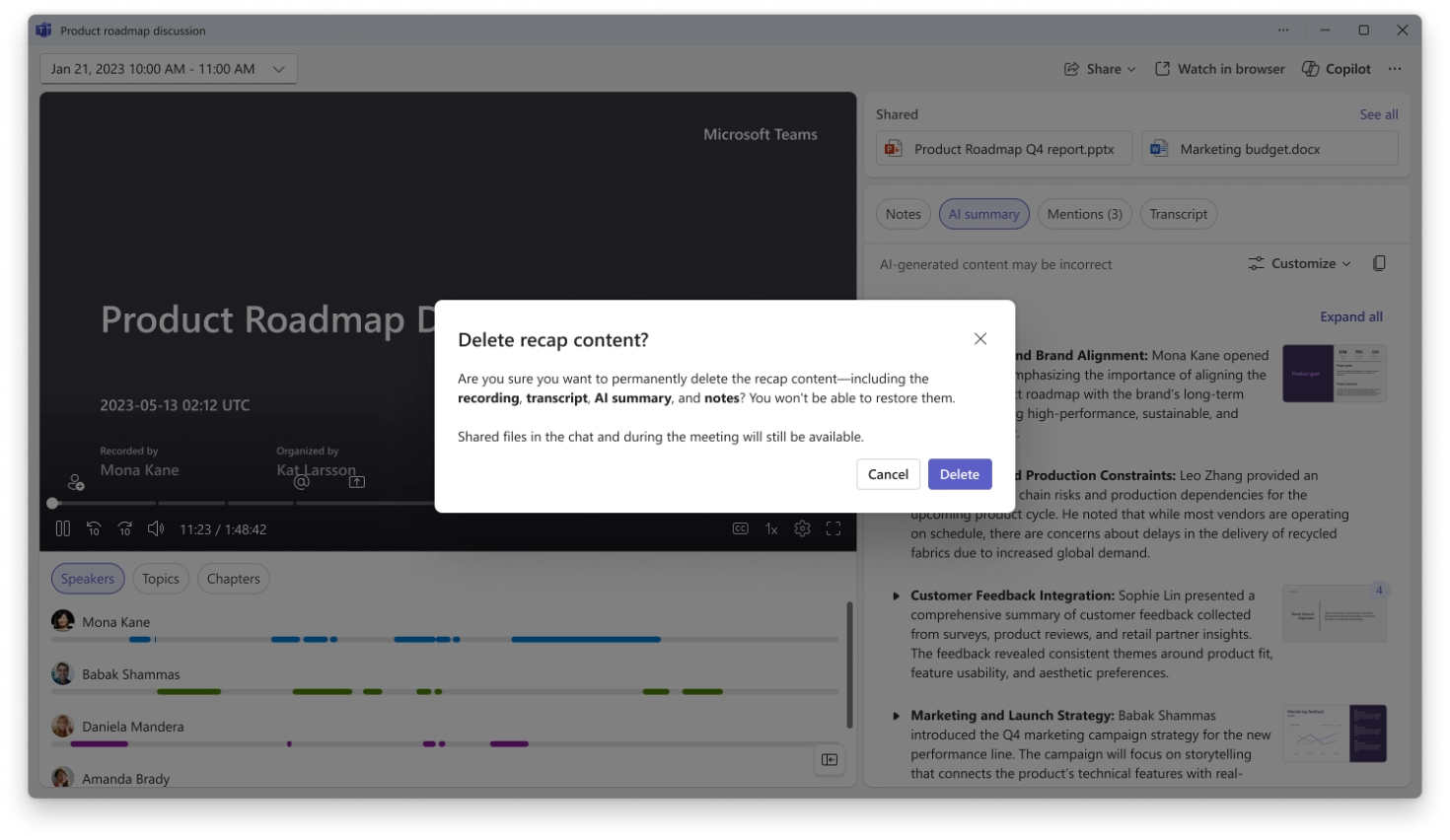
Meeting organizers in Microsoft Teams can now delete meeting-generated content directly from the meeting recap. This includes recordings, transcripts, AI summaries, and notes. Shared files from the meeting are not deleted.
When this will happen
How this affects your organization
Who is affected:
Meeting organizers in Microsoft Teams.
What will happen:
Screenshot 1: Delete recap content option found under the More (...) menu:
Screenshot 2: Delete recap content confirmation:
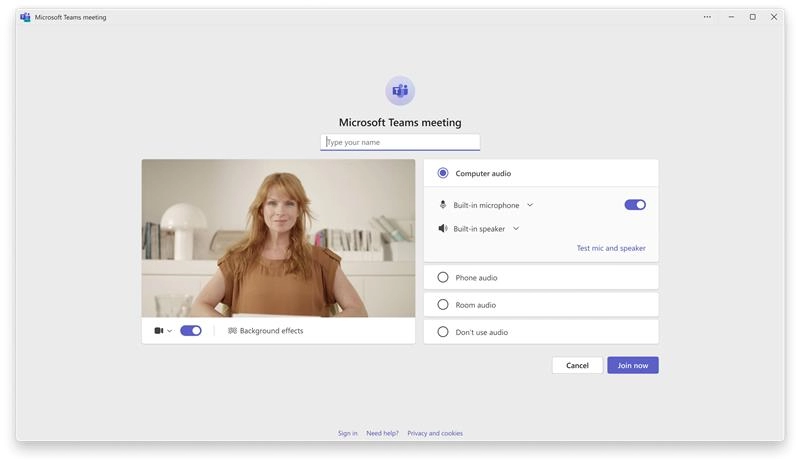
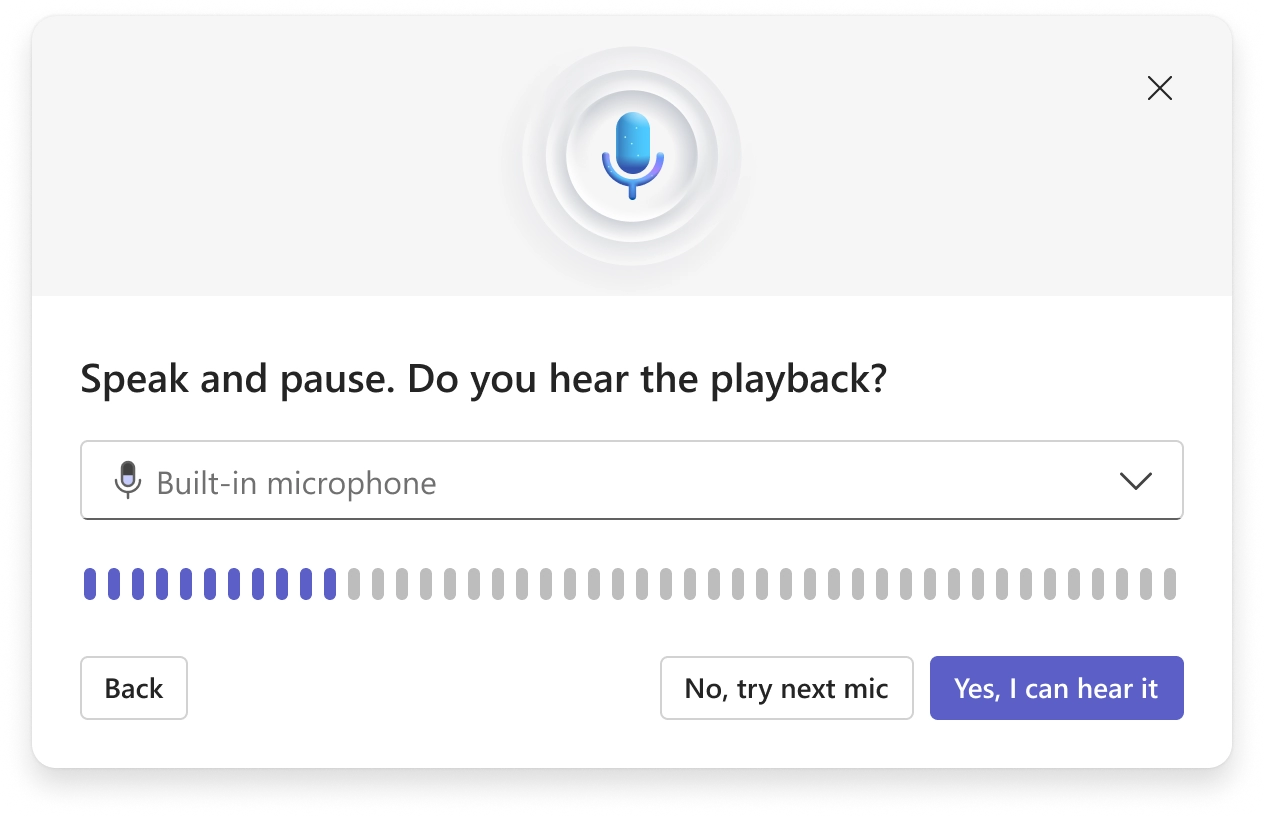
Microsoft Teams will introduce the ability for users to test their microphone and speaker before joining a meeting. This enhancement helps confirm correct audio device selection, reducing issues and improving meeting start readiness.
When this will happen
How this affects your organization
Who is affected:
All Microsoft Teams users across Microsoft 365 tenants, including Commercial, GCC, GCC High, and DoD environments.
What will happen:
Monthly updates, news & events from Microsoft to help your business grow.

CEO at Penthara Technologies


 What's new in Microsoft | May 2026 Updates
Explore the latest Microsoft 365 updates including Copilot enhancements, AI meeting recaps, Teams improvements, and new productivity features.
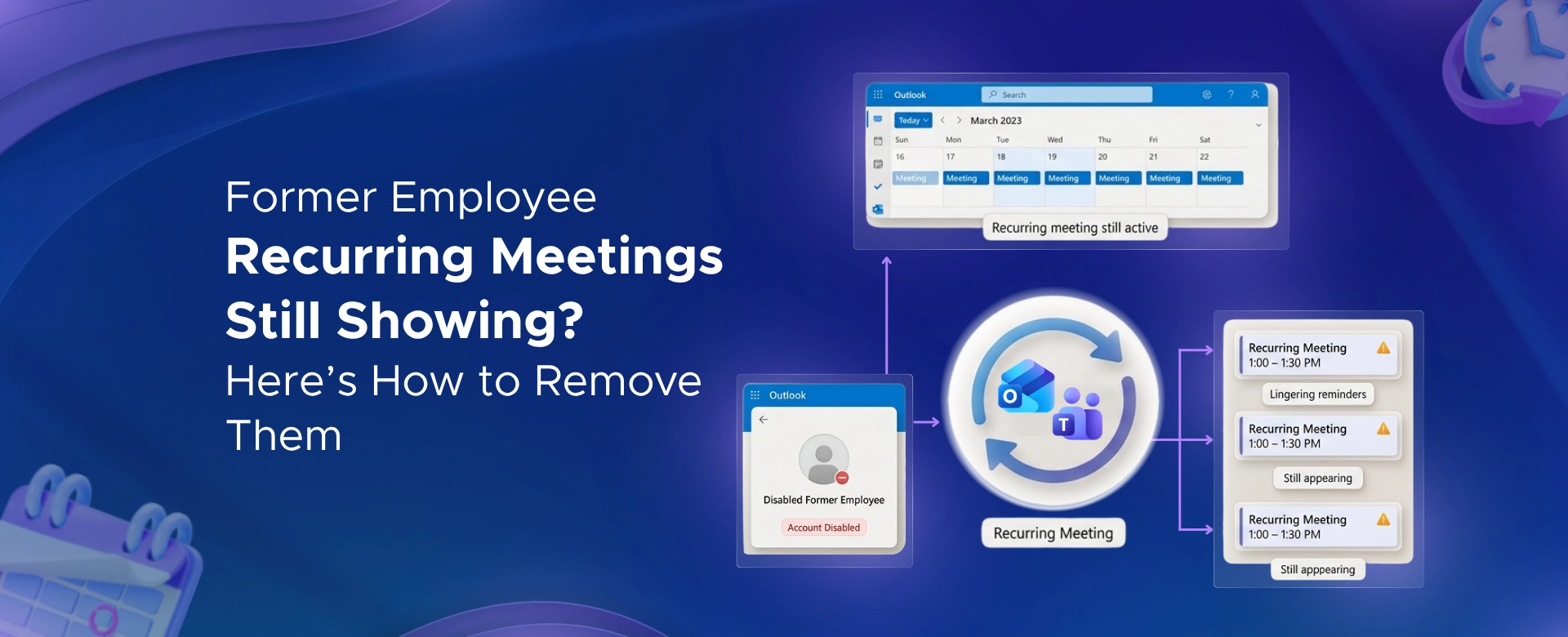 Former Employee Recurring Meetings Still Showing? Here’s How to Remove Them
Learn how to remove recurring meetings from former employees in Microsoft 365 using Outlook, PowerShell, or eDiscovery - based on account status.
 What's new in Microsoft | March 2026 Updates
Explore the latest Microsoft 365 updates including Copilot enhancements, AI meeting recaps, Teams improvements, and new productivity features.