What's new in Microsoft | June 2026 Updates

Explore the latest Microsoft 365 updates including Copilot enhancements, AI meeting recaps, Teams improvements, and new productivity features.

Table of contents
A. Microsoft Copilot
1. Microsoft 365 Copilot: General availability for Copilot Cowork
2. Expanded citations and reasoning for Copilot app and Chat
3. Microsoft 365 Copilot: Vision for visual understanding and assistance
4. Outlook: Customization and refinement for Copilot
5. PowerPoint: Updates to branding, skills, and references for Copilot
6. Excel: Skills for reusable workflows in Copilot
7. Excel: Personalization for Copilot
8. Excel: Workbook rules sheets for Copilot
9. Copilot Agents: Planner Agent availability and Researcher options
B. Microsoft Teams
1. Microsoft Teams: Advanced file discovery and filters in Find in chat and channels
2. Microsoft Teams: List view for "View more apps"
3. Microsoft Teams: Improved visibility and control for downloads
4. Microsoft Teams: Quick Share for images
5. Microsoft Teams: Smarter bot protection in meetings
6. Microsoft Teams: Branded reactions

A. Microsoft Copilot

1. Microsoft 365 Copilot: General availability for Copilot Cowork

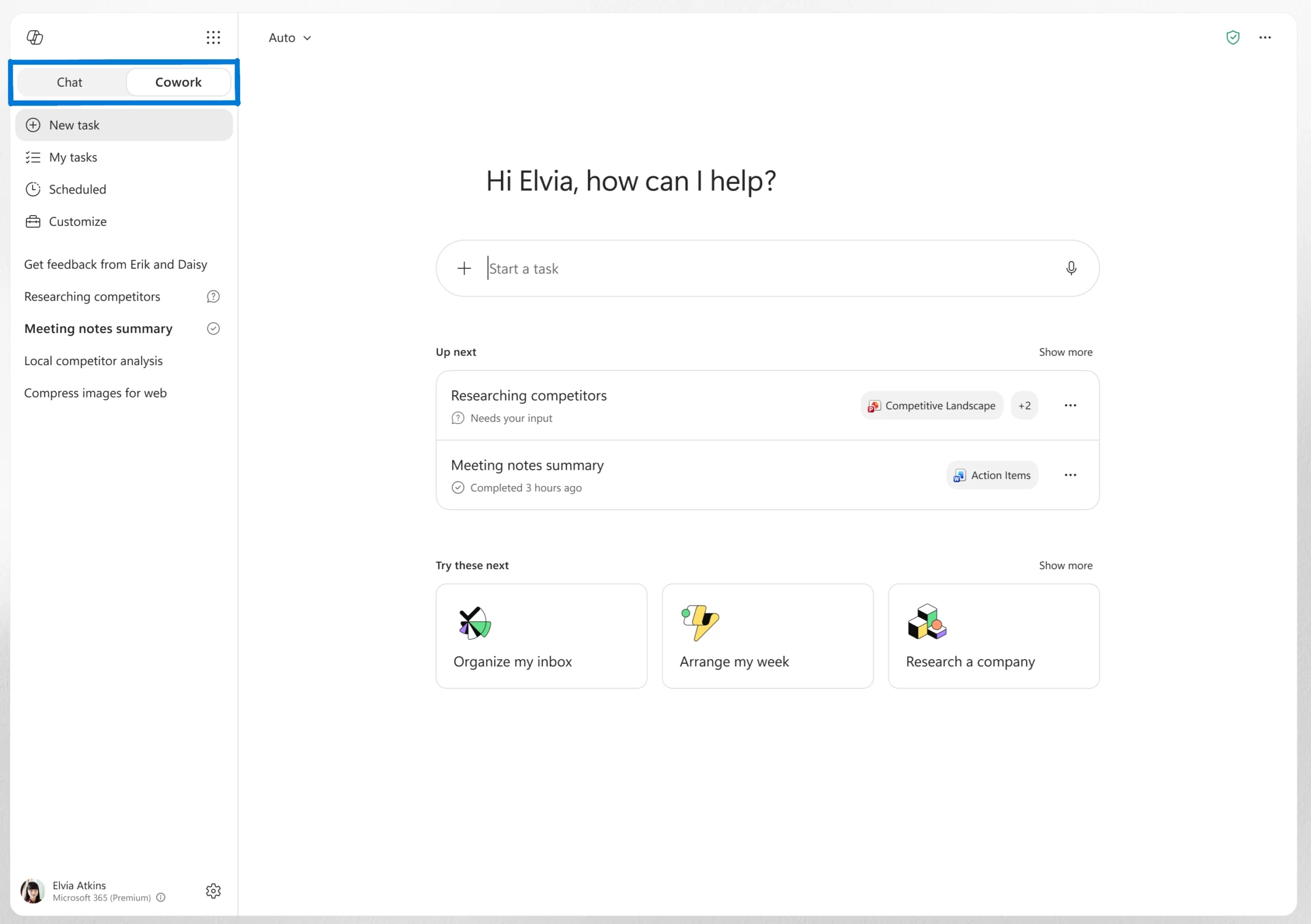
Copilot Cowork, an agentic system that can plan, execute, and complete work on a user’s behalf, is now generally available worldwide. Users can assign a task to Cowork, and it will work through the process from start to finish, returning a completed deliverable instead of a draft or recommendation.

Powered by Work IQ, Cowork uses organizational data and business context to help ensure tasks are completed using relevant information from connected systems. Administrators can monitor usage through the new Cost Management Dashboard in the Microsoft 365 admin center, which provides visibility into credit usage, budgets, and spending.

When this will happen
Generally available worldwide.
The Chat/Cowork toggle rolled out in June.

How this affects your organization

What will happen:

  • Copilot Cowork is now available worldwide.
  • Users can assign tasks to Cowork and receive completed deliverables.
  • Work IQ provides business context by grounding tasks in connected organizational systems.
  • A new Cost Management Dashboard is available in the Microsoft 365 admin center to help administrators monitor credit usage, budgets, and spending.
  • Users can switch between Chat and Cowork using a new toggle in the Microsoft 365 Copilot app.

Smarter model selection in Copilot Cowork

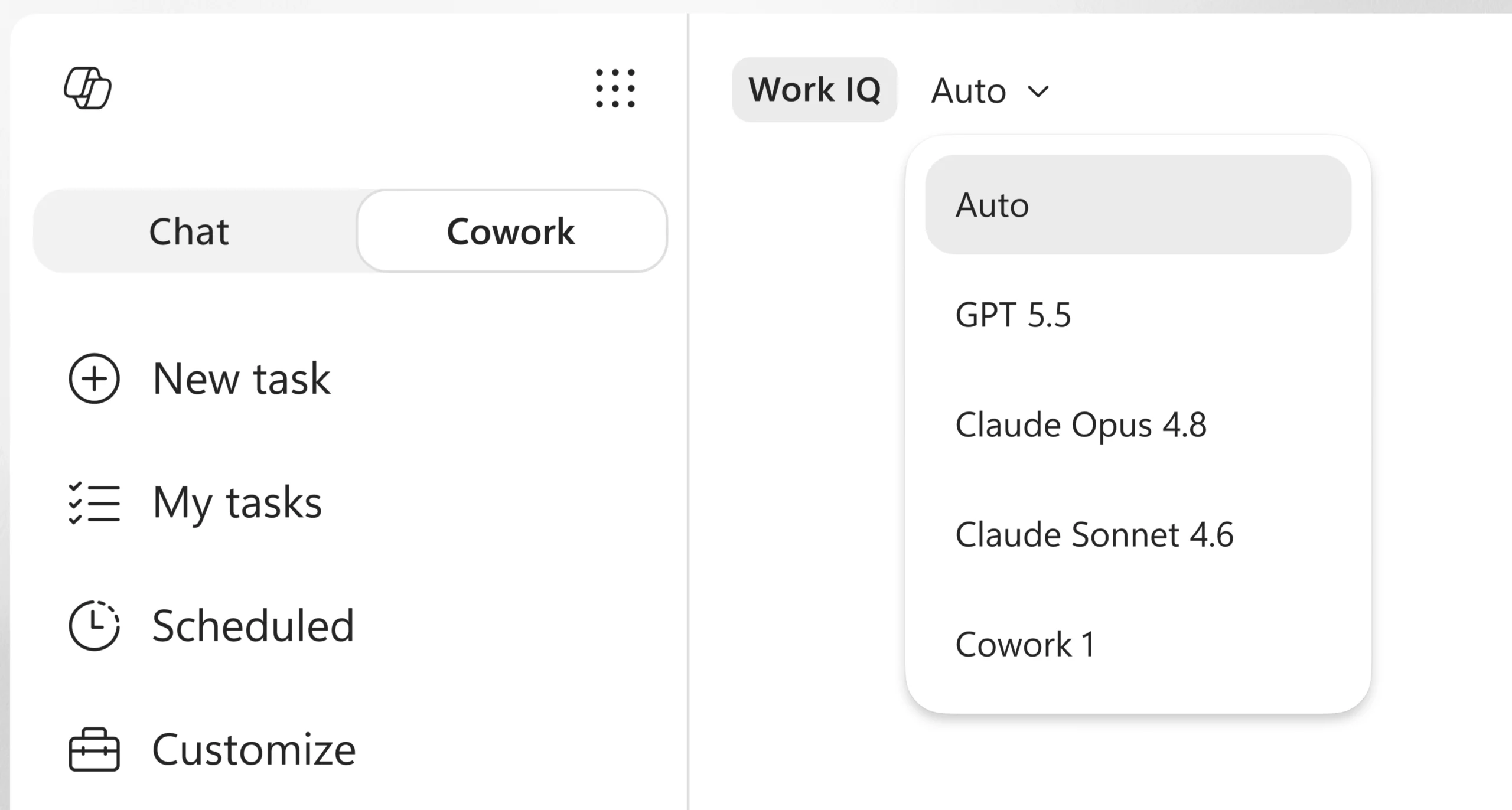
Copilot Cowork can now automatically choose the most suitable AI model for a task. For example, it can use Anthropic models for visual work such as presentations and graphics, or GPT 5.5 for research tasks that require deeper analysis and citations. This helps users get the right capabilities for the job without having to select a model themselves.

Expanded plugin support in Copilot Cowork

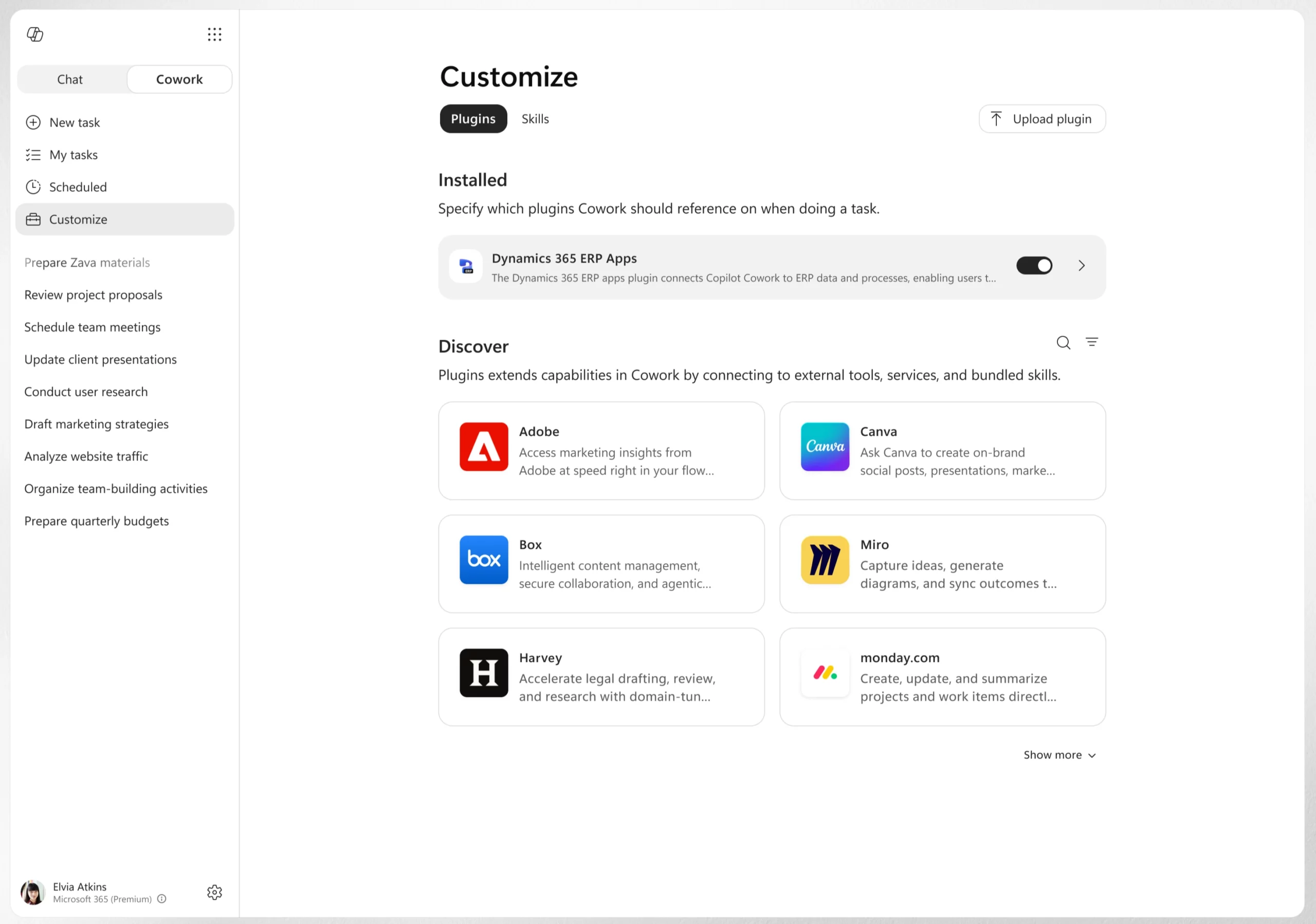
Copilot Cowork now supports more plugins, allowing users to access additional business systems directly within their workflow. New plugins include Enosix, Harvey, LSEG, Miro, monday.com, Moodys, Morningstar, S&P Global Energy, and TeamsMaestro, with Databricks available through sideloading.

Support has also been added for Microsoft Fabric and the full Dynamics 365 portfolio, including Sales, Customer Service, and ERP applications.

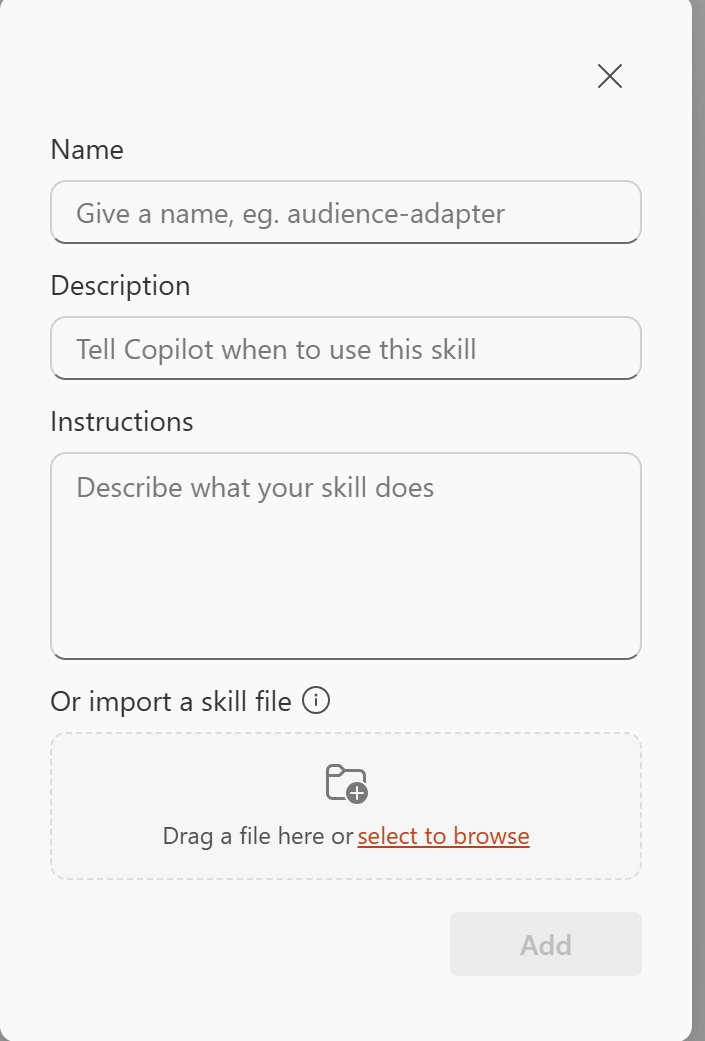
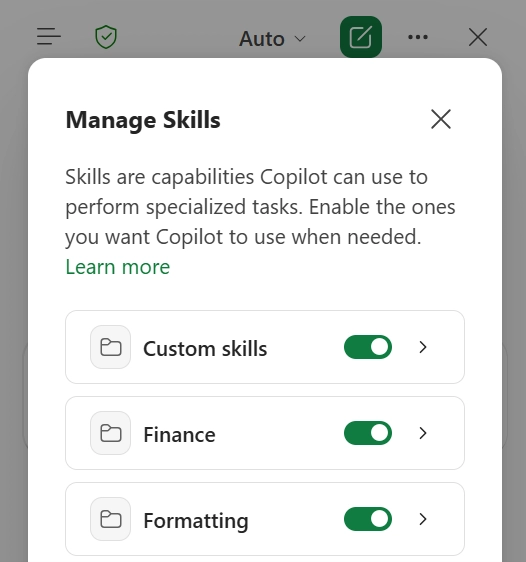
Custom skills management in Copilot Cowork

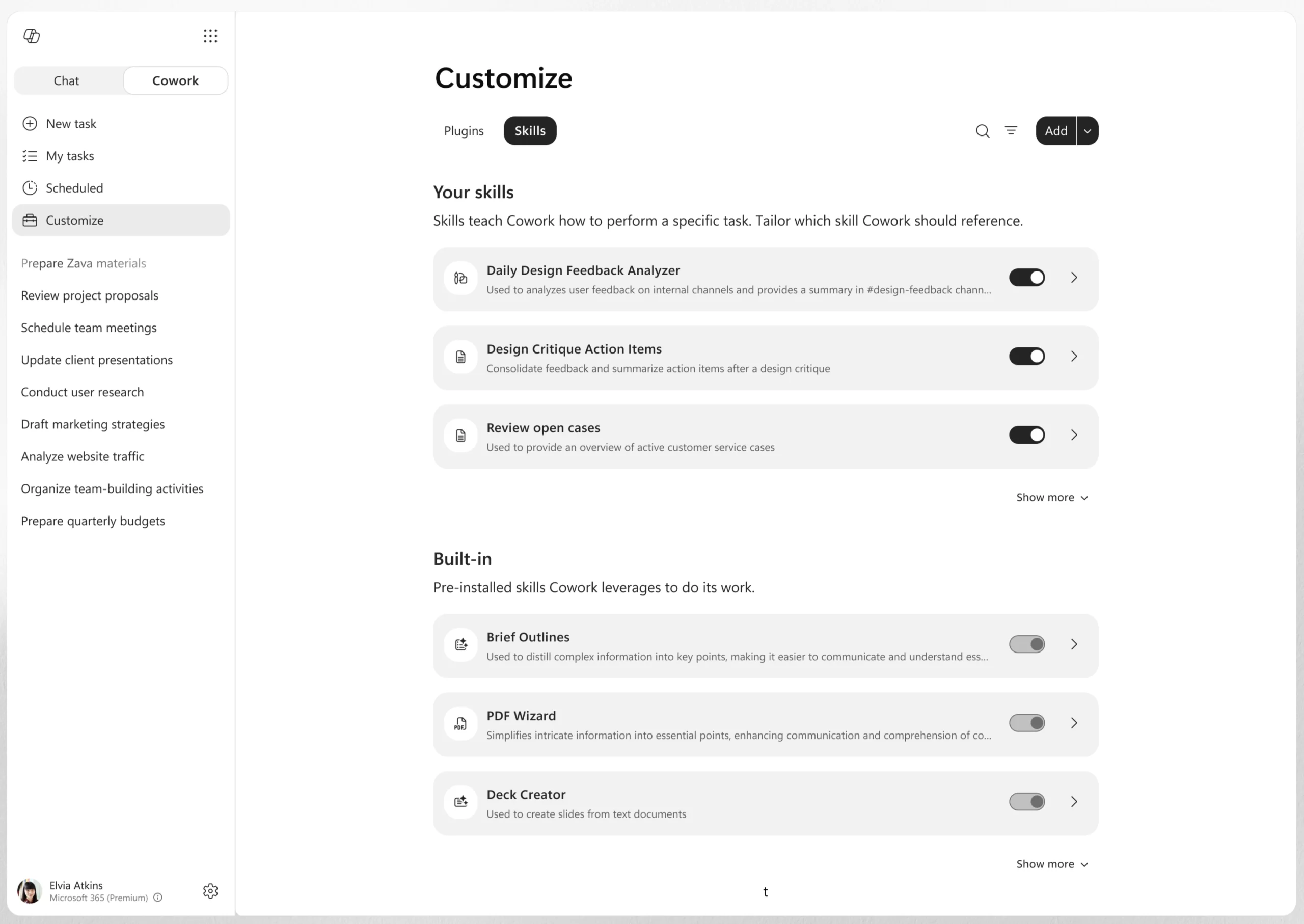
Users can now create, edit, and manage custom skills directly from the Customize tab in Copilot Cowork. Skills are custom instructions that help Cowork work according to a user's preferred processes and requirements.

Users can build and refine skills over time, as well as combine their own workflows with partner-provided or organization-wide skills delivered through plugins. This makes it easier to standardize recurring tasks without having to rewrite the same prompts repeatedly.

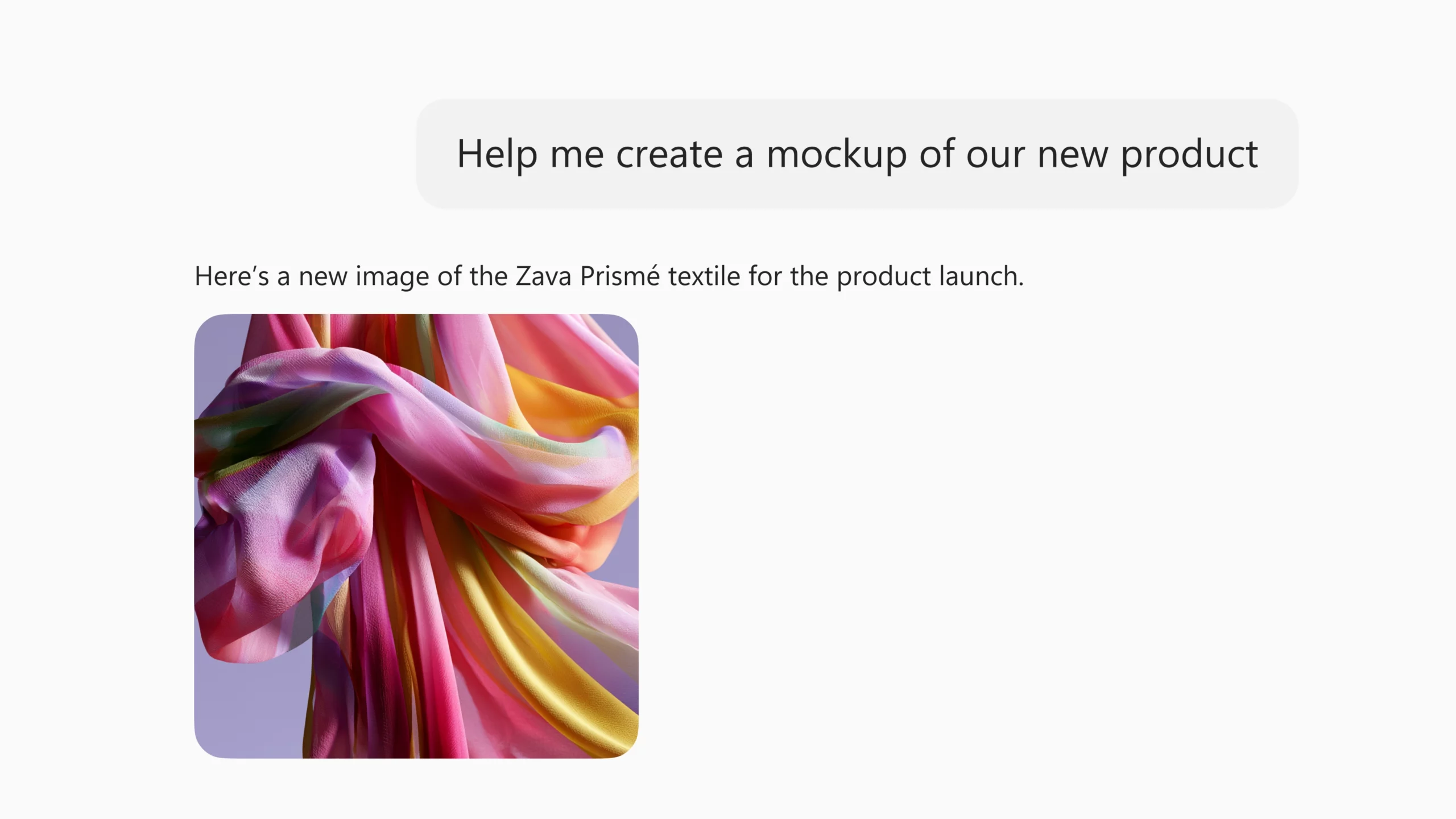
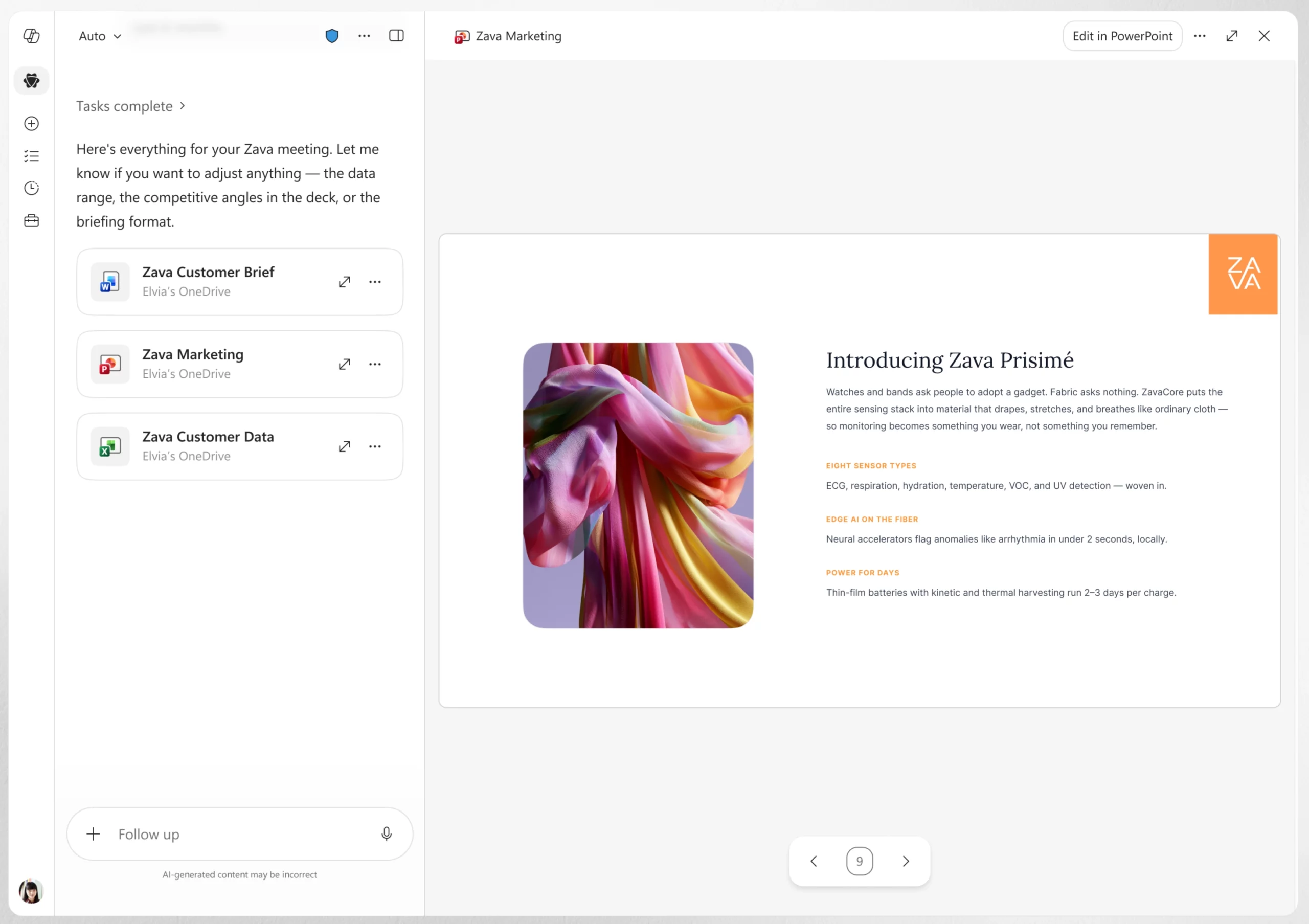
Create visuals and branded presentations in Copilot Cowork

Copilot Cowork can now create and edit visuals such as presentation graphics, document illustrations, and email images directly within the workflow. This helps users generate visual content without switching between different tools.

Cowork can also use an organization's approved PowerPoint templates, including brand colors, fonts, logos, and layouts. This helps users create presentations that align with company branding from the start and reduces the need for manual formatting later.

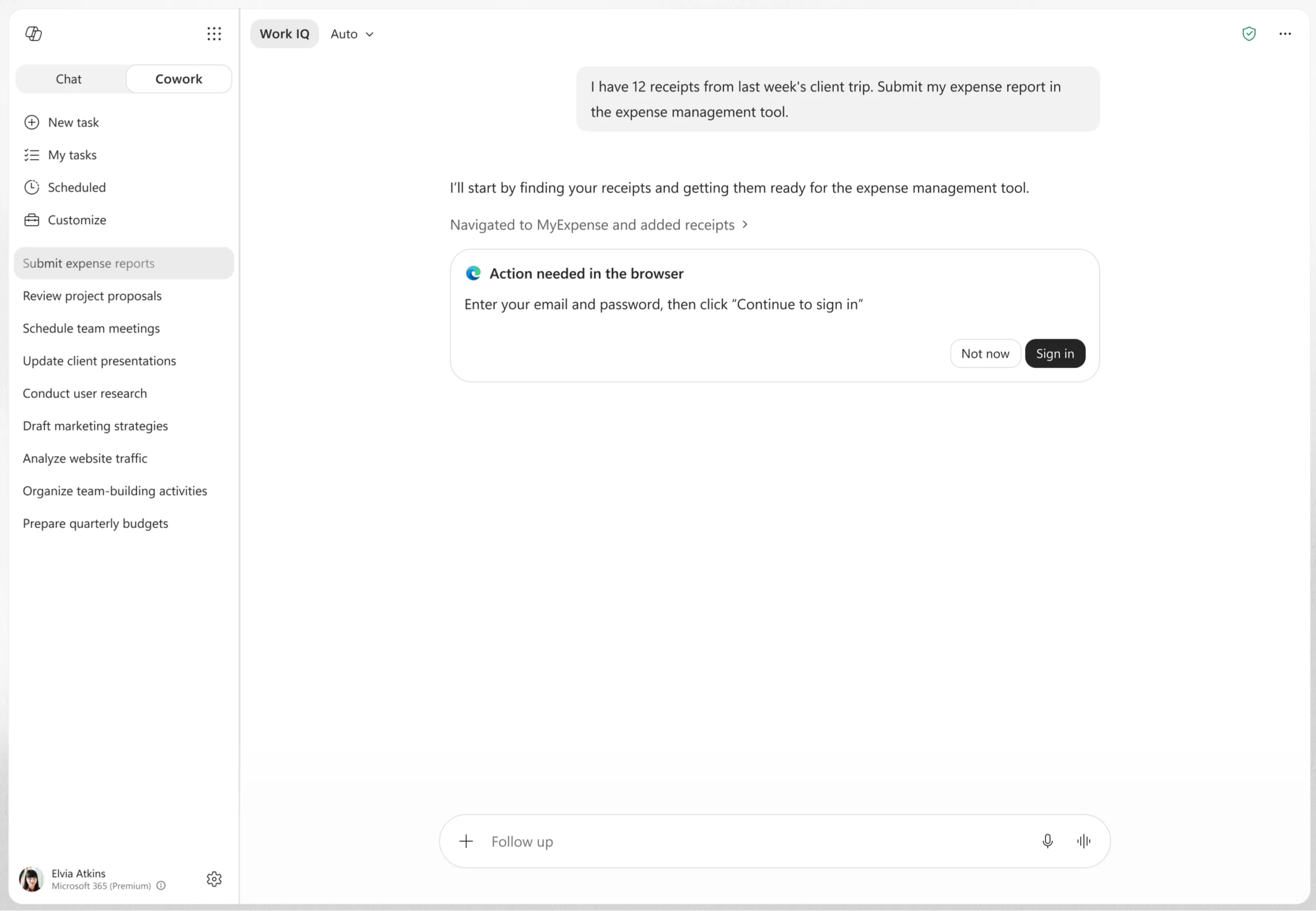
Browser-based actions in Copilot Cowork

Copilot Cowork can now use the Edge browser to complete tasks across business systems, websites, and intranet sites. This allows Cowork to interact with information and tools across different web-based environments as part of completing a task.

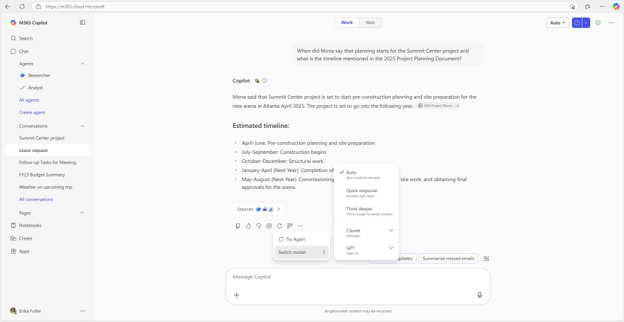
2. Expanded citations and reasoning for Copilot app and Chat

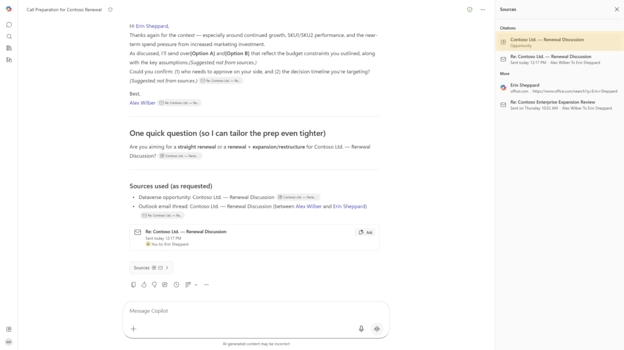
Microsoft 365 Copilot continues to expand how it reasons over business data and provides more transparent answers. New capabilities bring Power BI and Dataverse data directly into Copilot experiences, while enhanced citations help users verify responses more easily.

When this will happen

  • Power BI integration for Work IQ rolled out to the Frontier program in June.
  • Dataverse integration rolled out in public preview in June and will be generally available in September.
  • Deep citations rolled out in June.

How this affects your organization

What will happen:

  • Copilot can use Work IQ to reason over Power BI enterprise data and provide grounded answers based on Power BI reports and semantic models.
  • Users can ask natural-language questions about Power BI data without creating queries manually.
  • Work IQ enables Copilot to search and query Dataverse business data directly within Copilot Chat experiences.
  • Users can ask questions about Dataverse data and receive grounded responses without leaving Copilot.
  • Deep citations now link users directly to the specific section of a referenced file instead of only linking to the entire file.
  • Deep citations currently support Word and PowerPoint files, with support for Meetings, web content, and PDF references planned in the future.

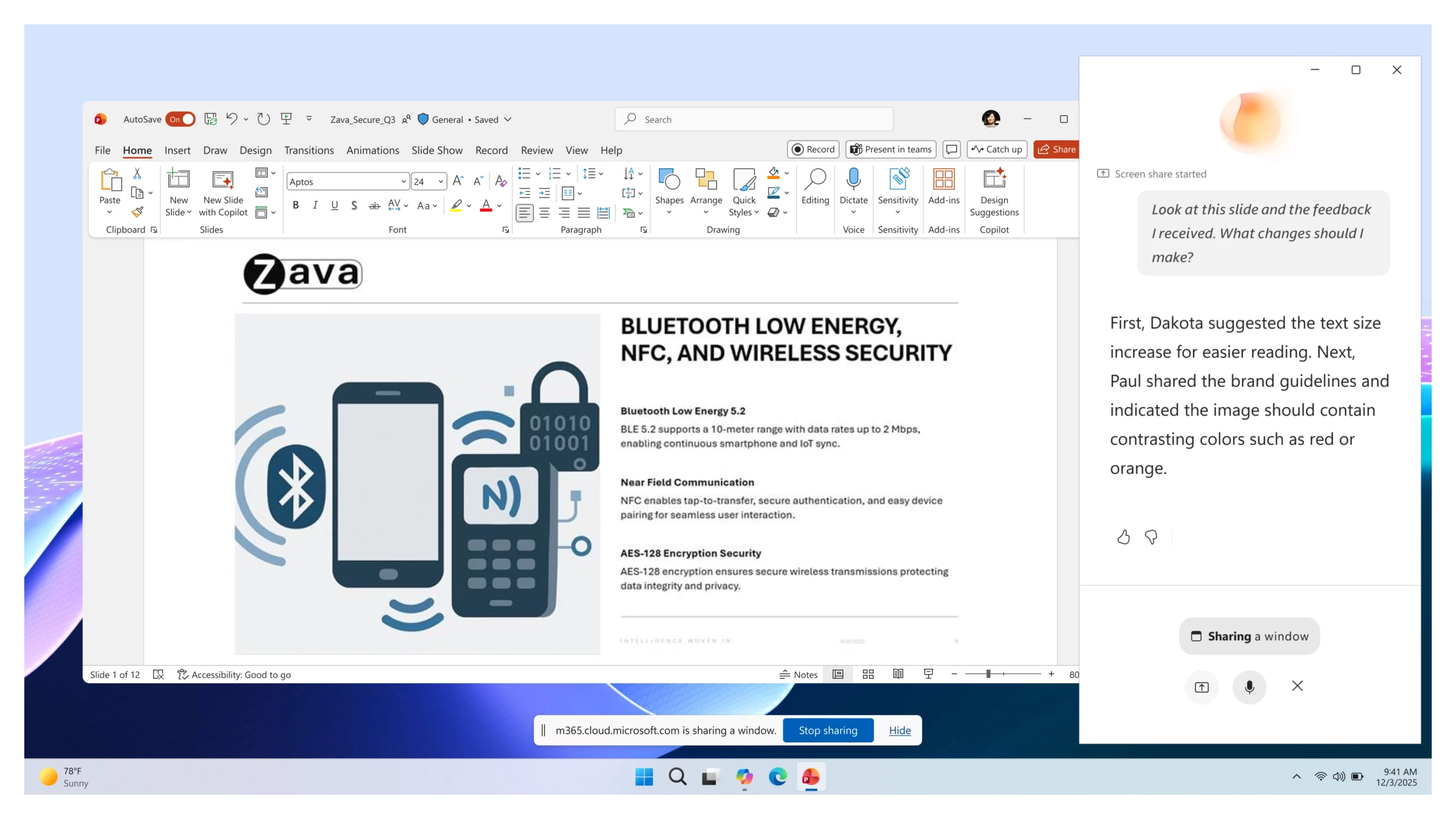
3. Microsoft 365 Copilot: Vision for visual understanding and assistance

Vision in Microsoft 365 Copilot helps users get answers faster when work depends on what they can see on their screen or through their phone camera. Instead of describing a dashboard, document, image, error message, or real-world object, users can show it directly to Copilot and ask questions in a voice conversation.

How this affects your organization

What will happen:

  • Users can share visual content from their screen or phone camera during a conversation with Copilot.
  • Copilot can analyze what is being shown and provide explanations, insights, and recommendations.
  • Responses can be informed by the visual content, along with available work and web context.
  • Users can receive guidance and next steps without needing to manually describe what they are seeing.

4. Outlook: Customization and refinement for Copilot

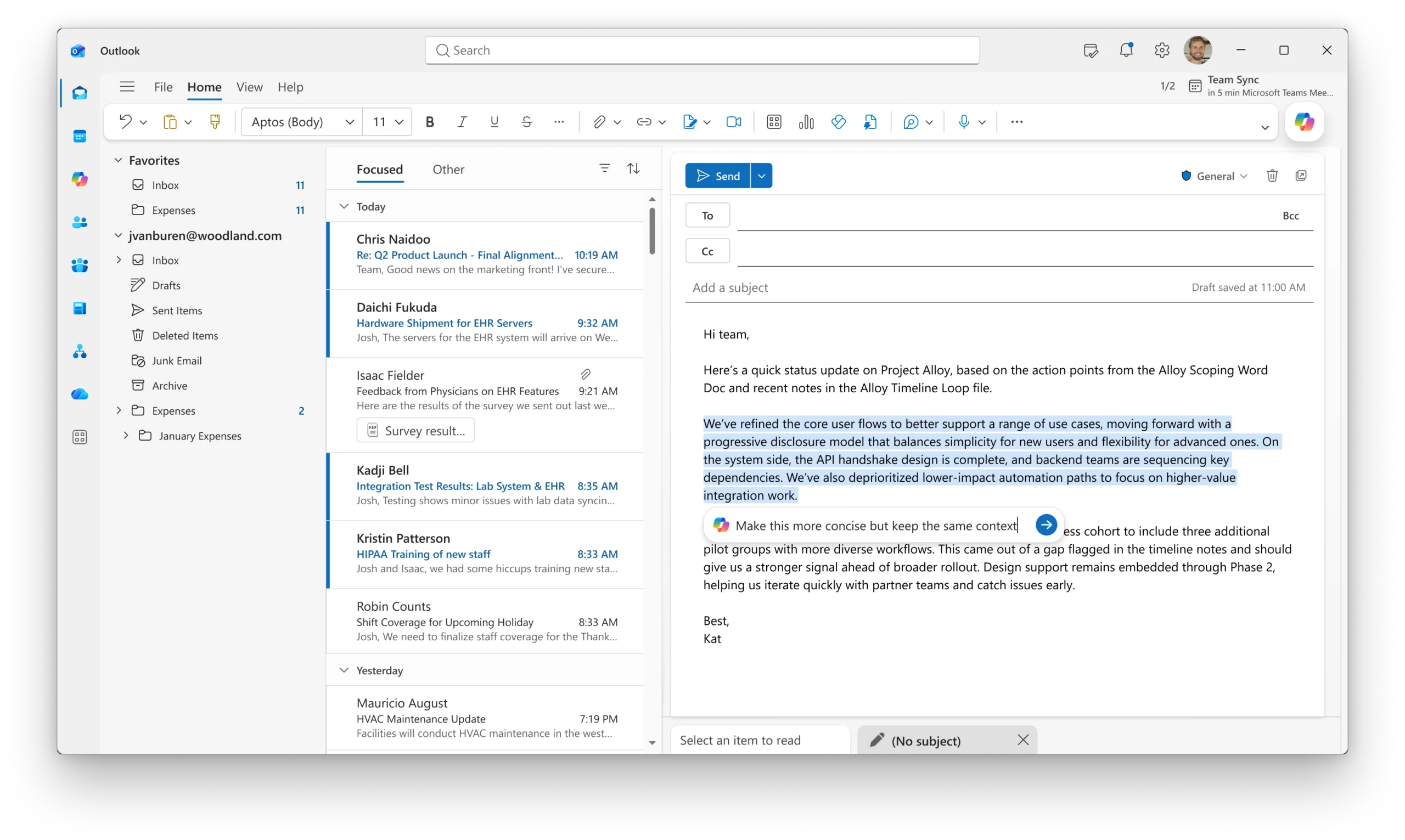
New Copilot enhancements in Outlook make it easier for users to manage Copilot settings and refine email drafts directly within the compose experience.

When this will happen

  • Direct access to Copilot settings in Classic Outlook for Windows is rolling out in July.
  • Email draft refinement with Copilot rolled out on the web in June.

How this affects your organization

What will happen:

  • Users of Classic Outlook for Windows can access and manage Copilot settings directly from Outlook.
  • Users can refine specific sections of an email draft using Copilot within the compose canvas.
  • Copilot can adjust the length, tone, or structure of selected content without rewriting the entire message.
  • Targeted editing helps users make quick changes to draft content more efficiently.

5. PowerPoint: Updates to branding, skills, and references for Copilot

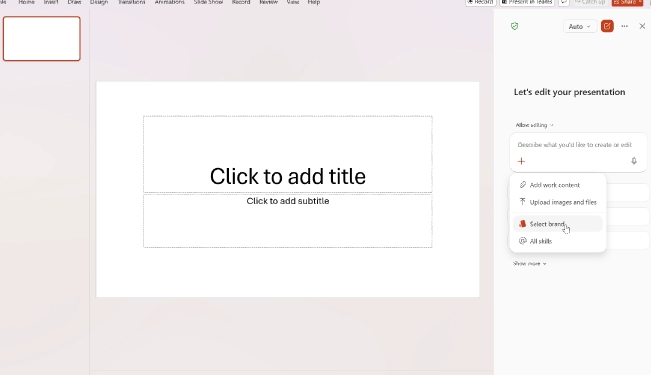
Brand Kit Picker helps users create presentations that align with their organization's approved branding from the start. When generating a presentation with Copilot, users can choose an admin-approved brand kit that applies the correct visual style automatically.

When this will happen

  • Brand Kit Picker rolled out in June.

How this affects your organization

What will happen:

  • Users can select an admin-approved brand kit when creating presentations with Copilot.
  • Brand kits apply approved colors, fonts, and visual styles to generated presentations.
  • Presentations can be created with consistent branding from the beginning.
  • The need for manual formatting and brand adjustments after generation is reduced.

6. Excel: Skills for reusable workflows in Copilot

Users can now use Skills in Copilot for Excel to turn repeatable workflows into reusable instructions. Teams can create custom skills for common analysis, modeling, and reporting tasks, making it easier to apply consistent processes across their work.

When this will happen

  • This feature rolled out in June.

How this affects your organization

What will happen:

  • Users can create and use custom skills within Copilot in Excel.
  • Skills can package repeatable analysis, modeling, and reporting workflows into reusable instructions.
  • Teams can standardize common tasks and processes across users.
  • Users can invoke saved skills instead of rewriting the same prompts for recurring work.

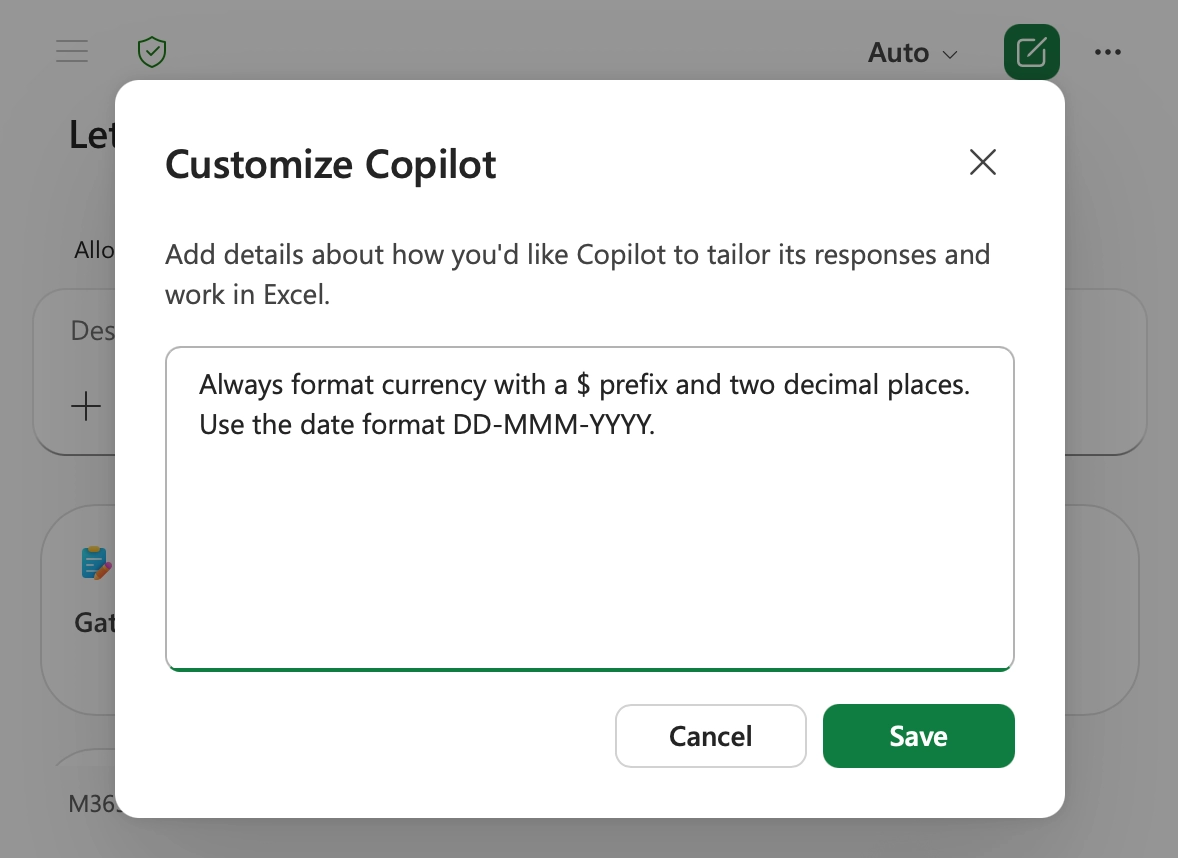
7. Excel: Personalization for Copilot

Copilot in Excel now supports Personalization, allowing users to define their preferences once and have them applied consistently across workbooks. This helps Copilot generate spreadsheet content that aligns with individual working styles and standards.

When this will happen

  • This feature rolled out in June.

How this affects your organization

What will happen:

  • Users can set standing preferences for how Copilot works in Excel.
  • Preferences can include formatting, naming conventions, formulas, PivotTables, and report styles.
  • Copilot can apply these preferences automatically across workbooks.
  • Users no longer need to repeat the same instructions in every prompt.
  • Spreadsheet outputs can be more consistent and require less manual rework.

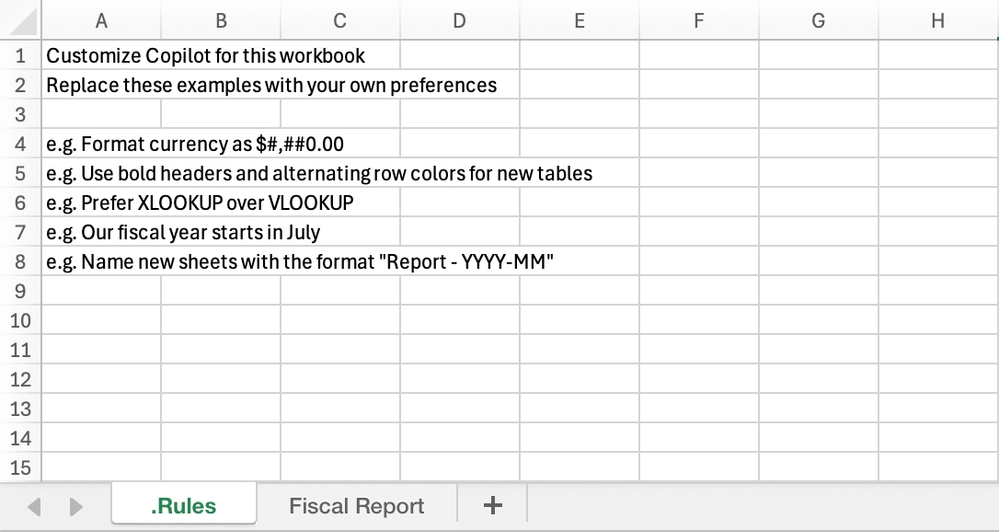
8. Excel: Workbook rules sheets for Copilot

Copilot in Excel now supports workbook rules sheets, giving teams a way to define workbook-specific standards that Copilot can follow when editing a file. This helps ensure consistency across shared workbooks and recurring business processes.

When this will happen

  • This feature rolled out in June.

How this affects your organization

What will happen:

  • Teams can define workbook-specific standards using a dedicated .Rules sheet.
  • Rules can include structure, formatting, naming conventions, formula standards, and examples.
  • Copilot can follow the guidance stored in the workbook when making edits.
  • Rules can reference examples, formulas, ranges, and other worksheets.
  • Teams can standardize recurring templates and workflows directly within Excel.

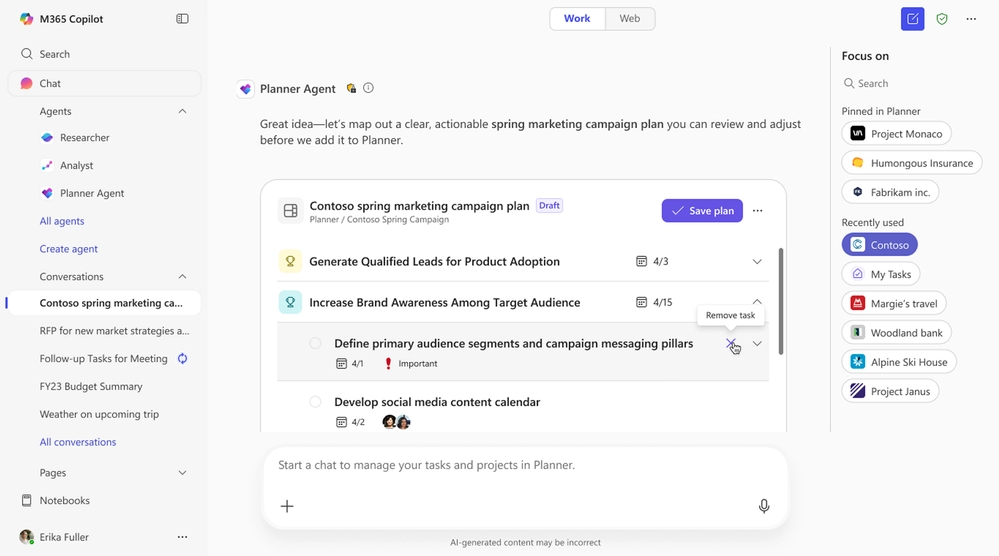
9. Copilot Agents: Planner Agent availability and Researcher options

New updates to Copilot Agents provide users with greater flexibility when conducting research and managing work. Users can now select Researcher models directly in conversations and use the Planner Agent to organize tasks and plans within Microsoft 365 Copilot.

When this will happen

  • Researcher model and mode selection rolled out in June.
  • Planner Agent rolled out in June.

How this affects your organization

What will happen:

  • Users can choose from supported Researcher models and modes directly within a Copilot chat.
  • Research tasks can be tailored by selecting the model and approach best suited for the task.
  • The Planner Agent provides interactive task cards and actionable insights within Microsoft 365 Copilot.
  • Users can view and prioritize tasks across Planner plans.
  • Users can create and update tasks using natural language prompts.
  • The Planner Agent can generate structured plans that include goals and buckets to help organize work.

B. Microsoft Teams

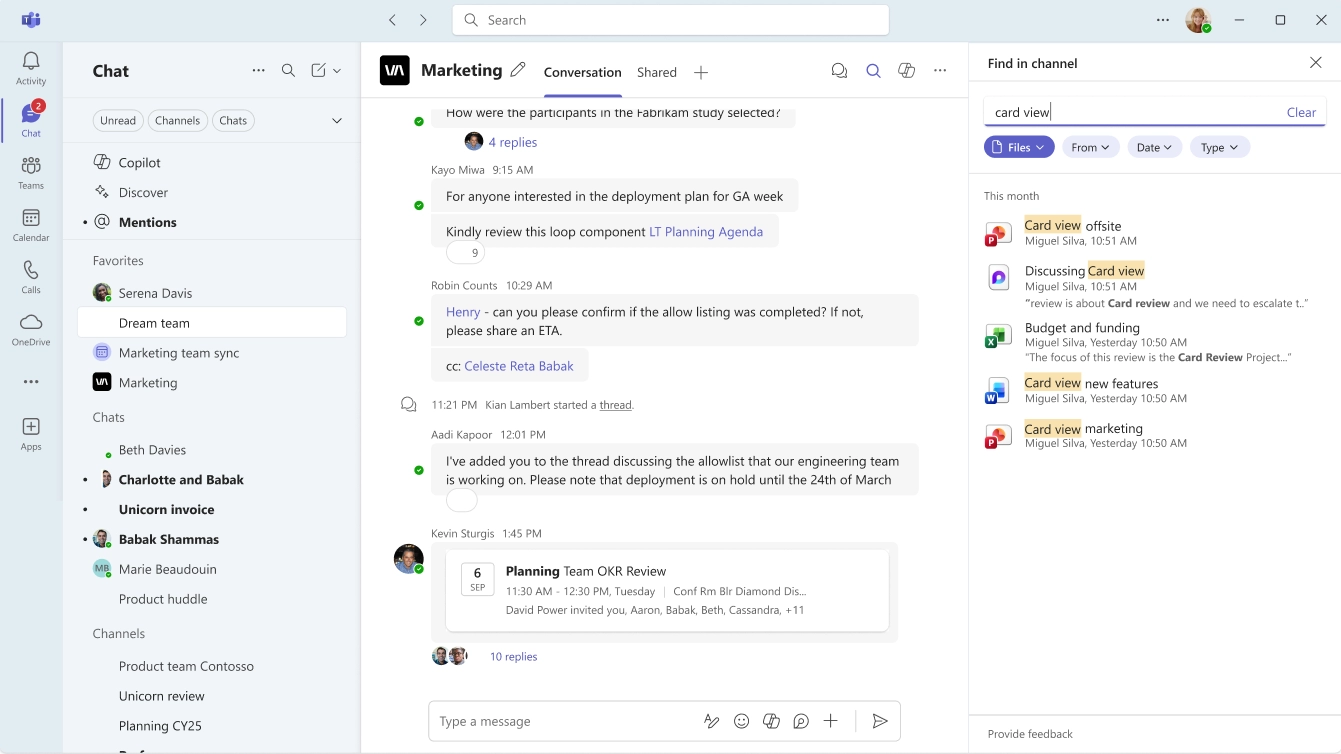
1. Microsoft Teams: Advanced file discovery and filters in Find in chat and channels

Microsoft Teams is enhancing file discovery in chats and channels with improved contextual search and additional filtering options. These updates help users locate shared files more quickly without needing to scroll through conversations or request files again.

How this affects your organization

What will happen:

  • Find in chat and channels now indexes all files uploaded to a channel, including files added outside of messages.
  • Users can filter search results by file type, sender, and date.
  • Typeahead suggestions help narrow results as users type.
  • Users can access the experience by pressing Ctrl+F on Windows, Cmd+F on Mac, or by selecting Find in chat.
  • The update helps users locate files more efficiently across Teams conversations and channels.

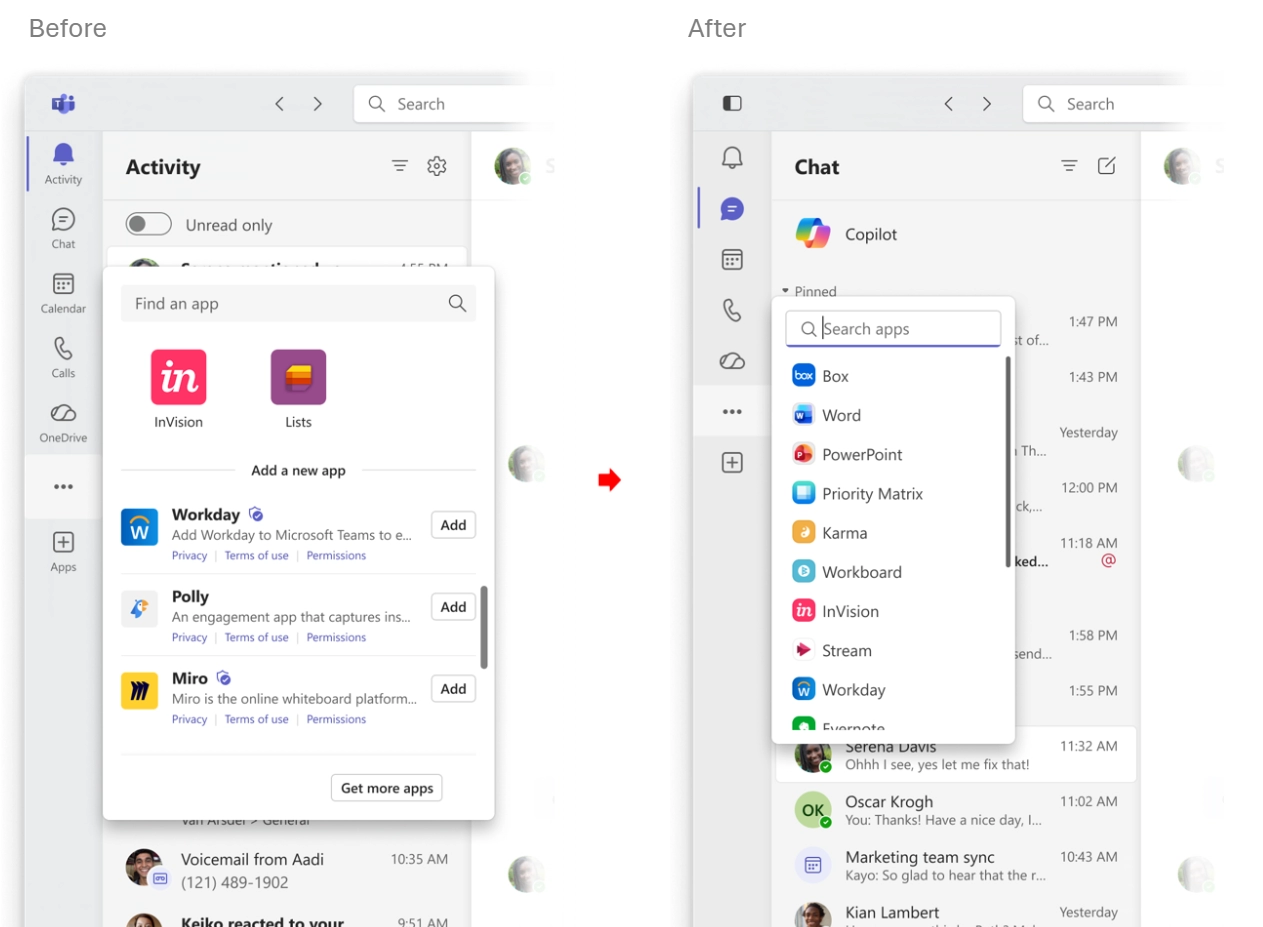
2. Microsoft Teams: List view for "View more apps"

Microsoft Teams is introducing a new list view for View more apps to make it easier for users to browse and find applications. The updated experience reduces visual clutter and improves app discovery.

How this affects your organization

What will happen:

  • The View more apps experience now includes a streamlined list view.
  • The list view reduces visual noise compared to the traditional tile-based layout.
  • Users can scan available apps more easily.
  • App discovery and access become faster and more efficient.

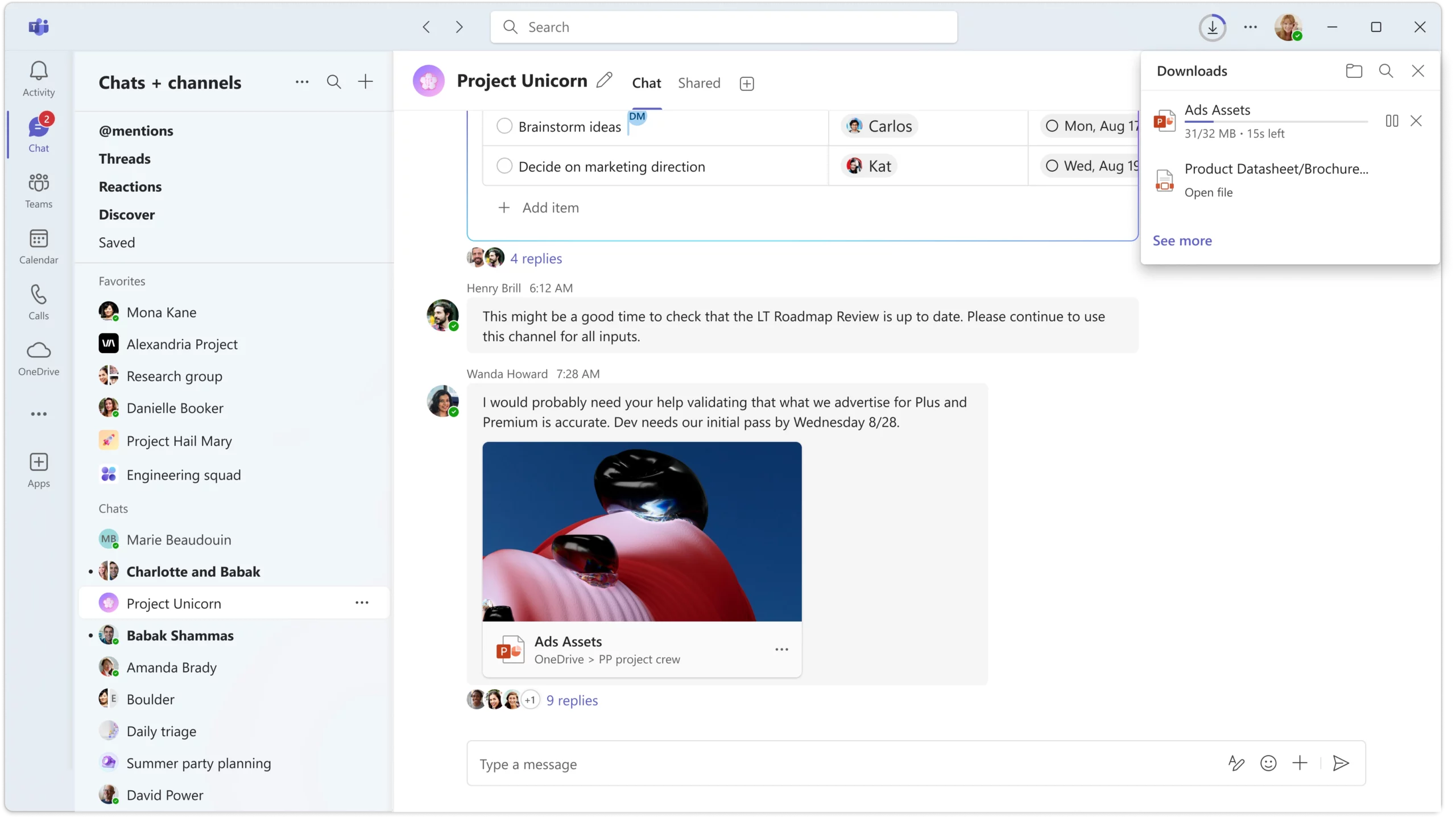
3. Microsoft Teams: Improved visibility and control for downloads

Microsoft Teams is enhancing the download experience with an updated download manager that makes it easier to track file downloads while continuing to work in chats and channels.

How this affects your organization

What will happen:

  • Users can open the download manager from the Teams title bar.
  • A keyboard shortcut is available to quickly access the download manager.
  • Users can monitor the status of file downloads without interrupting chat or channel activities.
  • Download tracking is more visible and accessible while users continue working in Teams conversations.

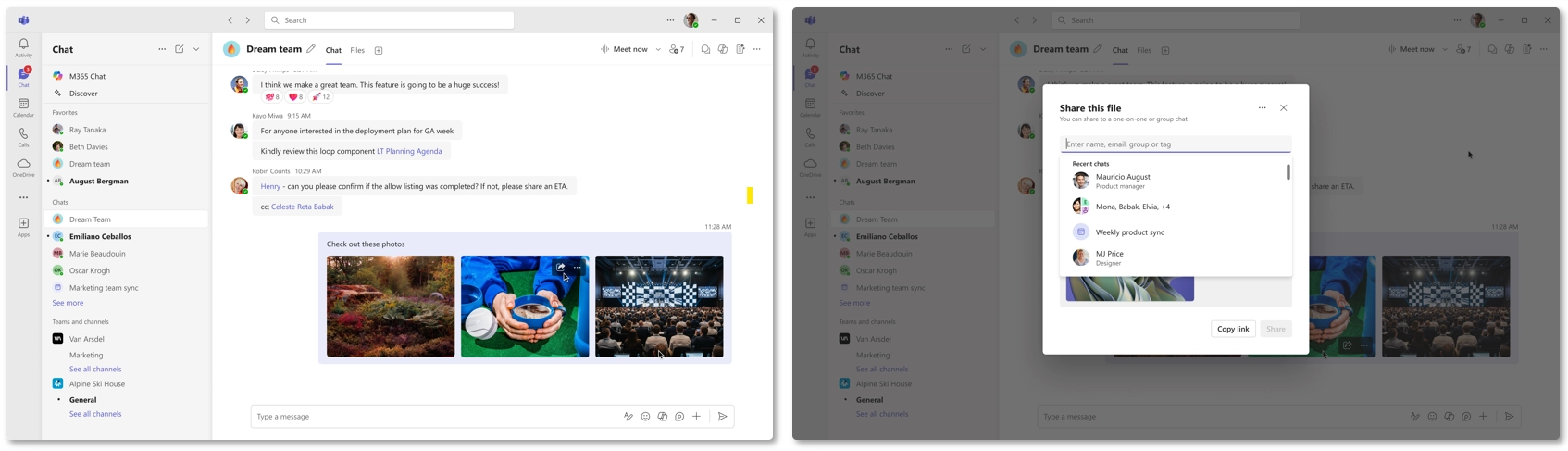
4. Microsoft Teams: Quick Share for images

Quick Share in Microsoft Teams makes it easier to share images across chats and channels. Users can quickly access sharing options from multiple locations in Teams and share image links while preserving existing permissions for supported files.

How this affects your organization

What will happen:

  • Users can share images from hover menus, right-click menus, overflow menus, and shared tabs.
  • Quick Share provides options to copy links or share images directly.
  • Images stored in OneDrive or SharePoint retain their existing permissions when shared.
  • Users who already have access to the image continue to use the same permissions.
  • Images pasted directly into a chat are stored separately and do not support permission-based sharing.
  • The update simplifies image sharing across Teams chats and channels.

5. Microsoft Teams: Smarter bot protection in meetings

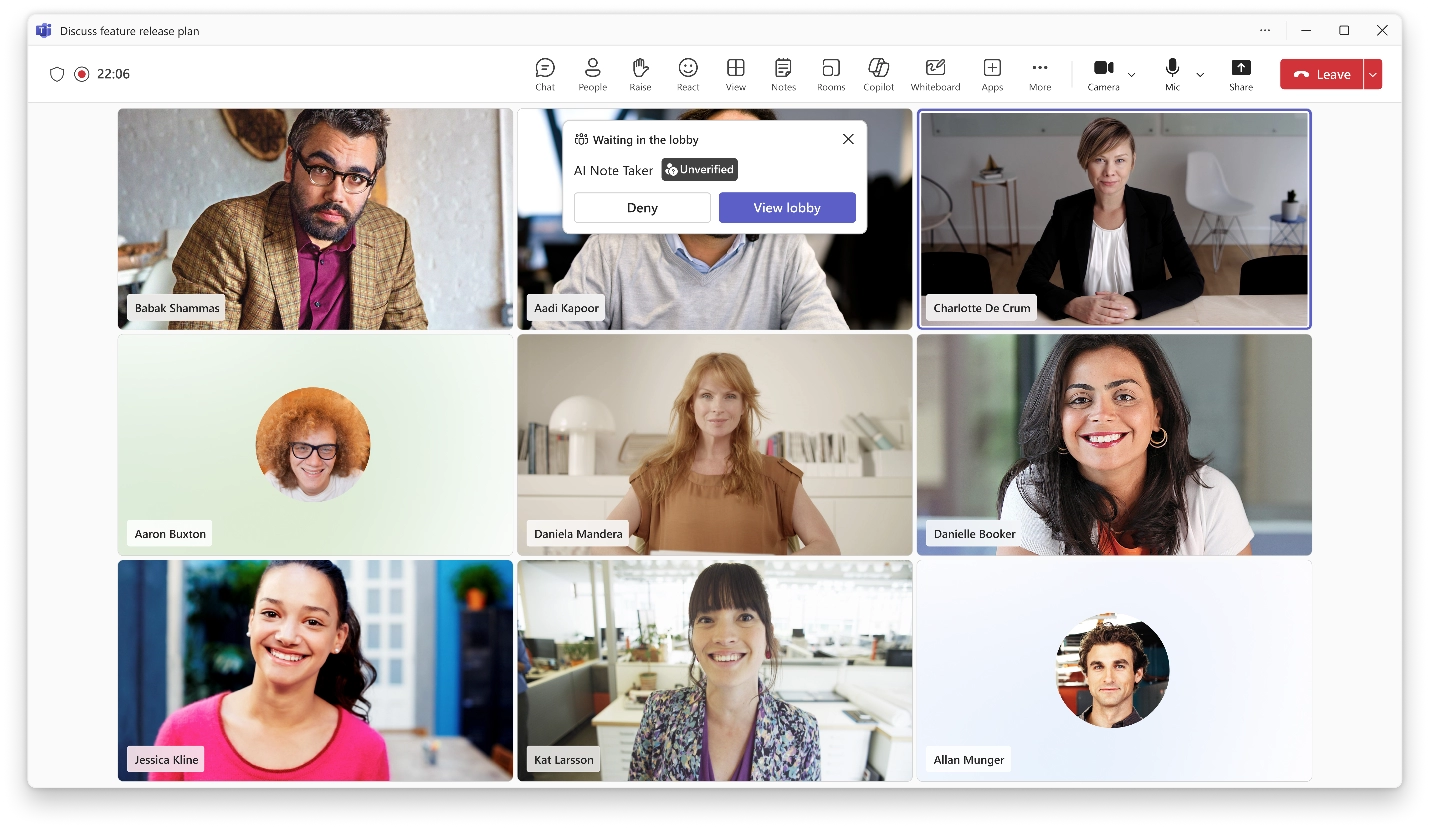
Microsoft Teams is introducing new controls to help organizations manage AI note-taking bots and other external bots in meetings. The update provides greater visibility and control over bot access to help reduce privacy and security risks.

How this affects your organization

What will happen:

  • A new Teams admin policy, Manage external bots and their access to meetings, is available.
  • Teams can identify bots that are likely to be external or automated participants.
  • Suspected bots are routed to the meeting lobby in a separate Suspected threats group.
  • Meeting organizers must explicitly approve these bots before they can join.
  • Confirmation prompts help organizers make informed decisions when admitting bots.
  • An upcoming registration process for trusted independent software vendors (ISVs) will provide a trusted path for approved bots.
  • Bot admission becomes a deliberate action rather than an accidental one.

6. Microsoft Teams: Branded reactions

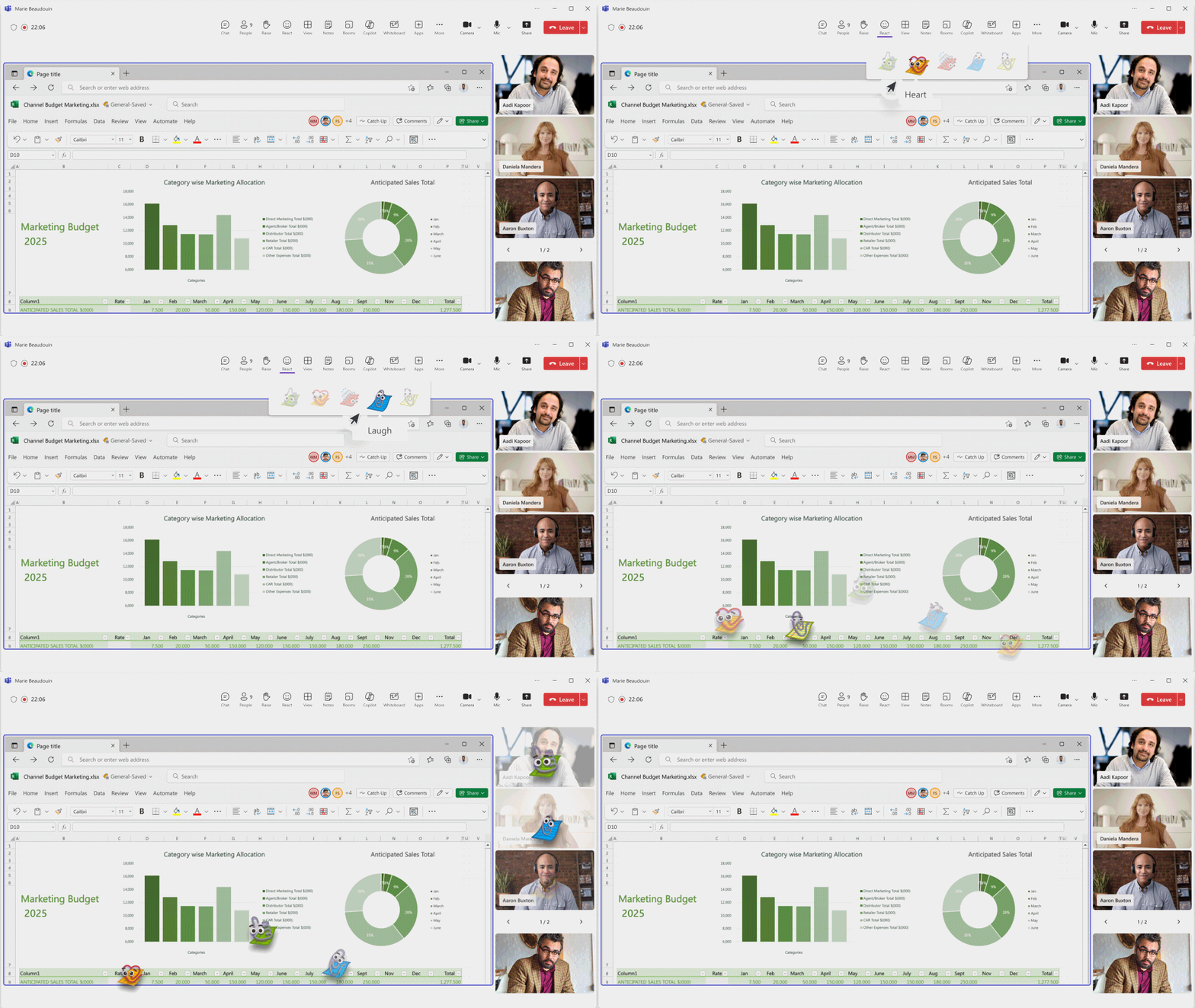
Microsoft Teams is introducing branded reactions, allowing organizations to customize meeting reactions with their own visual identity. This helps create more consistent and recognizable meeting experiences across the organization.

How this affects your organization

What will happen:

  • IT admins can upload custom reaction icons for use in Teams meetings.
  • Custom reactions can reflect organizational branding, event themes, or other approved visual elements.
  • Uploaded reaction icons become available to meeting participants.
  • Common meeting reactions, such as applause and celebrations, can be customized to match the organization's visual identity.
  • Organizations can create more consistent and branded meeting experiences.
Jasjit Chopra
Jasjit Chopra

CEO at Penthara Technologies

About the Author

Microsoft MVP LogoLinked-in

Jasjit Chopra is the CEO of Penthara Technologies and a Microsoft Most Valuable Professional (MVP) with over two decades of hands-on experience in Microsoft 365, SharePoint, and Security. He has led 100+ digital transformation projects across six countries, securing 50,000+ users, migrating 250+ TB of data, and automating processes that save organizations thousands of hours each year. A recognized leader at the crossroads of AI, security, and workplace modernization, Jasjit is passionate about simplifying complexity, mentoring technology professionals, and helping businesses build secure, intelligent, and future-ready digital environments.

Leave a Reply

Your email address will not be published. Required fields are marked *

More From This Category

What's new in Microsoft | May 2026 Updates

Explore the latest Microsoft 365 updates including Copilot enhancements, AI meeting recaps, Teams improvements, and new productivity features.

Read More
What's new in Microsoft | April 2026 Updates

Explore the latest Microsoft 365 updates including Copilot enhancements, AI meeting recaps, Teams improvements, and new productivity features.
Read More
Former Employee Recurring Meetings Still Showing? Here’s How to Remove Them

Learn how to remove recurring meetings from former employees in Microsoft 365 using Outlook, PowerShell, or eDiscovery - based on account status.

Read More
1 2 3 9
chevron-right